> ## Documentation Index
> Fetch the complete documentation index at: https://support.getskara.ai/llms.txt
> Use this file to discover all available pages before exploring further.
# Managing Users in Skara
A **User** is the one who manages records within the organization, whether their own or those shared by other *users*.
In addition to accessing the data, some of the users have to perform administrative functions for the smooth running of the account.
Topics Covered:
* [How to Add a User?](#how-to-add-a-user)
* [User Fields](#user-fields)
* [How to Edit the User details?](#how-to-edit-the-user-details)
* [How to Deactivate the User?](#how-to-deactivate-the-user)
### How to Add a User?
To create a User,
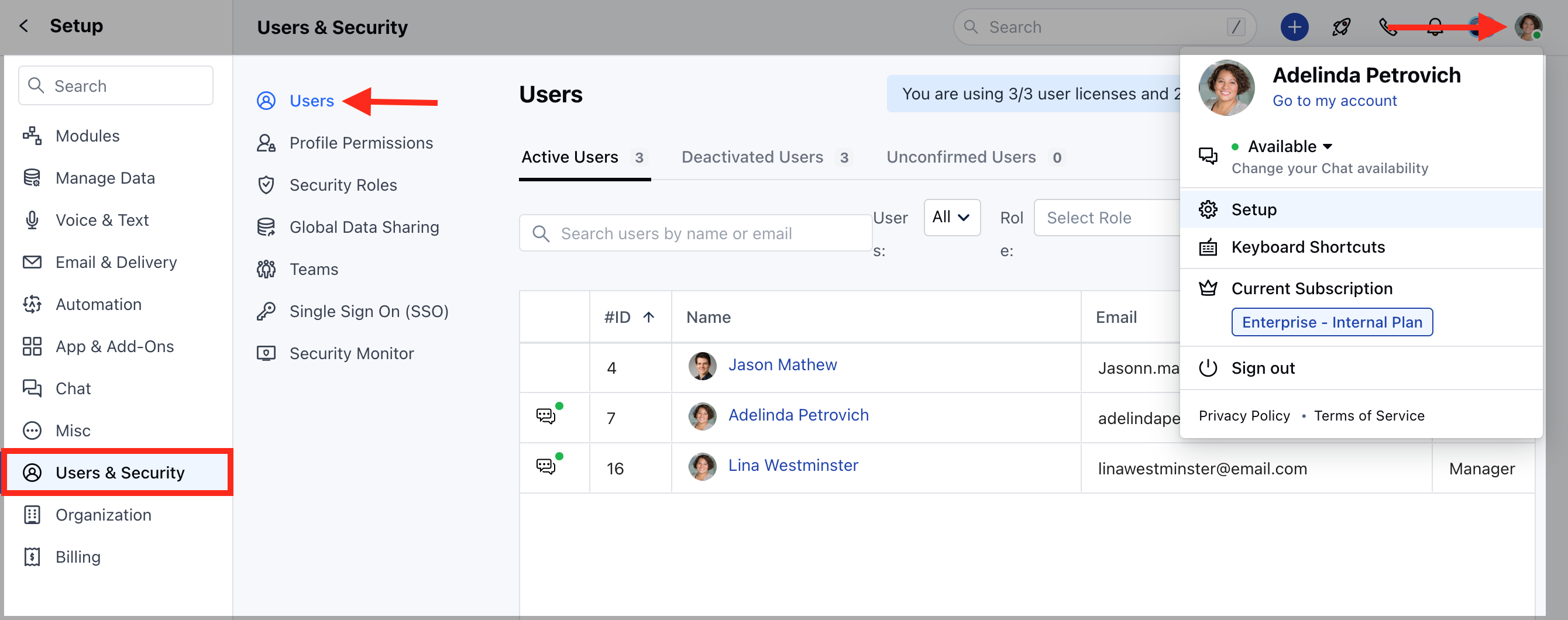
* Navigate to your **Profile Icon** on the top right corner
* Click on **Set-Up**
* Head over to the **Users & Security** category
* Select **Users**
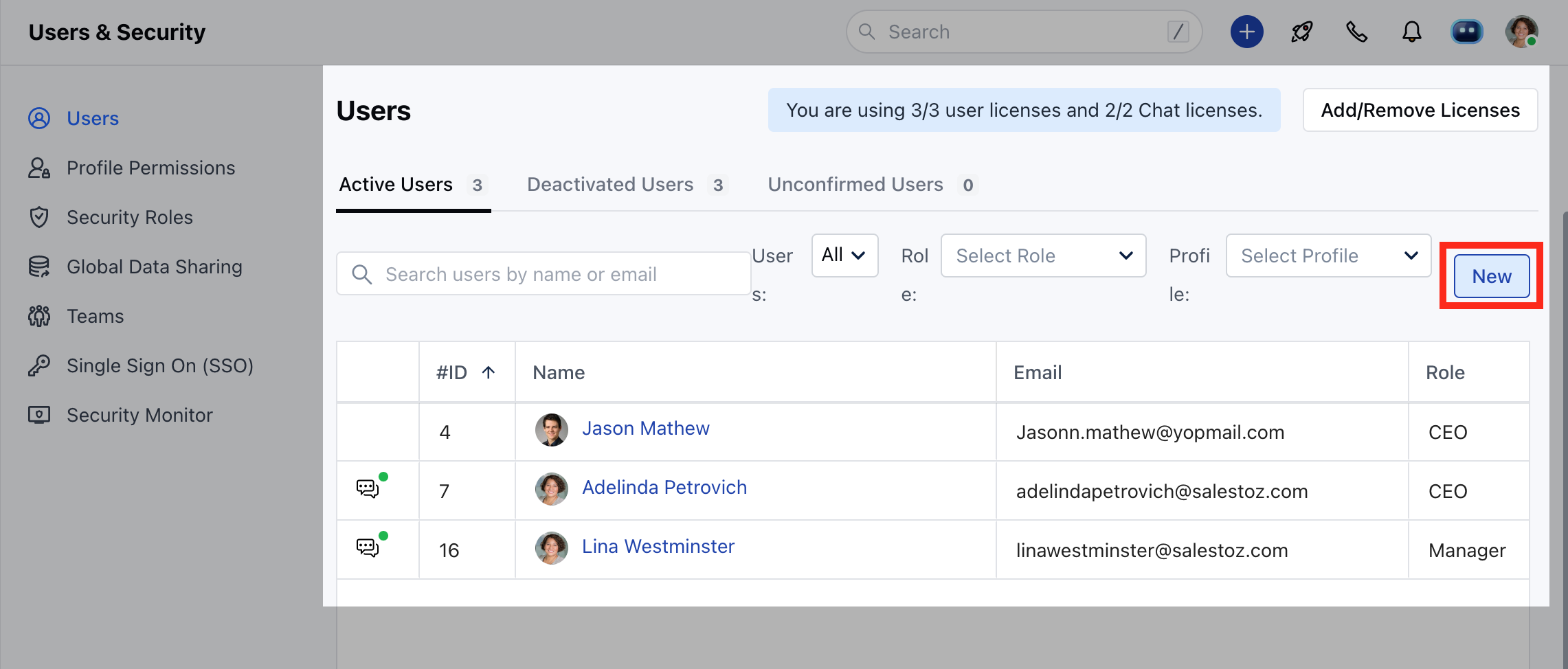
 * Click on **New**
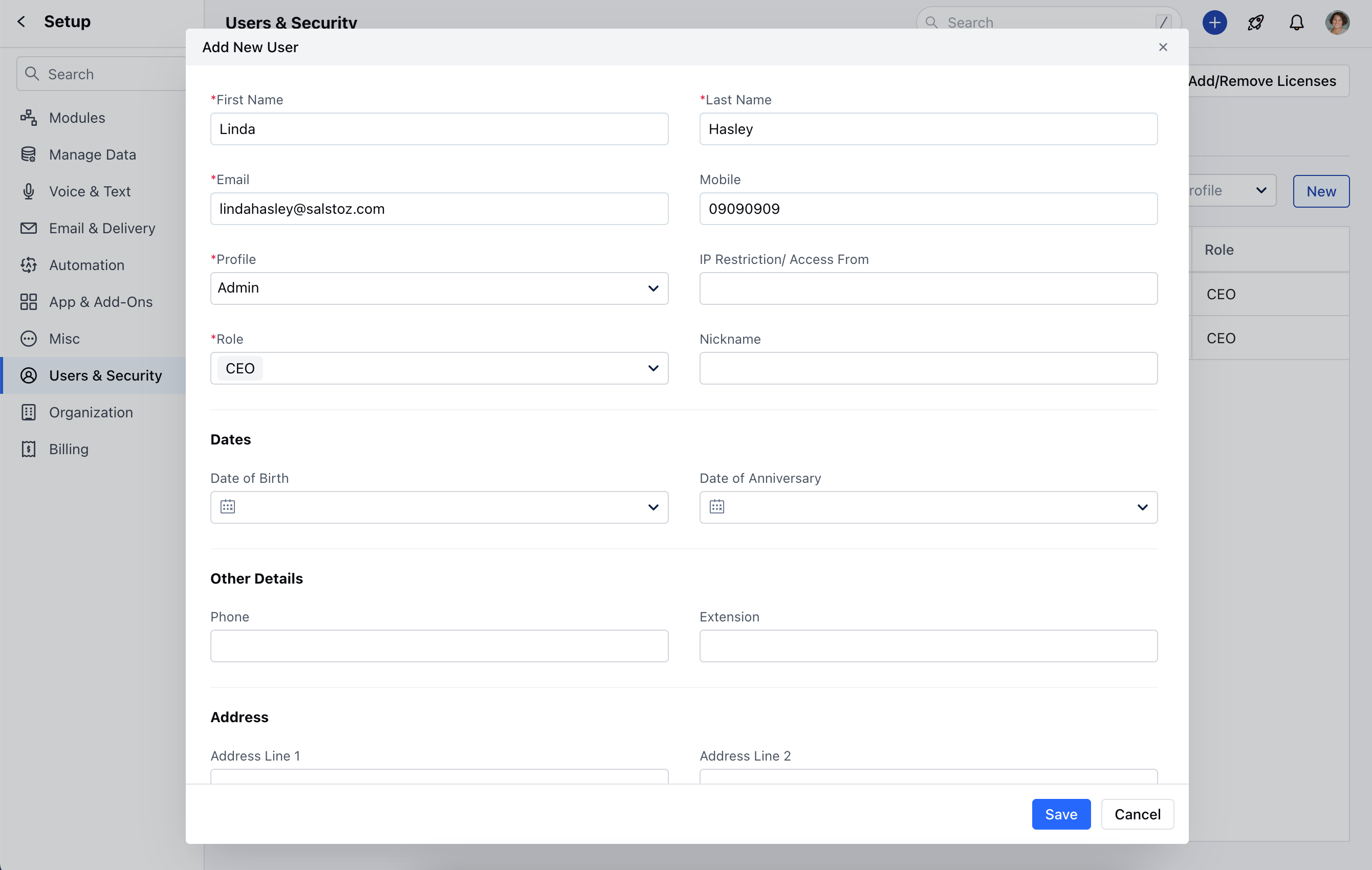
 * Add the User details and click on **Save**
#### **User Fields:**
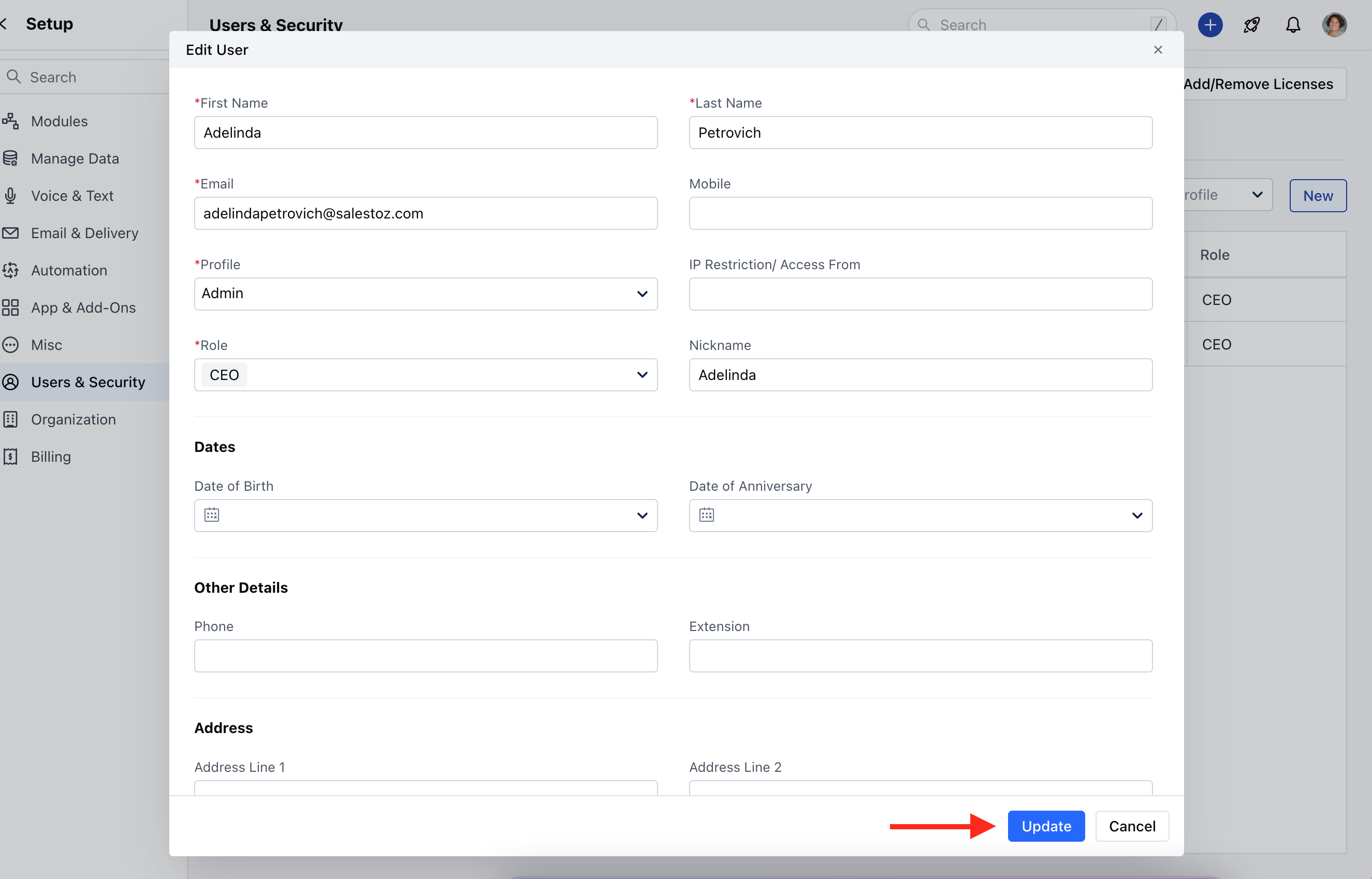
* **First Name (Required):** The user's first name
* **Last Name (Required):** The user's last name
* **Email (Required):** The user's work email address used for login and notifications
* **Mobile:** The user's mobile phone number
* **Profile (Required):** Determines the permission level or access control set for the user (e.g., "Admin").
* Role (Required): The functional role or designation in the organization (e.g., "CEO").
* **IP Restriction / Access From:** This field for restricting access to specific IP addresses.
* If kept **blank** or **\*** is specified then the users will be able to access it from anywhere.
* If a specific IP or a set of IPS separated by commas are mentioned then users will be able to access the system from those specific IP addresses only.
* **Date fields:**
* **Date of Birth:** The user's birthday
* **Date of Anniversary:** The user's anniversary (if applicable)
* **Other fields:**
* **Phone:** Additional phone field
* **Extension:** Phone extension number (if applicable)
* **Address fields**: The users address, could be residence or an alternate address that you would like to capture in the system.
* Address Line 1, Address Line 2, Area, City, State, Country, Zip Code.
* **Deal Capacity:** The number of deals that can be assigned to this user.
* **Email Signature:** User's email signature. Useful to the admin while creating the user to maintain branding across all email communications.
* Add the User details and click on **Save**
#### **User Fields:**
* **First Name (Required):** The user's first name
* **Last Name (Required):** The user's last name
* **Email (Required):** The user's work email address used for login and notifications
* **Mobile:** The user's mobile phone number
* **Profile (Required):** Determines the permission level or access control set for the user (e.g., "Admin").
* Role (Required): The functional role or designation in the organization (e.g., "CEO").
* **IP Restriction / Access From:** This field for restricting access to specific IP addresses.
* If kept **blank** or **\*** is specified then the users will be able to access it from anywhere.
* If a specific IP or a set of IPS separated by commas are mentioned then users will be able to access the system from those specific IP addresses only.
* **Date fields:**
* **Date of Birth:** The user's birthday
* **Date of Anniversary:** The user's anniversary (if applicable)
* **Other fields:**
* **Phone:** Additional phone field
* **Extension:** Phone extension number (if applicable)
* **Address fields**: The users address, could be residence or an alternate address that you would like to capture in the system.
* Address Line 1, Address Line 2, Area, City, State, Country, Zip Code.
* **Deal Capacity:** The number of deals that can be assigned to this user.
* **Email Signature:** User's email signature. Useful to the admin while creating the user to maintain branding across all email communications.
 **Note:** You can add the user depending on the number of user licenses as per the purchased plans.
* [Click here to learn more](https://support.salesmate.io/hc/en-us/articles/115000325745-Increasing-Decreasing-Users)
### How to Edit the User Details?
To Edit the details,
* Navigate to your **Profile Icon** on the top right corner
* Click on **Set-Up**
* Head over to the **Users & Security** category
* Select**Users**
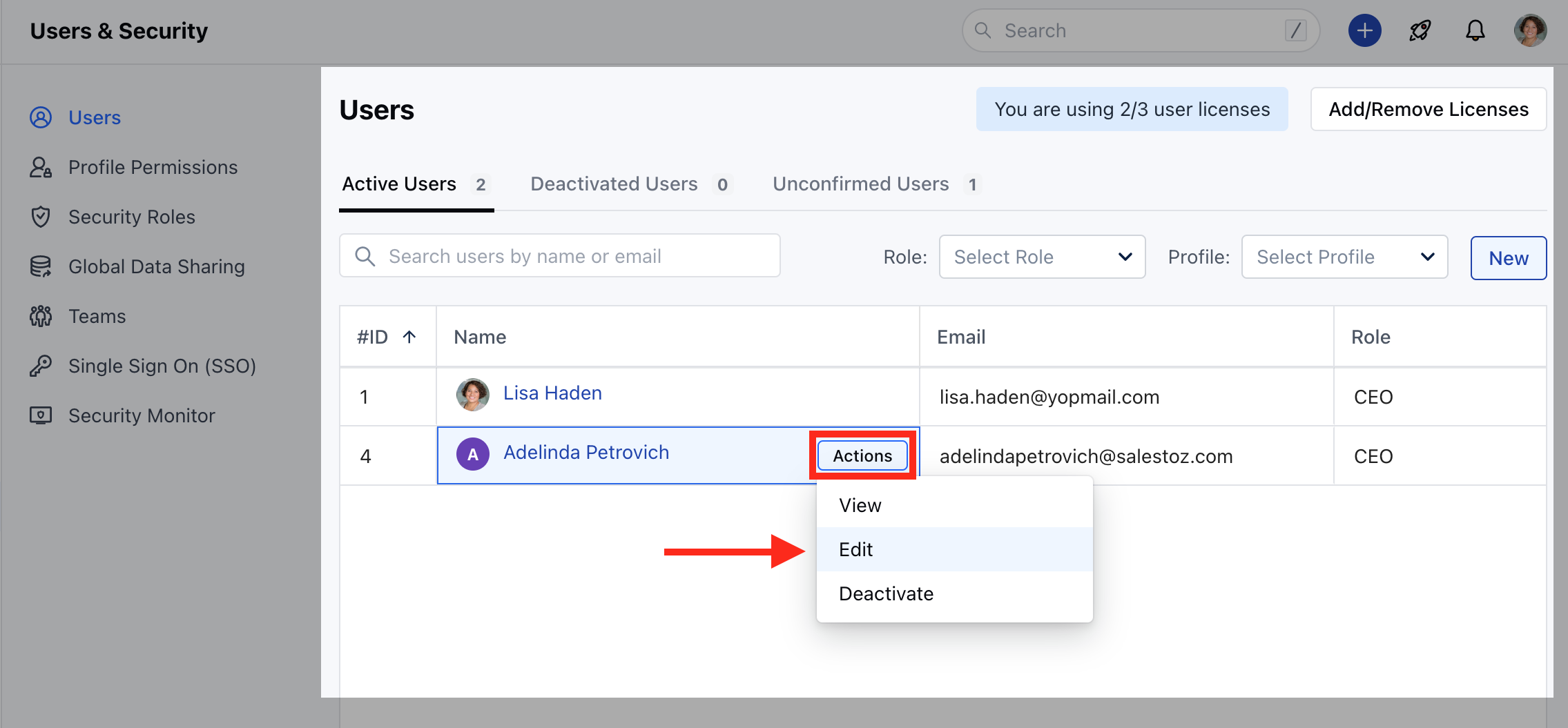
* Hover over to the **User Name,** **Actions** button will appear next to the name.
* Click on the **Actions** Button and select **Edit**
**Note:** You can add the user depending on the number of user licenses as per the purchased plans.
* [Click here to learn more](https://support.salesmate.io/hc/en-us/articles/115000325745-Increasing-Decreasing-Users)
### How to Edit the User Details?
To Edit the details,
* Navigate to your **Profile Icon** on the top right corner
* Click on **Set-Up**
* Head over to the **Users & Security** category
* Select**Users**
* Hover over to the **User Name,** **Actions** button will appear next to the name.
* Click on the **Actions** Button and select **Edit**
 * Here you can Edit any details and click on Update.
 ### How to Deactivate the User?
To Deactivate the User,
* Navigate to your **Profile Icon** on the top right corner
* Click on **Set-Up**
* Head over to the **Users & Security** category
* Select**Users**
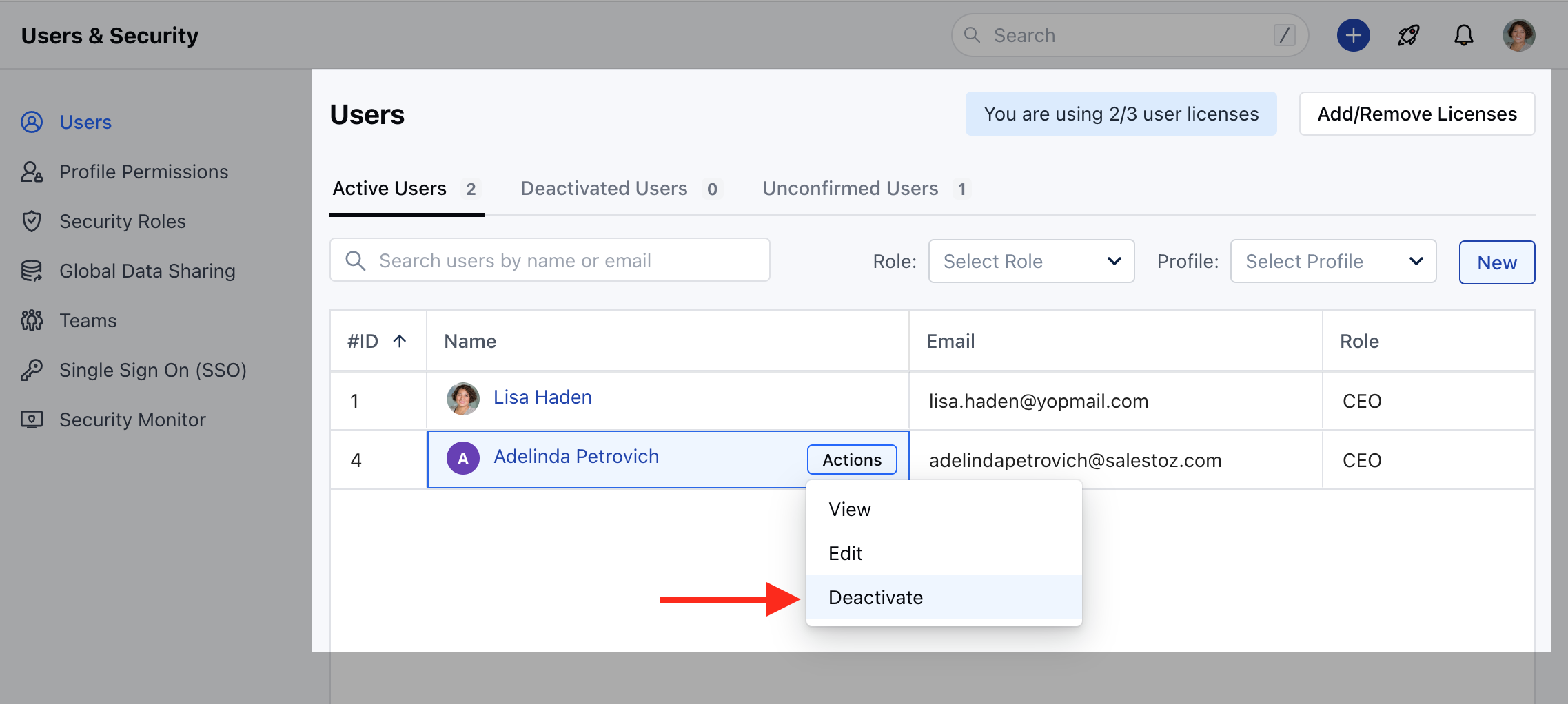
* Click on **the Actions** button next to the **User Name**.
* Select **Deactivate**
### How to Deactivate the User?
To Deactivate the User,
* Navigate to your **Profile Icon** on the top right corner
* Click on **Set-Up**
* Head over to the **Users & Security** category
* Select**Users**
* Click on **the Actions** button next to the **User Name**.
* Select **Deactivate**
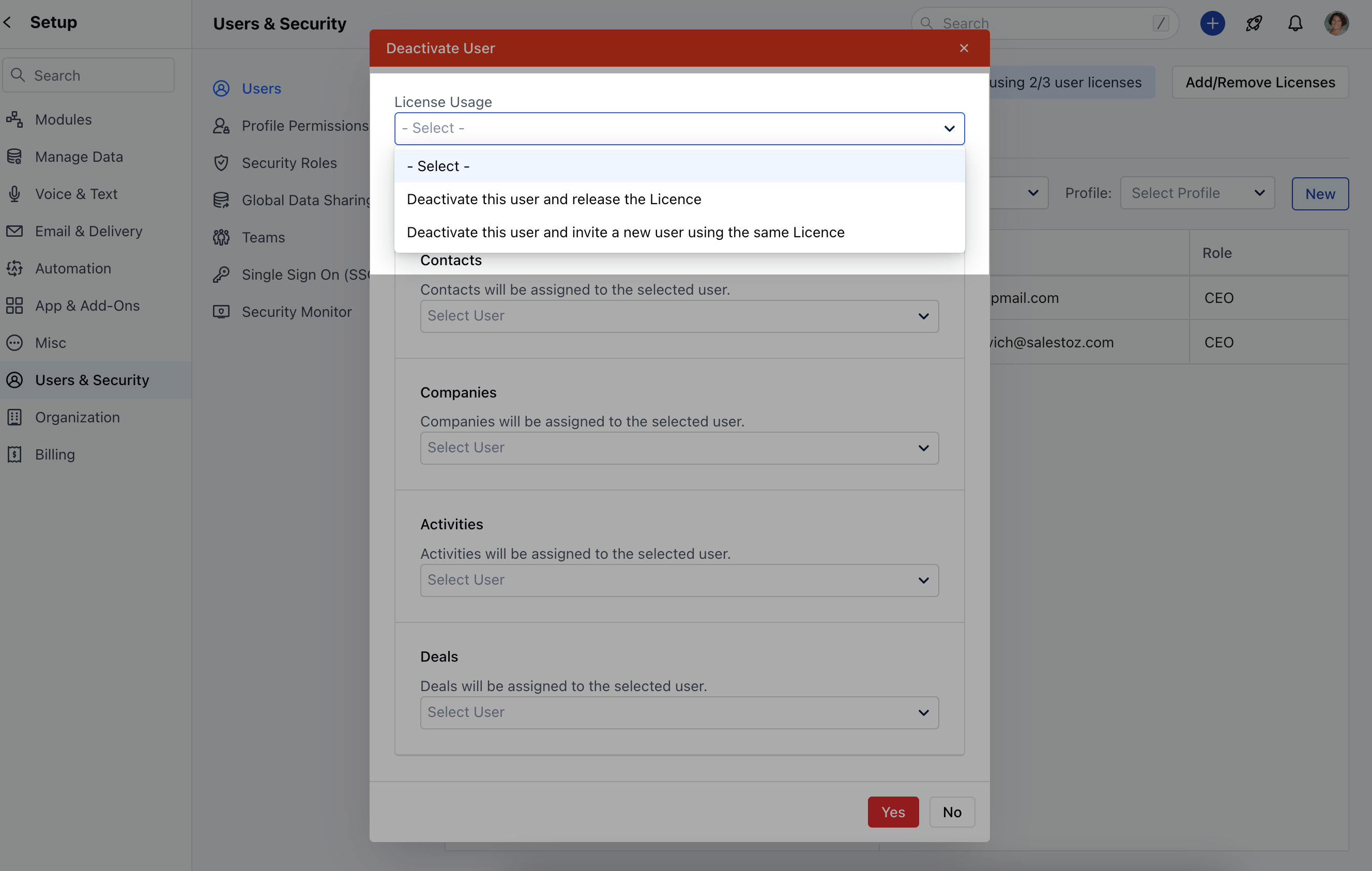
 * The User deactivation can be done with two options,
* **Deactivate this User and release the license**
* **Deactivate this User and invite a new user using the same license**
* The User deactivation can be done with two options,
* **Deactivate this User and release the license**
* **Deactivate this User and invite a new user using the same license**
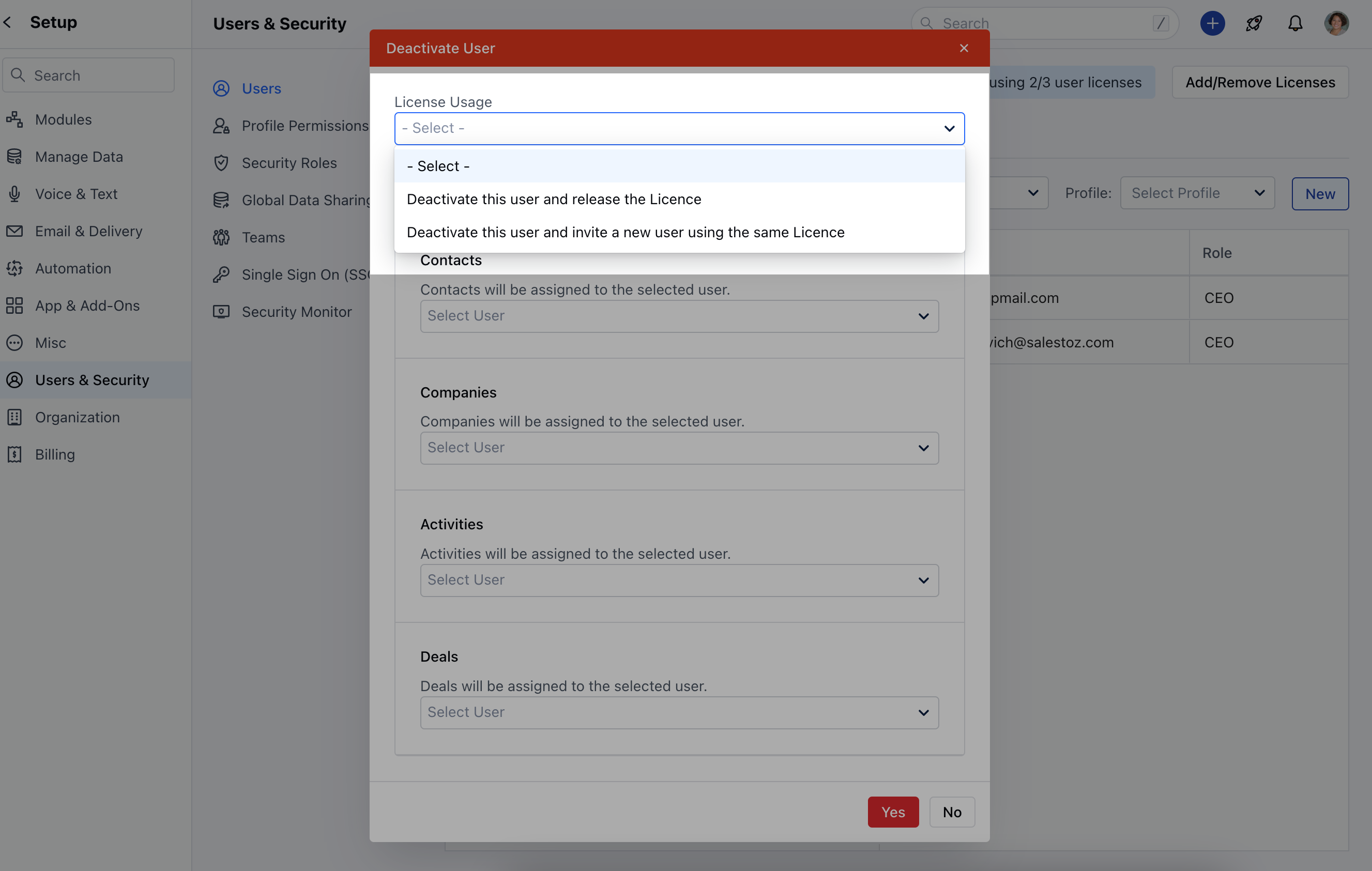 * You can also assign **Contact, Company, Activities, or Deal** records to any other Users.
* Click on **Yes** to confirm the **User Deactivation**.
* You can also assign **Contact, Company, Activities, or Deal** records to any other Users.
* Click on **Yes** to confirm the **User Deactivation**.