> ## Documentation Index
> Fetch the complete documentation index at: https://support.getskara.ai/llms.txt
> Use this file to discover all available pages before exploring further.
# How to Create Validation Rule
A **Validation Rule** ensures data accuracy and consistency by restricting the type of data users can enter into a specific field. It helps maintain accuracy by enforcing specific criteria before a record is saved or updated. Validation rules prevent errors, standardize data input, and improve overall database quality. They can be applied to various fields to control formats, enforce mandatory values, or restrict certain inputs based on business logic.
* **Important:** You will require “Manage Modules” permission to access these settings.
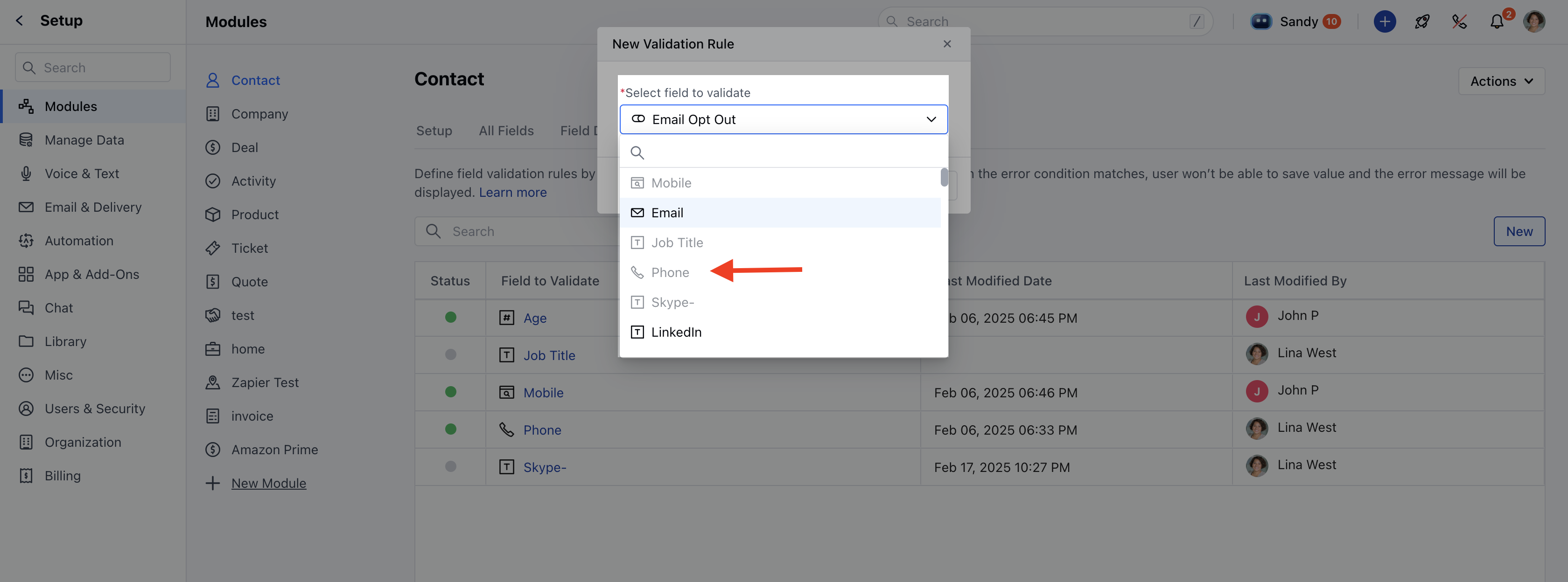
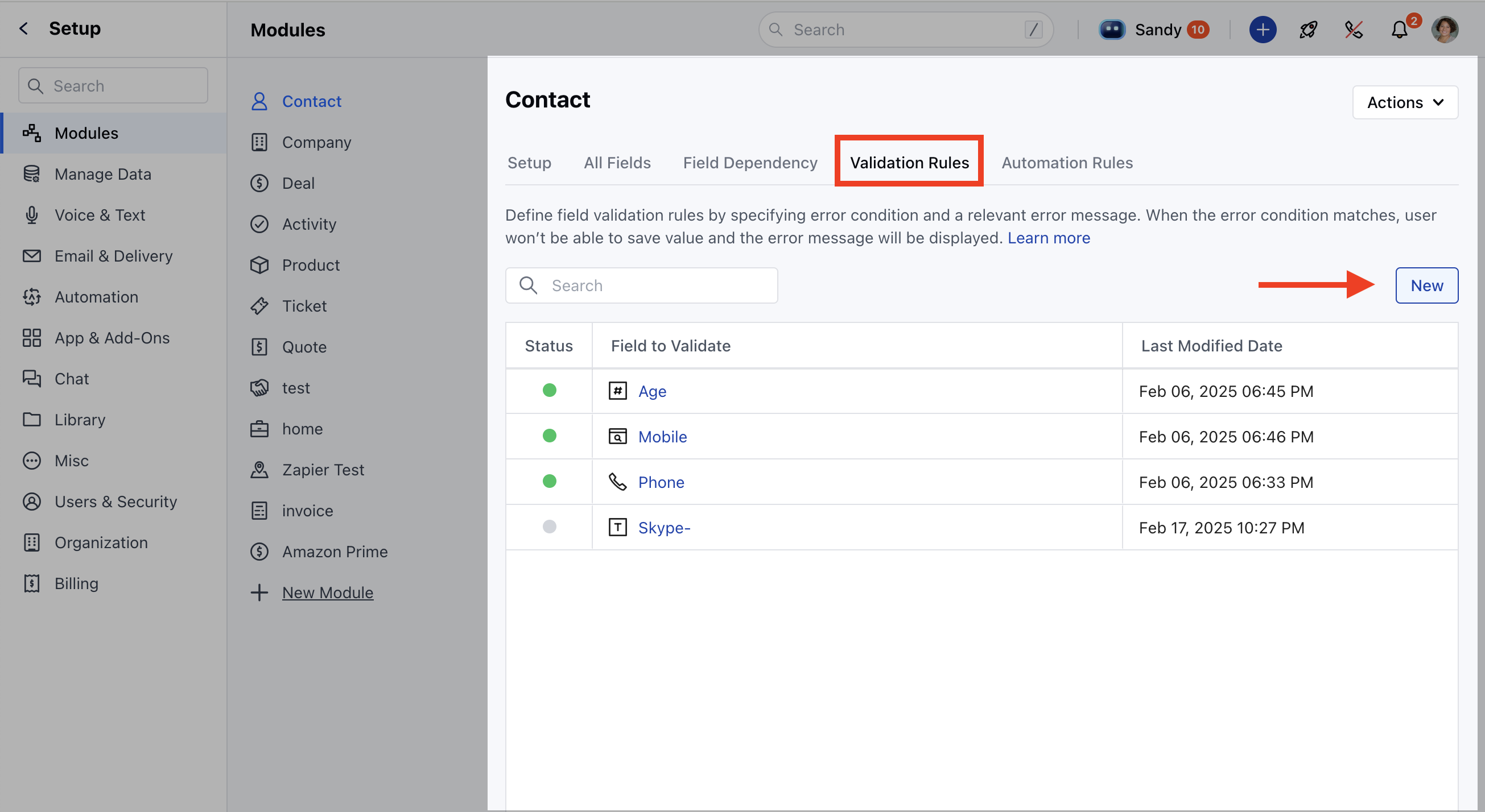
* **Steps to Create a Validation Rule** Navigate to the **Profile Icon** at the top right corner.Click on **Setup**. Go to the **Modules** section.Select the Module on which you wish to create a Validation RuleHere, click on the **Validation Rules** To create a validation rule, click on the **"New Rule"** button to begin the setup process.
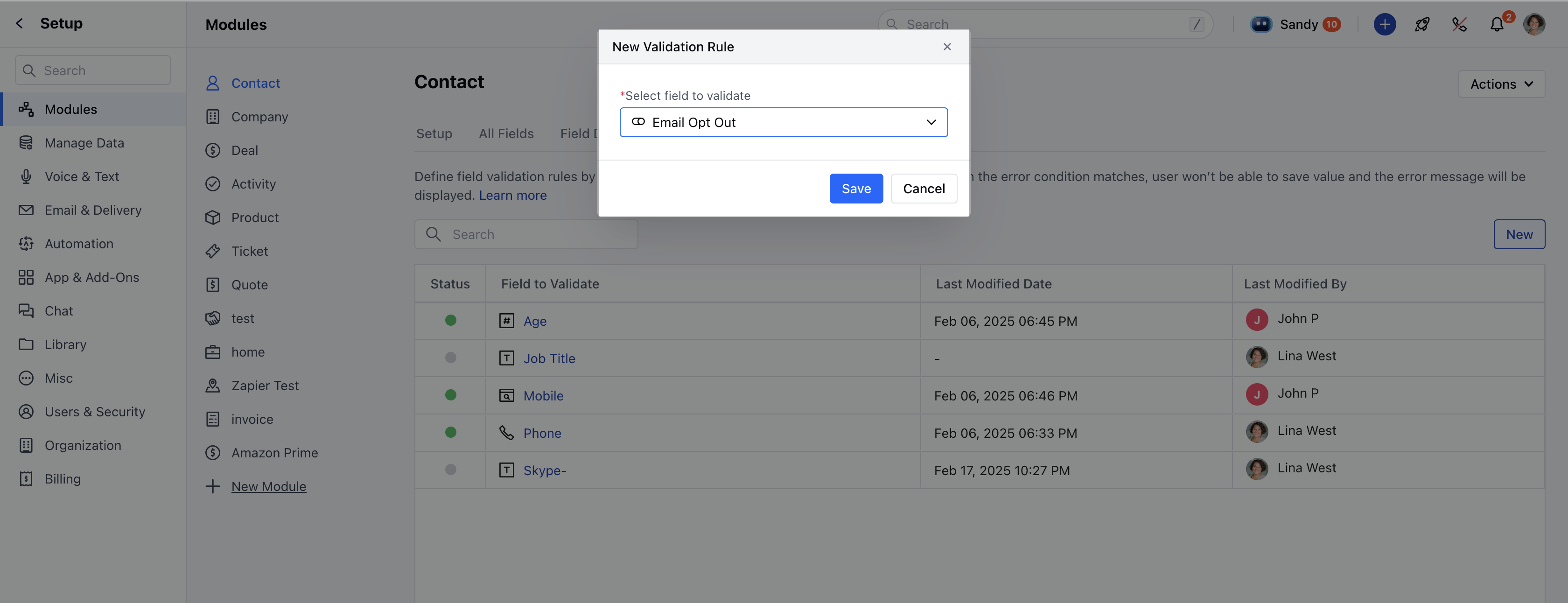
 Next, select the field where you want to apply the validation rule and click **Save** to create the rule.
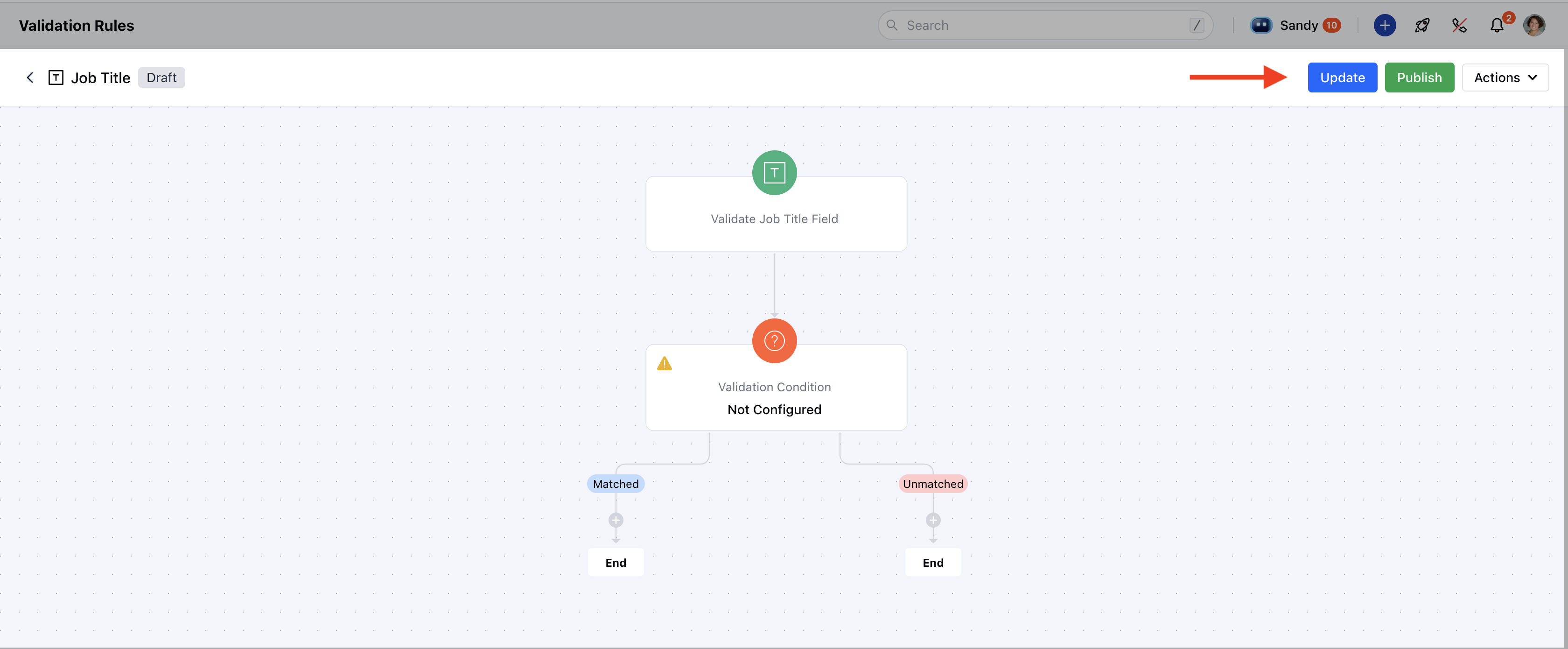
 Once saved, you will be directed to a canvas screen similar to flows, where you can modify and \*\*
[configure the validation rule](https://support.salesmate.io/hc/en-us/articles/42923385309209-How-to-Configure-Validation-Rule)
\*\* as needed.Here, add the
[**Condition**](https://support.salesmate.io/hc/en-us/articles/43049567250969)
and
[**Action**](https://support.salesmate.io/hc/en-us/articles/43049610111385)
as per your requirement.After making changes, click **Update** to save it in draft mode, and once finalized, click **Publish** to activate the rule.
Once saved, you will be directed to a canvas screen similar to flows, where you can modify and \*\*
[configure the validation rule](https://support.salesmate.io/hc/en-us/articles/42923385309209-How-to-Configure-Validation-Rule)
\*\* as needed.Here, add the
[**Condition**](https://support.salesmate.io/hc/en-us/articles/43049567250969)
and
[**Action**](https://support.salesmate.io/hc/en-us/articles/43049610111385)
as per your requirement.After making changes, click **Update** to save it in draft mode, and once finalized, click **Publish** to activate the rule.
 Please note that only one validation rule can be applied per field. If a rule already exists, that field will be disabled or greyed outYou can perform various actions on a validation rule, such as \*\*Edit, Unpublish,\*\*or **Delete** as required.