> ## Documentation Index
> Fetch the complete documentation index at: https://support.getskara.ai/llms.txt
> Use this file to discover all available pages before exploring further.
# How to Change the Flow Trigger
When a Flow is created and remains in draft status, Salesmate provides the flexibility to modify the trigger if needed. This allows you to adjust the starting conditions of the flow to better align with changing requirements, without needing to create a new flow entirely.
### How to Change the Flow Trigger
To change the Flow Trigger,
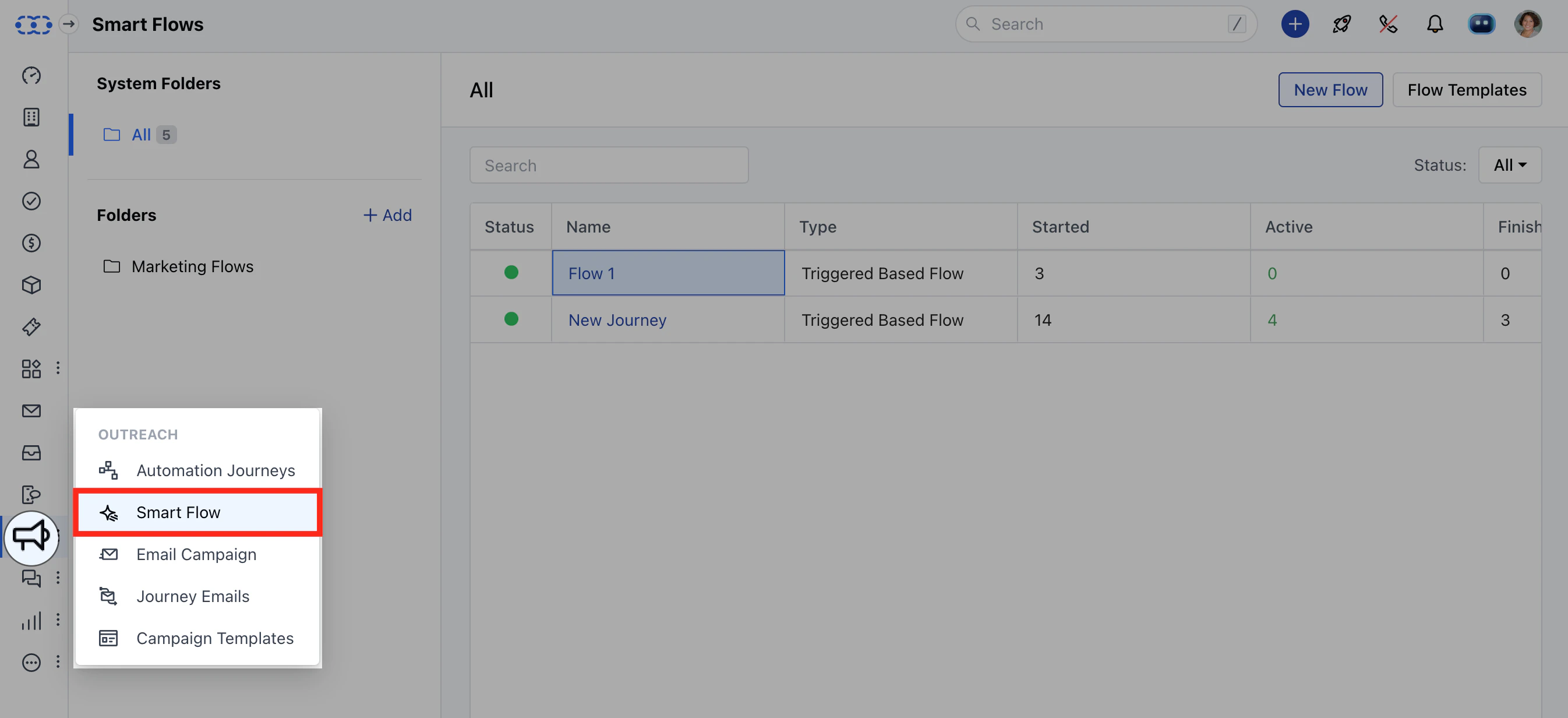
Access **Smart Flows** feature from left menu bar.
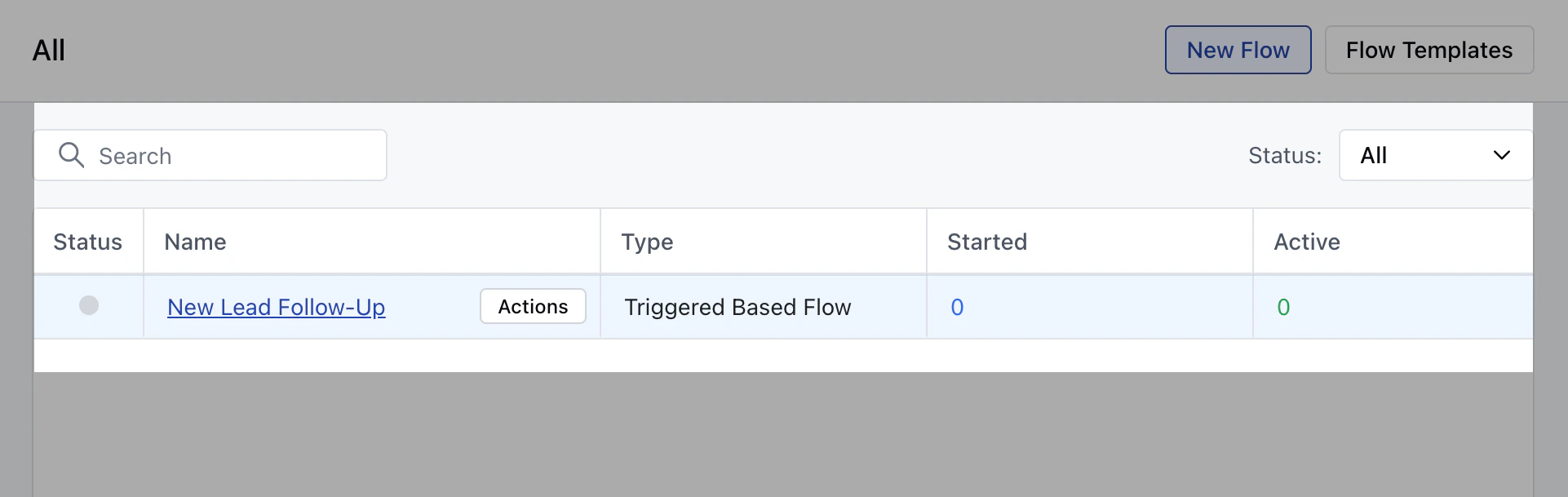
 Select the desired Flow where you wish to change the Trigger.
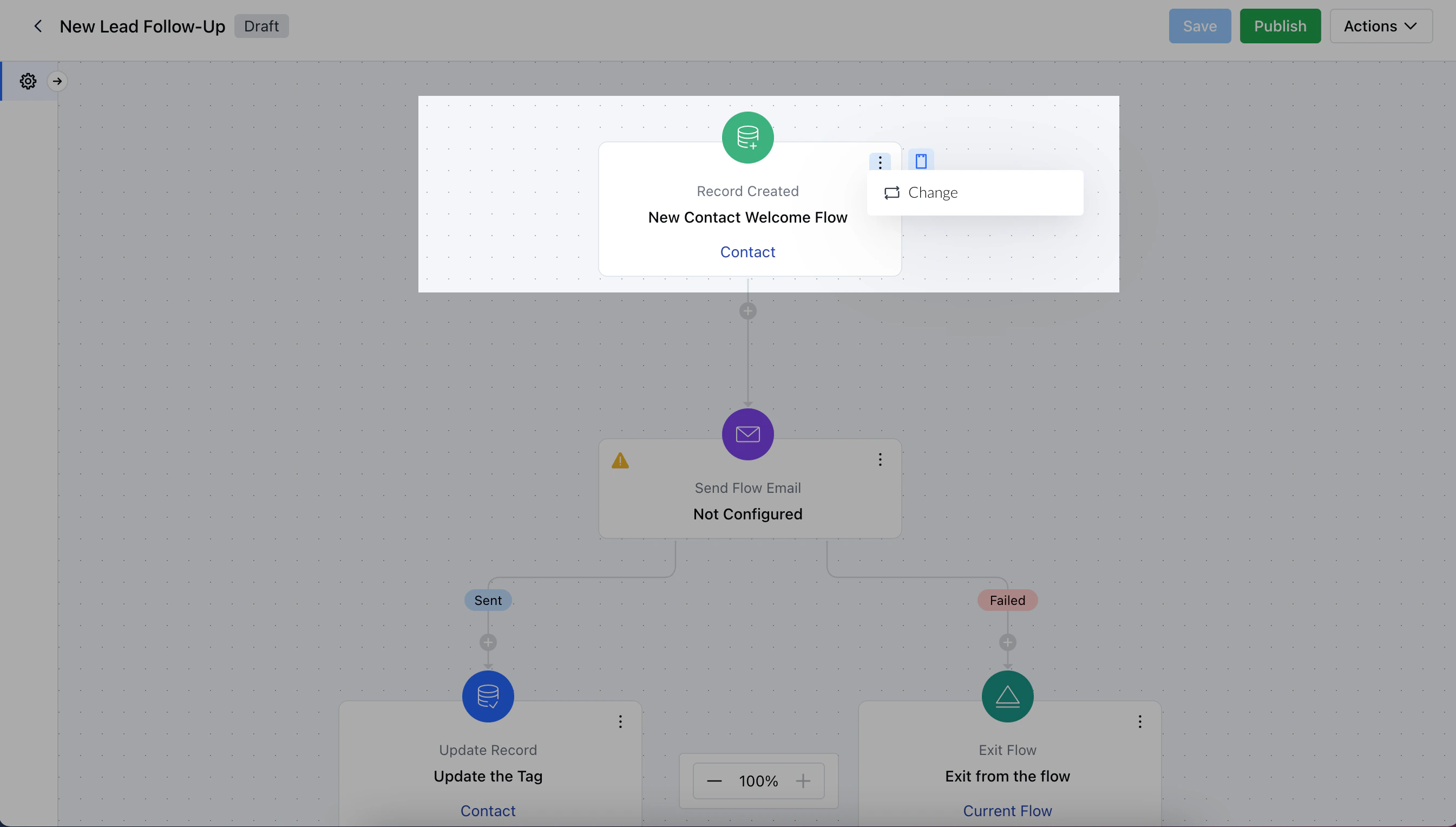
 Hover over the trigger, click on the three dots, and select Change.
 A popup will show a list of available Triggers, select the new trigger from the list
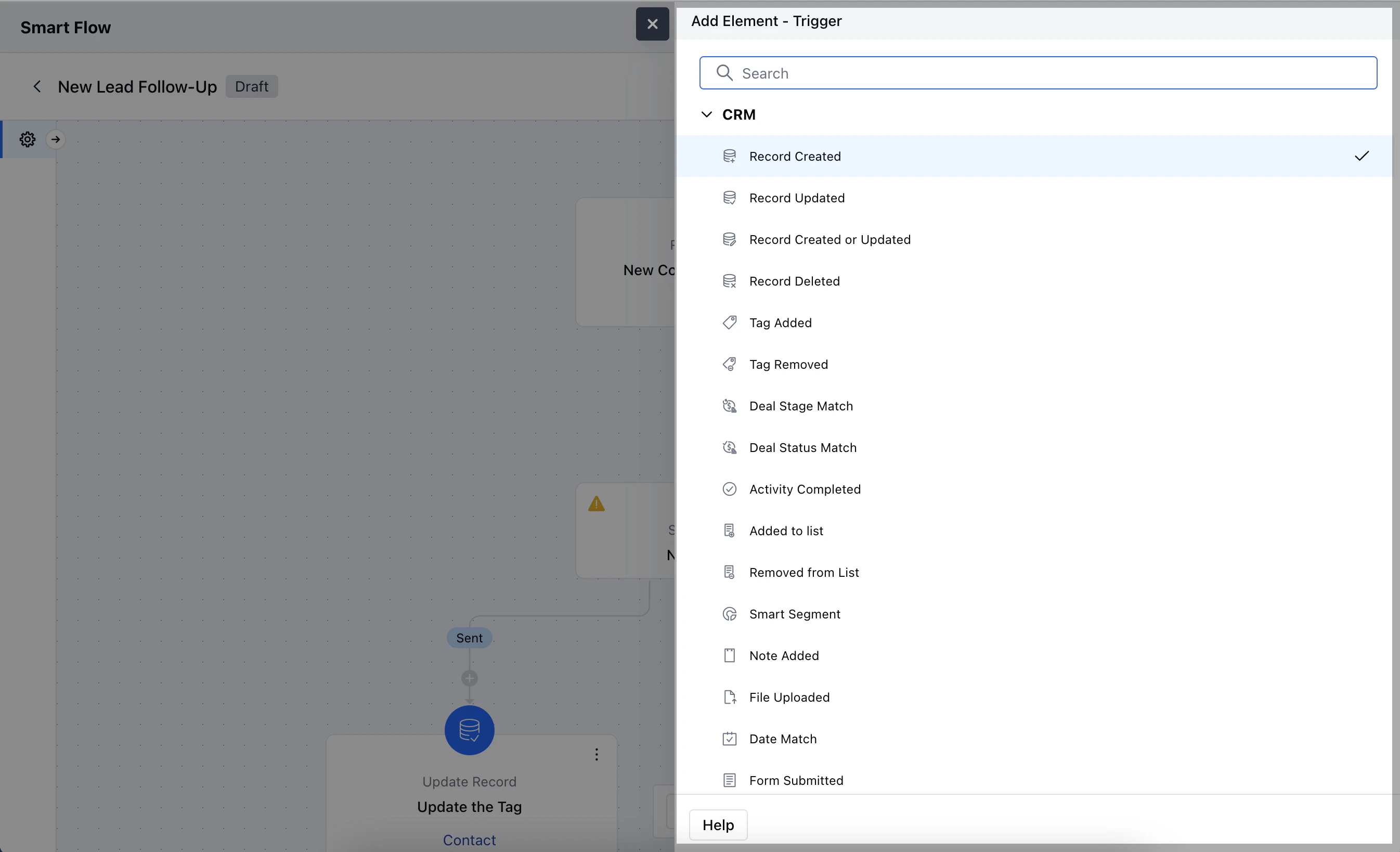 Once done, click on **Save** to save the changes