> ## Documentation Index
> Fetch the complete documentation index at: https://support.getskara.ai/llms.txt
> Use this file to discover all available pages before exploring further.
# How to Create New Smart Flow
Create Automated Flows for your operations to reduce manual tasks, and boost productivity with Salesmate Automation’s no-code tools.
**Note:** A User with Manage Flow rights can perform this operation
### How to Create New Smart Flow
To Create a New Smart Flow,
Access **Smart Flows** feature from left menu bar.
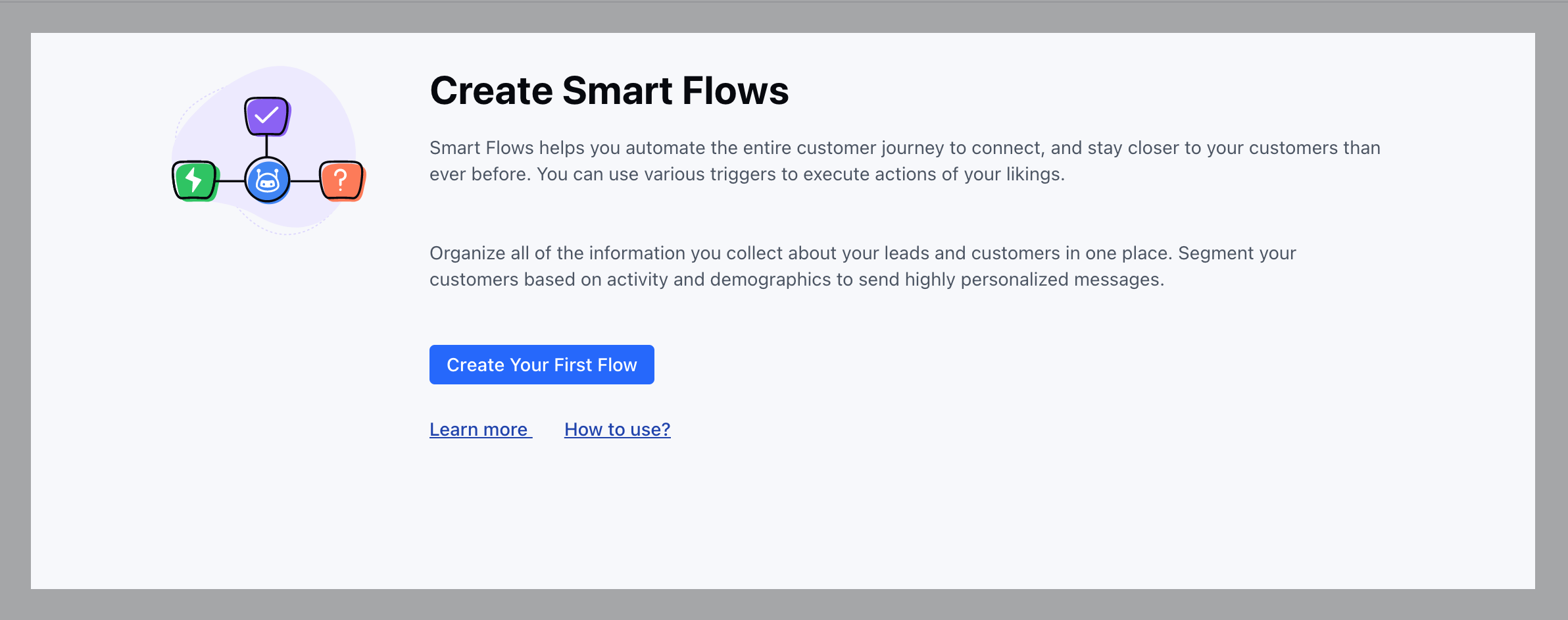
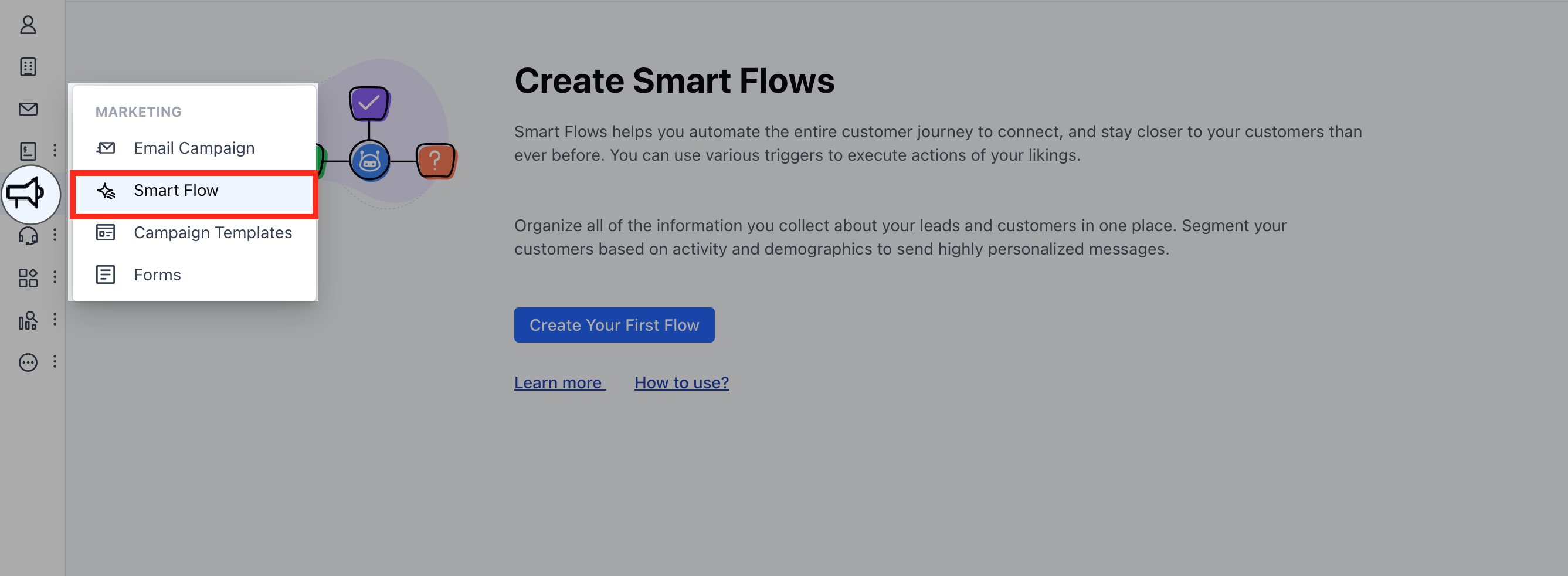 Click on the **Create Your First Flow** to creating a new Smart Flow.
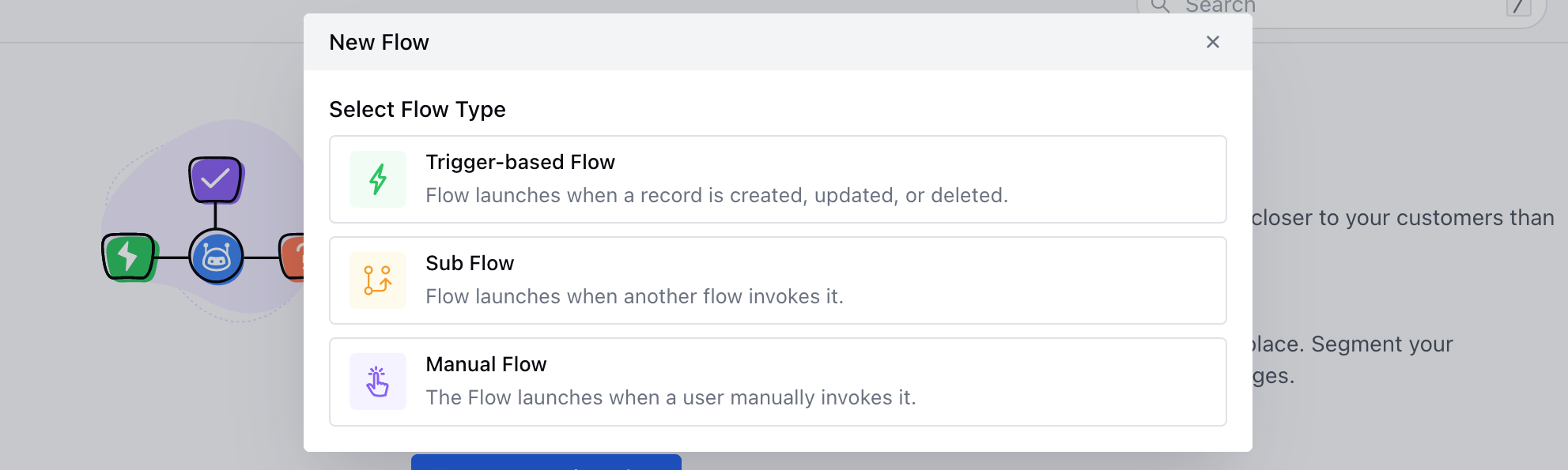
 Select the **Flow Type** from the following options,- **Trigger-Based Flow:** The flow activates automatically when a record is created, updated, or deleted.
* **Sub Flow:** The flow will be initiated when it is invoked by another flow.
* **Manual Flow:** The flow is initiated manually by a user.
Select the **Flow Type** from the following options,- **Trigger-Based Flow:** The flow activates automatically when a record is created, updated, or deleted.
* **Sub Flow:** The flow will be initiated when it is invoked by another flow.
* **Manual Flow:** The flow is initiated manually by a user.
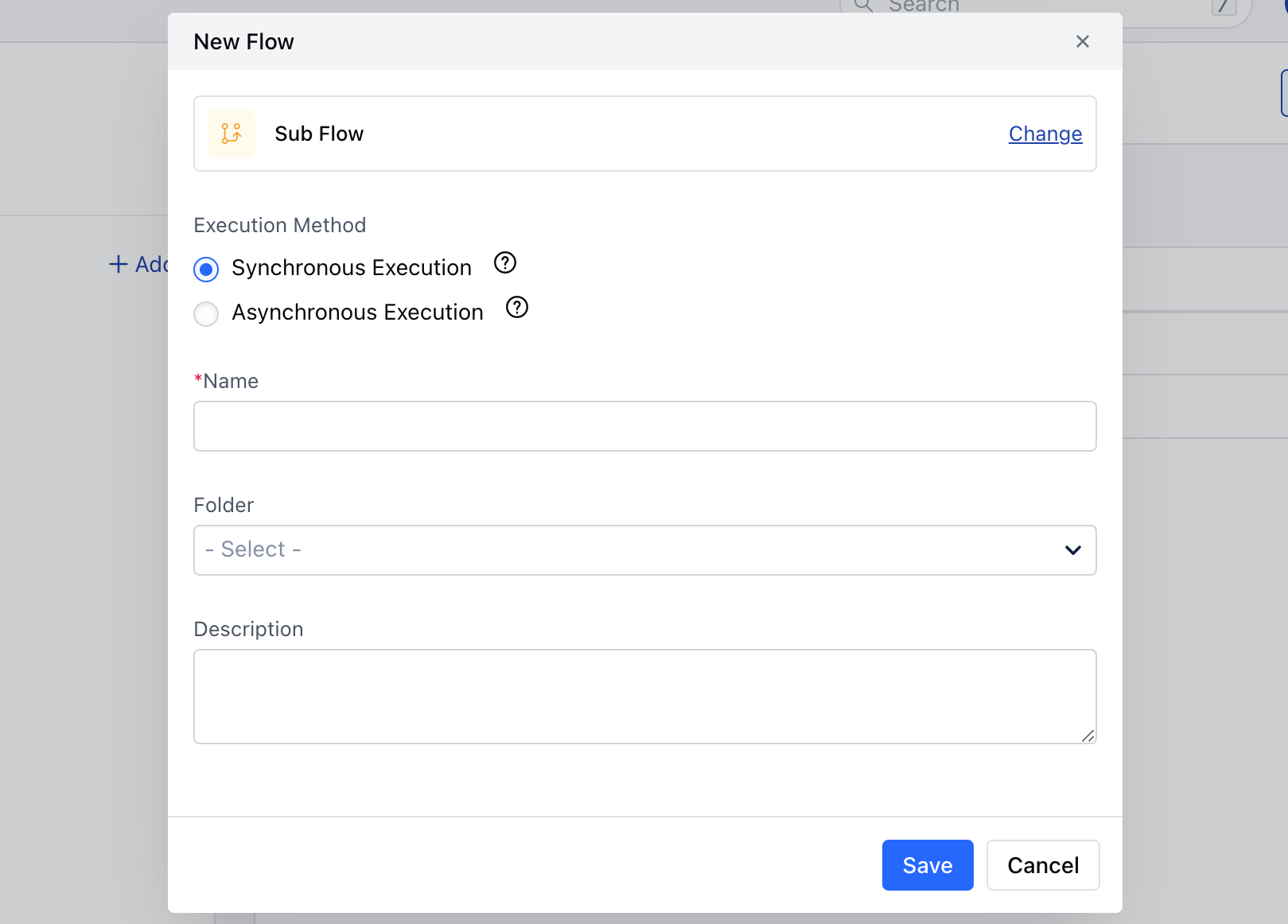
 After selecting this option, you'll be directed to the next step, where you'll need to provide additional information.If you select **Sub Flow,** you'll need to choose the execution method:- **Synchronous Execution:** Select this method when you want to utilize the output of this flow in the invoking flow. It can’t have any sort of wait steps.
* **Asynchronous execution:** Select this method when you have a few common steps you want to call out in different flows. This supports ‘wait’ steps like sending an email and waiting for a reply before executing the next step.
After selecting this option, you'll be directed to the next step, where you'll need to provide additional information.If you select **Sub Flow,** you'll need to choose the execution method:- **Synchronous Execution:** Select this method when you want to utilize the output of this flow in the invoking flow. It can’t have any sort of wait steps.
* **Asynchronous execution:** Select this method when you have a few common steps you want to call out in different flows. This supports ‘wait’ steps like sending an email and waiting for a reply before executing the next step.
 If you select **Manual Flow**, you'll need to choose the record module.
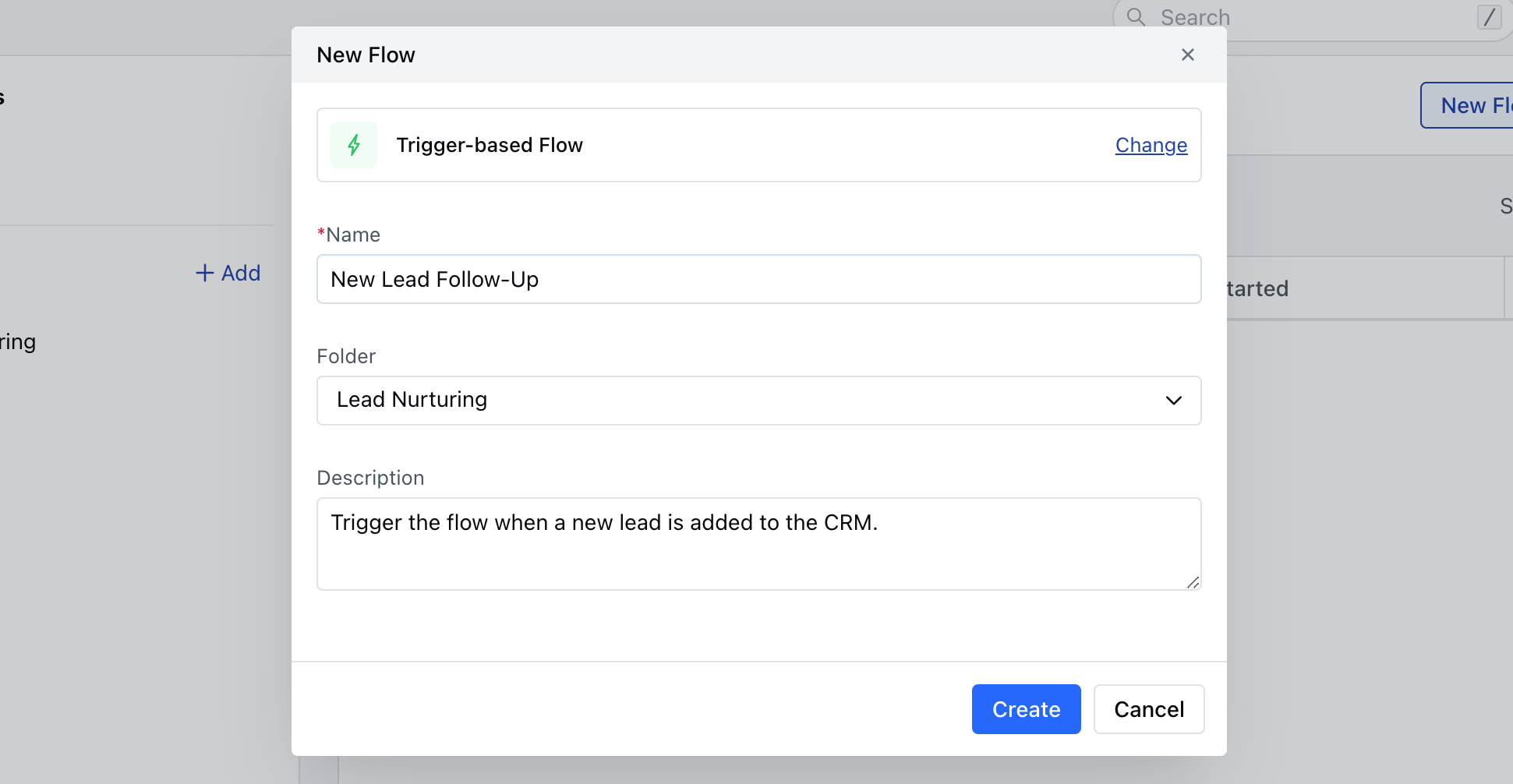
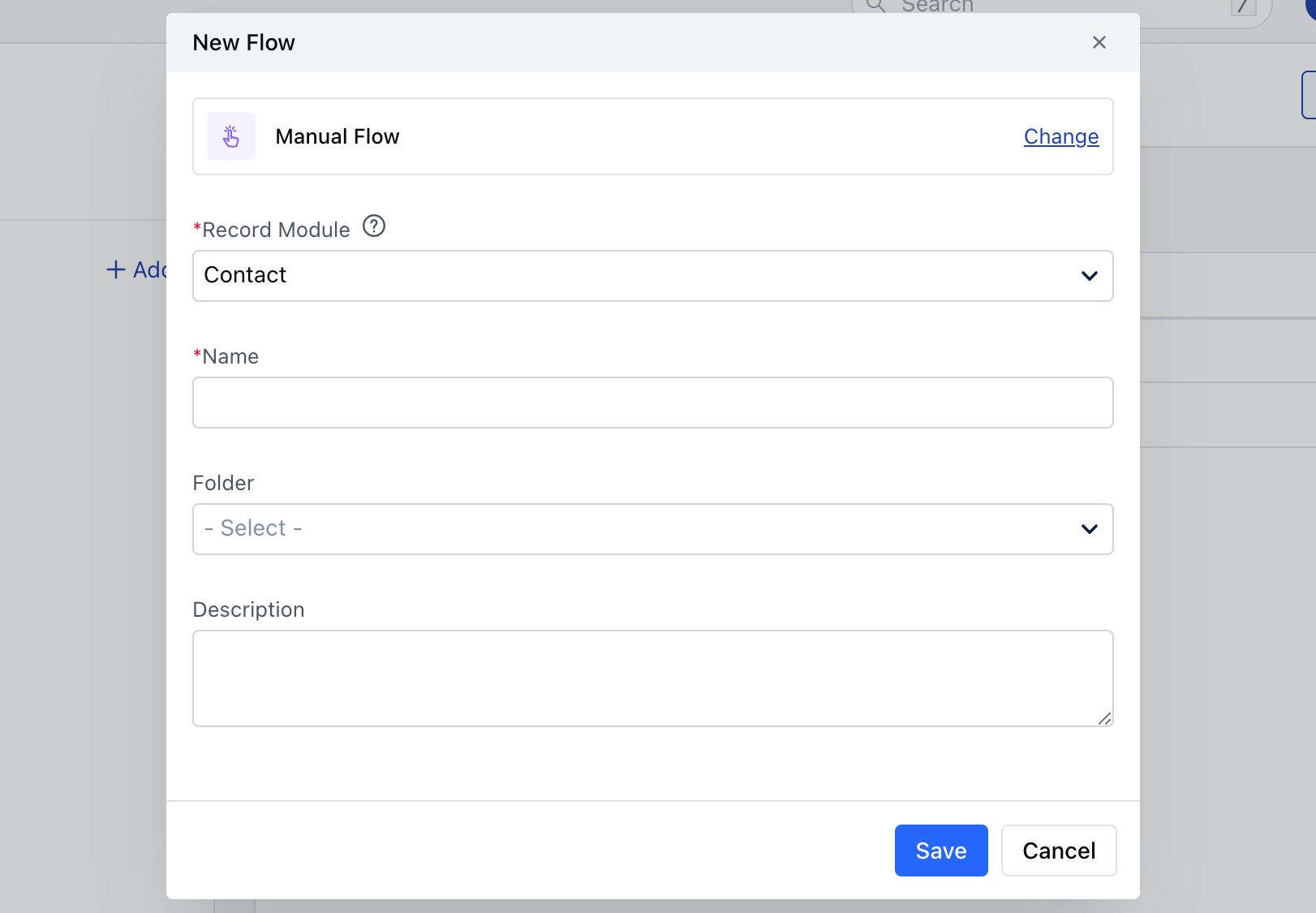 If you select the **Trigger Based Flow**, there would not be any additional selection, other than the following options. These options would also be available for Sub Flow and the Manual Flow along with the above options,- **Name:** Enter the name for the Flow.
* **Folder:** Select the folder where you want to save the Flow.
* **Description:** Enter the brief information about the Flow you are creating.Once done,**Save** the information.
If you select the **Trigger Based Flow**, there would not be any additional selection, other than the following options. These options would also be available for Sub Flow and the Manual Flow along with the above options,- **Name:** Enter the name for the Flow.
* **Folder:** Select the folder where you want to save the Flow.
* **Description:** Enter the brief information about the Flow you are creating.Once done,**Save** the information.
 You will be directed to the canvas to begin creating your flow\.When you select Trigger Based flow you would get an option to \*\*Select a Flow Trigger.
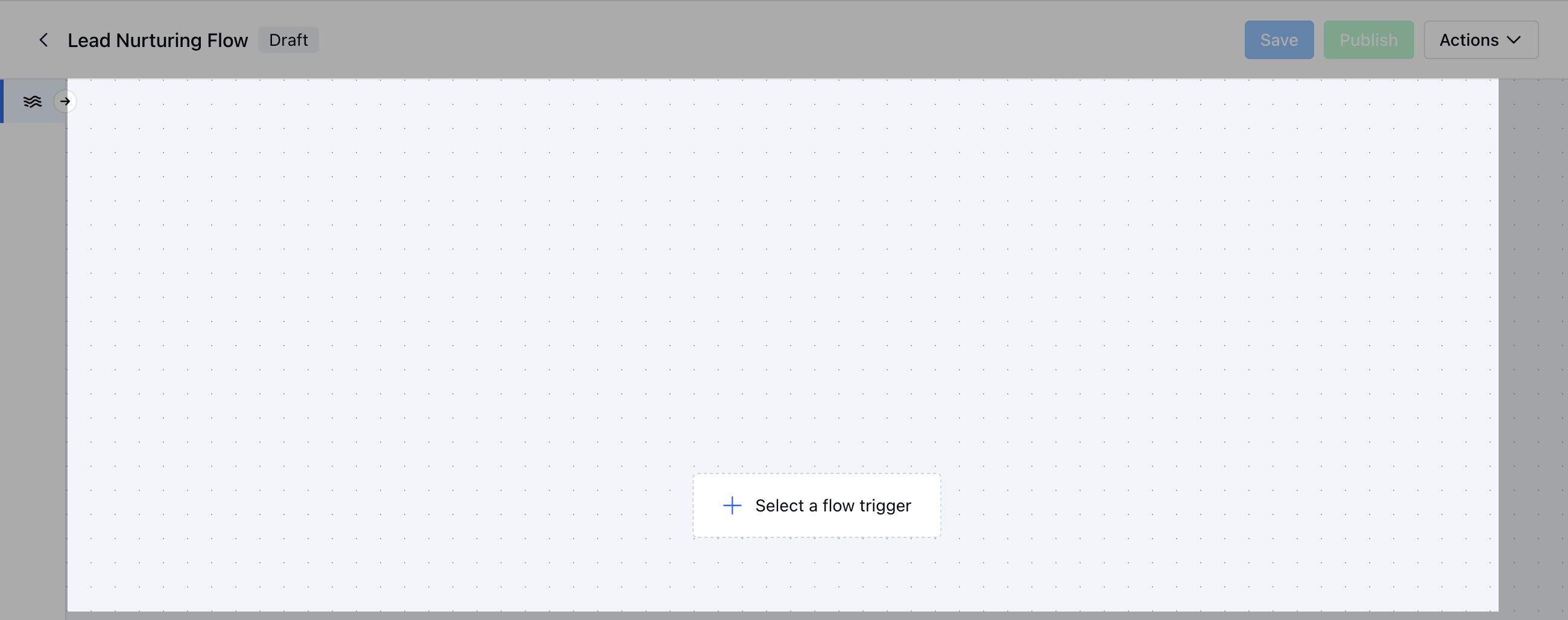 However while creating a **Sub Flow or Manual Flow** this option would not be available.You can proceed with selecting the **Conditions or Actions** to complete the Flow\.Once the Flow is created you can go ahead and **Save and Publish** the Flow.