> ## Documentation Index
> Fetch the complete documentation index at: https://support.getskara.ai/llms.txt
> Use this file to discover all available pages before exploring further.
# Working with Manual Flows
Manual Flow initiates when a user manually publishes and enrolls a record. If you have any active Manual Flows linked, you can enroll records from both the record detail and listing pages.
### **Topics covered:**
* [How to Create Manual Flow](#how-to-create-manual-flow)
* [How to Enroll Records to Manual Flow](#how-to-enroll-records-to-manual-flow)
### How to Create Manual Flow
To create the Manual flow,
Navigate to **Smart Flows** from left side outreachClick on \*\* New Flow \*\*\* * *Select the flow type as*\* Manual Flow \*\*\*
 * *For*\* Manual Flow \*\*, you'll need to choose the record module
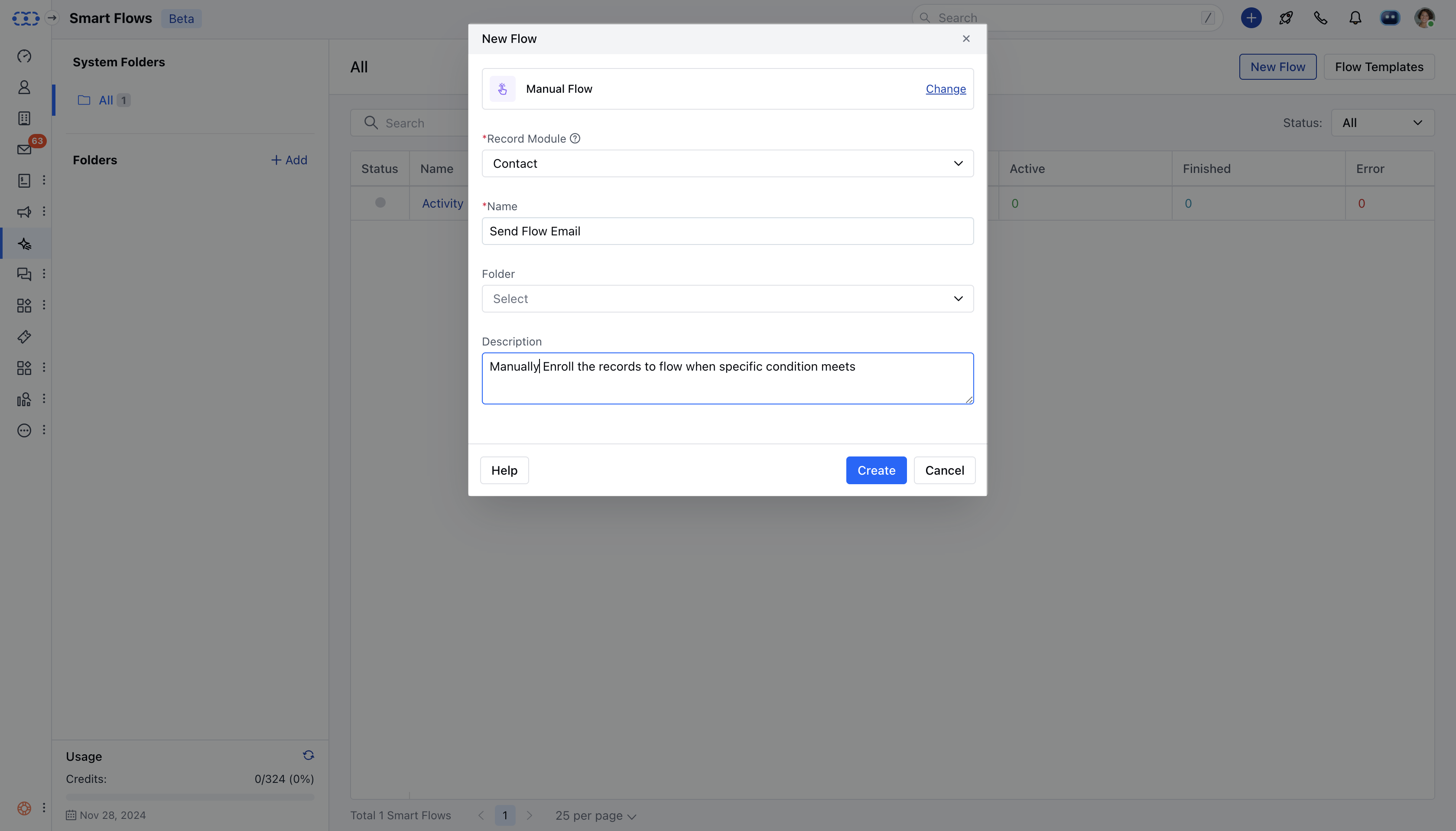 Proceed with selecting Actions and Conditions to complete the flowOnce the Flow is created you can go ahead and **Save and Publish** the Flow.
\*\*Note:\*\*While creating a manual flow, there is no option to create the trigger. You have to select the module and then start with actions and conditions.
### How to Enroll Records to Manual Flow
There are two ways to enroll the records,
* [From the Detail View](#from-the-detail-view)
* [From the List View](#from-the-list-view)
### From the Detail View
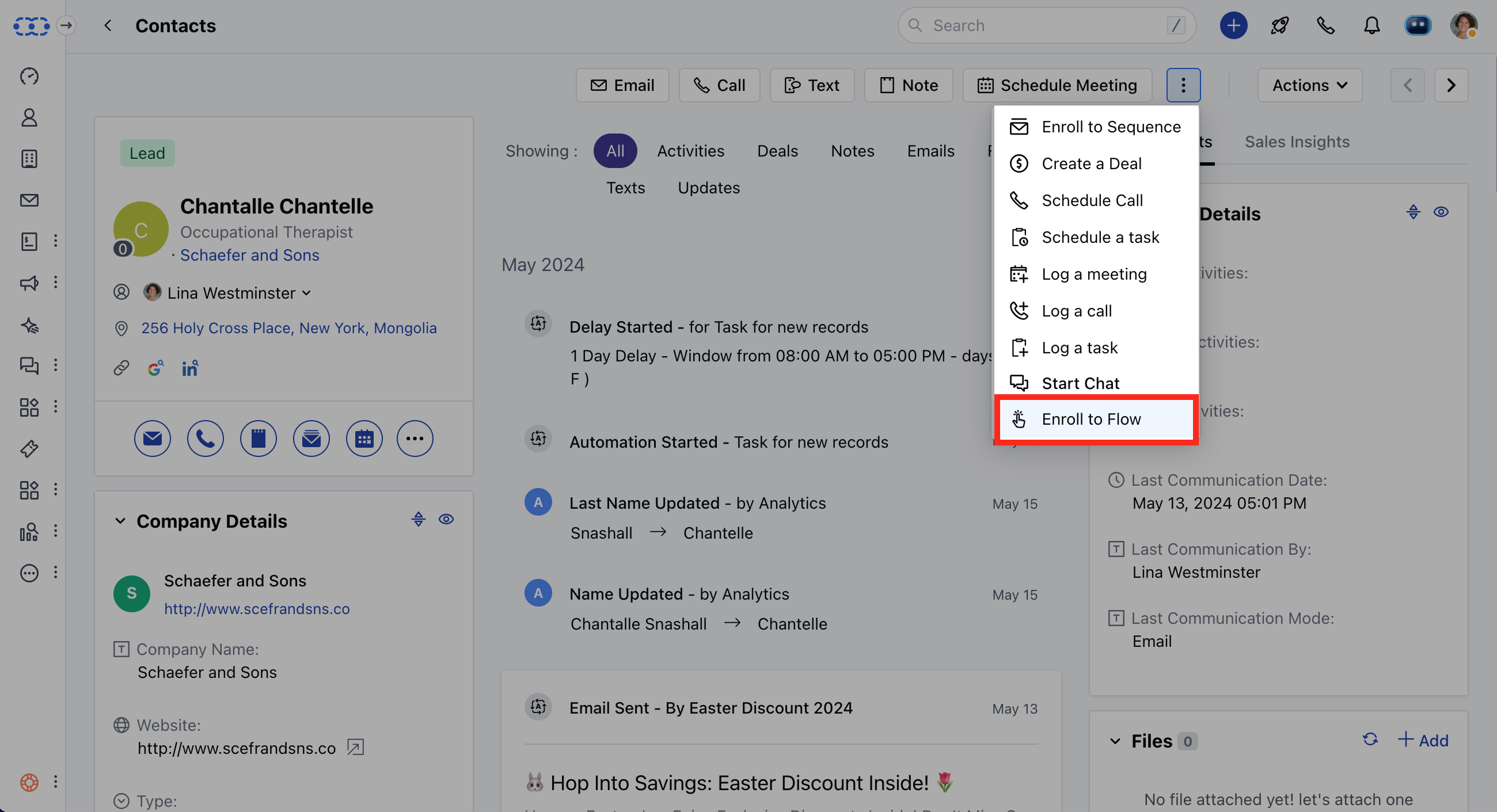
Navigate to the required **Module** from the left menu barOpen the **Detail view** of the specific record you wish to enroll.Click on the **Three dots** in the top right cornerSelect the **Enroll to Flow** option.
Proceed with selecting Actions and Conditions to complete the flowOnce the Flow is created you can go ahead and **Save and Publish** the Flow.
\*\*Note:\*\*While creating a manual flow, there is no option to create the trigger. You have to select the module and then start with actions and conditions.
### How to Enroll Records to Manual Flow
There are two ways to enroll the records,
* [From the Detail View](#from-the-detail-view)
* [From the List View](#from-the-list-view)
### From the Detail View
Navigate to the required **Module** from the left menu barOpen the **Detail view** of the specific record you wish to enroll.Click on the **Three dots** in the top right cornerSelect the **Enroll to Flow** option.
 A popup will appear, showing the available manual flows for enrollment.
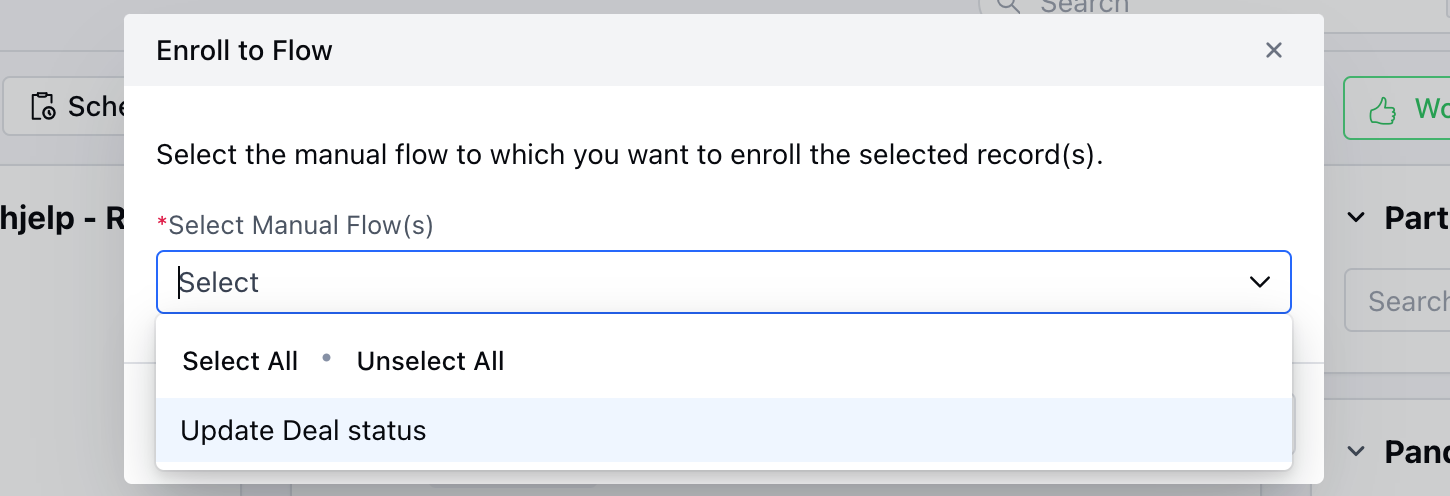 Select the desired manual flows from the list.Click the **Enroll** button to finalize your selection.
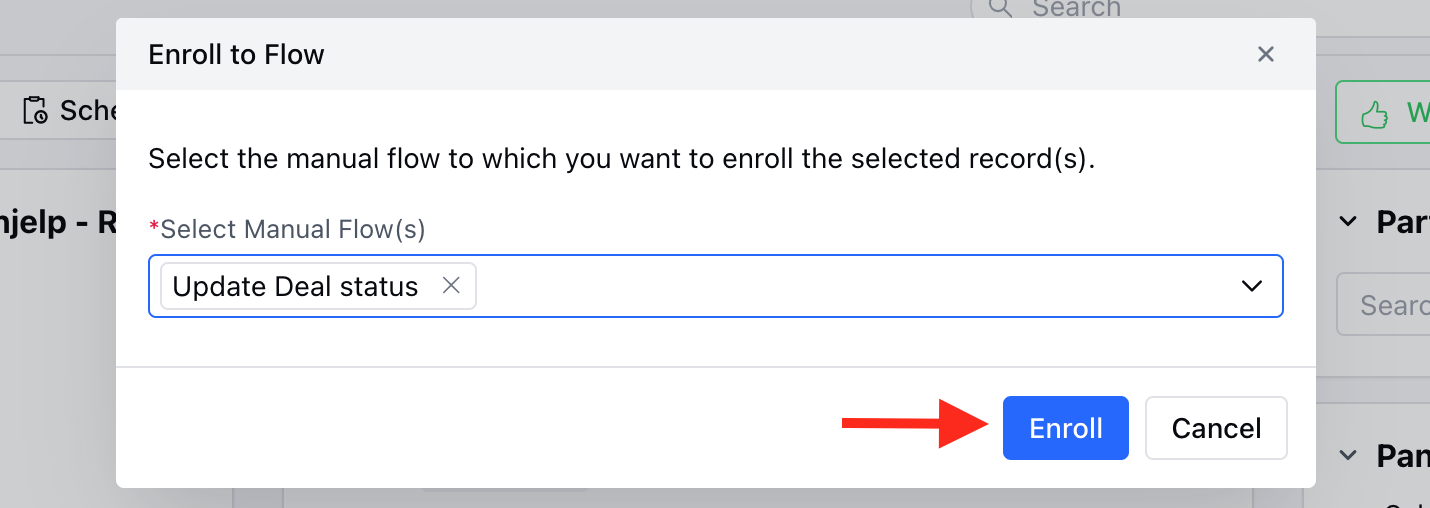 A success message will be displayed:\*\*Record(s) added to enrollment queue.
### From the List View
Navigate to the Listing screen of the required Module.Select the records you want to enroll in by checking the corresponding boxes.Click on the **Enroll to Flow** option in the bulk actions toolbar.
A success message will be displayed:\*\*Record(s) added to enrollment queue.
### From the List View
Navigate to the Listing screen of the required Module.Select the records you want to enroll in by checking the corresponding boxes.Click on the **Enroll to Flow** option in the bulk actions toolbar.
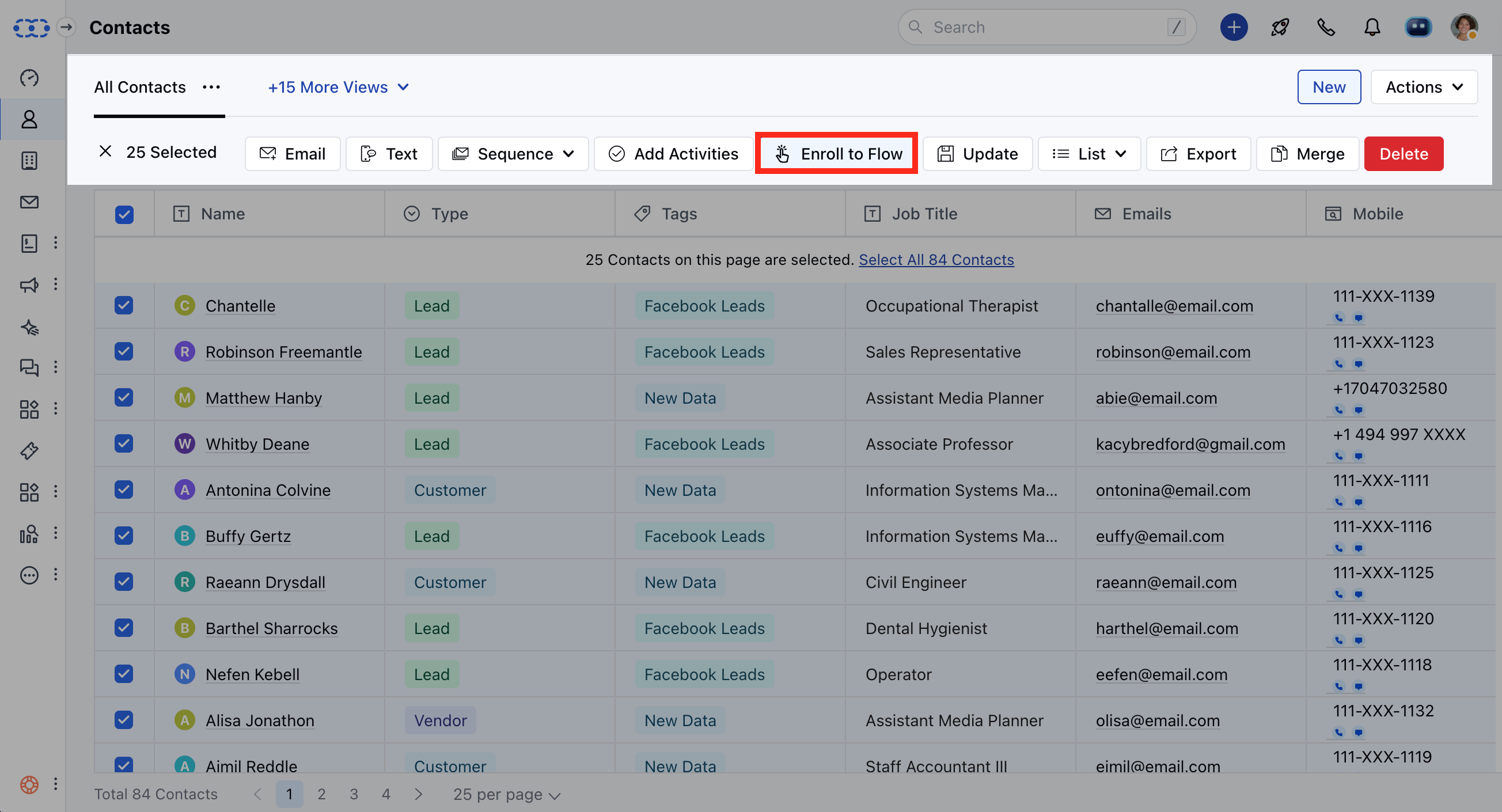 A popup will appear, displaying the available manual flows for enrollment.
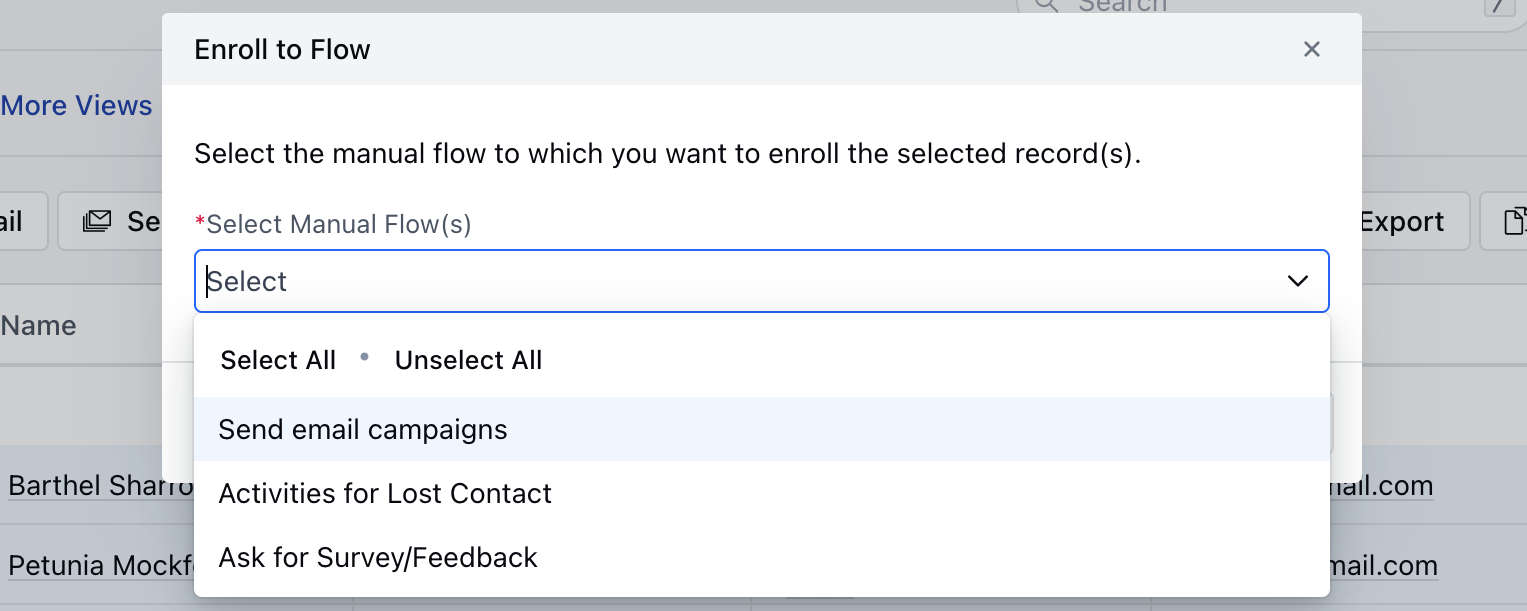 Select the desired manual flows from the list.Click the Enroll button to confirm your selection.
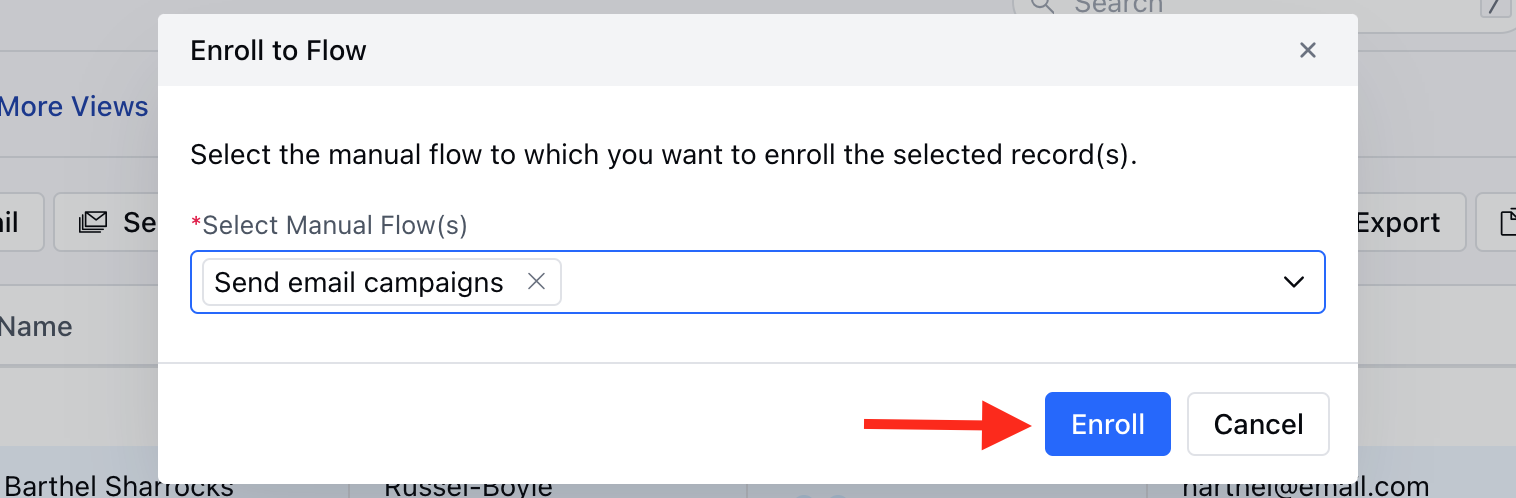 A success message will appear:\*\*Record(s) added to enrollment queue.
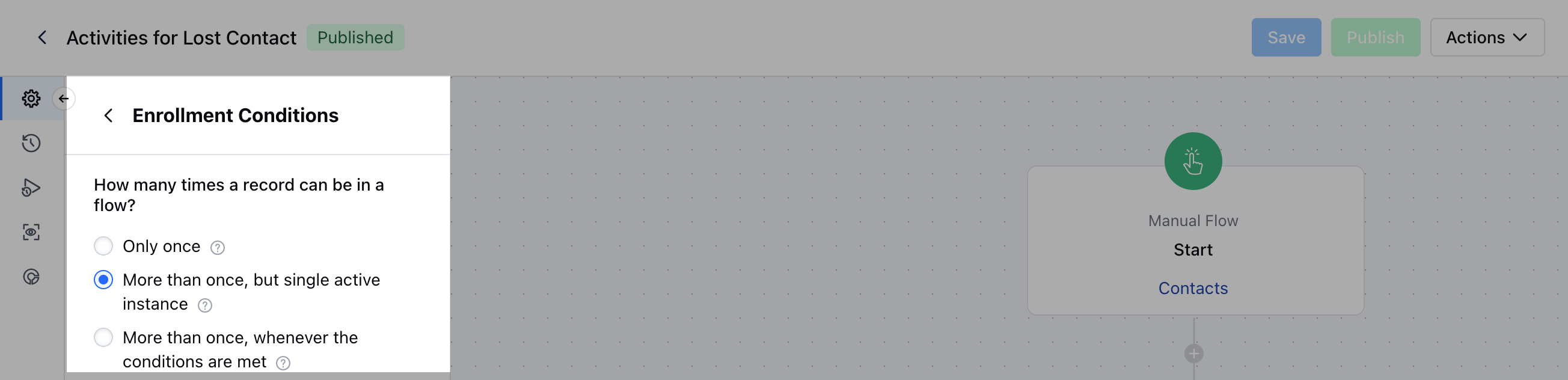
* \*\*A manual flow can have the following enrollment conditions:\*\*Only once:\*\*A record can only enter this flow once \*\*More than once, but single active instance:\*\*A record can enroll in this flow whenever the conditions are met, provided that they are not running through the same flow.
* \*\*More than once, whenever the conditions are met:\*\*A record can enter this flow each time the trigger conditions are met.
A success message will appear:\*\*Record(s) added to enrollment queue.
* \*\*A manual flow can have the following enrollment conditions:\*\*Only once:\*\*A record can only enter this flow once \*\*More than once, but single active instance:\*\*A record can enroll in this flow whenever the conditions are met, provided that they are not running through the same flow.
* \*\*More than once, whenever the conditions are met:\*\*A record can enter this flow each time the trigger conditions are met.