> ## Documentation Index
> Fetch the complete documentation index at: https://support.getskara.ai/llms.txt
> Use this file to discover all available pages before exploring further.
# Smart Flow Version History
If you are curious regarding what kind of changes or modifications were made under your Smart Flows, you can track them by utilizing the Version history.
### How to check the Version History
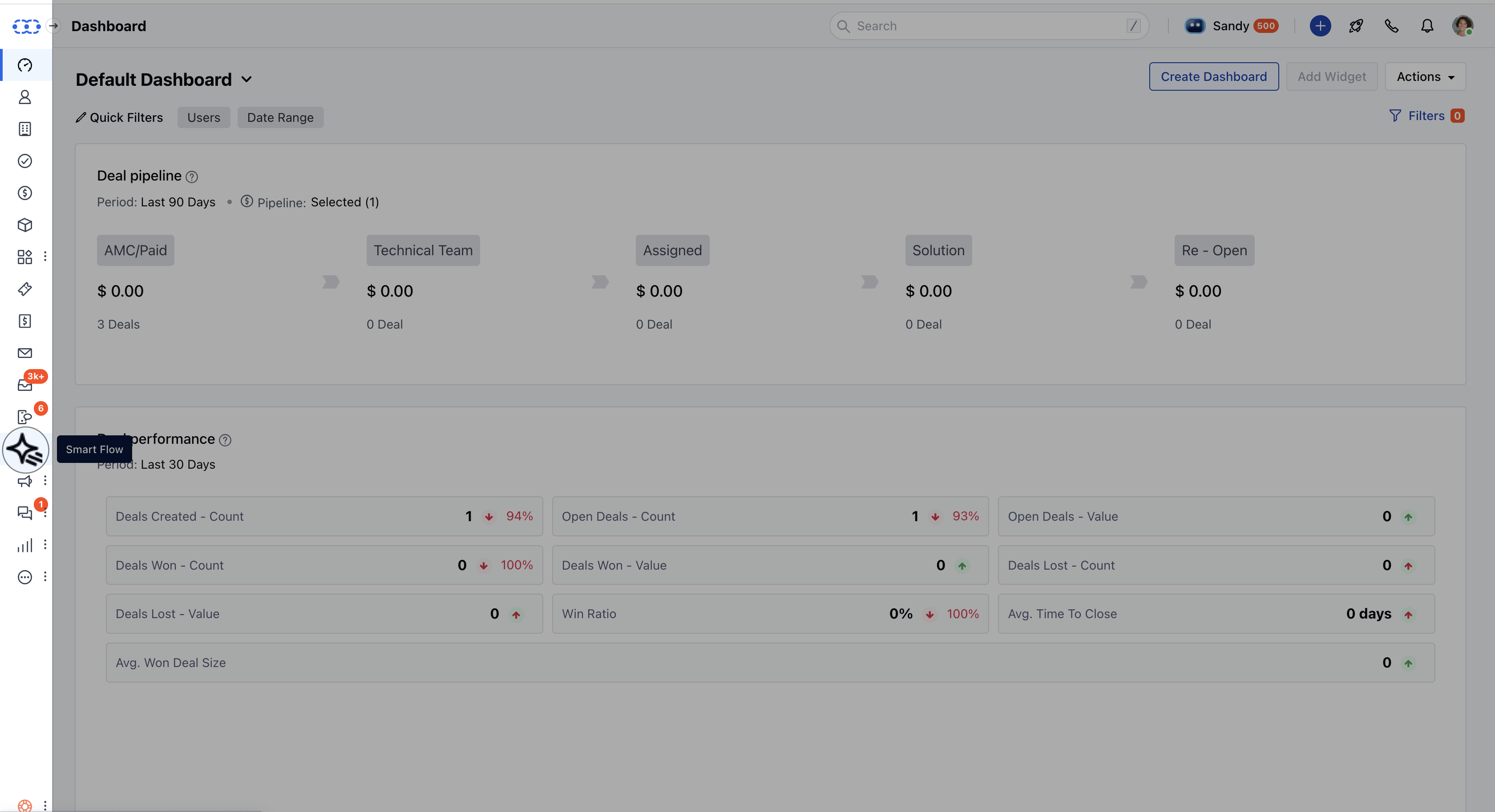
Navigate to the **Outreach Icon** from the left menu barClick on the **Smart Flow**
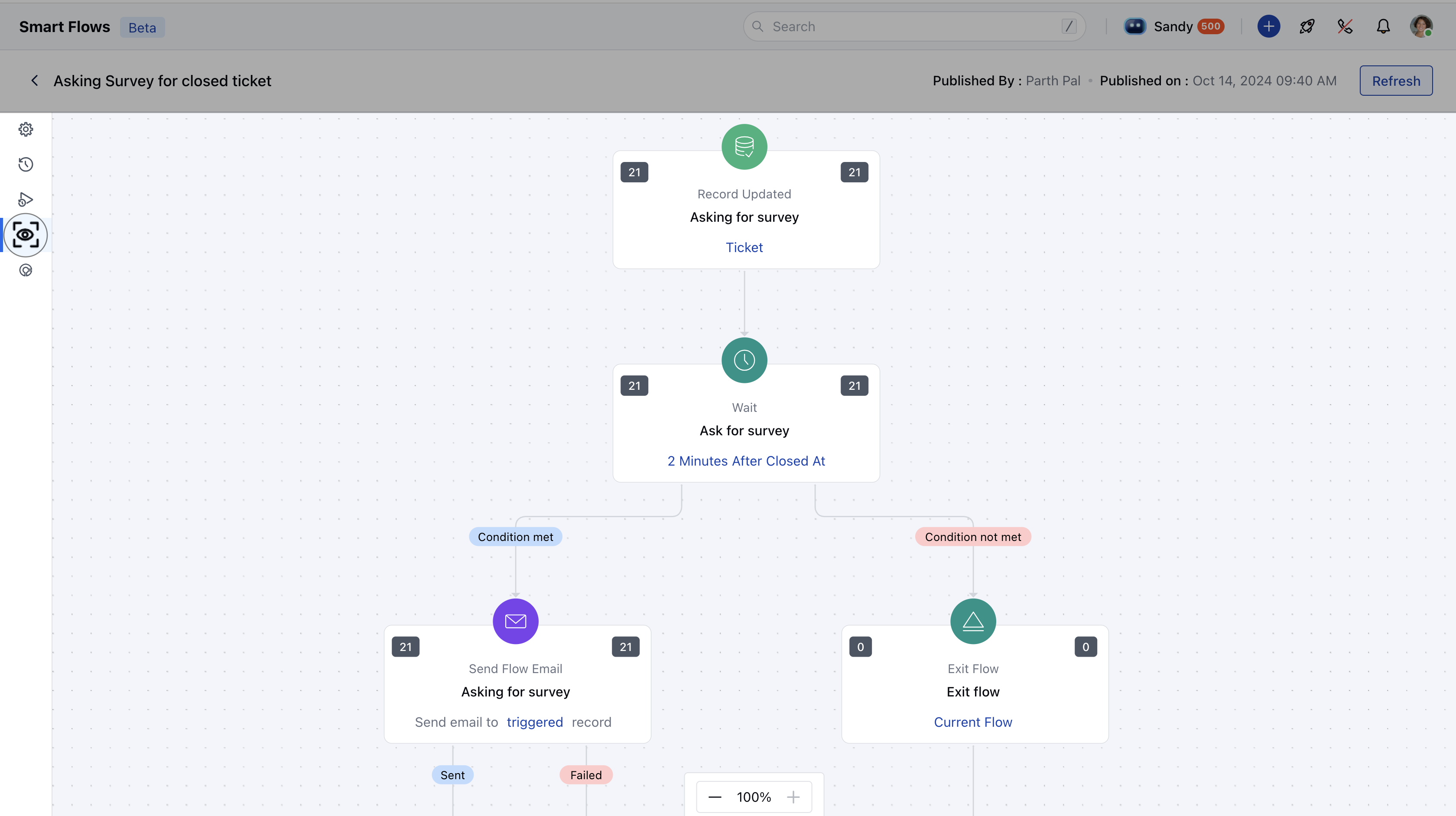
 Select the flow for which you wish to check the history from the list.Once you are under the canvas, click on the **Version History** second option from the left-hand side list
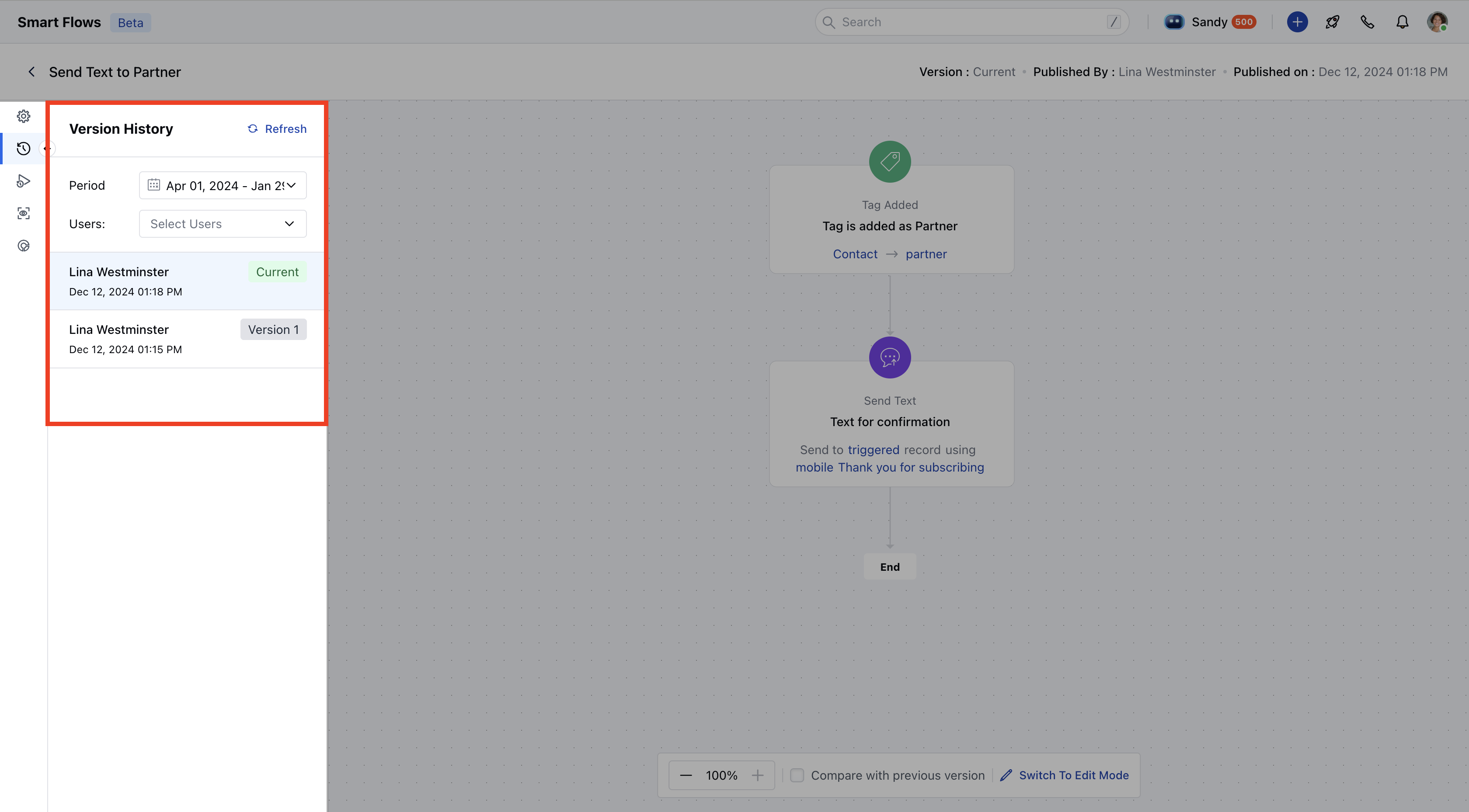
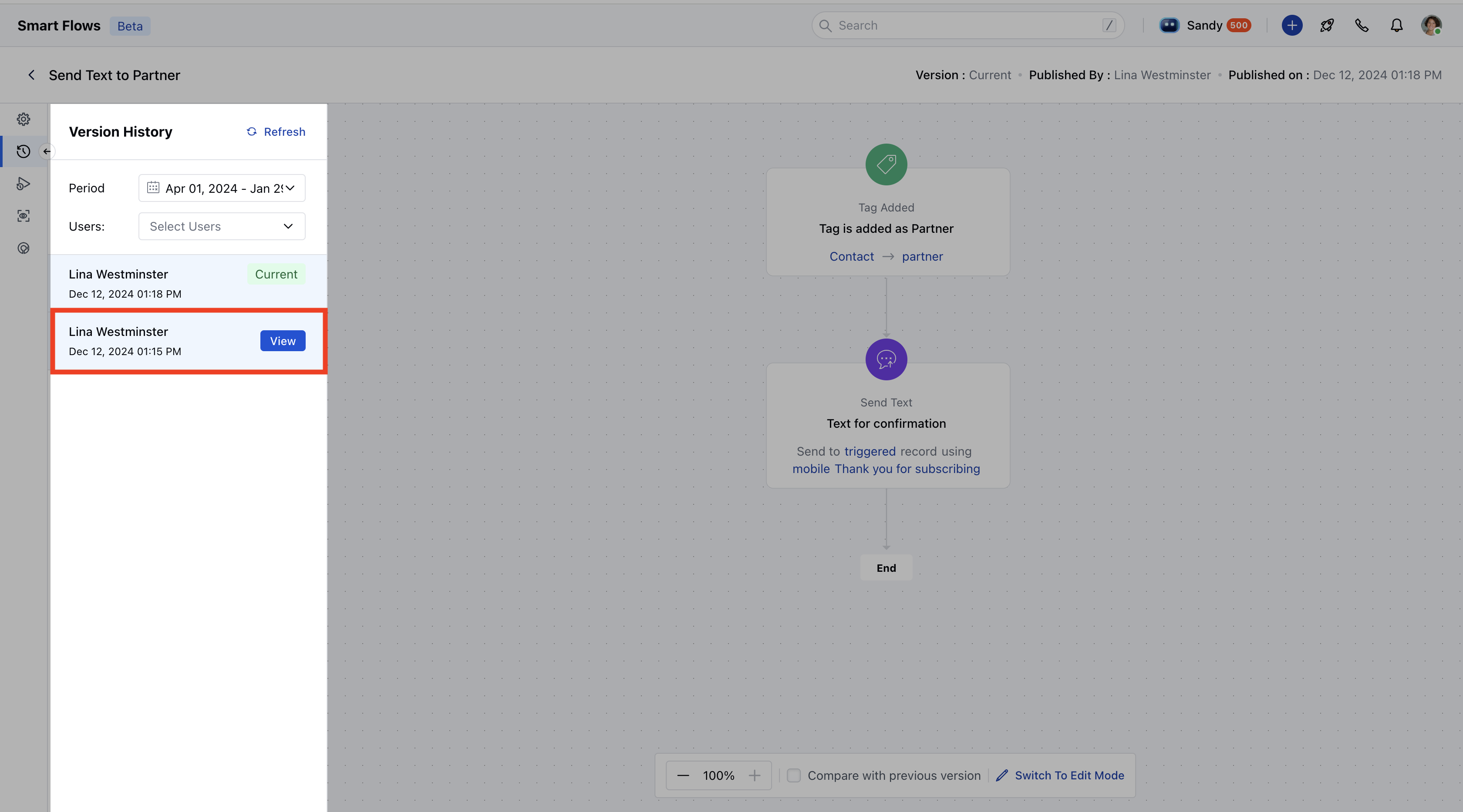
 Once you click on Version History, a collapsible panel will appear in the left-hand side.There would be two filters visible namely
* **Period**- To view the versions published under the filtered duration.
* **User**- To find the versions published or modified by selected users.
Once you click on Version History, a collapsible panel will appear in the left-hand side.There would be two filters visible namely
* **Period**- To view the versions published under the filtered duration.
* **User**- To find the versions published or modified by selected users.
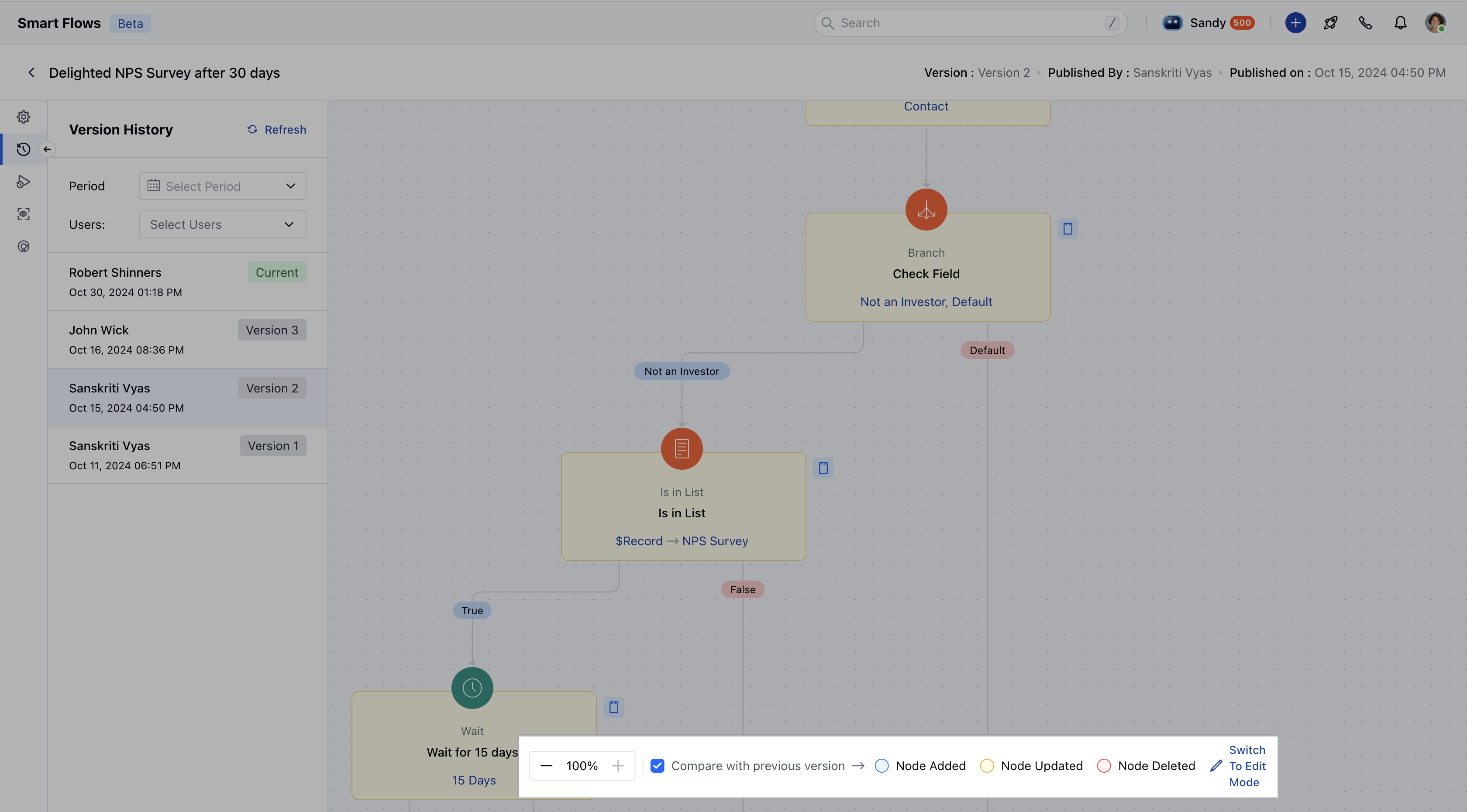
 Further, you can click on "**View**" against the user for which you wish to see the version and the same would be reflected on the canvas with the details regarding which user has published the smart flow and the date and time.Once you select a version, you will be able to see an option that says "**Compare with previous version**". This will allow you to compare the changes in relation to the previous version as the name suggests.
 ### What are the different options indicated under highlight changes
There are three options that you can check, namely **Node Added**- If any triggers, conditions, or actions are added then they would be displayed using a blue background.
* **Node Updated**- If you have modified or updated the conditions, triggers, or actions, they will be indicated by a yellowish background **Node Deleted**- If any triggers, conditions, or triggers were removed, they would be highlighted by a red background.
### What are the different options indicated under highlight changes
There are three options that you can check, namely **Node Added**- If any triggers, conditions, or actions are added then they would be displayed using a blue background.
* **Node Updated**- If you have modified or updated the conditions, triggers, or actions, they will be indicated by a yellowish background **Node Deleted**- If any triggers, conditions, or triggers were removed, they would be highlighted by a red background.