> ## Documentation Index
> Fetch the complete documentation index at: https://support.getskara.ai/llms.txt
> Use this file to discover all available pages before exploring further.
# Send a Slack message
* The **"Send a Slack Message"** action allows users to automatically send Slack notifications based on predefined conditions. This helps teams stay updated, collaborate efficiently, and respond promptly to important activities.
**Note:** To use this feature, make sure the Slack integration is enabled in Salesmate. Only users with the **Administrator** profile have the ability to install the integration.
* [Salesmate - Slack Integration Guide](https://support.salesmate.io/hc/en-us/articles/115003219625-Integration-for-Slack)
### **Topics covered:**
* [How to Configure Send A Slack Message](https://support.salesmate.io/hc/en-us/articles/41146524091417-Send-a-Slack-message#01JME9ZWN50Y3CB318WYWKT343)
* [Practical Use Case](#practical-use-case)
### How to Configure Send Internal Email Action
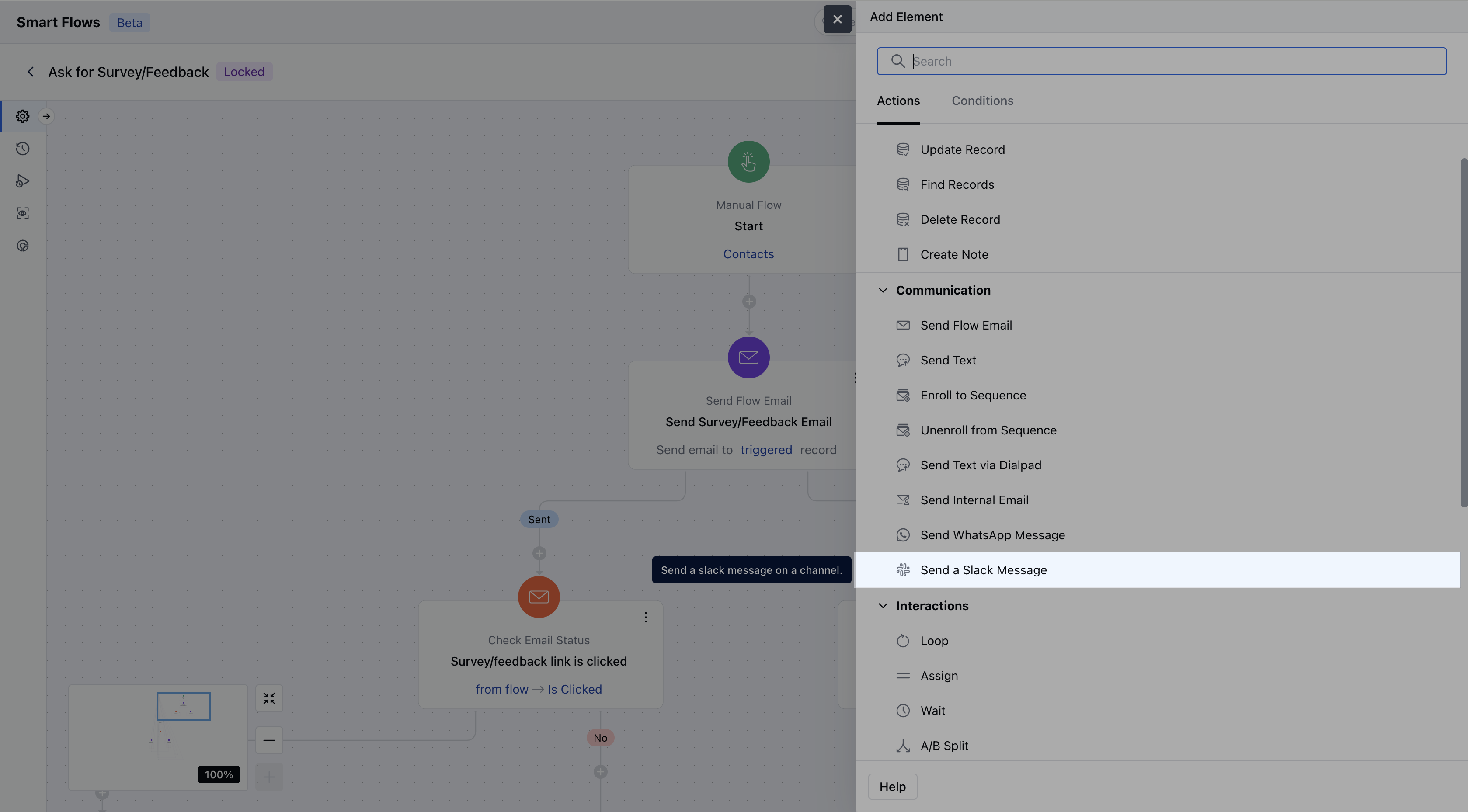
When setting up a Smart Flow, select the **Send A Slack Message** action.
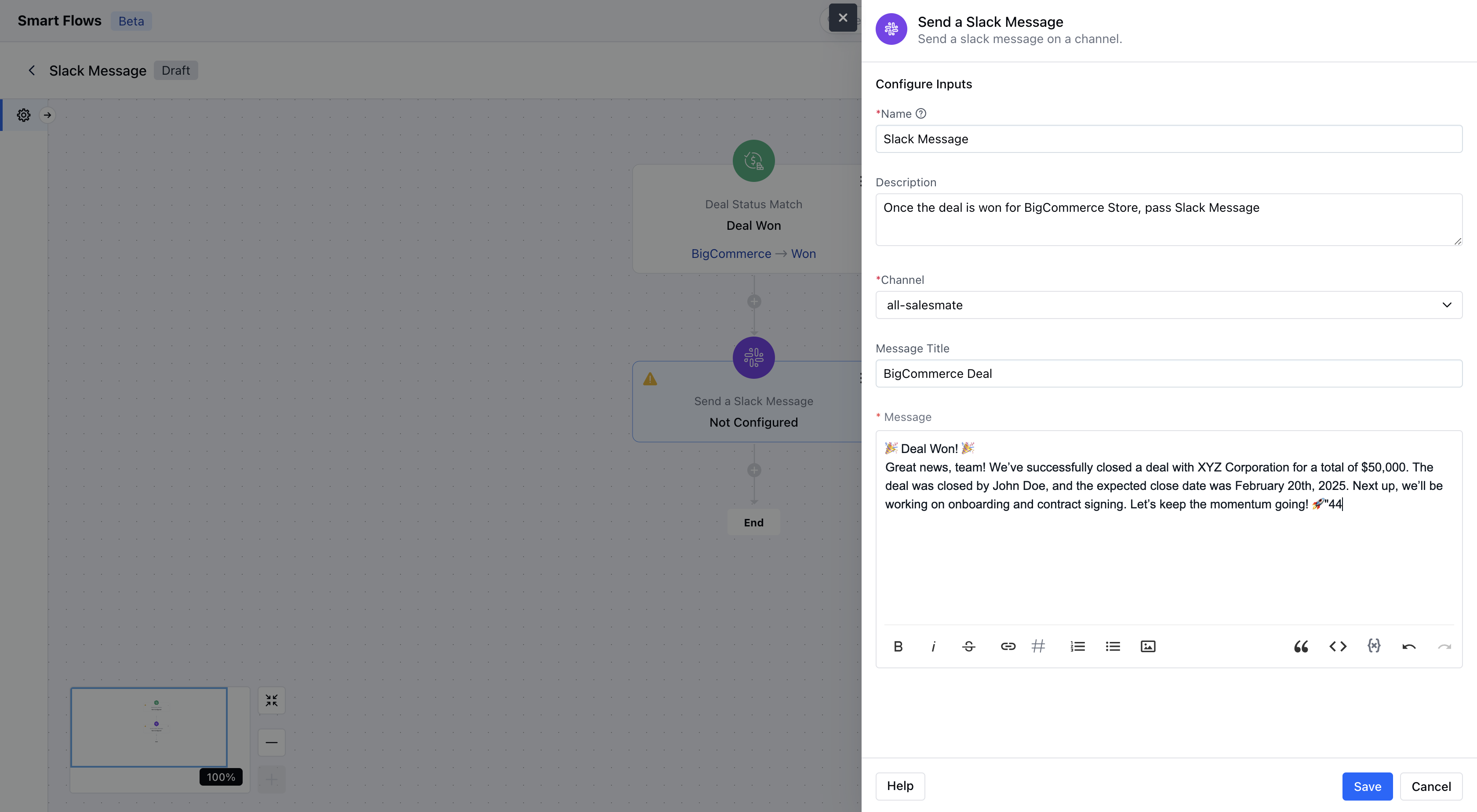
 To configure the **Send A Slack Message** action, you'll need to provide the following information:\*\*Name \*\*Description \*\*Channel \*\*: Select the channel to which you want to send a message.
* \*\* Message Title \*\*: This is an optional field. If you want to add a title to your message, type that here. A maximum of 150 characters is allowed.
* \*\* Message **: Enter the message you wish to send. You can insert flow variables, which will be replaced upon sending, and utilize snippets. The message has a maximum character limit of 2000.Hit** Save\*\* to complete the process.
To configure the **Send A Slack Message** action, you'll need to provide the following information:\*\*Name \*\*Description \*\*Channel \*\*: Select the channel to which you want to send a message.
* \*\* Message Title \*\*: This is an optional field. If you want to add a title to your message, type that here. A maximum of 150 characters is allowed.
* \*\* Message **: Enter the message you wish to send. You can insert flow variables, which will be replaced upon sending, and utilize snippets. The message has a maximum character limit of 2000.Hit** Save\*\* to complete the process.
 ### Practical Use Case
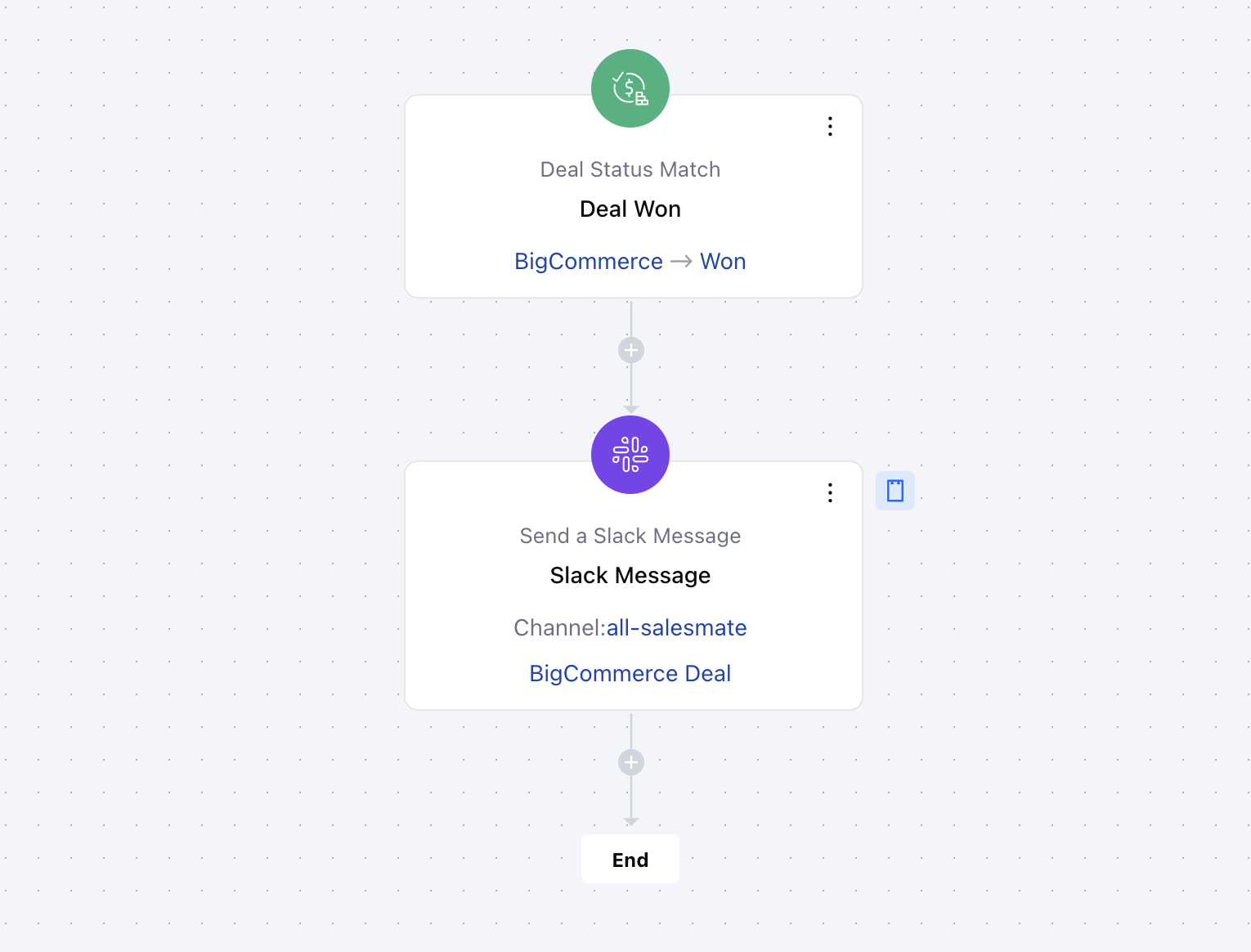
When a deal is marked as "Won" in Salesmate, a Slack message is automatically sent to the `#sales-wins` channel.
* **Example Message:**
```
New Deal Closed!
Client: {{contact.name}}
Amount: ${{deal.value}}
Owner: {{owner.name}}
Great job, team!
```
This keeps the team informed and aligned without manual updates.
### Practical Use Case
When a deal is marked as "Won" in Salesmate, a Slack message is automatically sent to the `#sales-wins` channel.
* **Example Message:**
```
New Deal Closed!
Client: {{contact.name}}
Amount: ${{deal.value}}
Owner: {{owner.name}}
Great job, team!
```
This keeps the team informed and aligned without manual updates.