> ## Documentation Index
> Fetch the complete documentation index at: https://support.getskara.ai/llms.txt
> Use this file to discover all available pages before exploring further.
# WhatsApp Delivery Status
The **WhatsApp Delivery Status** evaluates the delivery status of a WhatsApp message sent to a contact. It checks the message interaction and seamlessly forwards the contact to the next action based on the result.
**Note:** WhatsApp Channel (
* [WhatsApp by Twilio](https://support.salesmate.io/hc/en-us/articles/25786757545497-WhatsApp-by-Twilio-Installation)
or
[WhatsApp by Vonage](https://support.salesmate.io/hc/en-us/articles/25795103115161-WhatsApp-By-Vonage-Installation)
) needs to be installed to use WhatsApp Condition in Smart Flow.
### Topics to be covered:
* [How to Configure WhatsApp Delivery Status Condition](#how-to-configure-check-whatsapp-delivery-status-condition)
* [Practical Example](#practical-example)
### How to Configure Check WhatsApp Delivery Status Condition
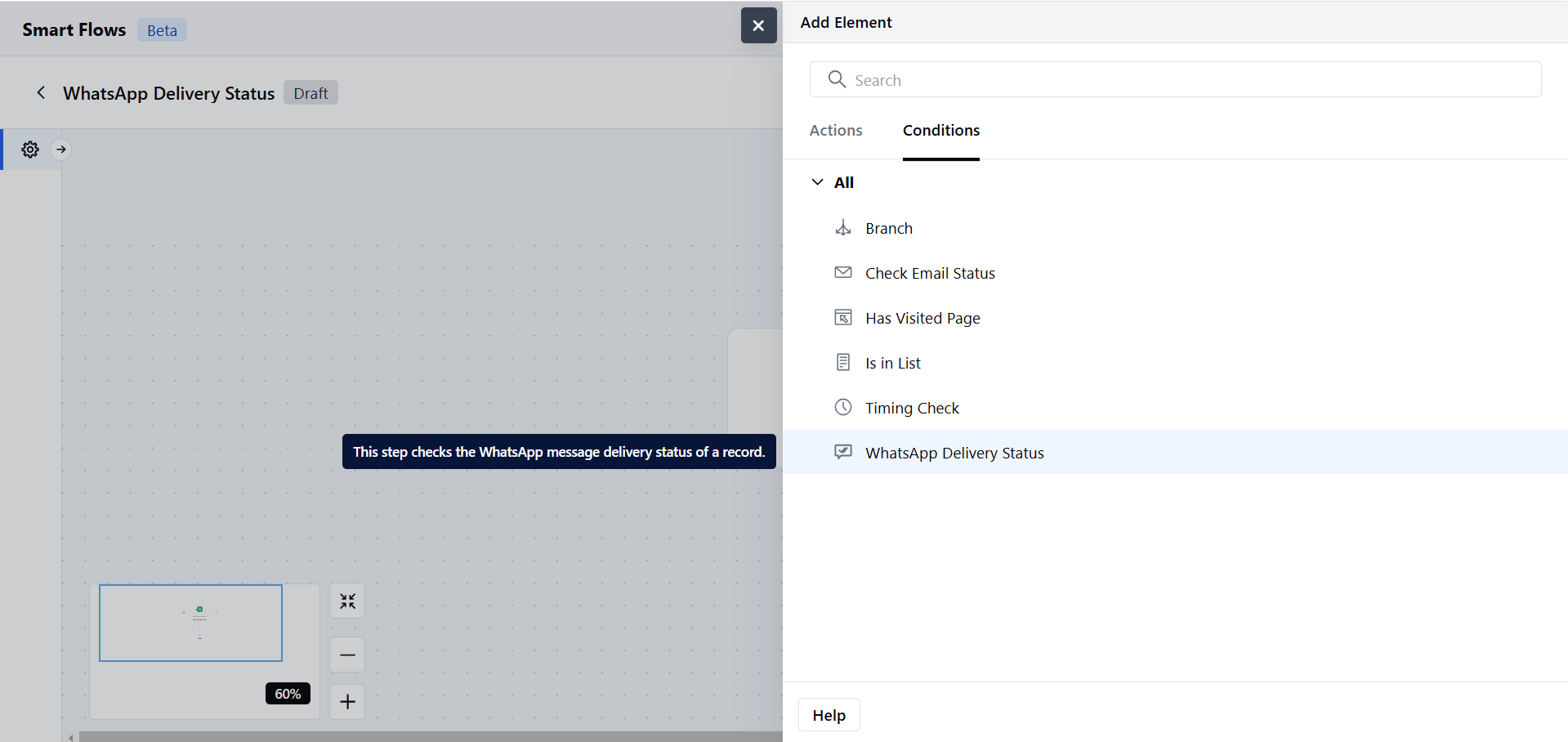
When setting up a Smart Flow, choose the WhatsApp Delivery Status Condition.
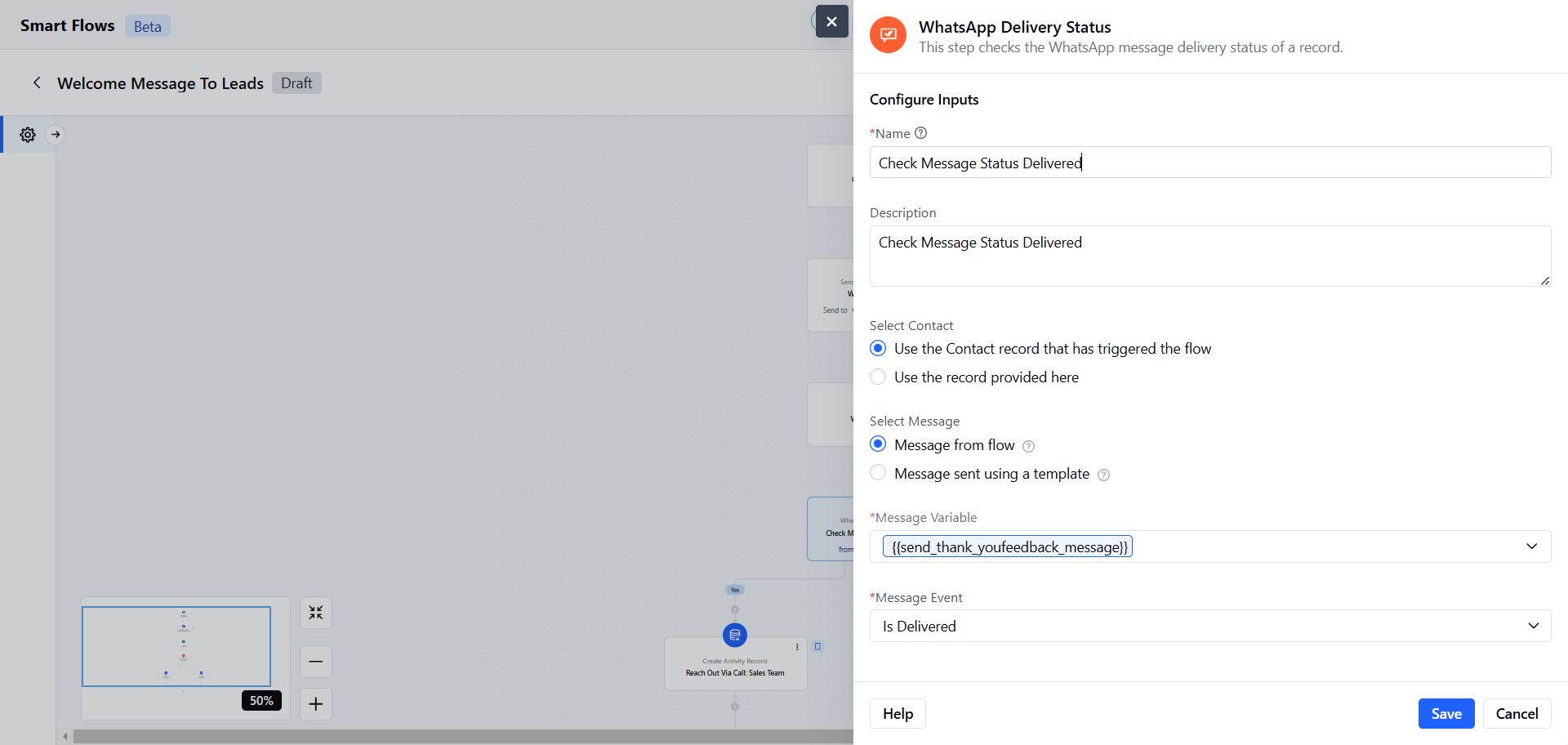
 After selecting, you'll need to configure the WhatsApp Delivery Status condition by providing the following details:**Name**: Assign a clear and descriptive name for the condition.
* **Description**: Provide a brief explanation of the condition’s purpose.
* \*\*Select Contact:\*\*Choose the contact for whom the WhatsApp Message status will be checked.
* **Use the contact that triggered the flow**: Available only when the trigger type is set to contact.
* **Use a contact provided here**: Search and select a contact type variable manually.
* **Select Message:** Choose one of the following options,
* **Message from Flow:** Select a message directly used within the current flow.
* **Message Sent Using a Template:** Choose a message that was sent using a pre-designed WhatsApp template.
* **Provider**: Select the WhatsApp provider (e.g., Vonage or Twilio).
* **From Number**: Select from configured numbers.
* **Message Template**: Choose an approved template for the selected provider and number.
* **Note**: If there is only one provider, the provider field will not appear.
* **Select Message Variable:** Choose the Send WhatsApp Message output variable.
* **Message Event:** Specify the message interaction to track:
* **Is Delivered:** Checks if the message was successfully delivered.
* **Is Read:** Checks if the message was read.
* **Is Replied:** Checks if a reply was received.Once the configuration is completed, hit **Save**.
After selecting, you'll need to configure the WhatsApp Delivery Status condition by providing the following details:**Name**: Assign a clear and descriptive name for the condition.
* **Description**: Provide a brief explanation of the condition’s purpose.
* \*\*Select Contact:\*\*Choose the contact for whom the WhatsApp Message status will be checked.
* **Use the contact that triggered the flow**: Available only when the trigger type is set to contact.
* **Use a contact provided here**: Search and select a contact type variable manually.
* **Select Message:** Choose one of the following options,
* **Message from Flow:** Select a message directly used within the current flow.
* **Message Sent Using a Template:** Choose a message that was sent using a pre-designed WhatsApp template.
* **Provider**: Select the WhatsApp provider (e.g., Vonage or Twilio).
* **From Number**: Select from configured numbers.
* **Message Template**: Choose an approved template for the selected provider and number.
* **Note**: If there is only one provider, the provider field will not appear.
* **Select Message Variable:** Choose the Send WhatsApp Message output variable.
* **Message Event:** Specify the message interaction to track:
* **Is Delivered:** Checks if the message was successfully delivered.
* **Is Read:** Checks if the message was read.
* **Is Replied:** Checks if a reply was received.Once the configuration is completed, hit **Save**.
 ### Practical Example:
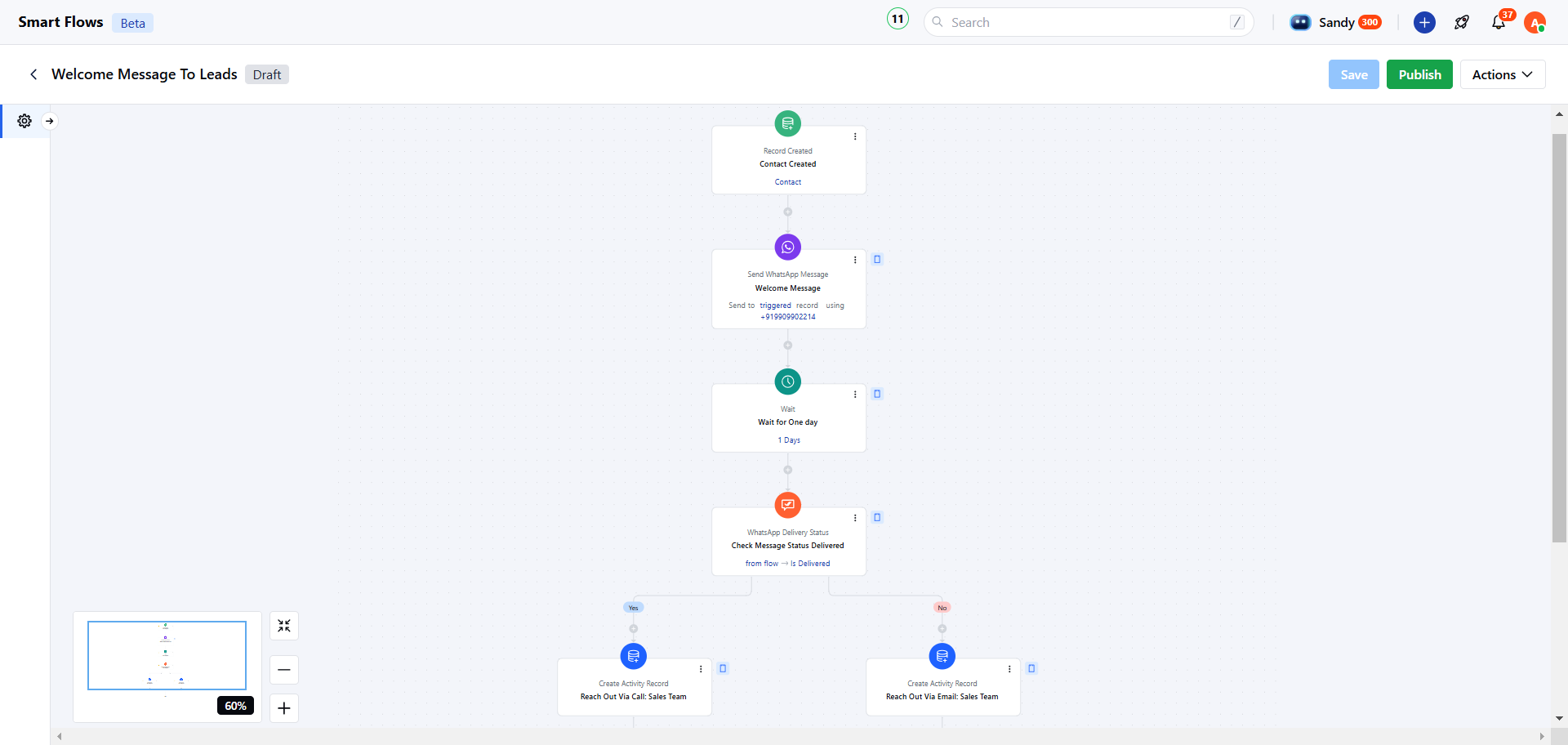
Upon receiving new leads, automatically send them a WhatsApp welcome message about an ongoing sale. After a set delay, check if the message was delivered. If not, create a task for the sales team to follow up.
### Practical Example:
Upon receiving new leads, automatically send them a WhatsApp welcome message about an ongoing sale. After a set delay, check if the message was delivered. If not, create a task for the sales team to follow up.