> ## Documentation Index
> Fetch the complete documentation index at: https://support.getskara.ai/llms.txt
> Use this file to discover all available pages before exploring further.
# Date and Time Schedule
The **Date and Time Schedule** trigger initiates a flow at a specific date and time you set. This is useful for automating actions based on predetermined schedules, such as sending reminders, and updates, or executing tasks at specific intervals.
### **Topics covered:**
* [How to Configure Date and Time Schedule Trigger](#how-to-configure-date-and-time-schedule-trigger)
* [Practical Example](#practical-example)
### How to Configure Date and Time Schedule Trigger
While creating the Trigger Based Flows select the **Date and Time Schedule** trigger.
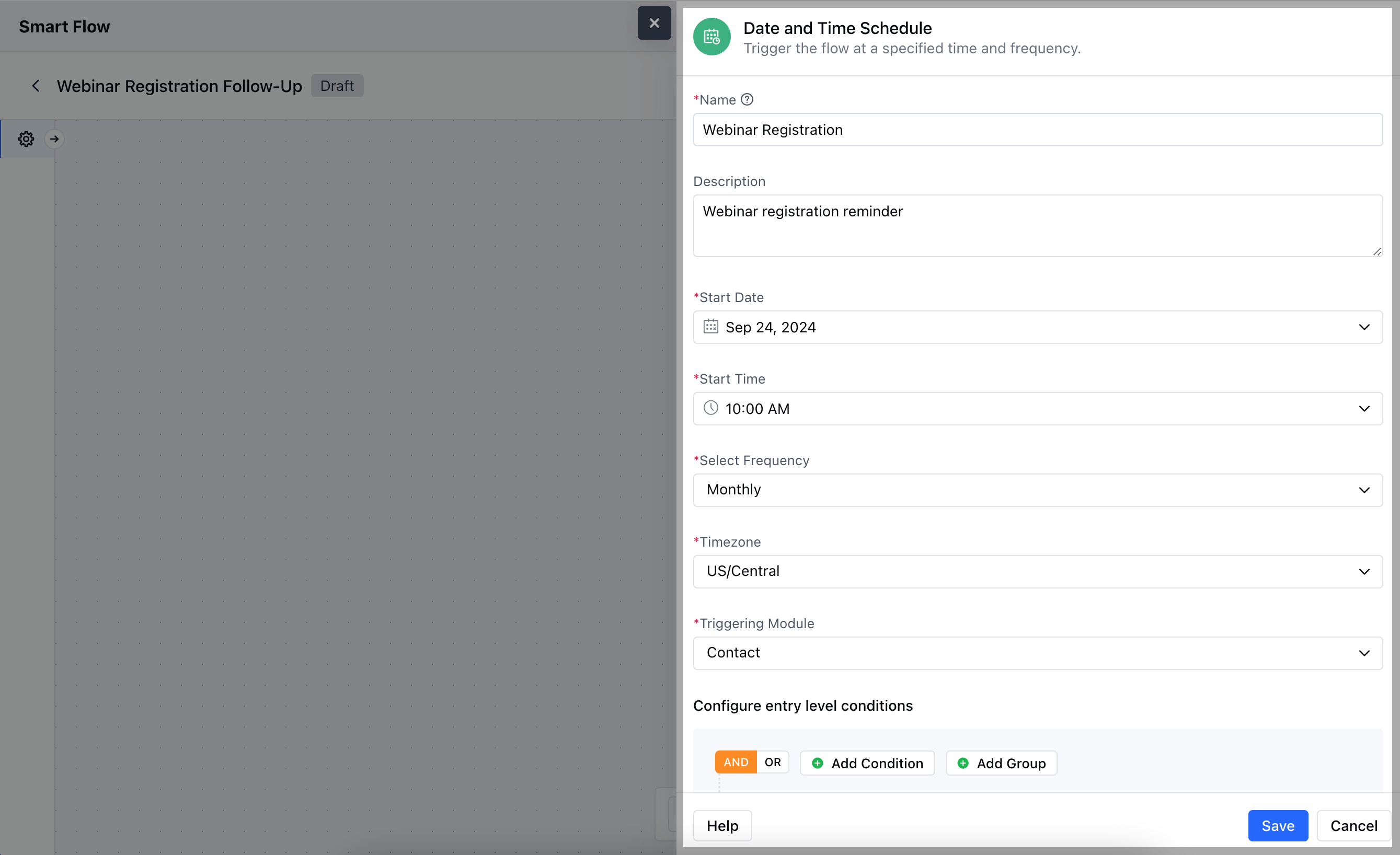
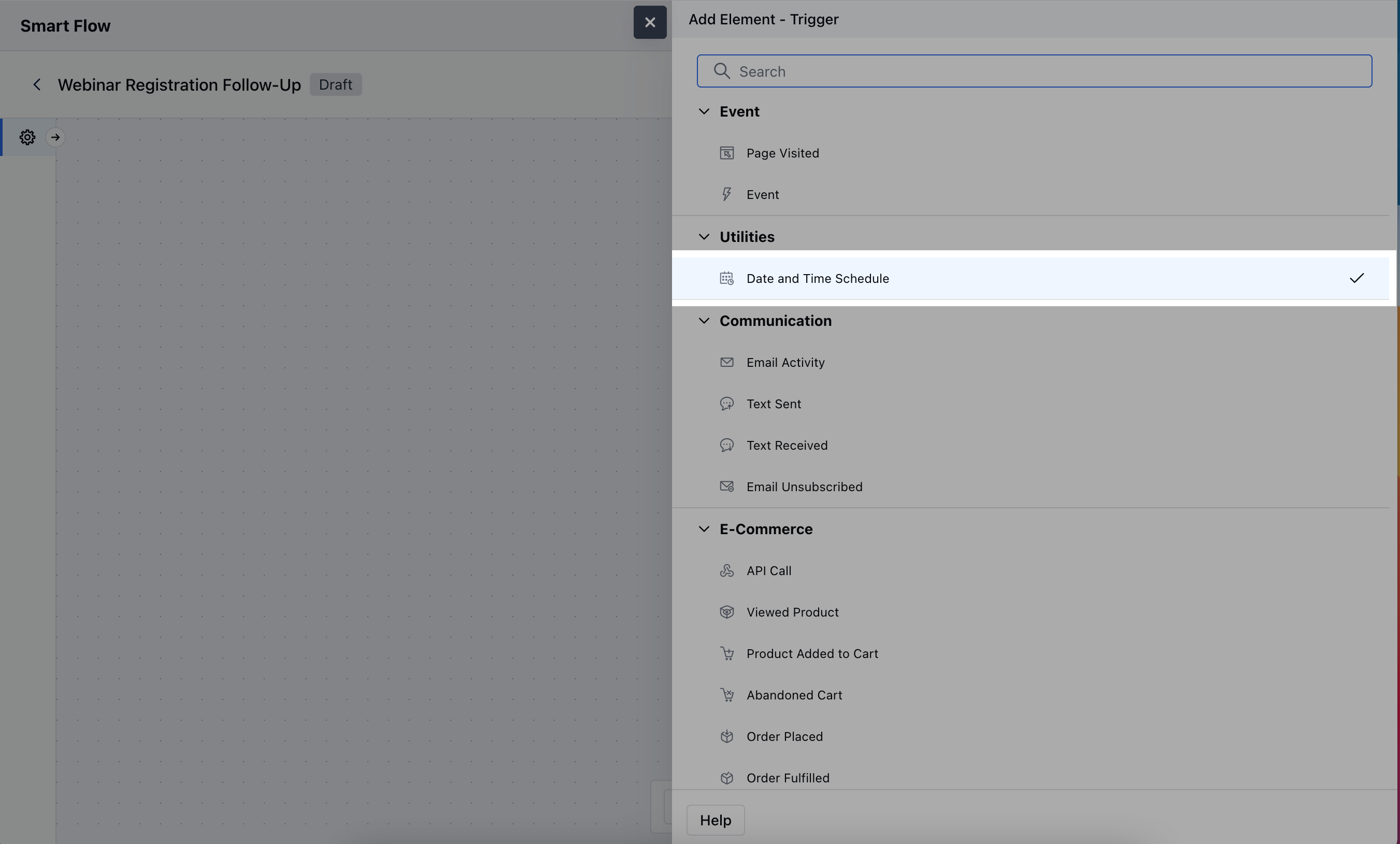 When setting up the **Date and Time Schedule** trigger, you'll need to configure the following details:
* **Name:** Provide a clear, descriptive name for the trigger to identify its purpose in the flow.
* **Description:** Write a brief explanation of the trigger’s function, specifying what actions it will initiate and when.
* **Start Date:** Select the specific date when the trigger should first activate. This defines the day the flow will begin.
* **Start Time:** Choose the exact time for when the trigger should fire on the scheduled date, ensuring actions happen at the desired moment.
* **Start Frequency:** Set how often the trigger will repeat to define the recurrence of the flow.
* **Timezone:** Specify the time zone for the trigger’s execution to ensure the actions occur at the correct local time.
* **Triggering Module:** Select the module where the flow will be applied, determining which records will be impacted by the scheduled actions.
* **Configure Entry-Level Conditions:** Set specific criteria that records must meet to enter and trigger the flow.
When setting up the **Date and Time Schedule** trigger, you'll need to configure the following details:
* **Name:** Provide a clear, descriptive name for the trigger to identify its purpose in the flow.
* **Description:** Write a brief explanation of the trigger’s function, specifying what actions it will initiate and when.
* **Start Date:** Select the specific date when the trigger should first activate. This defines the day the flow will begin.
* **Start Time:** Choose the exact time for when the trigger should fire on the scheduled date, ensuring actions happen at the desired moment.
* **Start Frequency:** Set how often the trigger will repeat to define the recurrence of the flow.
* **Timezone:** Specify the time zone for the trigger’s execution to ensure the actions occur at the correct local time.
* **Triggering Module:** Select the module where the flow will be applied, determining which records will be impacted by the scheduled actions.
* **Configure Entry-Level Conditions:** Set specific criteria that records must meet to enter and trigger the flow.
 ### Practical Example
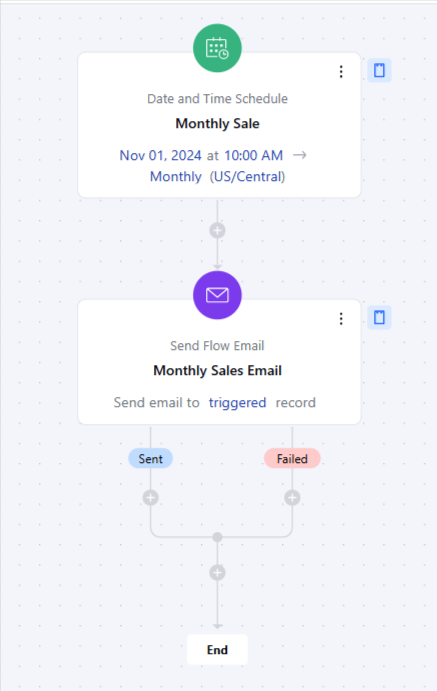
Here, we will send monthly emails about the sale on the 1st date of every month, this way you can implement a monthly discount promotion to boost sales and encourage customer loyalty.
### Practical Example
Here, we will send monthly emails about the sale on the 1st date of every month, this way you can implement a monthly discount promotion to boost sales and encourage customer loyalty.
 **Note:** This trigger works only once. In case you intend to trigger the Smart Flow for another date, configure a new Smart Flow with Date and Time Schedule Trigger. You can also clone an existing Smart Flow if created and choose a different date/time before publishing it.