> ## Documentation Index
> Fetch the complete documentation index at: https://support.getskara.ai/llms.txt
> Use this file to discover all available pages before exploring further.
# Event
The **Event Trigger** activates a flow based on the occurrence of a specific event, such as a webinar registration, meeting, or any other scheduled event.
### **Topics covered:**
* [How to Configure Event Trigger](#how-to-configure-event-trigger)
* [Practical Example](#practical-example)
### How to Configure Event Trigger
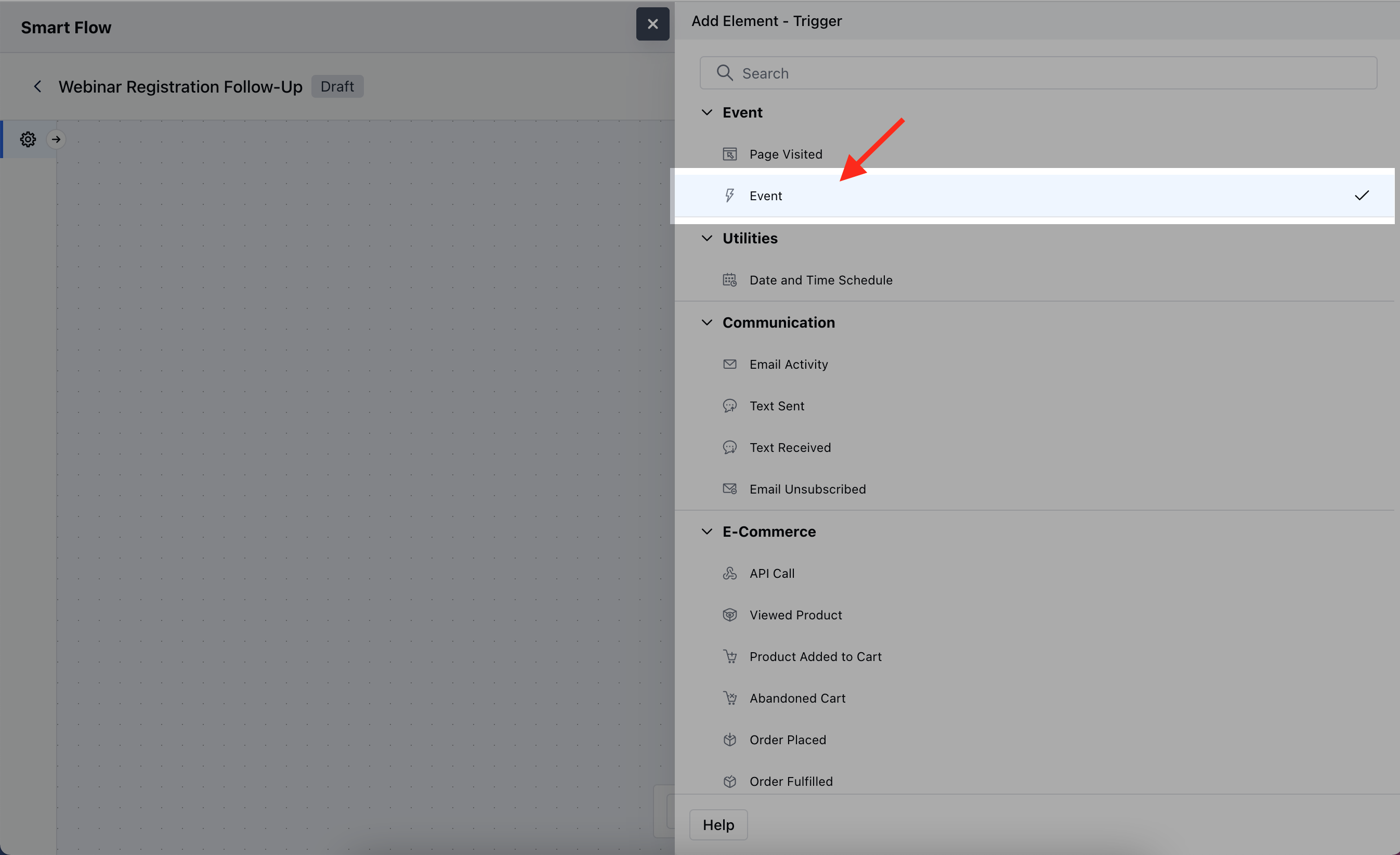
While creating the Trigger Based Flows select the **Event** trigger
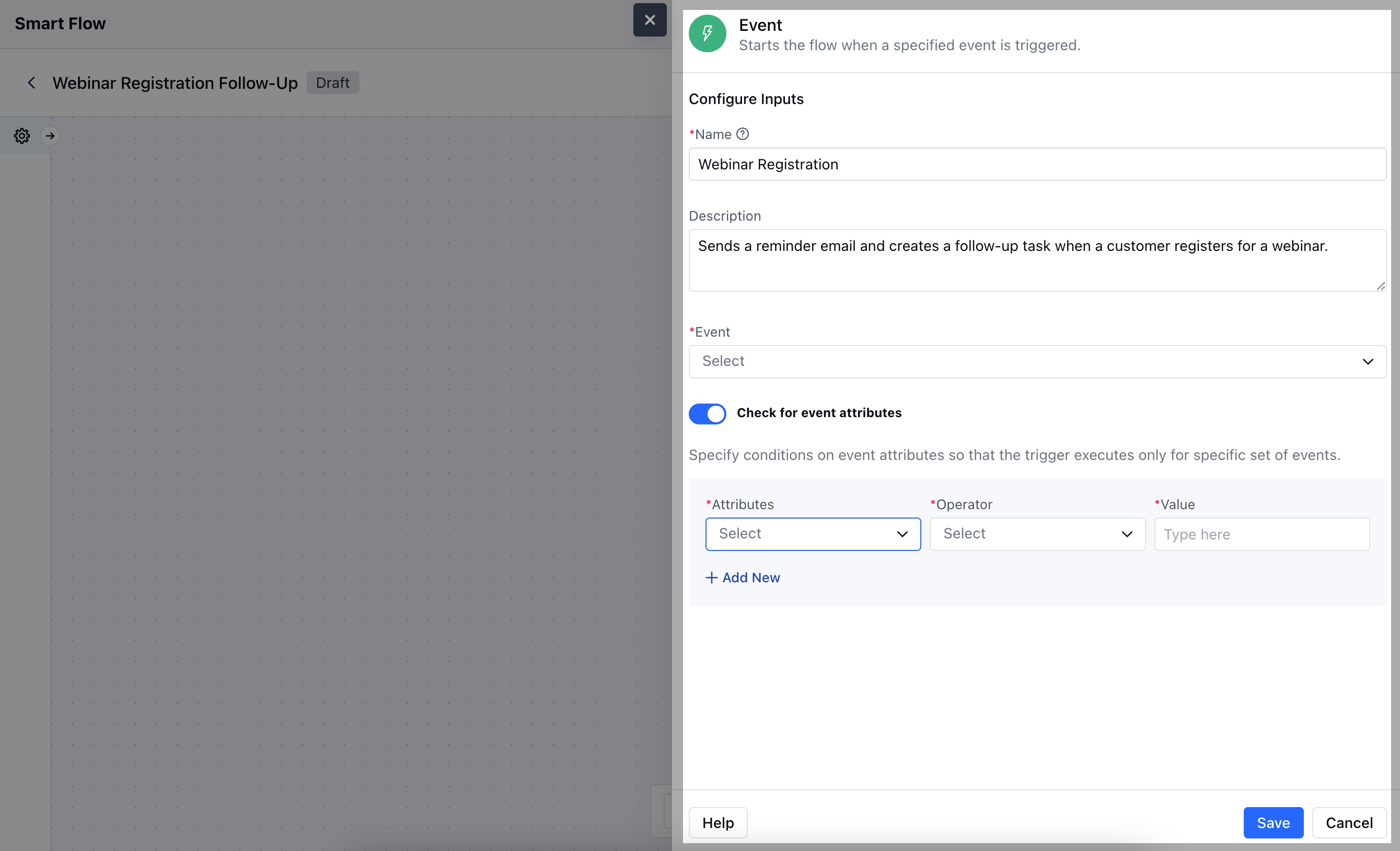
 After selecting the **Event Trigger**, you’ll need to configure the block by providing the following details:
* **Name:** Enter a clear and descriptive name to define the trigger's purpose within the flow.
* **Description:** Provide a short explanation of what this trigger will do, outlining how it fits into the overall automation process.
* **Event:** Select the specific event that will trigger the flow.
* **Check for Event Attributes:** Enable this option if you want to set additional conditions based on the attributes of the event.
* **Attributes:** Define specific event details that you want to monitor.
* **Operator:** Choose how the attribute should be compared.
* **Value:** Enter the specific value the attribute must meet for the trigger to activate.Once done, click on **Save**.
\*\*Note:\*\*Before configuring the Event Trigger, the user must have at least one event recorded in the system.
After selecting the **Event Trigger**, you’ll need to configure the block by providing the following details:
* **Name:** Enter a clear and descriptive name to define the trigger's purpose within the flow.
* **Description:** Provide a short explanation of what this trigger will do, outlining how it fits into the overall automation process.
* **Event:** Select the specific event that will trigger the flow.
* **Check for Event Attributes:** Enable this option if you want to set additional conditions based on the attributes of the event.
* **Attributes:** Define specific event details that you want to monitor.
* **Operator:** Choose how the attribute should be compared.
* **Value:** Enter the specific value the attribute must meet for the trigger to activate.Once done, click on **Save**.
\*\*Note:\*\*Before configuring the Event Trigger, the user must have at least one event recorded in the system.
 ### Practical Example
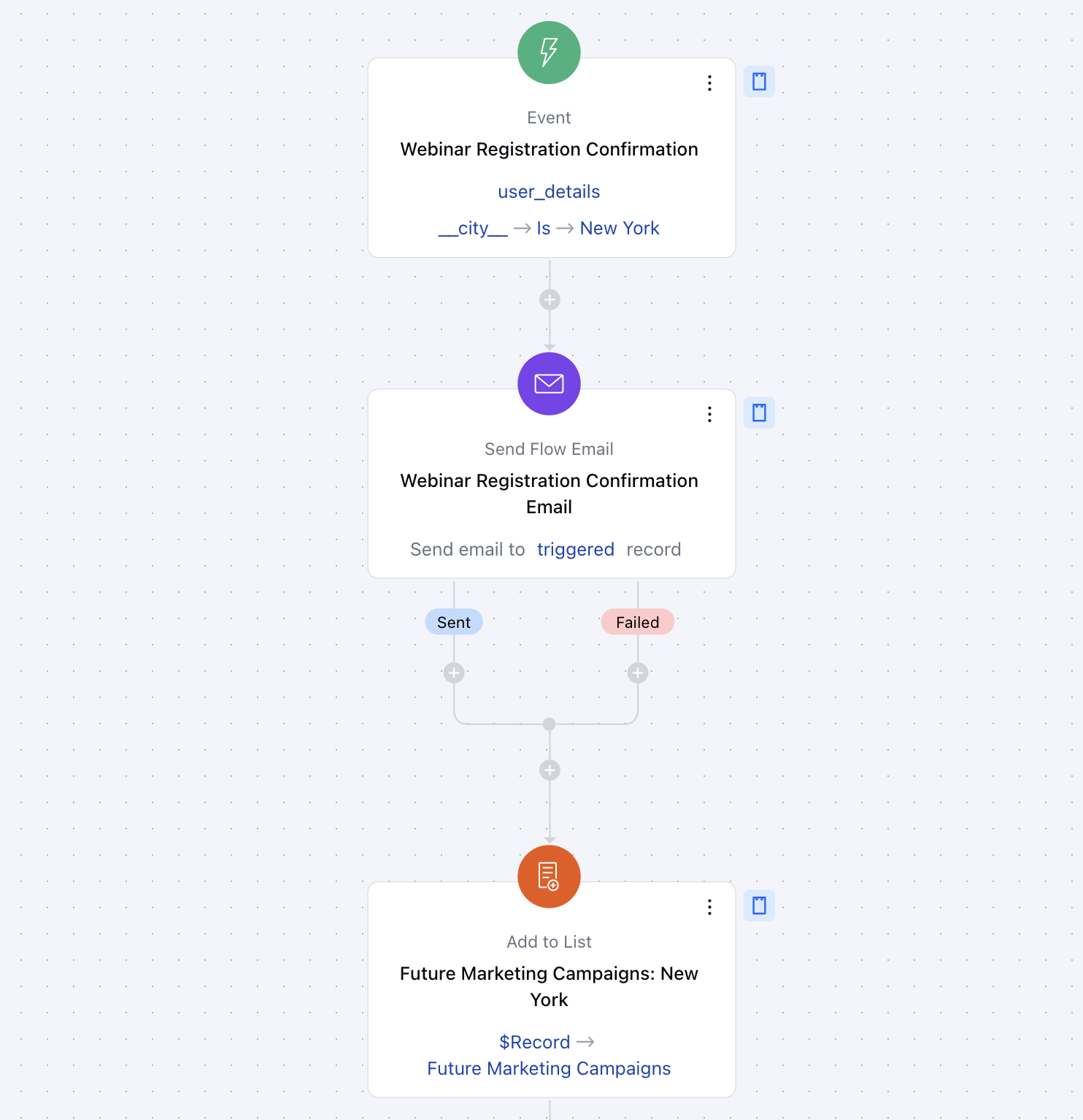
Here, We have organized a webinar on digital marketing strategies and want to send a confirmation email to participants once they register. We will segment our data based on the particular city and add them to specific lists.
### Practical Example
Here, We have organized a webinar on digital marketing strategies and want to send a confirmation email to participants once they register. We will segment our data based on the particular city and add them to specific lists.