> ## Documentation Index
> Fetch the complete documentation index at: https://support.getskara.ai/llms.txt
> Use this file to discover all available pages before exploring further.
# How to Edit or Delete Snippets
You can easily edit or delete snippets in Skara to keep your content accurate and relevant. In this article, we’ll show you how easy it is to edit or delete snippets so you can keep them updated and relevant to your needs.
* [How to Edit a Snippet](#how-to-edit-a-snippet)
* [How to Delete a Snippet](#how-to-delete-a-snippet)
### How to Edit a Snippet
**Note:** A user with edit snippet rights can perform this operation.
To edit a Snippet,
* Navigate to the **Profile Icon** on the top right corner.
* Click on the **Set Up.**
* Head over to the Library **category**.
* Click on the **Snippets** option.
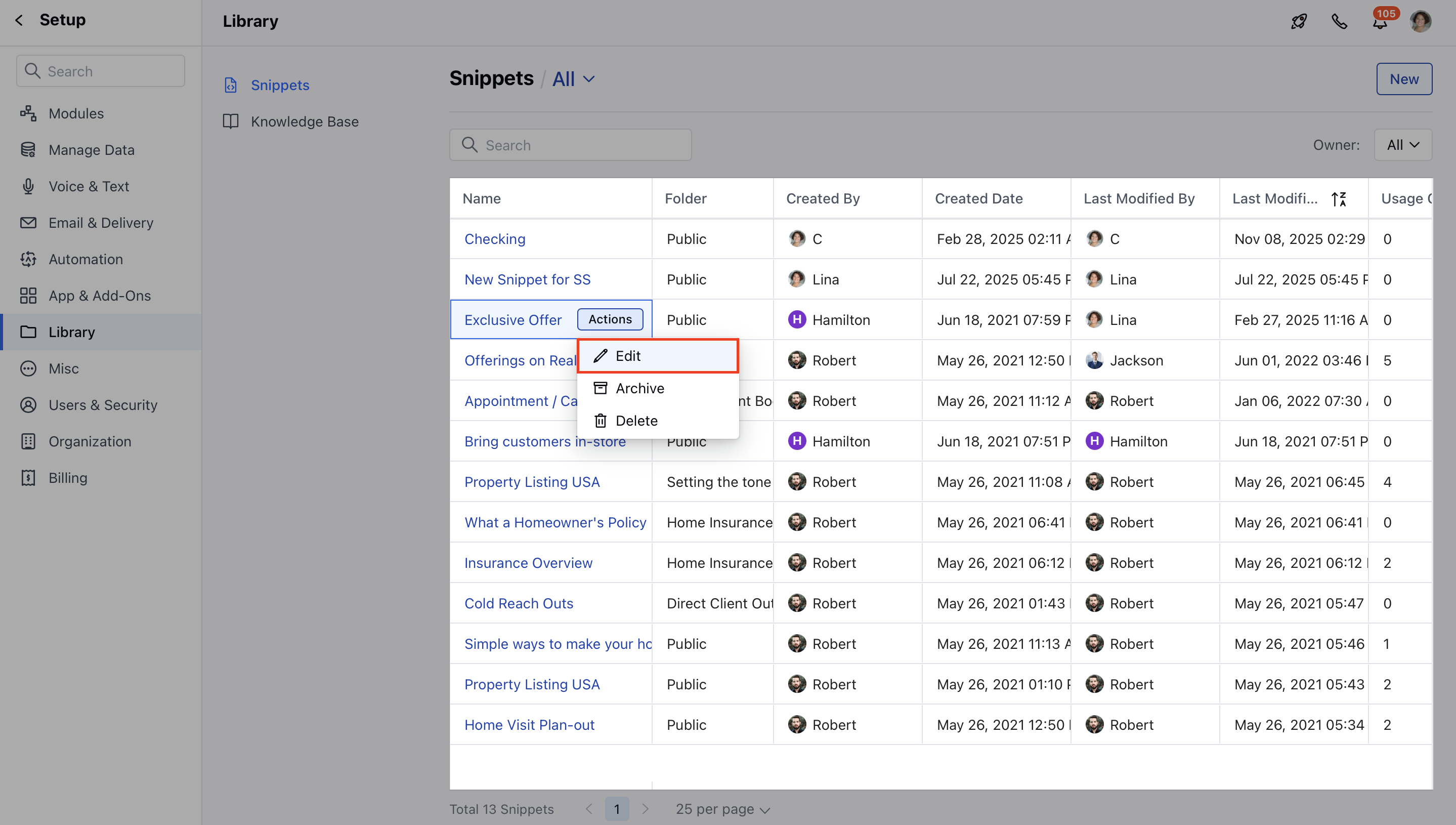
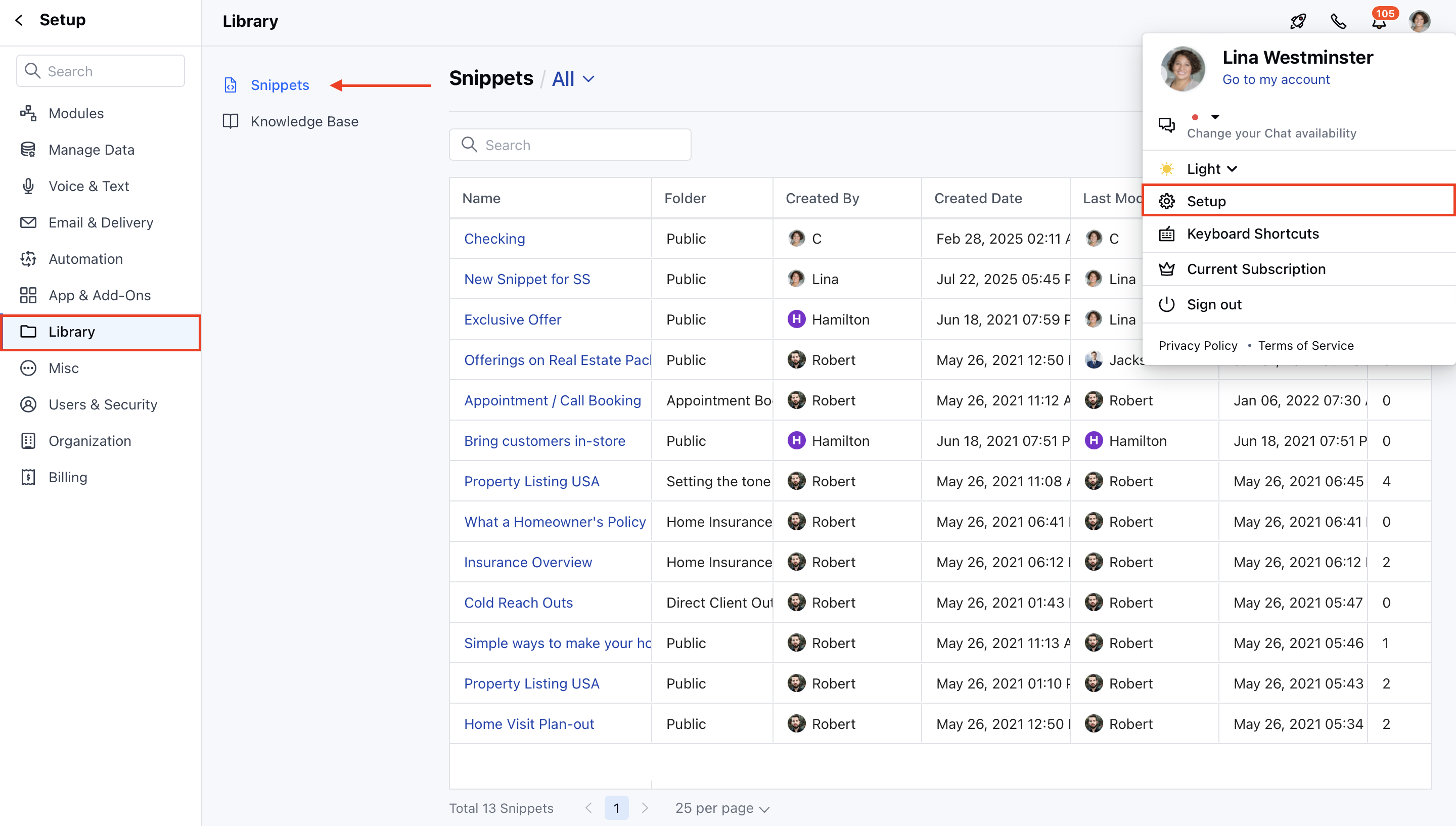 * Hover on the Name of the Snippet you want to edit and click on Actions .
* **Click on the** Edit option.
* Hover on the Name of the Snippet you want to edit and click on Actions .
* **Click on the** Edit option.
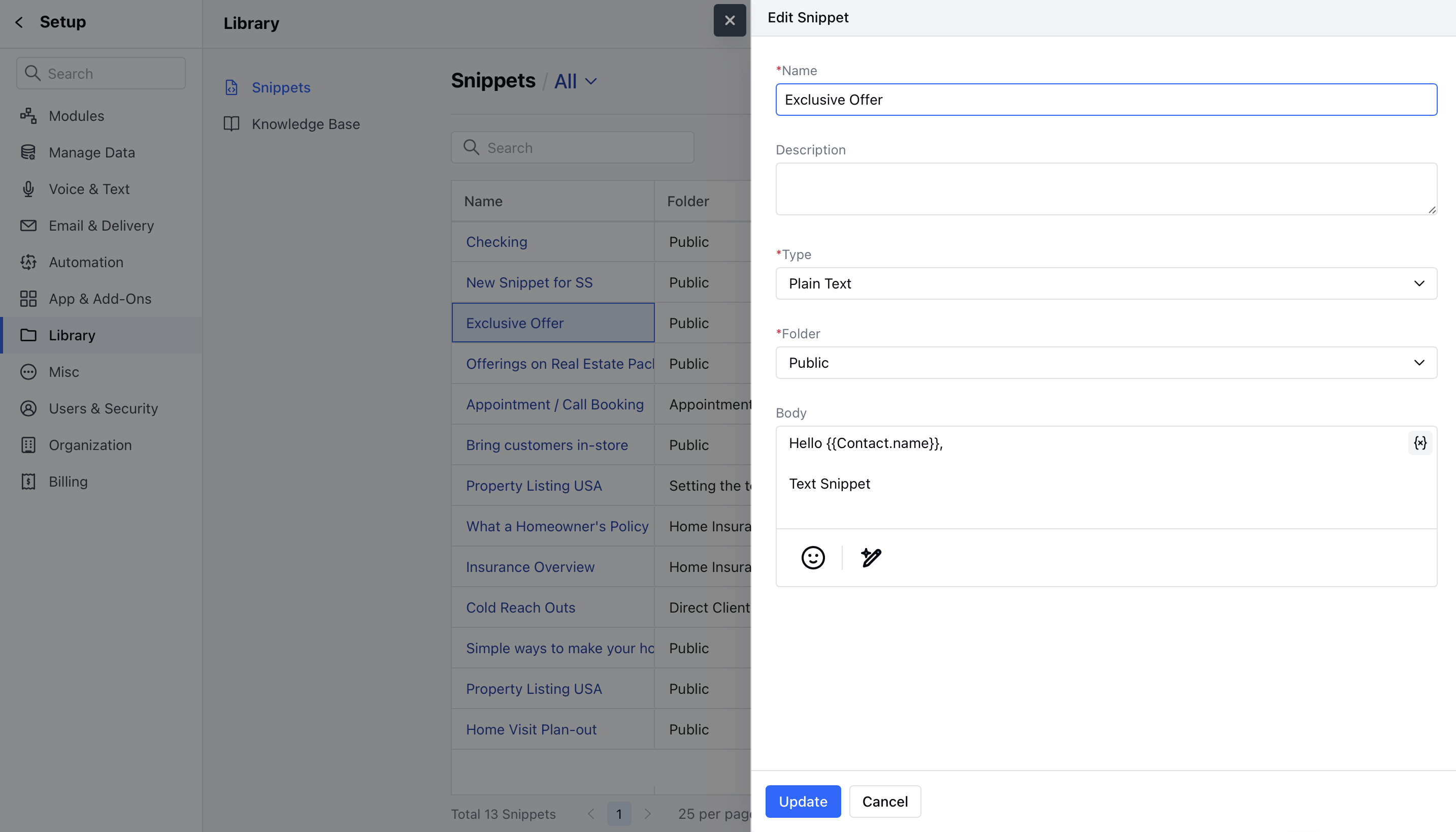
 * Make the changes you require and then hit the Save Button.
 ### How to Delete a Snippet
**Note:** A user with delete snippet rights can perform this operation.
To delete a Snippet,
* Navigate to the **Profile Icon** on the top right corner.
* Click on the **Set Up.**
* Head over to the **Library** category.
* Click on the **Snippets** option.
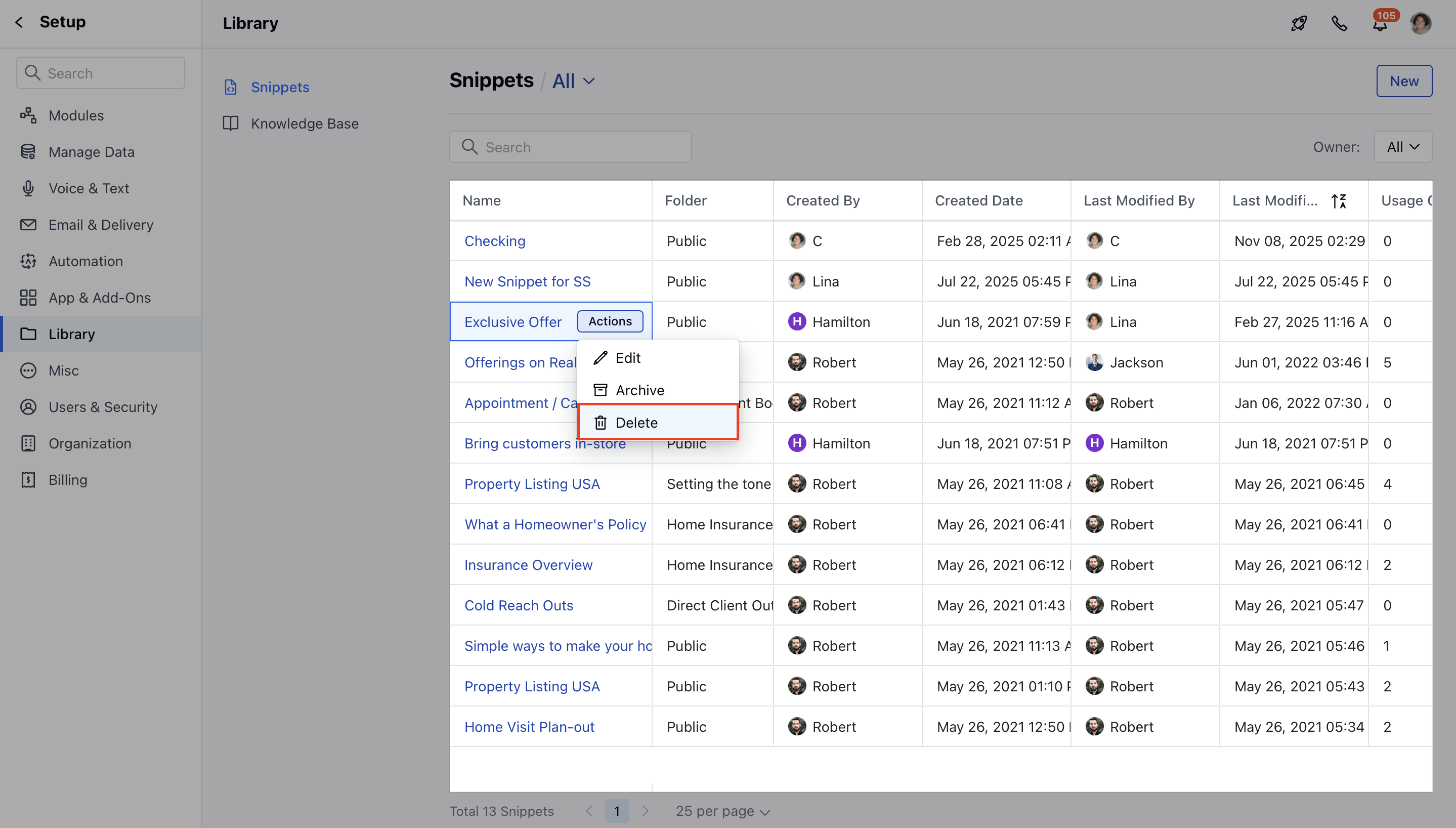
* Hover on the Name of the Snippet you want to edit and click on **Actions** .
* Click on the **Delete** option.
### How to Delete a Snippet
**Note:** A user with delete snippet rights can perform this operation.
To delete a Snippet,
* Navigate to the **Profile Icon** on the top right corner.
* Click on the **Set Up.**
* Head over to the **Library** category.
* Click on the **Snippets** option.
* Hover on the Name of the Snippet you want to edit and click on **Actions** .
* Click on the **Delete** option.
 * Confirm your action to delete the Snippet.
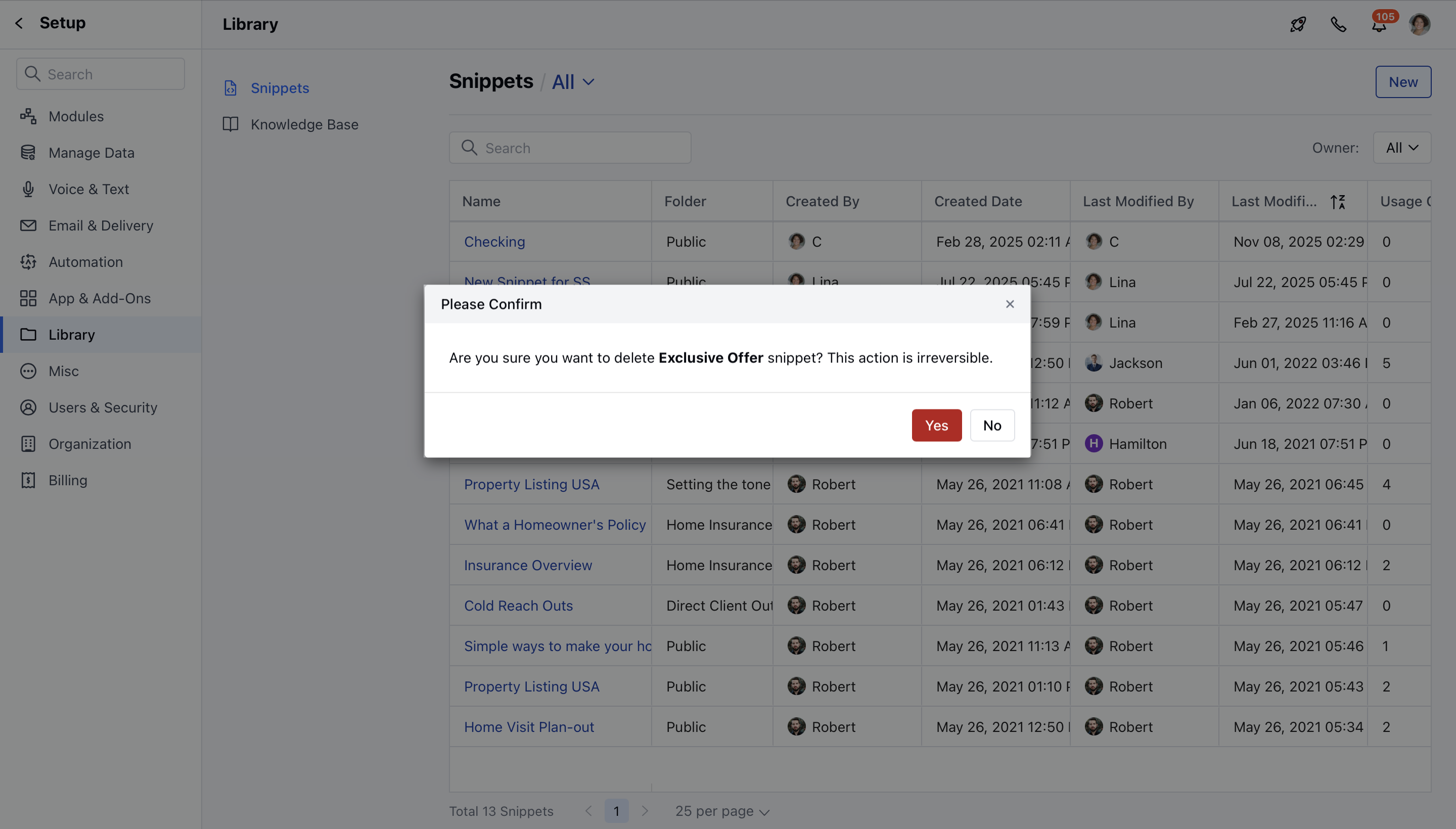 **Note:** Delete operations are irreversible; you can't recover your snippet once done.