> ## Documentation Index
> Fetch the complete documentation index at: https://support.getskara.ai/llms.txt
> Use this file to discover all available pages before exploring further.
# Organize Snippet Folders
Creating snippet folders helps you organize your content and control access for specific users or teams. It helps group snippets based on projects, tasks, or departments.
### Steps to Create a New Snippet Folder
* Navigate to the **Profile Icon** in the top right corner.
* Go to **Setup** .
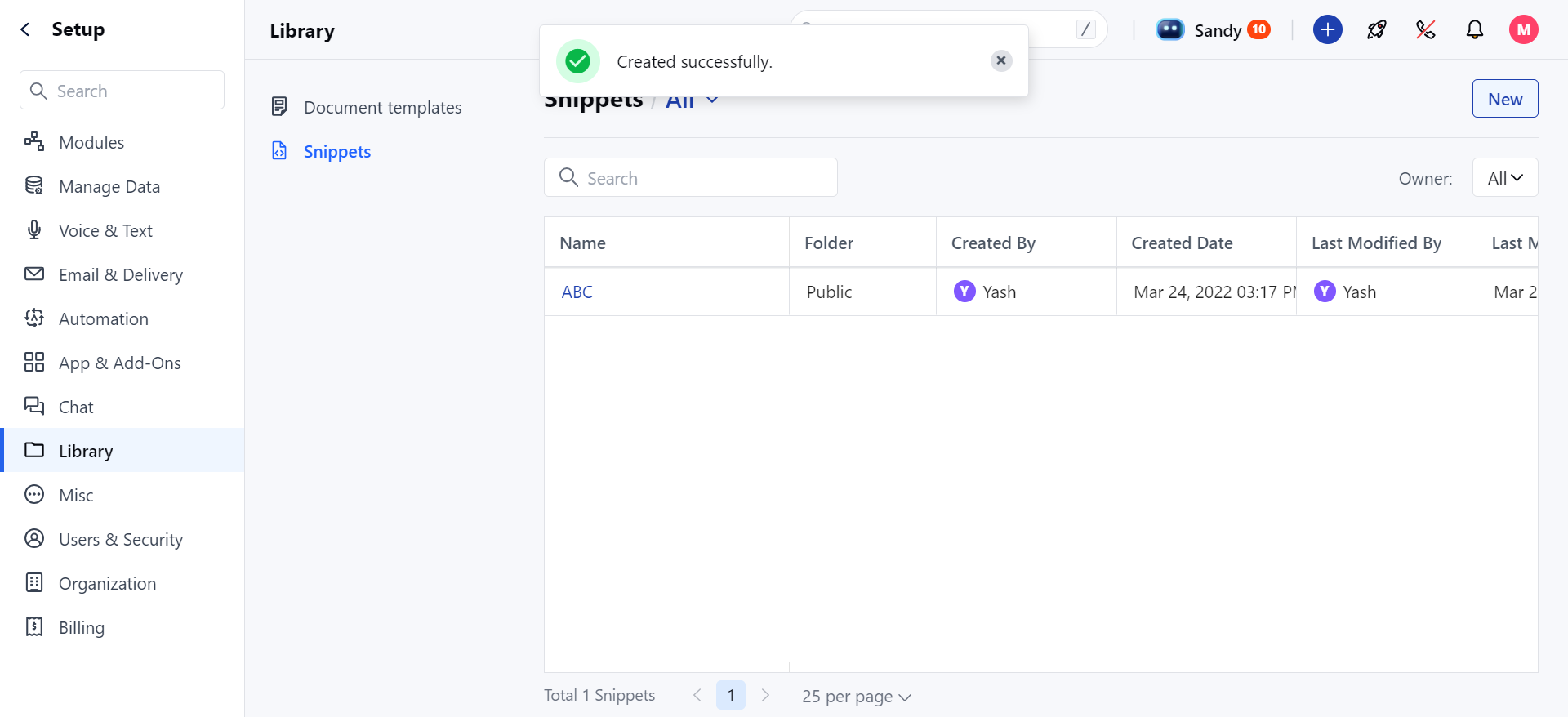
* Select **Library** and then choose **Snippets** from the menu.
* Under All Options, click on the
* **“+ New Folder”** button.
* Enter the desired name for your folder in the Folder Name field.
* Select a folder privacy policy:
* Only Me: The folder is private and accessible only to you.
* Public: The folder is accessible to everyone by default.
* Custom: Specify access for certain users or teams.
 * **Click on** Save .
* Upon successful creation, you’ll receive a message: **“Created Successfully.”**
* **Click on** Save .
* Upon successful creation, you’ll receive a message: **“Created Successfully.”**