> ## Documentation Index
> Fetch the complete documentation index at: https://support.getskara.ai/llms.txt
> Use this file to discover all available pages before exploring further.
# Tickets Board View
Skara offers a dynamic and visual representation of Tickets, allowing users to manage and track the Tickets as they progress through various phases, from creation to resolution
To manage the Board View,
* Navigate to the **Tickets** module from the left menubar
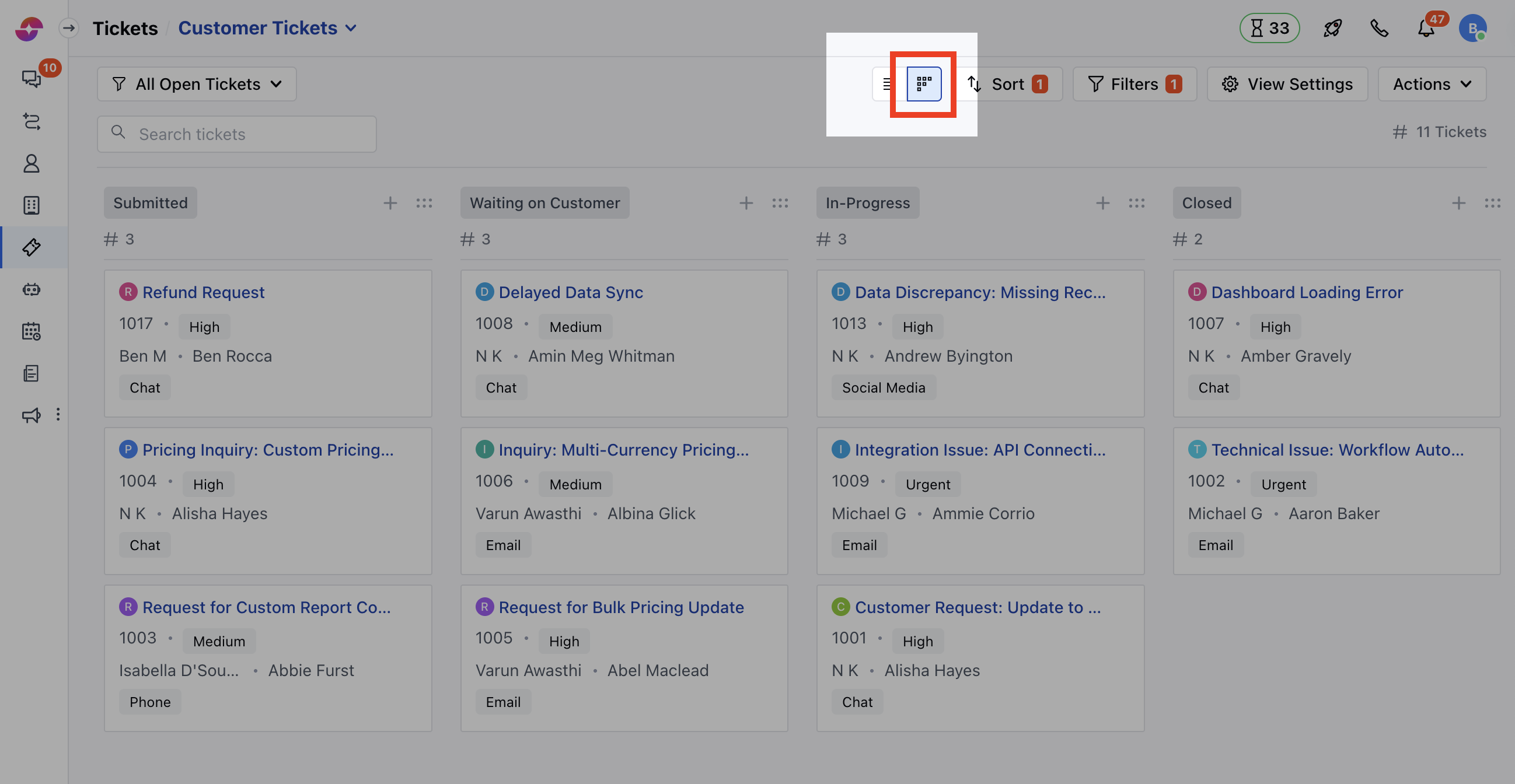
* Head over to the **Board View** option on the top right
* You will be redirected to the **Board View** screen
* In the board view, the columns will be displayed based on the stages you have created.
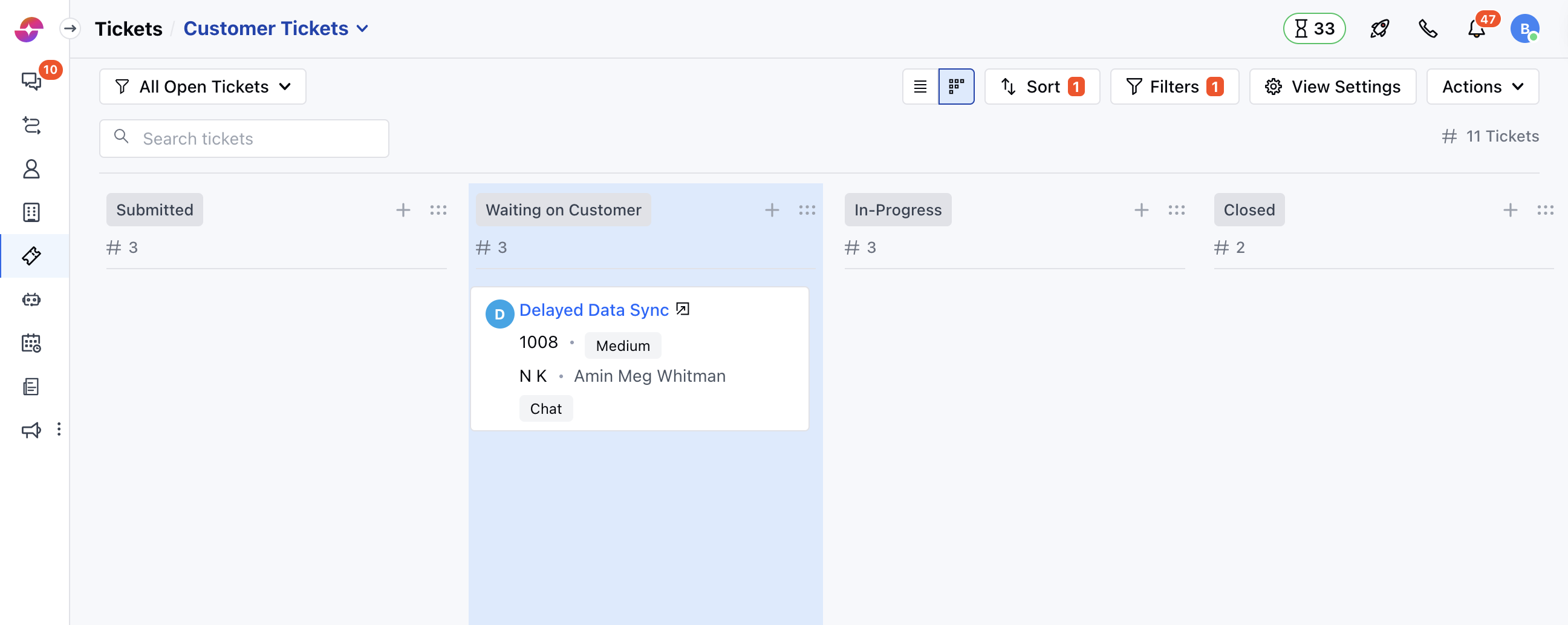
 * You can drag and drop the Stages to reposition
 Here you can perform multiple Actions,
* [Create a New Type](#create-a-new-type)
* [Customize the Card](#customize-the-card)
* [Actions Under Stage Title](#actions-under-stage-title)
* [Operations under Actions](#operation-under-actions)
### Create a New Type
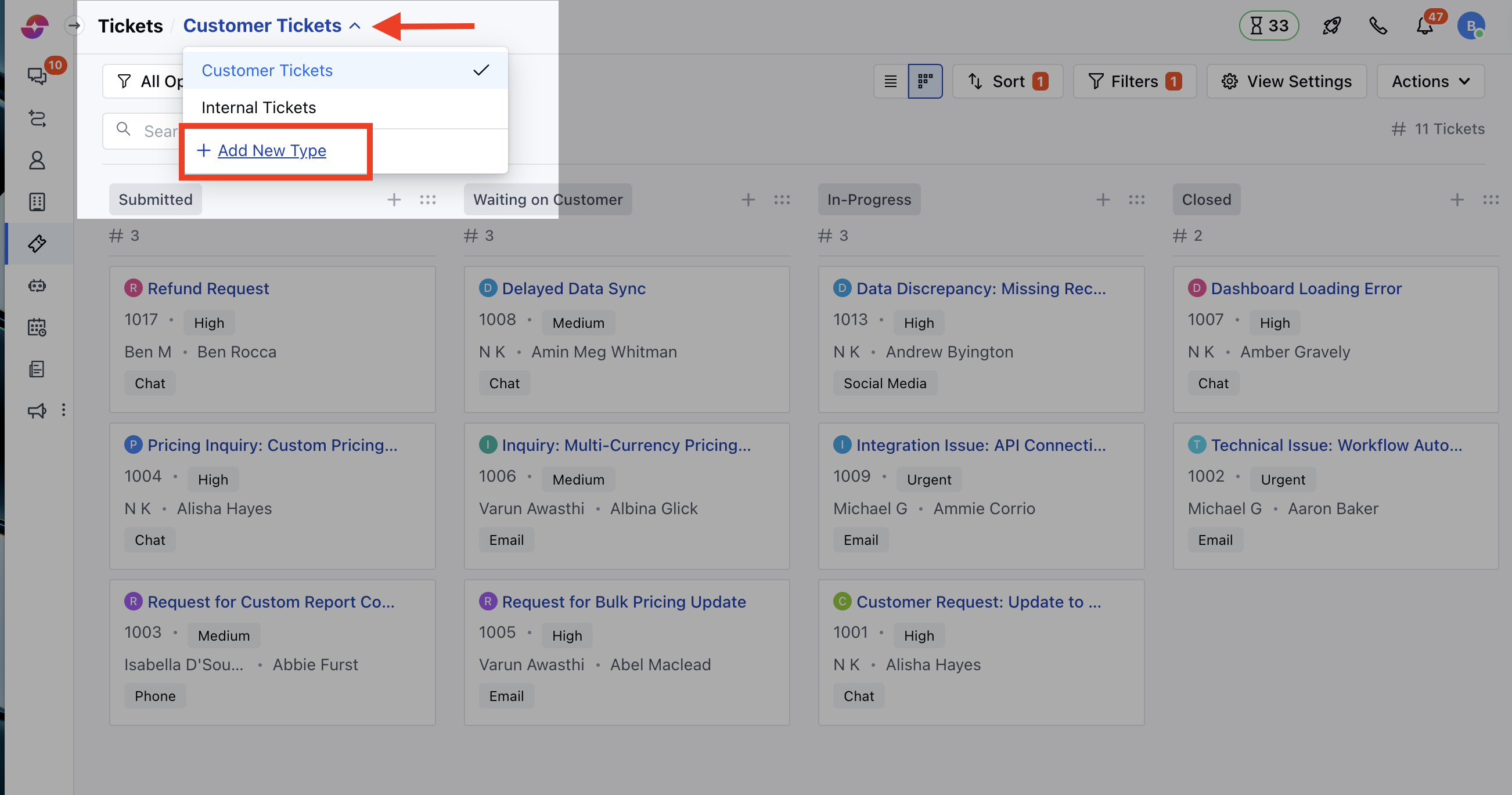
* Navigate to the **All Pipeline** option
* Click on the **Add New Pipeline** options
Here you can perform multiple Actions,
* [Create a New Type](#create-a-new-type)
* [Customize the Card](#customize-the-card)
* [Actions Under Stage Title](#actions-under-stage-title)
* [Operations under Actions](#operation-under-actions)
### Create a New Type
* Navigate to the **All Pipeline** option
* Click on the **Add New Pipeline** options
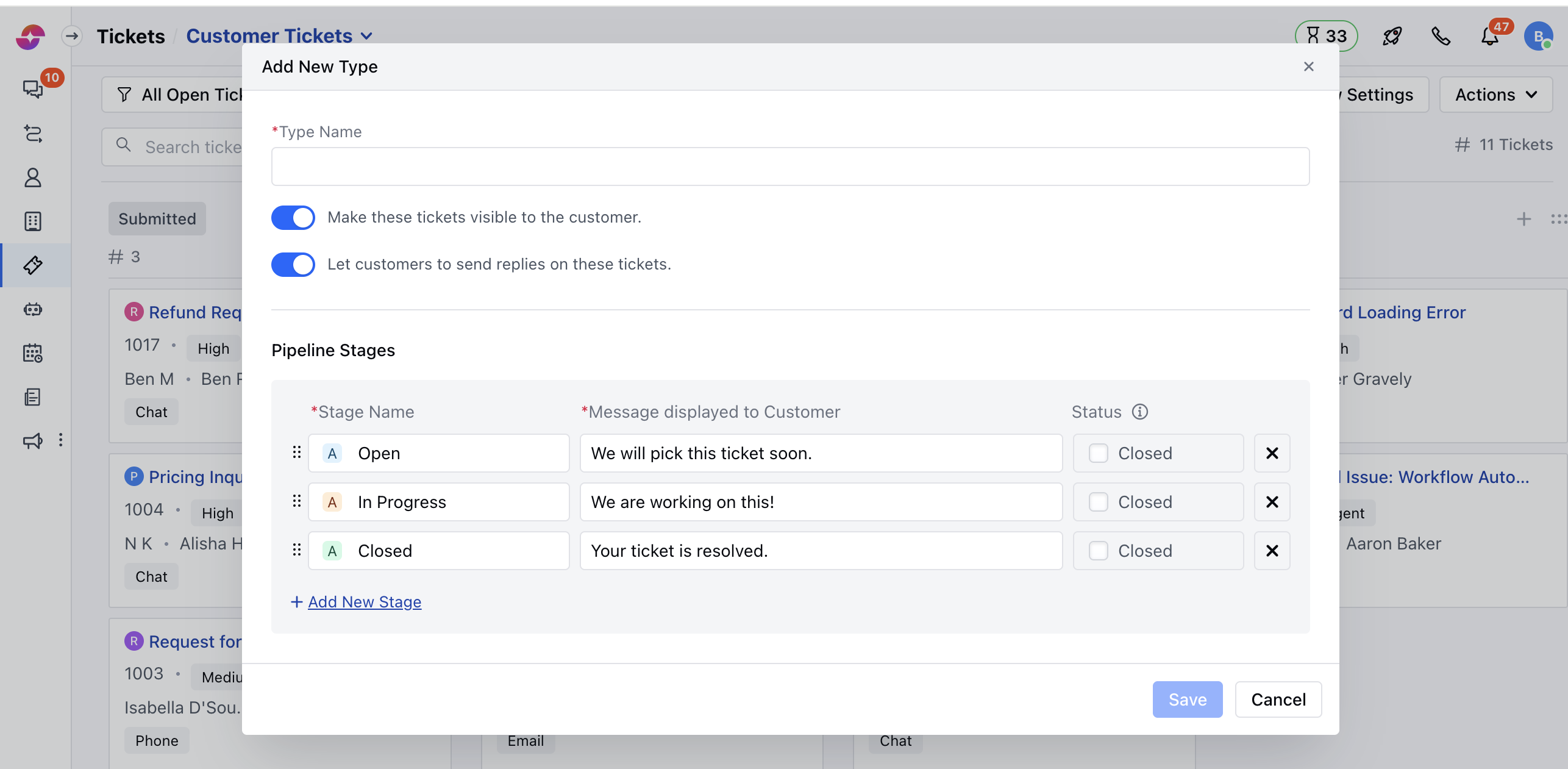
 * Enter the **Pipeline Name**
* **Make these tickets visible to the customer**: Enable this option if you wish the pipeline to be visible to your customers.
* As soon as you enable this option another option will appear.
* **Let customers to send replies on these tickets** - Enable this option if you want your customers to engage in ticket discussions and add their comments on it
* If you wish to Add in any new stages click on **Add New Stage**
* Click on **Save**
* Enter the **Pipeline Name**
* **Make these tickets visible to the customer**: Enable this option if you wish the pipeline to be visible to your customers.
* As soon as you enable this option another option will appear.
* **Let customers to send replies on these tickets** - Enable this option if you want your customers to engage in ticket discussions and add their comments on it
* If you wish to Add in any new stages click on **Add New Stage**
* Click on **Save**
 ### Customize the Card
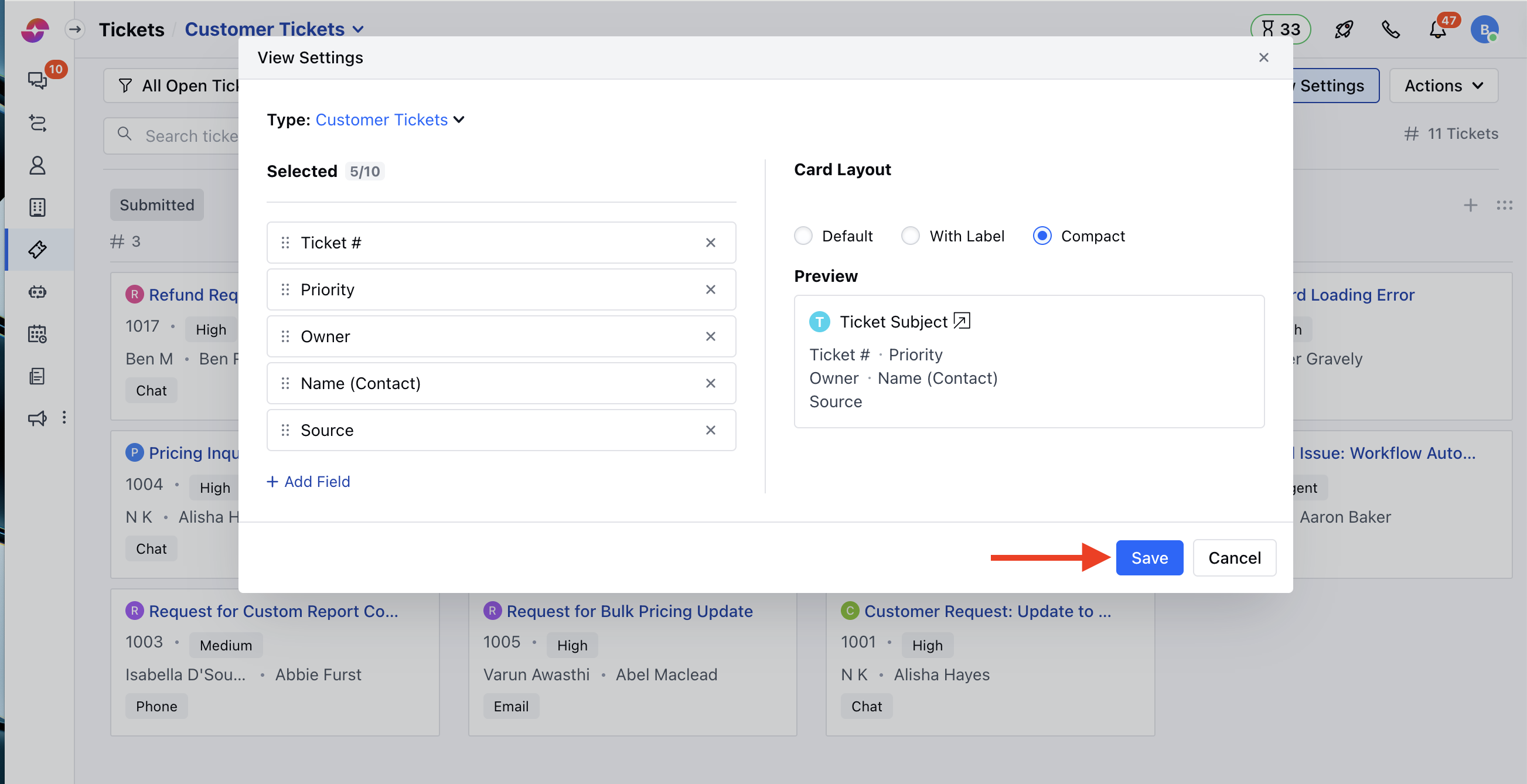
* You can also choose the design of the card and what details should be shown by clicking on the **View Settings** button and configuring the popup with your desired details
* **Pipeline** - Select the Pipeline for which you wish to Customize the Card
* **Add Field** - Select the Fields you would like to appear on the Card, you can easily Add or remove the fields.
* Then, choose the **Card Layout,**
* **Default** - To display the values of the selected fields with their icons on the card.
* **With Label** - To display the field label and their values for the selected fields in the card.
* **Compact** - To display the values of the selected field in a compact view.
* **Preview** - Will show how the Card would appear with any of the above Card layouts.
* Once you have chosen your preferences, hit the **Save** button
### Customize the Card
* You can also choose the design of the card and what details should be shown by clicking on the **View Settings** button and configuring the popup with your desired details
* **Pipeline** - Select the Pipeline for which you wish to Customize the Card
* **Add Field** - Select the Fields you would like to appear on the Card, you can easily Add or remove the fields.
* Then, choose the **Card Layout,**
* **Default** - To display the values of the selected fields with their icons on the card.
* **With Label** - To display the field label and their values for the selected fields in the card.
* **Compact** - To display the values of the selected field in a compact view.
* **Preview** - Will show how the Card would appear with any of the above Card layouts.
* Once you have chosen your preferences, hit the **Save** button
 ### Actions Under Stage Title
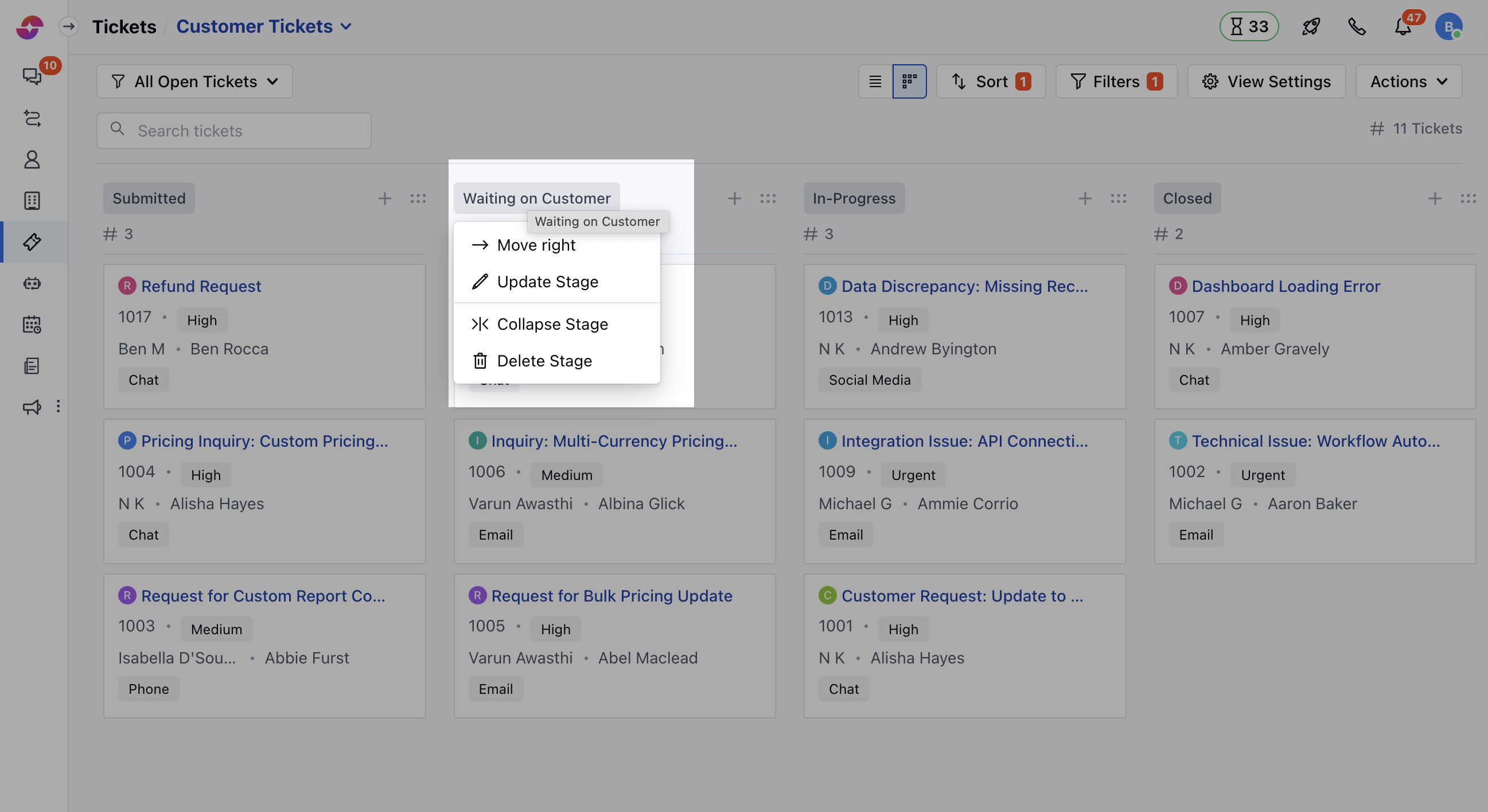
* As you click on the stage Title, it will allow you to perform the following actions,
* **Move Left** - This option allows you to move the Stage to Left
* **Move Right** - This option would allow you to move the Stage to Right
* **Update Stage** - This option would allow you to Update the Stage
* **Collapse Stage** - This option lets you temporarily hide the Stage
* **Delete Stage** - This option would let you Delete the Stage if not required
### Actions Under Stage Title
* As you click on the stage Title, it will allow you to perform the following actions,
* **Move Left** - This option allows you to move the Stage to Left
* **Move Right** - This option would allow you to move the Stage to Right
* **Update Stage** - This option would allow you to Update the Stage
* **Collapse Stage** - This option lets you temporarily hide the Stage
* **Delete Stage** - This option would let you Delete the Stage if not required
 ###
###