> ## Documentation Index
> Fetch the complete documentation index at: https://support.getskara.ai/llms.txt
> Use this file to discover all available pages before exploring further.
# How to Customize Ticket Form
The ability to create custom fields for a ticketing system is instrumental in tailoring the system to the organization's unique needs, improving data accuracy, and enhancing overall efficiency in managing customer interactions and support tickets.
**Note:** A User with **Manage Permission** Rights can perform this action
To create a new custom field for the Tickets module,
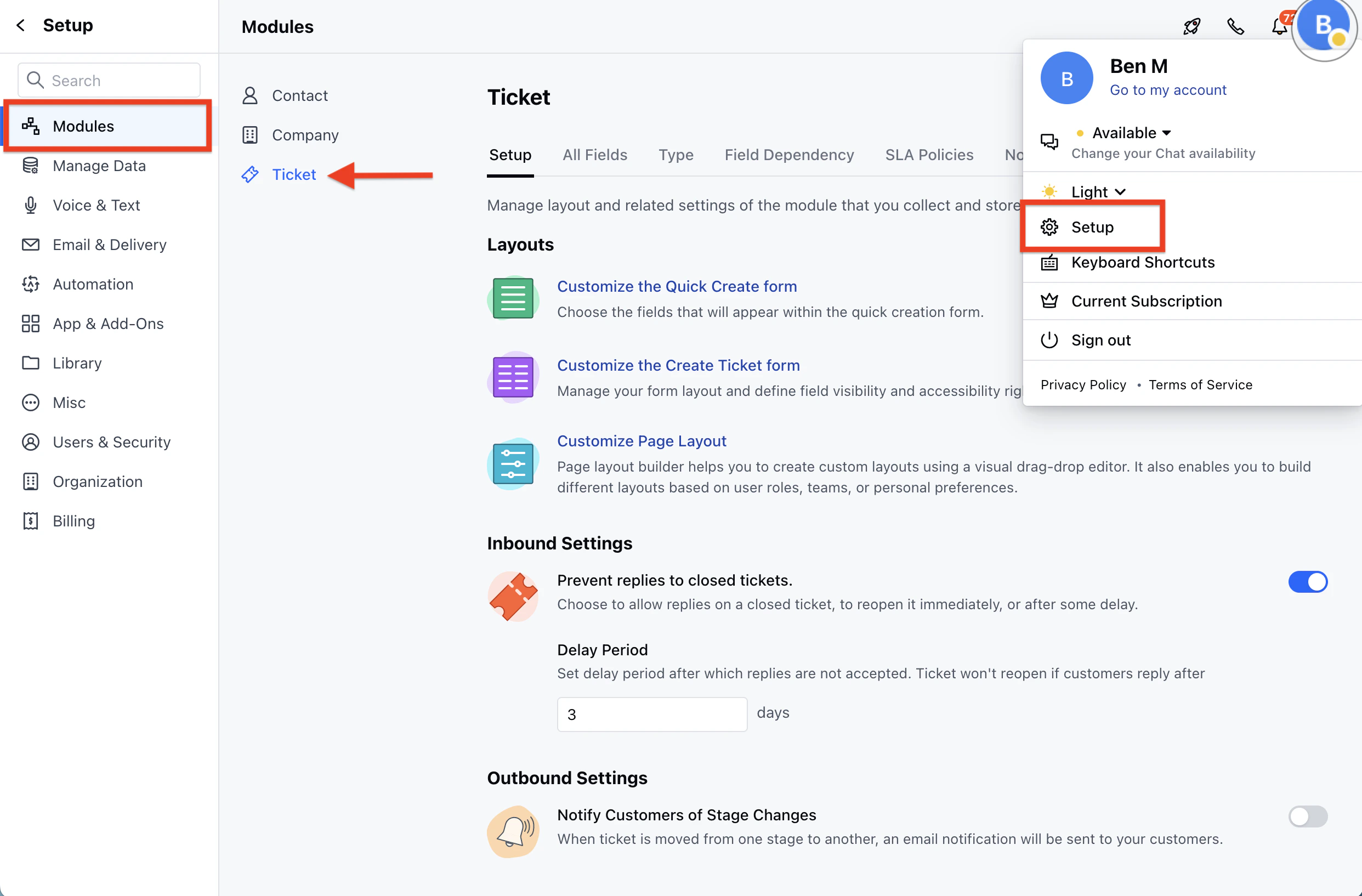
* Navigate to the **Profile Icon** on the top right corner
* Click on **Set Up**
* Head over to the **Modules** category
* Click on **Tickets**
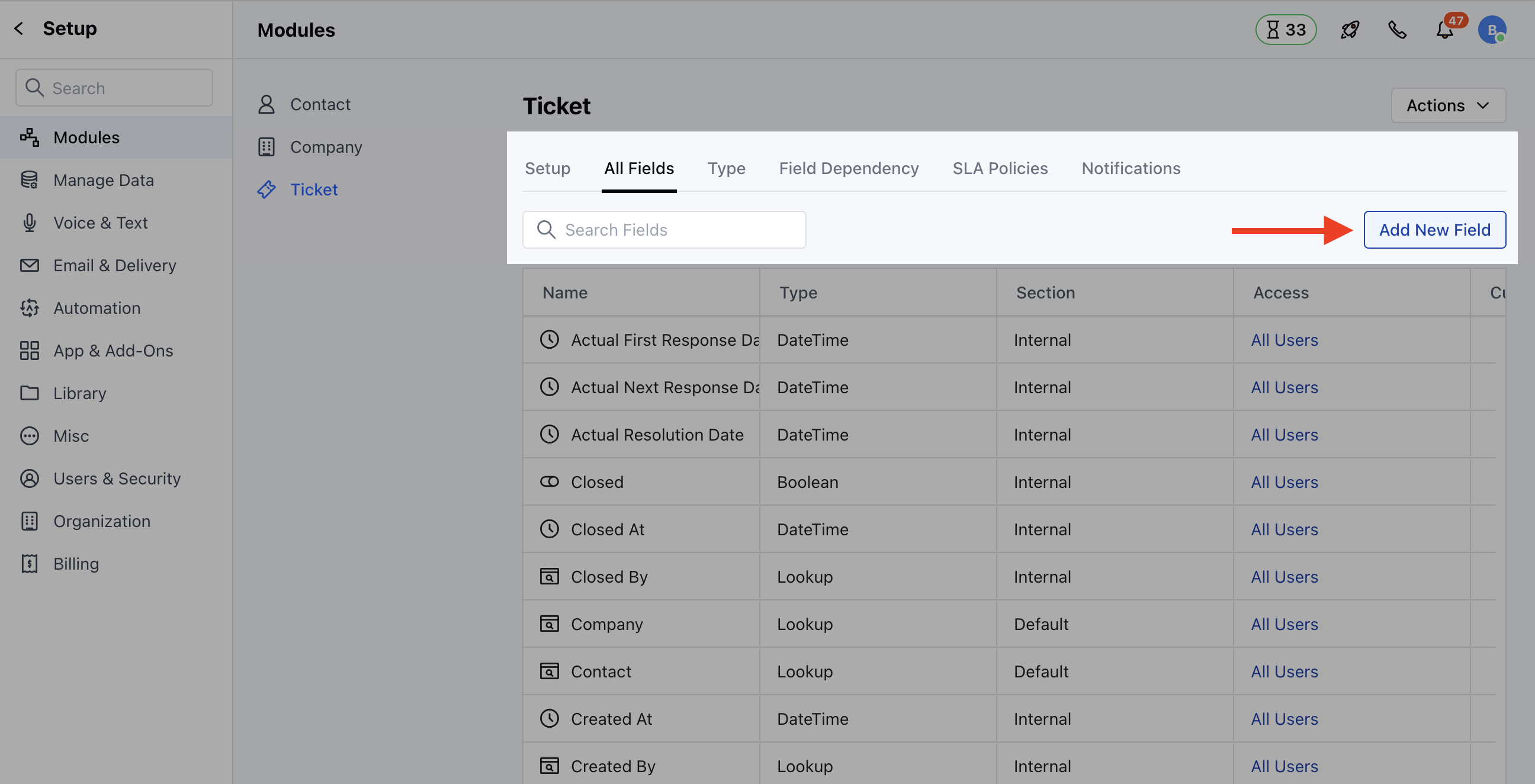
 * Locate the **All Detail Form Fields** Section
* Click on the **Add New Field** option
* Locate the **All Detail Form Fields** Section
* Click on the **Add New Field** option
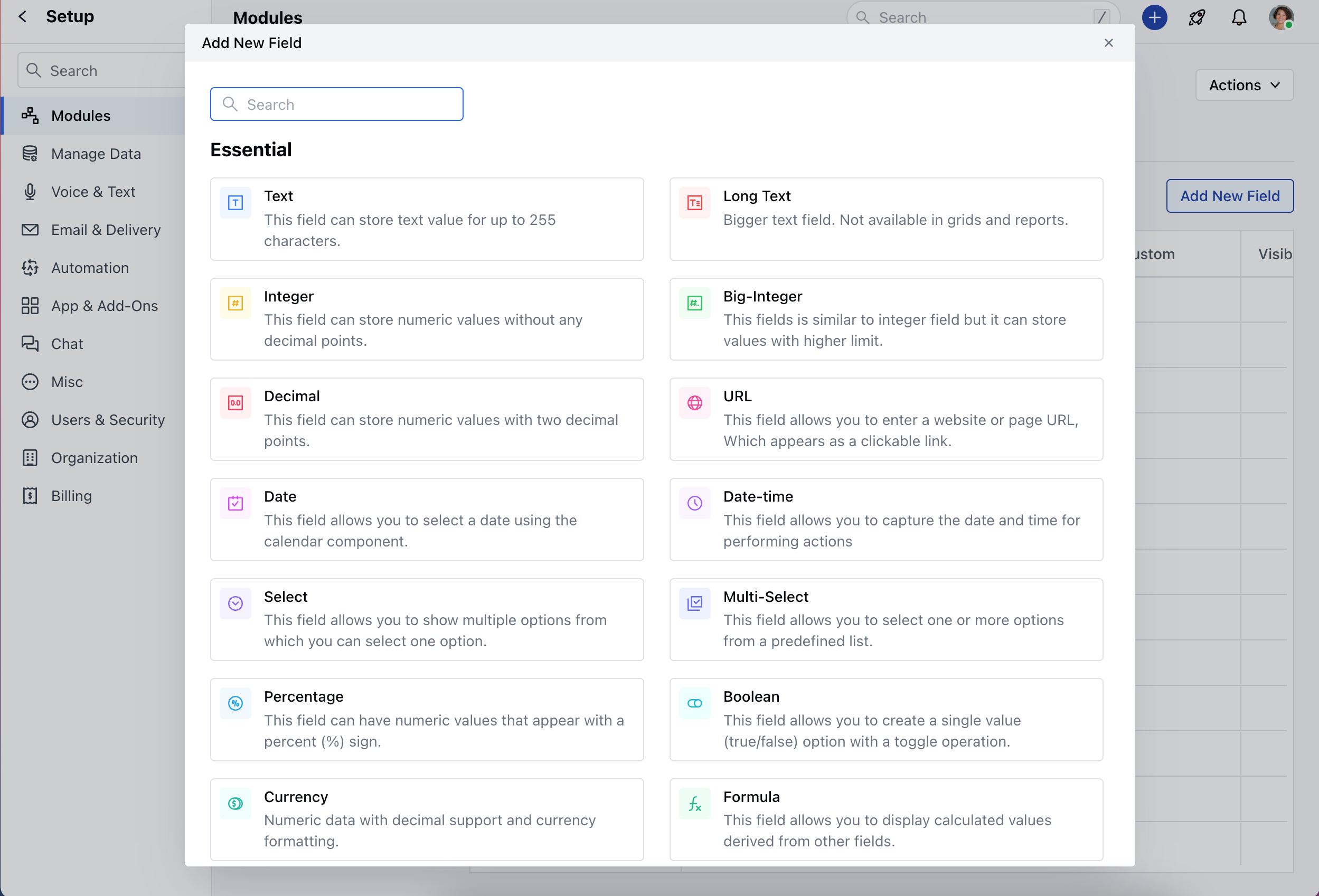
 * A popup will appear displaying a list of essential and useful field types to choose from. You can search for a field using the search bar.
* Choose the **Field Types.**
* A popup will appear displaying a list of essential and useful field types to choose from. You can search for a field using the search bar.
* Choose the **Field Types.**
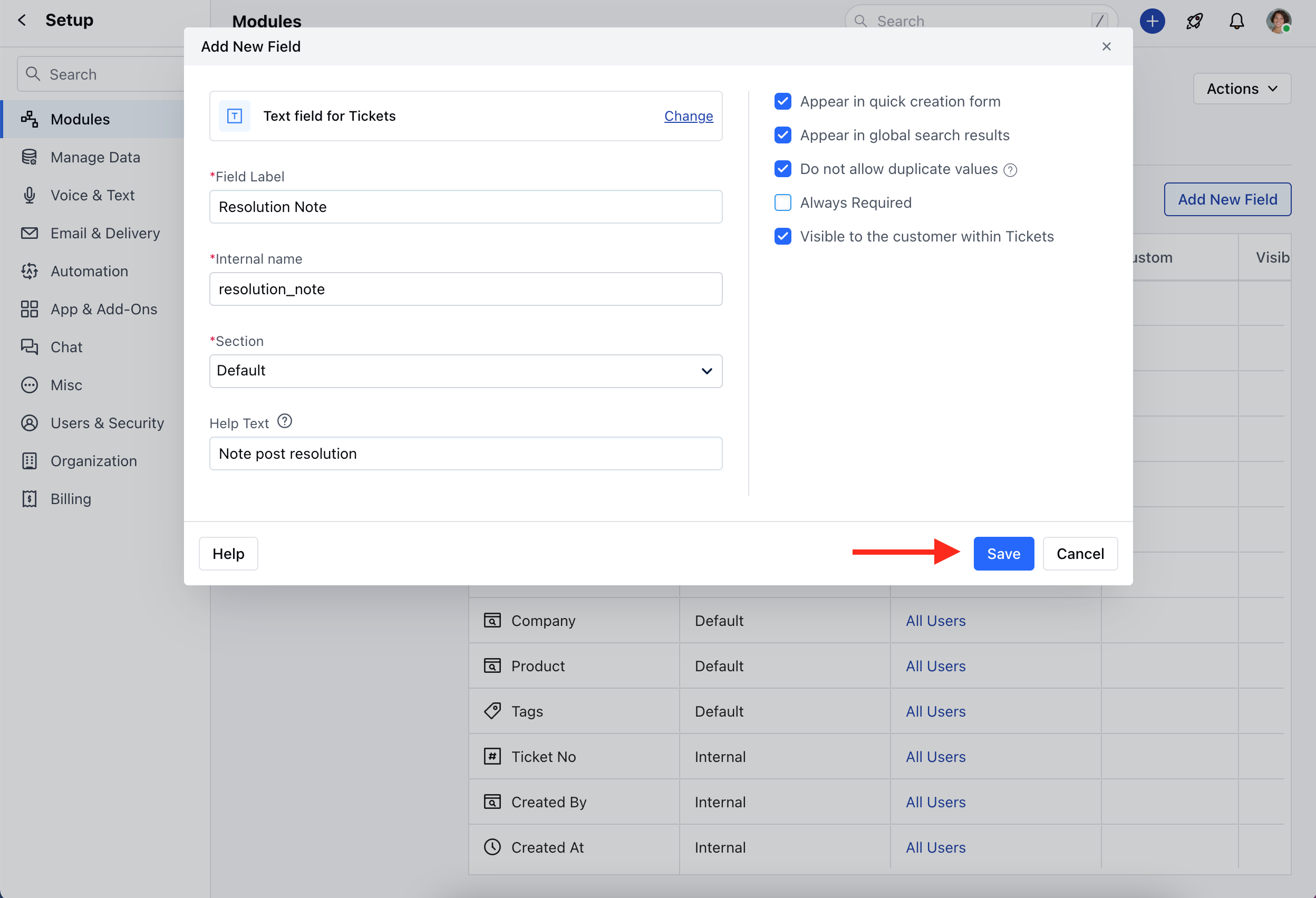
 * Once you've selected a field type, provide the following details for the field:
* Field Label Name - Specify the field name for clear and easy identification
* Internal Name - Enter Internal Name for API integrations
* Section - Select the Section you wish the Field to fall under
* Help Text - Add the Help Text to provide additional information to help your teammates to understand the purpose of the field \*
* Once you have added the details, you can select,
* **Appear in quick creation form:** To display this field in the quick creation form.
* **Appear in global search results:** To allow searching the field via global search.
* **Do not allow duplicate values:** To prevent the creation of a duplicate Ticket.
* **Required:** If the Field should be mandatory.
* **Visible to the customer within Tickets**: If the field should be visible to the customers
* Once done, **Save** the details.
* Once you've selected a field type, provide the following details for the field:
* Field Label Name - Specify the field name for clear and easy identification
* Internal Name - Enter Internal Name for API integrations
* Section - Select the Section you wish the Field to fall under
* Help Text - Add the Help Text to provide additional information to help your teammates to understand the purpose of the field \*
* Once you have added the details, you can select,
* **Appear in quick creation form:** To display this field in the quick creation form.
* **Appear in global search results:** To allow searching the field via global search.
* **Do not allow duplicate values:** To prevent the creation of a duplicate Ticket.
* **Required:** If the Field should be mandatory.
* **Visible to the customer within Tickets**: If the field should be visible to the customers
* Once done, **Save** the details.