> ## Documentation Index
> Fetch the complete documentation index at: https://support.getskara.ai/llms.txt
> Use this file to discover all available pages before exploring further.
# How to Configure SLA Target
Configure SLA targets in Skara for delivering exceptional customer service, optimizing team efficiency, fostering accountability, and maintaining compliance with contractual agreements
To Configure SLA Target,
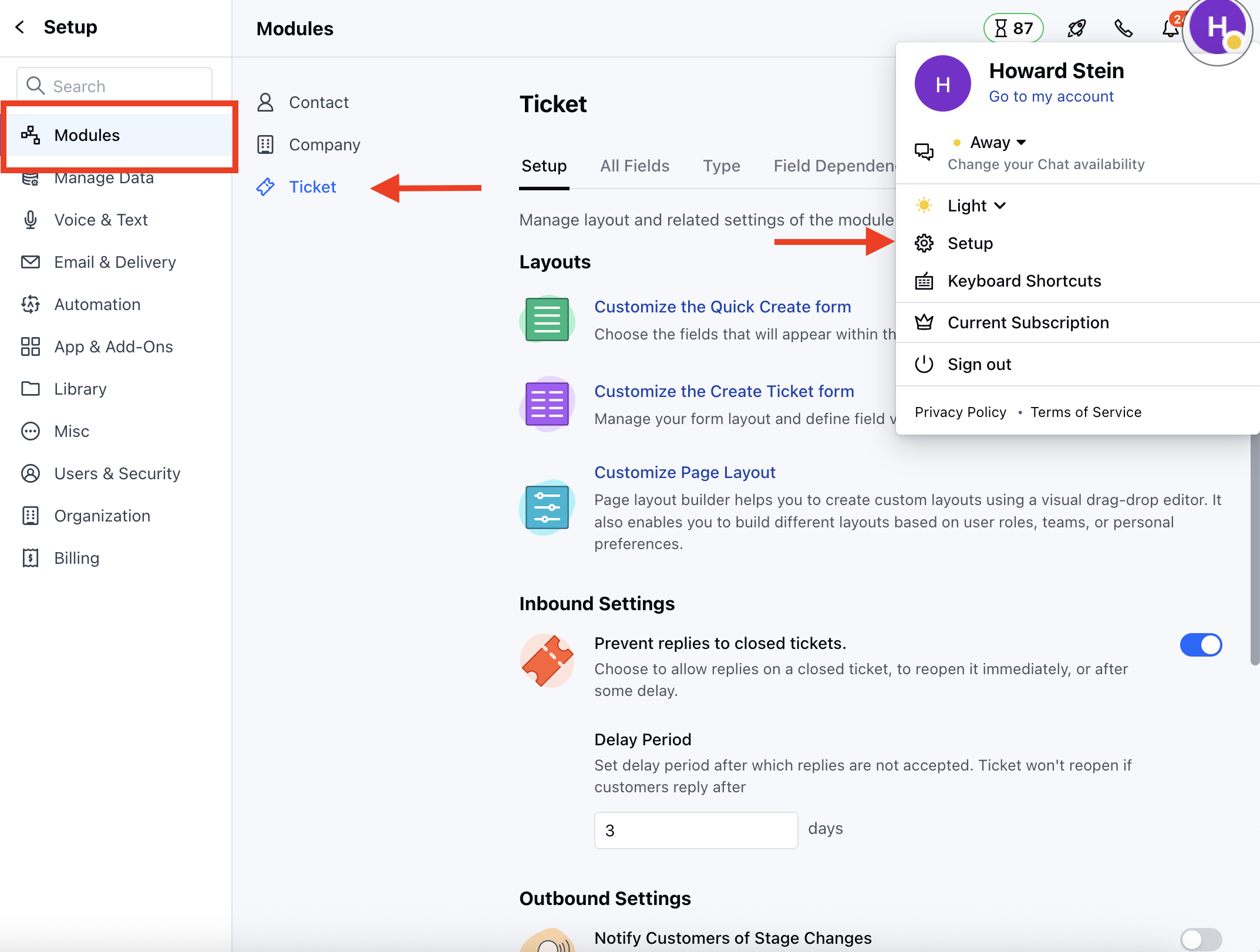
* Navigate to the **Profile Icon** on the top right corner
* Click on **Set Up**
* Head over to the **Modules** category
* Click on **Tickets**
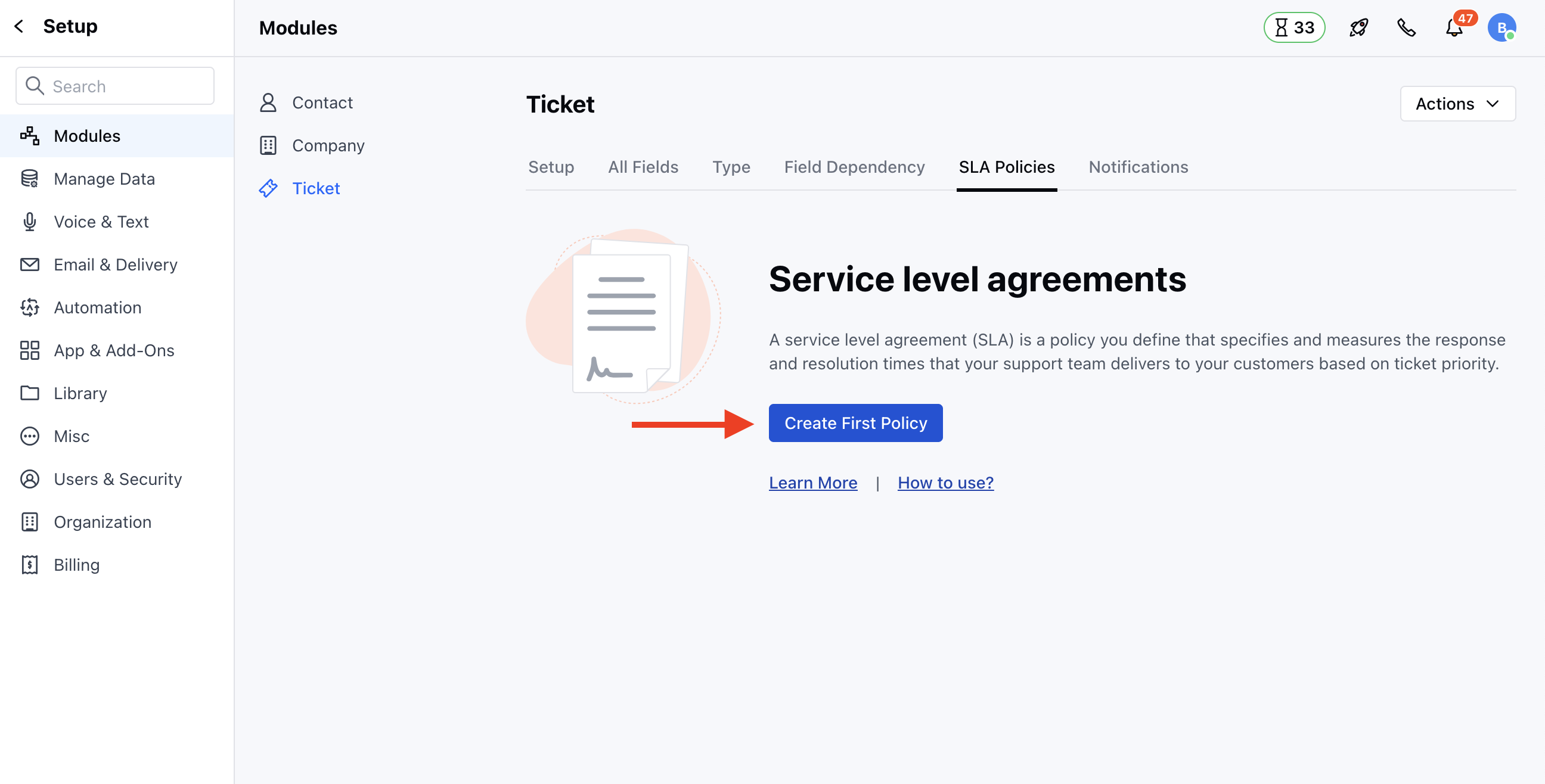
 * Head to the **SLA Policies** section
* You can configure the SLA Target while creating a new policy
* Click on **Add New Policy** to create a new policy
* Head to the **SLA Policies** section
* You can configure the SLA Target while creating a new policy
* Click on **Add New Policy** to create a new policy
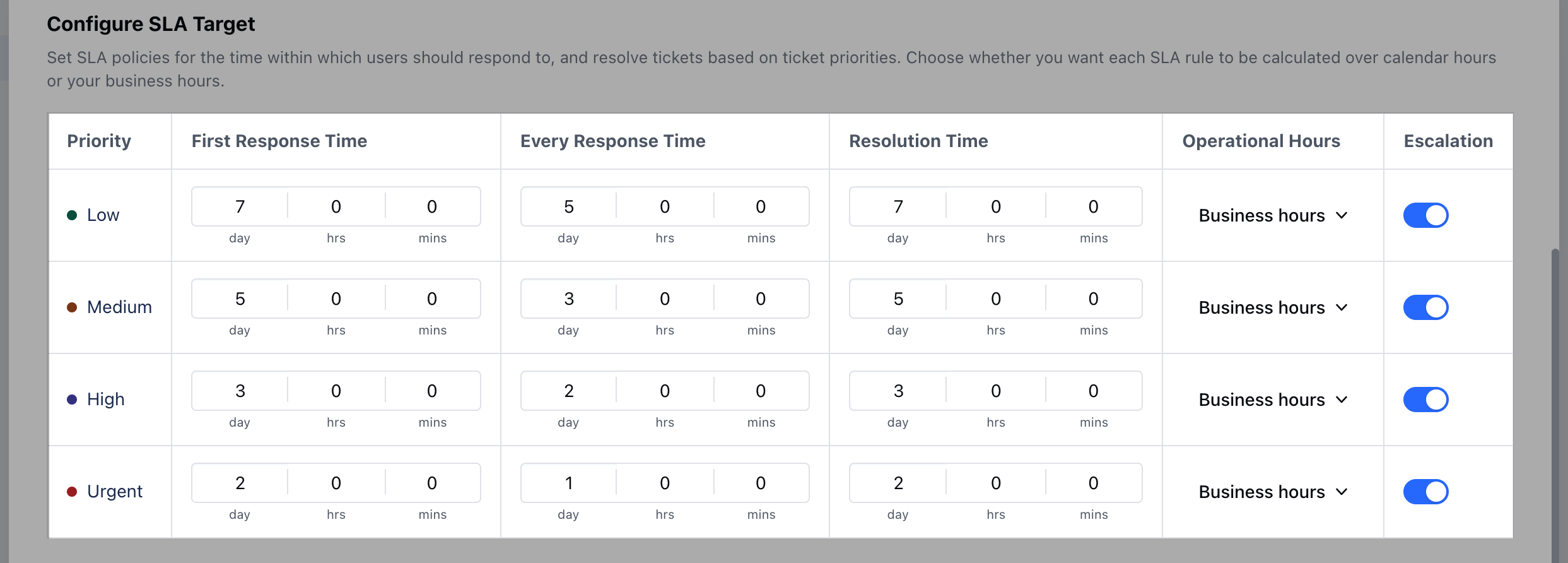
 * Head to **Configure SLA Target**
Here, you can set the following details,
* [Priority](#priority)
* [First response time](https://support.salesmate.io/hc/en-us/articles/26678152976793-How-to-Configure-SLA-Target#h_01HJ5QNX0YNN02FG0RAP63J66V)
* [Every response time](#every-response-time)
* [Resolution time](#resolution-time)
* [Operational Hours](#operational-hours)
* [Escalation](#escalation)
* Head to **Configure SLA Target**
Here, you can set the following details,
* [Priority](#priority)
* [First response time](https://support.salesmate.io/hc/en-us/articles/26678152976793-How-to-Configure-SLA-Target#h_01HJ5QNX0YNN02FG0RAP63J66V)
* [Every response time](#every-response-time)
* [Resolution time](#resolution-time)
* [Operational Hours](#operational-hours)
* [Escalation](#escalation)
 ### **Priority**
* Set the given SLA Priority as
* **Low** - Tickets marked with a Low-priority SLA may have longer allowed response and resolution times compared to higher-priority items.
* **Medium** - Tickets marked with a medium SLA priority usually have moderate response and resolution times
* **High** - Tickets marked with a high SLA priority typically have shorter allowed response and resolution times
* **Urgent**- Tickets marked with an "Urgent" SLA priority would need immediate attention and require the fastest possible turnaround for resolution.
### **First response time**
* Choose the specific timeframe within which the Customer/User should receive an initial response once the Ticket is submitted
### **Every response time**
* Choose the specific timeframe within which the Customers/Users should expect to receive a response each time they reply to your communications
### **Resolution Time**
* Choose the specific timeframe within which the Tickets matching the SLA criteria should be resolved
### **Operational Hours**
* Choose whether these response times will work based on Business or Calendar Hours
### **Escalation**
* Choose whether an escalation reminder or violation should run for this priority. Simply enable the option for given priorities as per your business process
### **Priority**
* Set the given SLA Priority as
* **Low** - Tickets marked with a Low-priority SLA may have longer allowed response and resolution times compared to higher-priority items.
* **Medium** - Tickets marked with a medium SLA priority usually have moderate response and resolution times
* **High** - Tickets marked with a high SLA priority typically have shorter allowed response and resolution times
* **Urgent**- Tickets marked with an "Urgent" SLA priority would need immediate attention and require the fastest possible turnaround for resolution.
### **First response time**
* Choose the specific timeframe within which the Customer/User should receive an initial response once the Ticket is submitted
### **Every response time**
* Choose the specific timeframe within which the Customers/Users should expect to receive a response each time they reply to your communications
### **Resolution Time**
* Choose the specific timeframe within which the Tickets matching the SLA criteria should be resolved
### **Operational Hours**
* Choose whether these response times will work based on Business or Calendar Hours
### **Escalation**
* Choose whether an escalation reminder or violation should run for this priority. Simply enable the option for given priorities as per your business process