> ## Documentation Index
> Fetch the complete documentation index at: https://support.getskara.ai/llms.txt
> Use this file to discover all available pages before exploring further.
# How to Customize Ticket Notification Templates
Skara provides users with the flexibility to personalize their Ticket Notification Templates according to their specific needs.
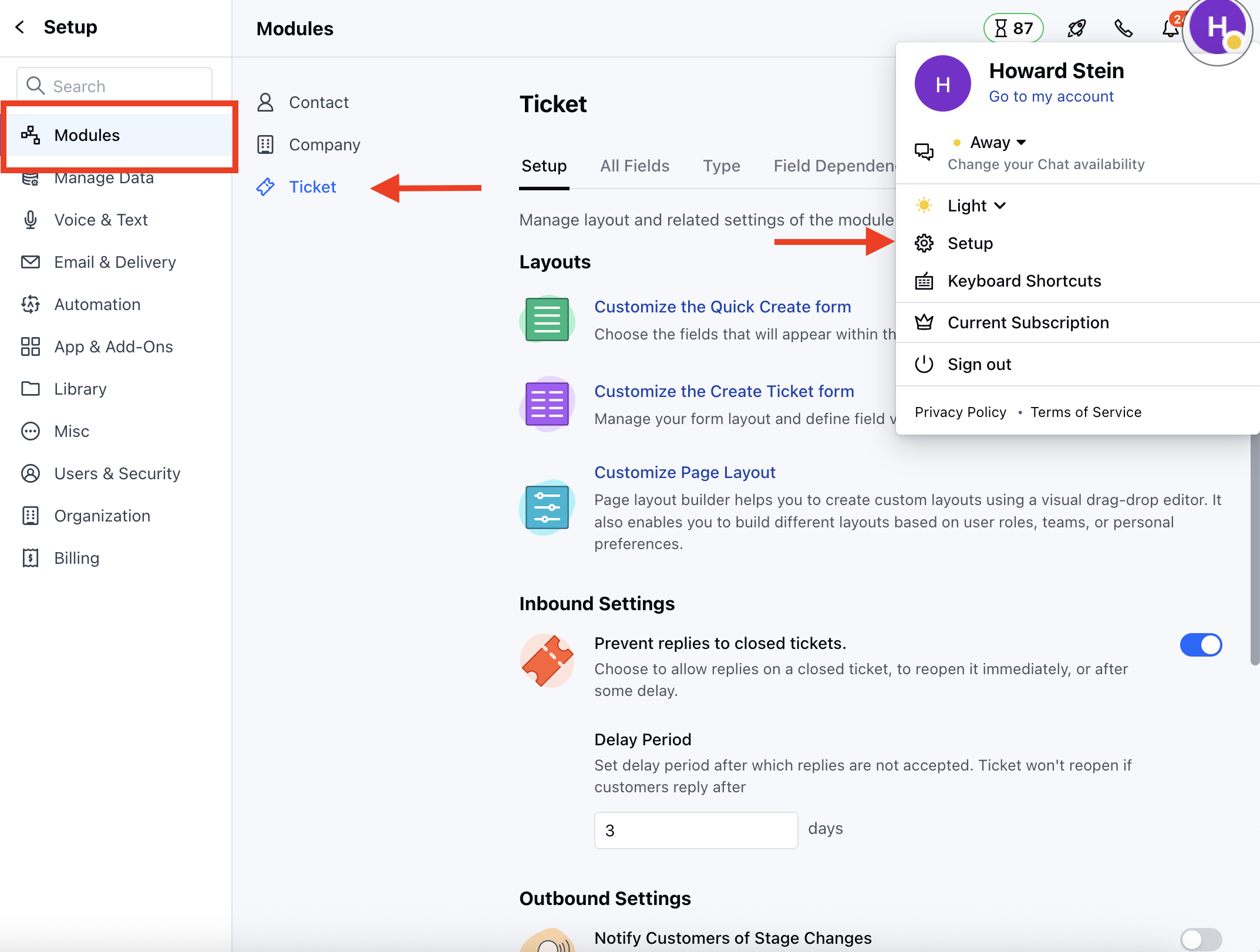
To Customize the Ticket Notification Templates,
* Navigate to the **Profile Icon** on the top right corner
* Click on the **Set Up**
* Head over to the **Modules** category
* Click on the **Ticket** module
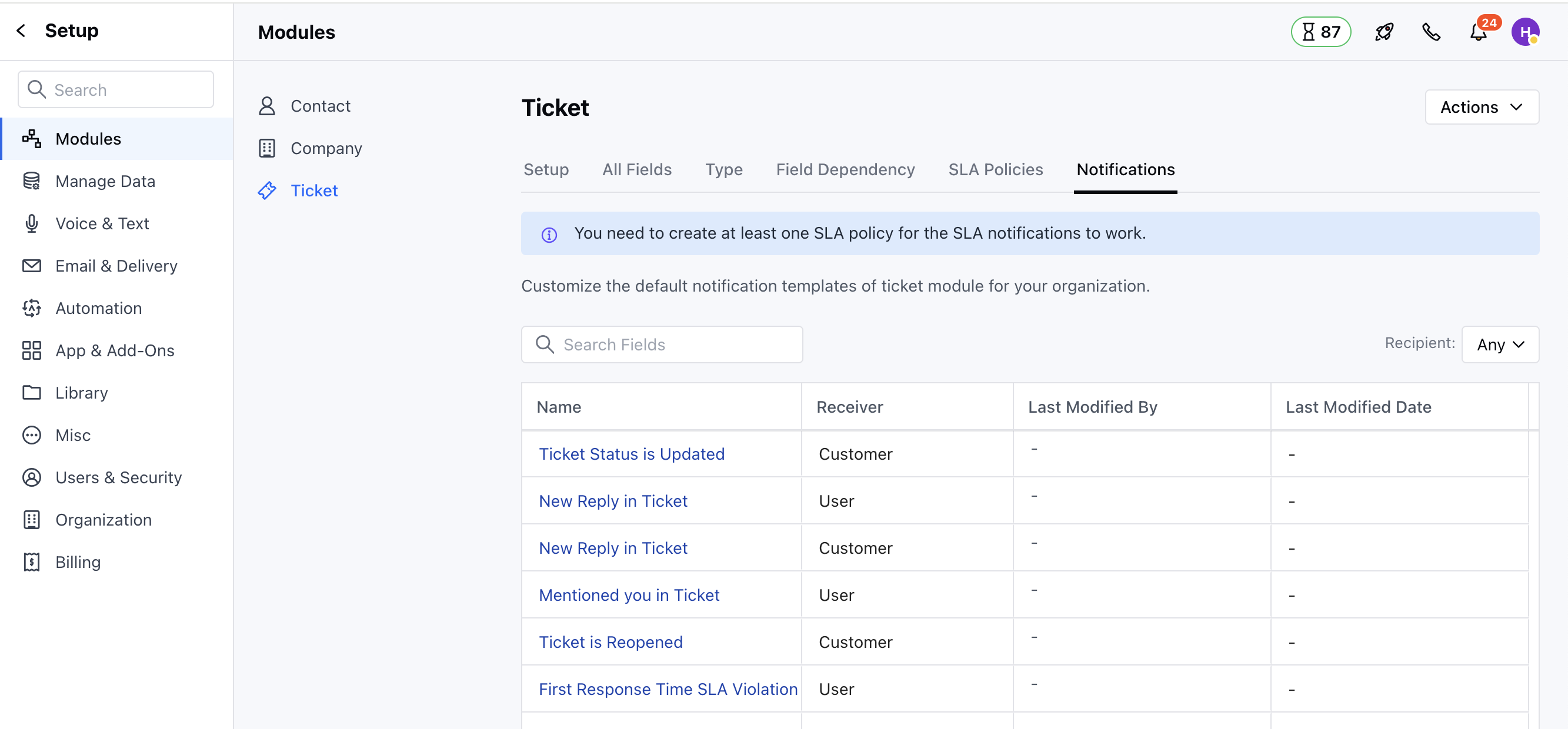
 * Head to the **Notifications** section.
* You will see the List of the ***Notification Templates***
* Head to the **Notifications** section.
* You will see the List of the ***Notification Templates***
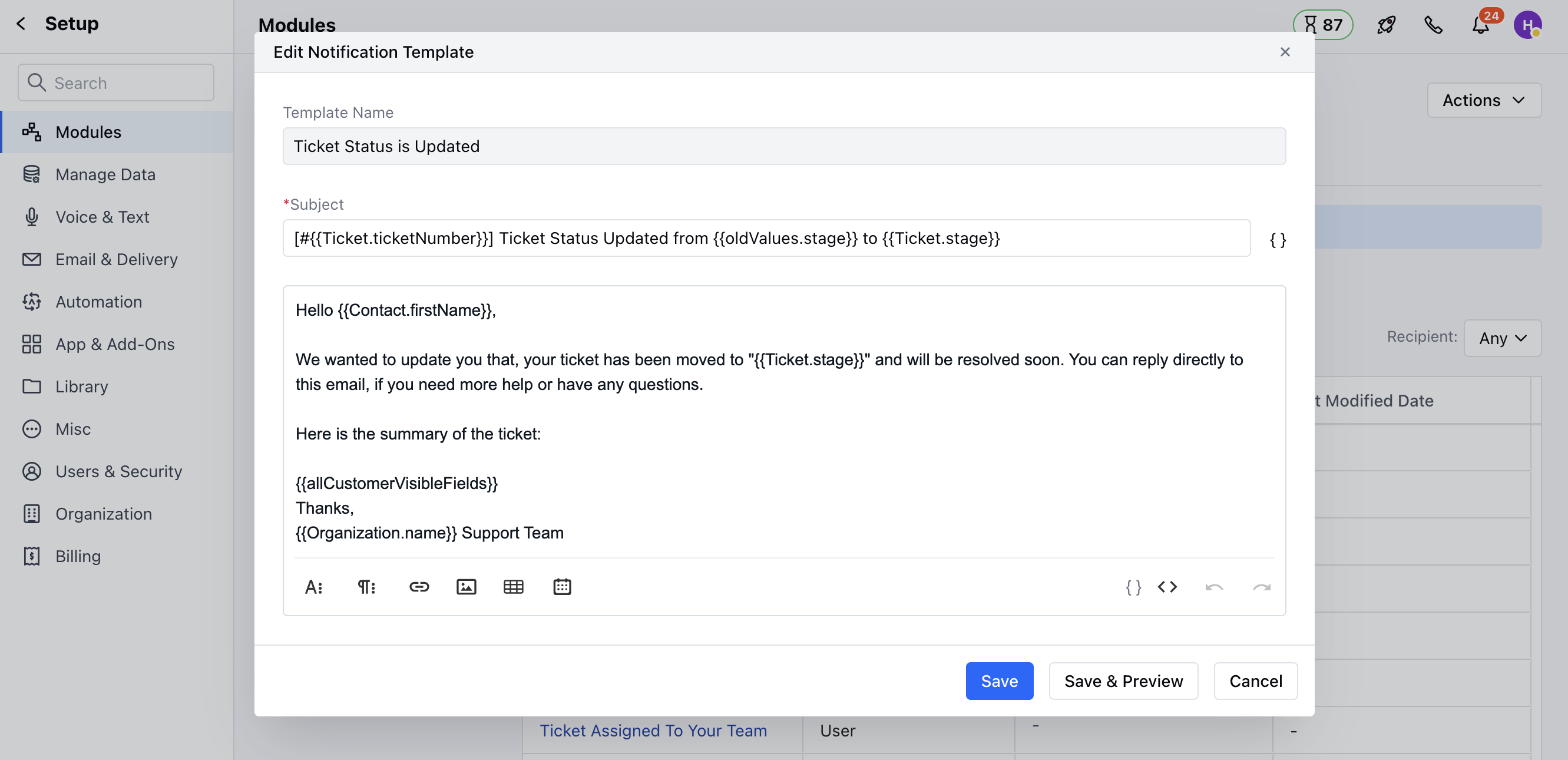
 * Select the preferred Template
* A pop-up will appear, which allows you to customize the following:
* **Subject**
* **Body** (Make the required changes)
* Once done, you can either **Save & Preview** the Template to see how it will appear or just click on **Save** to save the changes
* Select the preferred Template
* A pop-up will appear, which allows you to customize the following:
* **Subject**
* **Body** (Make the required changes)
* Once done, you can either **Save & Preview** the Template to see how it will appear or just click on **Save** to save the changes