> ## Documentation Index
> Fetch the complete documentation index at: https://support.getskara.ai/llms.txt
> Use this file to discover all available pages before exploring further.
# Send Test Email for Notification Templates
Once the Ticket Notification Templates are customized you can send the Test email to see how the email will appear and what information it will include.
**Note:** Please note that this feature is only available on Paid plans
To Send the Test Email for Ticket Notification Templates,
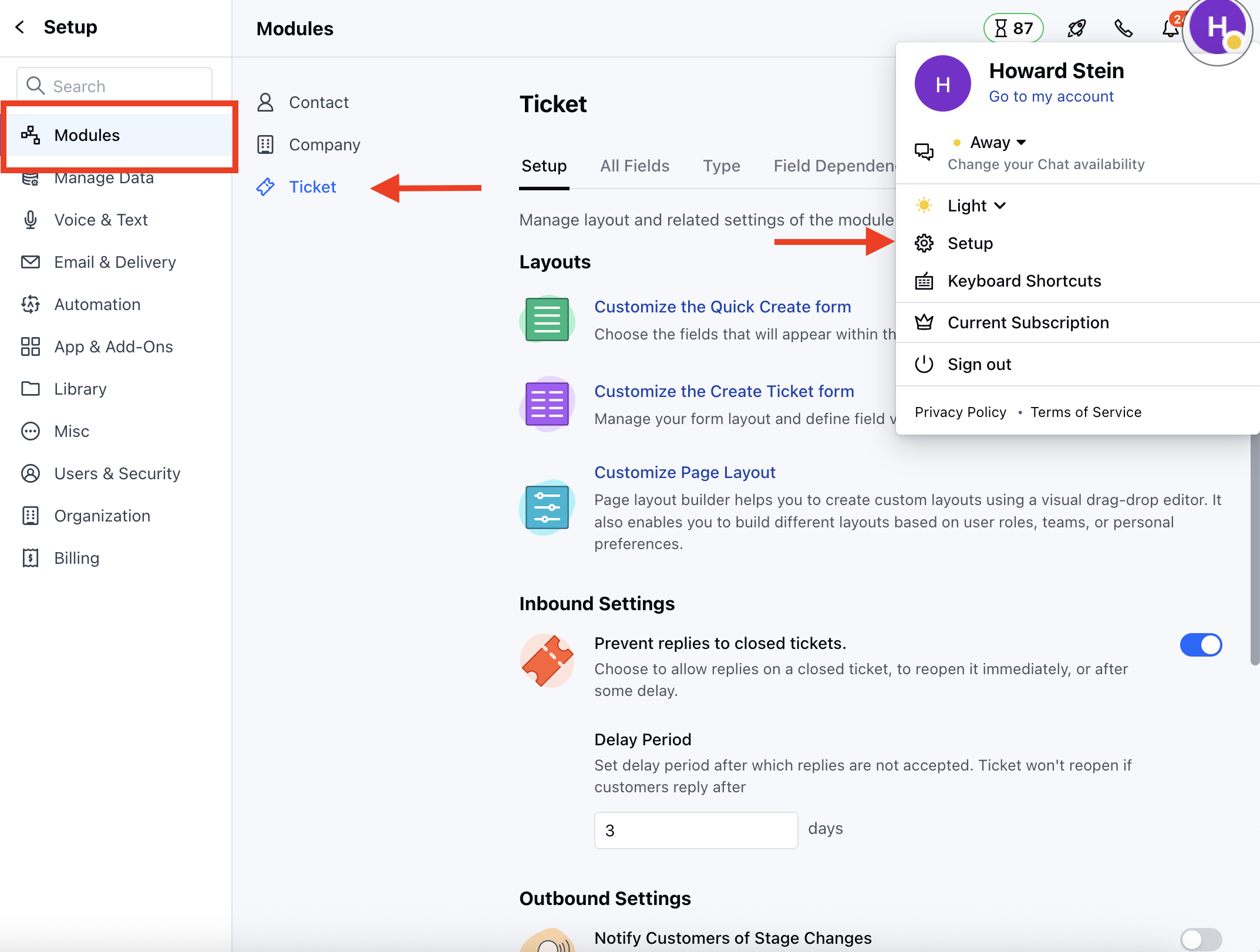
* Navigate to the **Profile Icon** on the top right corner
* Click on the **Set Up**
* Head over to the **Modules** category
* Click on the **Ticket** module
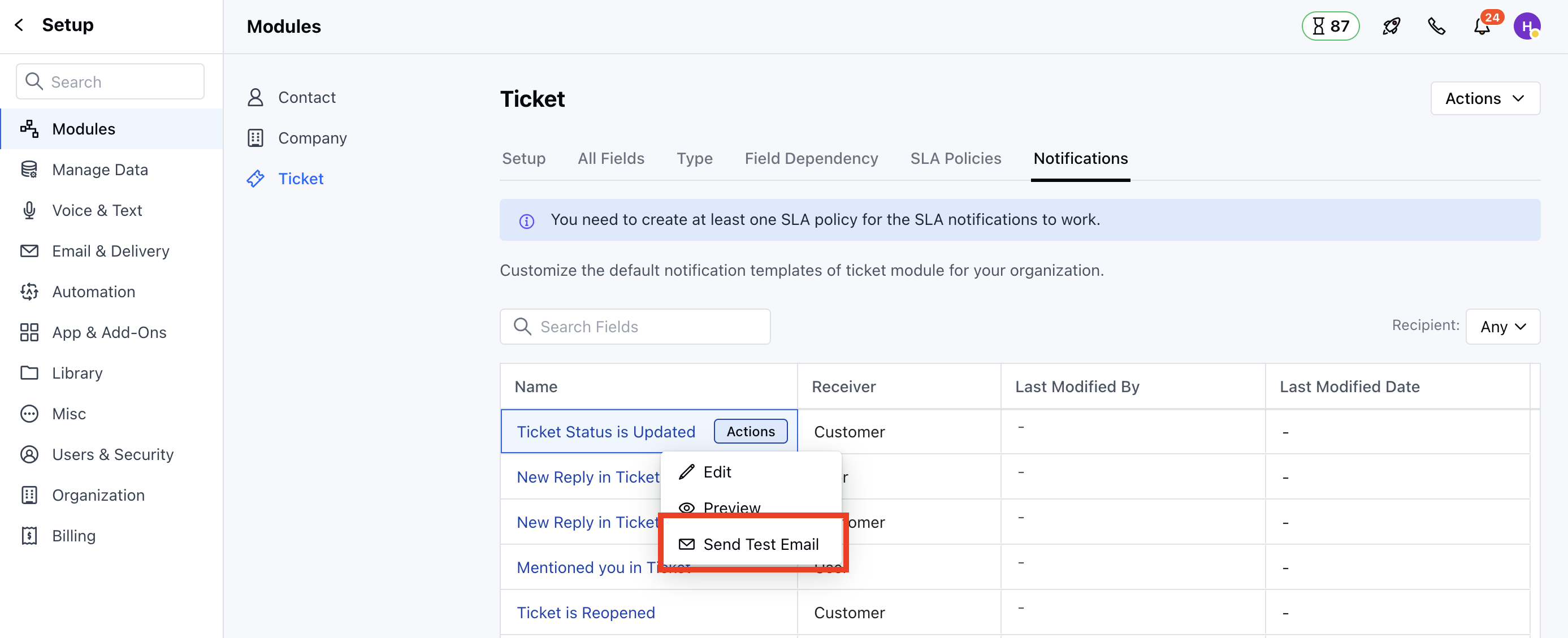
 * Head to the **Notifications** section, You will the List of the **Notification Templates**
* Hover on the preferred **Notification Template** and select the **Send Test Email** option under **Actions button.**
* Head to the **Notifications** section, You will the List of the **Notification Templates**
* Hover on the preferred **Notification Template** and select the **Send Test Email** option under **Actions button.**
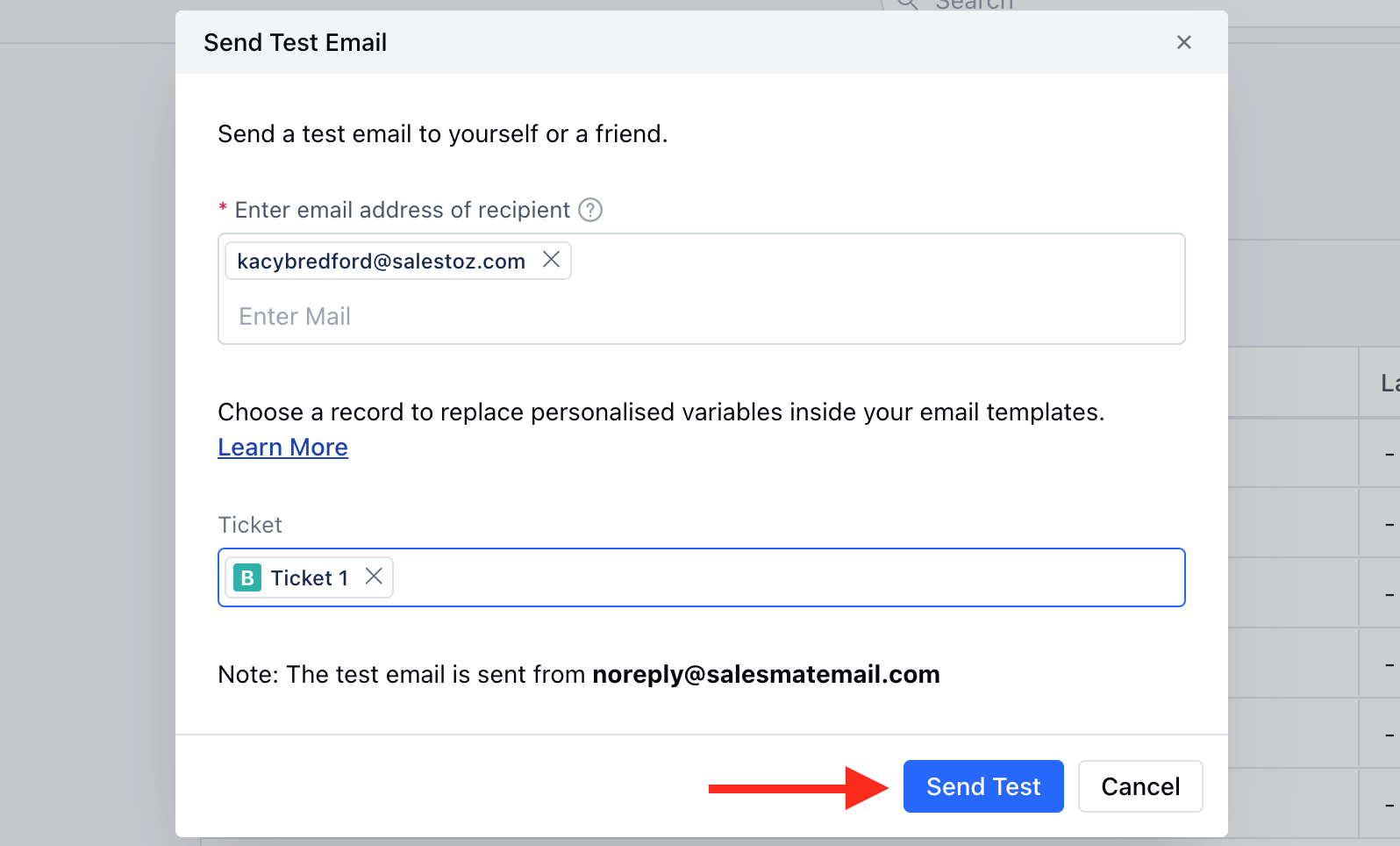
 * A pop will appear to enter the **Recipient** and the **Ticket** \* Once the information is added, click on **Send Test**