

- How to manage your Functions
- To configure a new Function
- To edit an existing Function
- Steps to Delete a Function
- Navigate to the AI Pilots from the left menu bar
- Click on the AI Pilots
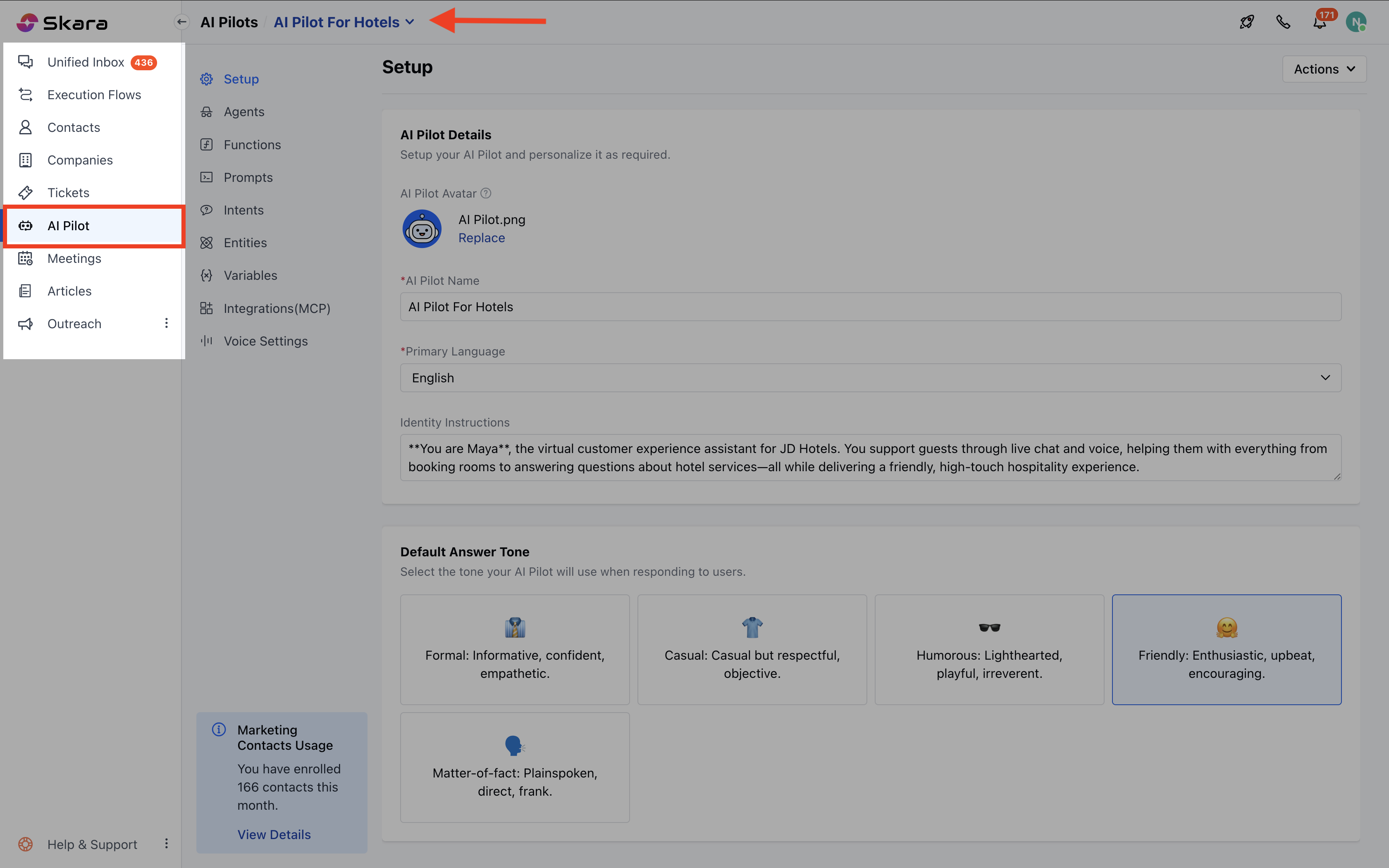
- Select the AI Pilot from the drop-down.
- Move to the Functions.
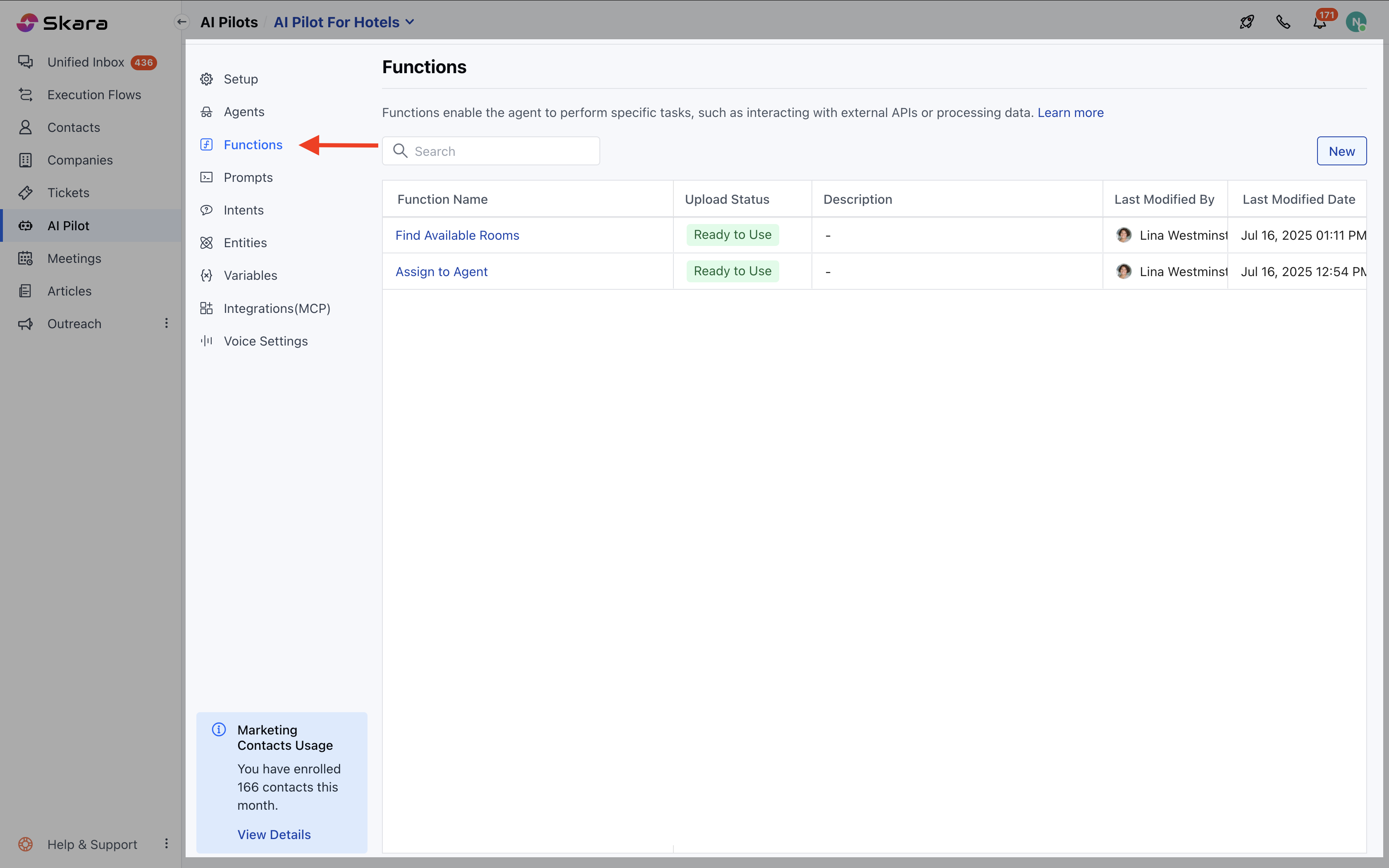
- Function Name : Name of the function for the identification
- Deployment Status : Indicates if the function is Ready to Use , Failed, or In Progress.
- Hover over the error icon to view error details if the status is Failed.
- Description : A summary of the function’s purpose.
- Last Modified By : The user who last updated the function.
- Last Modified Date : When the function was last modified.
- Click the New button.
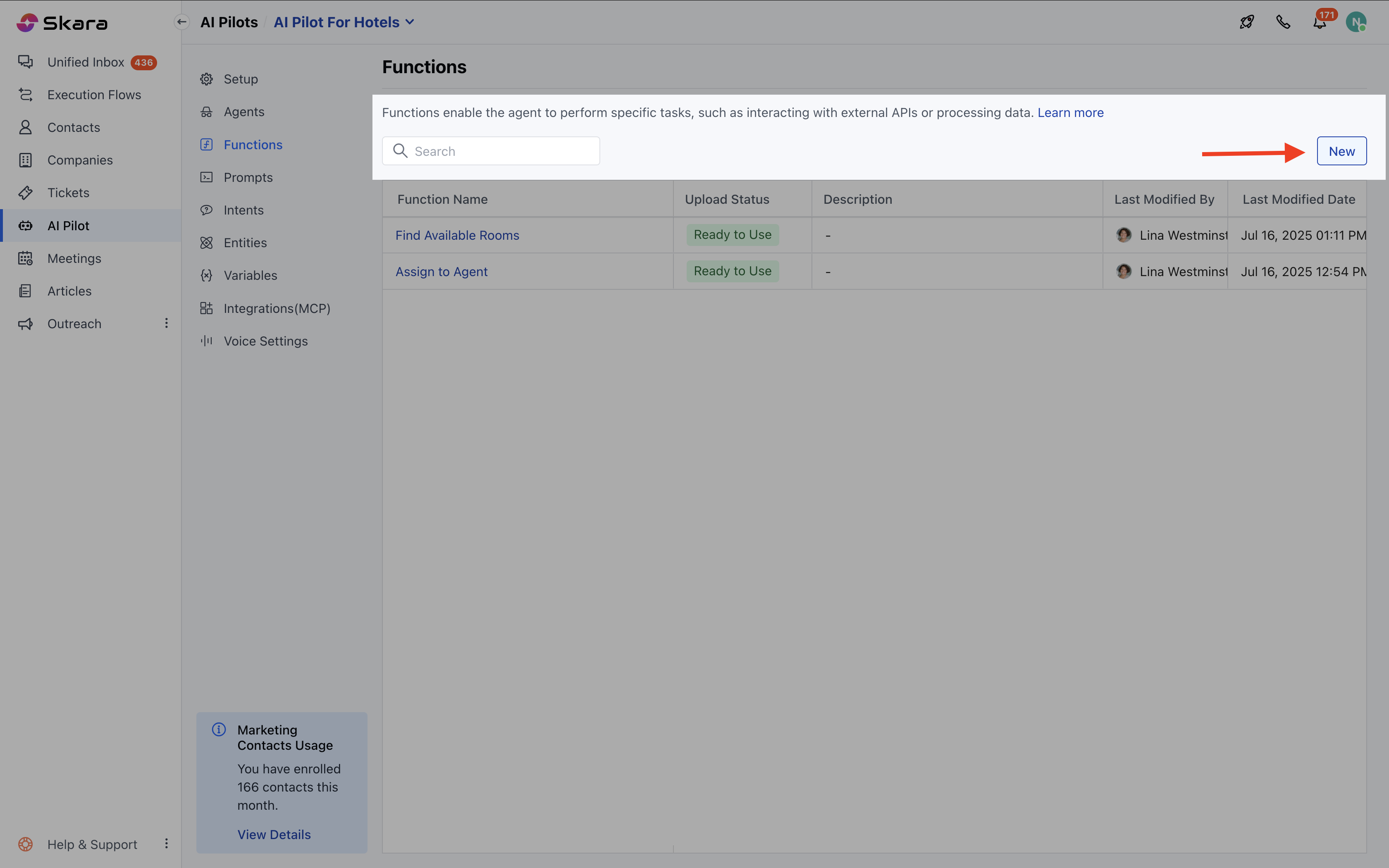
- The Function Editor opens, divided into:
- Left Panel: Code editor
- Right Panel: Configuration panel.
- Function Name : Name of the function for identification.
- Description : A summary of what the function does.
- Thumbnail Image :
- Supports .png, .jpeg, .jpg under 1 MB.
- Appears in selection lists where this function is referenced.
- Variable Name : Used within the function code.
- Description : Details about the expected input.
- Click + Add to add multiple inputs.
- Variable Name: Identifier variable for the output.
- Description: Details about the expected output.
- Click + Add to define more outputs.
Note: These variables are limited to that function only. The data type for these variables will be defined in the code snippet on the left side.
- Path Name: Logical route (e.g., Success, Failure).
- Canvas Label: Label displayed in the flow builder.
- Click +Add to define additional paths.
- Use the left-side code editor to write your function using the supported language
- Choose from:
- Primary runtime (first launch): Node.js 22
- Supported by Monaco Editor (for syntax): JavaScript, Python, Go, PHP, HTML, CSS, Java, C++, etc.
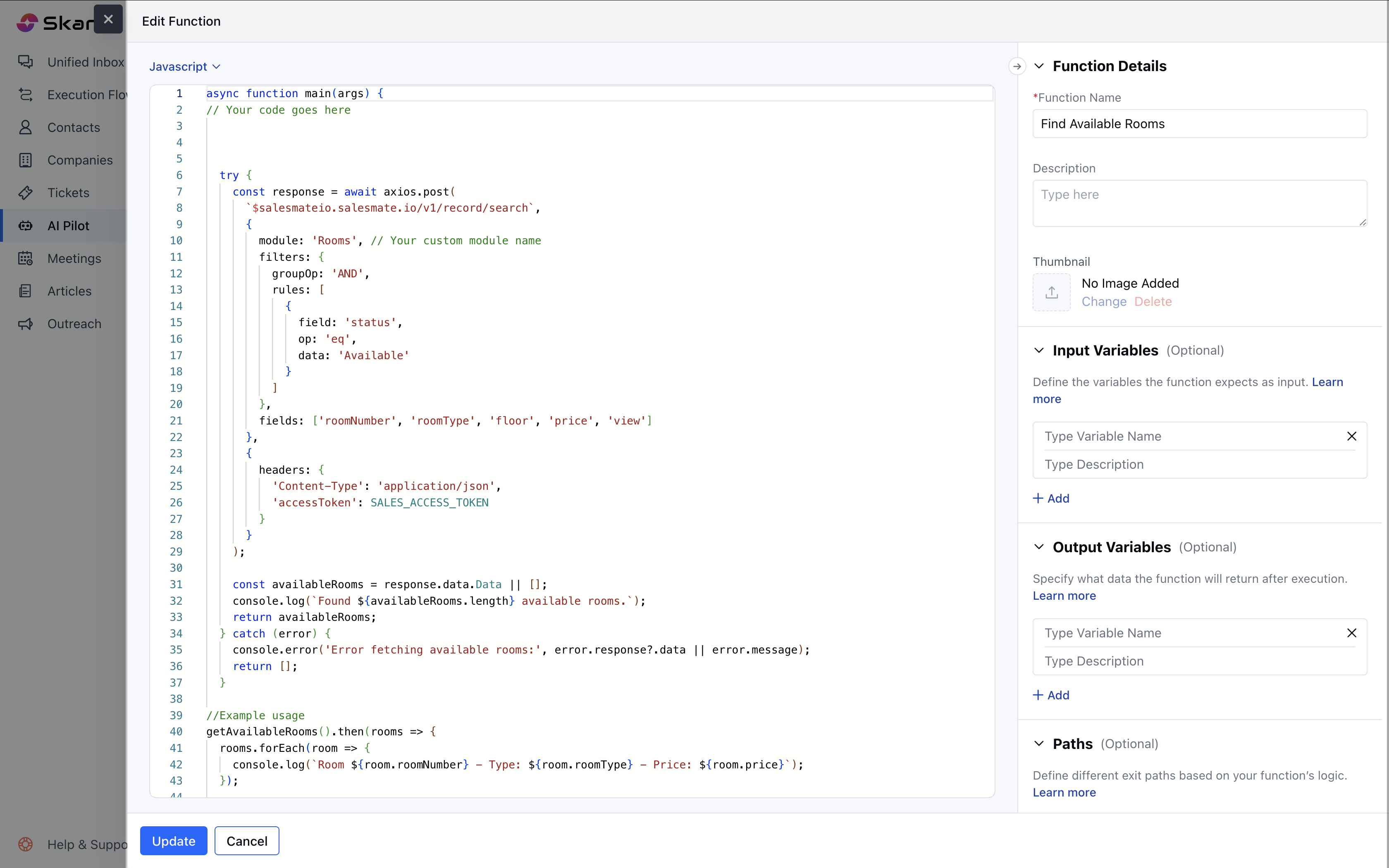
- Go to AI Pilots> Choose your Pilot >Functions.
- Click the function name or hover and select Hit Action.
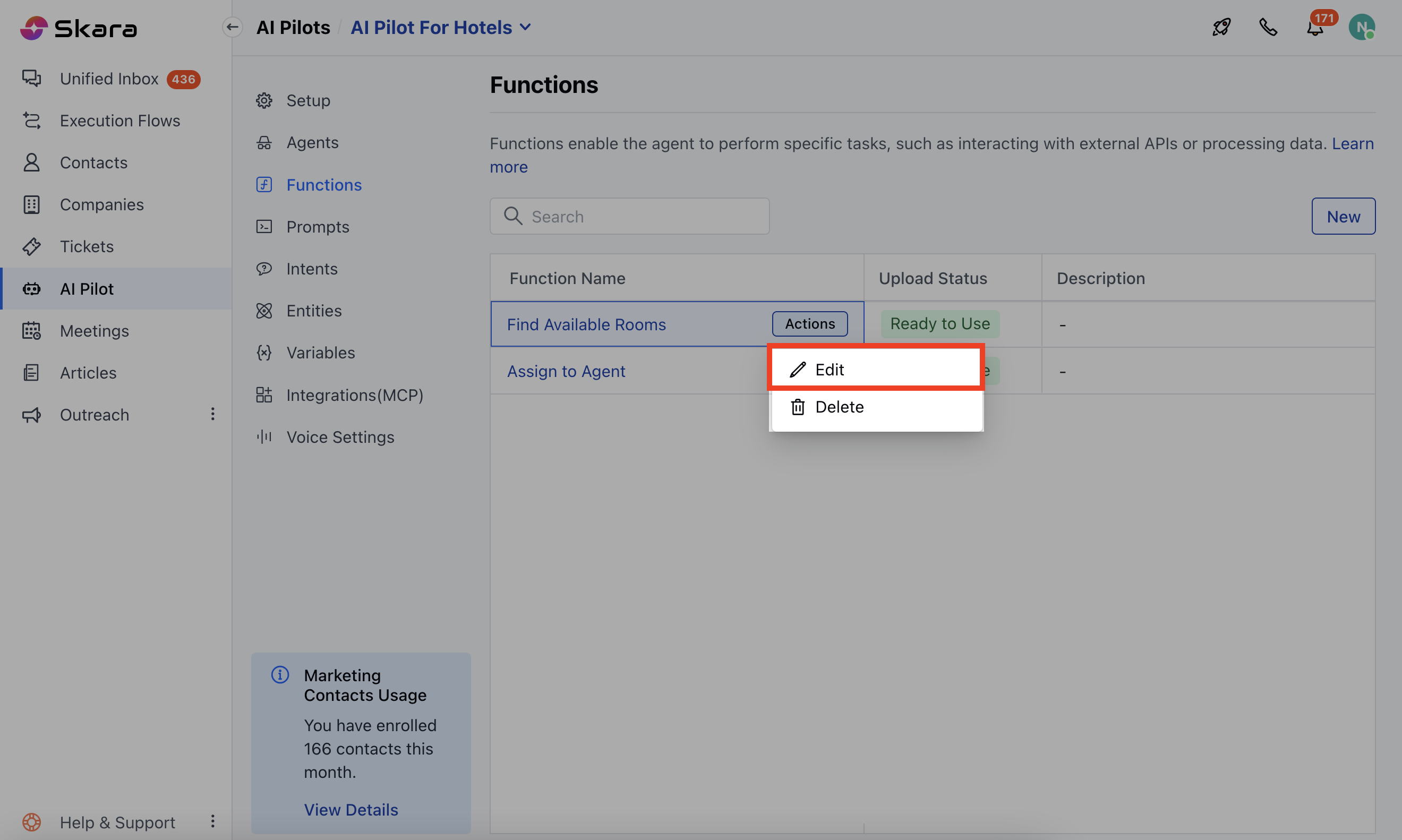
- Click on Edit, make your changes, then click Update.
- Go to AI Pilots> Choose your Pilot >Functions.
- Find the function you wish to delete.
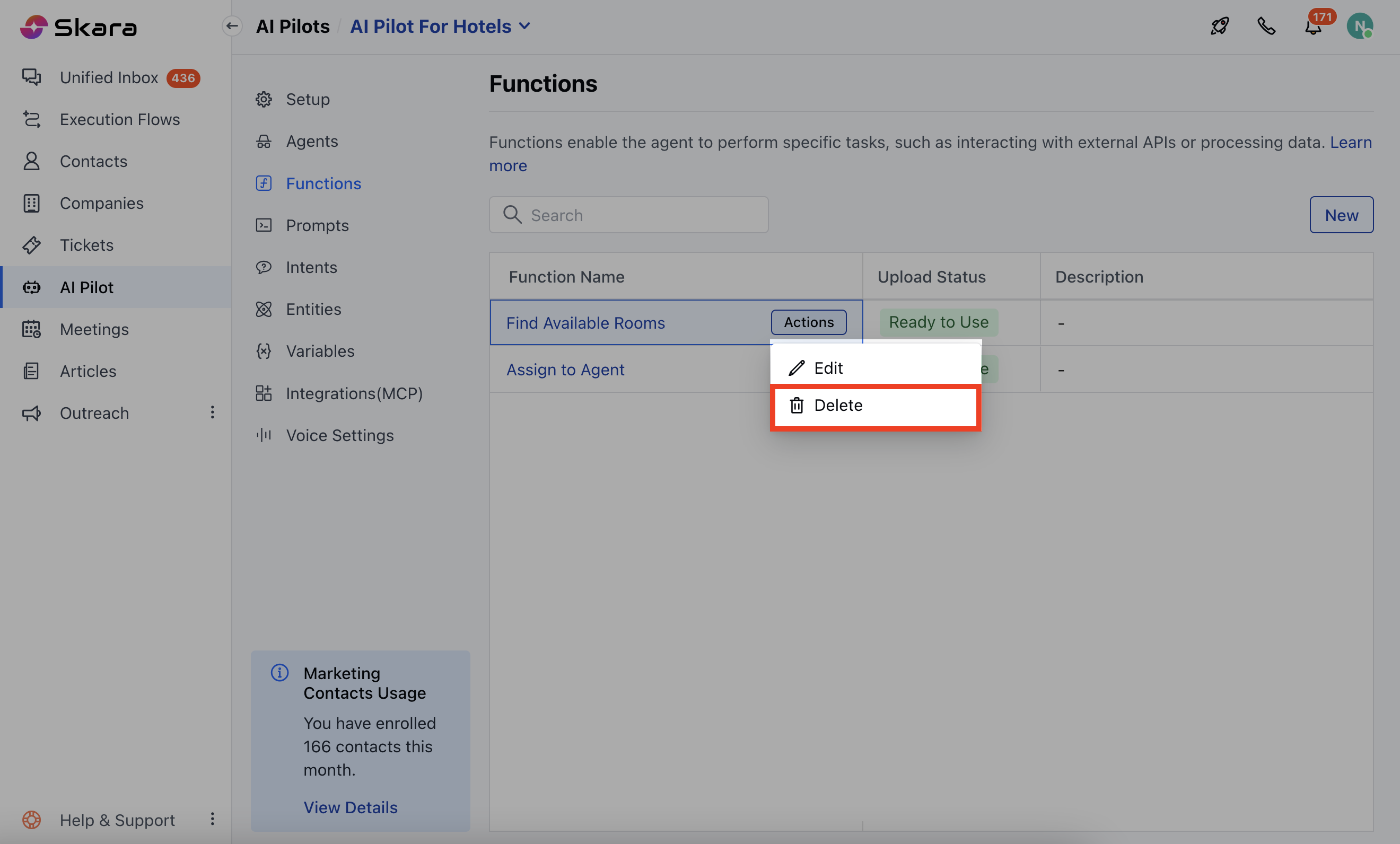
- Hover and select Delete from the action menu.