

Topics covered:
- Entity Listing Screen
- How to Create an Entity
- How to Edit an Entity
- How to Delete an Entity
- Tips for Entity Management
Entity Listing Screen
- Navigate to AI Pilots from the left menu bar.
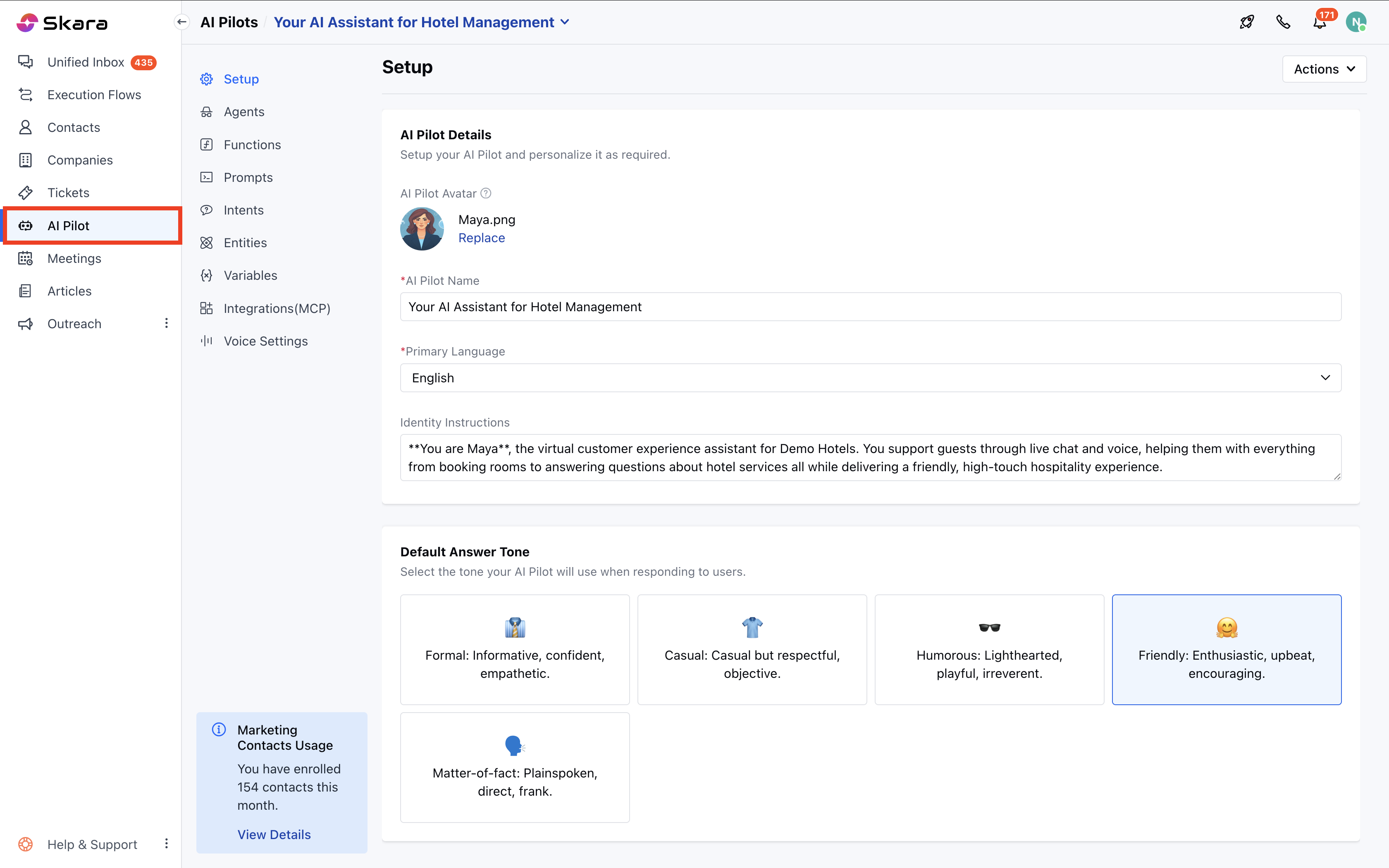
- Select the AI Pilot
- Move to Entities.
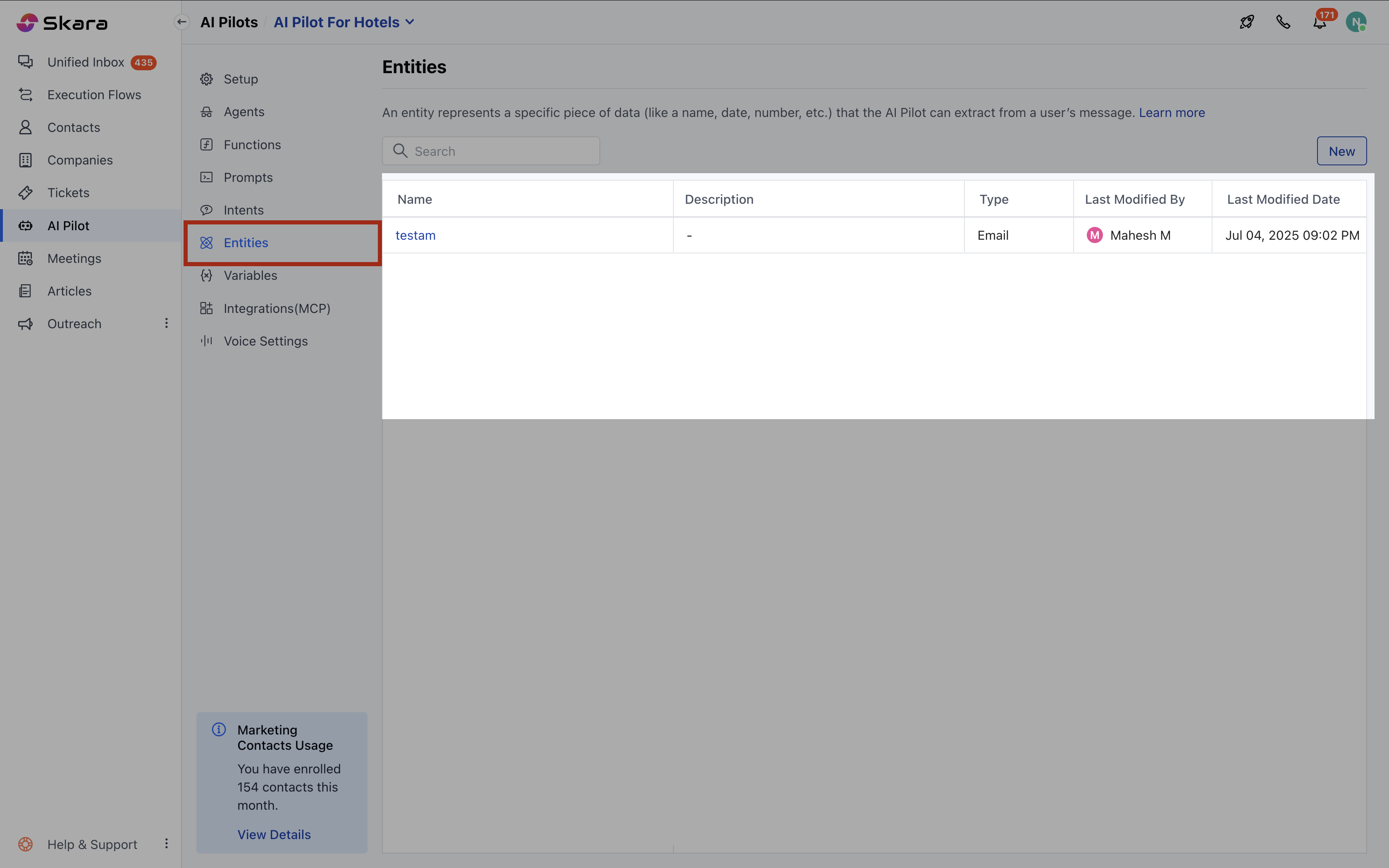
- You will be able to check the following columns: Name, Description, Type, Last Modified By, Last Modified Date.
- You can search entities by name.
- You can sort by Name, Type, or Last Modified Date.
- In the List View, upon hovering over the Entity Name, you will get options to Edit or Delete an entity.
How to Create an Entity
- Click on the AI Pilots from the left menu bar.
- Select the AI Pilot from the drop-down.
- Move to Entities.
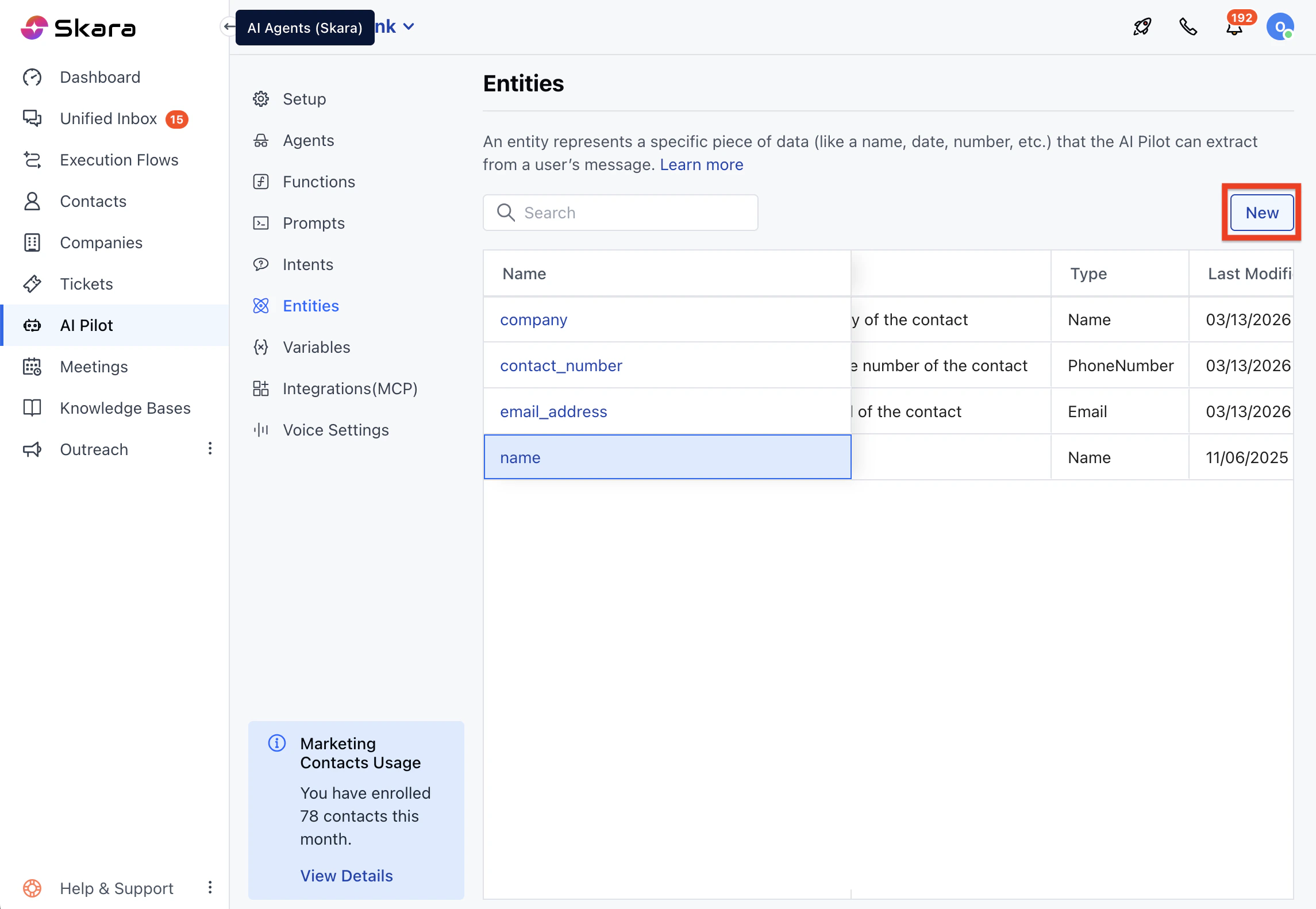
- Click New Entity in the Entities screen of your AI Pilot
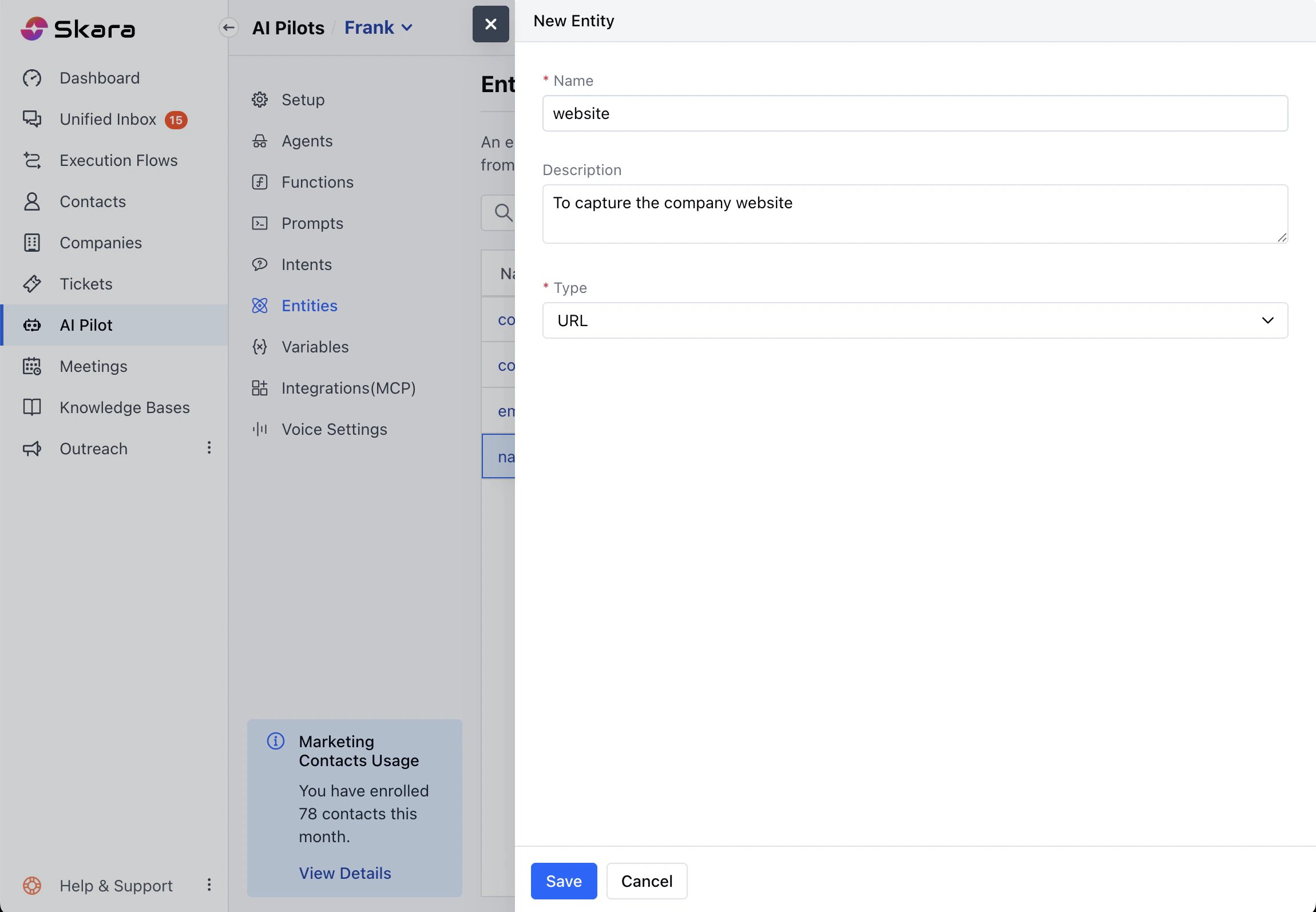
- Enter a unique Name.
- Select an Entity Type.
- You can also add a Description based on the Entity.
- For List or Custom types, add at least one Entity Value(with optional synonyms) and define Capture Rules.
- Click Save to create the entity.
- Entities are then available in intents, flows, and prompts within the AI Pilot
How to Edit an Entity
- Click on the AI Pilots from the left menu bar.
- Select the AI Pilot from the drop-down.
- Move to Entities.
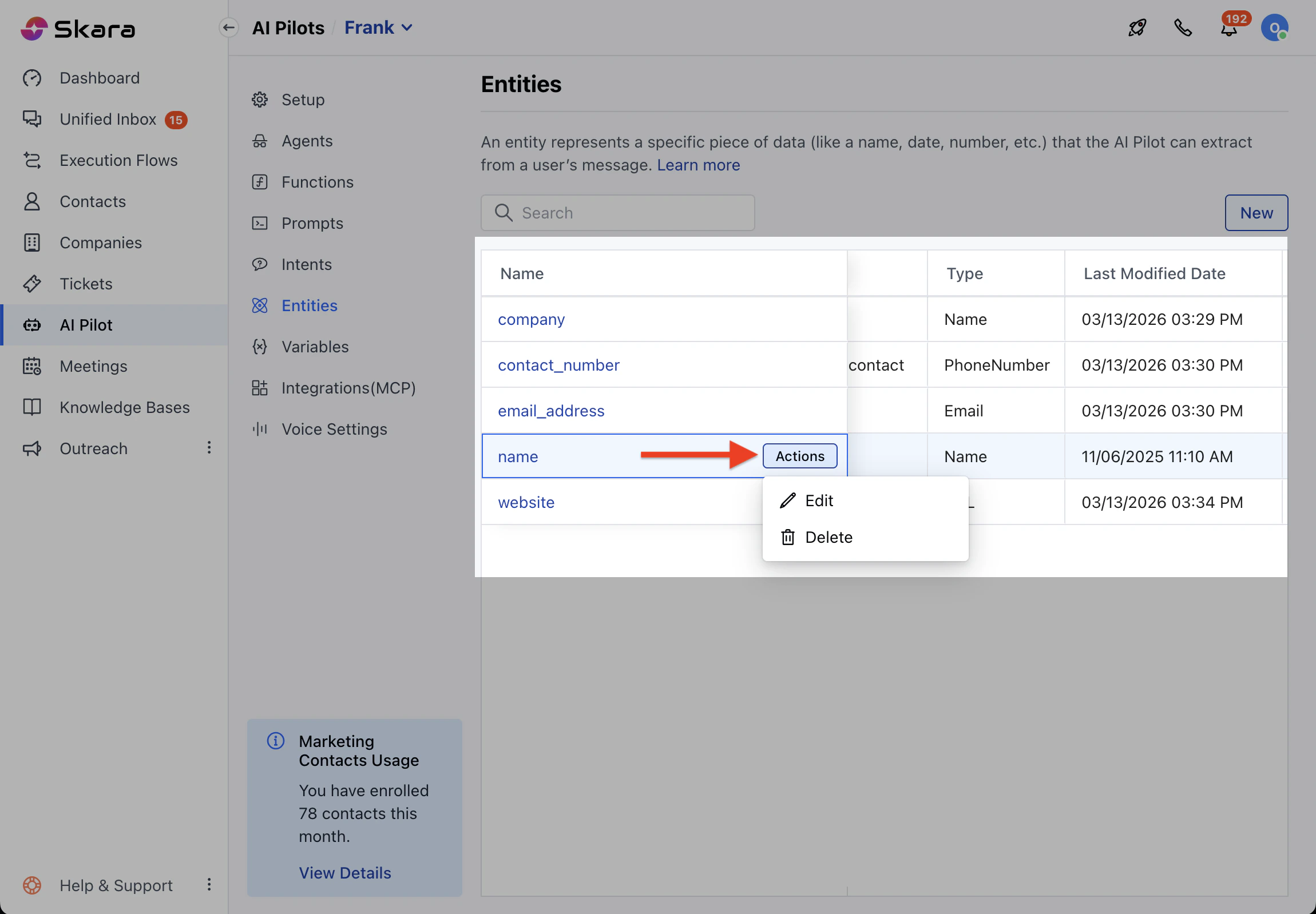
- Select Edit from the Actions menu next to an entity.
- You can modify Description, Values, or Synonyms as per your requirements.
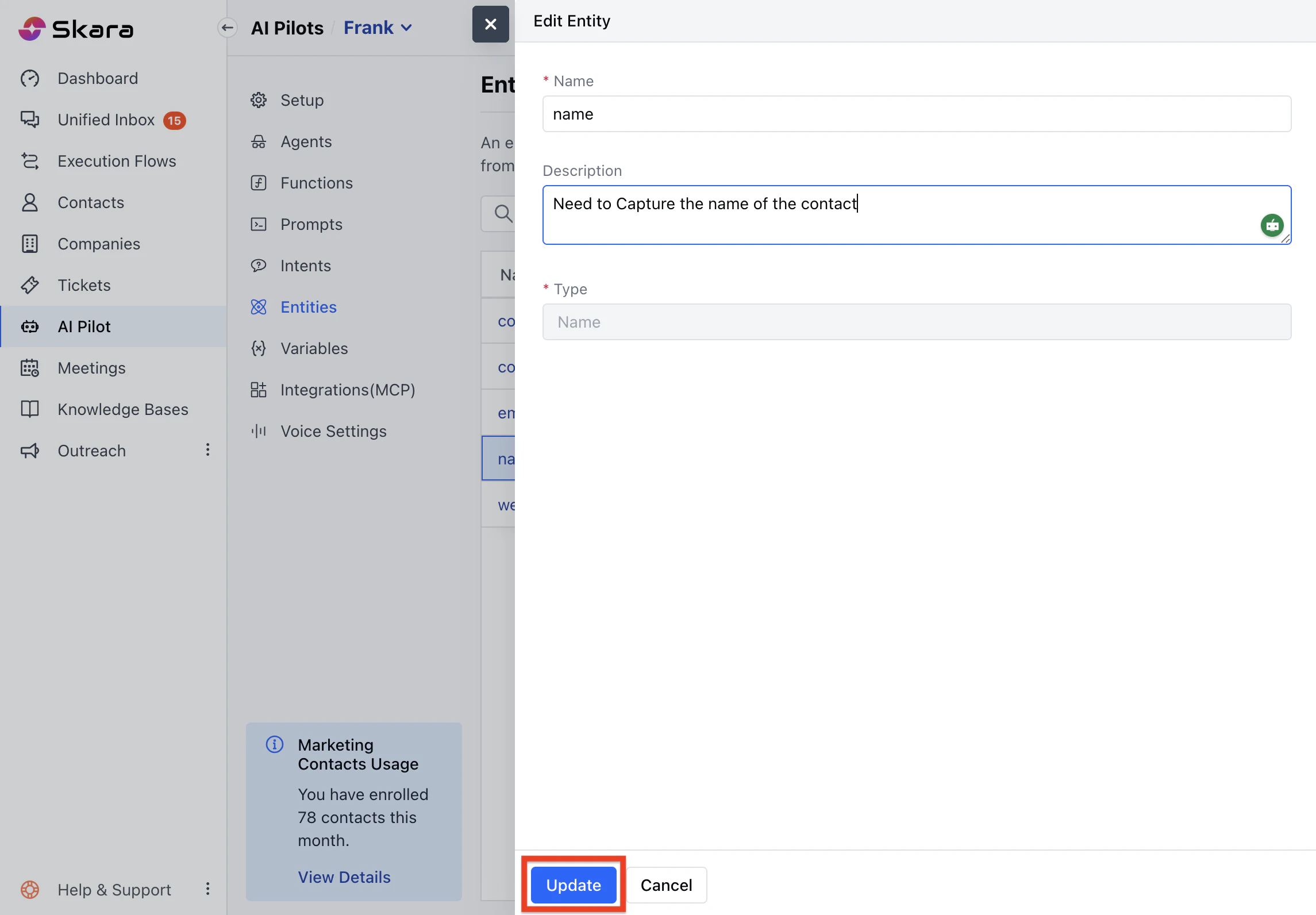
- Click Save to update.
How to Delete an Entity
- Click on the AI Pilots from the left menu bar.
- Select the AI Pilot from the drop-down.
- Move to Entities.
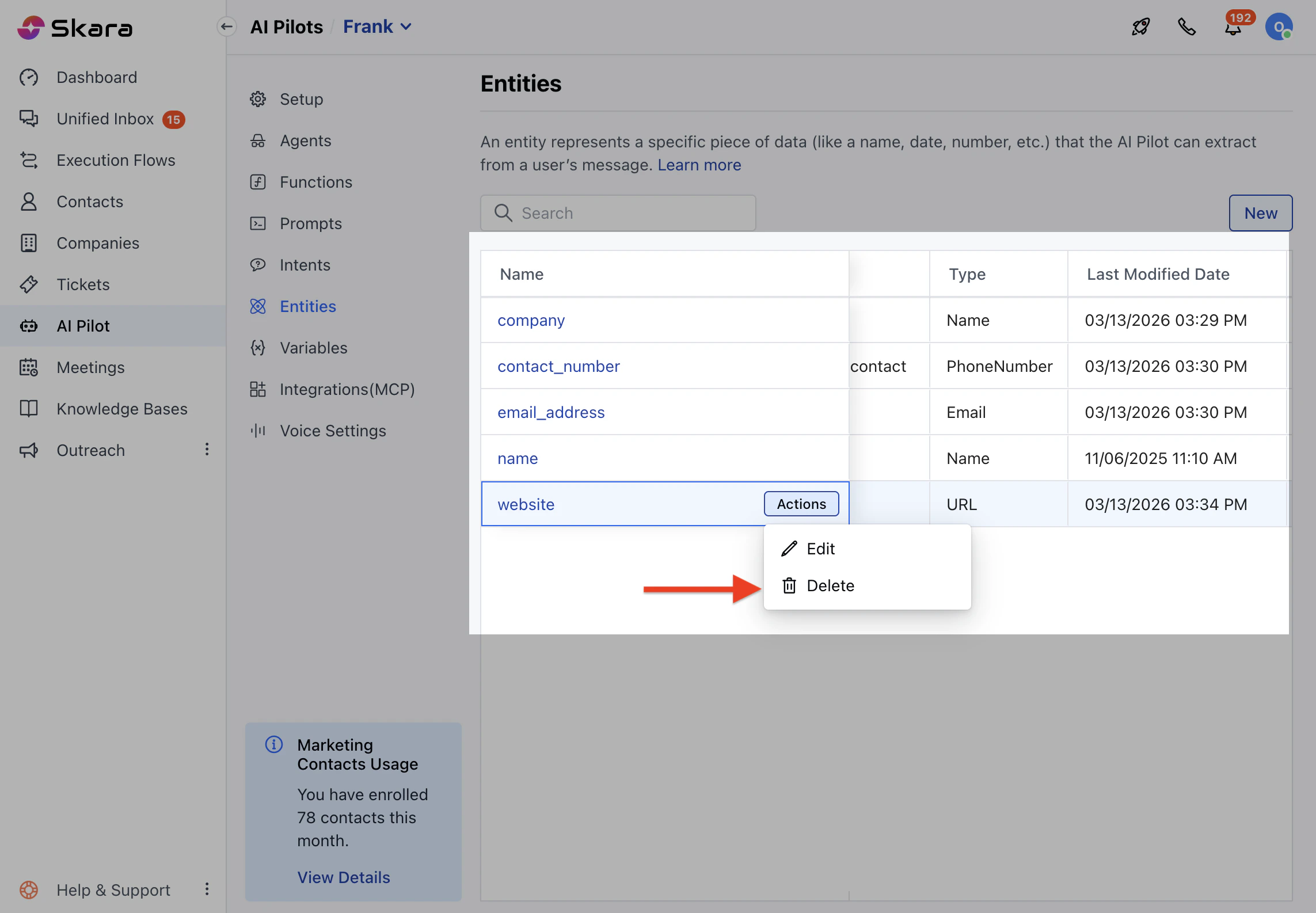
- Select Delete from the Actions menu next to an entity.
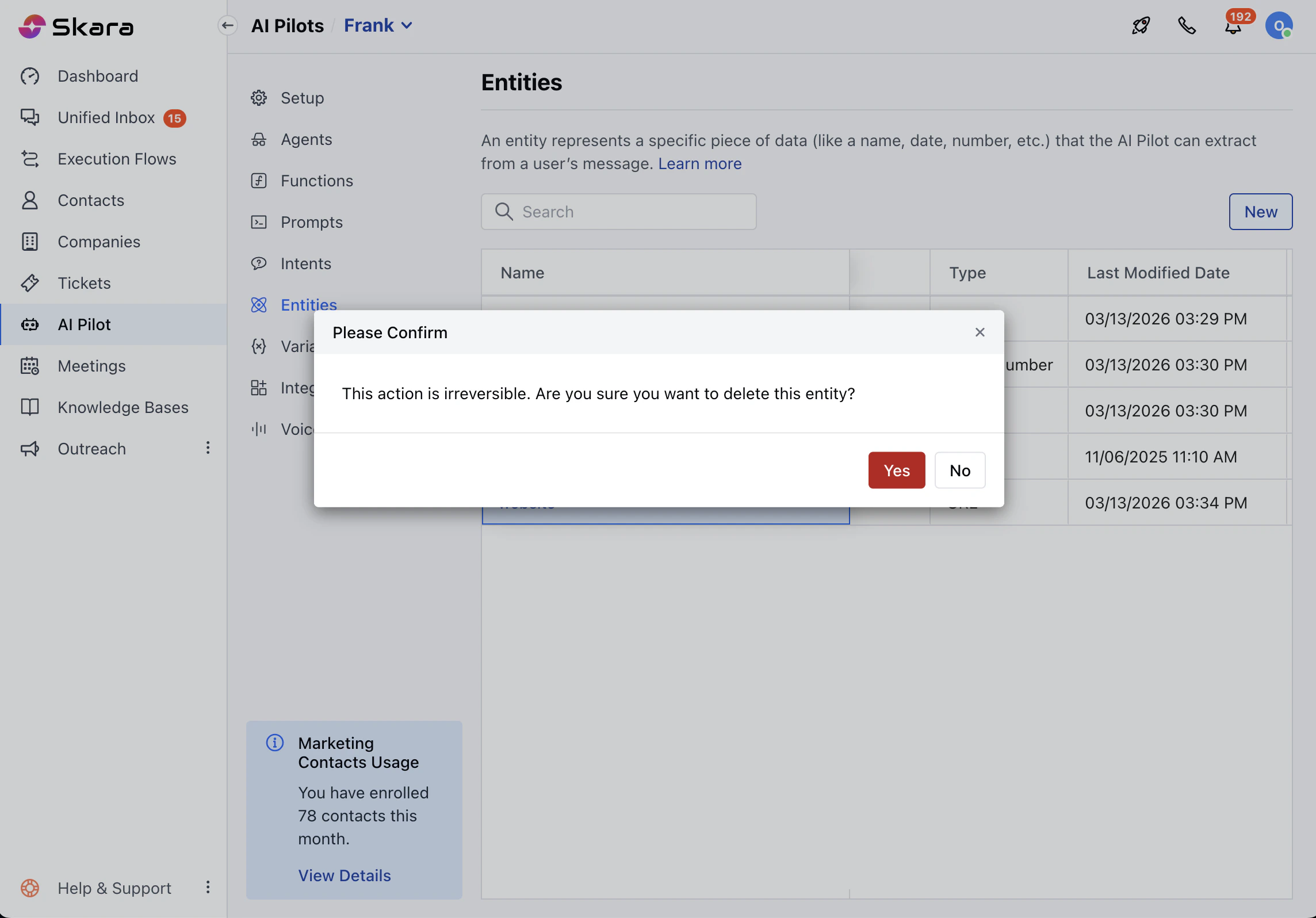
- You will have to click on the Confirmation Box in order to delete the Entity.
Tips for Entity Management
- Understand your domain: Identify key pieces of information your AI needs. Example: For a hotel booking assistant, use entities like check_in_date, room_type, location.
- Define a clear purpose for each entity: Each entity should capture only one specific type of data. Example: Use flight_date to capture the travel date instead of a vague travel_info entity.
- Keep entities granular: Break down data into smaller, useful parts for more accurate recognition. Example: Use departure_city and arrival_city instead of a general city entity.
- Include synonyms and variations: Add different ways users may refer to the same item. Example: For drinks, include values like soda, pop, soft drink, and beverage.
- Expand entities over time using real user input: Monitor actual user phrases and update entity values accordingly. Example: If users type “non-veg” often, add it as a value for food preferences.
- Avoid overlapping or redundant entities: Make sure each entity has a distinct and non-conflicting role. Example: Use only arrival_city instead of multiple similar entities like end_city or final_city.
- Keep values relevant to your AI’s purpose: Only include values that your AI supports or can respond to properly. Example: For payment options, include credit card, debit card if those are the only accepted methods.
Note:
- Entity Name and Type cannot be changed once in use.
- If the entity exists in intents, flows or prompts, an error message will prevent deletion and lists where it’s used.