- Supported CRMs: Pipedrive
- HubSpot
- **Others will be added soon. Please reach support with your requirement.
- ** Pre-requisite for Pipedrive import #
Please keep below the pre-requisite list in mind before importing data from Pipedrive.
- Create all the users that are present in Pipedrive (active or inactive) in Salesmate.
- Create all the pipelines & stages present in Pipedrive in Salesmate.
Please follow the below steps to import your data from Pipedrive:
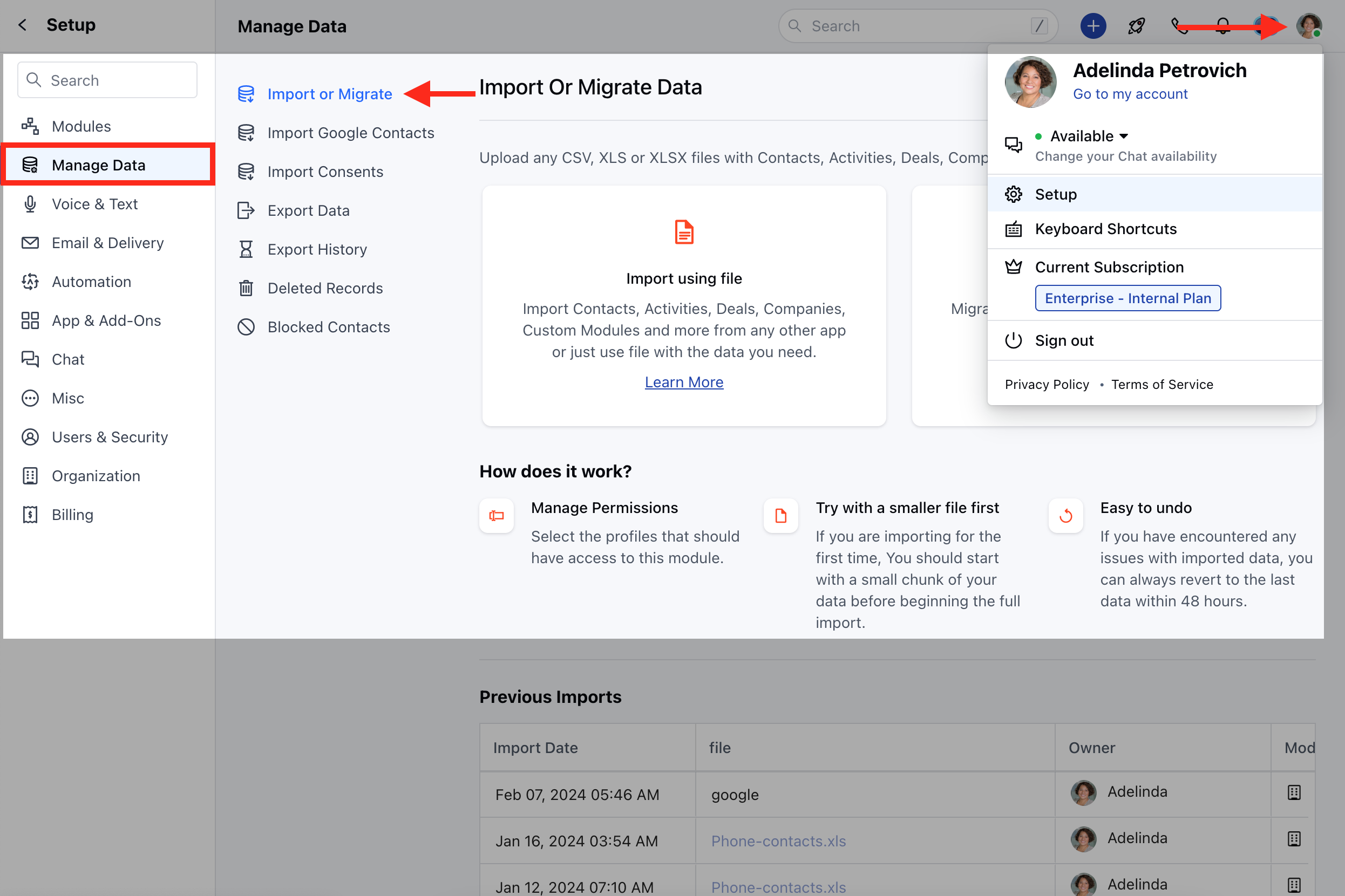
- Navigate to the Profile Icon at the top right corner
- Click on Setup
- Head over to the **Manage **Data ** category
- Select Import Or Migrate
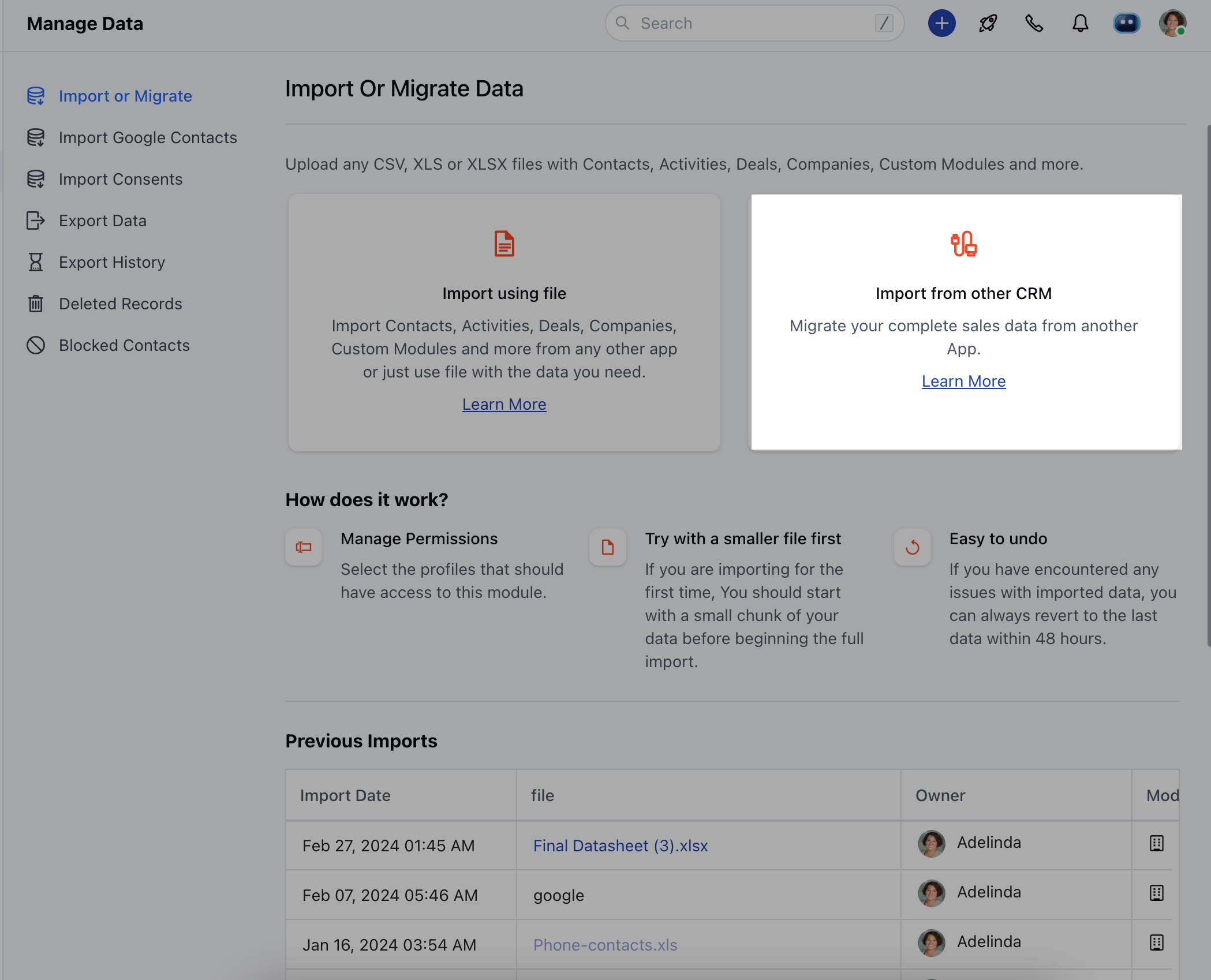
- Select Import from other CRM
- Now on the next screen, select Pipedrive .
- You will be redirected to the below screen after you select Pipedrive where you need to add the API key of your Pipedrive account into Salesmate.
- The API Key should be available under
- Profile icon * Personal Preferences
- API (How to find Pipedrive API Keys) * Your API token - COPY
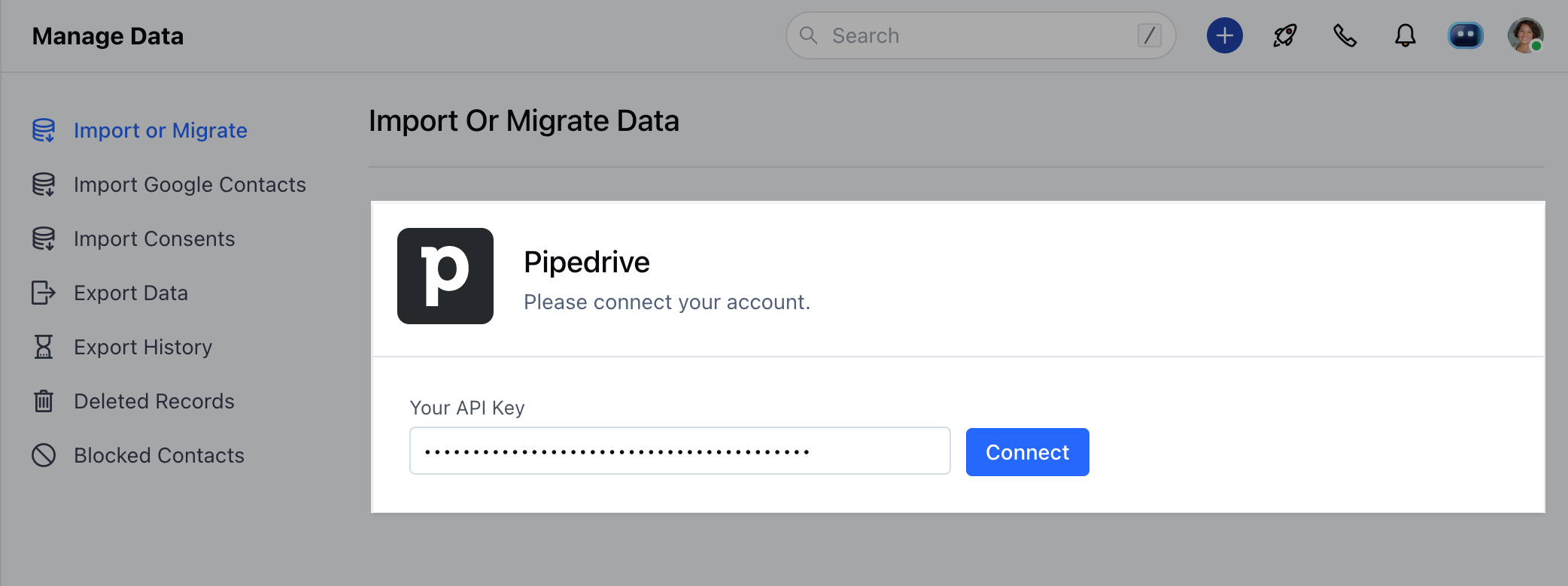
- Once you click on Connect, it will redirect you to the module selection page where you can select the modules you want to import
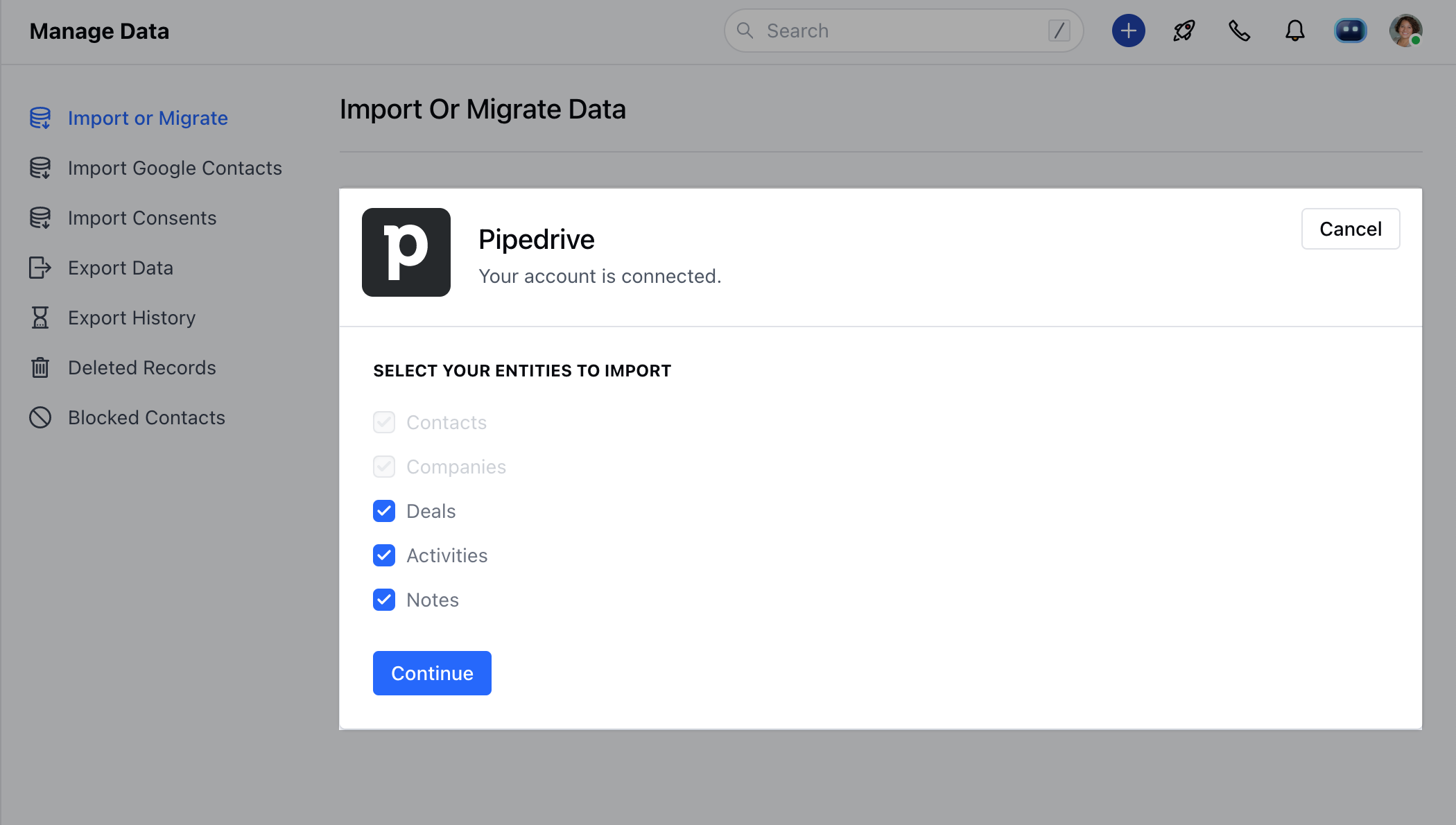
- Here, you can select the modules from which you would like to migrate the data
- After selecting modules, you will be redirected to the field mapping screen
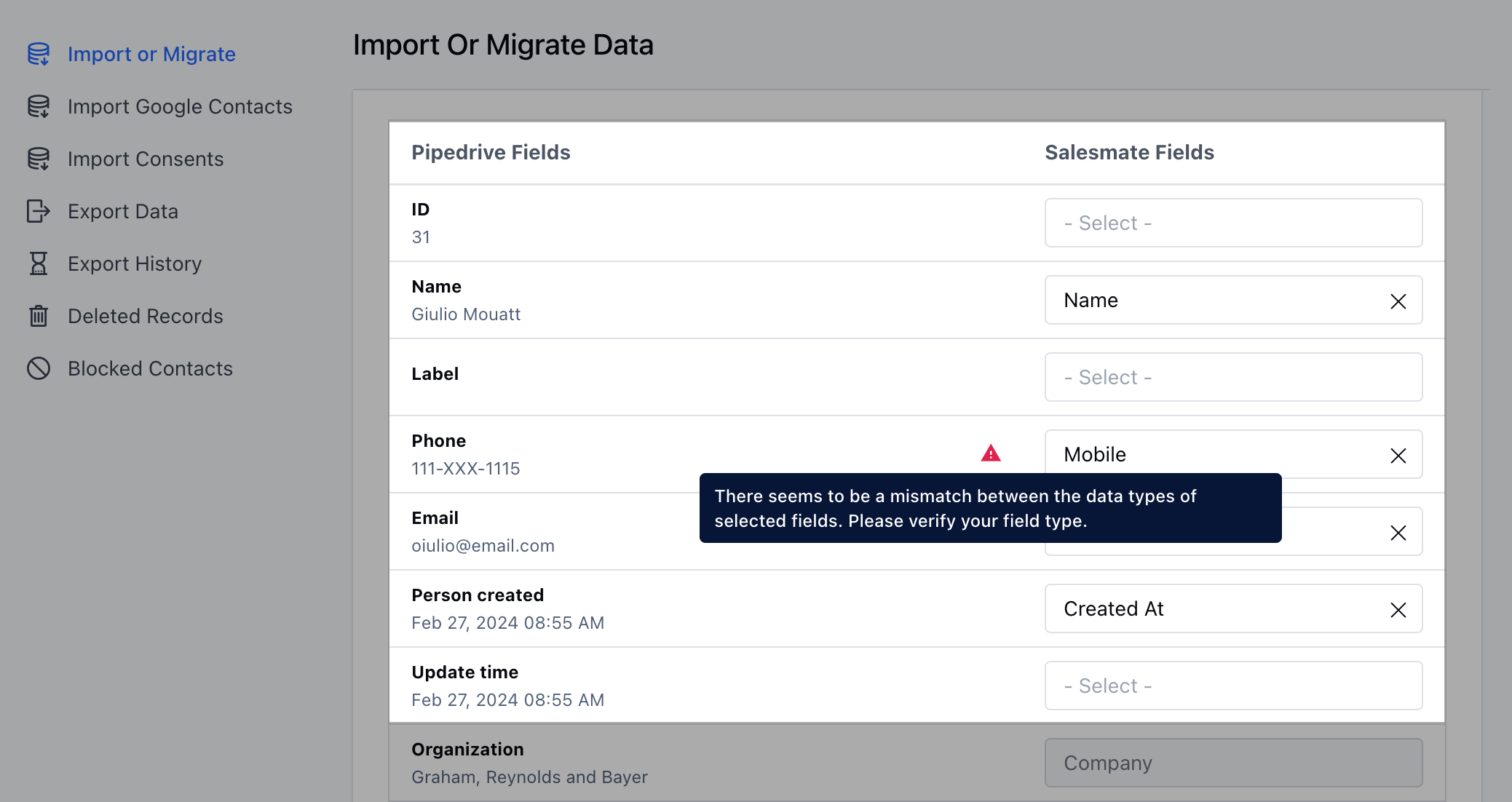
- Now, you can map the Pipedrive fields to the Salesmate fields.
- Map the Pipedrive fields of all the selected modules to Salesmate.
- You can check the First record from the Pipedrive under each field. It can help you to map the correct fields.
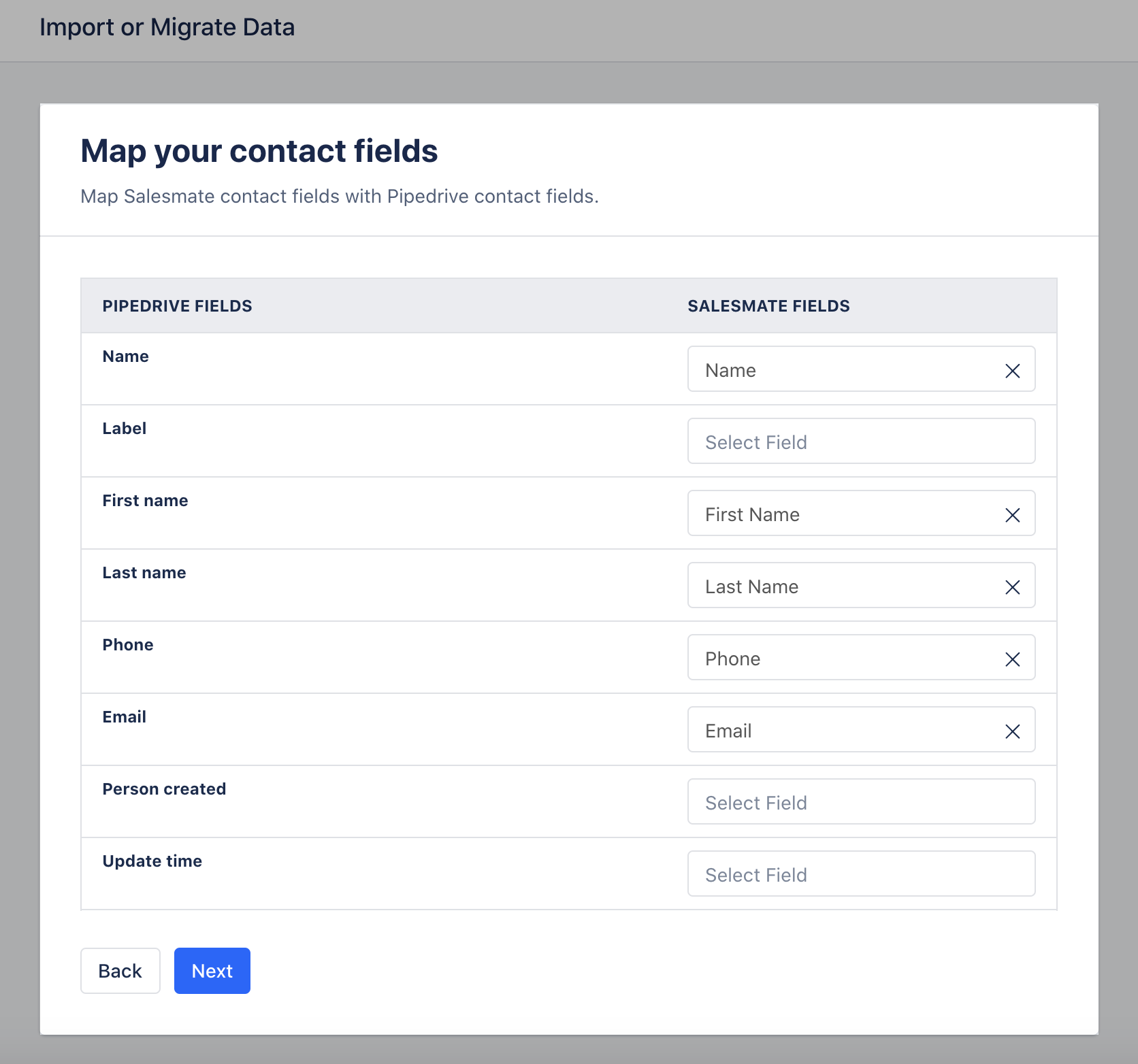
- If any Pipedrive field does not exist in the system, then you can directly create it by clicking “Create New Field” at the bottom of the popper and a popup will open with the field name and data type pre-filled into it.
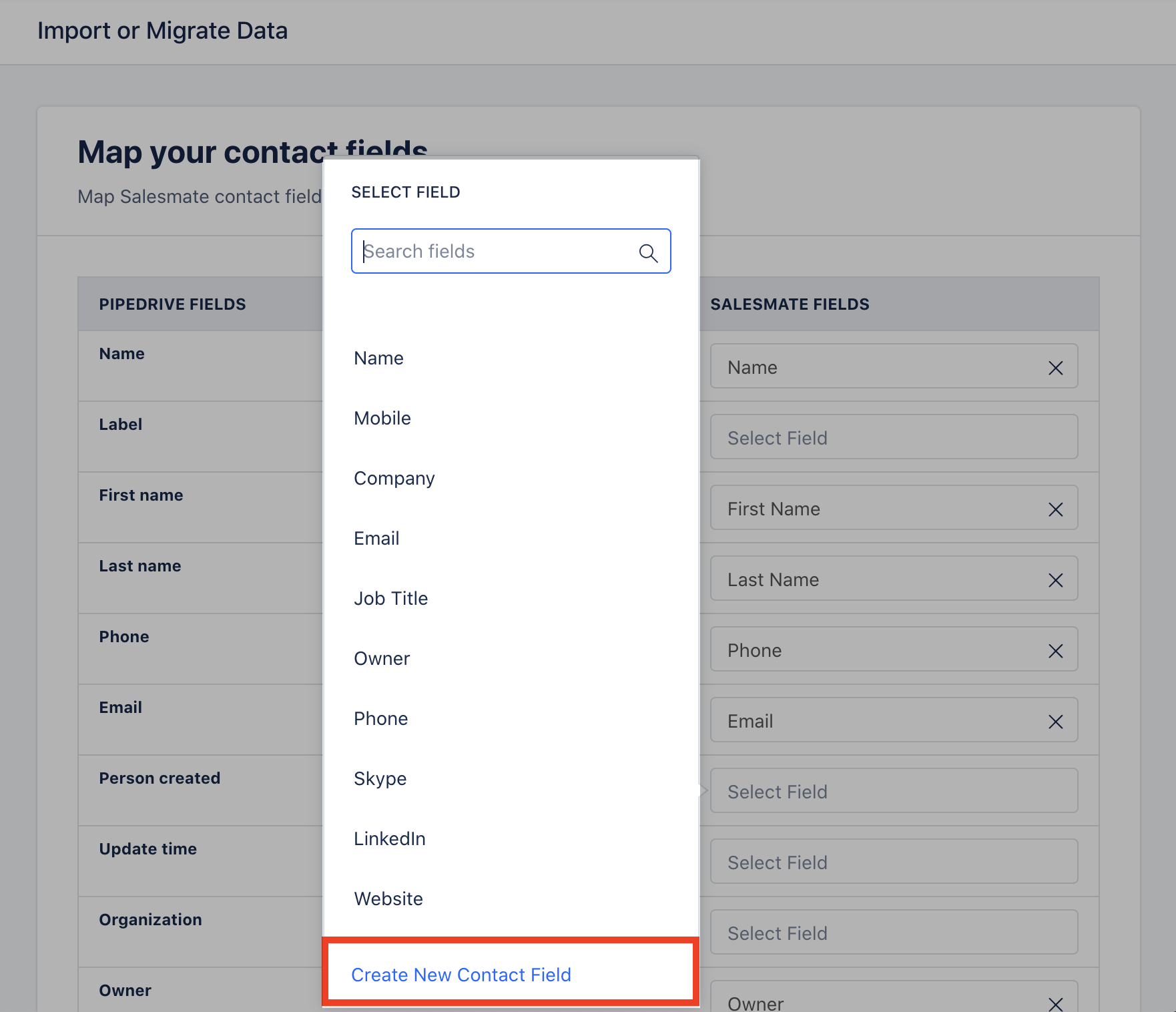
- Click on ” Create New Contact Field ”.
- Learn More
- If fields are mapped with different data, a warning icon will be displayed and a tool tip when hovering over it.
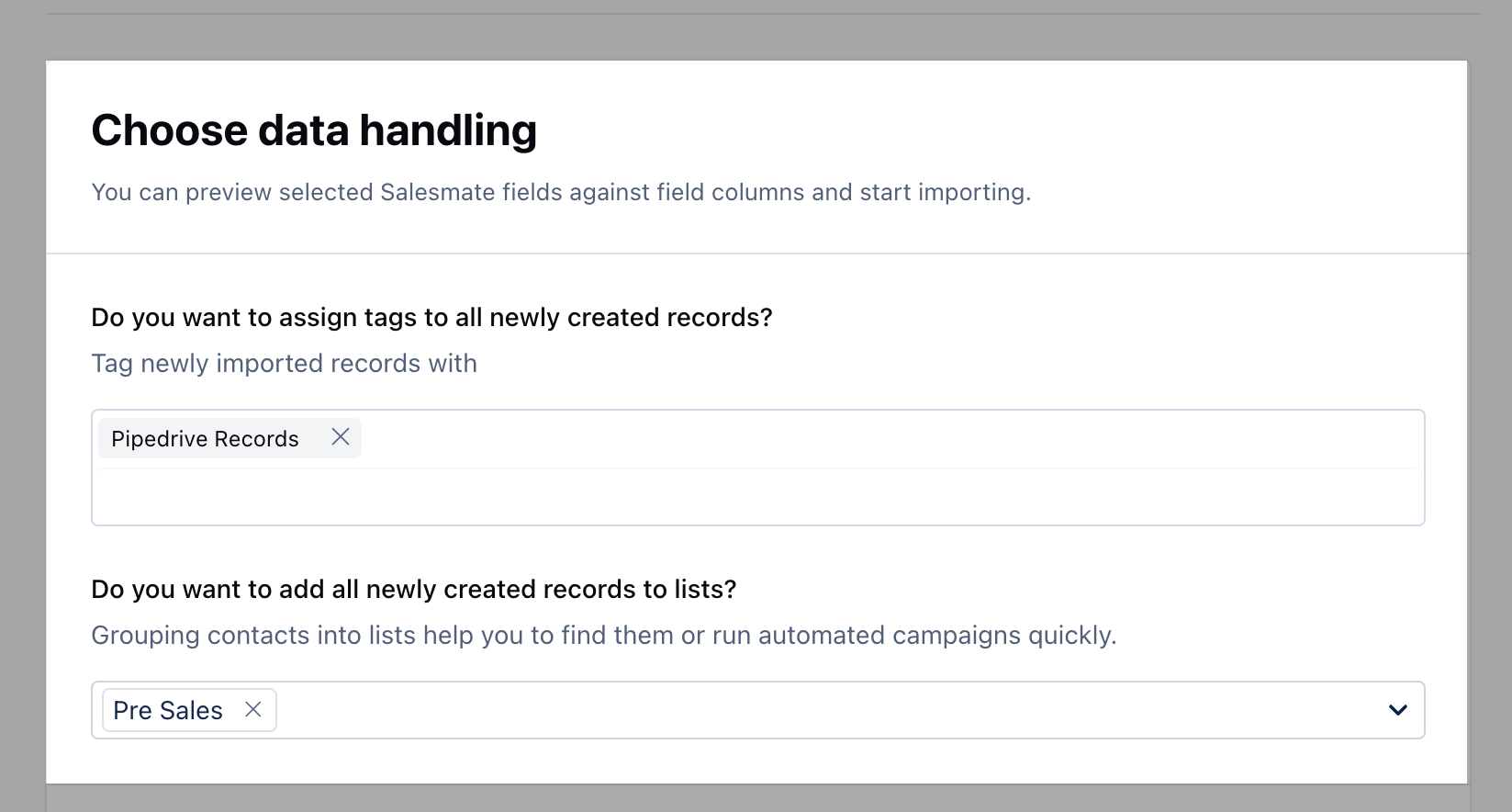
- On the Next screen, you can assign the Owner.
- Add Tags, and Add the newly created records to the List in Salesmate which will help you to track the records.
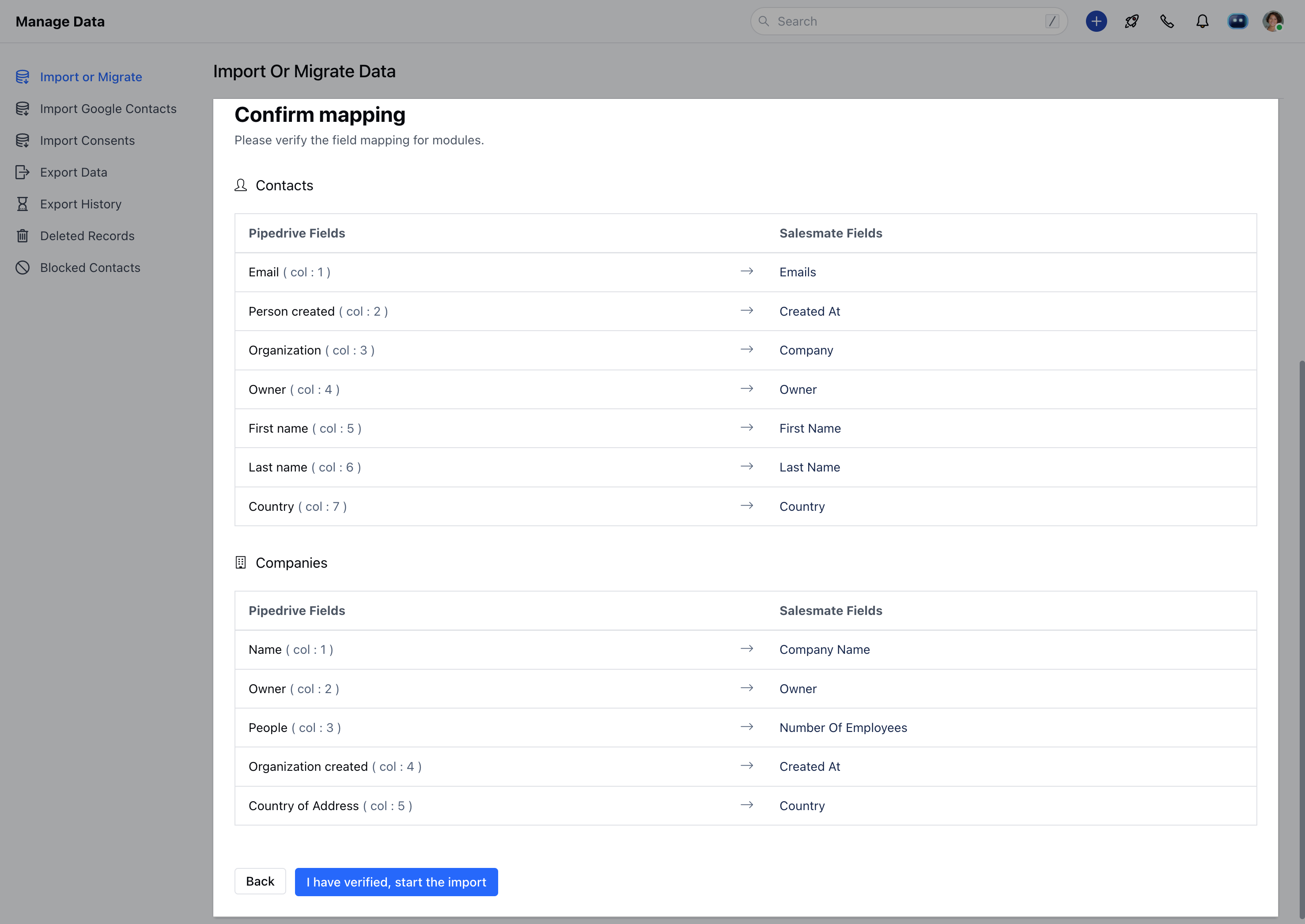
- You will be able to preview the import and start the import
- Preview of mapping columns by the module.
- By clicking on the I have verified, start the import will start the import process.
Note: Two simultaneous imports are not allowed in a single link to manage data concurrency. So if you have scheduled one import, you or any other user from your link has to wait until the import/revert finishes.
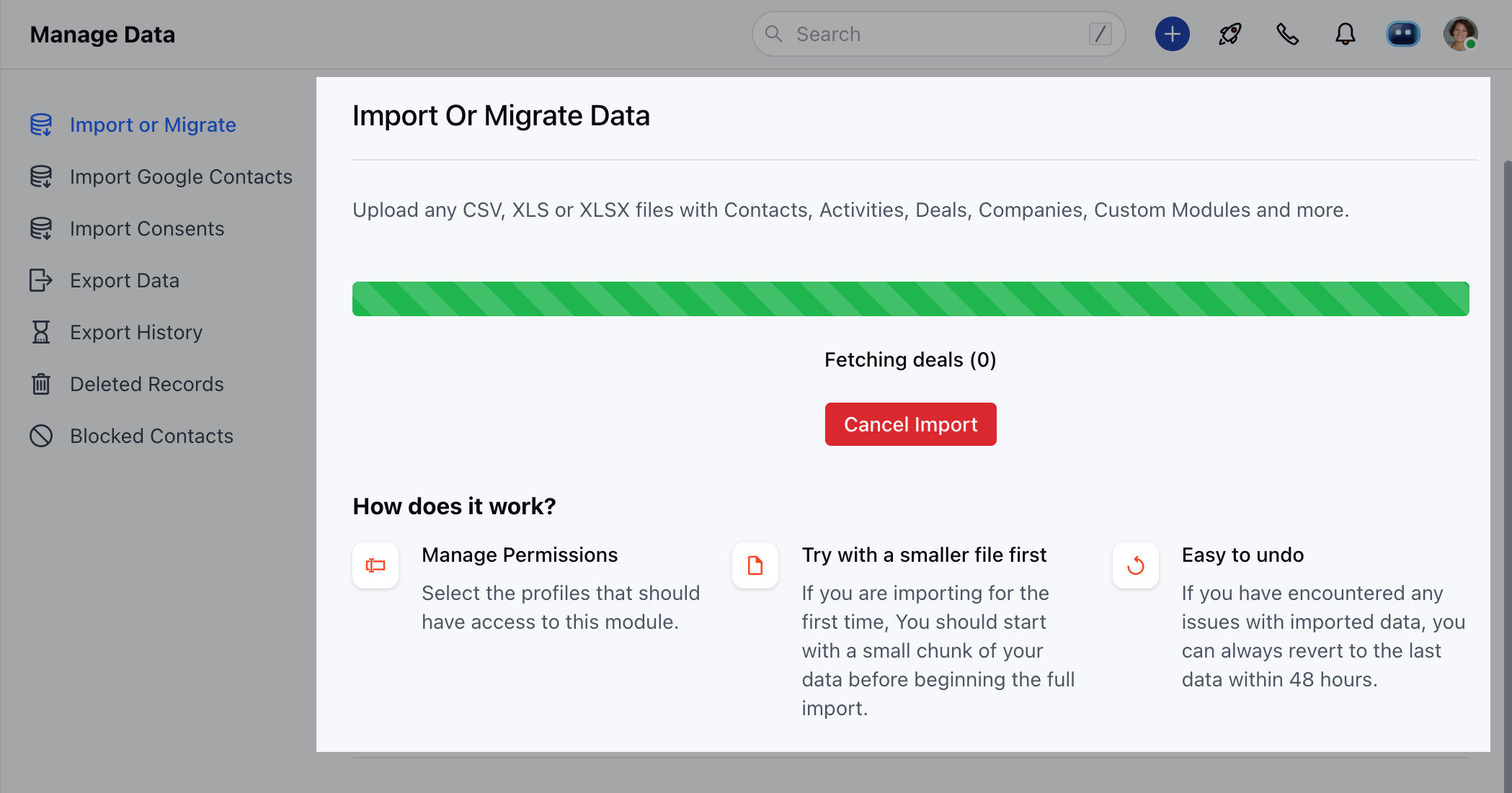
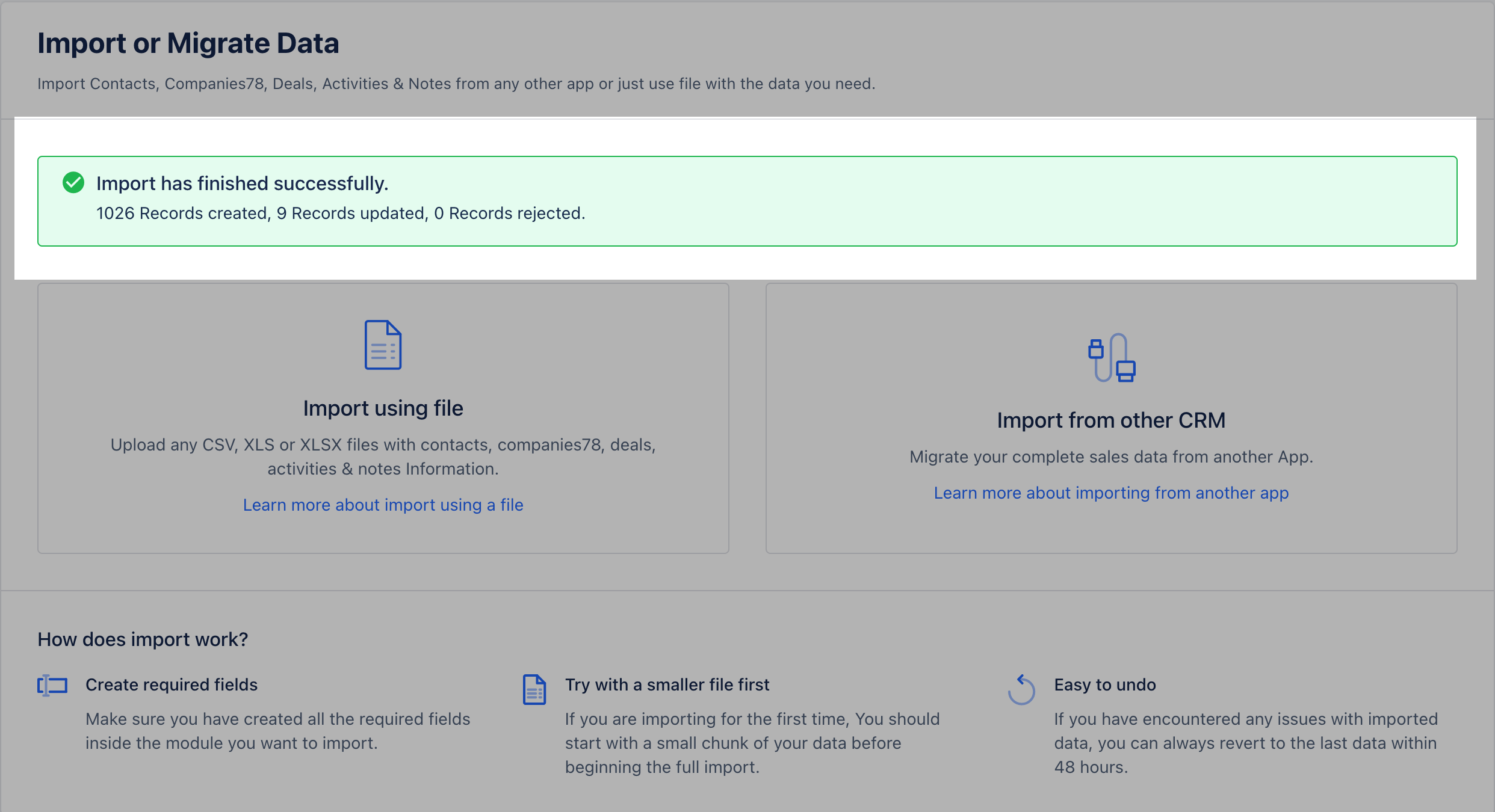
- Now, you can view the import progress on this page.
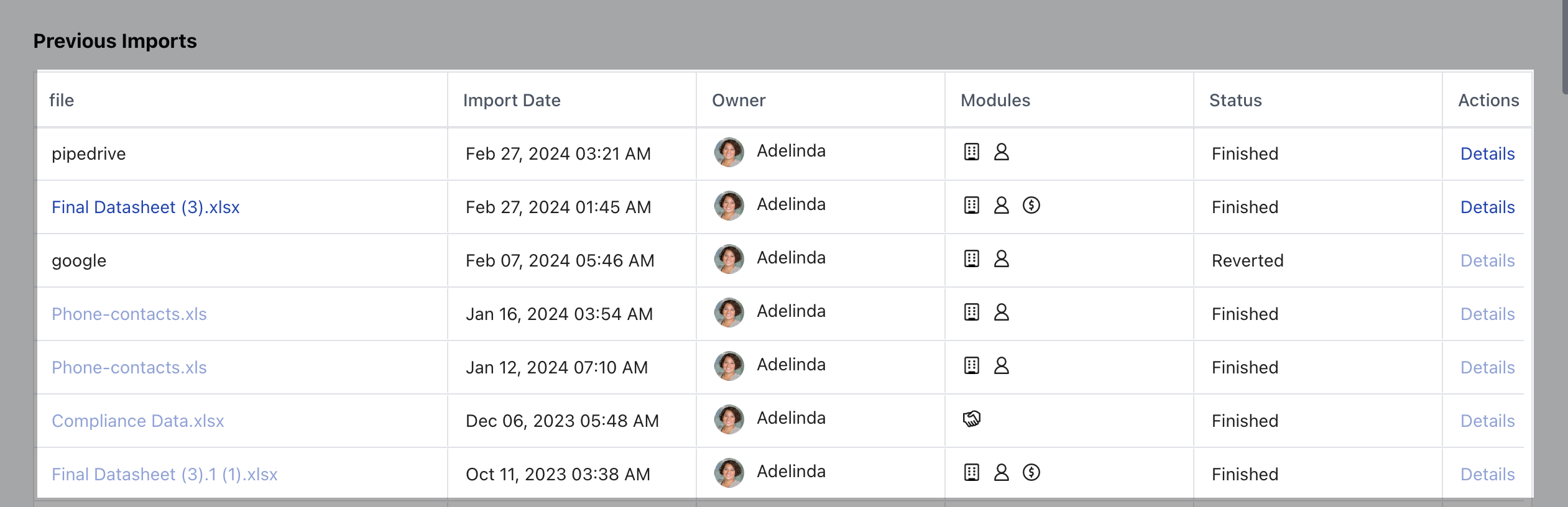
- Once Imported, the details of the Import will be visible for your reference under ” Details ”
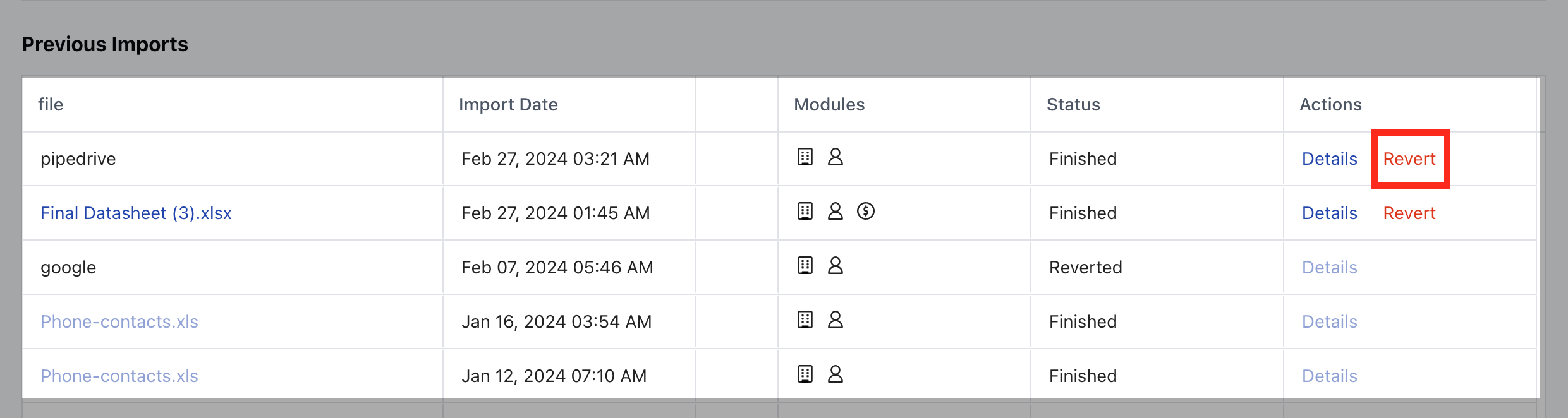
- *Previous Import:*Import Date: Gives you the status of the day the file was imported
- File:It helps you identify if the records were imported through a CRM system or Excel / CSV Files
- Owner: The User that imported the Records
- **Module:The icons help you identify the module ** in which the records that were imported
- Actions: With Actions, you check the details of the import
- **Revert ** the import which is available up to 48 hours after the import is completed.