

Execution Flows are similar to Smart Flows but tailored specifically for AI Pilots, with minor differences in functionality and setup.
Topics covered:
What is an Execution Flow?
An Execution Flow defines the journey an AI Pilot follows once triggered by a user event like a message or action on the website.How to Create an Execution Flow
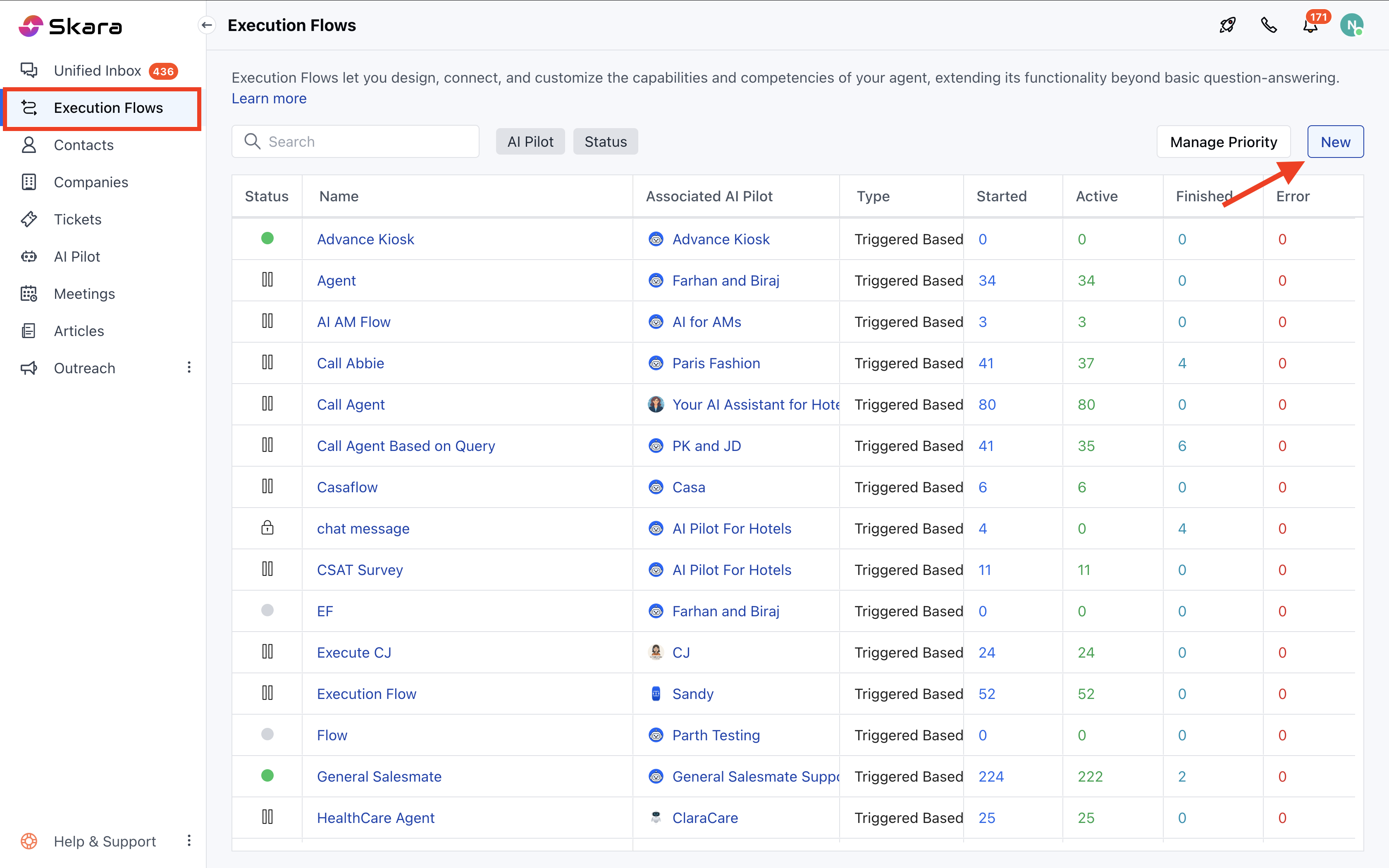
Follow these steps to create an execution flow:- Navigate to the Execution Flows from the left panel
- Click on Execution Flows
- Click on New
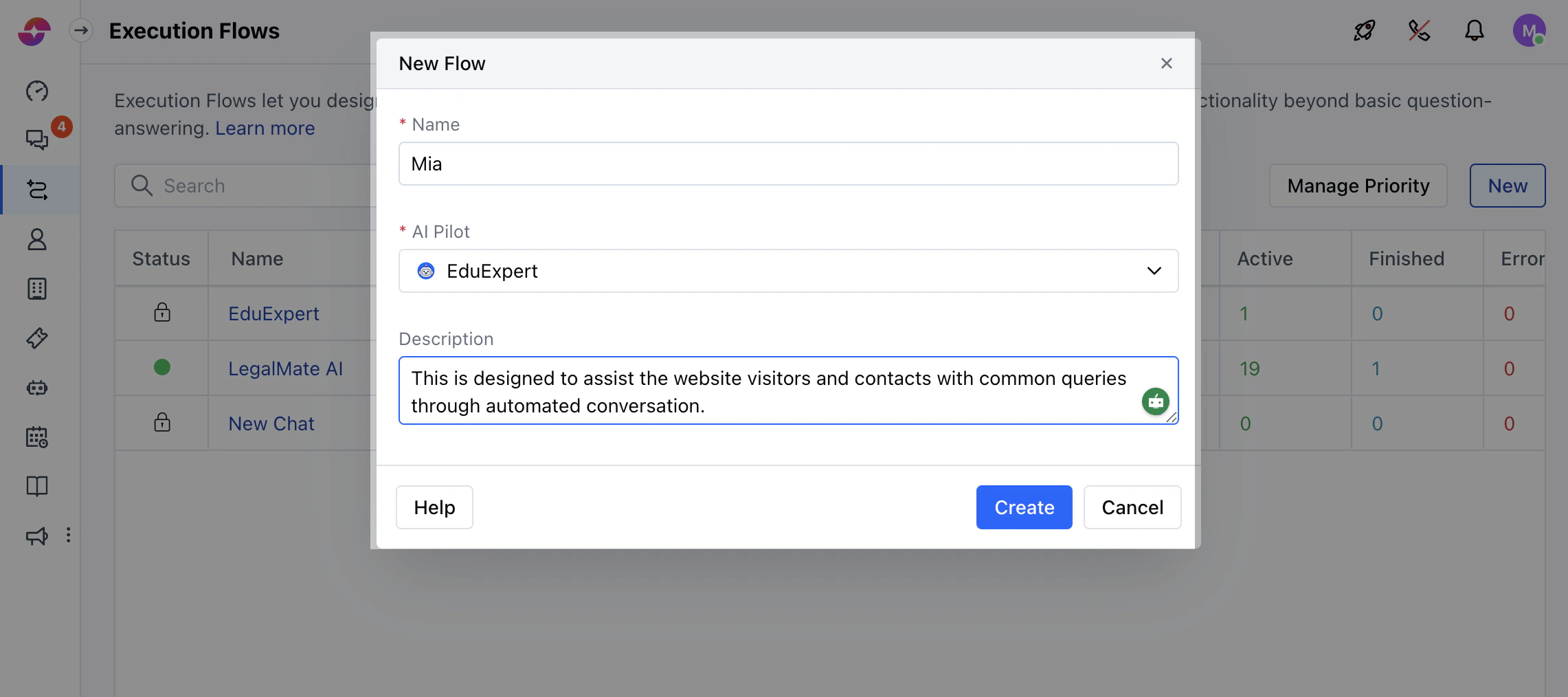
- Add a Name, AI Pilot and Description, then click Create
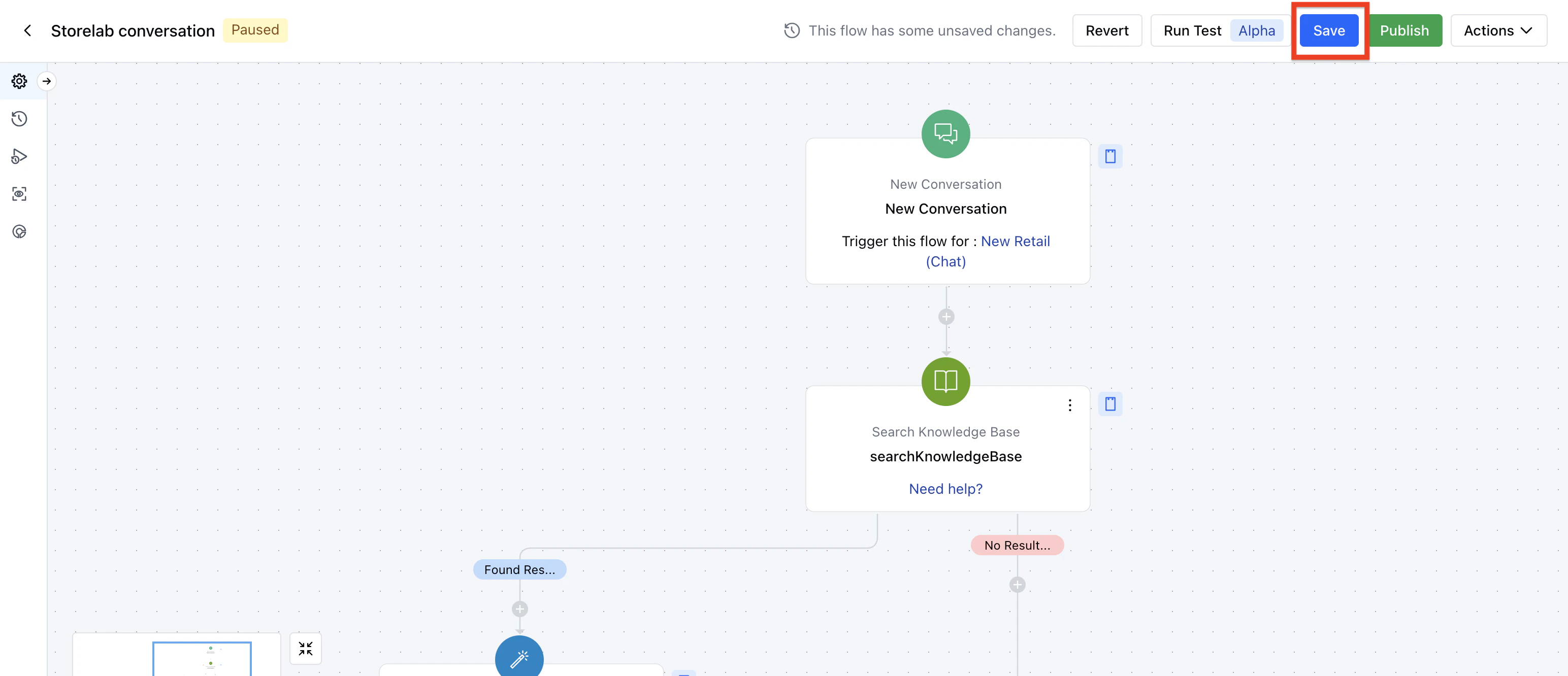
- Design your flow on the canvas
- Use Save to preserve changes or Publish to activate the flow
Key Components
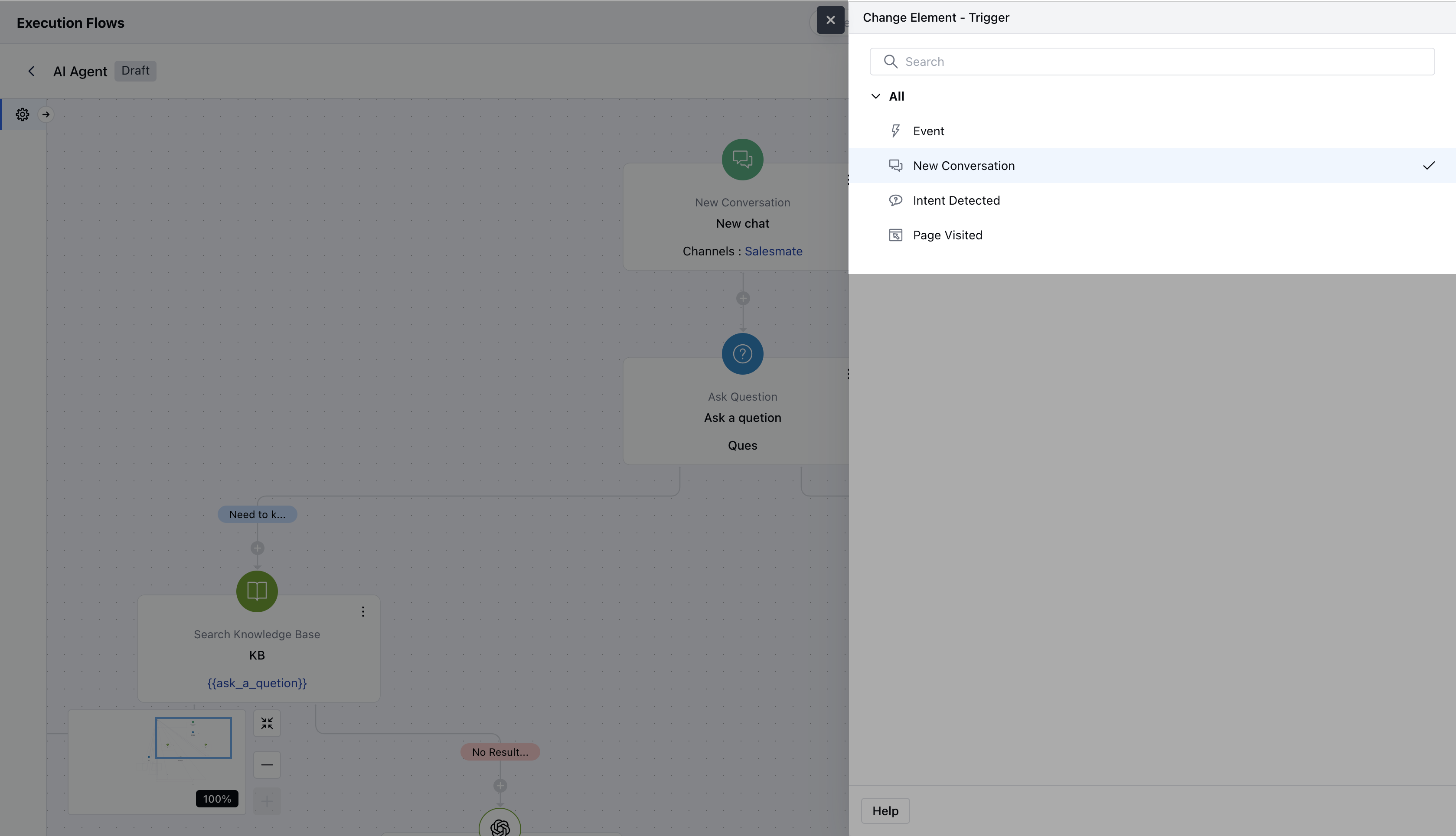
- Triggers
- Event
- New Conversation
- Intent Detected
- Page Visited
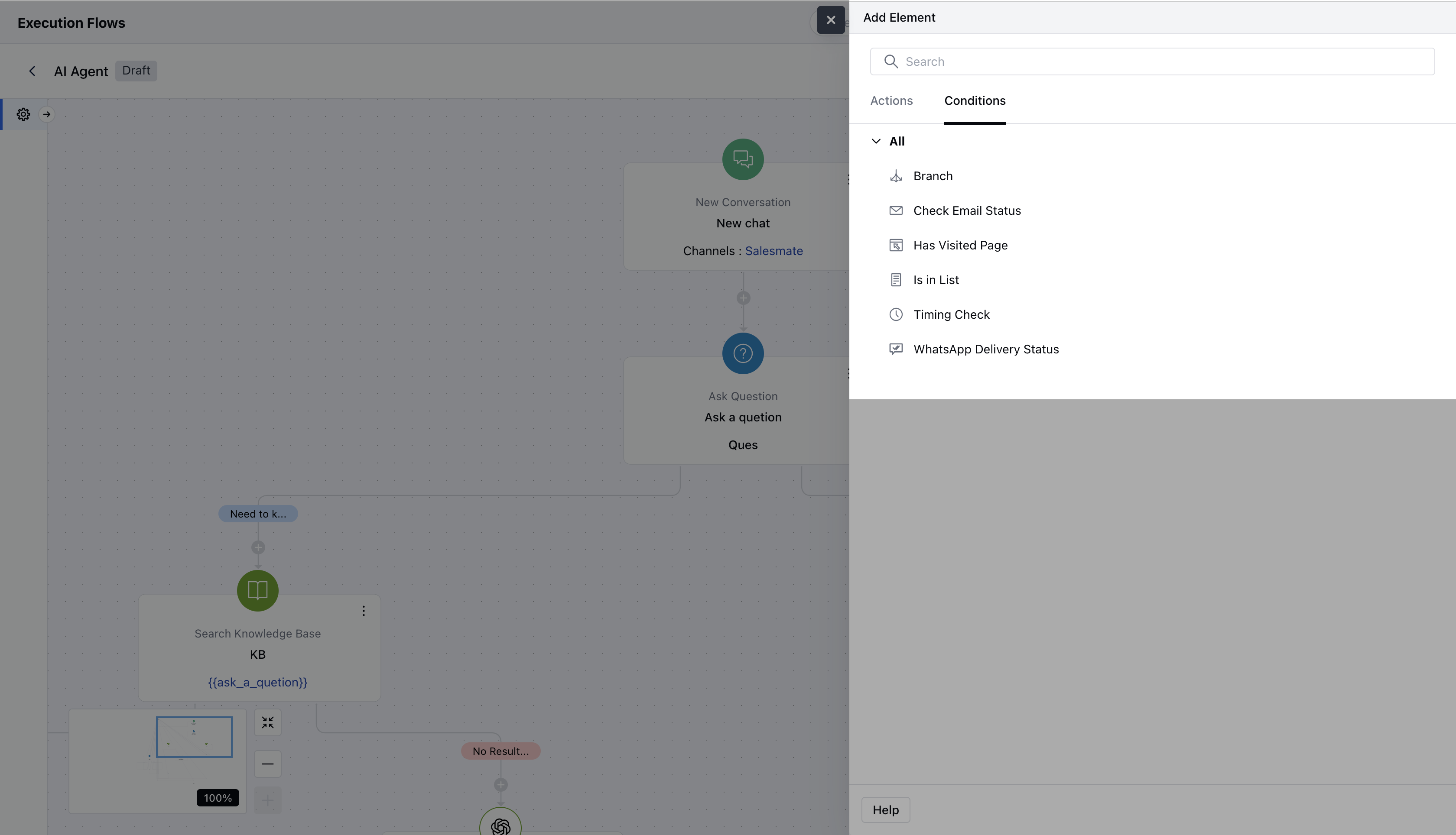
- Conditions
- All Smart Flow conditions are available.
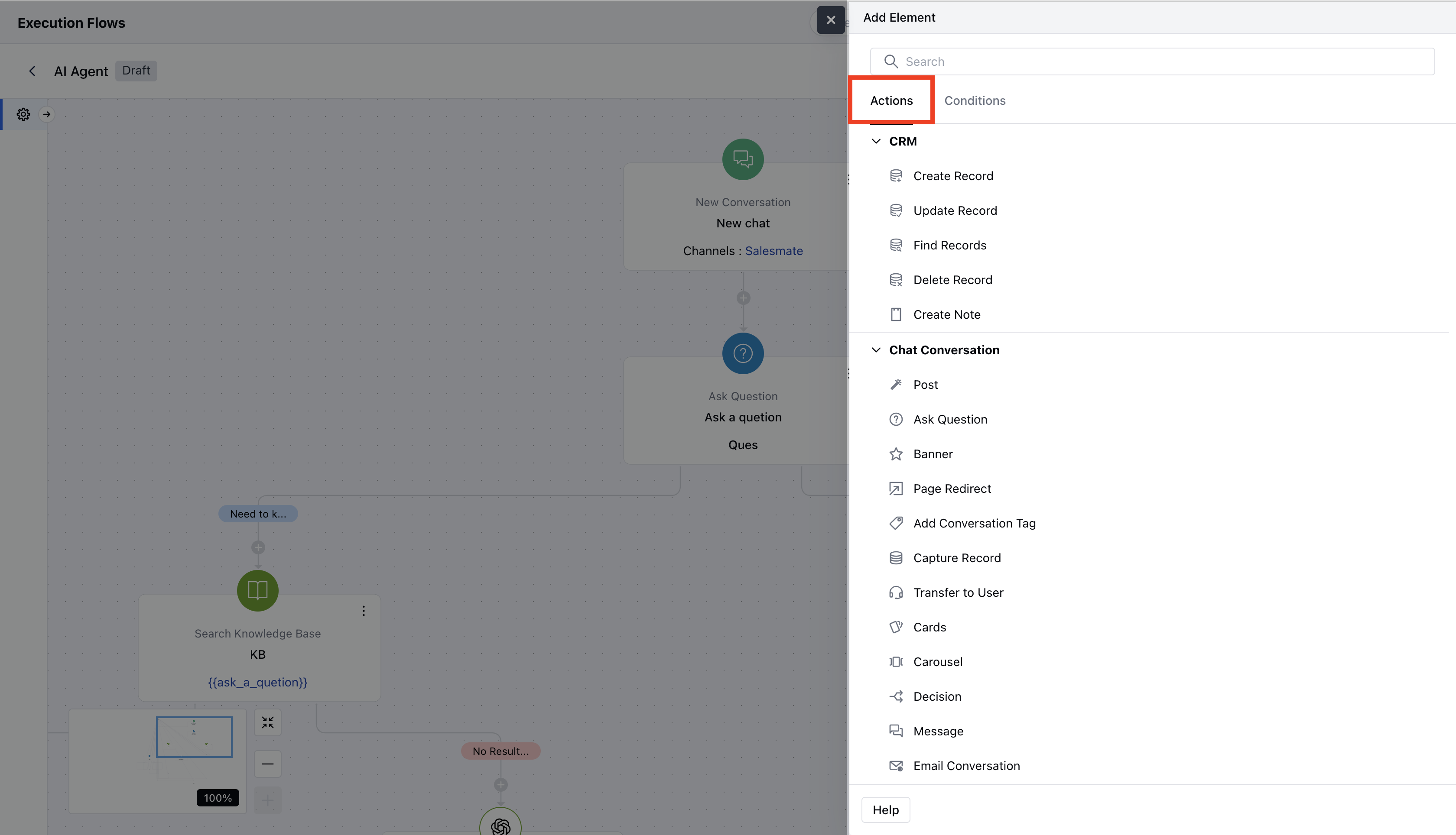
- Actions
- All Smart Flow actions except time-based delays like “Wait”.
- Flow Manager
- Manage local variables similar to Smart Flows.
- Execution Settings
- Replaces enrollment conditions to control how and when flows run.
- Version History
- Track flow changes over time.
- Enrollment Logs
- Monitor when and how flows were triggered.
- Live View & Insights
- View ongoing conversations and flow stats.endencies of the flow to proceed with deletion.
Best Practices
- Use clear names and descriptions for each flow
- Organize triggers and actions in a logical layout
- Test flows with various scenarios
- Use execution settings to manage timing and availability
- Monitor flows with Live View and Insights