Topics covered:
- Components of a Prompt
- Creating a New Prompt
- Editing an Existing Prompt
- Deleting a Prompt
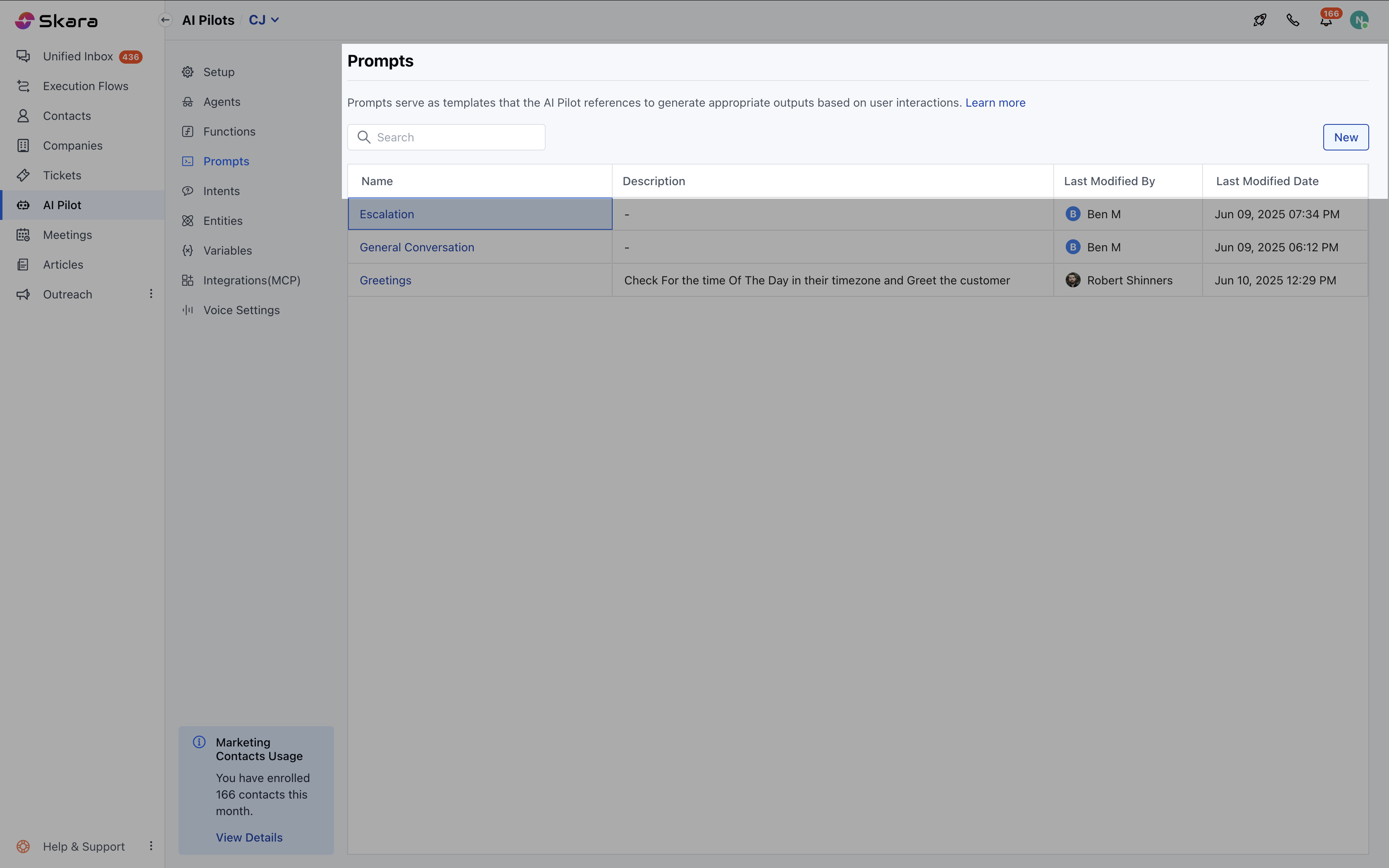
- Prompt Listing & Actions
Components of a Prompt
When creating prompts for your AI assistant, it’s important to structure them with the right components. Here’s how each part works:- System Prompt: Use this to set the tone, style, and behavior of the AI. Whether you want the assistant to be formal, friendly, concise, or informative, define that here. Example: “You are a helpful and empathetic support agent who answers questions clearly and politely.”
- User & AI Pilot Messages: These are sample conversations that show the AI how it should respond. Use them to guide the AI’s behavior by providing real-world scenarios and expected replies.
- Conversation History: Include past messages when you want the AI to understand the full context of an ongoing interaction. This helps the AI respond more accurately and maintain continuity.
- Variables: Add variables or entities like
{user_name}or{product}to personalize messages dynamically. This makes responses more tailored and human-like. - Structured Outputs: Define how you want the AI to format its response — plain text for emails, JSON for API responses, or other formats depending on your needs.
Steps to Create a Prompt
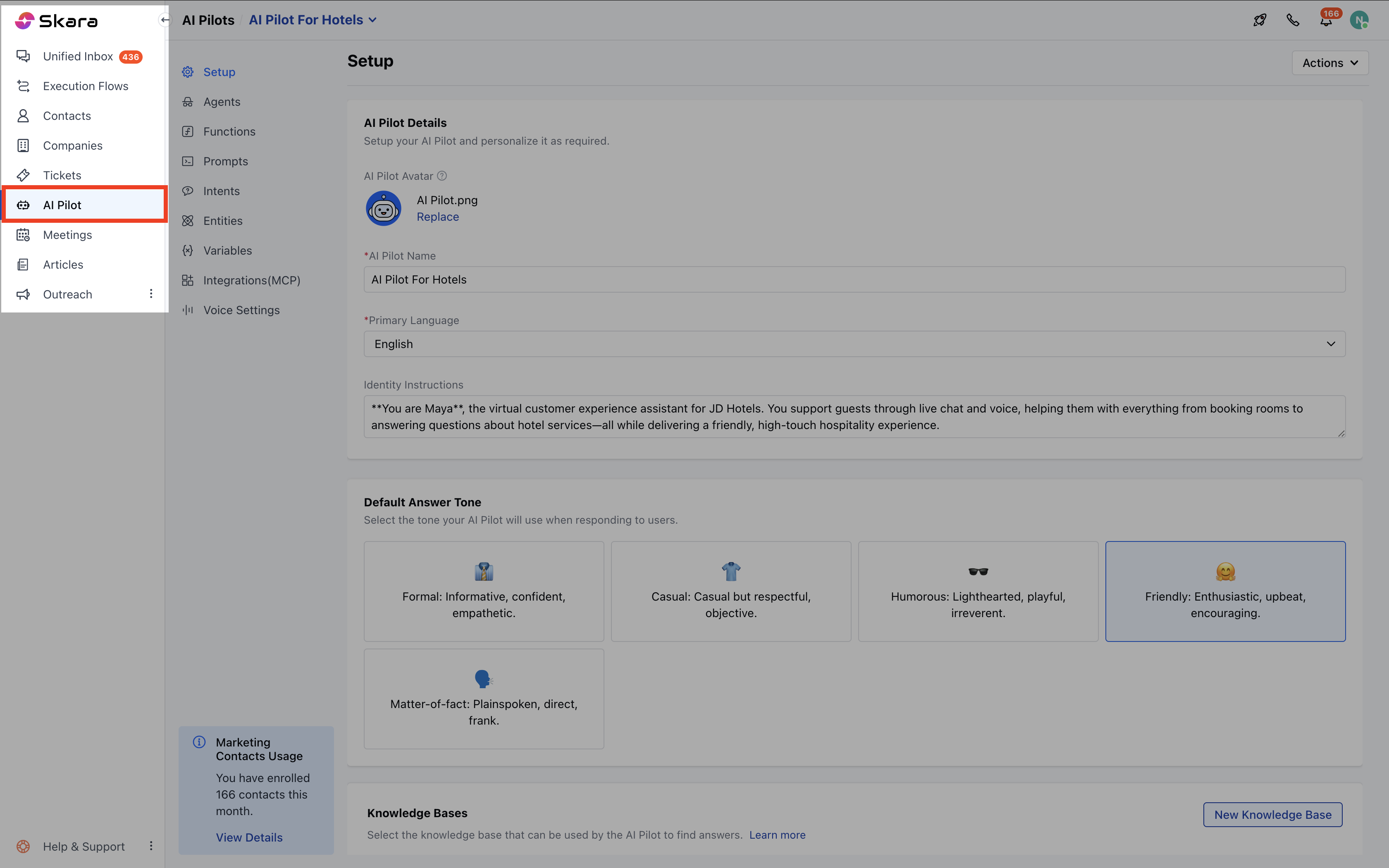
- Navigate to AI Pilots.
- Select your AI Pilot.
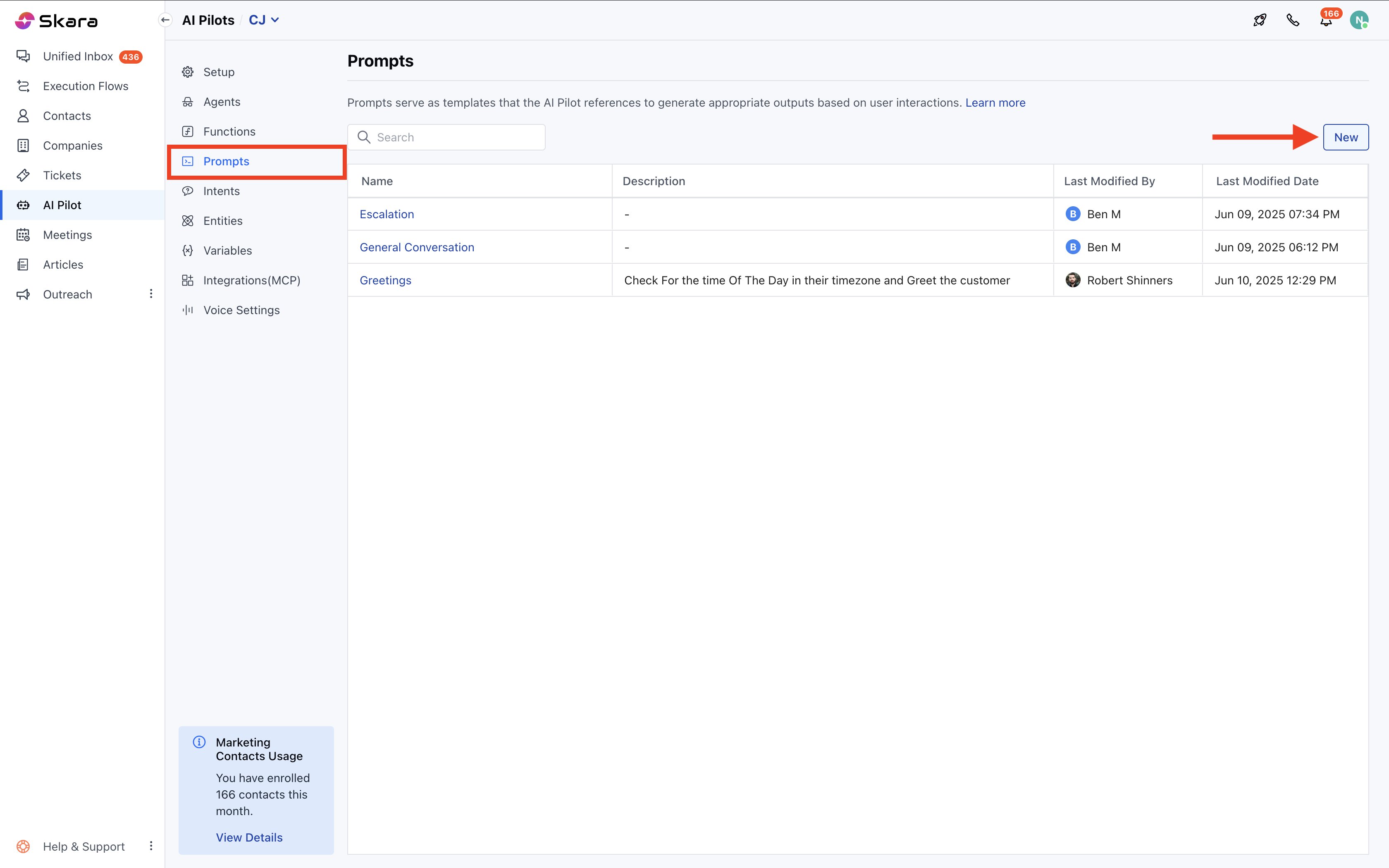
- Click on Prompts
- Click on New.
Prompt Configuration
- Name: Provide a meaningful name (e.g., “Financial Support”).
- Description: Describe the objective of the prompt.
- System Prompt: Set the tone and instruction style.
- User Prompt: The initial user message to start the prompt.
- Message Pairs: Add back-and-forth conversations to enrich training.
- Variables: Insert dynamic fields using
{}for personalization. - Conversation History: Insert the
conversation_historyblock once for added context. - Templates: Use predefined templates for quick setup.
- Reordering: Rearrange blocks except the System Prompt (fixed at the top).
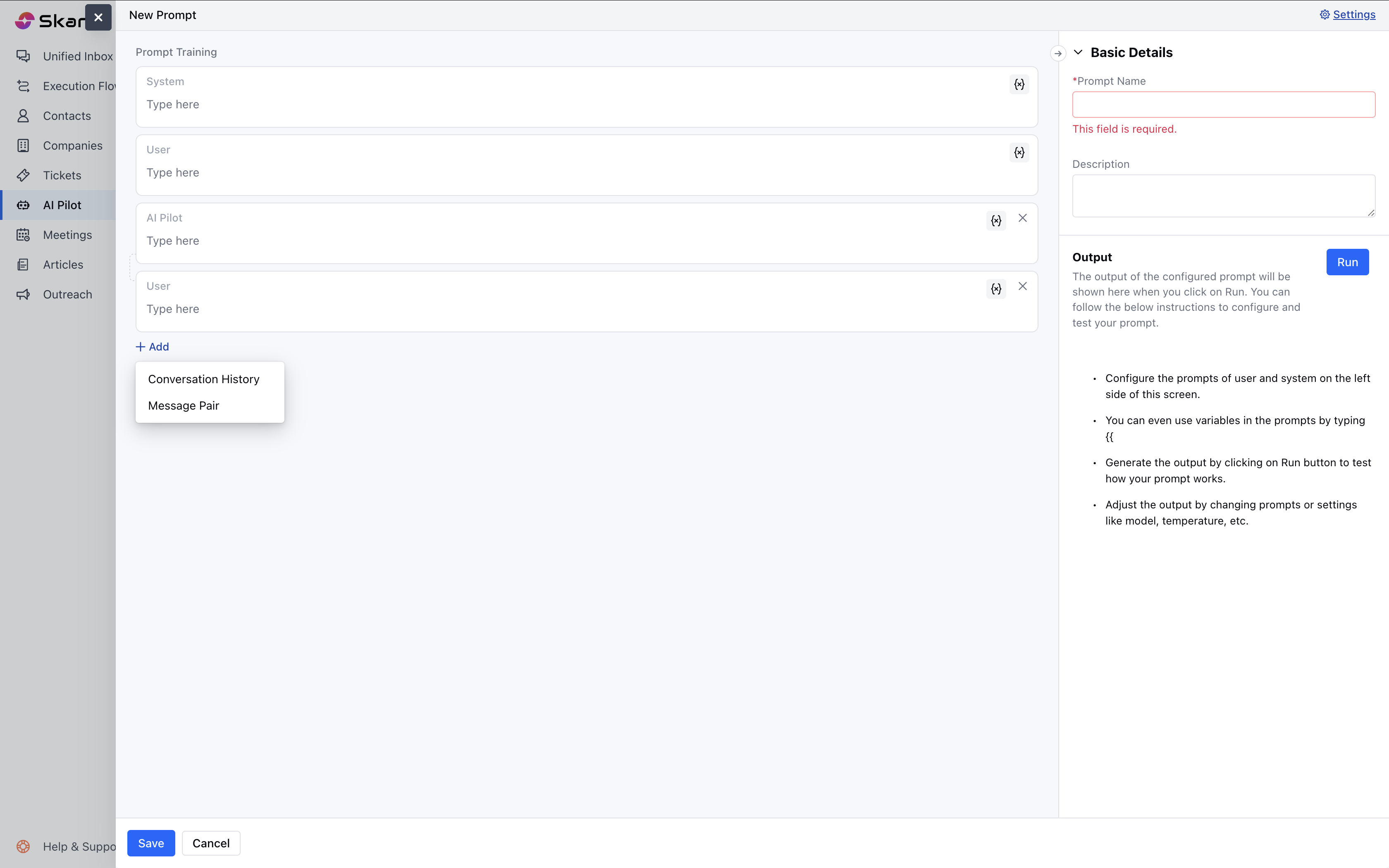
Note: The last block must be a User Prompt.
Prompt Settings
Click the Settings option to modify prompt-level configurations.These are the Options Available: Options Available:- AI Model: Choose which LLM your AI will use:
- GPT-4.1
- GPT-4.1 nano
- GPT-4o
- GPT-4o mini
- Claude 2/Claude 3.5 (Haiku, Sonnet) / Claude 3 (Opus)
- Gemini 1.5 Pro
- Grok-2-1212 / Grok-2-vision-1212
- Temperature: Controls creativity (0.00–1.00).
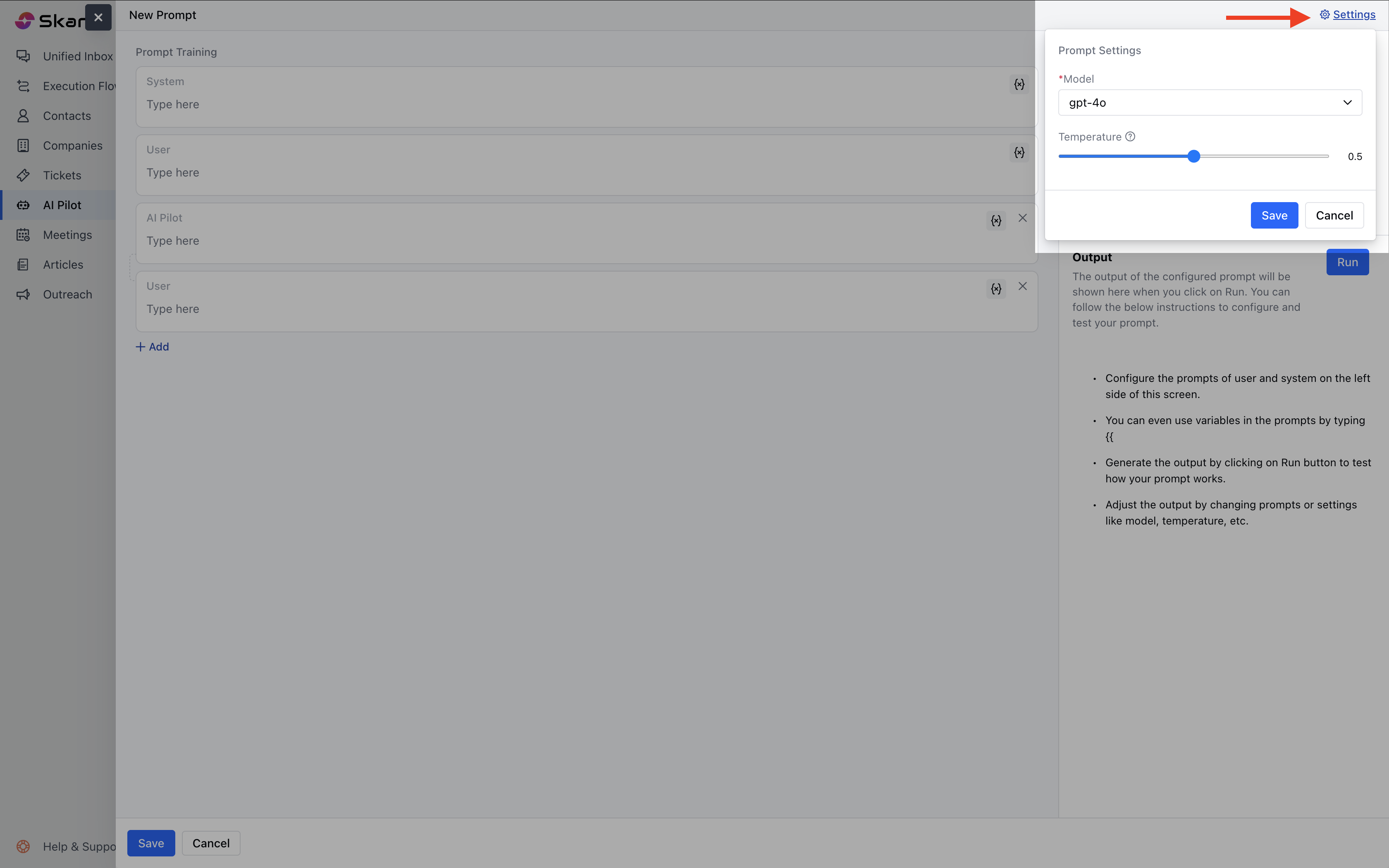
Note: These settings apply only to the current prompt.
Testing the Prompt
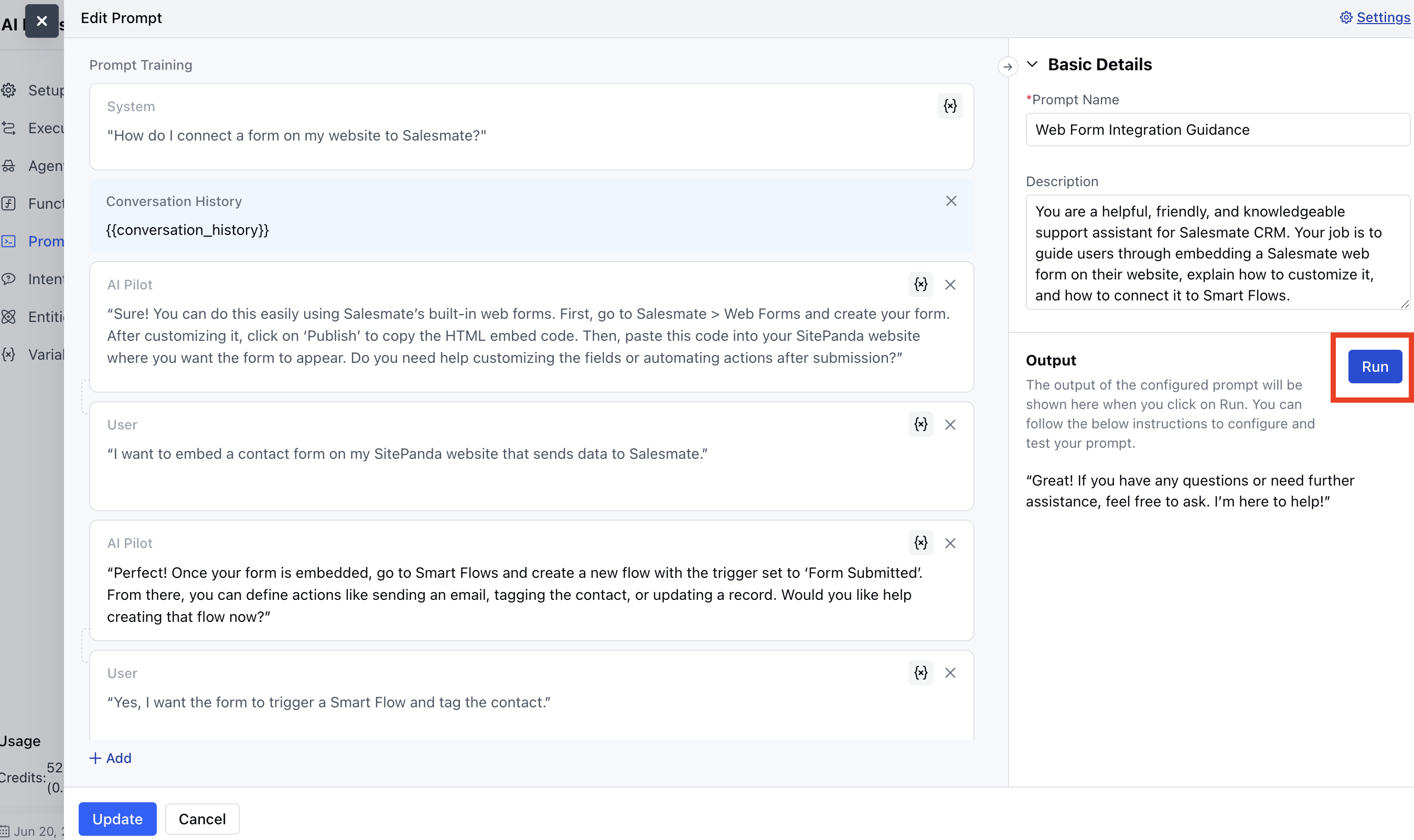
You can run a simulation to test your prompt:- Click Run Test.
- Enter values for required variables.
- The AI will simulate a live user interaction.
- Latency: Time taken for response
- Tokens: Total used, with input/output breakdown on hover
Editing an Existing Prompt
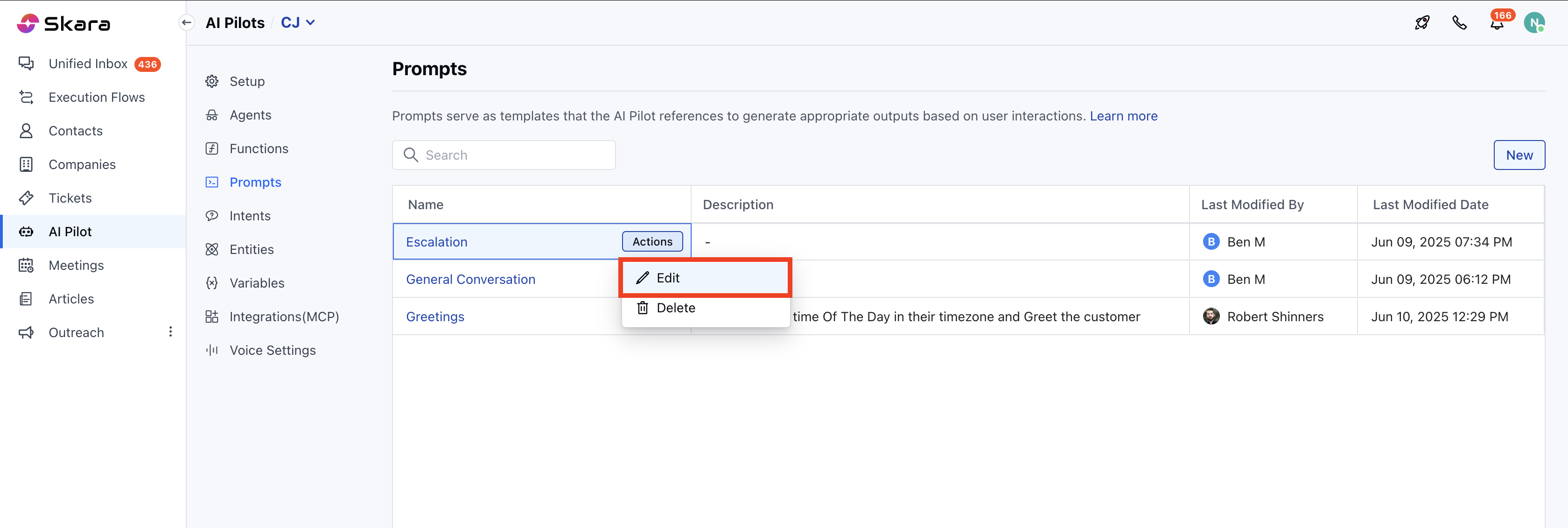
How to Edit:- Navigate to AI Pilots.
- Select your AI Pilot.
- Hover over the prompt.
- Click on Actions
- Select Edit.
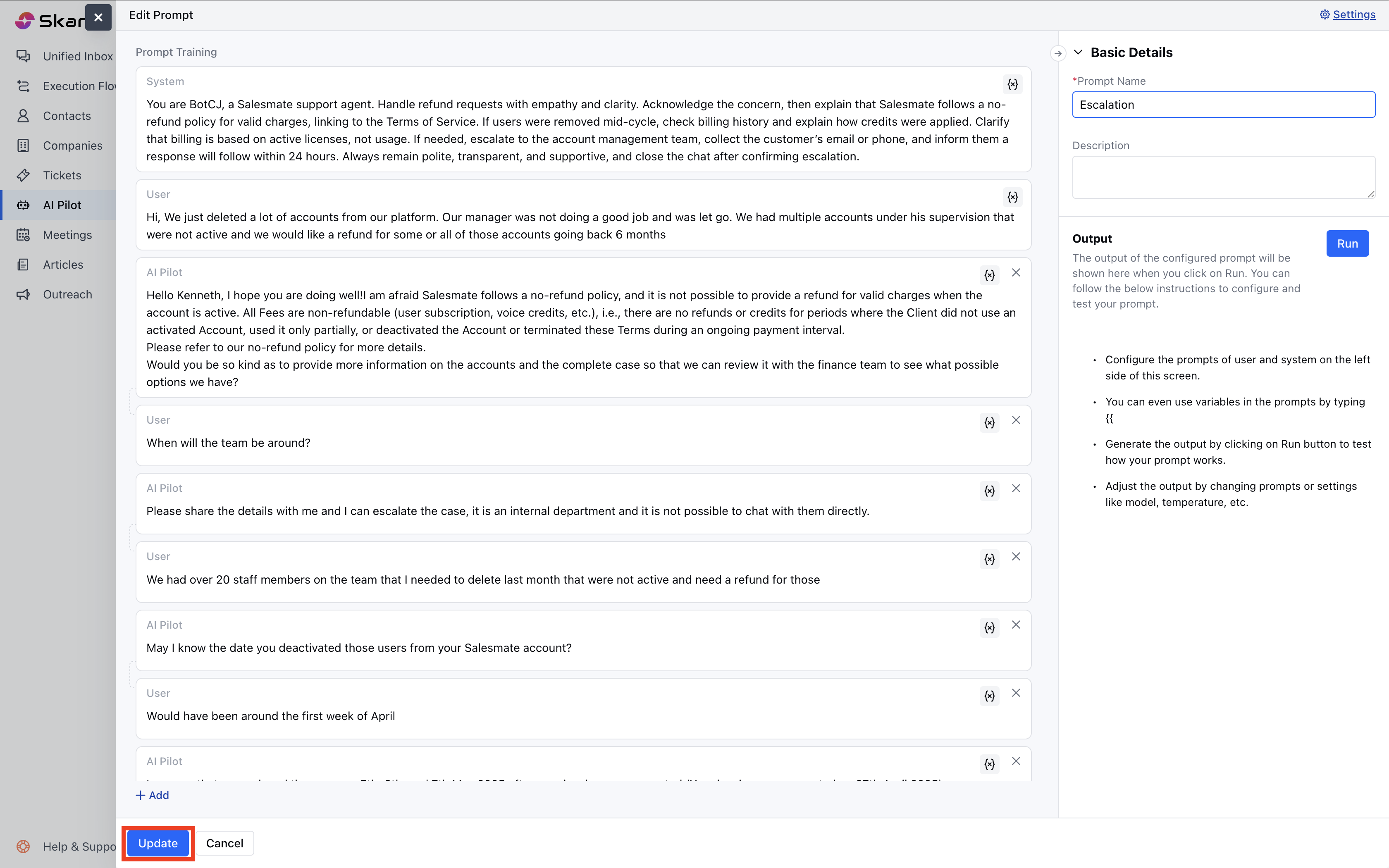
- After editing
- Click Update to apply changes.
Deleting a Prompt How to Delete:
- Navigate to AI Pilots.
- Select your AI Pilot.
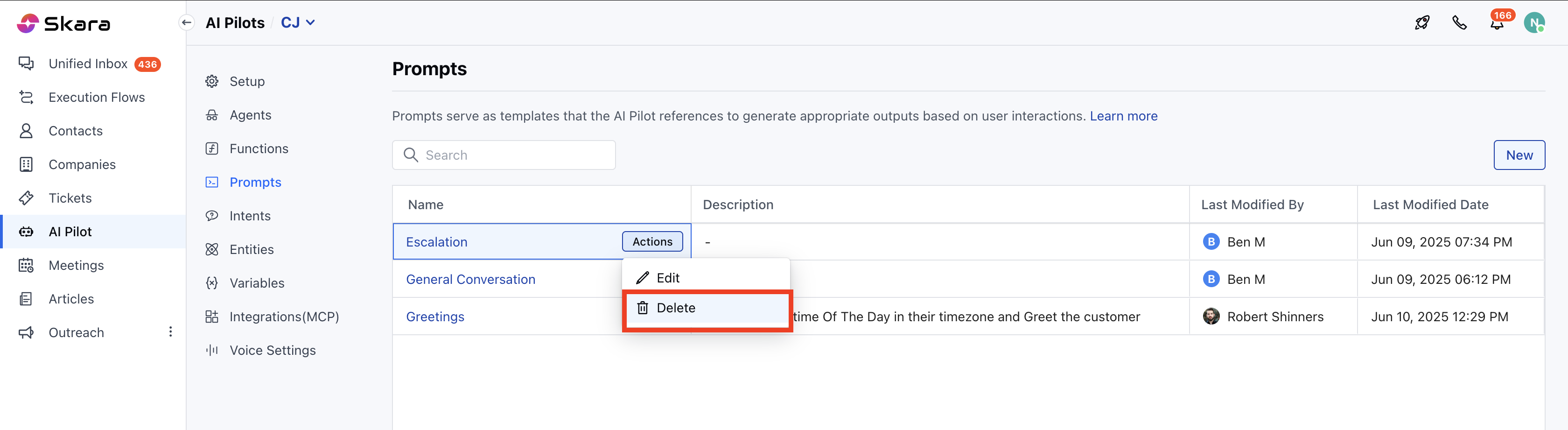
- Hover over the prompt.
- Click on Actions
- Select Delete.
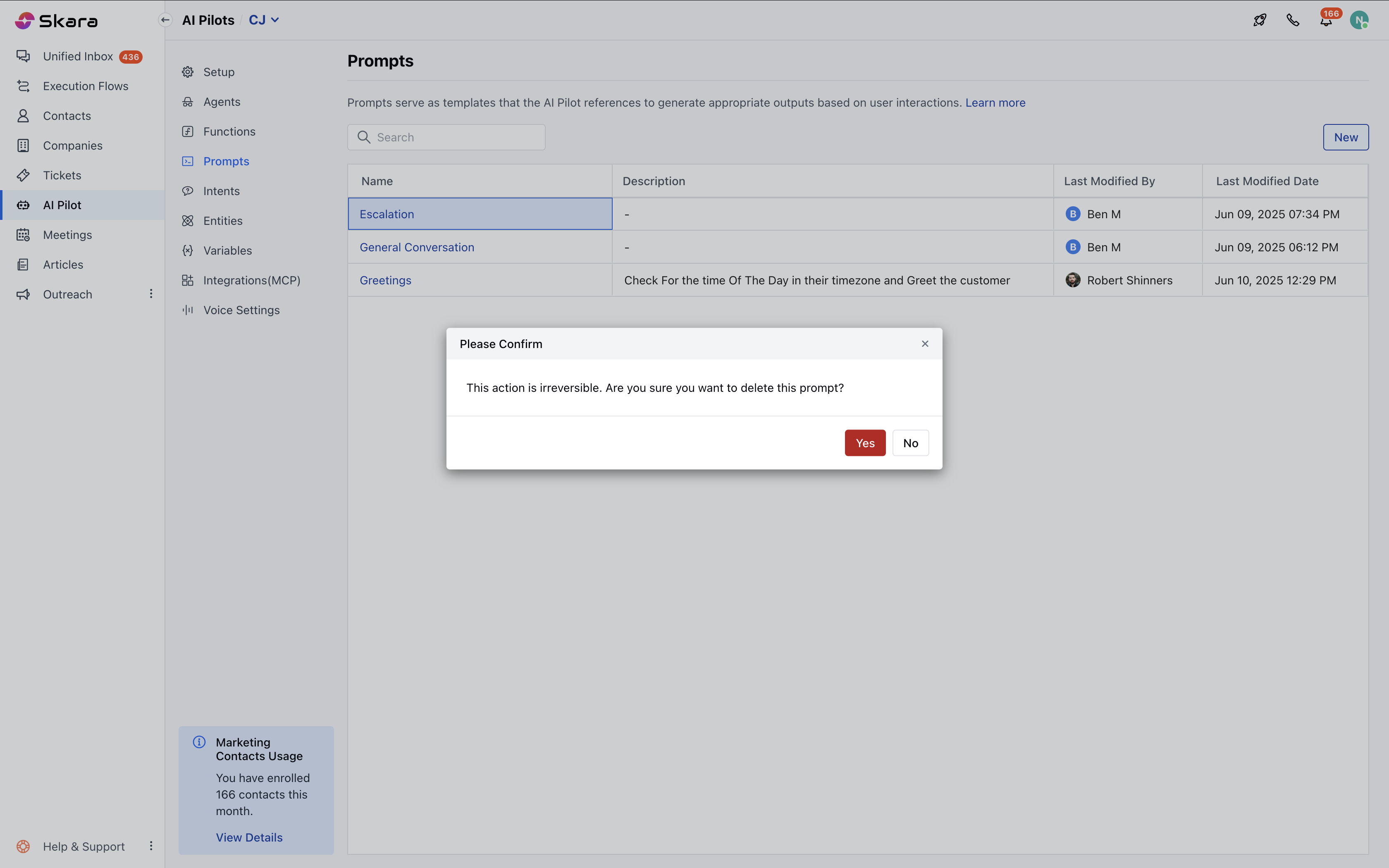
- A confirmation dialog box will appear: “This action is irreversible. Are you sure you want to delete this prompt?”
- Click Yes, and the prompt will be deleted permanently.
Note: You cannot delete the prompt if it is currently in use.
Prompt Listing & Actions
How to Access the Prompt List:- Navigate to AI Pilots.
- Select your AI Pilot.
- Click on Prompts.
- The list includes: Name-Description, Last Modified By, Last Modified Date
- You can perform actions such as Edit, Clone, or Delete.
- You can also sort prompts by Name or Last Modified Date, and search by Name.