

- The data is displayed as a grid, offering a structured view of unsuccessful search attempts.
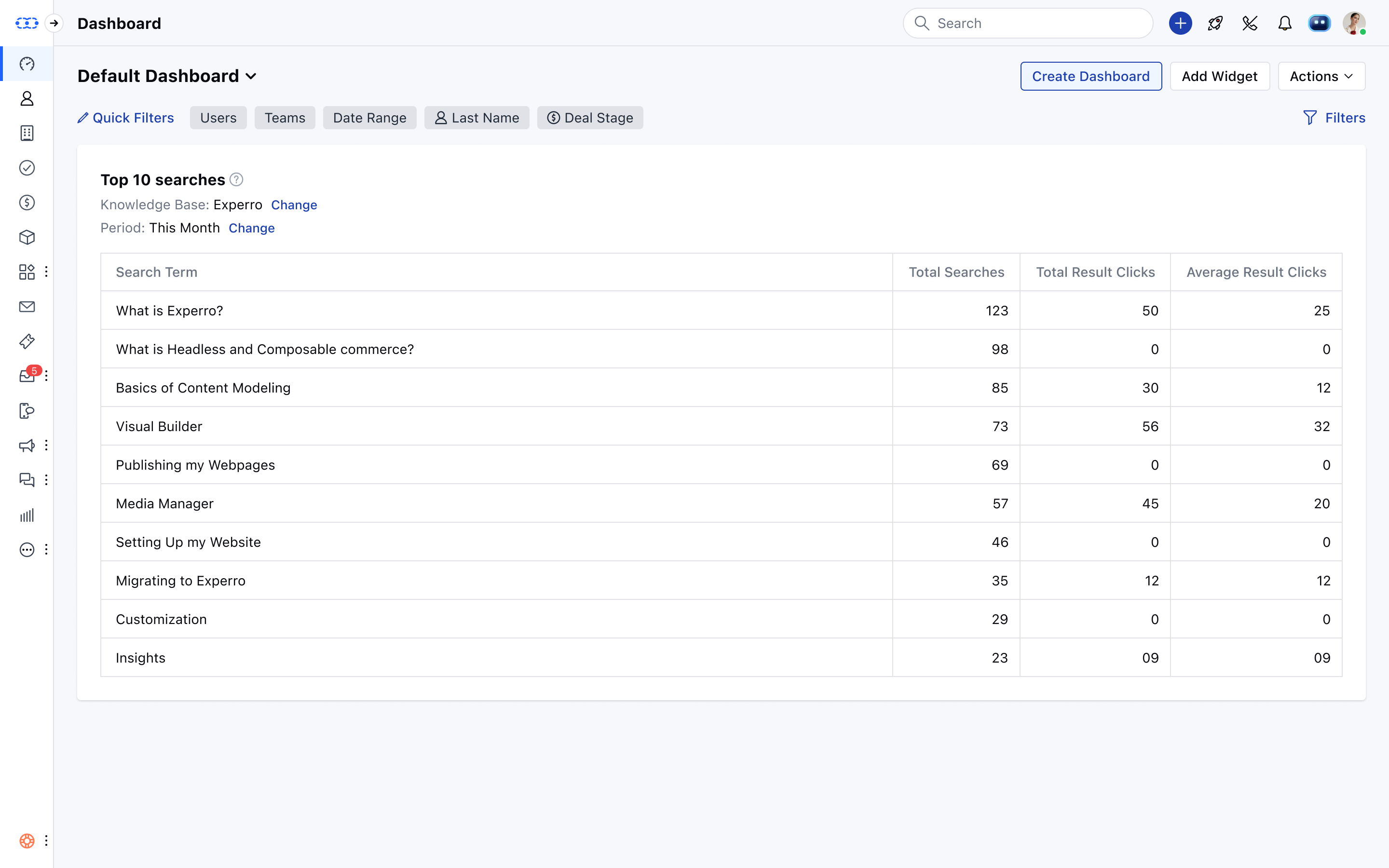
- Search Term: The keyword or phrase entered by the user during a search.
- Total Searches with No Results: The number of times this search term did not return any articles.
- The report utilizes the number of failed searches as the metric to determine content gaps.
- The report will automatically show data for the last 30 days, and you can change this range.
- There is a drill-down capability so that you can click on the search term to explore deeper insights or identify patterns in user intent.
- Add this report to your dashboard by clicking on the Add widget and choosing the system or Knowledge Base filter on the left panel then selecting the report and clicking on the Add to Dashboard option.
- Date Range: Adjust the time frame to analyze click activity over a specific period.
Usages
- Identify missing content based on user searches.
- Understand user intent to improve the knowledge base.
- Create new articles to reduce future no-result searches and enhance the overall user experience.
Note:
- You will need to select one knowledge base if you have multiple Knowledge Bases in the account when you add this widget to the dashboard.
- If you have only one, then it will be selected by default.