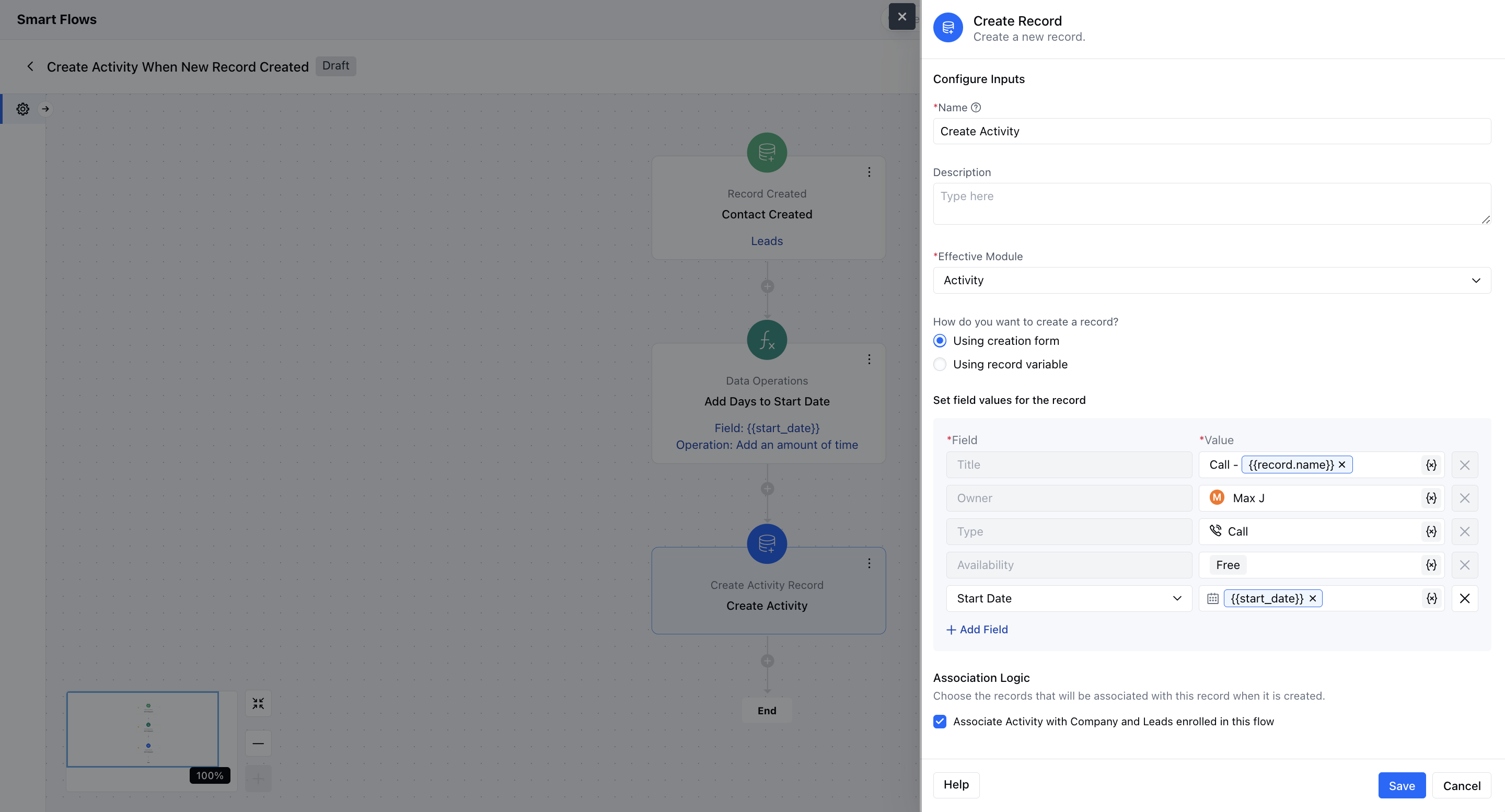
How to Set the Start Date of an Activity in Smart Flow You can customize the Start Date of an activity using either the Assign interaction or the Data Operation interaction in Smart Flow. Below are the detailed steps for both methods:**Method 1: Using the Assign Interaction Select a Trigger Choose a trigger based on your requirement.Example: Trigger the Smart Flow when a new contact is created in Salesmate.
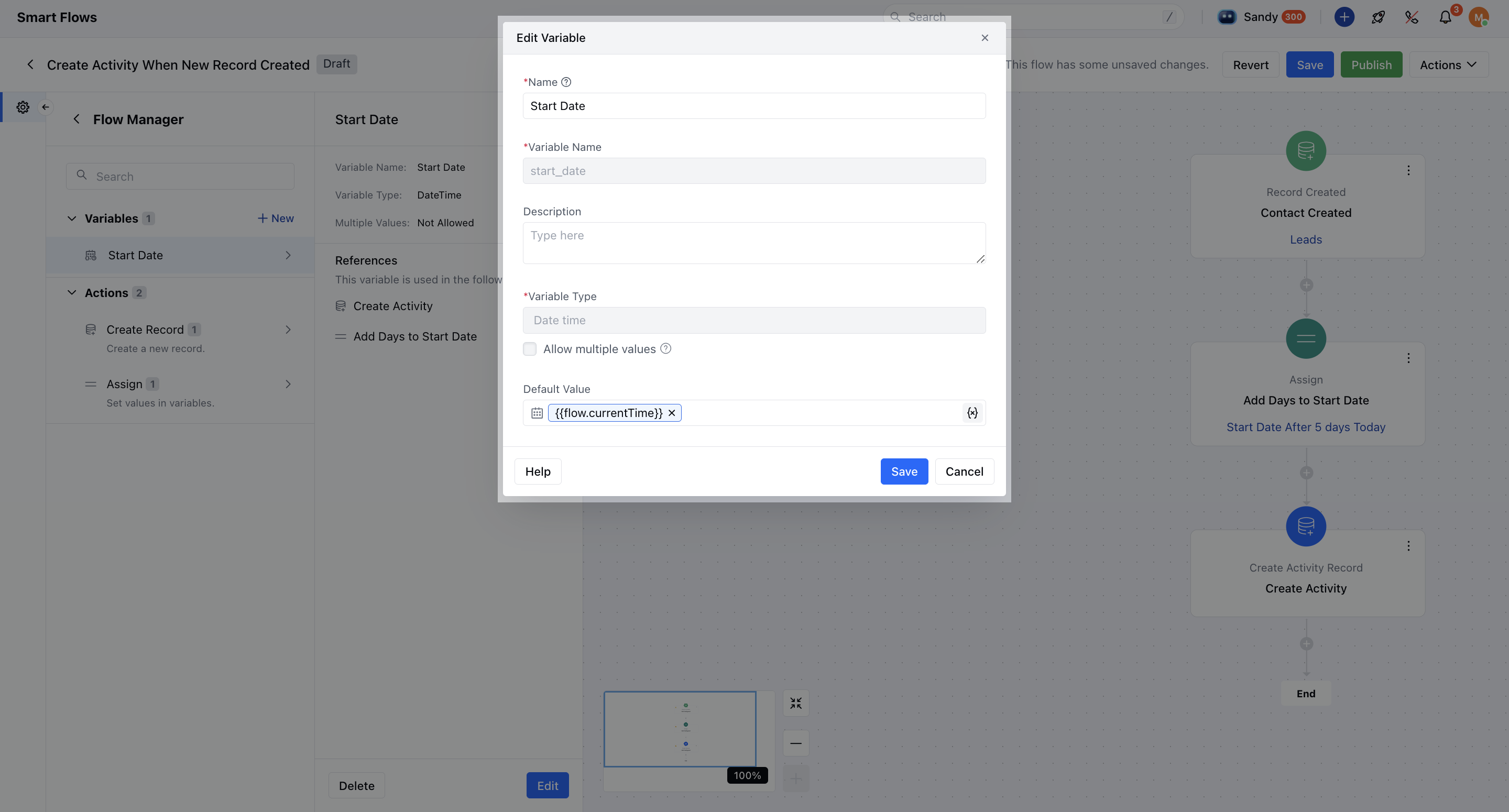
- Create a Variable Create a variable of type** Date & Time **. Refer to this for guidance on creating variables.Since the Start Date field is of type Date & Time, this variable will be used for calculations.
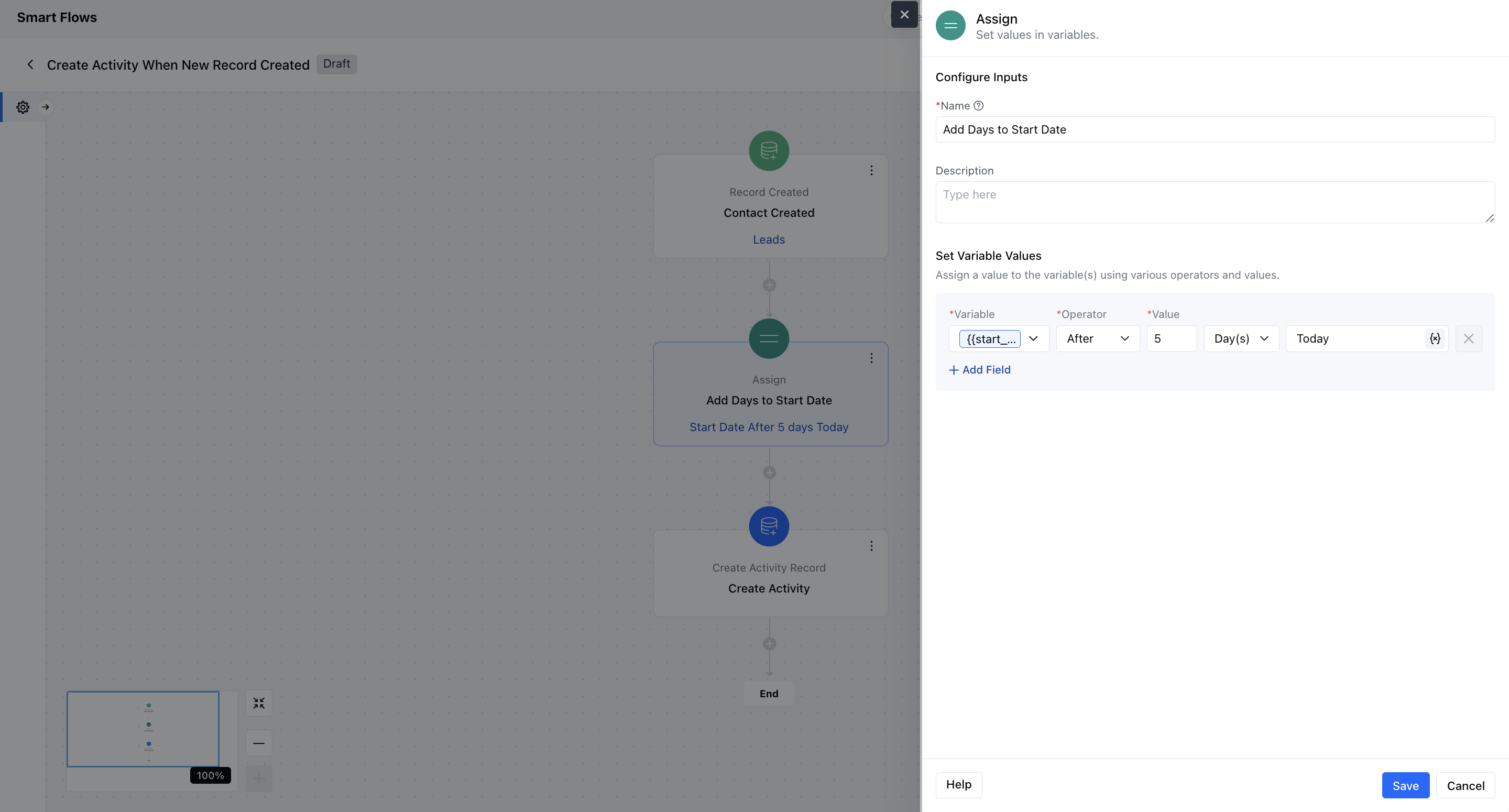
- Add the Assign Interaction* Insert an Assign interaction into your flow.Assign the Date & Time variable and add the desired number of days.Example: Set it to “5 days from the flow trigger date” or “5 days from the activity creation date.”
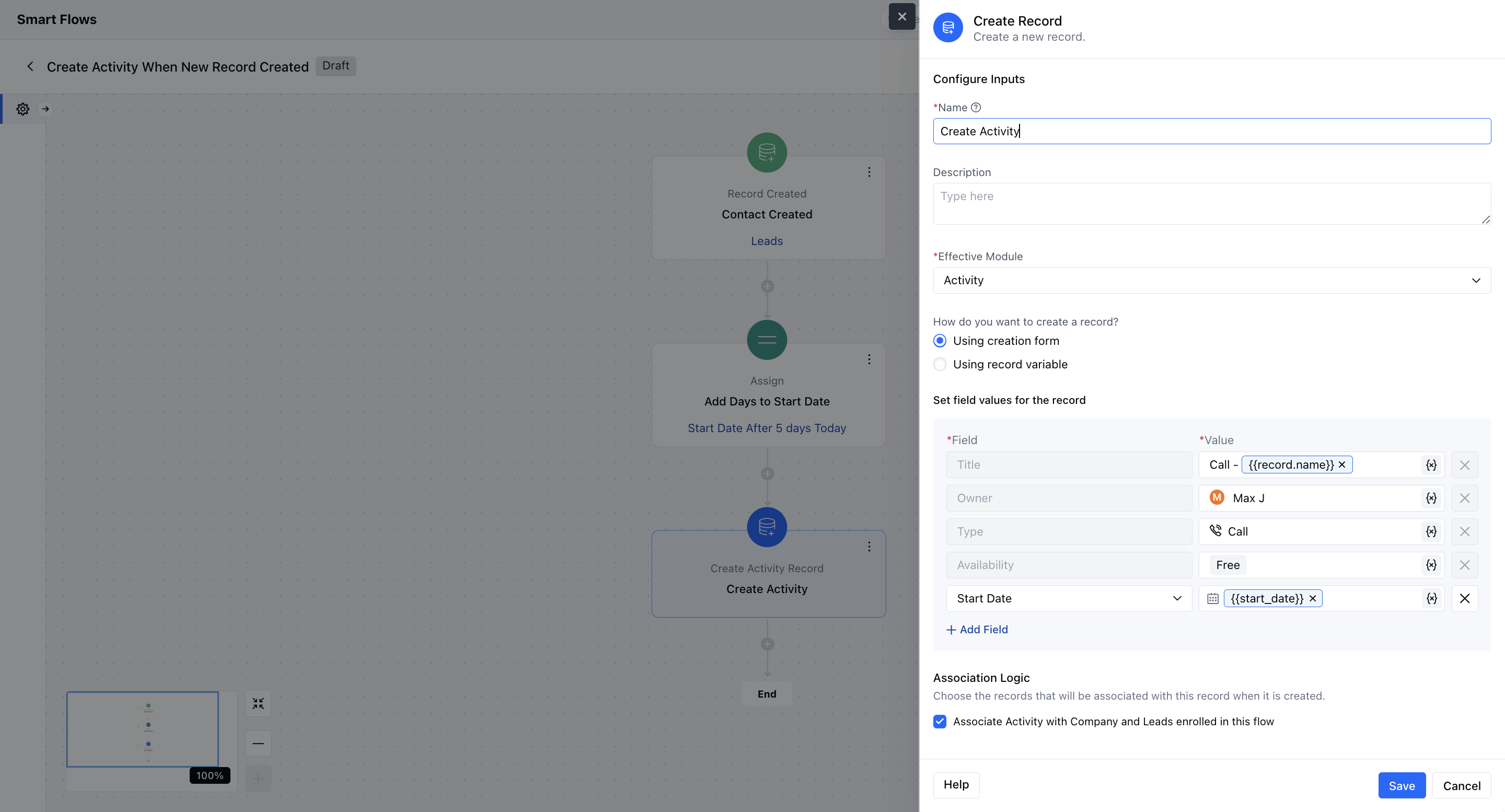
- Create the Activity Record* Add a Create Record action to generate the activity.For the Start Date field, select Attribute and choose the variable you created earlier.
-
- Using the Data Operation Interaction Follow Steps 1 & 2 Above Create a trigger and a* Date & Time variable ** with a default value (e.g., Flow Start Date & Time or Current Date & Time).
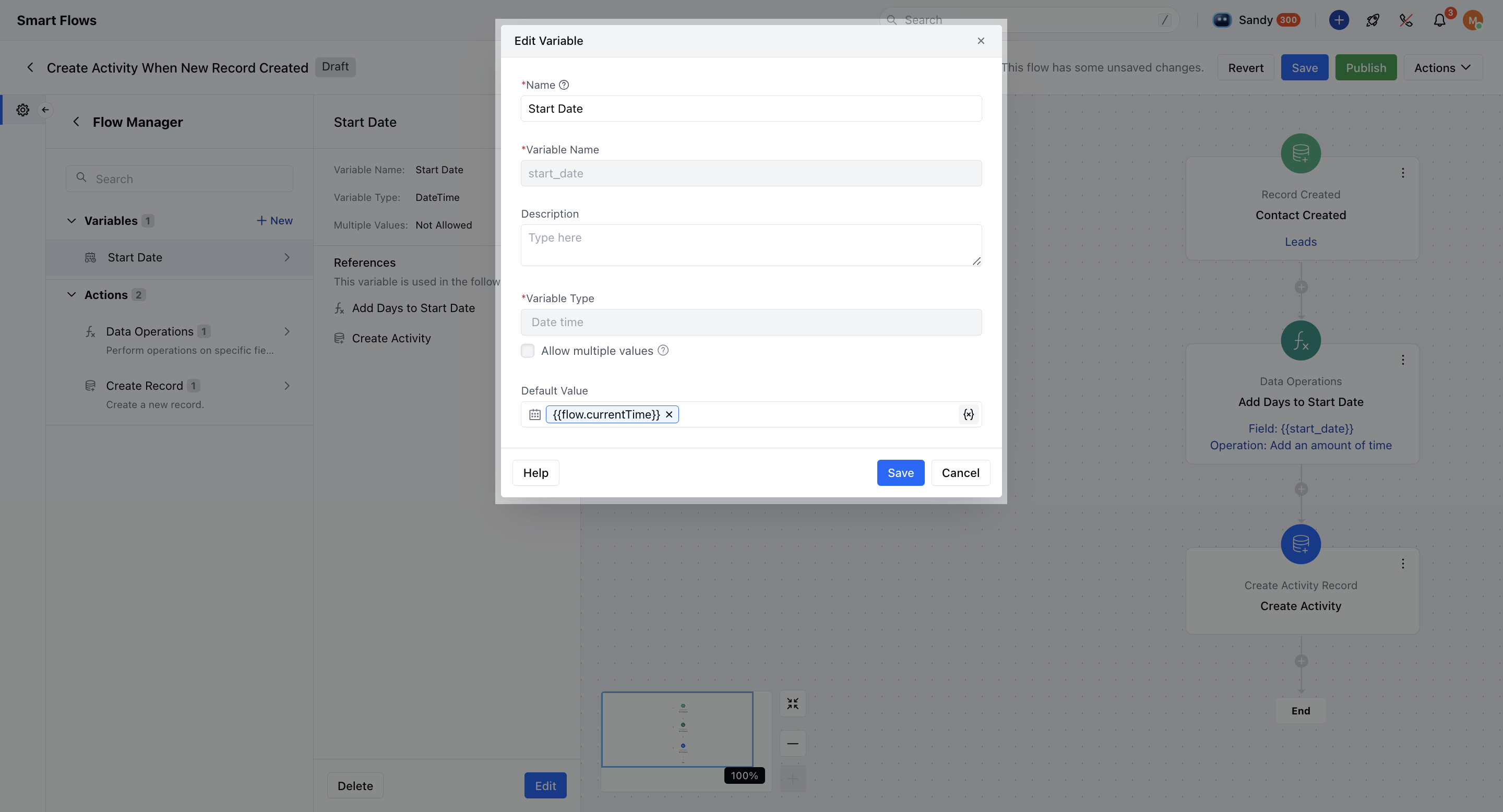
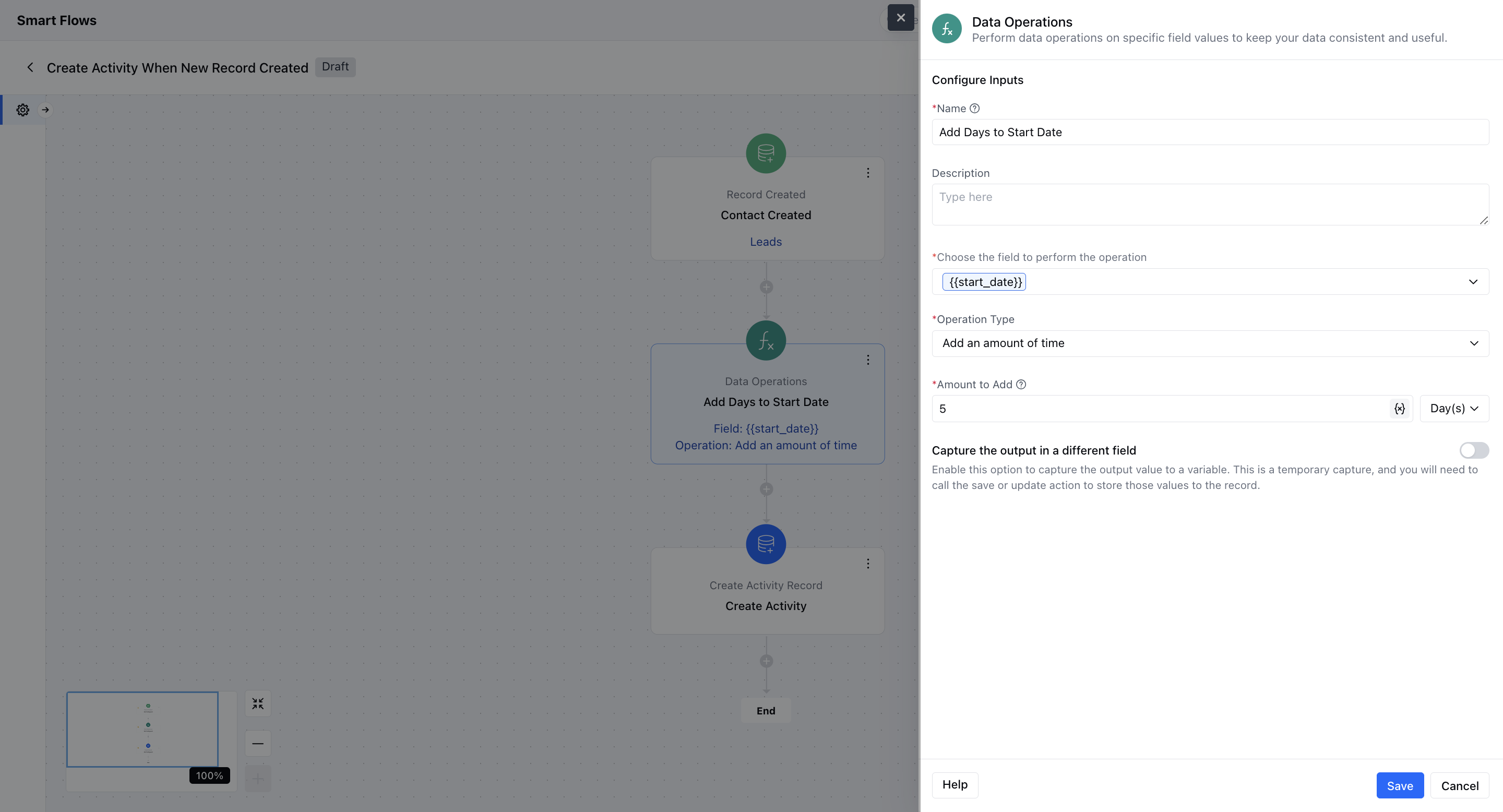
- Add the Data Operation Interaction* Insert a Data Operation interaction instead of Assign.Select your Date & Time variable in the field “Choose the field to perform the operation.” Set the operation type to Add an amount of time. Specify the number of days (e.g., 5 days).
- Create the Activity Record* Use the Create Record action. For the Start Date, choose Attribute and select the updated variable.