

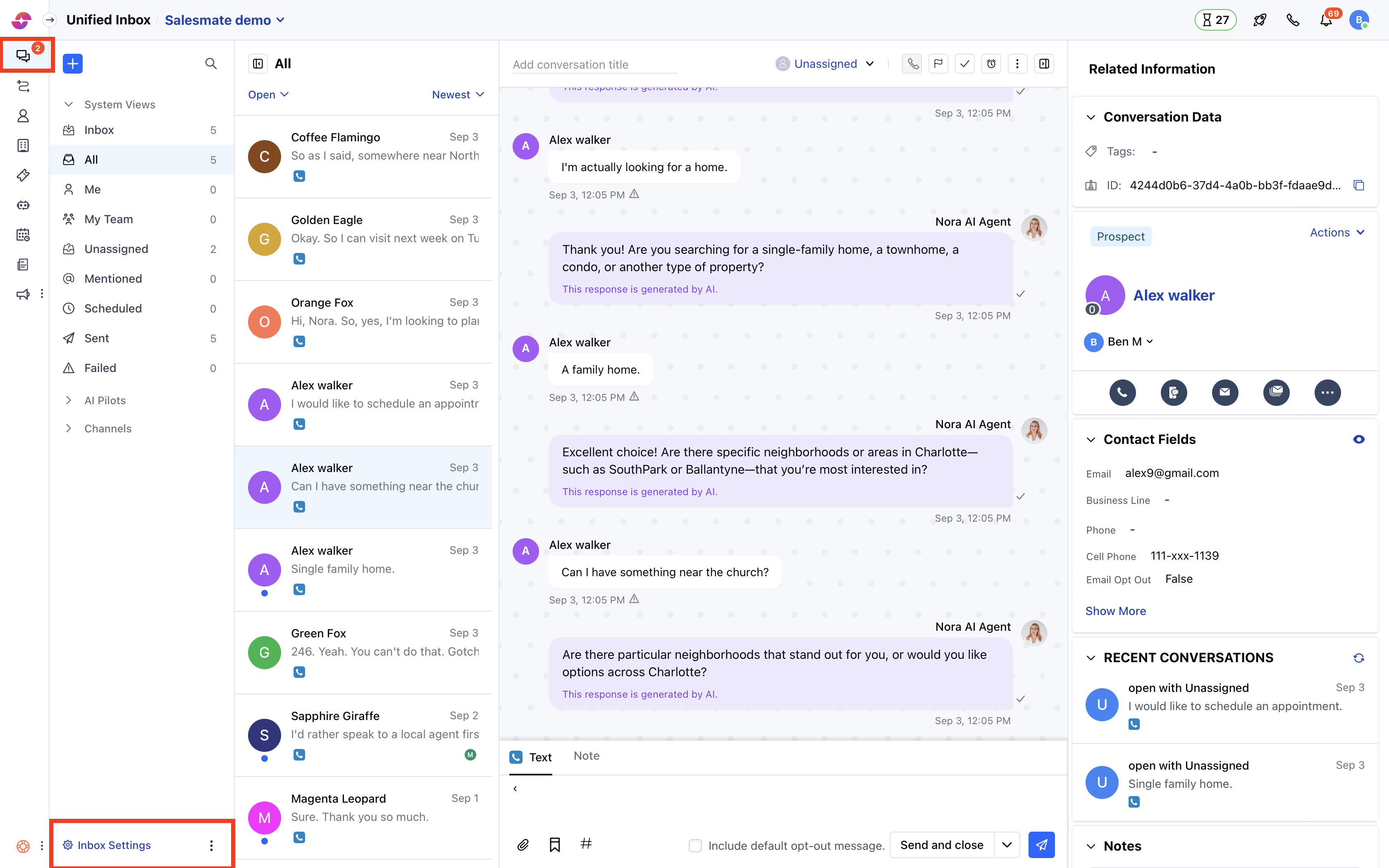
- Navigate to Conversations Icon on the left menu bar
- Click on Unified Inbox
- Head to Unified Inbox Settings on bottom left
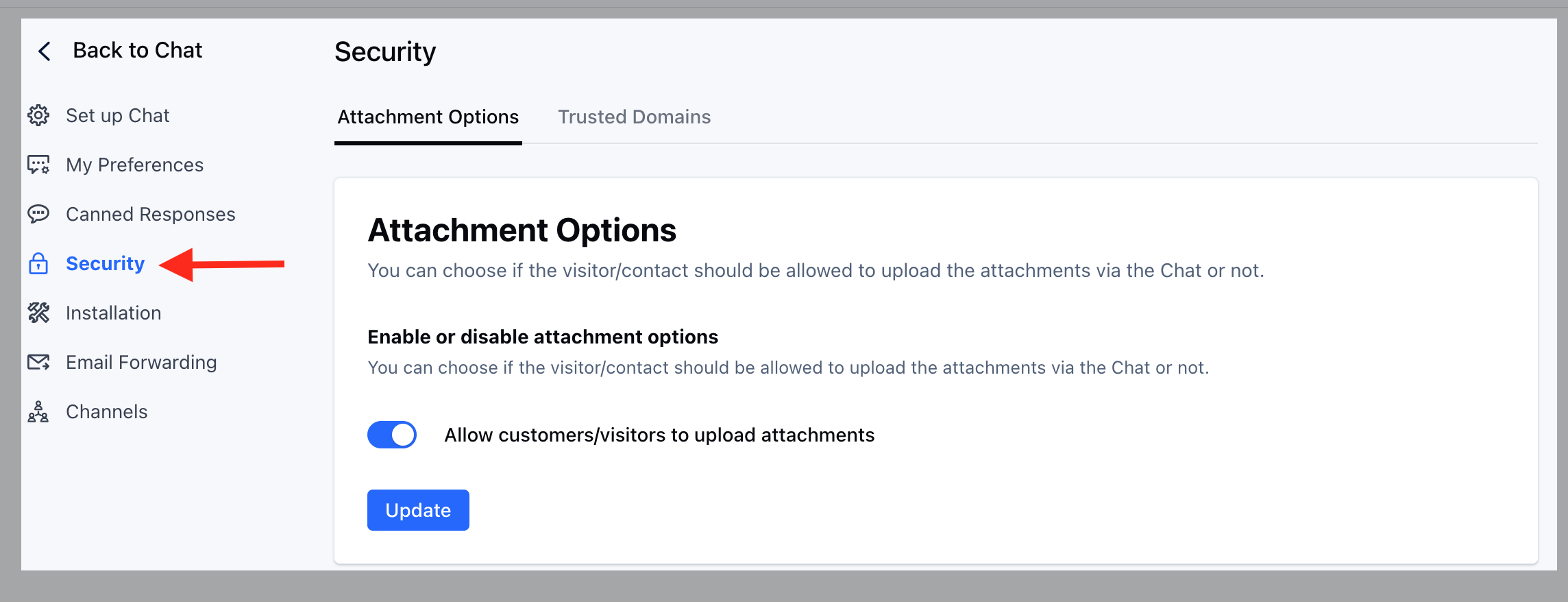
- Click on the Security link on the left sidebar
- Click on the “Attachment Options” tab.
- Toggle the “Allow customers/visitors to upload attachments” option as per the need.
- Hit Update to save yourchanges.
How do attachments work?
- When a visitor or customer sends an attachment over Unified Inbox, it is uploaded on a server with an accessible URL. Generally, these URLs are not indexed by a search engine, but it is not suggested to ask for private documents over chat.
Which attachments can a user upload?
- Please note the attachment upload setting is not applicable for the users. They can always upload and send the attachments to the contacts. Learn more about allowed attachment types
What happens if a contact sends attachments via email?
- If you have disabled the option for uploading attachments, then attachments sent by the contact are dropped from the Unified Inbox.
Note:
- Only users with “Manage Unified Inbox settings” permission can access this setting.
- When the attachments sent via email are dropped from the Unified Inbox then a timeline entry is shown below theUnified Inbox message “Attachments from this message are dropped”.