After Creating the Duplicate Rule, you also get an option to Edit and Delete the Duplicate Rule Note: A User with Manage Duplicates rights can perform this action.

Edit the Duplicate Rule

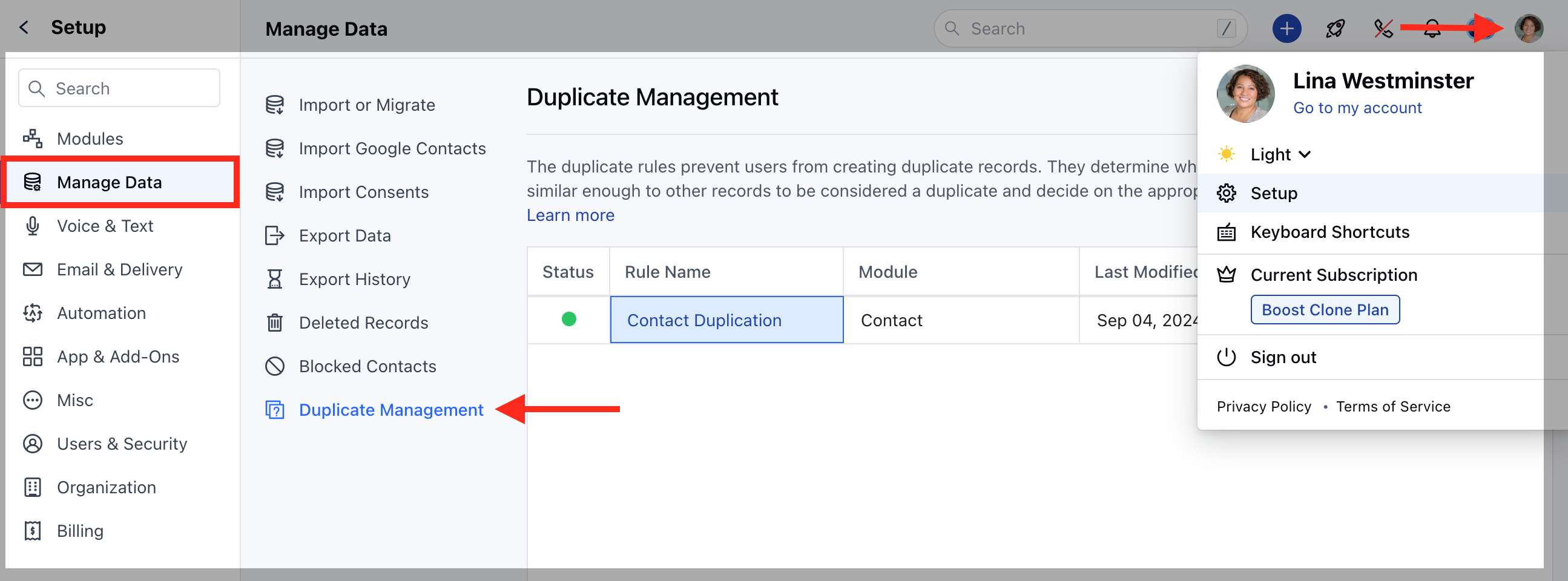
To Edit the Duplicate Rule, Navigate to the Profile Icon on the top right corner.Click on the **Set Up.
  • **Head over to the Manage Data category.Click on the Duplicate Management option.
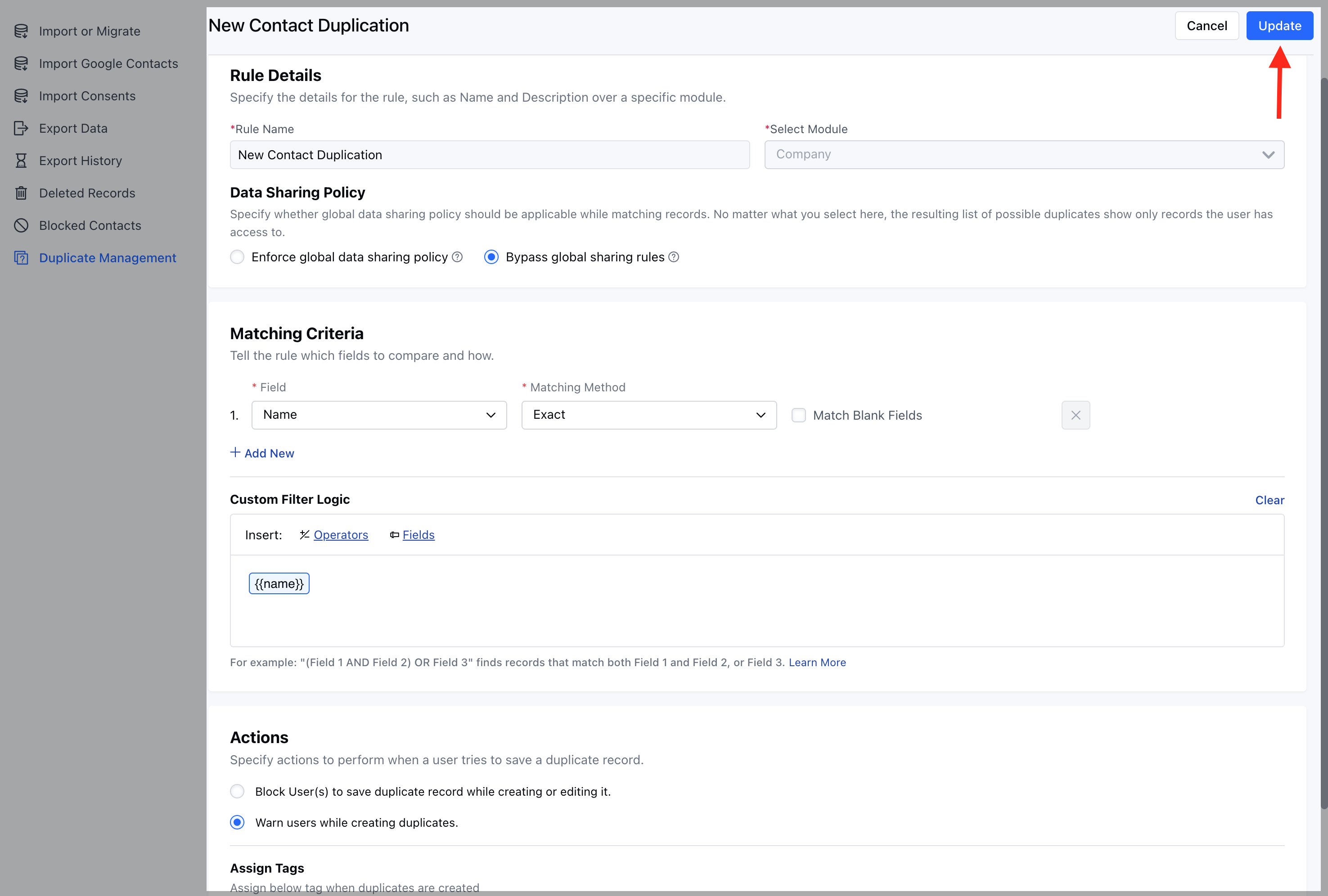
mceclip0.png Select the rule and hover on it.An Actions button will appear, click on it and choose Edit option mceclip0(1).png Here, you won’t be able to update the Rule Name or change the Selected Module. You can make the necessary changes and click Update to save them. mceclip1.png

Delete the Duplicate Rule

To Delete the Duplicate Rule, Navigate to the Profile Icon on the top right corner.Click on the **Set Up.
  • **Head over to the Manage Data category.Click on the Duplicate Management option.
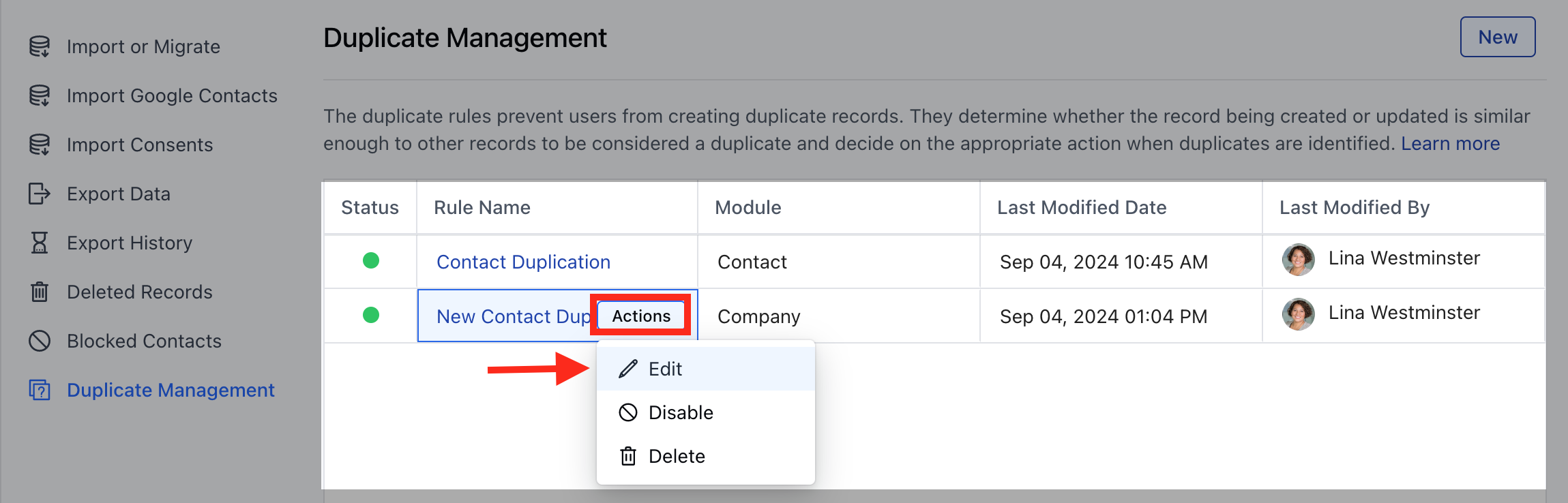
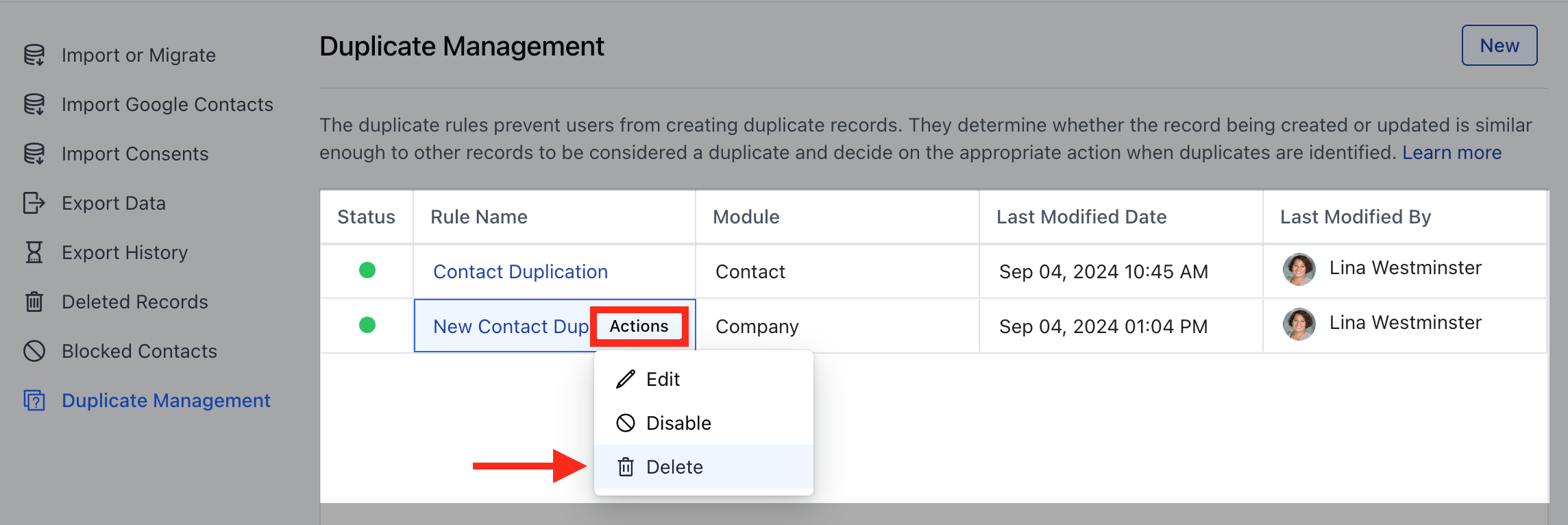
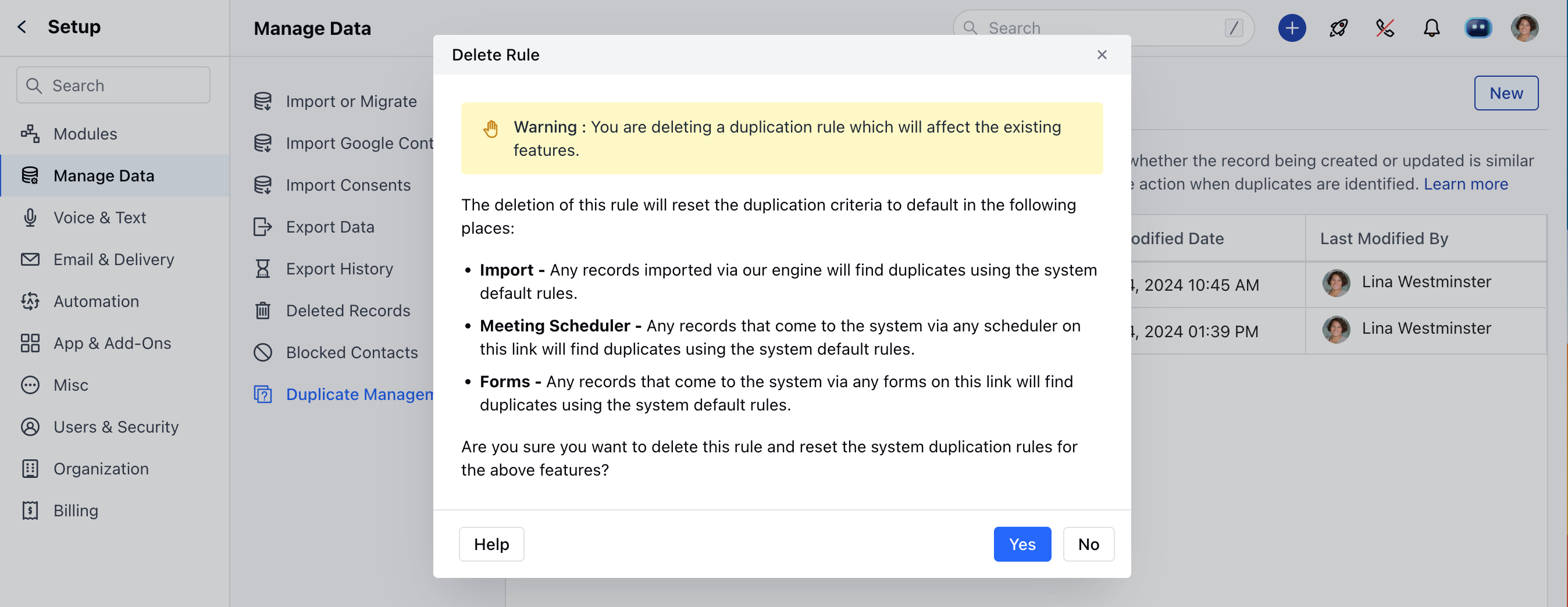
mceclip0.png Select the rule and hover on it.An Actions button will appear, click on it and choose Delete option mceclip2.png A confirmation popup will be displayed:The deletion of this rule will reset the duplication criteria to default in the following places: Import - Any records imported via our engine will find duplicates using the system default rules.Meeting Scheduler - Any records that come to the system via any scheduler on this link will find duplicates using the system default rules.Forms - Any records that come to the system via any forms on this link will find duplicates using the system default rules. Are you sure you want to delete this rule and reset the system duplication rules for the above features? Confirm the delete operation by clicking on Yes button. mceclip3.png The rule will be successfully deleted.