

Upload multiple logos to use across Skara modules, like Meeting Scheduler and Unified Inbox .
Currently, with the Brand Book option you can add the logos to the Meeting Scheduler Custom Greetings option.
Note: This action can be performed by the user who has admin rights.
Add Logo
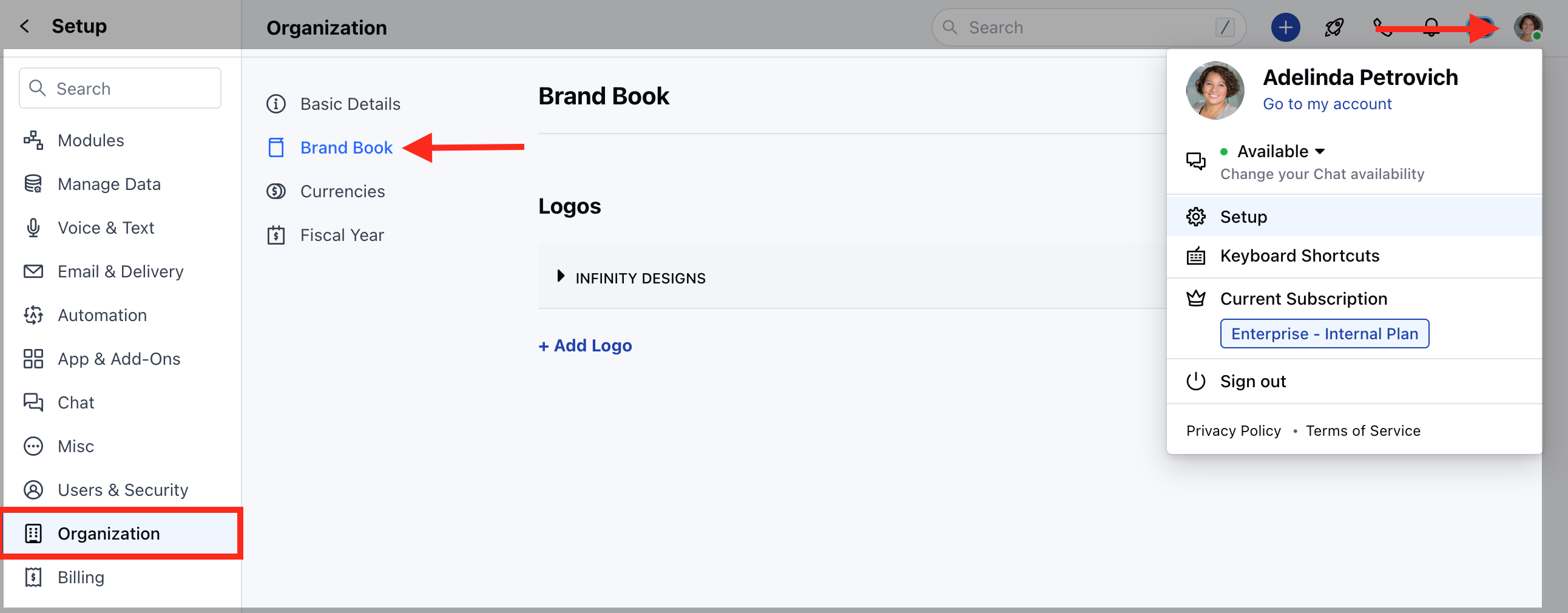
To add a Logo to the Brand Book, please follow the below steps:- Navigate to the Profile icon on the top right corner
- Click on the Setup
- Head over to the Organization
- Click on the Brand Book
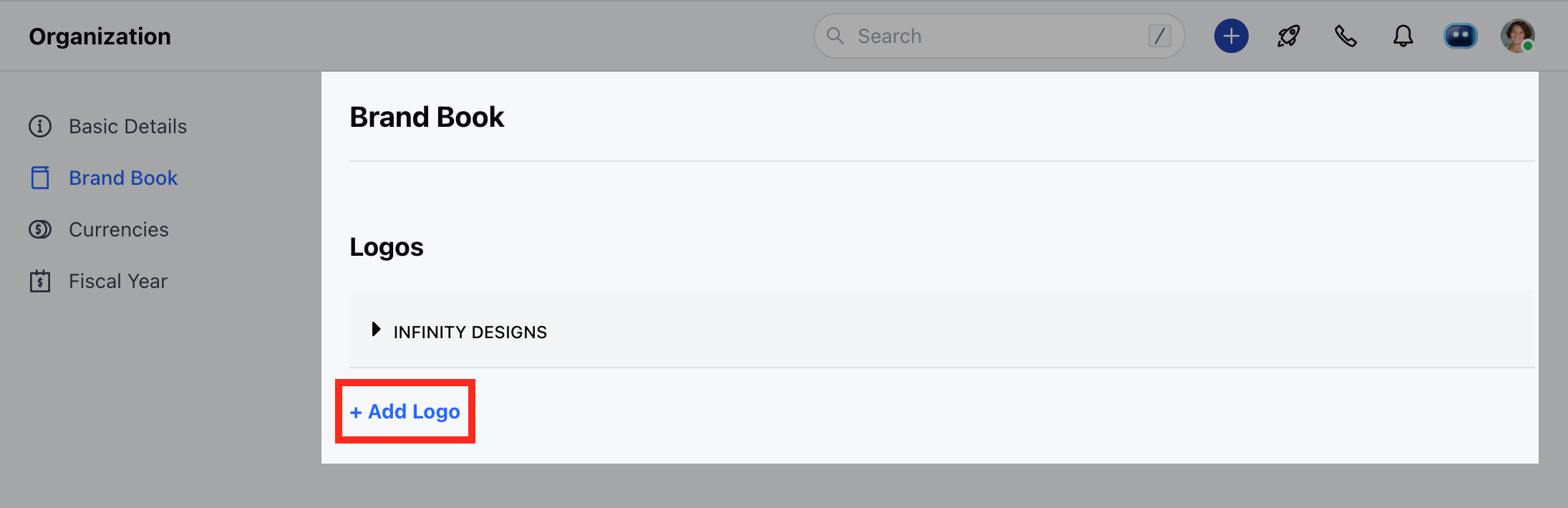
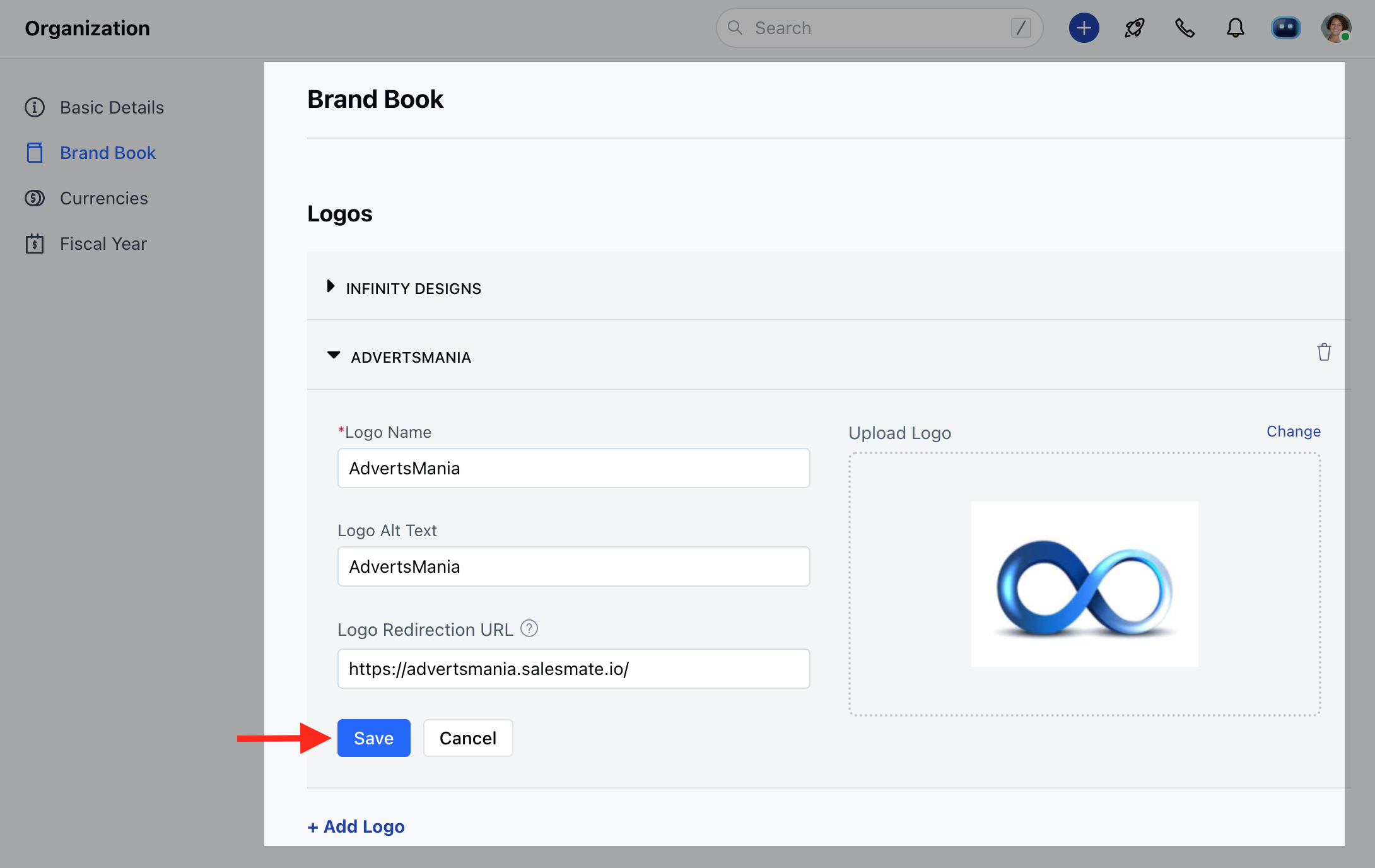
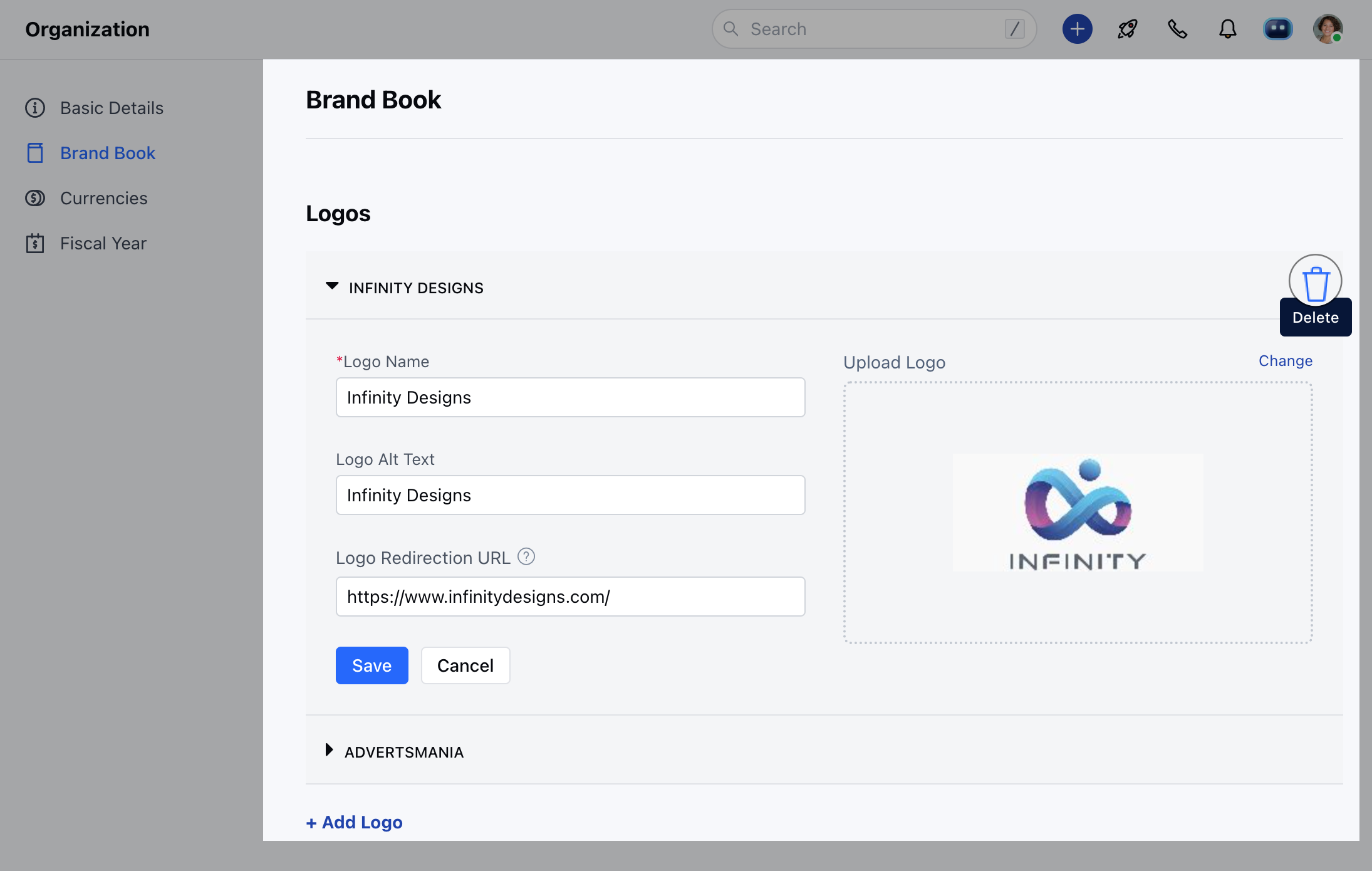
- Logo Name: Give a name to your logo, this name will be used to select the logo in Skara modules.
- Logo Alt Text: Give alternative text which should be displayed, in case the image doesn’t appear.
- Logo Redirection URL: Embed URL to your logo that redirects the users to a particular webpage.
- Upload Logo: Here upload the image from your system.
Note:
- Maximum size allowed 5MB
- Supported Image formats: .JPG, .JPEG & .PNG
Update a Logo
To update a Logo to the Brand Book, please follow the below steps:- Navigate to the Profile icon on the top right corner
- Click on the Setup
- Head over to the Organization
- Click on the Brand Book
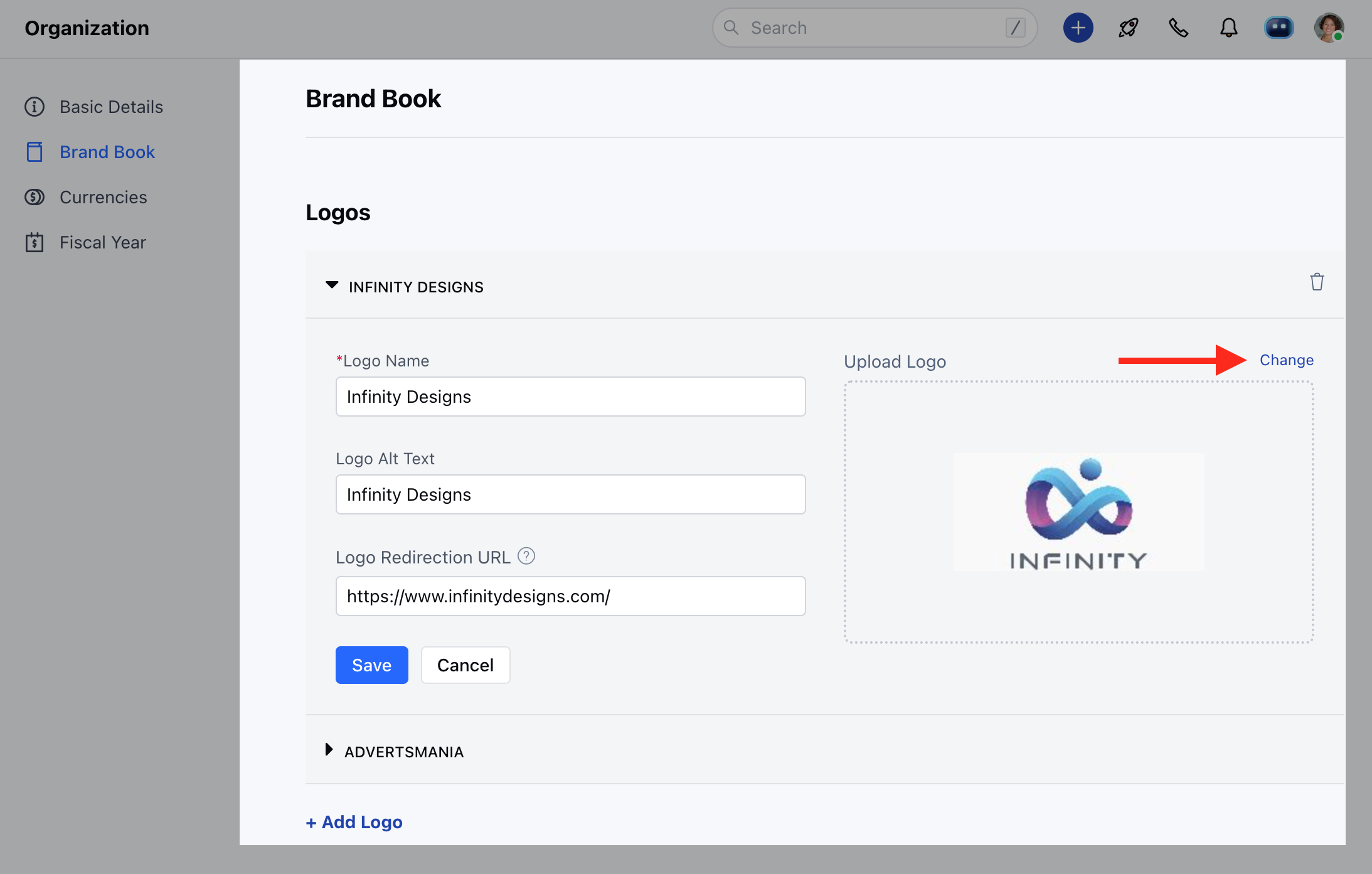
- Now open the Logo from the list that you wish to update.
- Here, you can now update the Logo name, Logo Alt text, and Redirection URL. To change the logo image click on the Change button and upload the new image.
- Once done, hit on Save
Delete a Logo
To delete a Logo to the Brand Book, please follow the below steps:- Navigate to the Profile icon on the top right corner
- Click on the Setup
- Head over to the Organization
- Click on the Brand Book
- Open the Logo from the list that you wish to Delete and click on the Delete icon
- Upon clicking on the Delete icon, it will show a confirmation popup whether you wish to delete the logo or not.
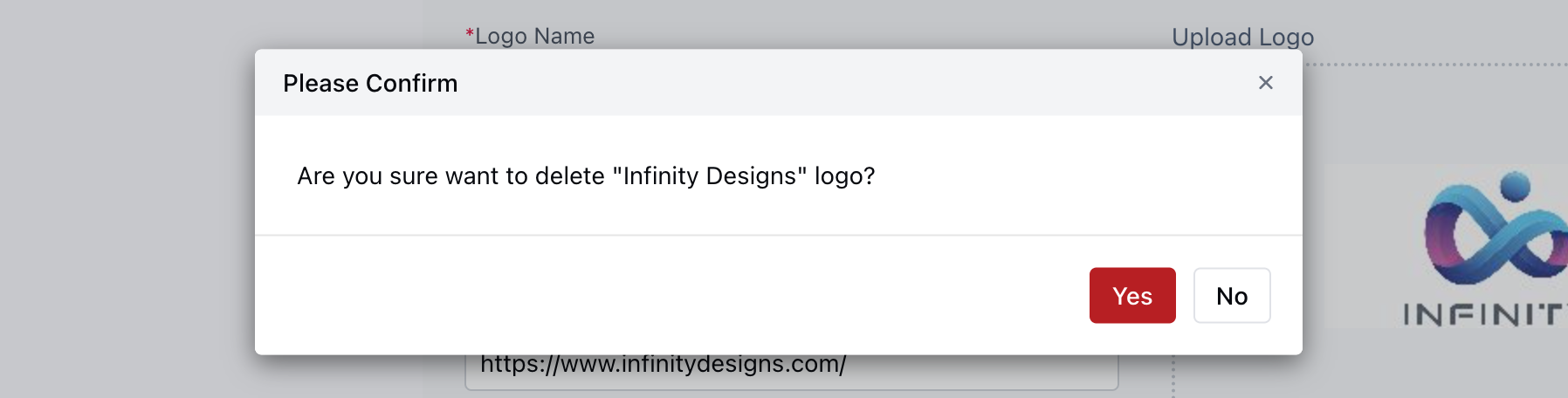
Note:Deleting a logo will remove it permanently, and it will be removed from all places where it has been used.