Note: Admin rights are required to perform actions listed in this article
Organization details:
- Navigate to the Profile Icon on the top right corner
- Click on the Setup
- Head over to the Organization
- Click on the Basic Details
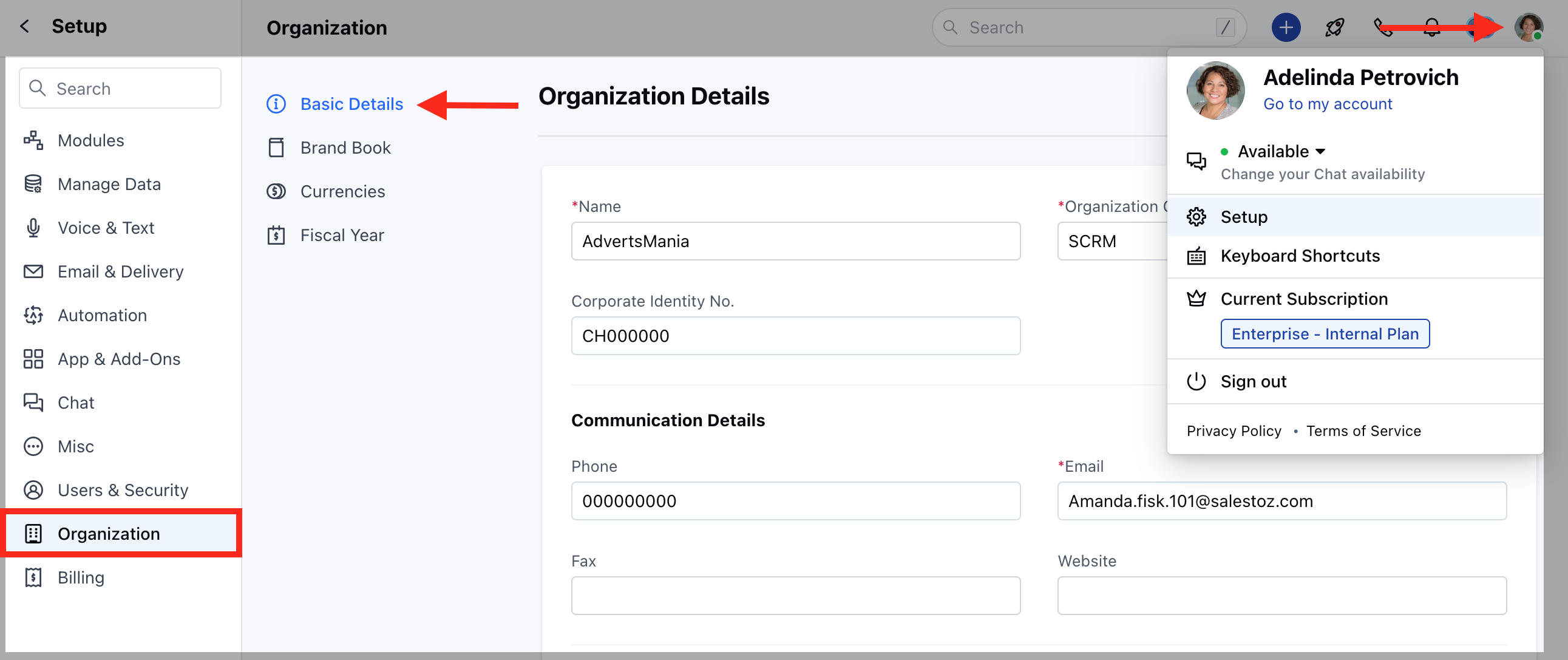
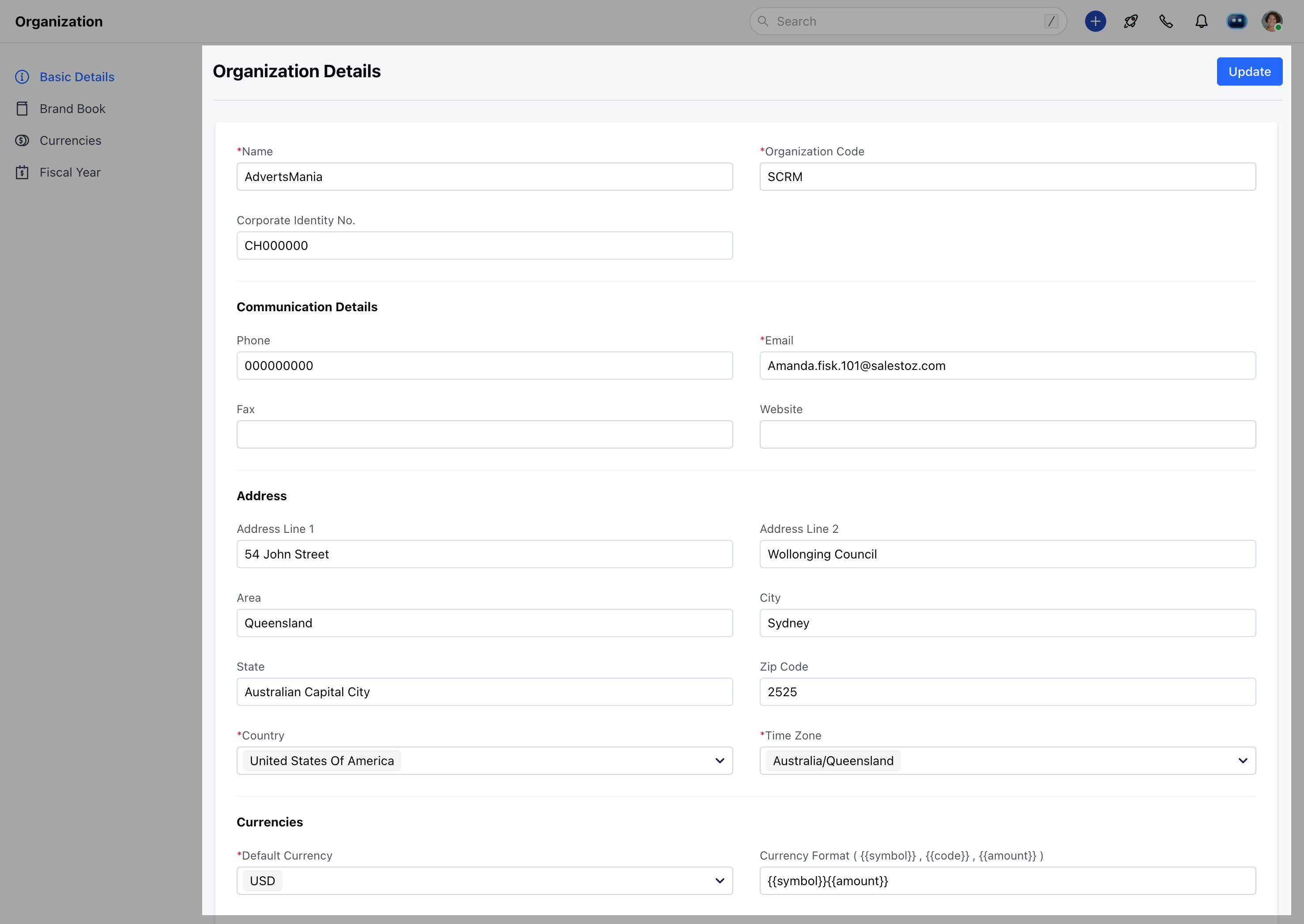
- You will be redirected to the Organization Details screen
Note :
- The Default Currency in the set format will be used to display Sales figures throughout the system.
- All conversations in the system will be listed according to the company time zone unless a user time zone is exclusively set in the user profile.
- The Company Disclaimer will be added to the footer of every mail sent from the Skara E-Mailing system.
Fiscal Year:
You can also set your organization’s fiscal year from Organization Settings and choose the Start month.- Navigate to the Profile Icon on the top right corner
- Click on the Setup
- Head over to the Organization
-
Click on the Fiscal Year
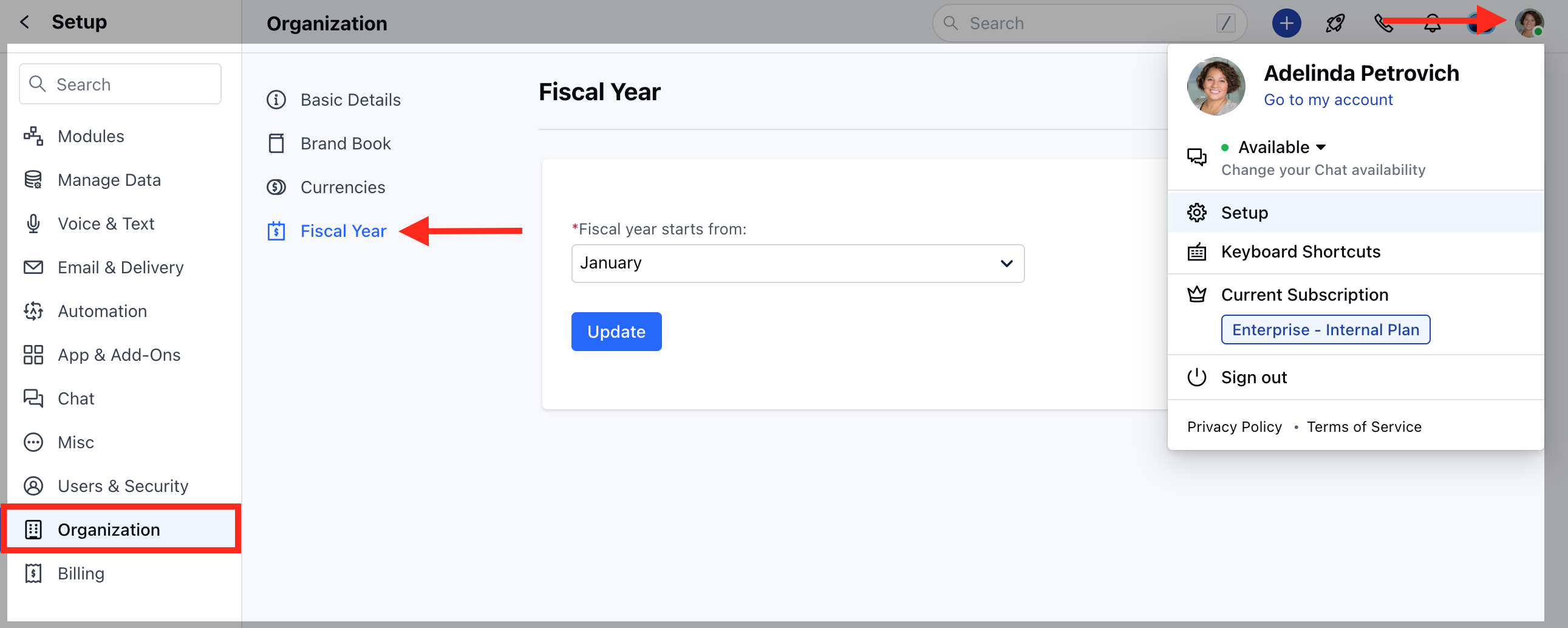
- Once the fiscal start month is selected, fiscal quarters are automatically derived. By default, Skara’s fiscal start month is set to April of the current year.
- You can specify the fiscal year name based on the start month.
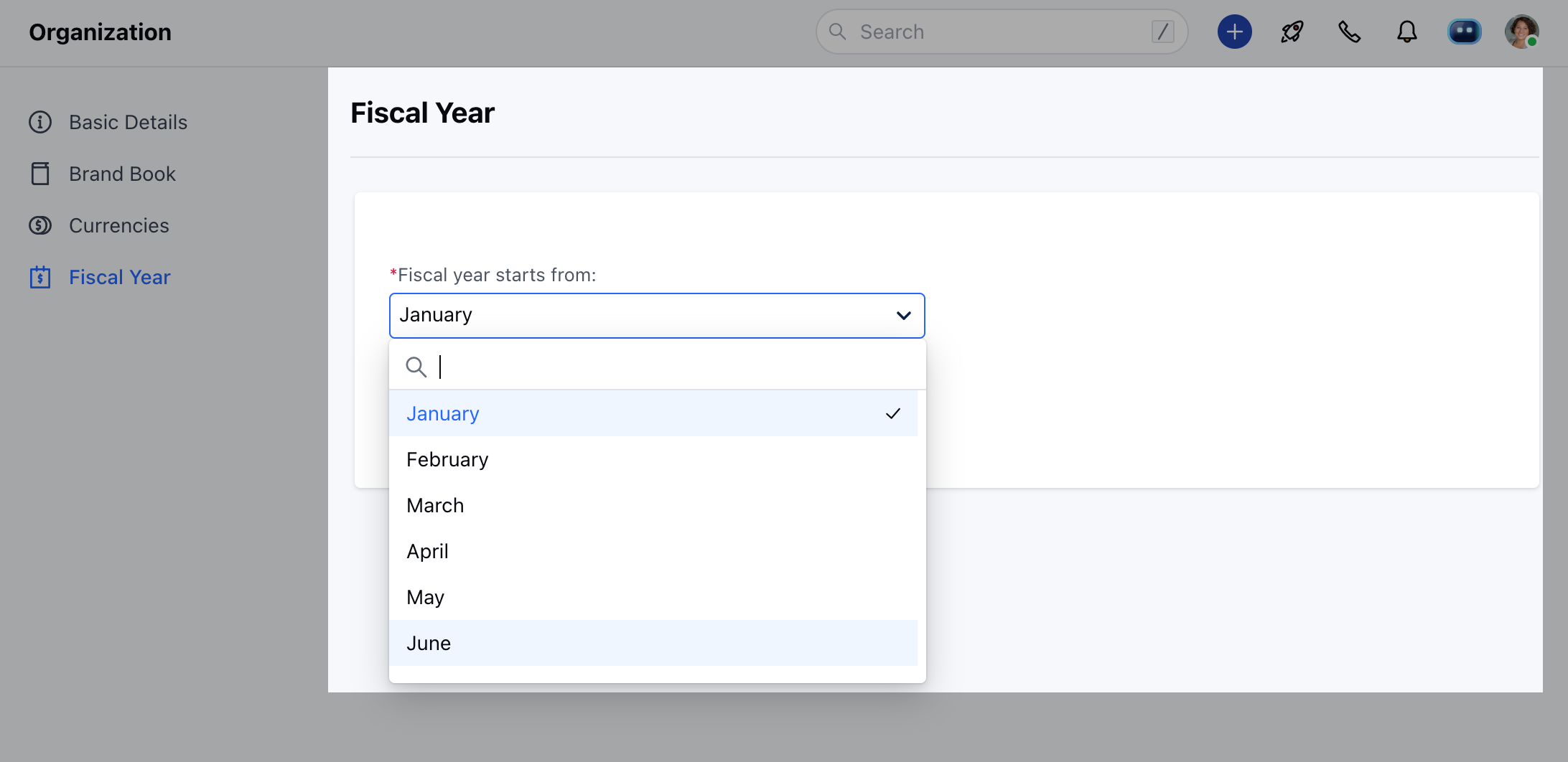
- For example, let’s say your fiscal year starts in Jan 2024 and ends in Dec 2024. Then, set the start month as January.
Note: The Fiscal Start Month affects the way your Goal Reports are derived.
Currencies :
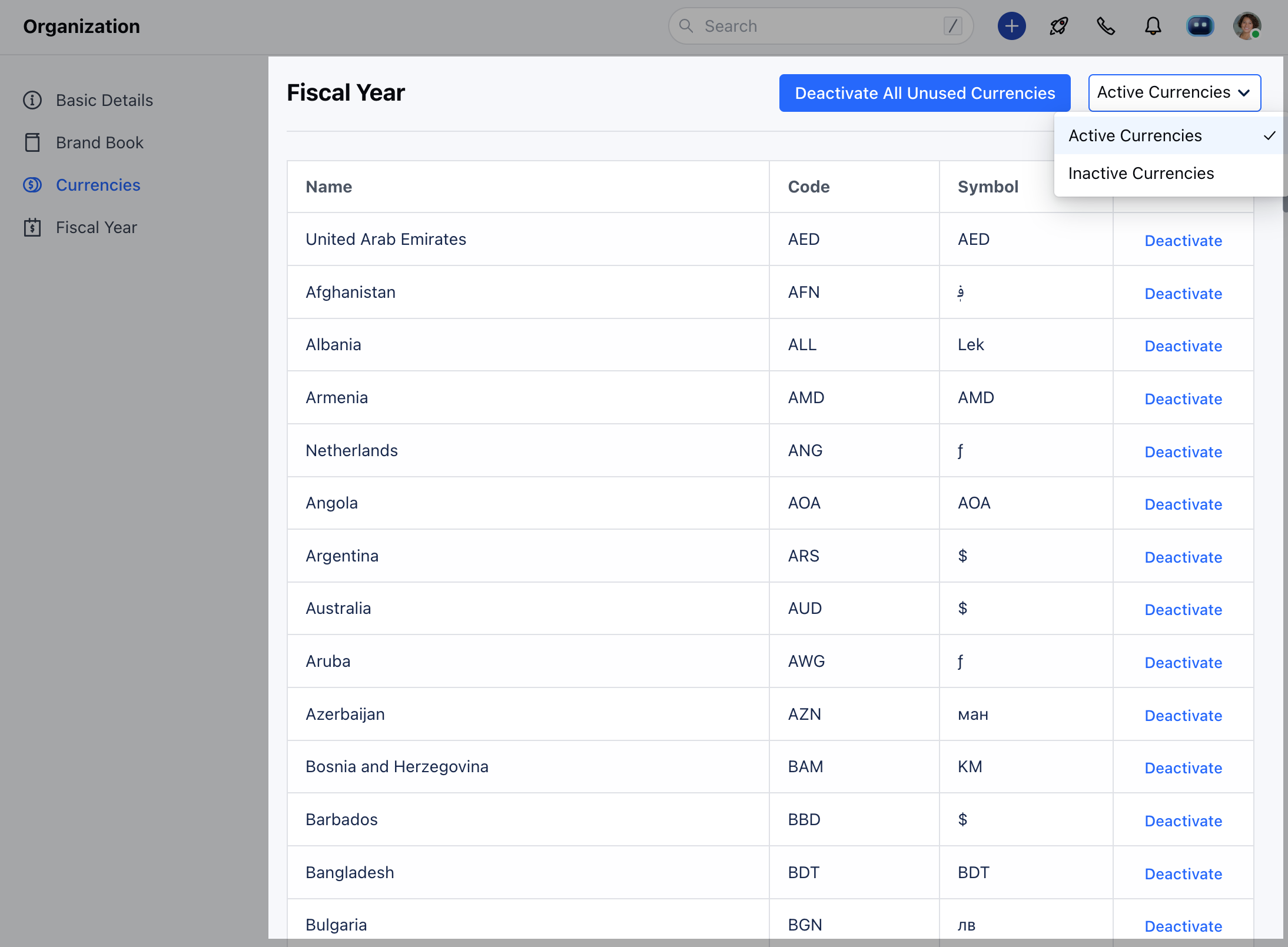
While confirming your registration for Skara, it sets the default currency based on the country. However, you can change the default currency from Organization details. In case your organization deals in multiple currencies you can enable it by:-- Navigating to the Profile Icon on the top right corner
- Click on the Setup
- Head over to the Organization
- Click on the Currencies
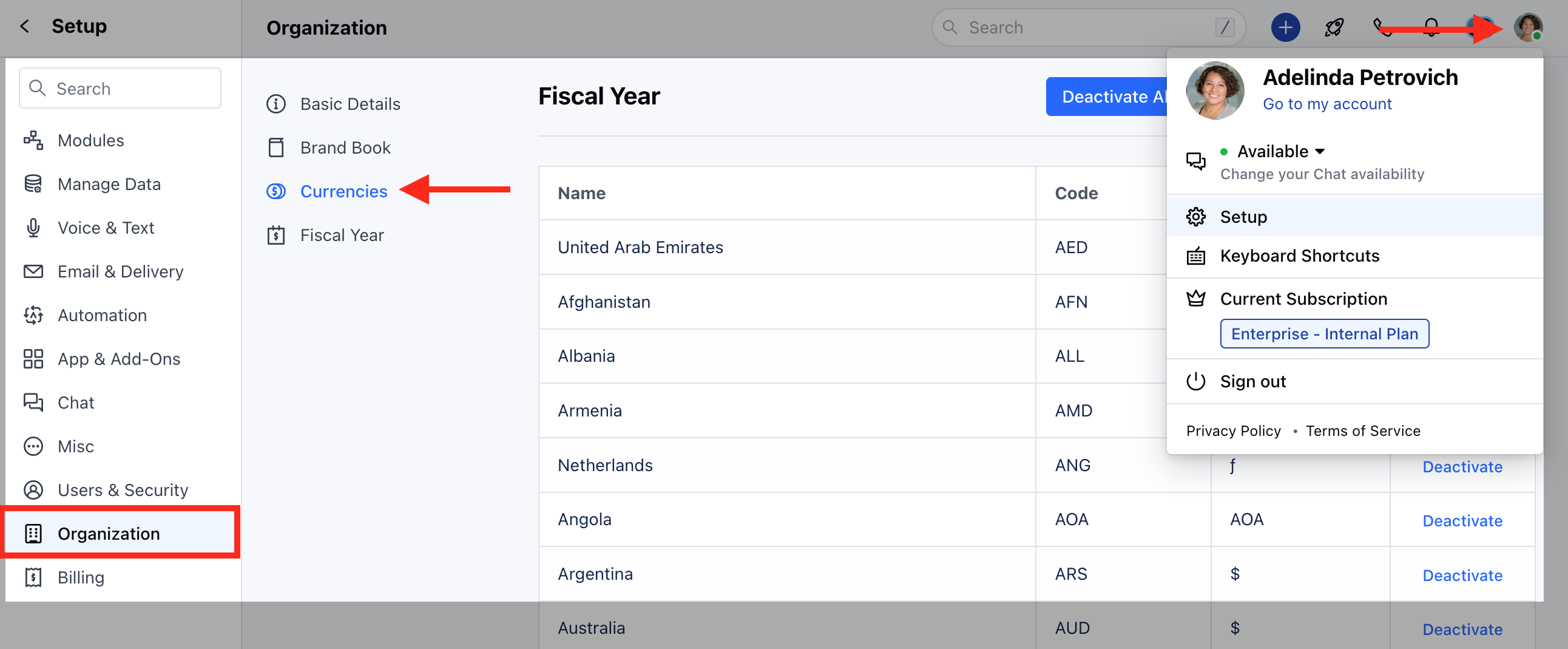
- Activate the currency you need from the list of Inactive currencies.