

Topics covered:
To Configure Voice Output
Navigate to AI Pilots from the left sidebar.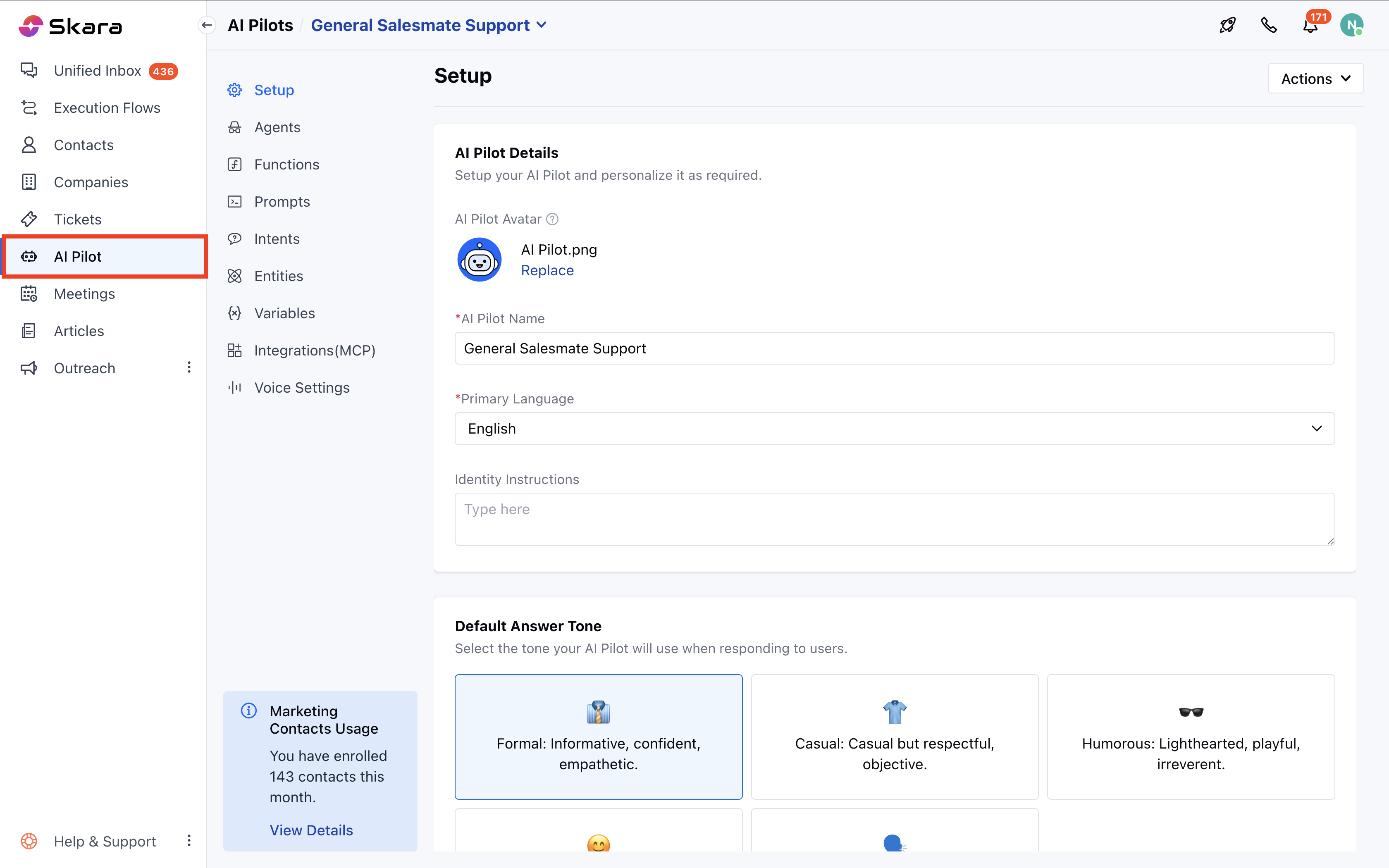
- If this is your first AI Pilot, you’ll land on a welcome screen. Click Build Your AI Pilot Today.
- If you already have existing AI Pilots, click the dropdown from the header and select AI Pilot.
- Move to Voice settings.
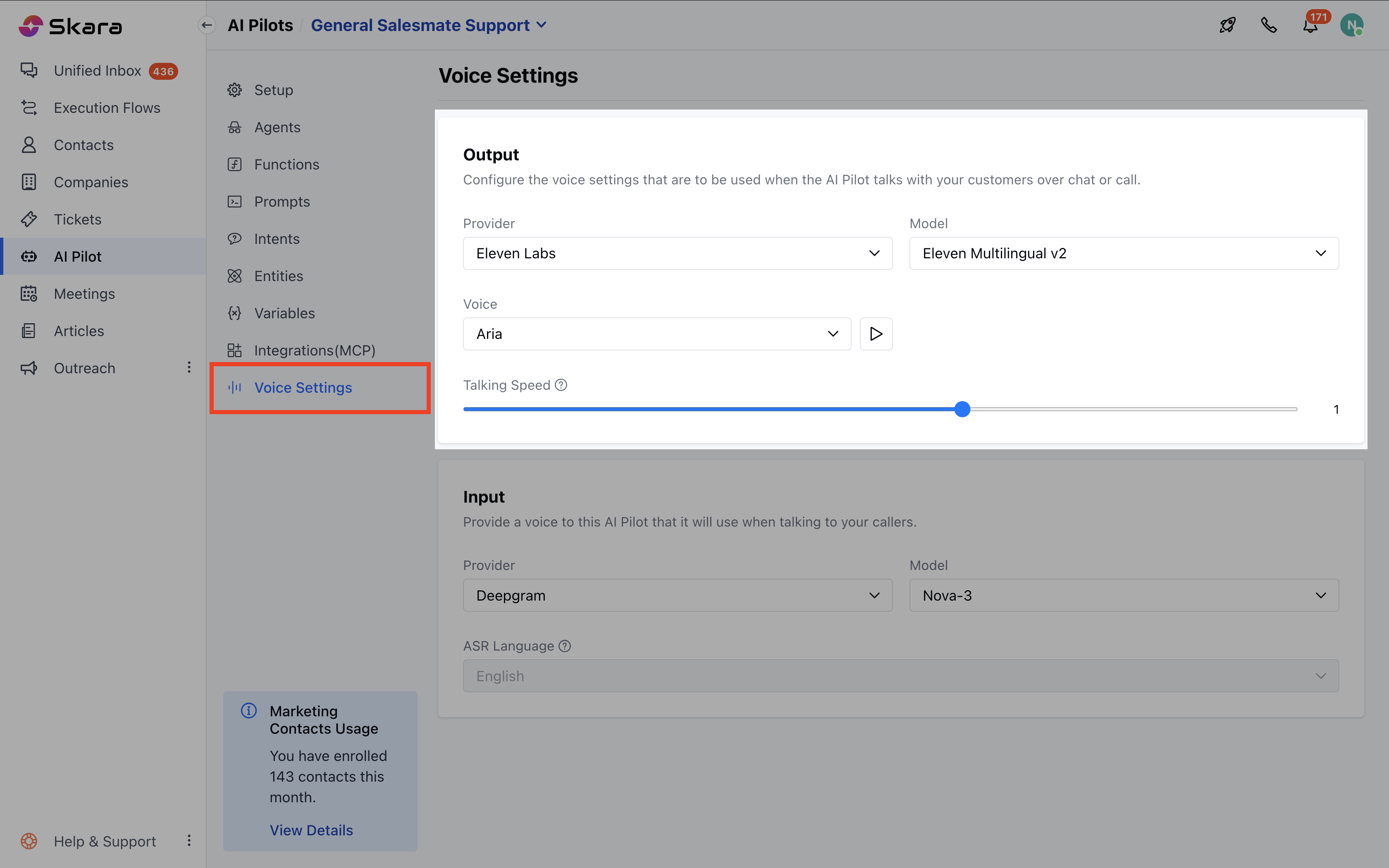
- Provider: Choose a provider such as Eleven Labs or Rime.
- Only one provider can be selected, and based on your selection, the available options for other settings will change.
- Model: Select the model for the chosen provider. Only one model can be selected.
- Voice: Select the tone of voice you want AI Pilot to use. You can play the selected voice before saving.
- Talking Speed: Adjusts the speed of the voice output to match user preference.
- Range: 0.7 (slowest) to 1.2 (fastest)
- Default: 1.0 (normal speed) - Visible only for models that support speed adjustment.
Note: Availability of Model and Voice will change according to the provider you select (Eleven Labs or Rime).
To Configure Voice Input
On the same page, you can configure voice input.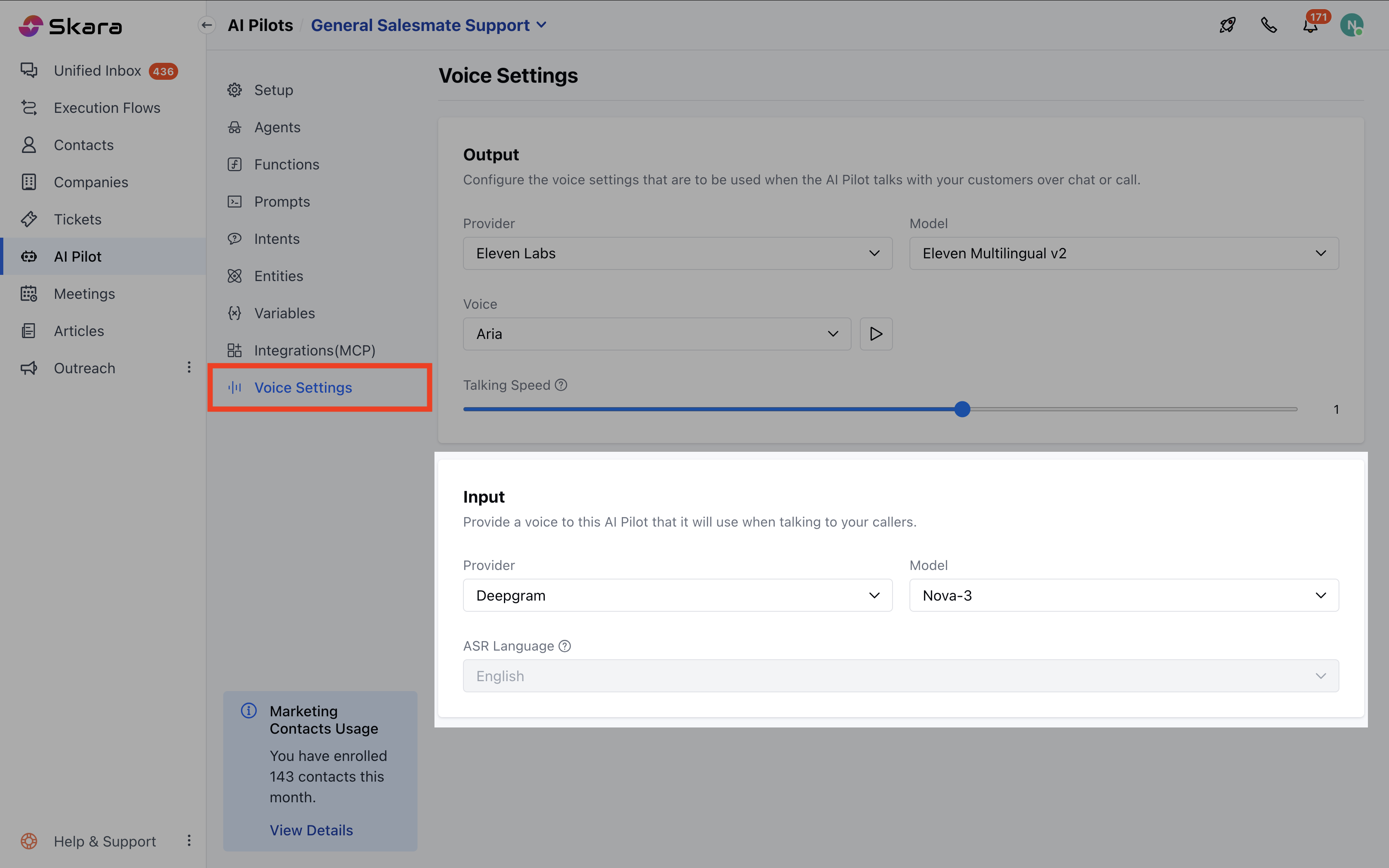
- Provider: Choose a provider
- Model: Select the model for the chosen provider.
- Automatic Speech Recognition (ASR) Language: Select the language for customer/caller input.
Note: The Voice Settings option will be visible only if Skara Voice is enabled in chat or a voice channel has been configured.