Note: In order to track analytics, it is necessary to have the Chat add-on included in your plan. Viewed Product snippet tracks when customers view specific products on your site, and to enable this tracking you must add a code snippet to your BigCommerce Theme file. Instructions for installing this snippet are described below.
  • First, you need to ensure that web tracking is enabled for your BigCommerce website and to do that you need to install the main script on all web pages.
  • Navigate to Storefront > My Themes from your BigCommerce dashboard.
  • From the current theme, click the Advanced Settings dropdown and click Edit Theme Files.
  • This opens the web editor.
  • Navigate to templates > pages and scroll down to open any page and the bottom of the page, paste the below code, and then click Save & apply all files.
  • For this snippet to work correctly, repeat step 4 and add it to all of your product pages.
<script>
window.skaraSettings = {
  workspace_id: "{{workspaceId}}",
  app_key: "{{appKey}}",
  tenant_id: "demomessenger.salesmate.io",
  hide_default_launcher: true,
  is_include_bigcommerce_tracking_file: true,
  email: "{{customer.email}}",
  name: "{{customer.name}}",
  bigcommerce_store_id: "{{settings.store_hash}}",
};
</script>

<script>
!(function (e, t, a, i, d, n, o) {
  (e.Widget = i),
  (e[i] =
    e[i] ||
    function () {
      (e[i].q = e[i].q || []).push(arguments);
    }),
  (n = t.createElement(a)),
  (o = t.getElementsByTagName(a)[0]),
  (n.id = i),
  (n.src = d),
  (window._Skara_widget_script_url = d),
  (n.async = 1),
  o.parentNode.insertBefore(n, o);
})(
  window,
  document,
  "script",
  "loadwidget",
  "https://demomessenger.skara.io/messenger-platform/messenger-platform-main.js"
);

loadwidget("init", {});
loadwidget("load_widget", "Widget Loading...!");
</script>
Note: You need to copy workspace_id, app_key, & tenant_id from the messenger installation settings in your skara.
  • Navigate to Conversations Icon on the left menu bar
  • Click on Chats
  • Head to Inbox Settings on bottom left.
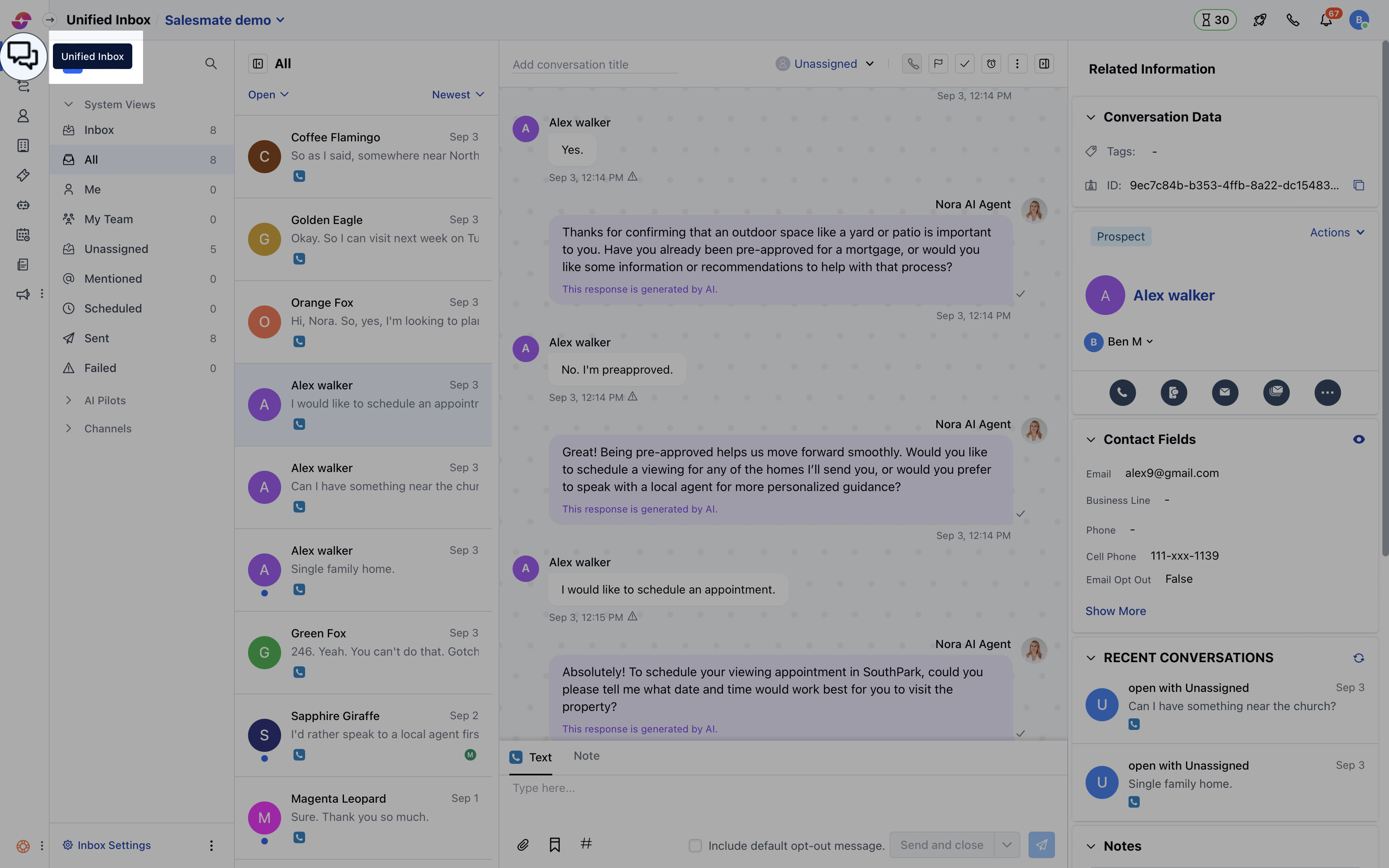
Salesmate chat settings navigation
  • Here, click on Channel and then locate the Skara Chat channel. From the Actions menu, select Edit.
  • Navigate to the Installation section
  • Copy the workspace_id ,app_key & tenant_id from the code snippet of the web installation.
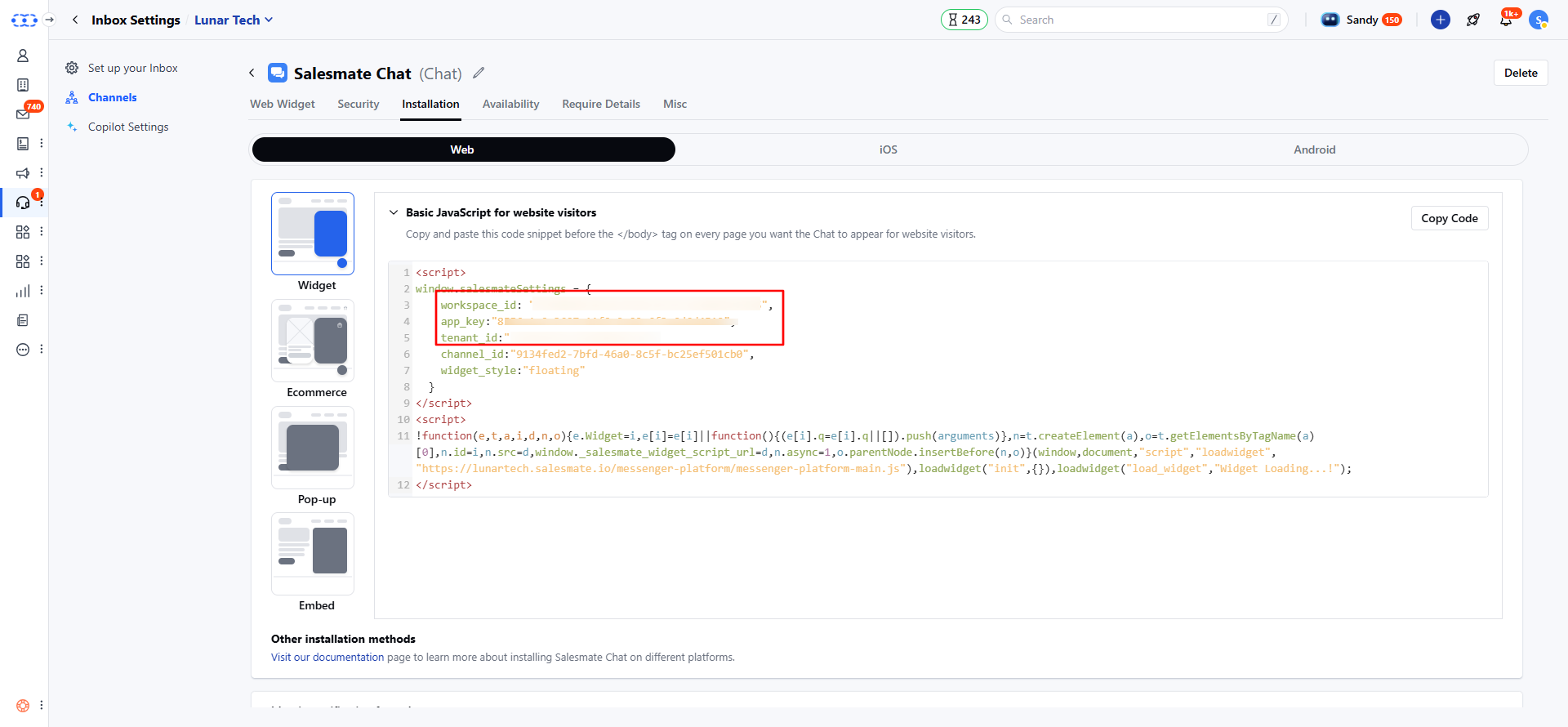
Salesmate chat installation settings
  • From your BigCommerce admin, navigate to templates > pages and click to open the product.html page.
  • Scroll down to the bottom of this page, and paste the below code.
<script type="text/javascript">
window.addEventListener('__SM_ANALYTICS_READY__', () => {
  SKARA.productViewed({
    productId: "{{product.id}}",
    storeId: "{{settings.store_hash}}"
  });
});
</script>
Optional:
  1. You can also track if a customer viewed the product through a quick view card, but for this an extra step is required.
  2. From your BigCommerce admin, navigate to templates > components > products and open card.html, and add the below attribute to the quick view button element.
data-product-viewed="{{id}}"