Topics covered:
- How to configure SMTP?
- How can I set up the default outbound email?
- How do I configure incoming emails/ BCC?
How to configure my email account in Salesmate?
We’ve greatly simplified the process of connecting your email accounts to Salesmate.Email accounts can be configured in two ways inside Salesmate by using the SMTP&BCC Option or Full Email Sync In this article, we will cover setting up your email Outgoing and Incoming using SMTP & BCC options.To configure SMTP(outgoing Email)
How to configure SMTP?
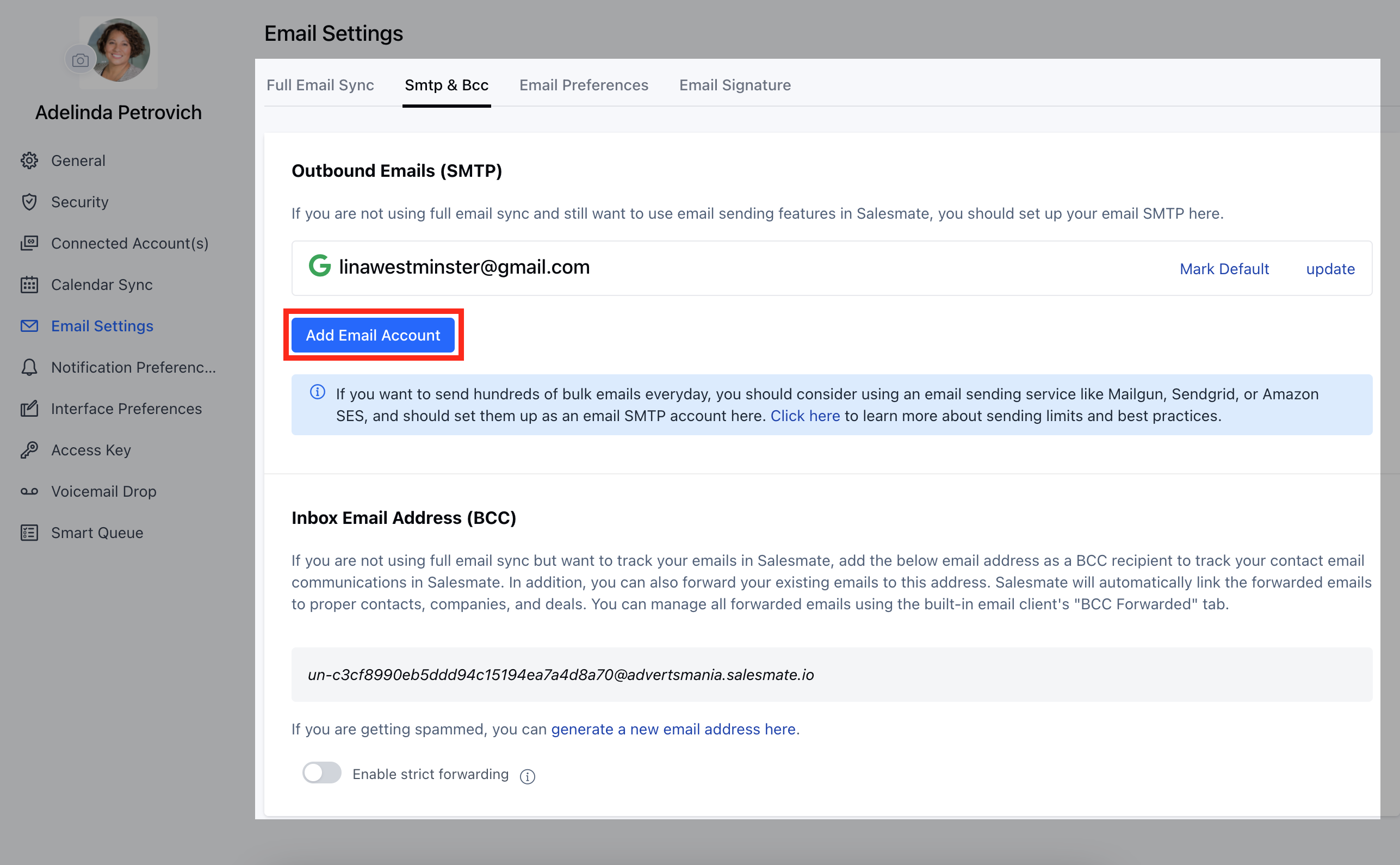
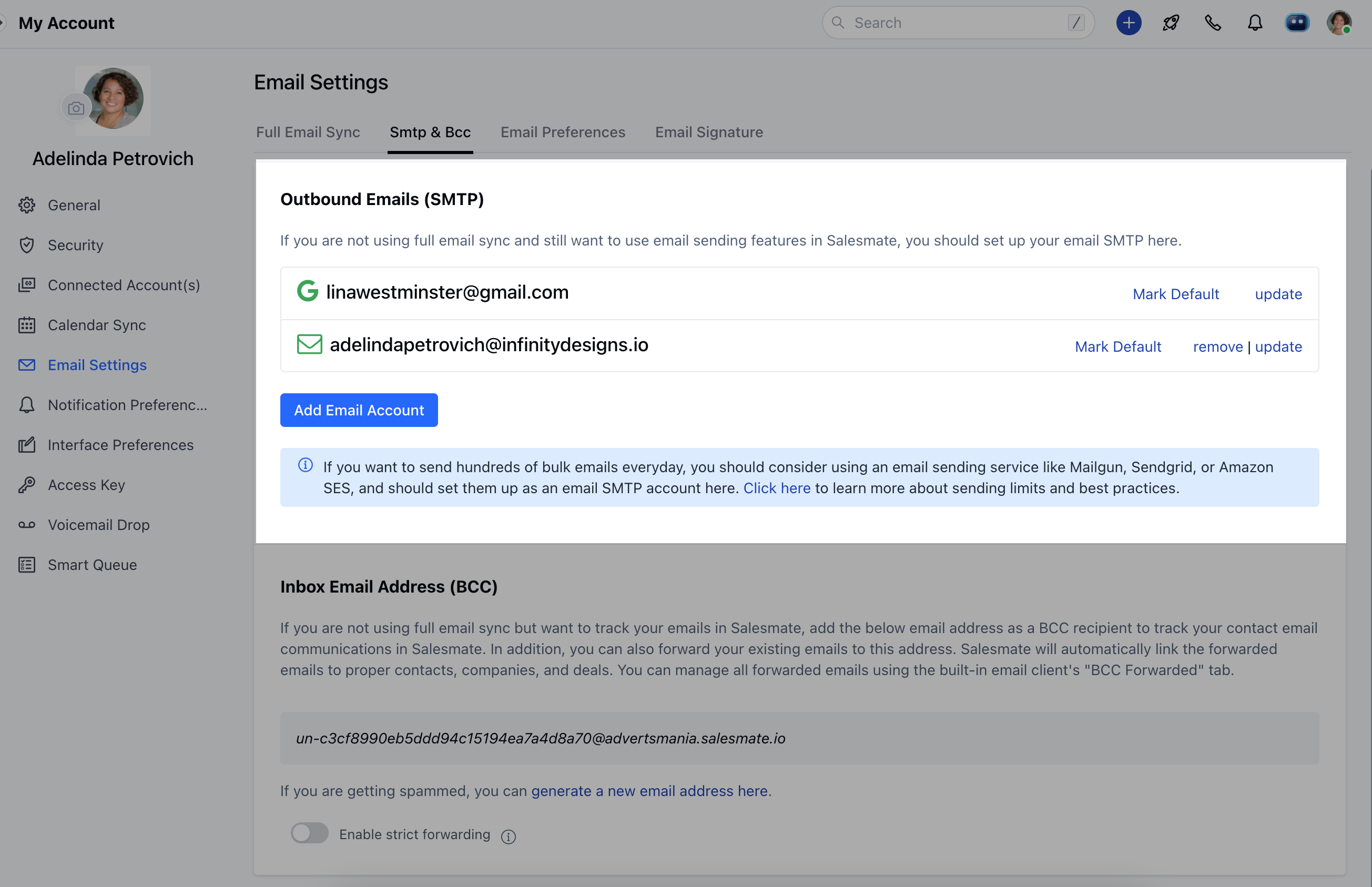
Navigate to the Profile Icon on the top right cornerClick on Go to my account Head over to ** Email Settings ***
- Select the* SMTP & BCC sectionGo to the Outbound Emails (SMTP) sectionClick on Add Email Account **
-
**To Send Emails - Outbound Emails (SMTP):**To configure your Custom SMTP details you need the following details handy
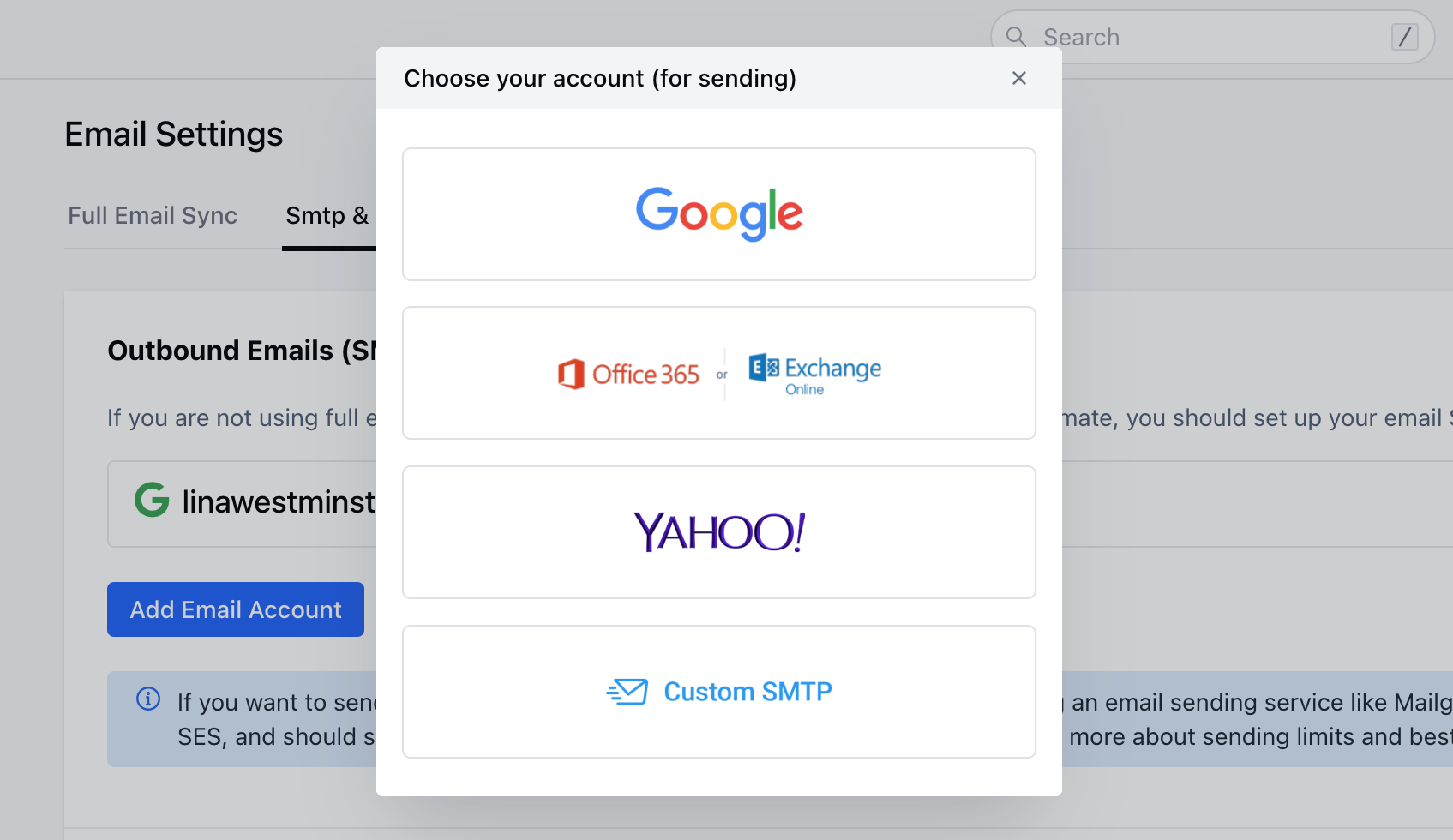
User NamePasswordFrom NameFrom EmailHost*PortSecure - SSL/TLS/None Click on the Add Email Account buttonChoose your SMTP account ( Google, Outlook.com, Yahoo, or Custom SMTP )For Custom SMTP

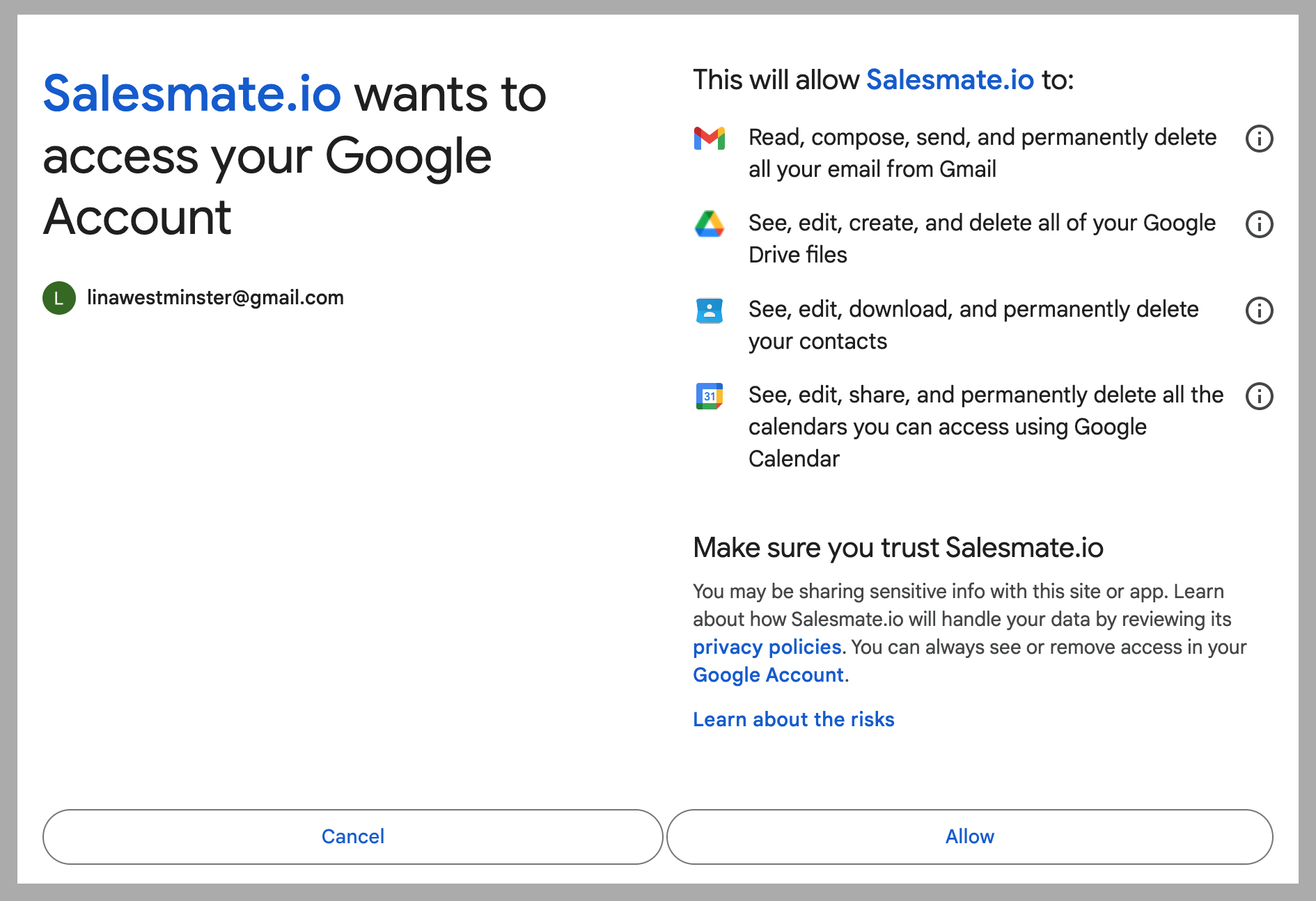
- Note*: In case your SMTP details return an error, here is another recommended way through which you try connecting again with the below settings in your full email sync with the Custom SMTP option, we have seen a similar case before wherein the user was able to connect successfully with below-mentioned details 143 for ** IMAP 587 for **SMTP **Both with TLS If the host is Google then you will be redirected to the Google Authentication pageOn the Permissions page, click Allow ** to continue.
How can I set up the default outbound email?
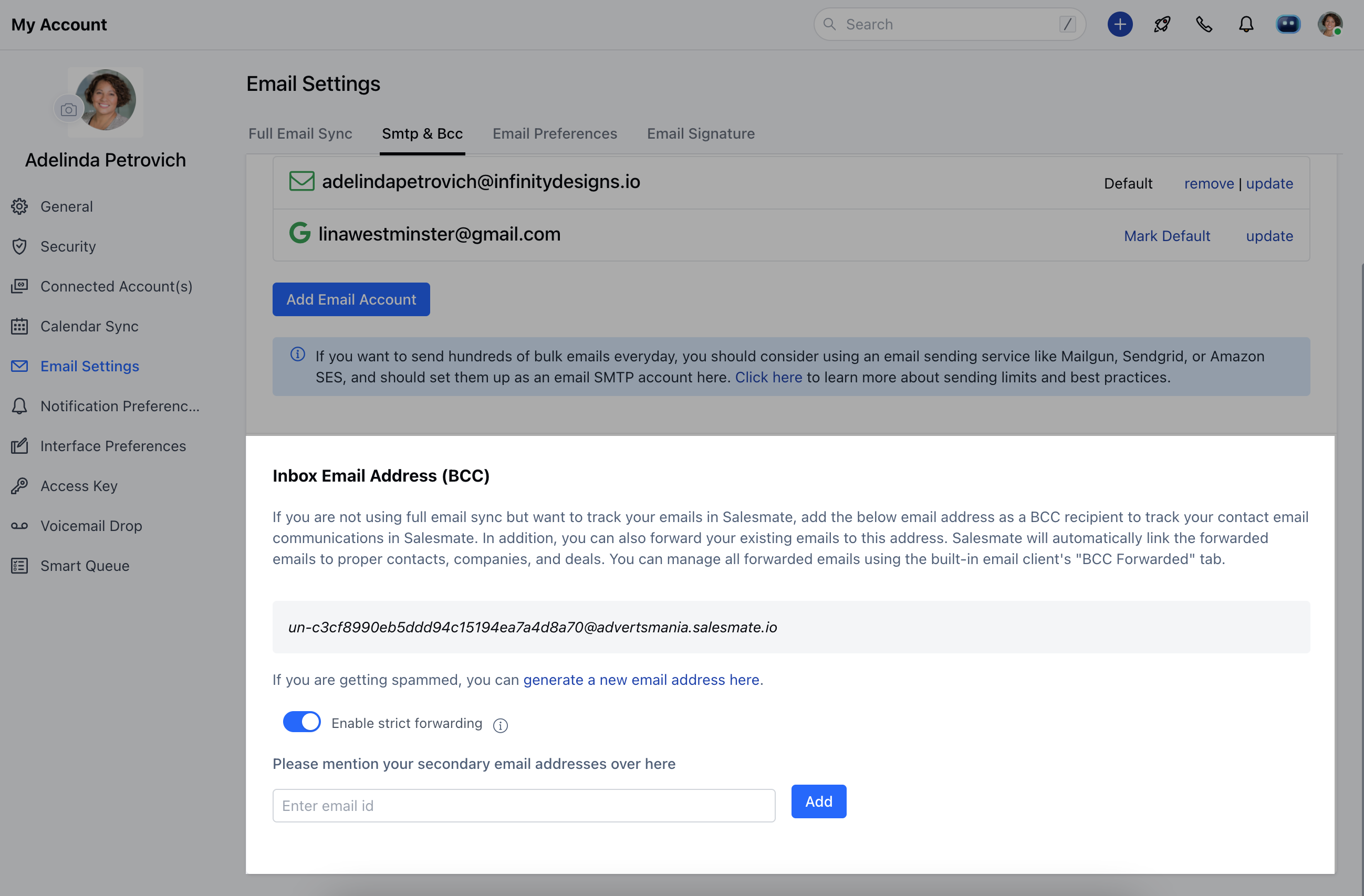
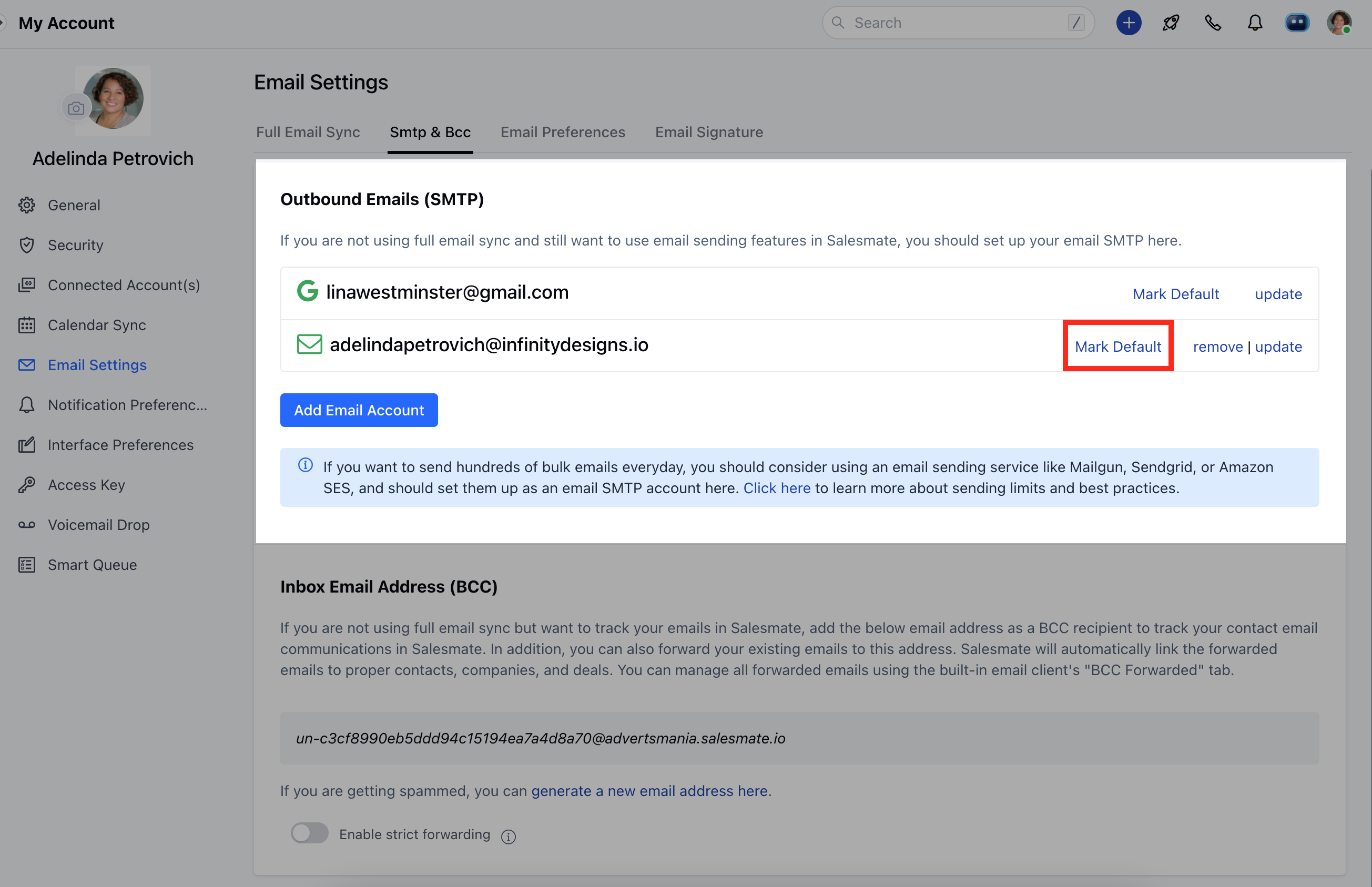
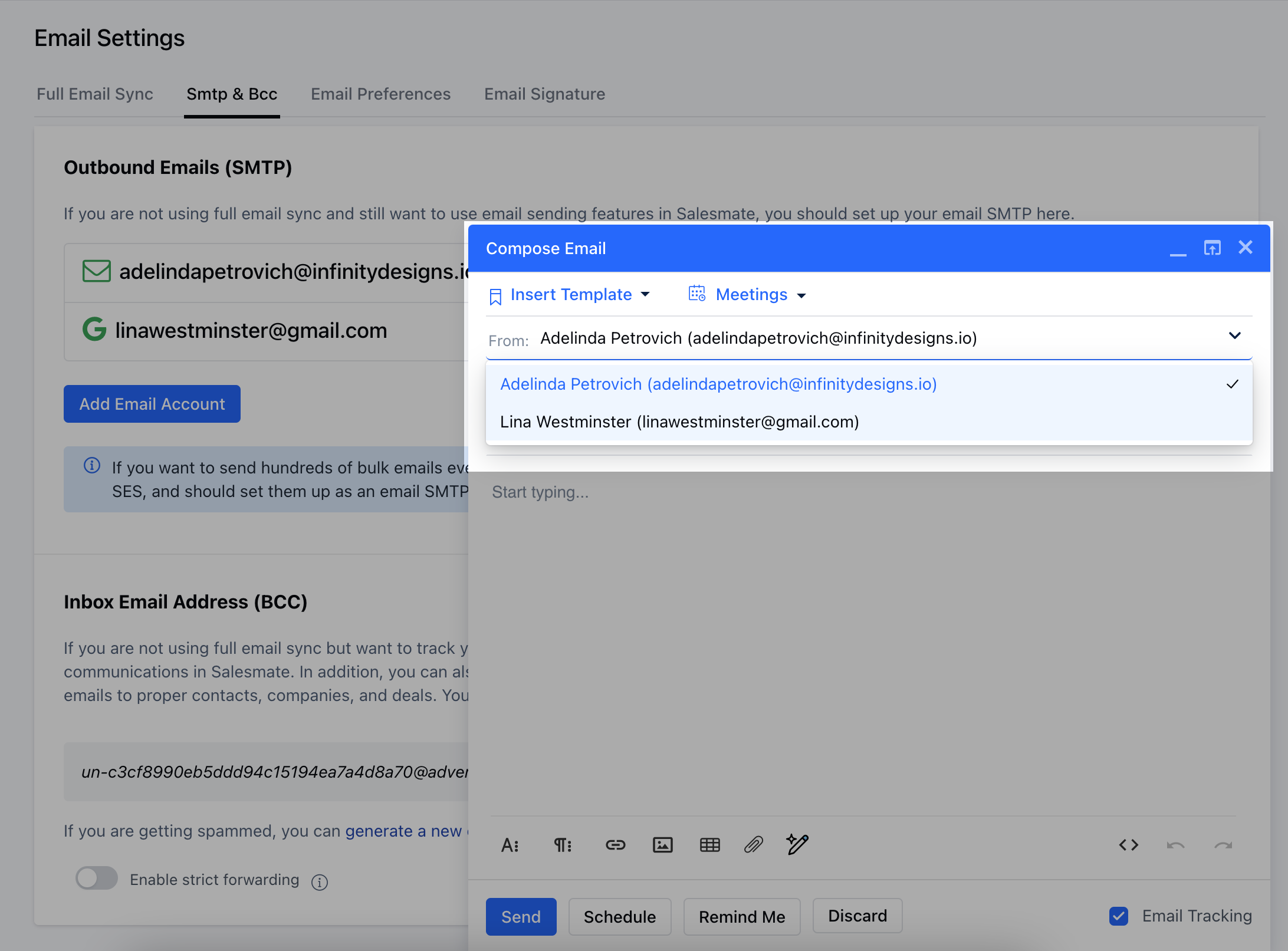
Users can select the default email address if they have connected to more than one email address in Salesmate using Full Email sync or Outbound Emails (SMTP) while composing an email. Navigate to the Profile Icon on the top right cornerClick on Go to my account Head over to ** Email Settings ***
- Go to* SMTP & BCC **TabUnder the Connect Email Address List hit the “**Mark Default **” button to select the default email address for outbound emails.
How to configure incoming emails (BCC) in Salesmate?
You get your own email address, which you can add to the BCC field whenever you email a customer, or you can forward existing emails directly to this address. These conversations will all appear in your Salesmate email page, linked to the relevant contacts and deals, when possible. Set the forwarding rule to forward emails to your Salesmate Mailbox address by following the below steps:**To receive emails:**Go to DashboardClick on the Email iconGo to Email settings Click on the SMTP & BCC tabCopy the Inbox email address (BCC) - Example: “un-2ab15c4cccec8b894804c7be76cb9cc9@demo.salesmate.io”To set forwarding in Gmail, click here To set forwarding in Yahoo, click here You can also enable strict email forwarding. This means you will receive emails from only the account that you have configured. You can add other addresses from which you want to receive emails by adding them to the secondary email address list.