

Do you have these questions?
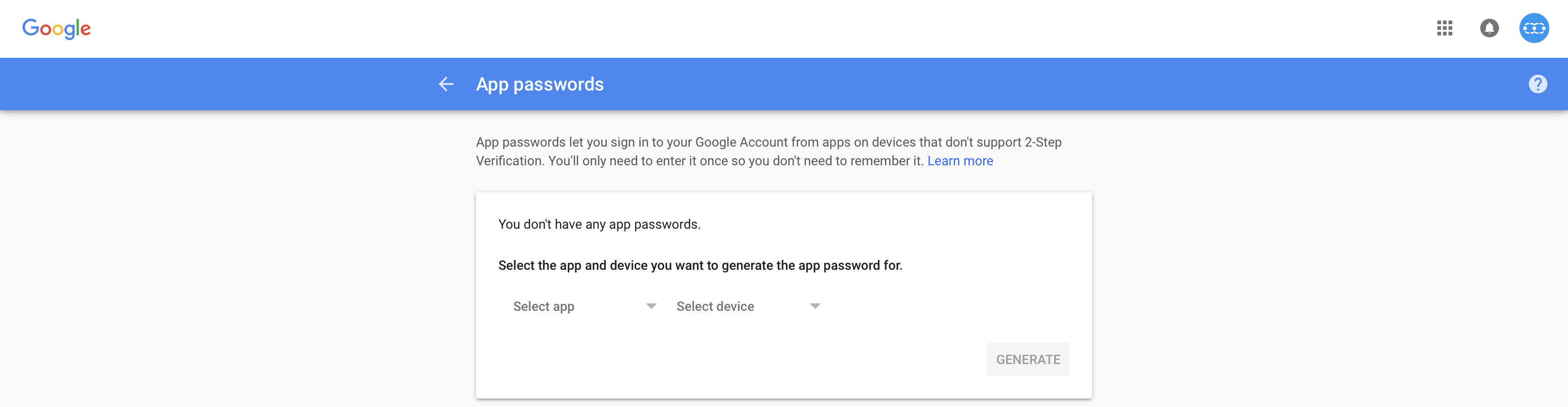
Having trouble lately connecting your Gmail Alias accounts?Why your Gmail alias account is not working anymore? We have answers to all your queries, recently Gmail has updated its policies and has stopped support for all personal free Gmail accounts. This would mean that you need to have a Corporate/Enterprise Gmail account to access this feature. What if you have an enterprise Gmail account and are still not able to connect your alias account with Salesmate, don’t worry there is now a secured way to do it. Gmail has brought in a new way of doing so with the help of - Sign In using App PasswordsAn App password is a 16-digit passcode that gives an app or device permission to access your **Google Account.- **If you use 2-Step Verification and are seeing a “**password incorrect”**or “Cannot connect to SMTP Server” error when trying to access your Google Account, an App password may solve the problem.Most of the time, you’ll only have to enter an App password once per app or device, so don’t worry about memorizing it.
How to generate an App password?
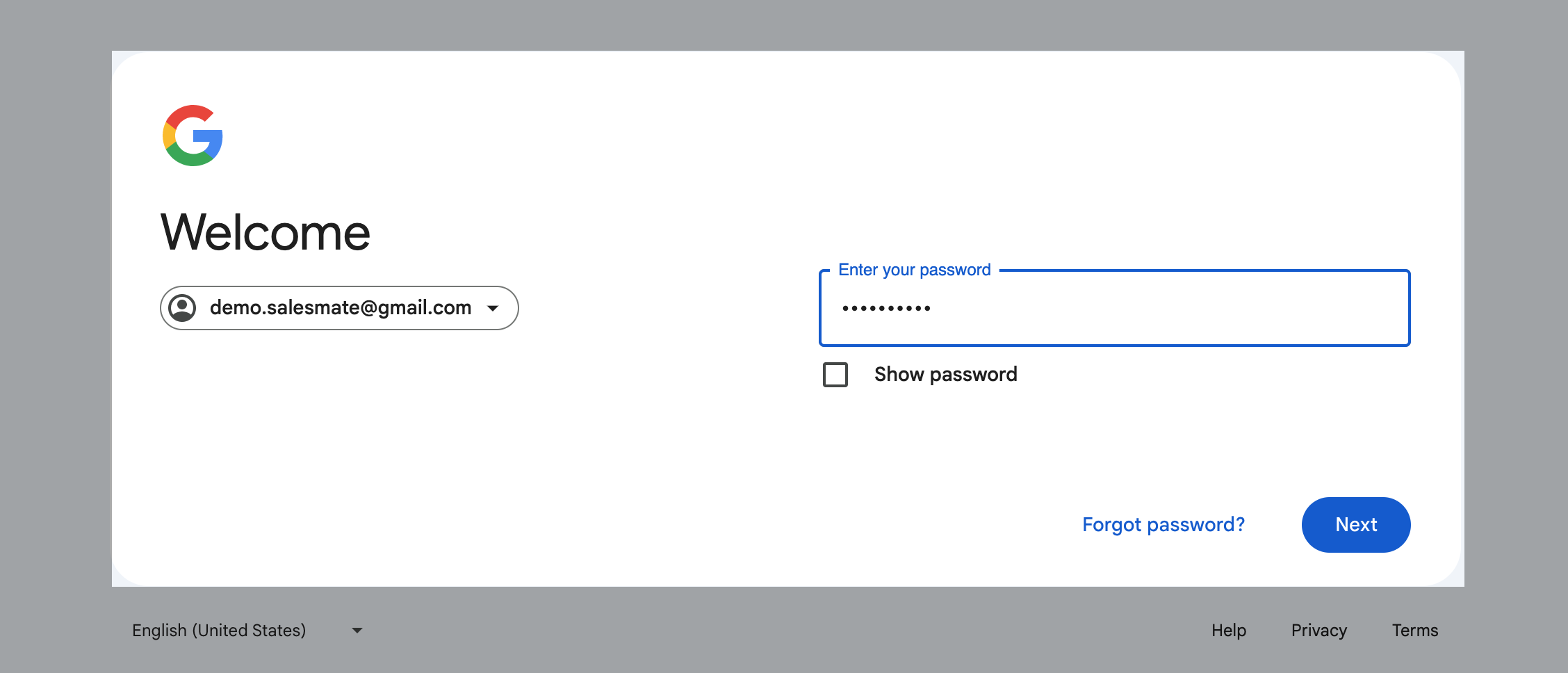
Visit your App password page. You may be asked to sign in to your Google Account.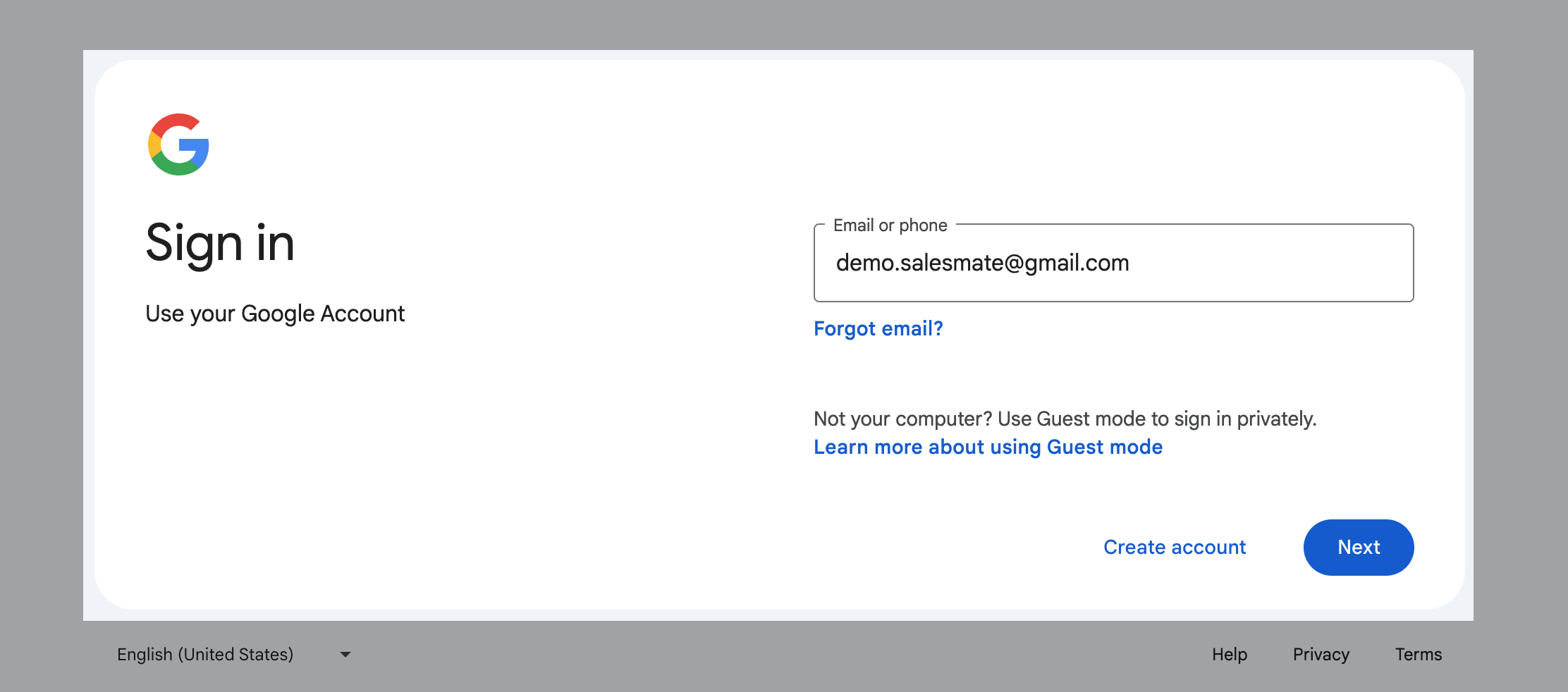
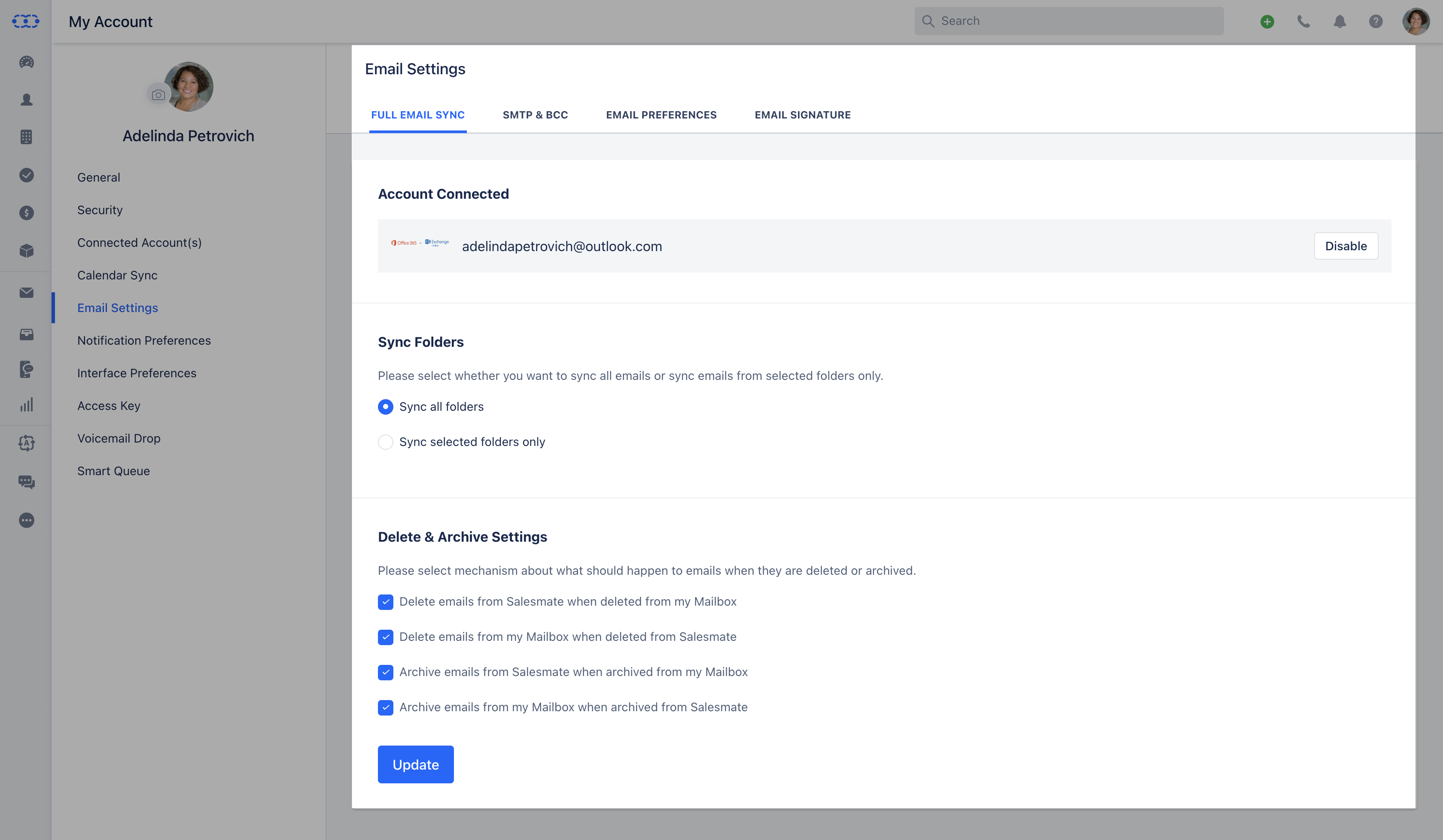
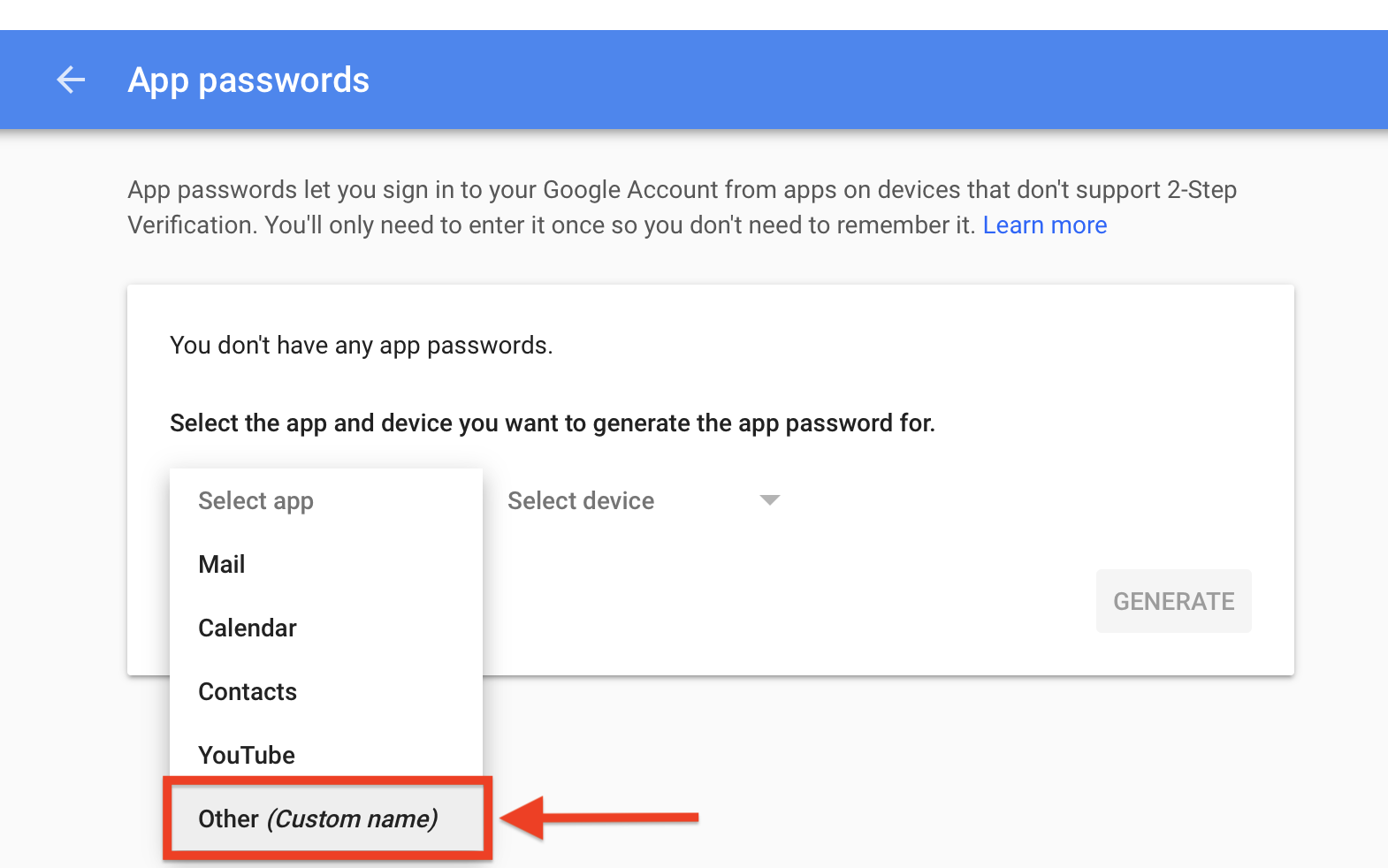
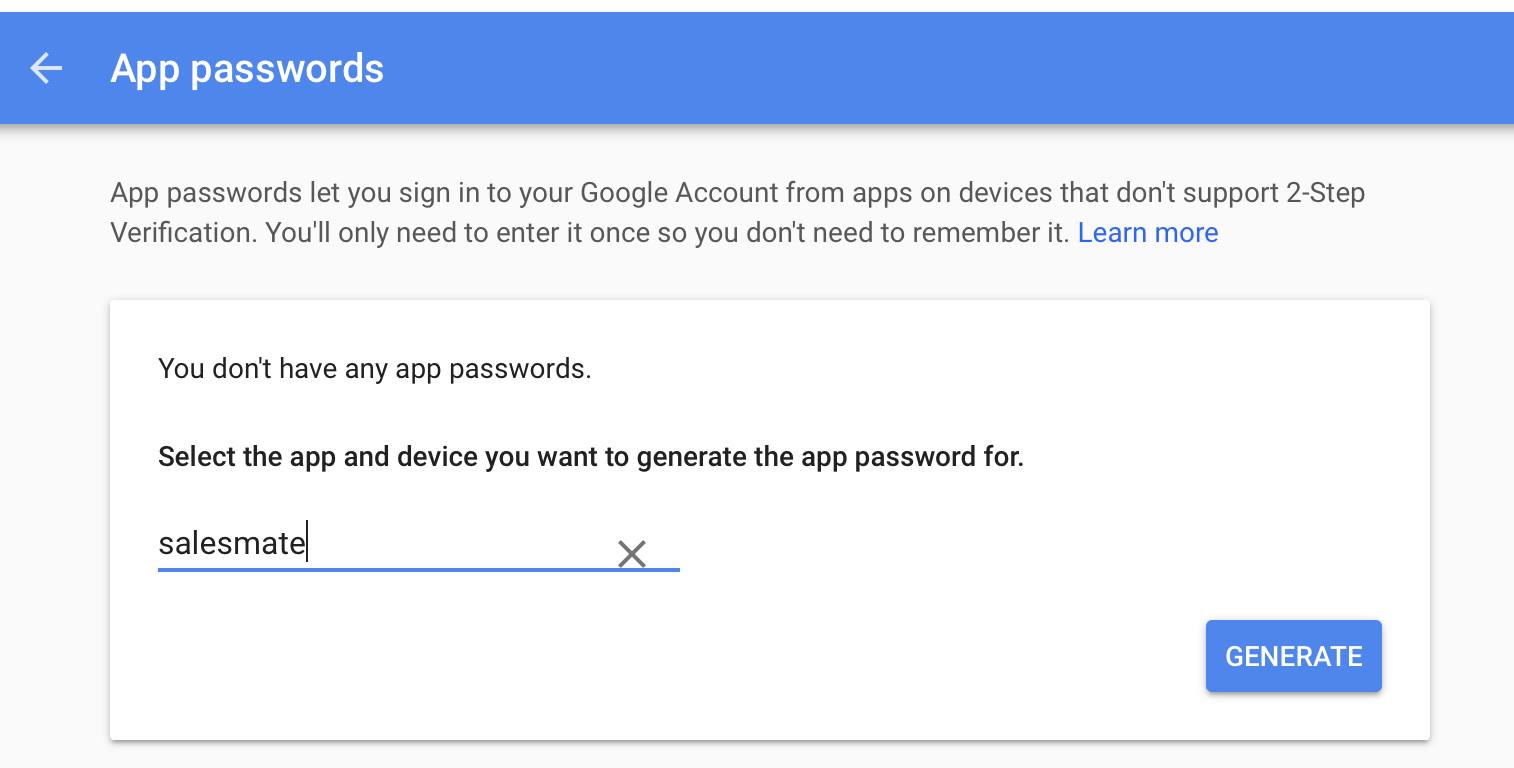
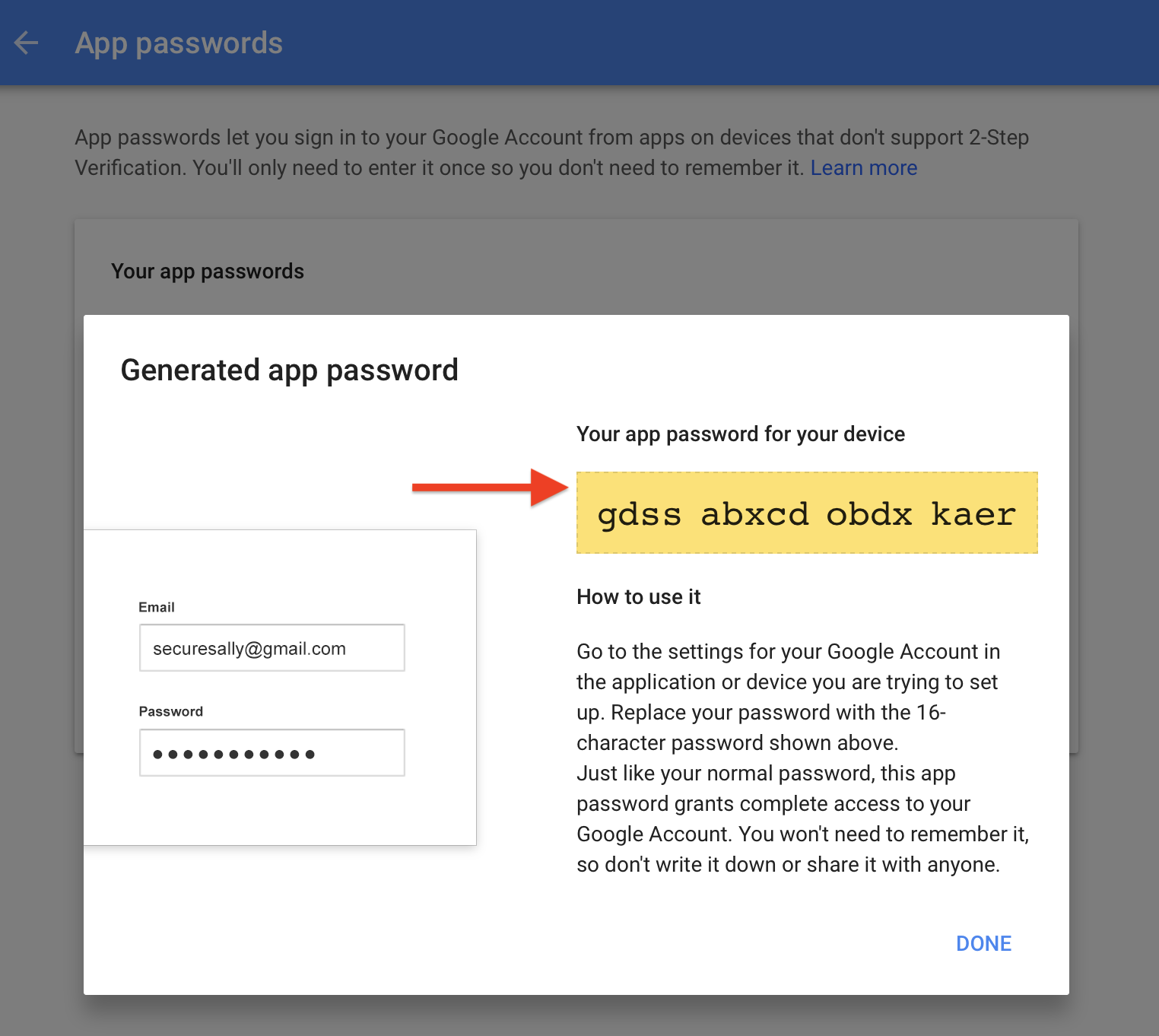

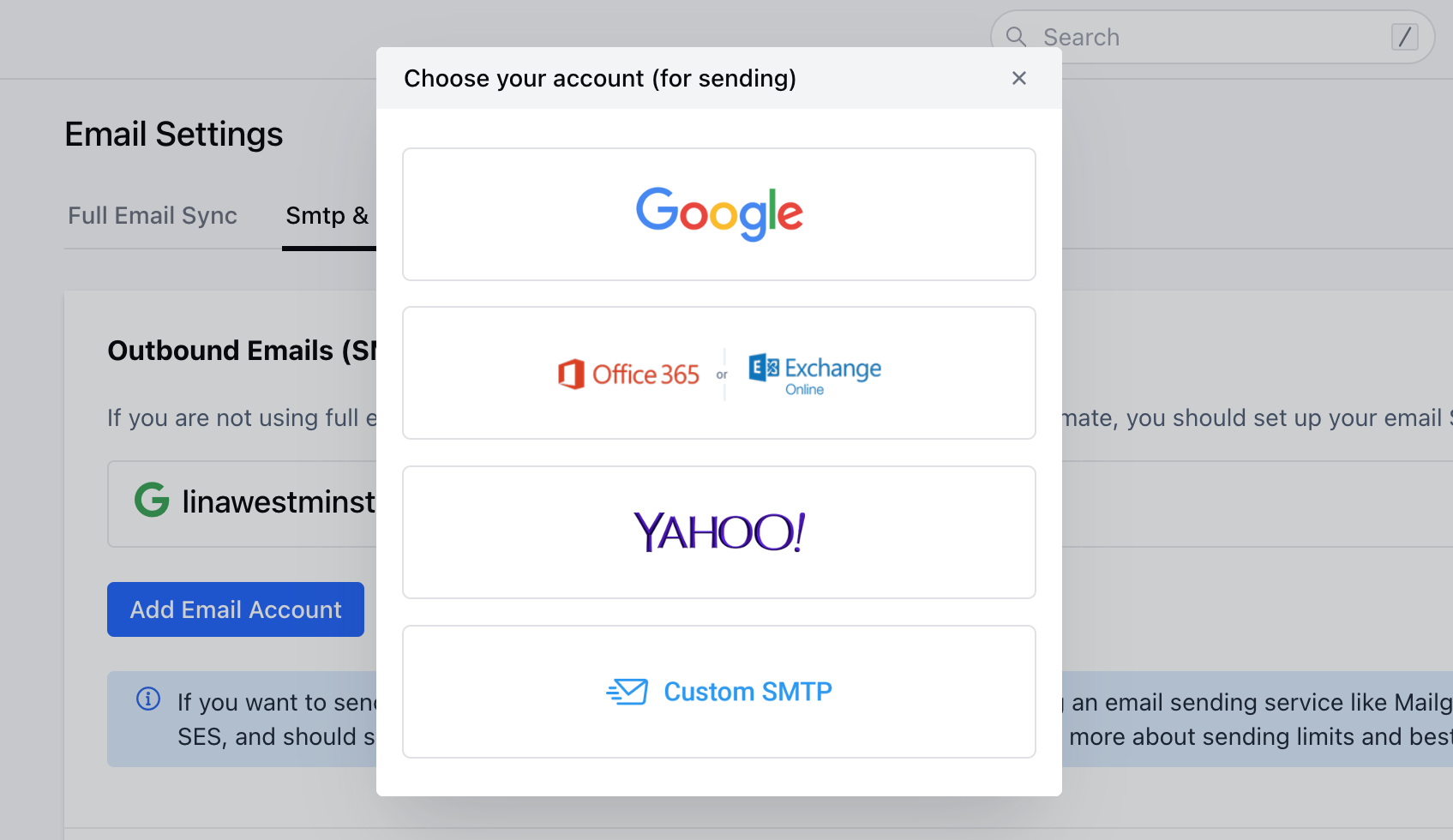
- Select* SMTP & Bcc Click on Add Email Account **
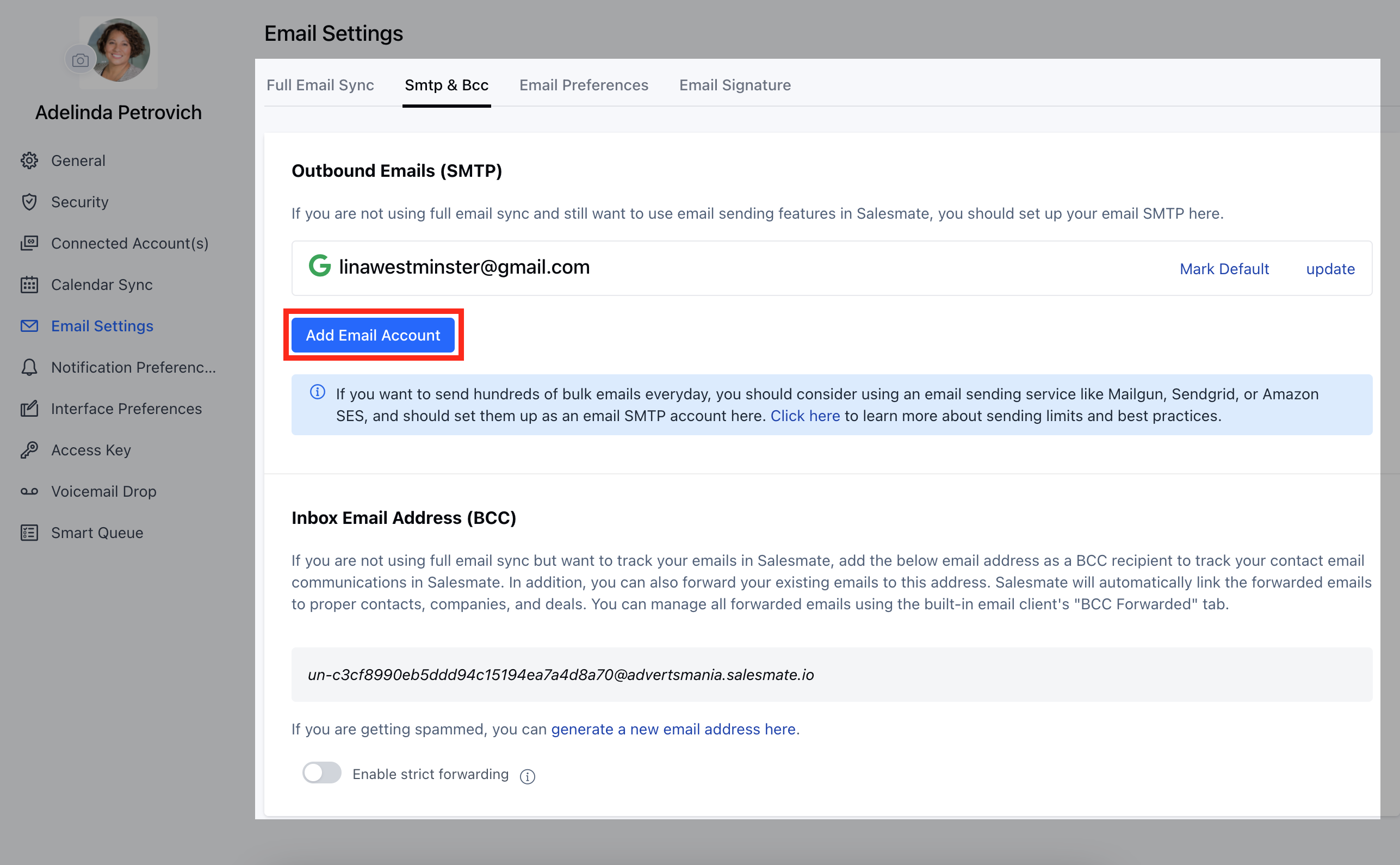
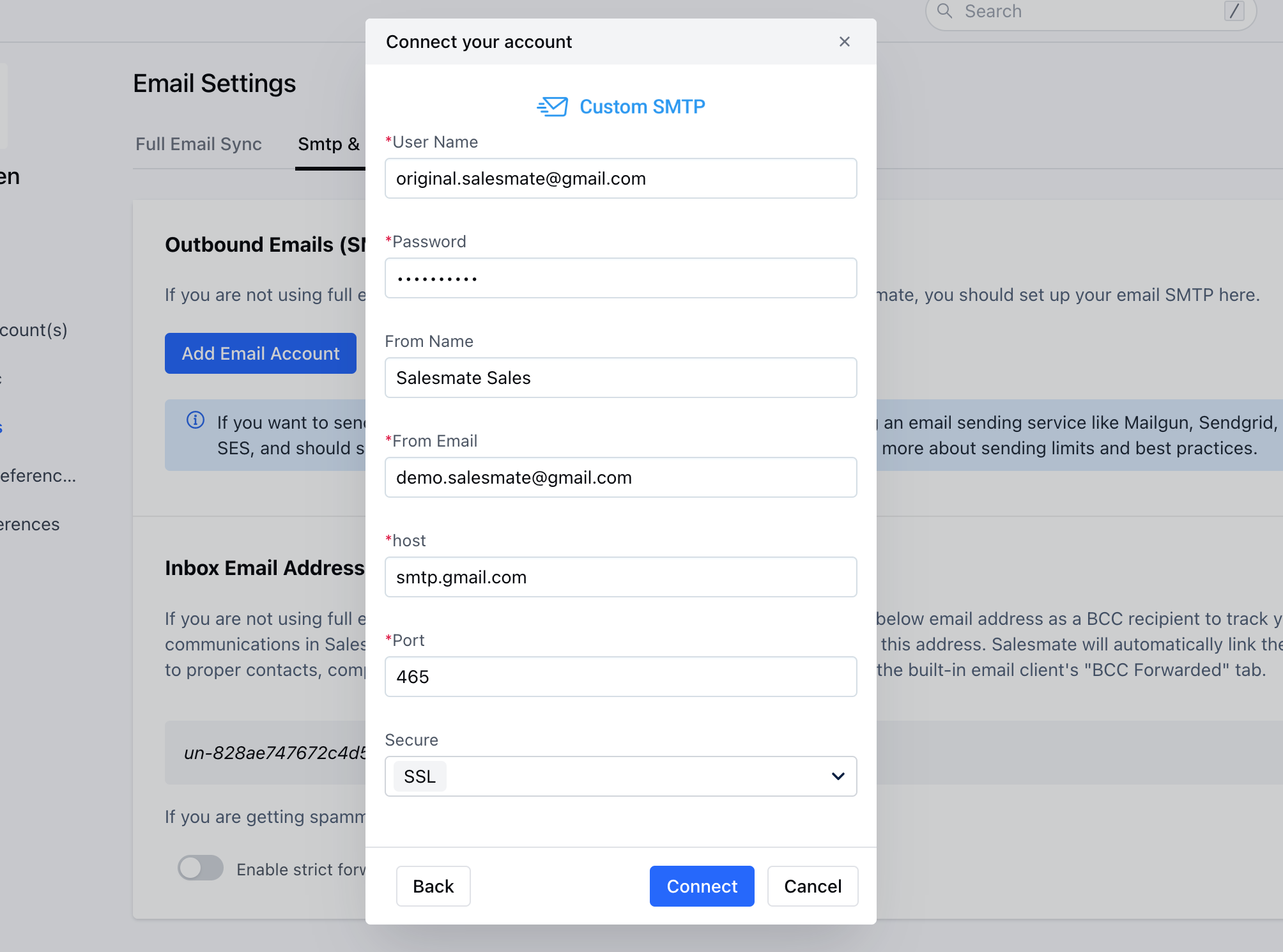
- smtp.gmail.comport -587 Secure -**TLS **
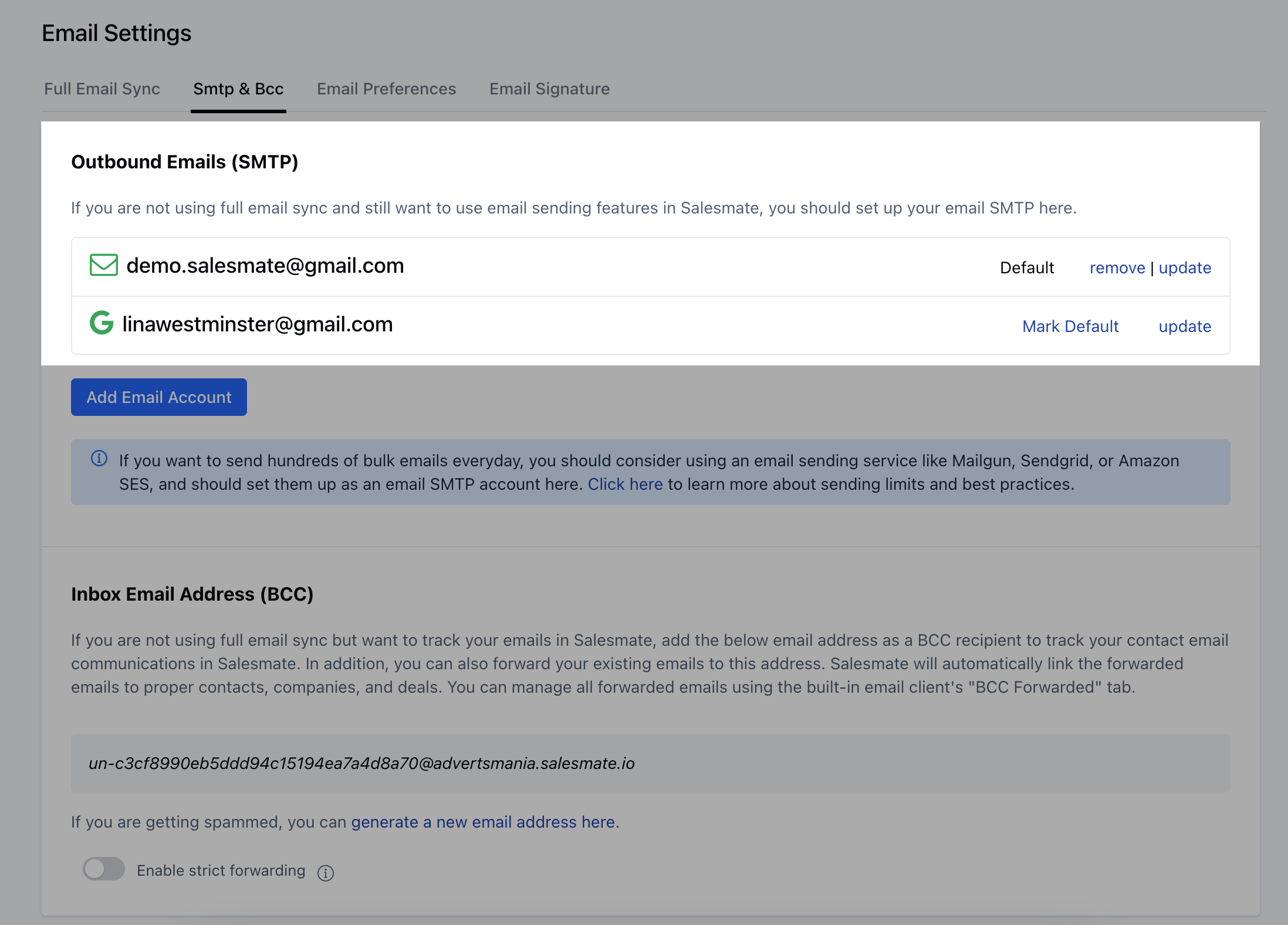
- *Visit:**Google support if needed - https://support.google.com/accounts/answer/185833?hl=enSend an email with an alias account from your Salesmate mailbox -