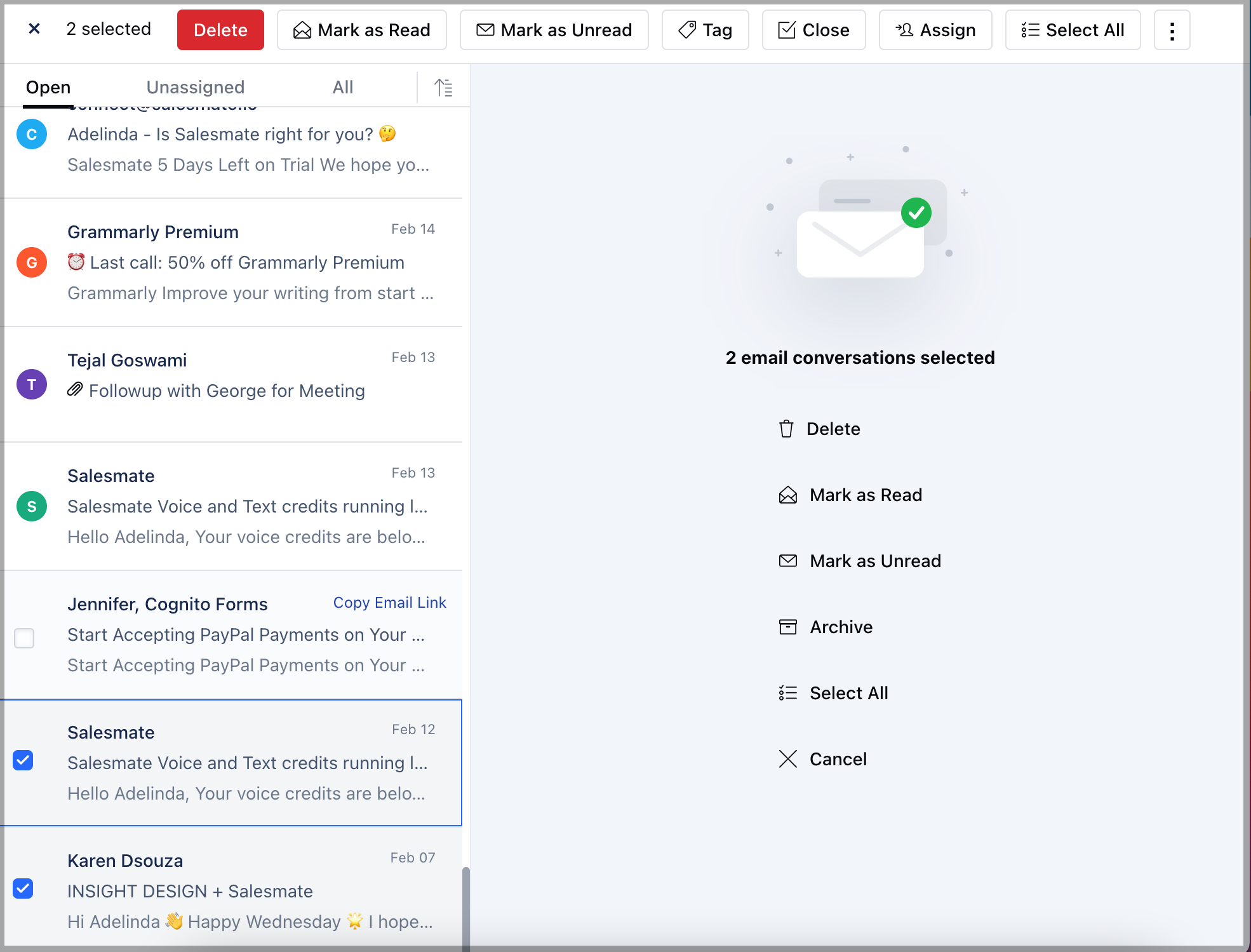
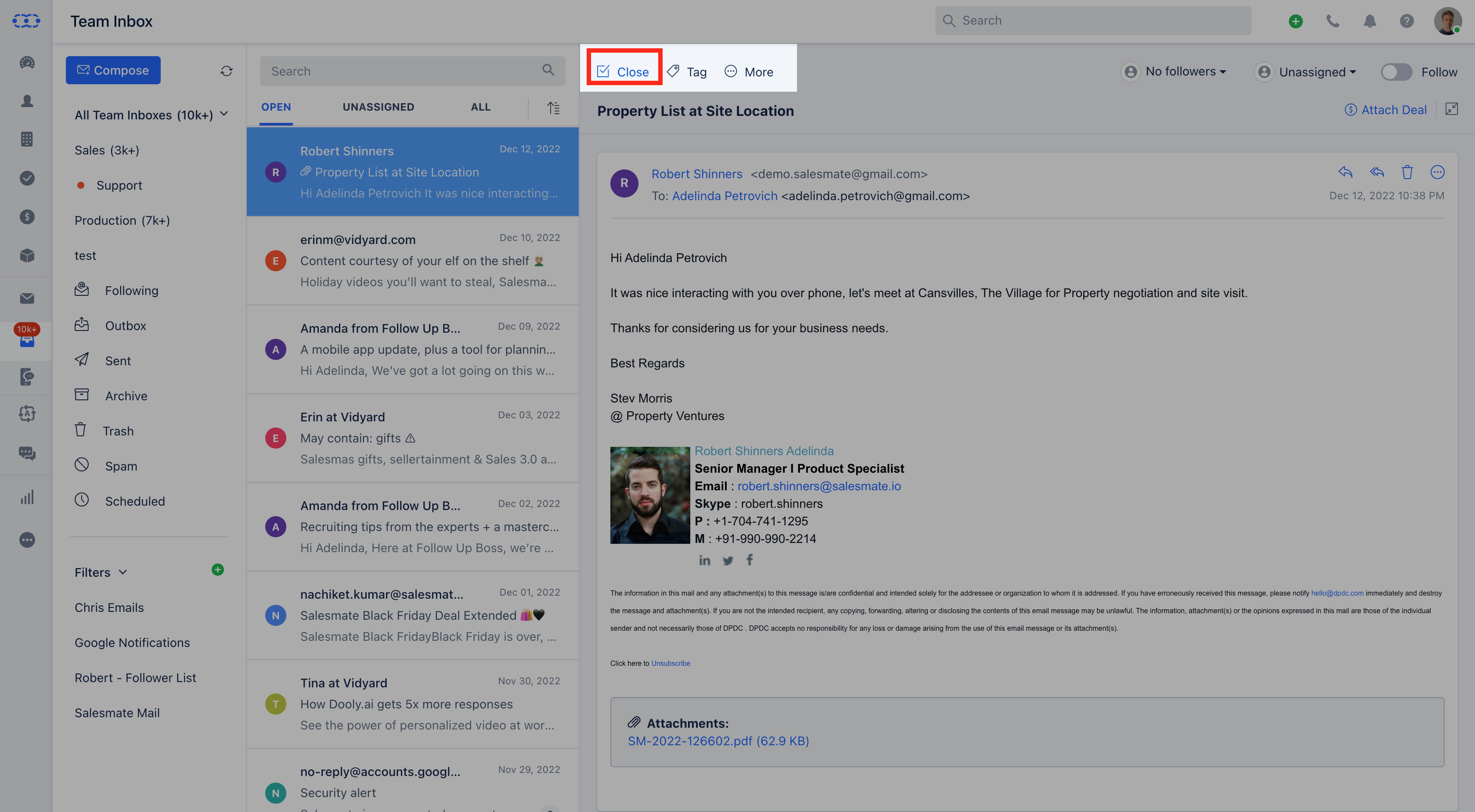
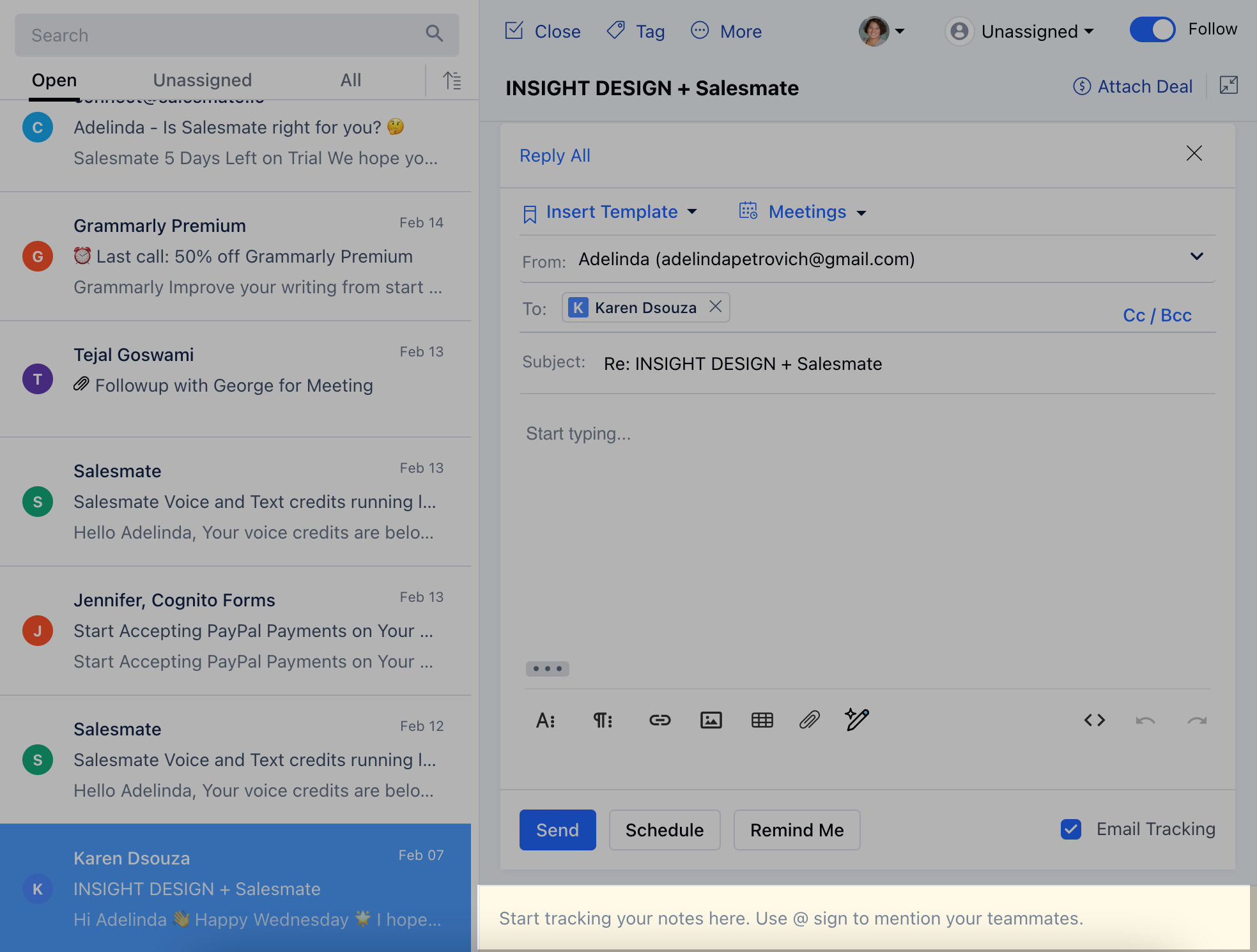
- Team Inbox* in Salesmate consists of the following folders:
- **- Open: This will show all those emails that are open.
- Unassigned: Unless and until any users are assigned to an email, they will be featured in Unassigned.
- All: This will show all the emails, irrespective of them being opened/closed, assigned/unassigned.
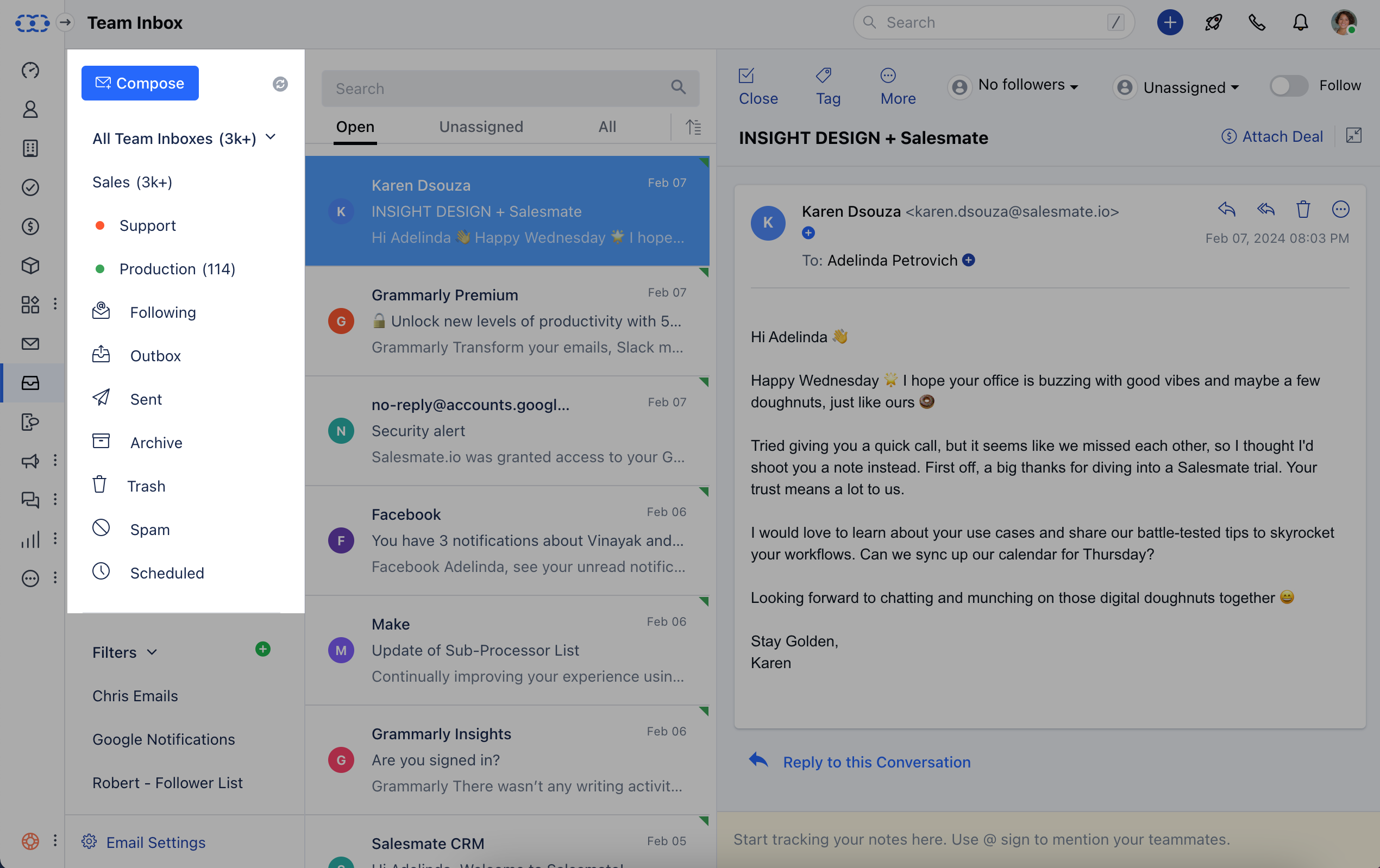
- Sorting: The emails can be sorted based on Newest,**Oldest,**or Oldest Unread.
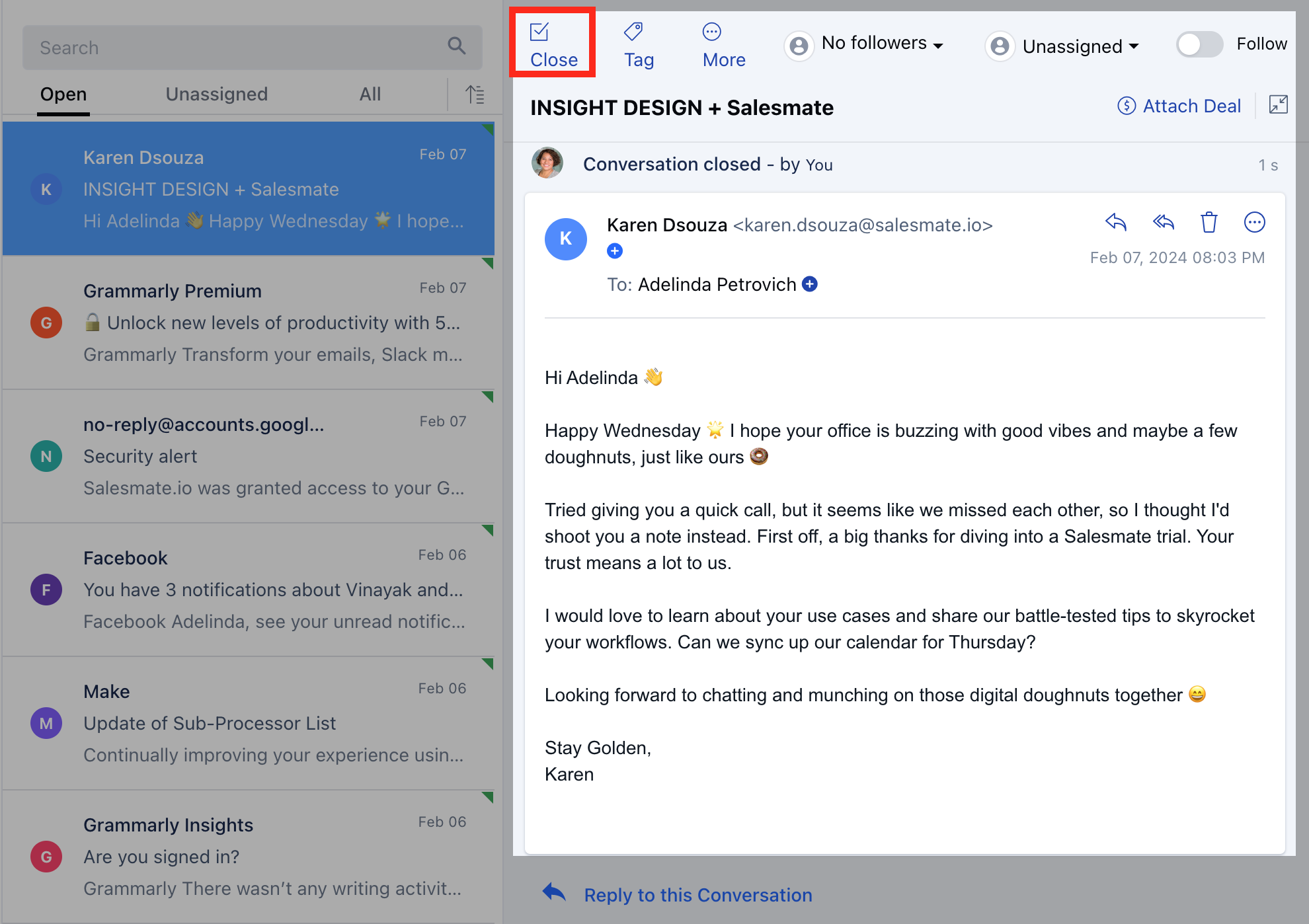
Reopen/Close an Email Conversation To close a particular conversation click on the ☑ Close icon.
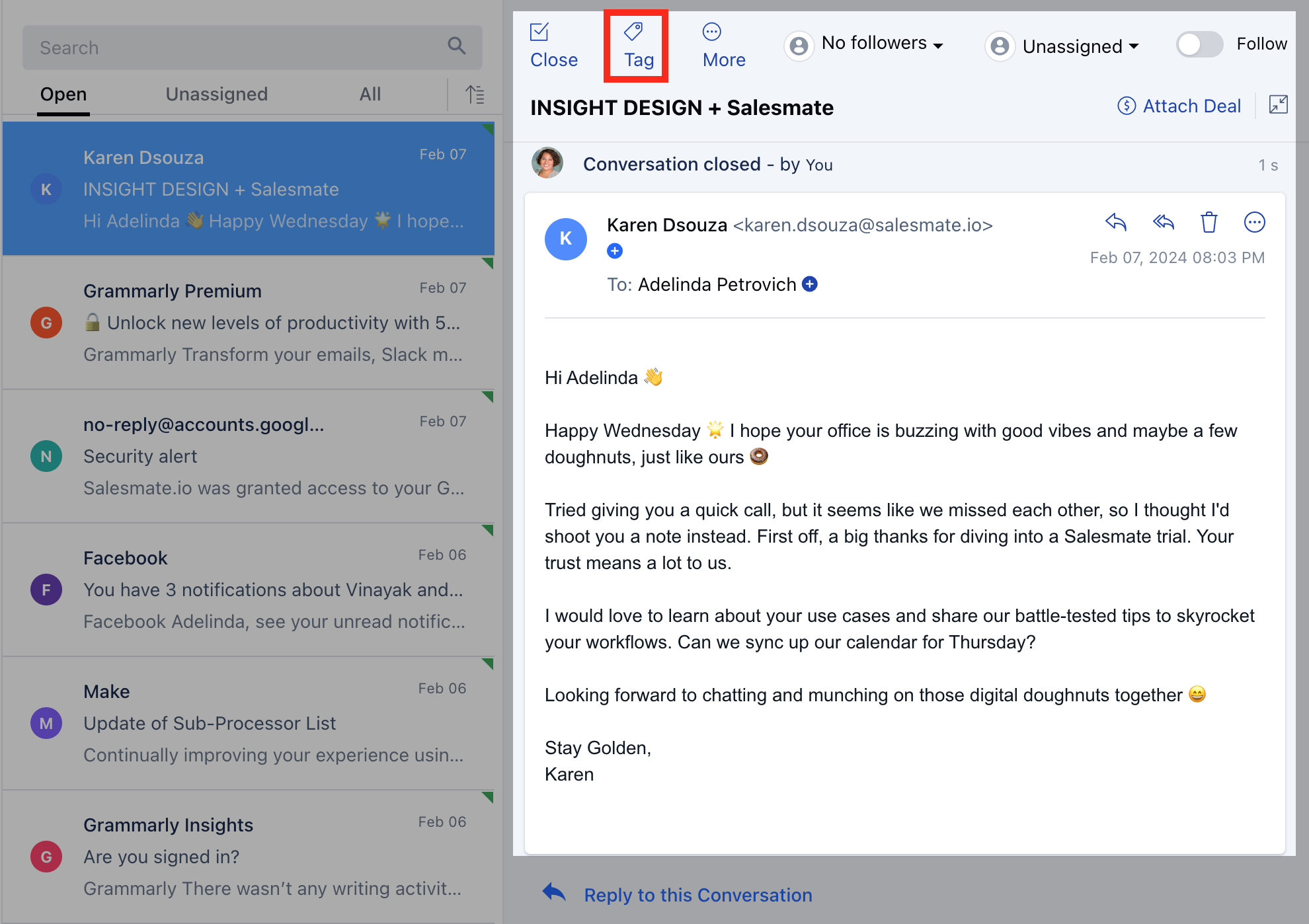
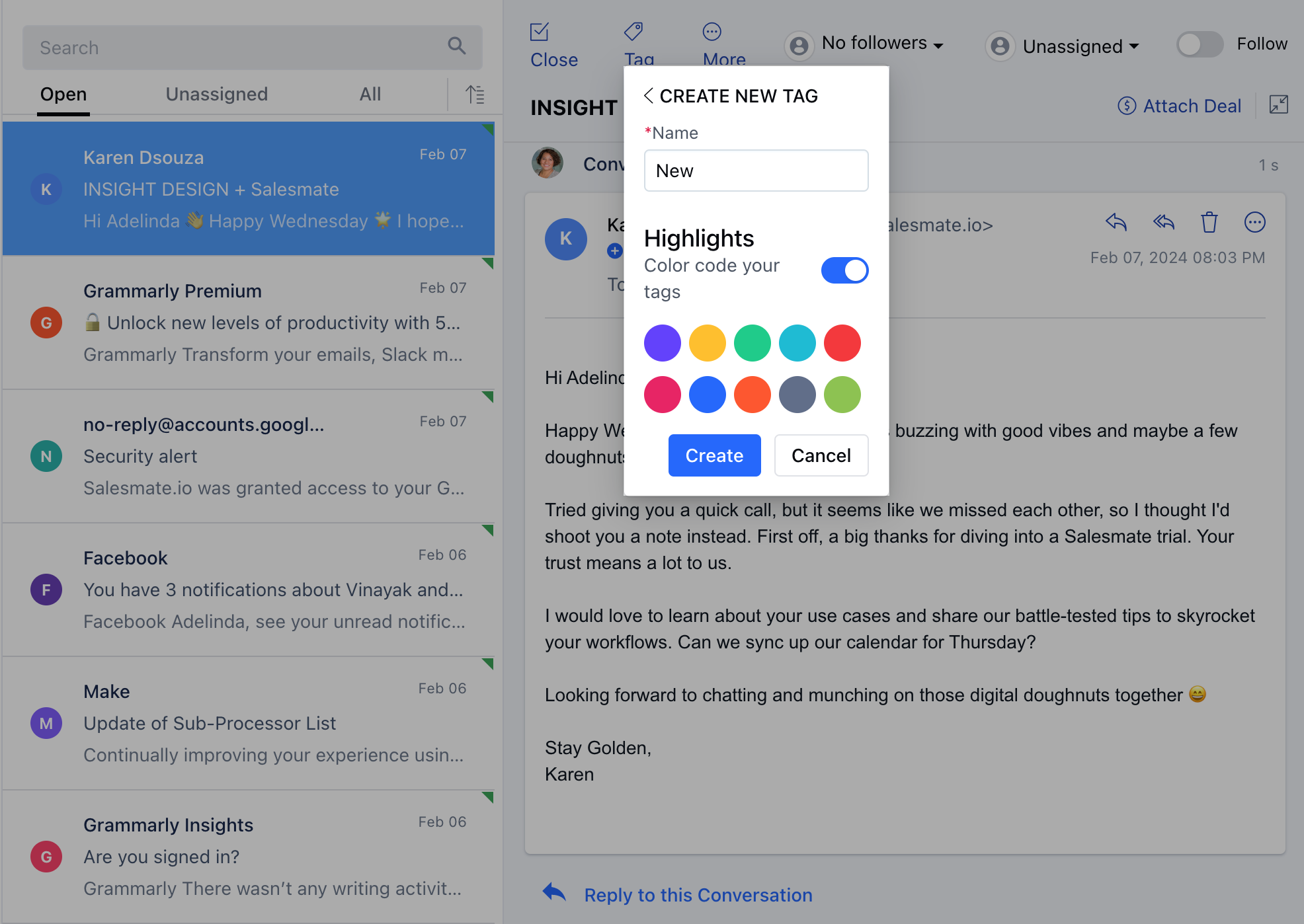
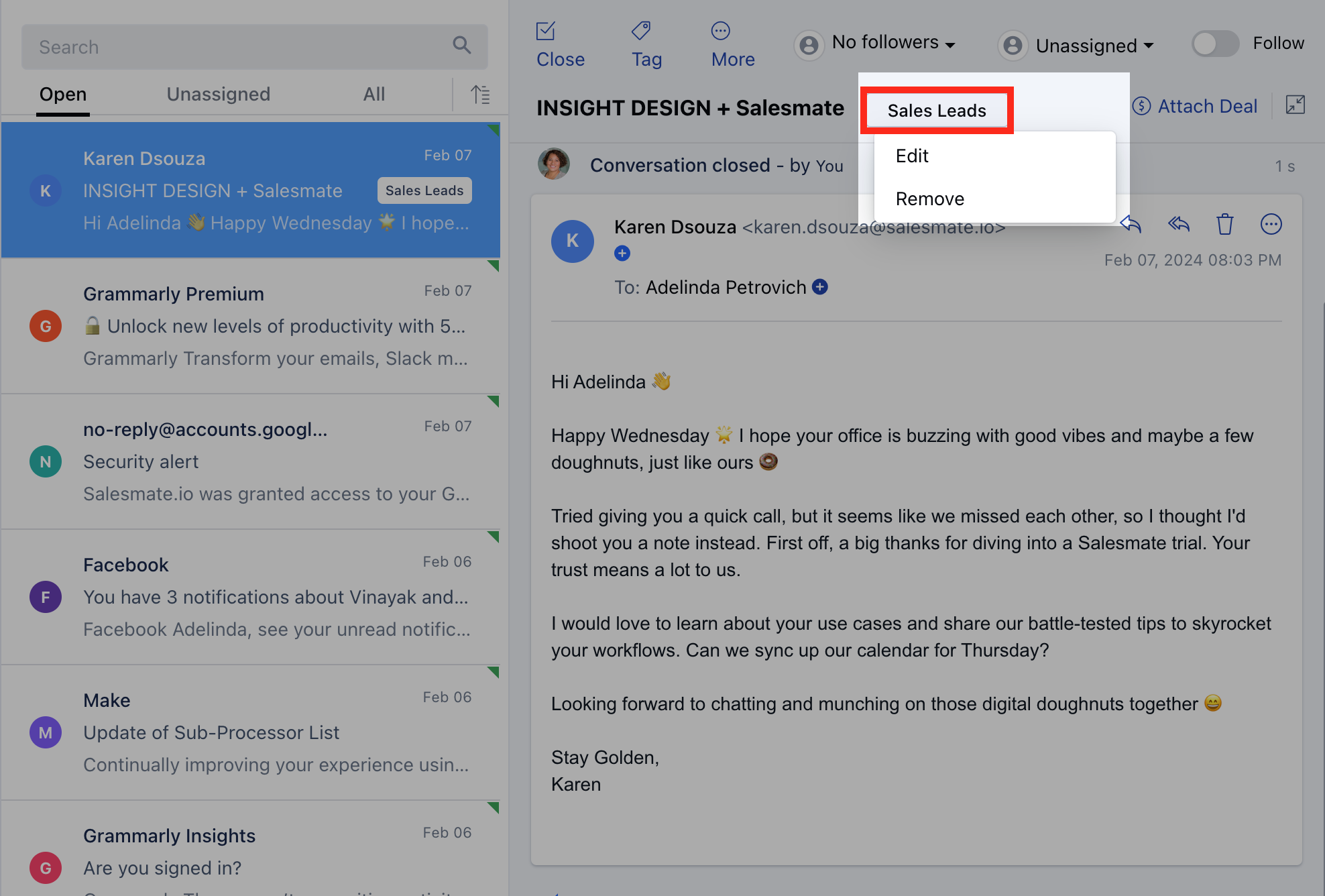
Assign Tag to Email Conversation Every conversation in the Salesmate Team Inbox can be tagged.
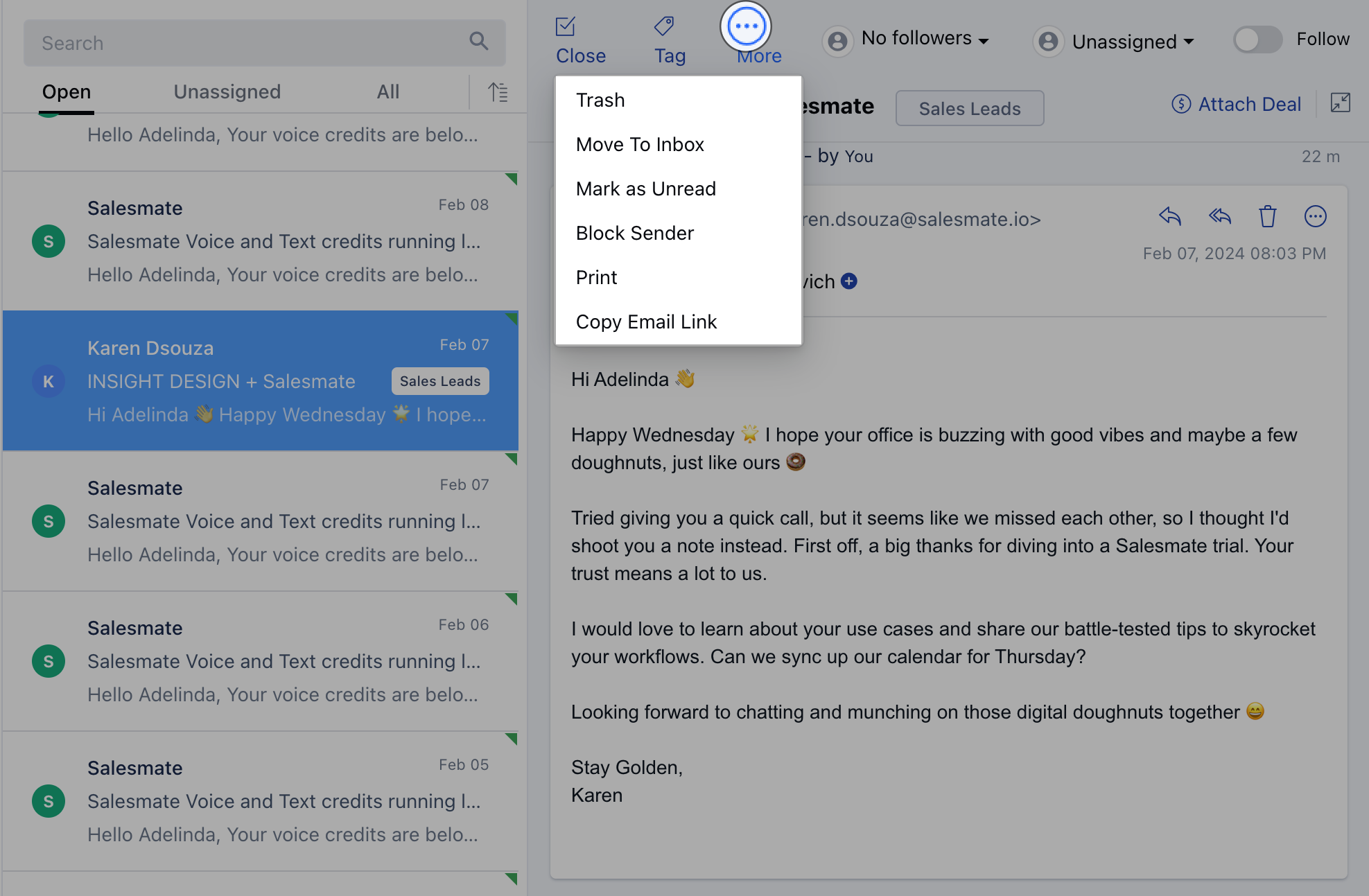
More You can perform the below-listed operations by clicking on the More option.
Delete a Conversation If you want to delete a conversation, click on Trash.
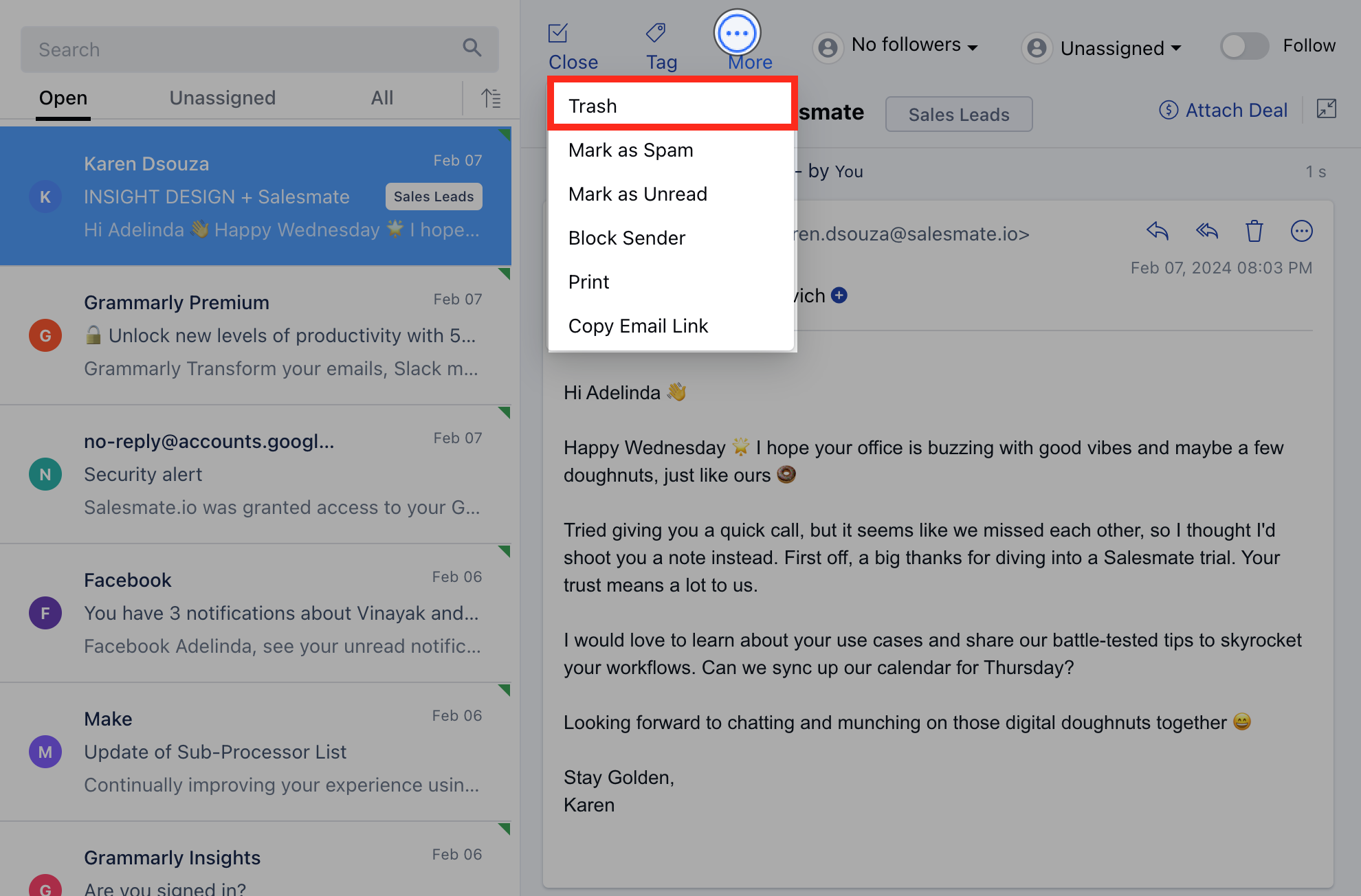
- **Click on the email that you want to recover.Click on More Click on the Move To Inbox option.The email will move back to the Inbox.
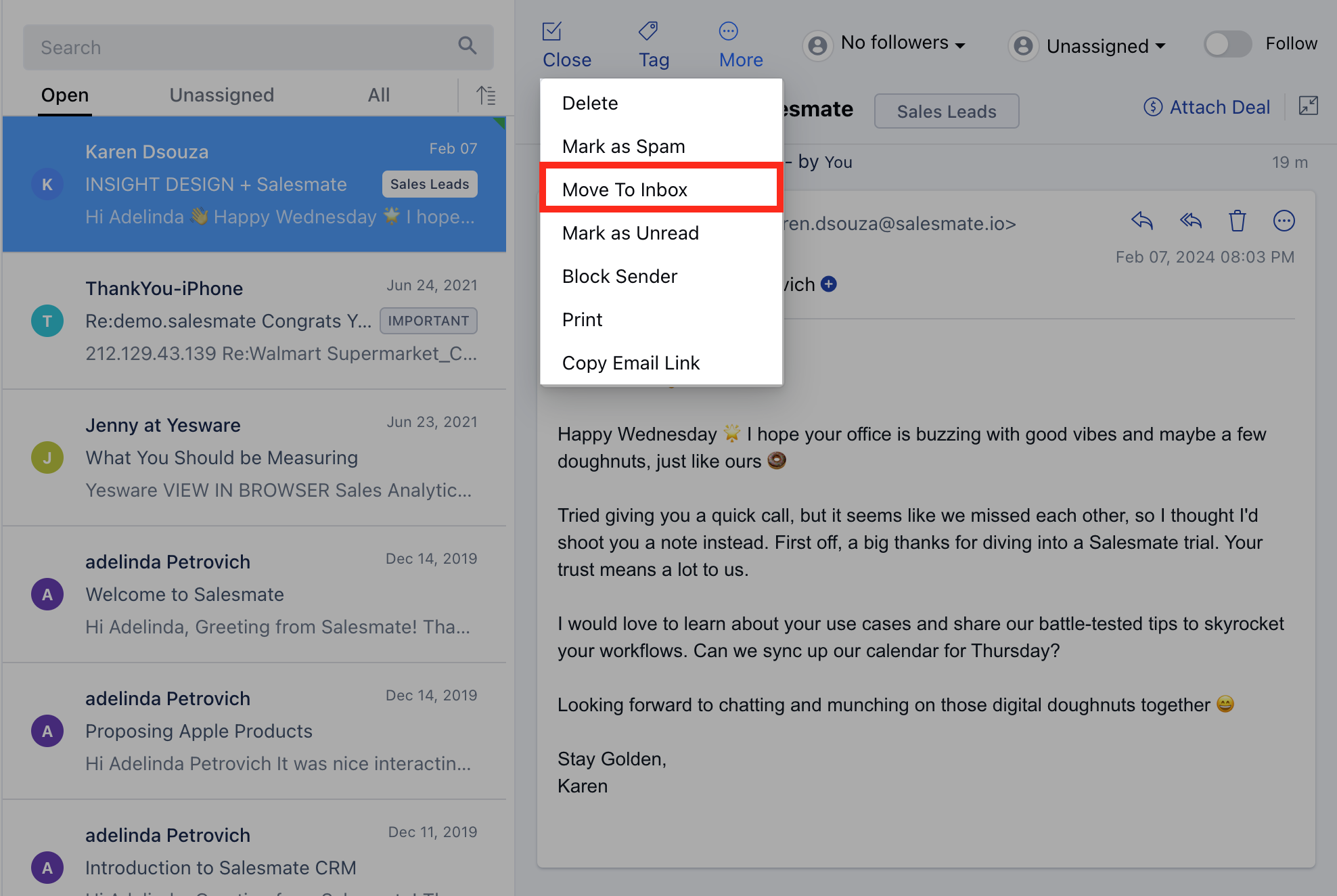
Mark Email Conversations as Spam Click on More Click on **Mark as Spam.
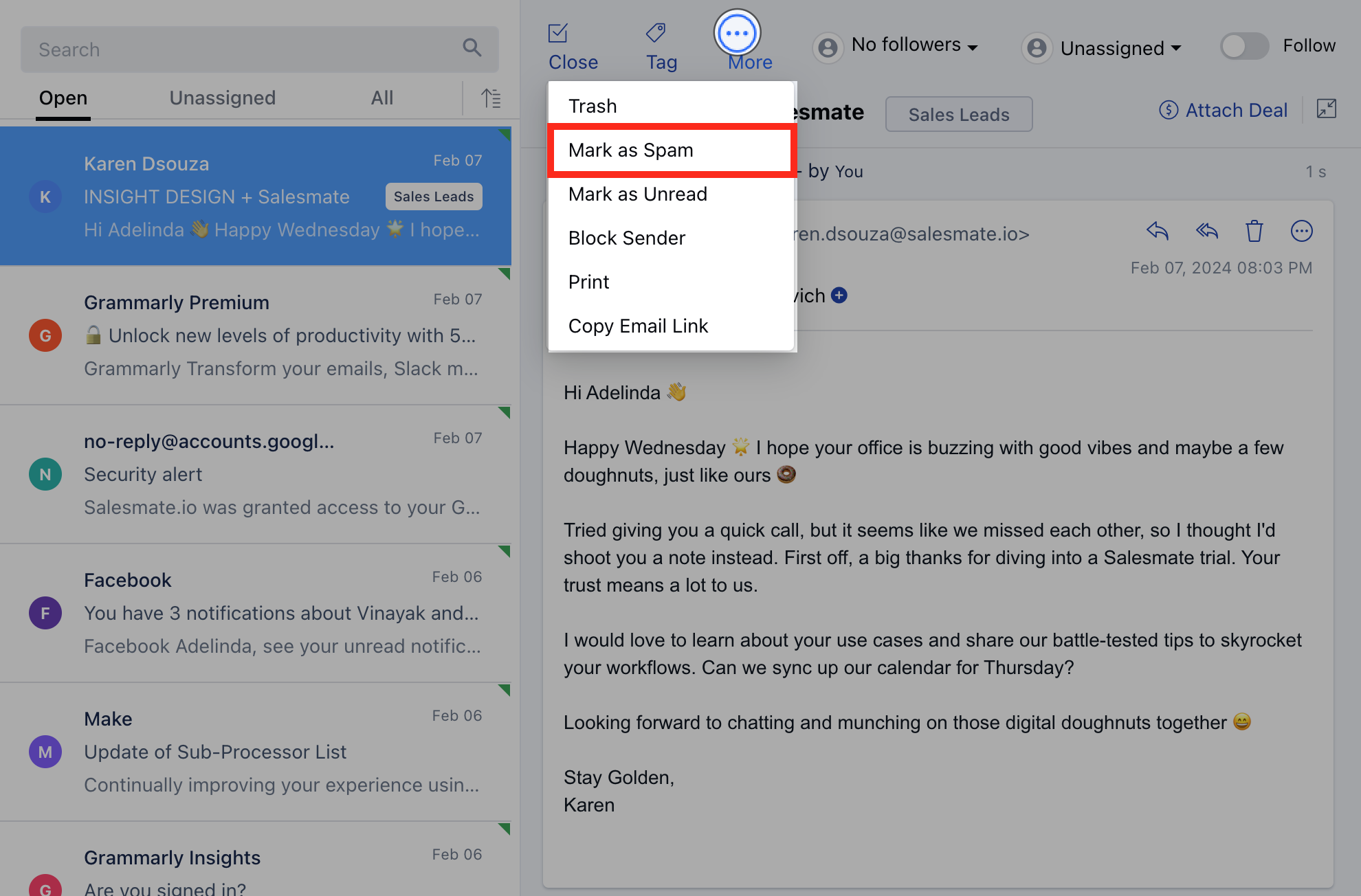
- **Click on More Click on Move To Inbox
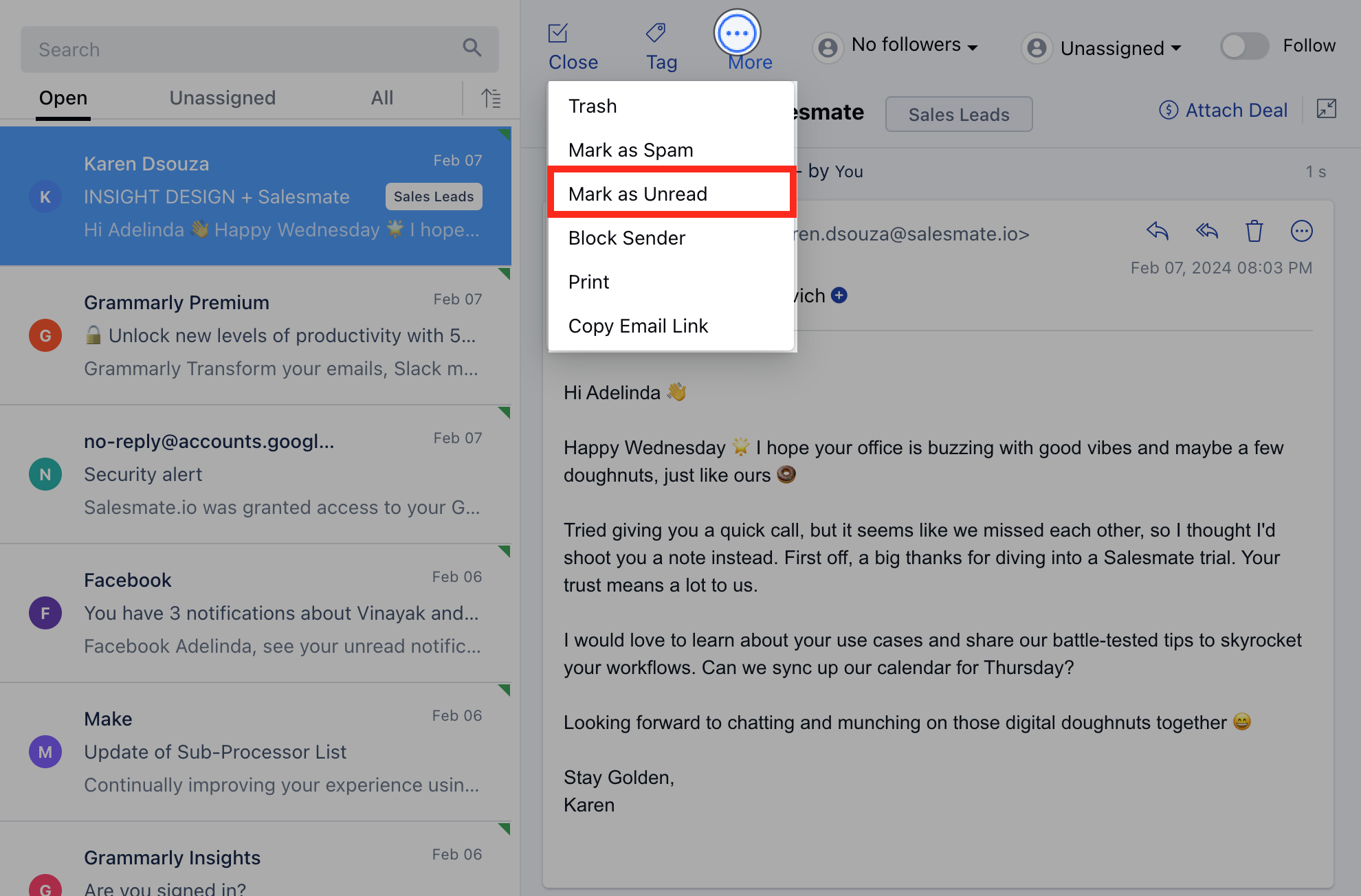
Mark as Unread Click on **More.
- **Click on Mark as Unread As soon as you mark your conversation as unread, the number of emails unread in the team inbox increases.
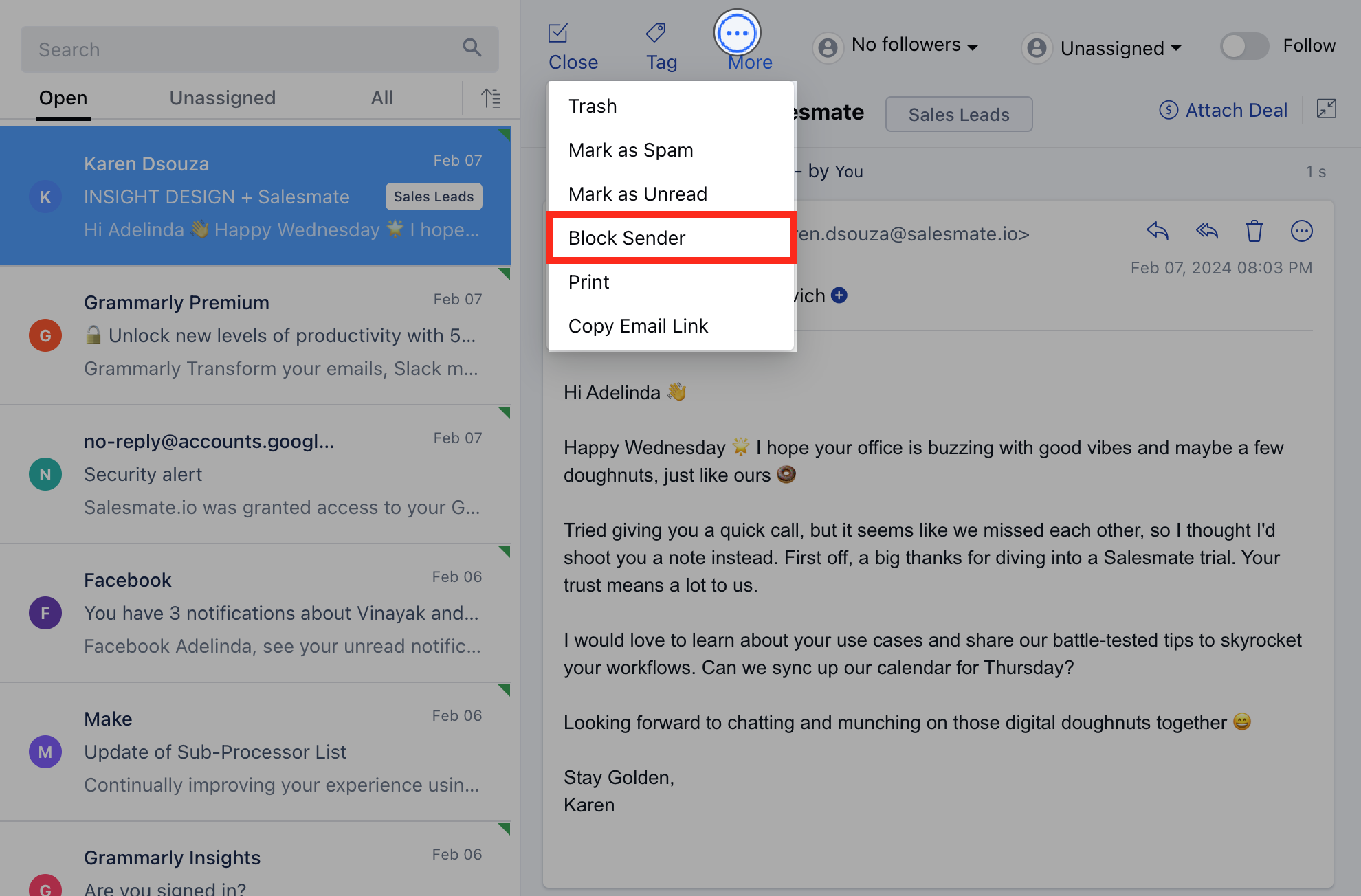
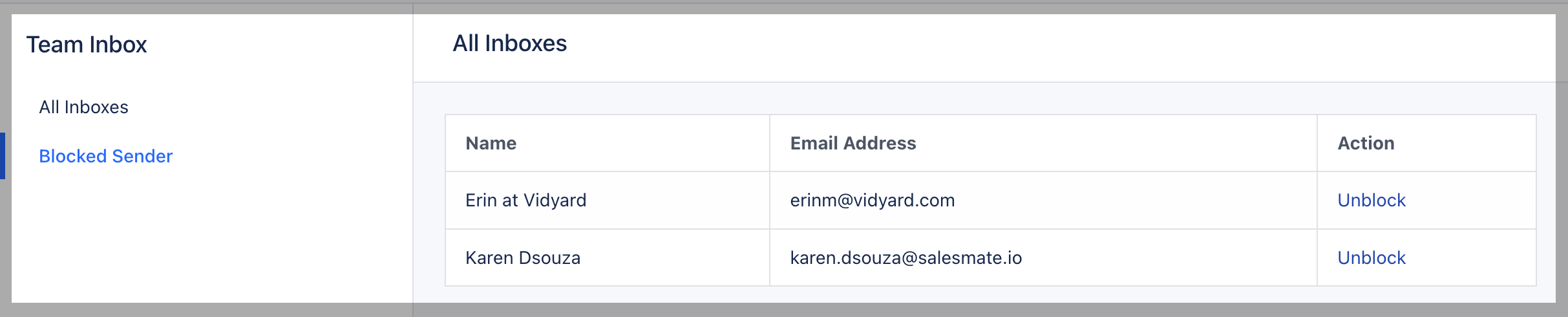
Block/Unblock Email Sender Click on **More.
- **Click on Block Sender If any email is marked as “Blocked Sender” then all the emails coming from that user will not land inside Salesmate.Salesmate will simply reject those emails.
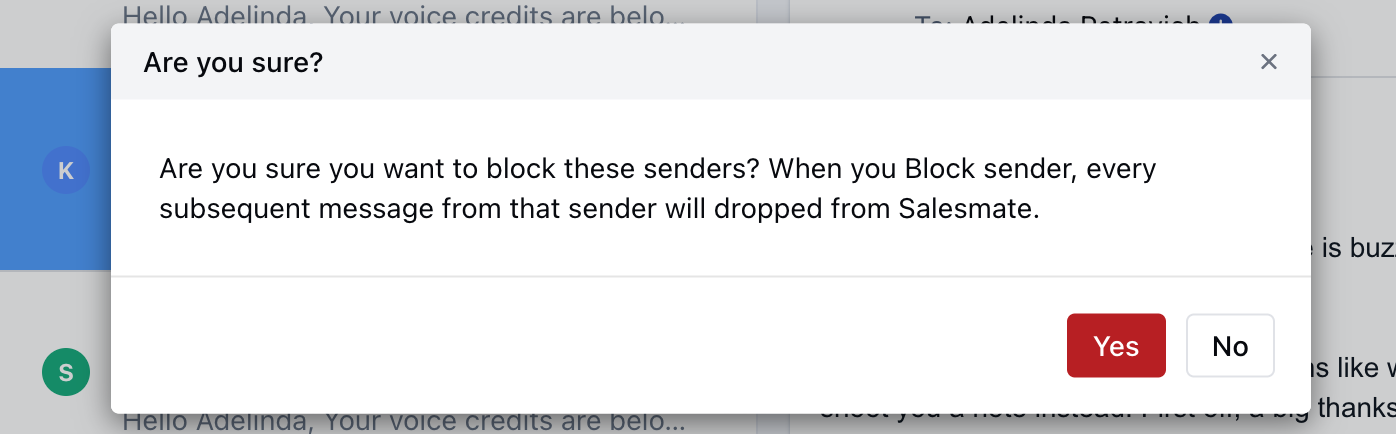
- **From the list, you can Unblock the senders again.On unblocking any sender, the old emails will not be fetched back which have been rejected by Salesmate.It will start fetching the new emails only after the unblocking operation is performed.
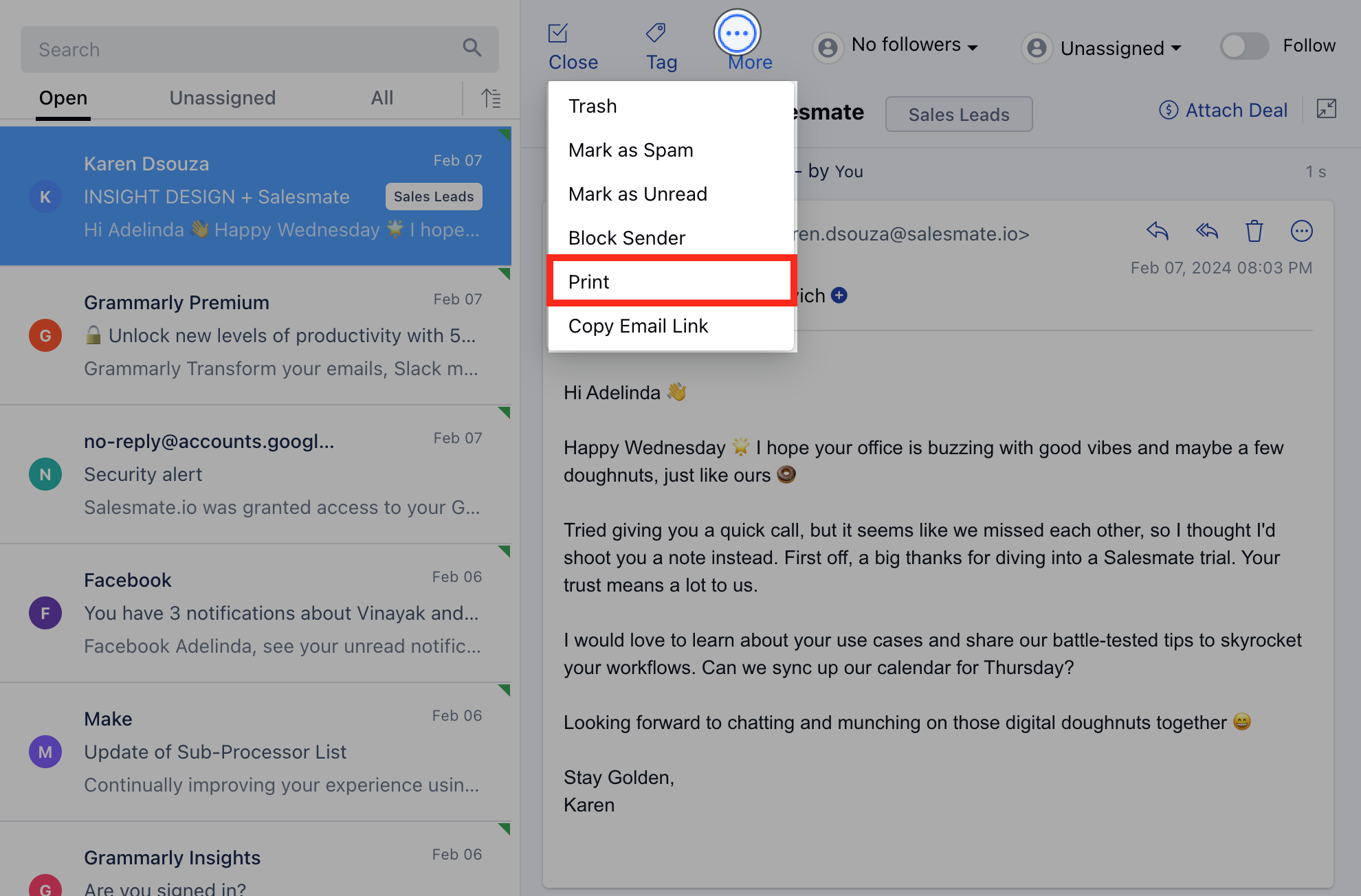
Print Conversation Click on **More.
- **Click on Print Using this you can print your respective conversation.
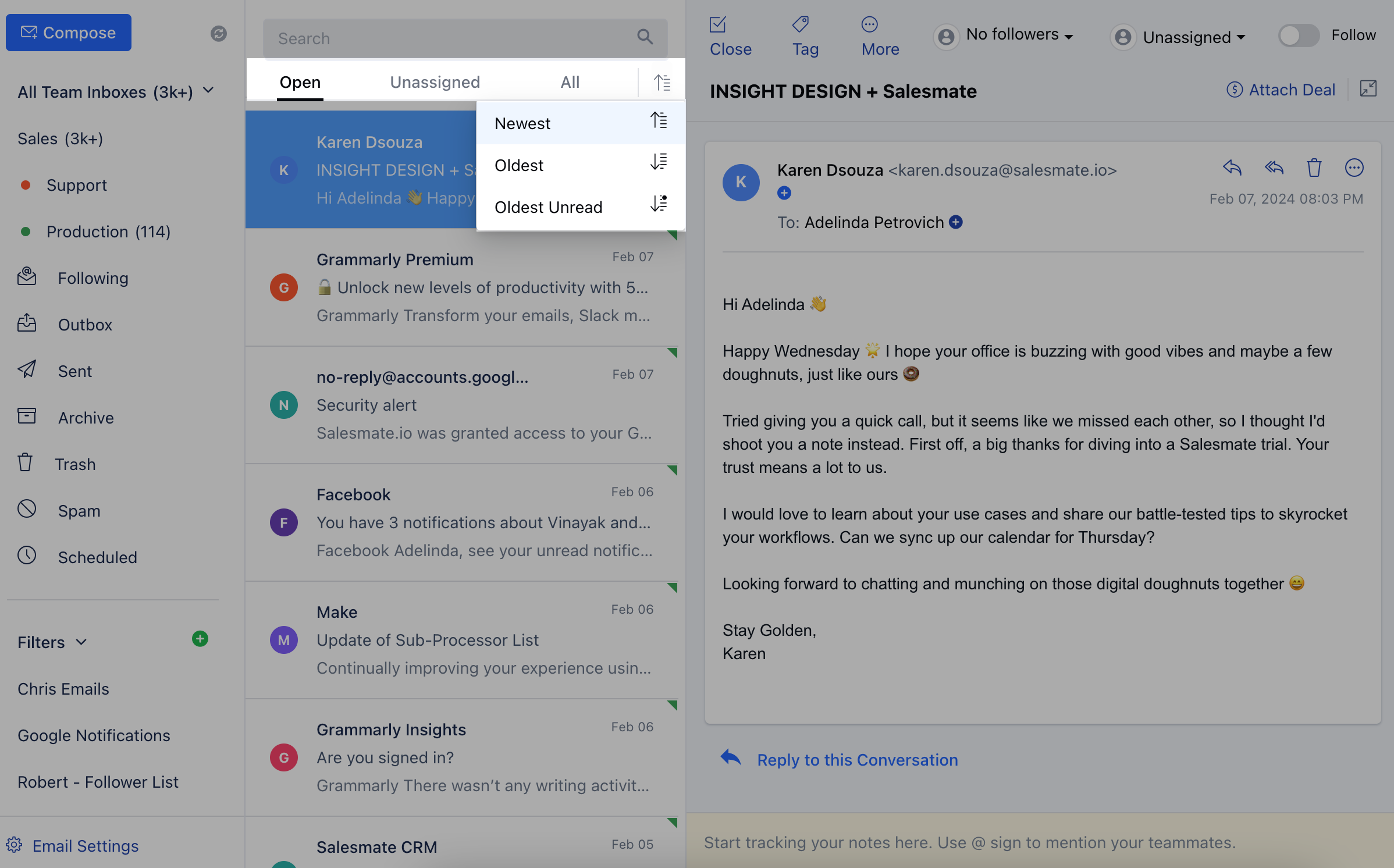
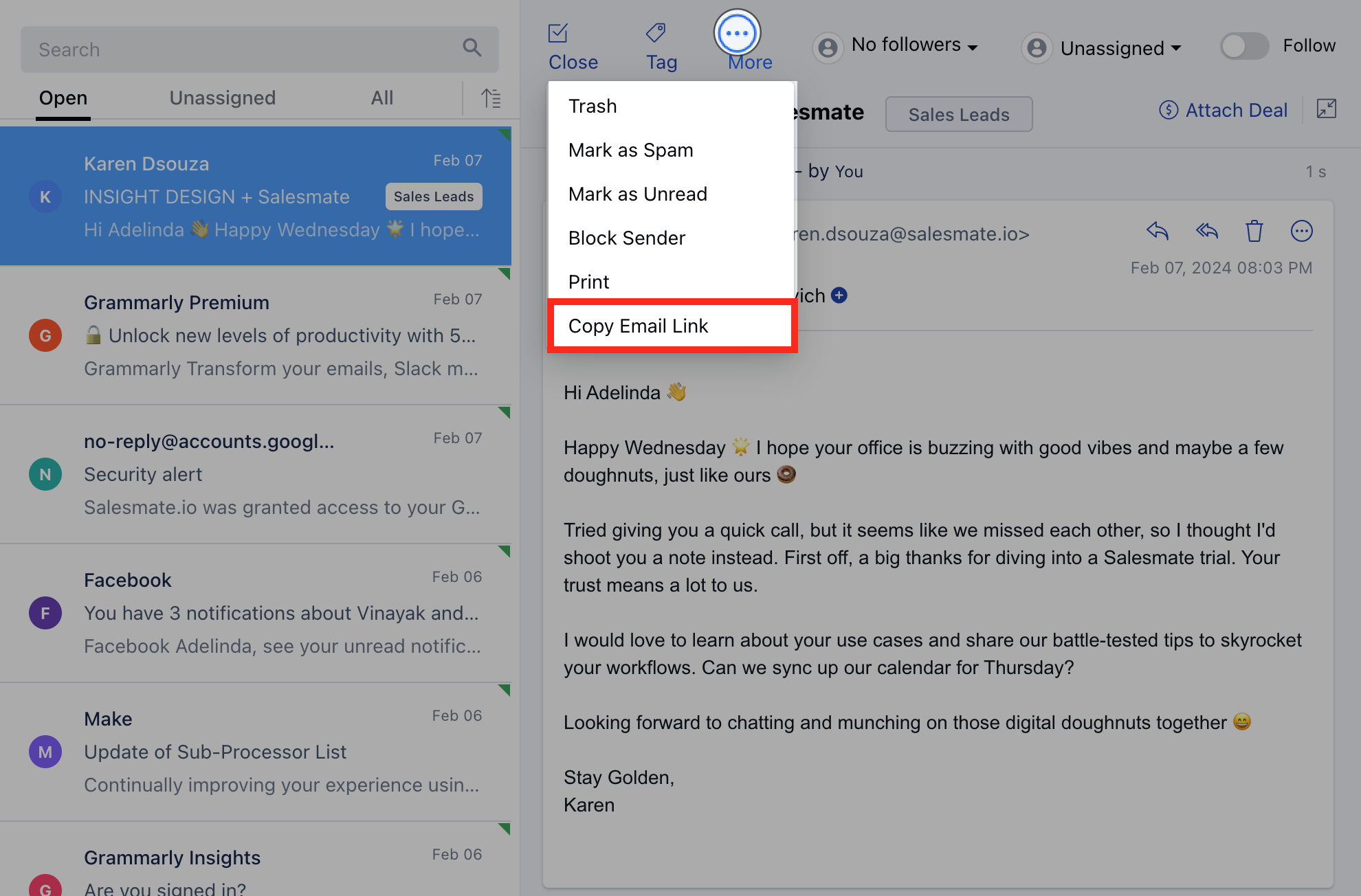
Copy Email Link Click on MoreClick on the Copy Email Link.You can copy a direct link to this email by clicking this button, then you can paste the link and share it with your users so that they can access the email directly.
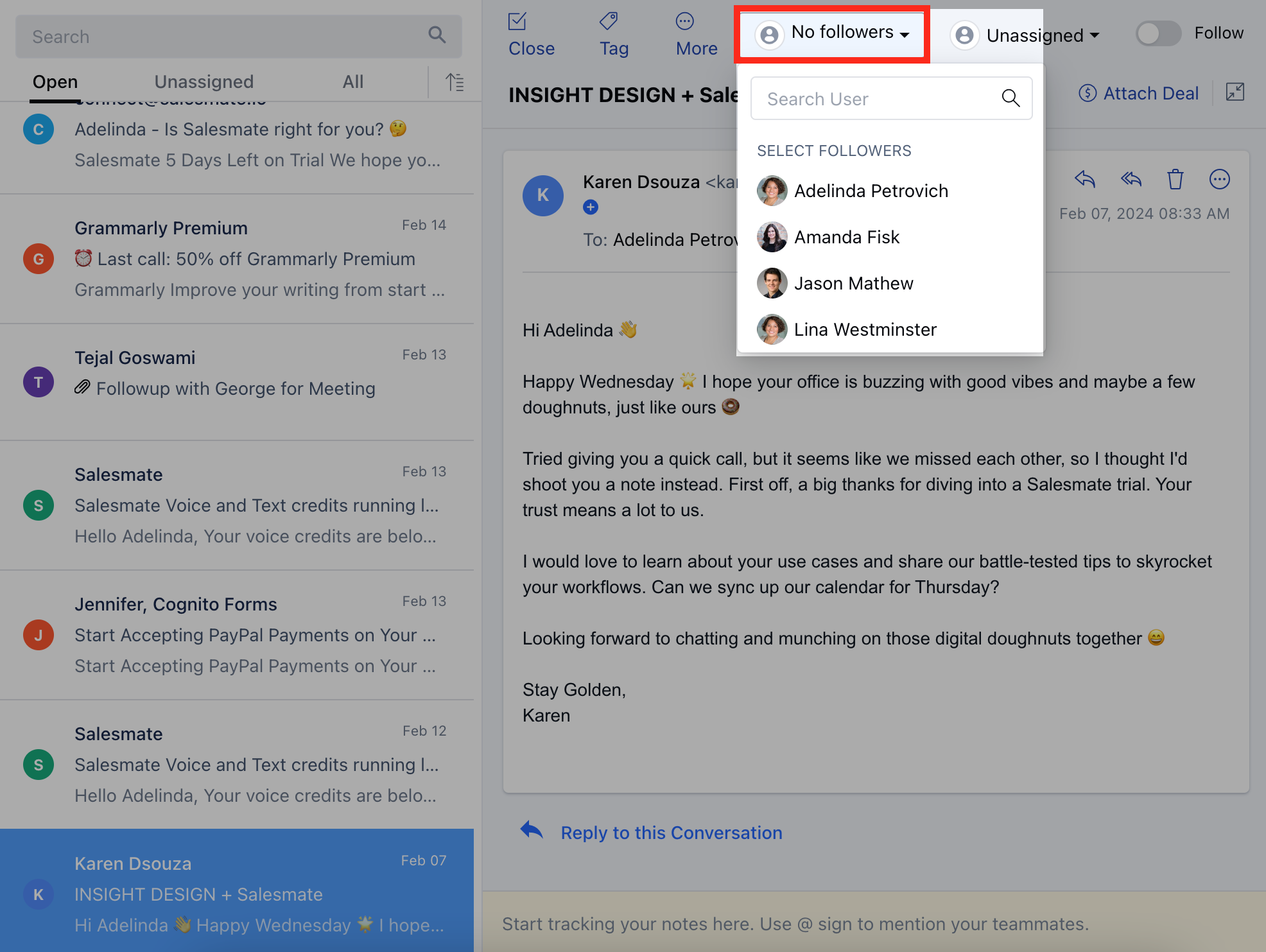
Followers You can select the users who should be following a particular email conversation.Click on the Followers icon as shown in the screenshot.Select the users who should be following the email conversation.
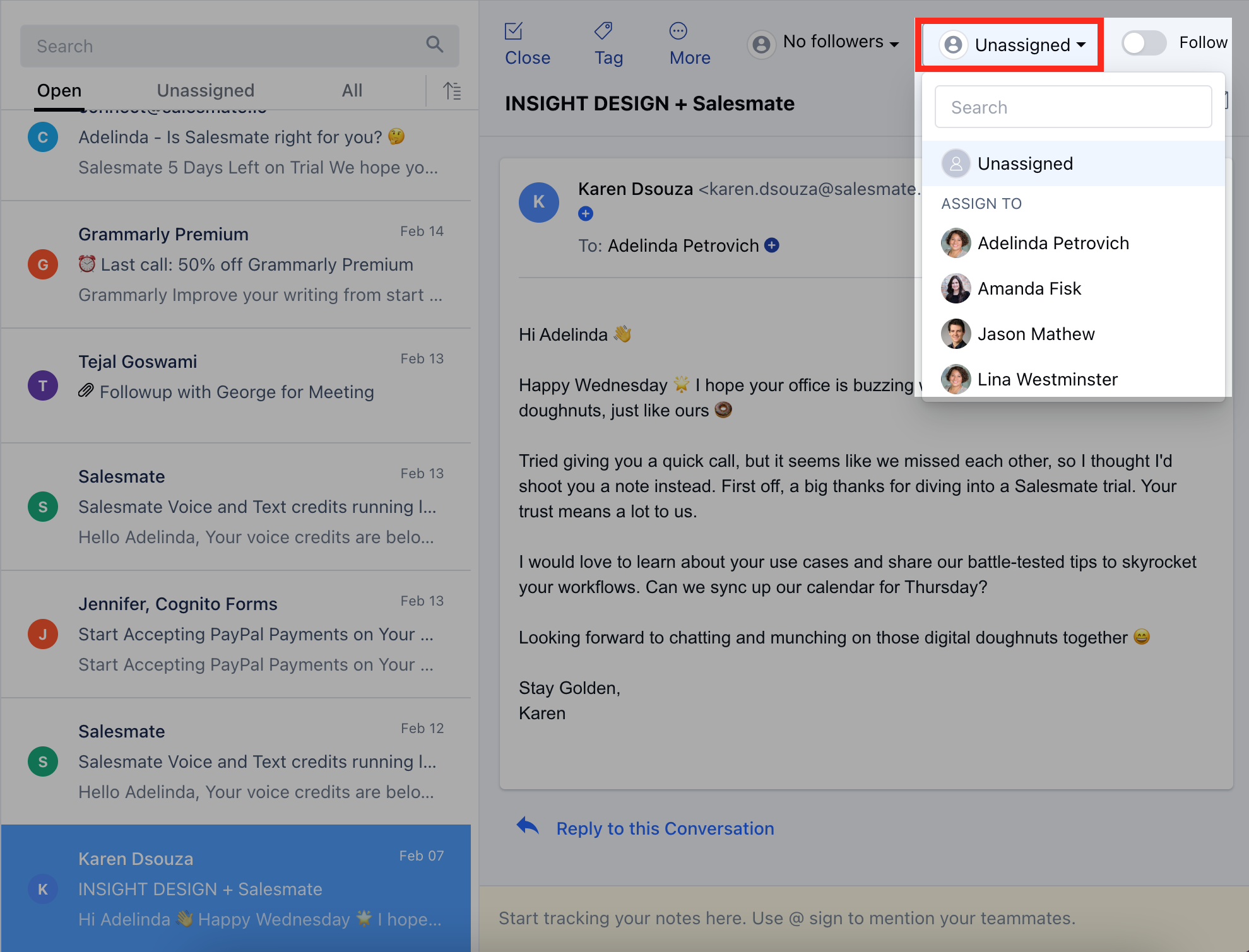
Assign Email Conversation to the User Email conversation can be assigned to a user to make sure who is responsible for responding to a particular email.You can assign an email to a user who is a part of the Salesmate workspace.
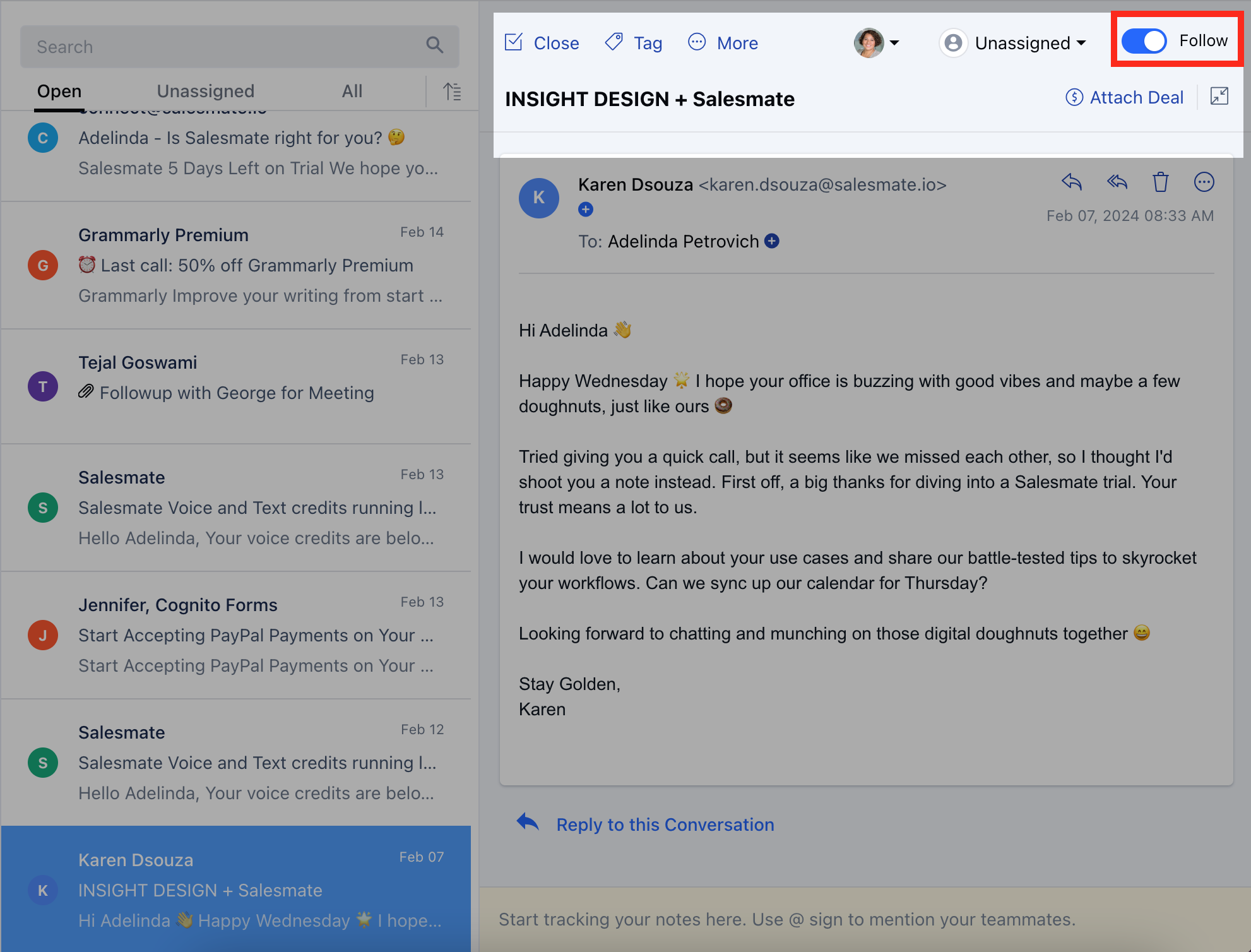
Follow/Unfollow Email Conversation A user can follow or unfollow the email by toggling the follow button.All the following conversations can be viewed inside the folder named **Following.
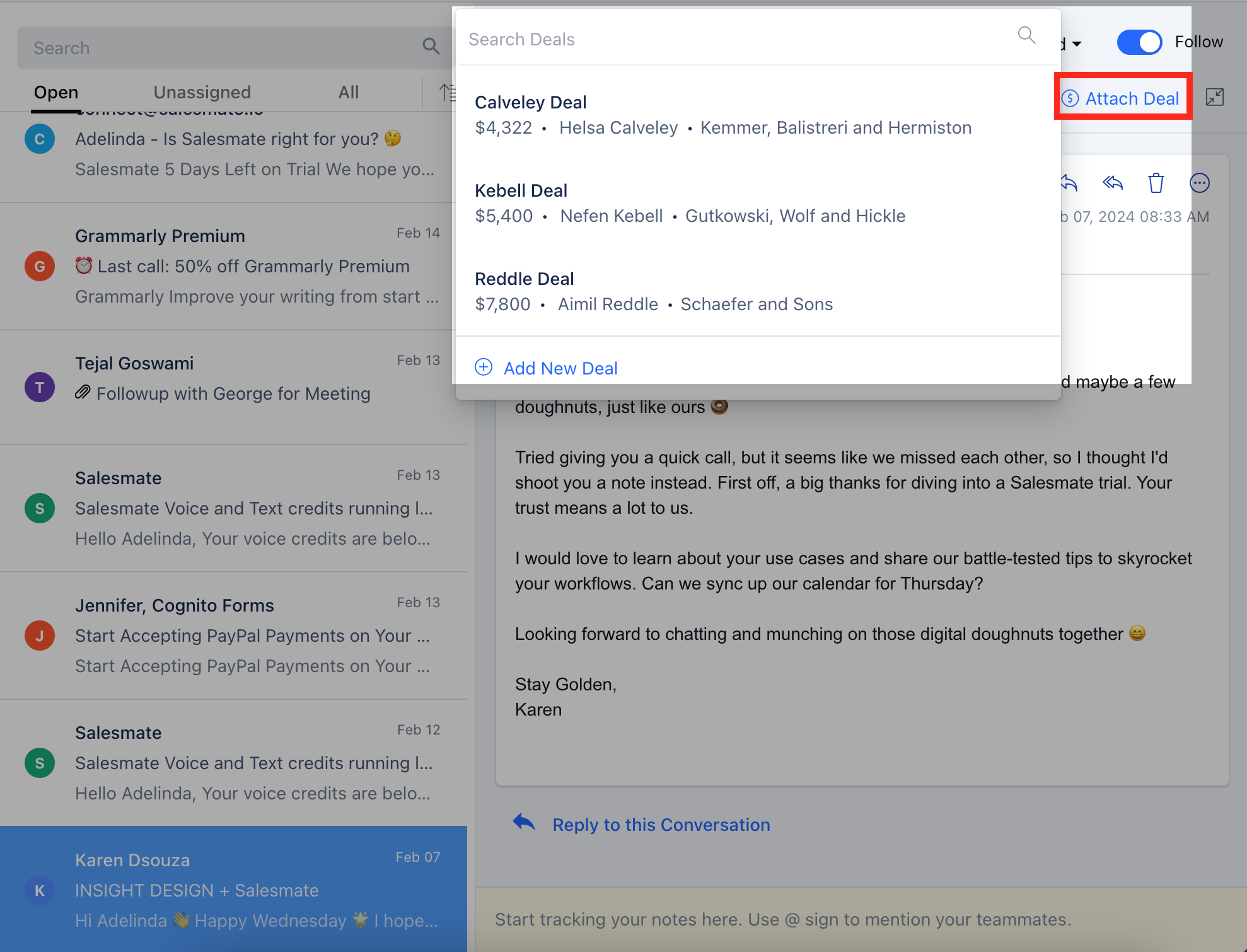
Attach Deal Click on **Attach Deal.
- **You can attach an already existing deal to an email.If you want to attach a new Deal, Click on **+ Add New Deal.
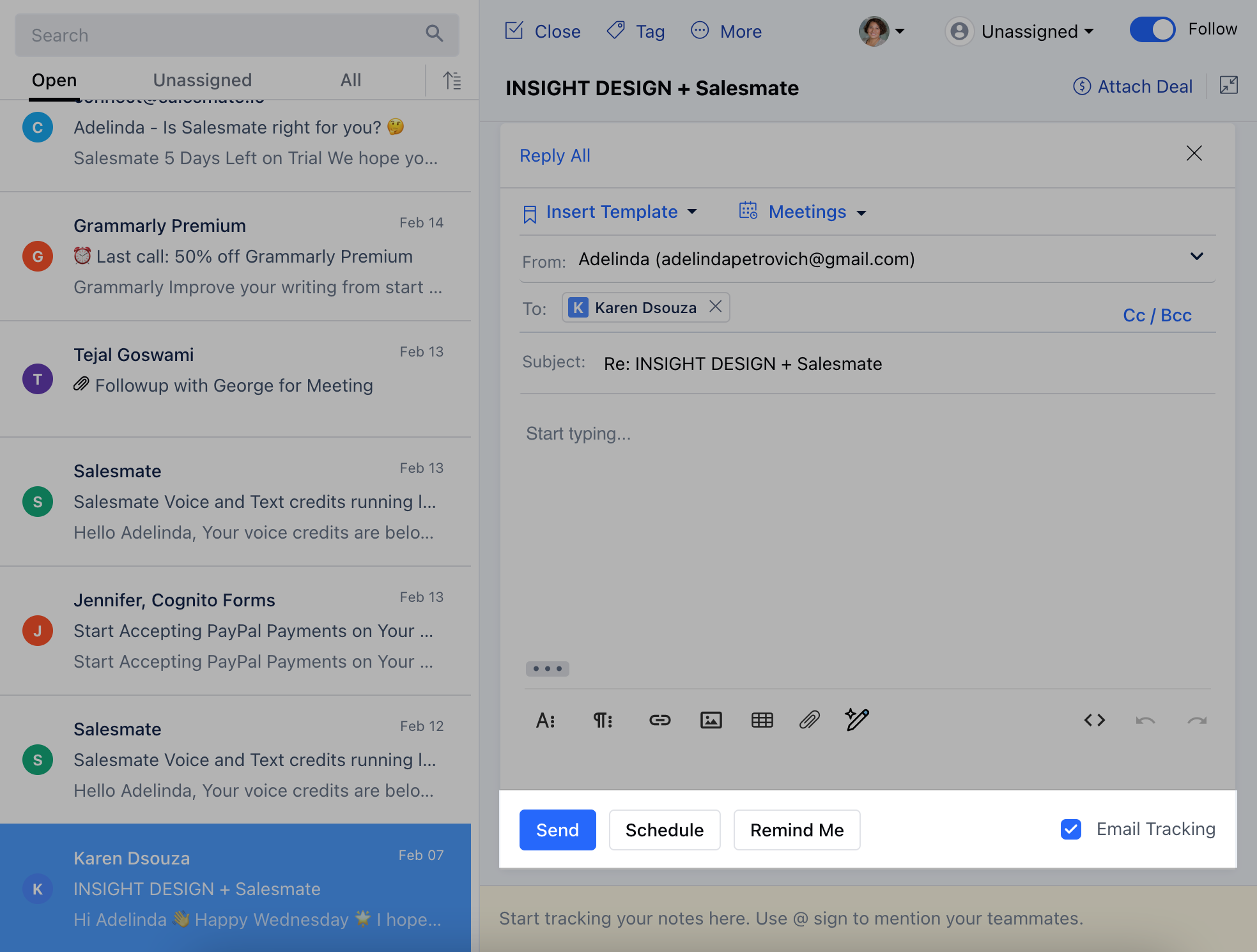
Reply to the Conversation You can reply to a particular conversation by clicking on **Reply to this Conversation.
- While replying to a particular conversation you also have the following options: Send **Schedule **Remind Me **
Add a note to the Email Conversation Users can post notes for particular emails/conversations.The users can edit or delete only their notes.In order to mention the Teammates use ”@” for internal conversation.
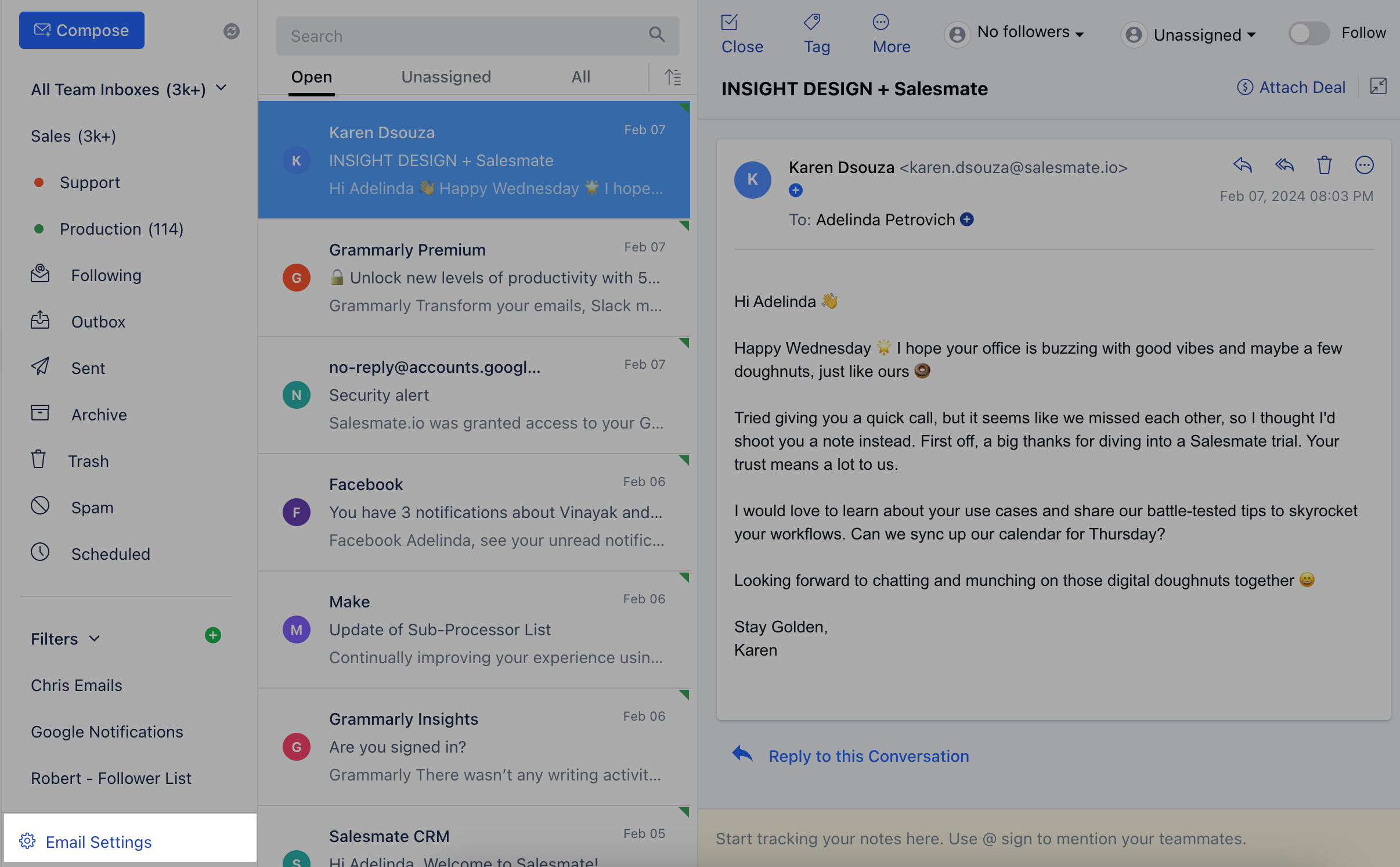
Multiple Selection You have an option of selecting multiple emails and performing the following operations:
DeleteMark as ReadMark as UnreadTagCloseAssignSelect AllSpamFollowUnfollowBlock Sender