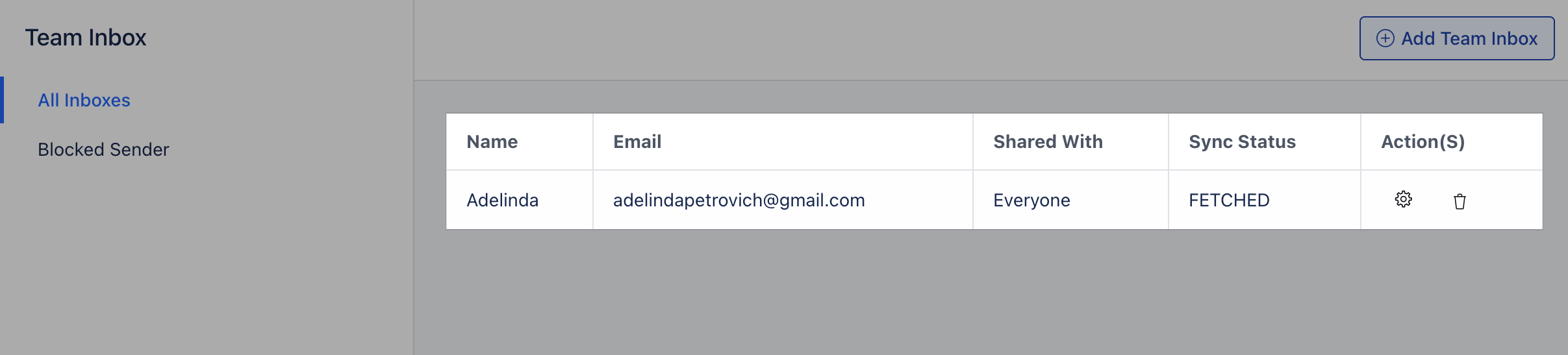
Team Inbox Note: Available in the Pro Plan and above.
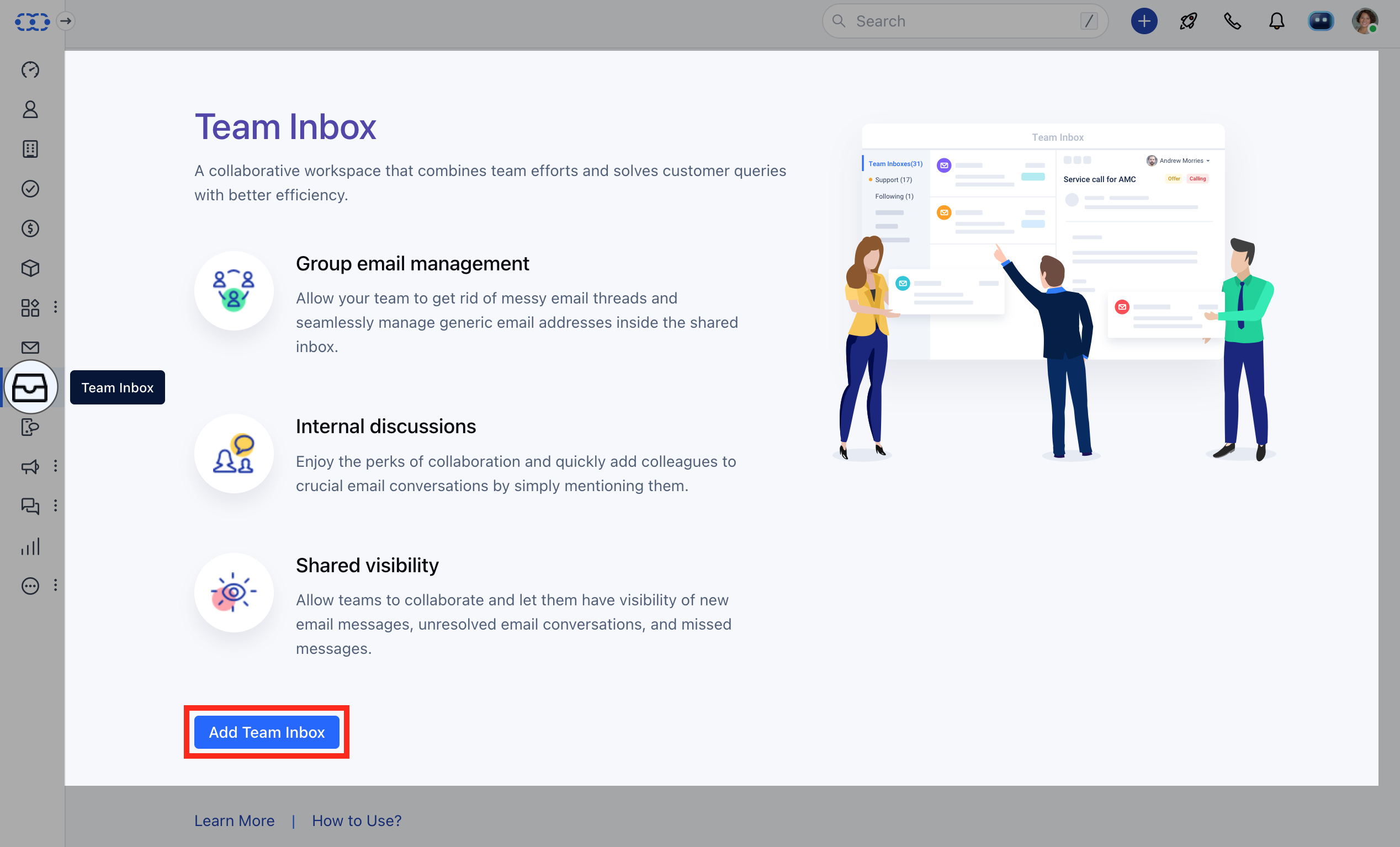
Navigate to Team Inbox under the **Left Menu Bar.- ** Click on the Add Team Inbox button.
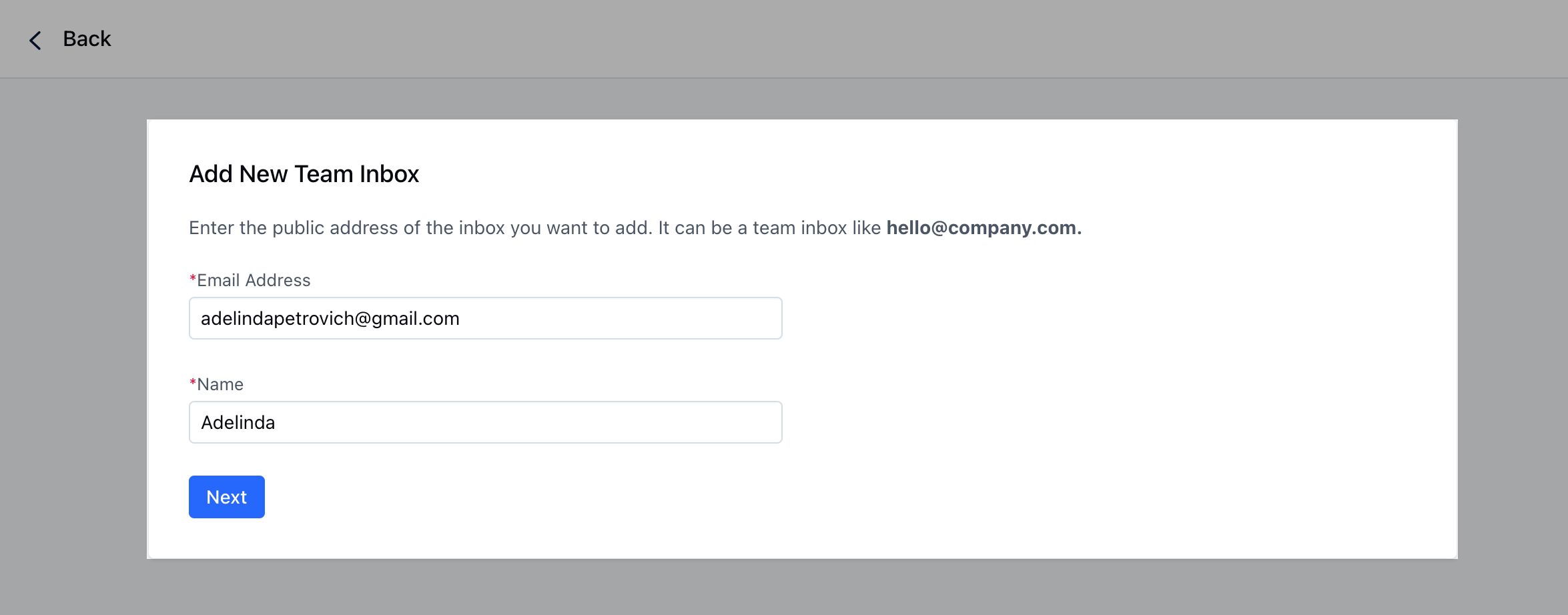
- Google Group: Forward your Google Group to your Team Inbox.
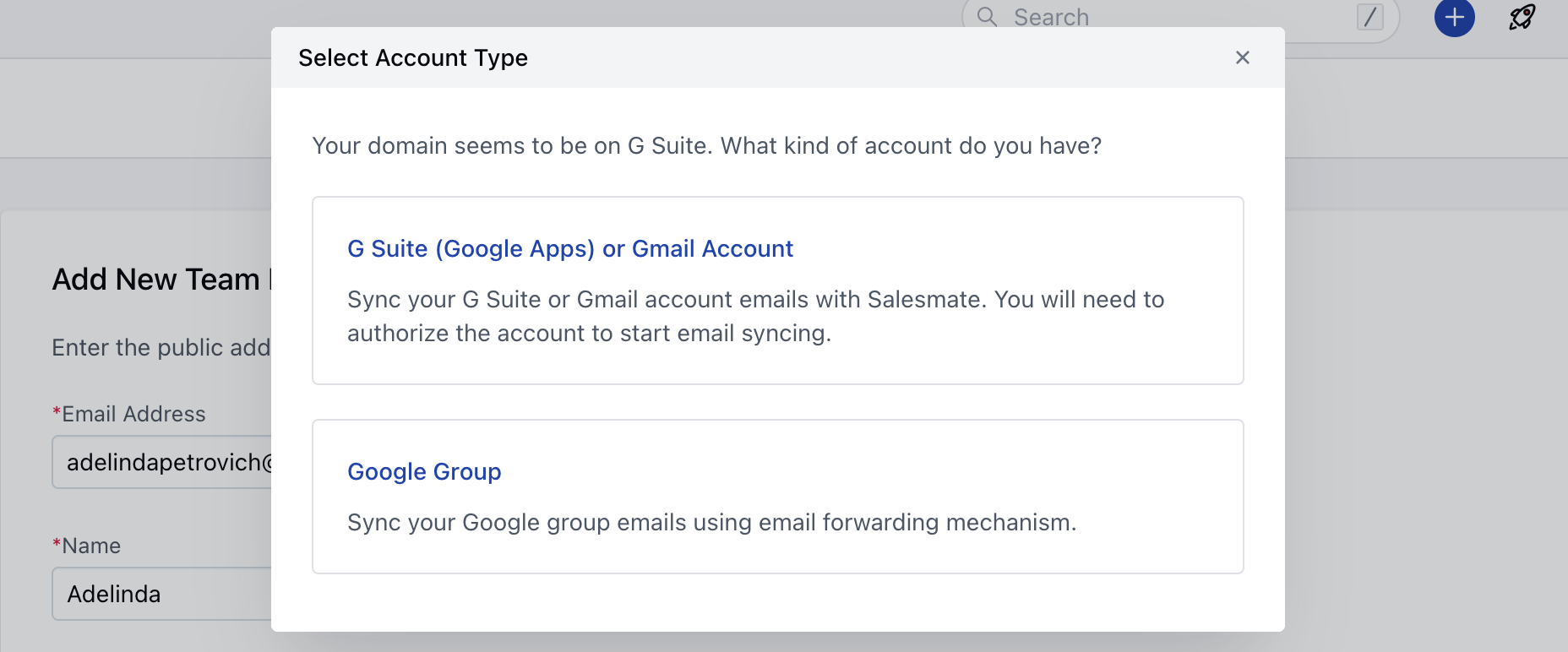
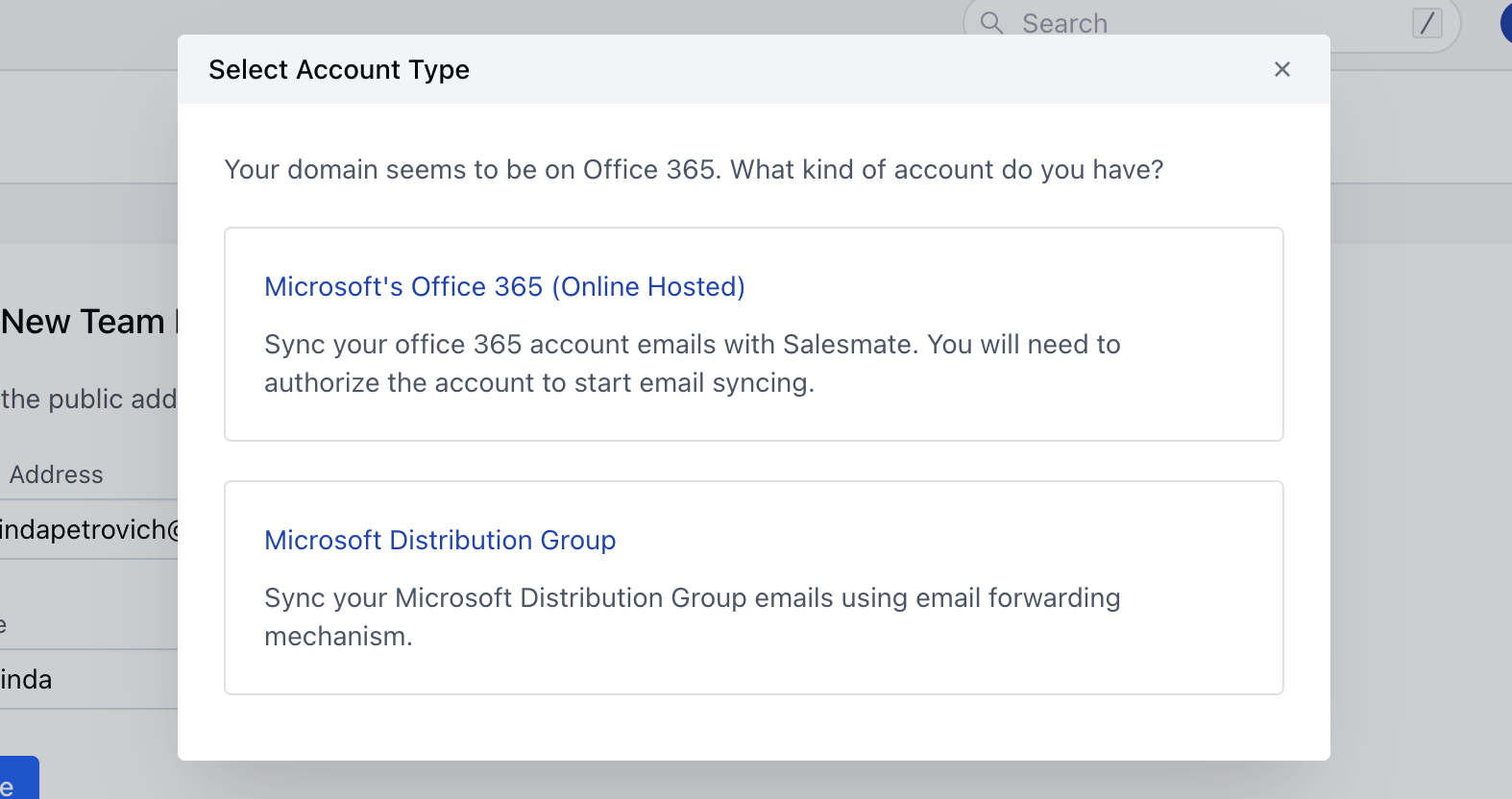
- Microsoft Distribution Group: Forward your Microsoft Distribution Group to your Team Inbox.
- **You will need to enter the forwarding address showing here in your custom SMTP.
- How to set up email forwarding.
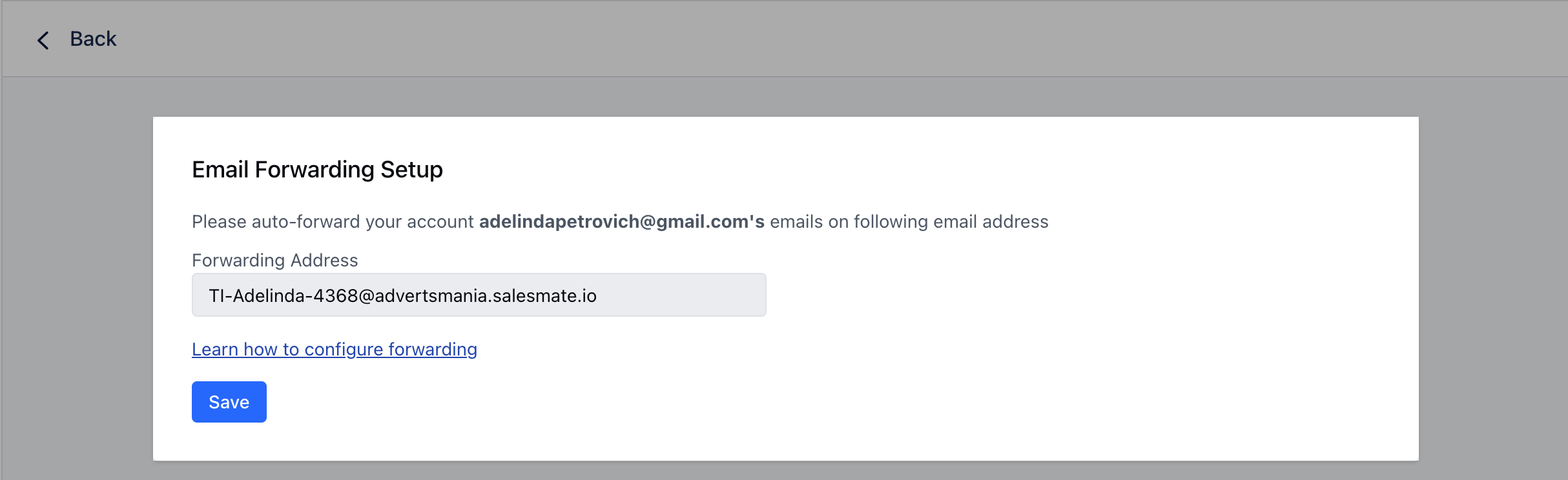
Custom SMTP-Forwarding Address
In the case of Forwarding, how to set up forwarding will depend on the email provider you are using. As an example, we have taken Yahoo to show the steps. Go to the **Settings.- **Click on More Settings. Click the primary Yahoo account.Go down and select Forward. Enter the forwarding address. Select Store and forward or Store and forward and mark as read.Click **Verify:**A verification email will be sent to the email address that you are using for forwarding.Click Save.

Configuring Team Inbox
Once you have selected the email address as G Suite or Gmail Account/Microsoft Office, you will be required to enter the email you want to sync to your team Inbox.Once the email address is entered, you will be asked:- How many old emails do you want to fetch inside to start with your team inbox?Choose an option from 30,60,90 or All days. Click on the Start button.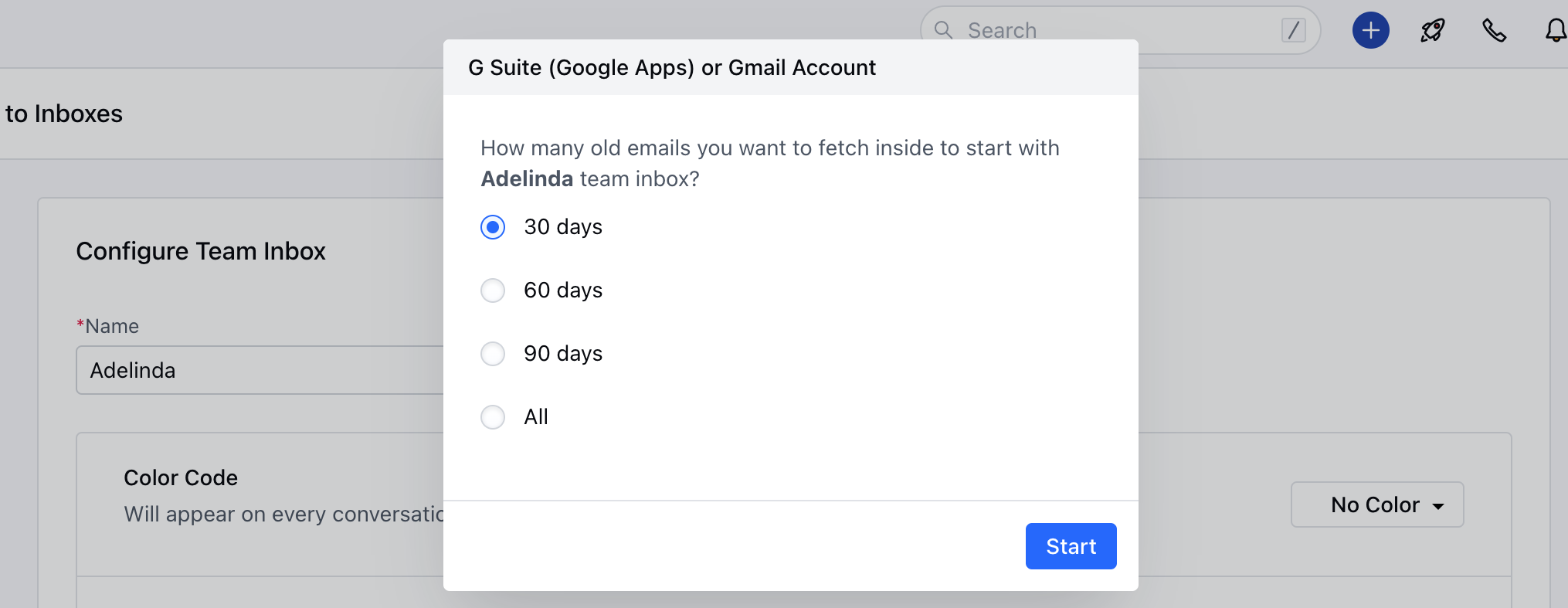
- Name: You can change the name of your team inbox from here.
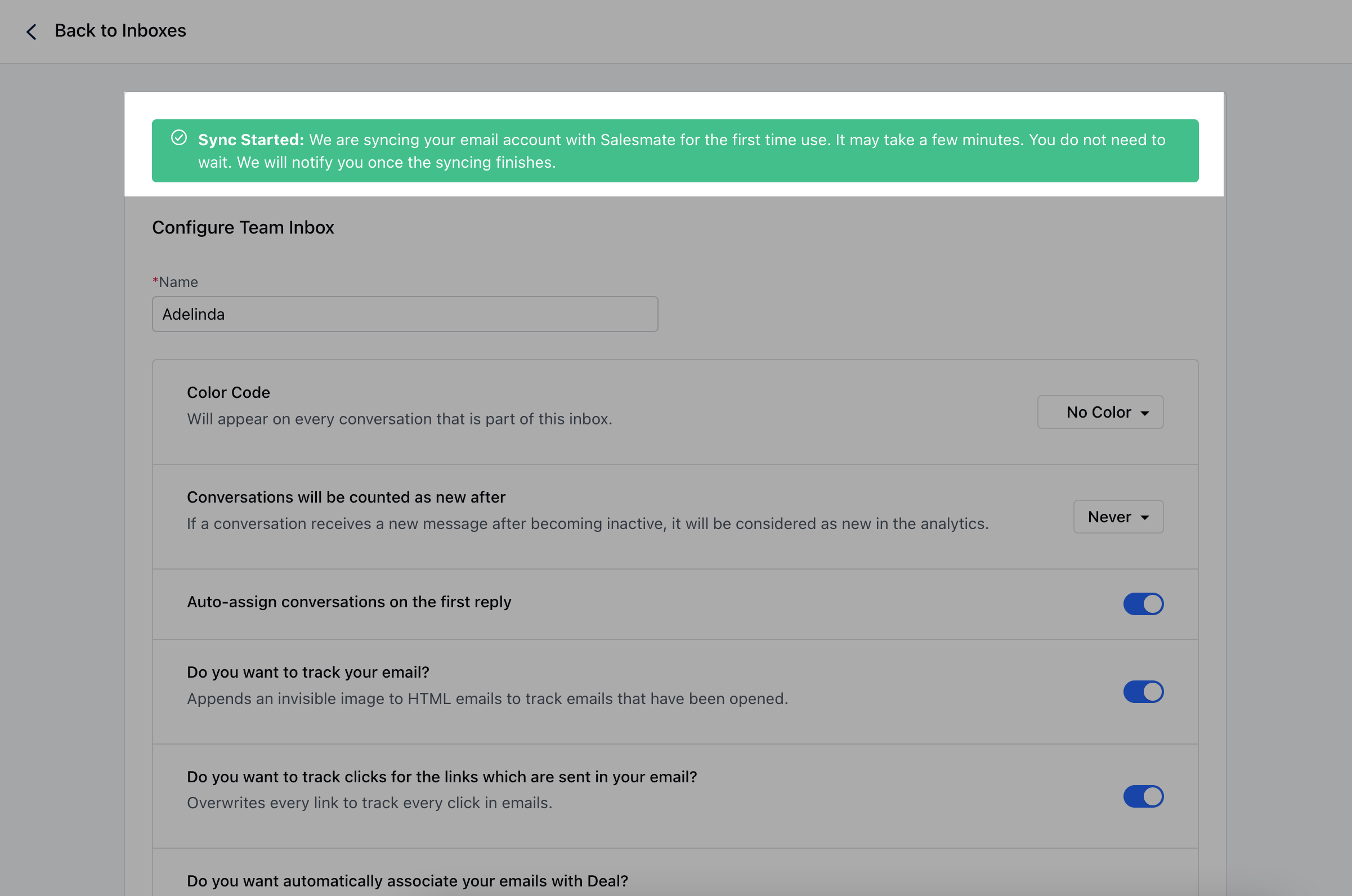
- Forwarding Email: This will be the current forwarding address (Appears only if you have selected Google Group or Microsoft Distribution Group or Others (Like Yahoo!)).
- Color Code: Colors will appear on every conversation that is part of the inbox. This is used for identifying emails with a glance.
- Conversations will be counted as new after: Whenever a conversation receives a mail after it has become inactive or if a reply is not sent within the selected period, then it will be considered as new in the analytics.
- Auto-assign conversations on the first reply: If this option is enabled, then anyone in the team who replies to that conversation first will auto-assign that conversation.
- **Do you want to track your email? :**It tracks the outgoing emails for open tracking and link tracking.
- **Do you want to track clicks for the links which are sent in your email? :**It overwrites every link to track every click in an email.
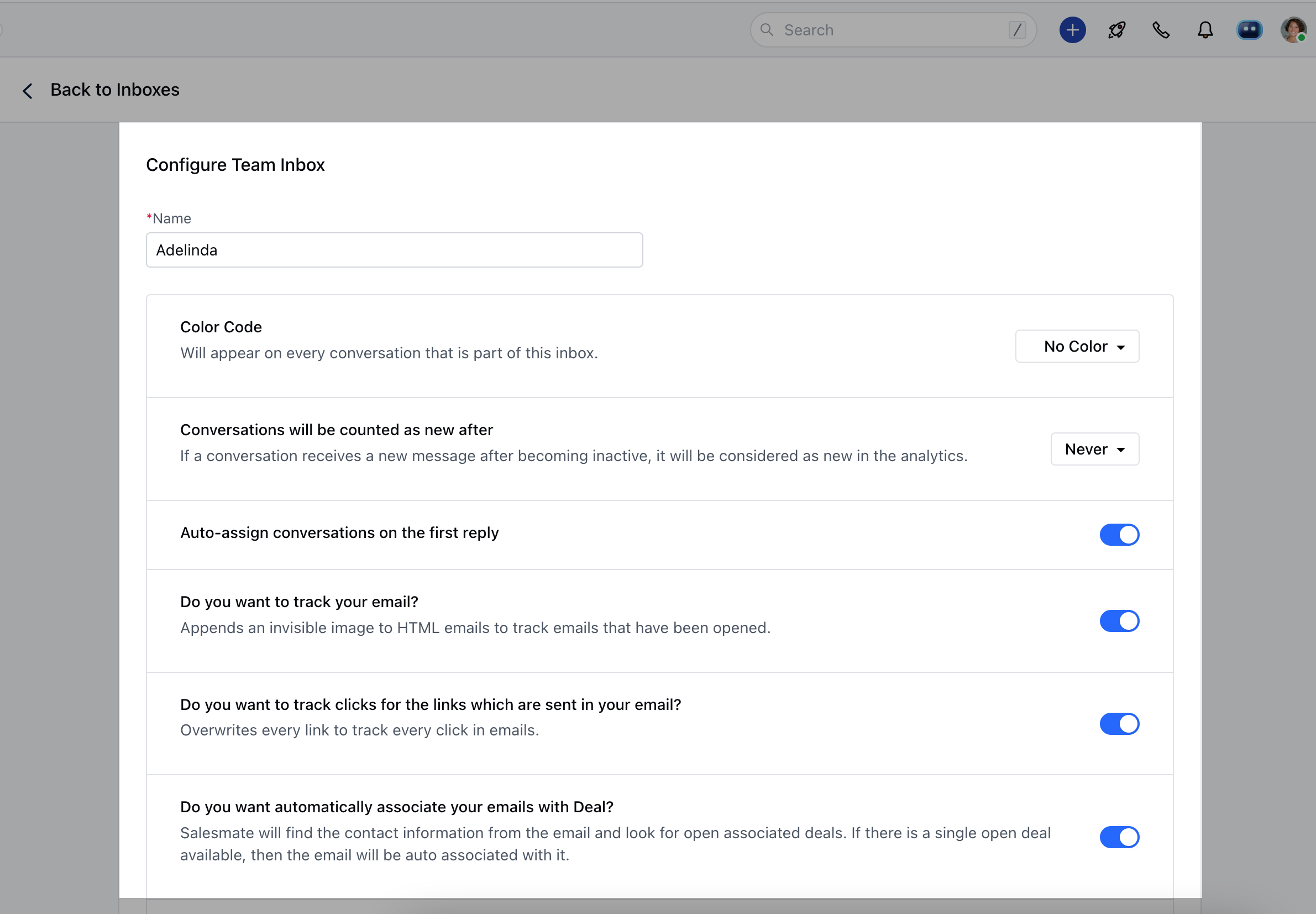
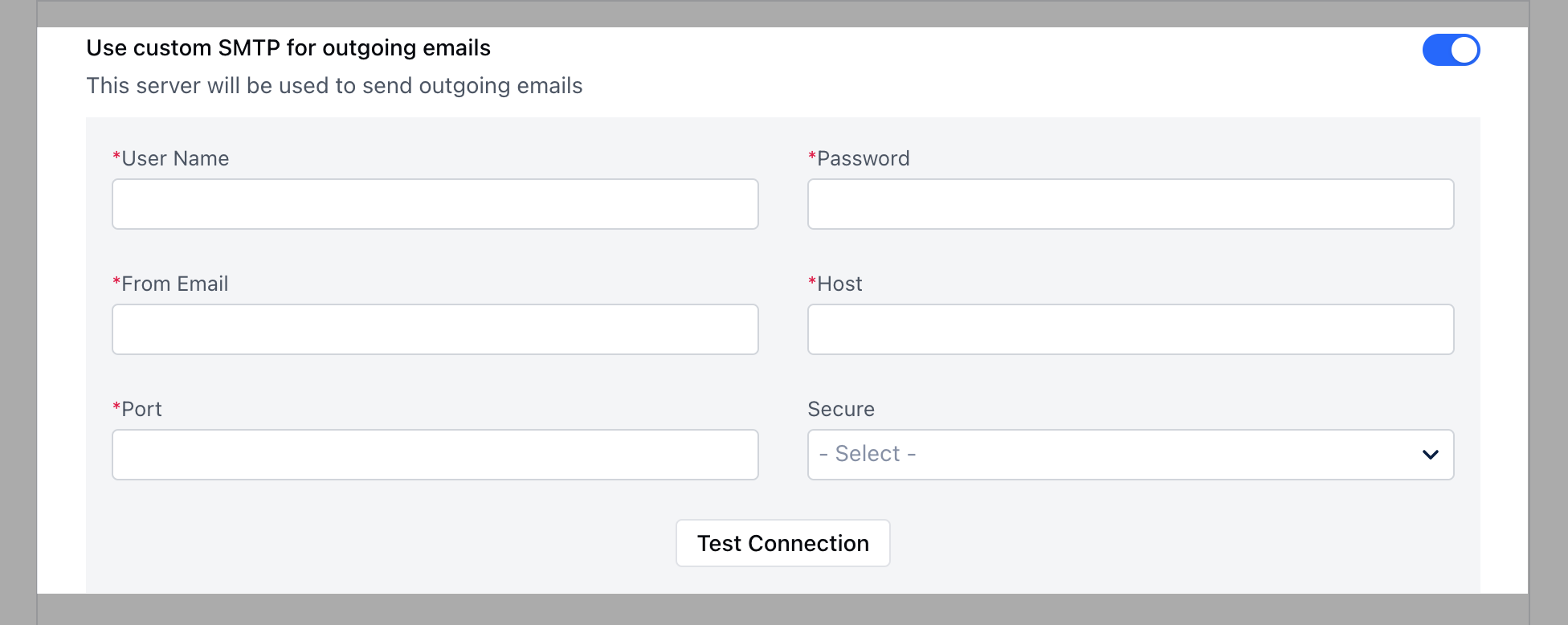
- Use custom SMTP for outgoing emails: Here you can connect your custom SMTP for outbound emails from Team Inbox.
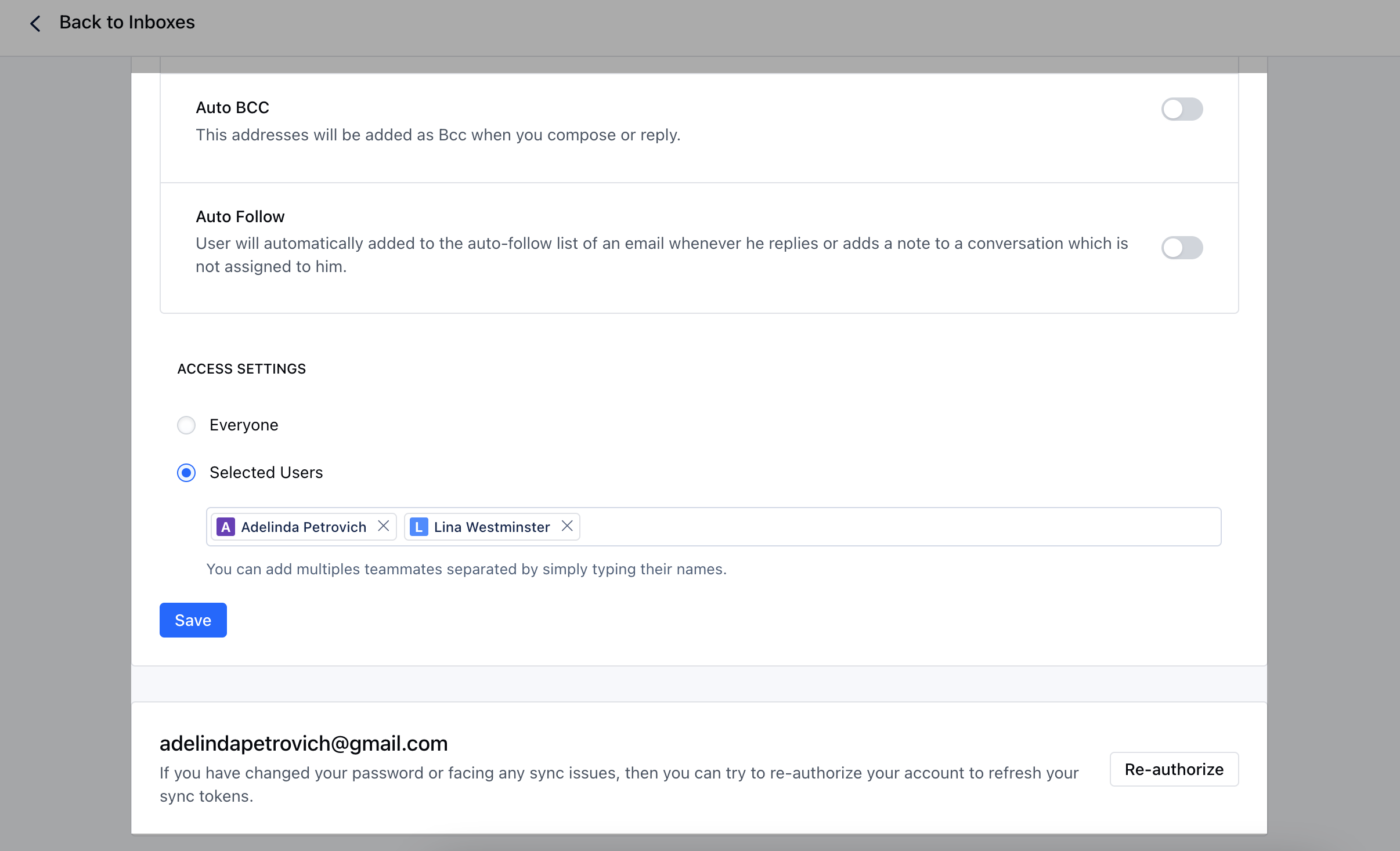
- Auto BCC: If this option is enabled then the user will be asked to provide multiple email addresses separated by semicolons, and each outgoing email will BCC that email to the email addresses mentioned.
- Auto Follow: The user will automatically be added to the auto-follow list of an email whenever he/she replies or adds a note to a conversation that is not assigned to them.
- Access Settings: You can share the team inbox with specific users or with everyone by changing the access settings.
- Everyone: Everyone in the company will be able to access the team inbox. They can also reply using the email address.
- **Selected Users:**You can enter the users who can access the team inbox. You can define multiple teammates separated by semicolons.