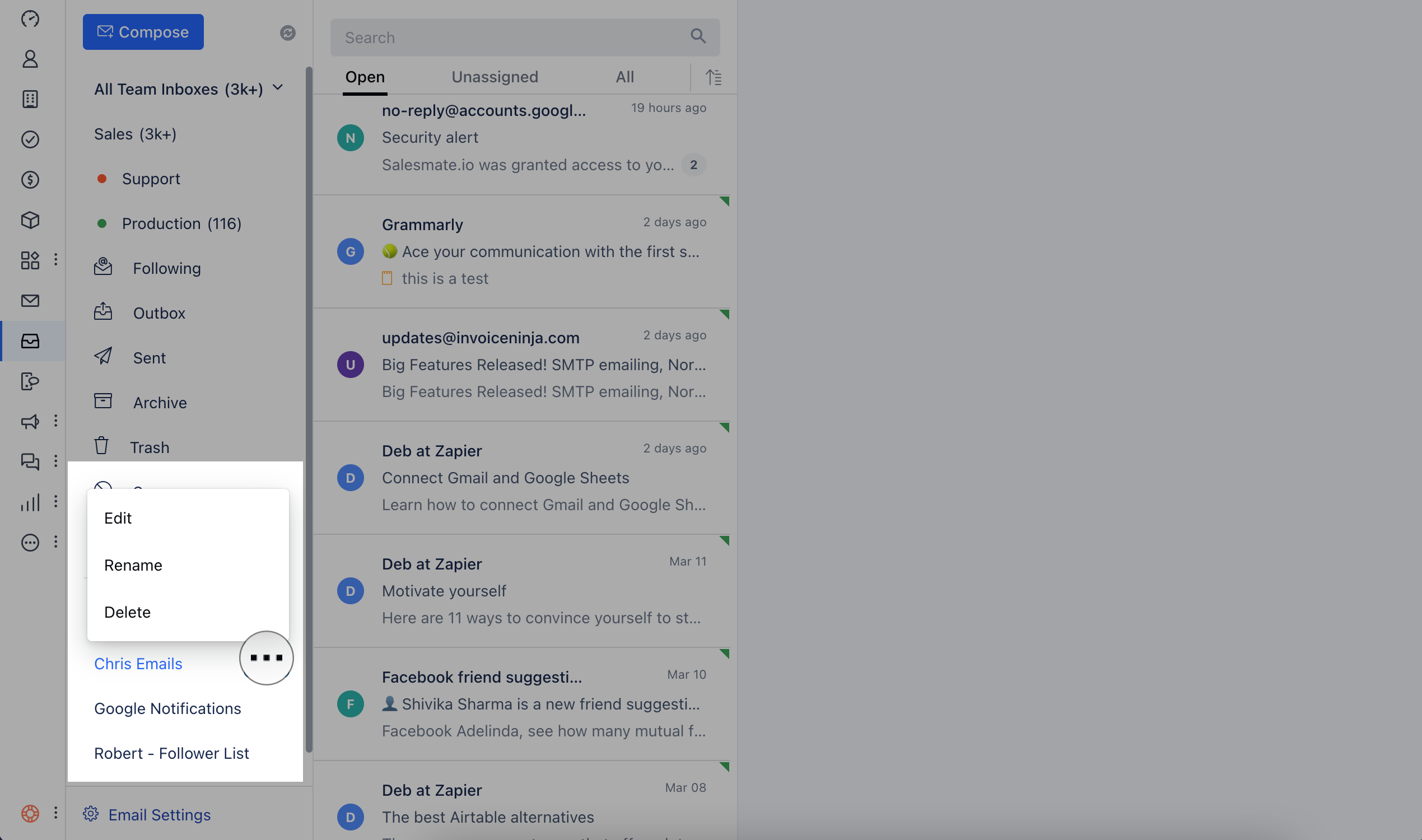
Steps to add filters: Navigate to Team Inbox under the **Left Menu Bar.
- ** Scroll to the footer of the Team Inbox MenuYou will find Label:Filters
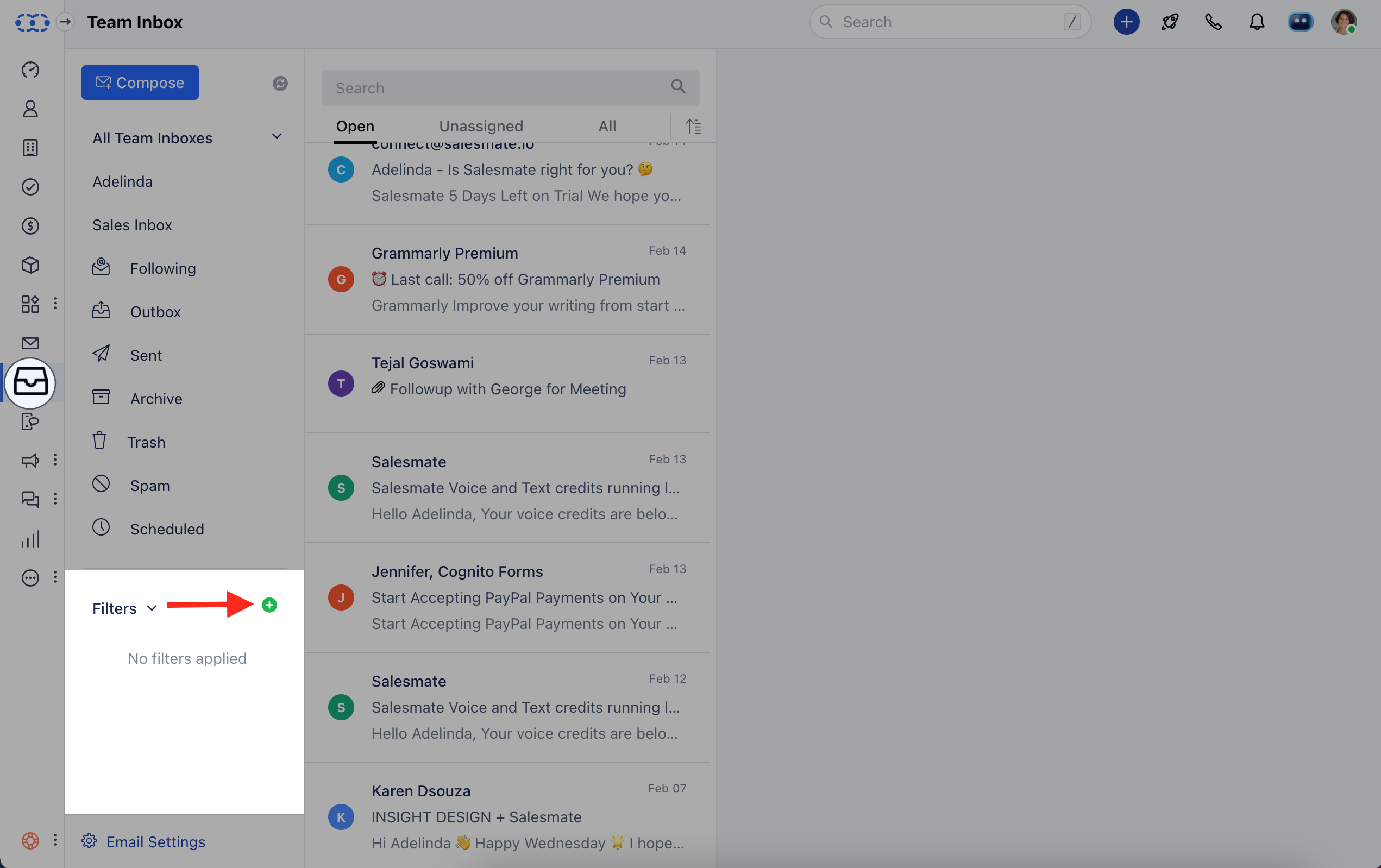
- Match all filters (AND)– filter emails that match “all” defined filter conditions.
- Match any filters (OR)– filter emails that match ”anyone” of the defined filter conditions.Click on “Add Filter”
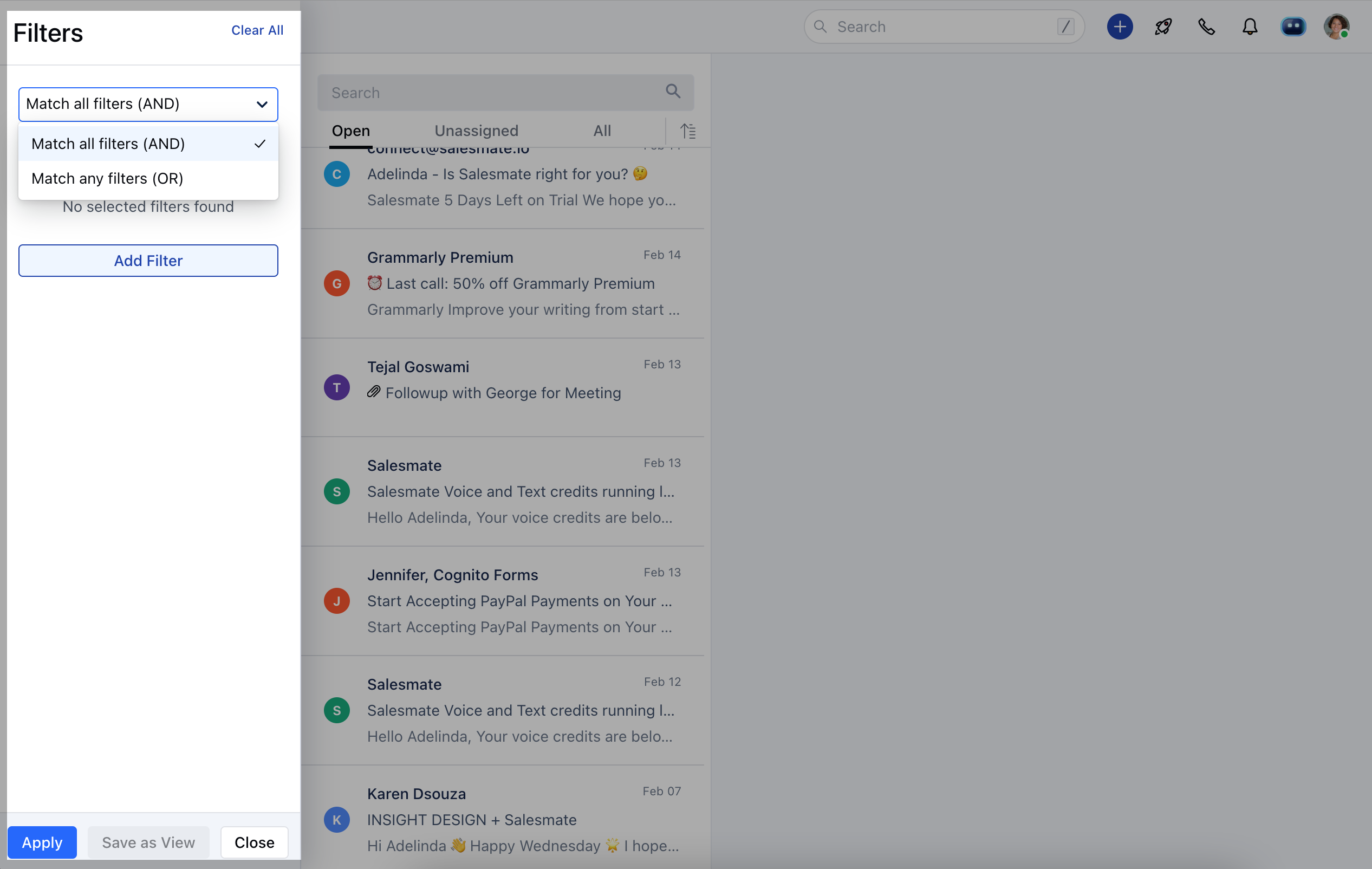
Fields on which filter can be applied:### ** INBOX Team Inbox (Sales, Support, etc.): It will show the list of Inboxes you have. For example, you can have two separate inboxes Sales and Support, and it will show both in the list.
The conditions available for this filter are as below:**Equals to **Not Equals to **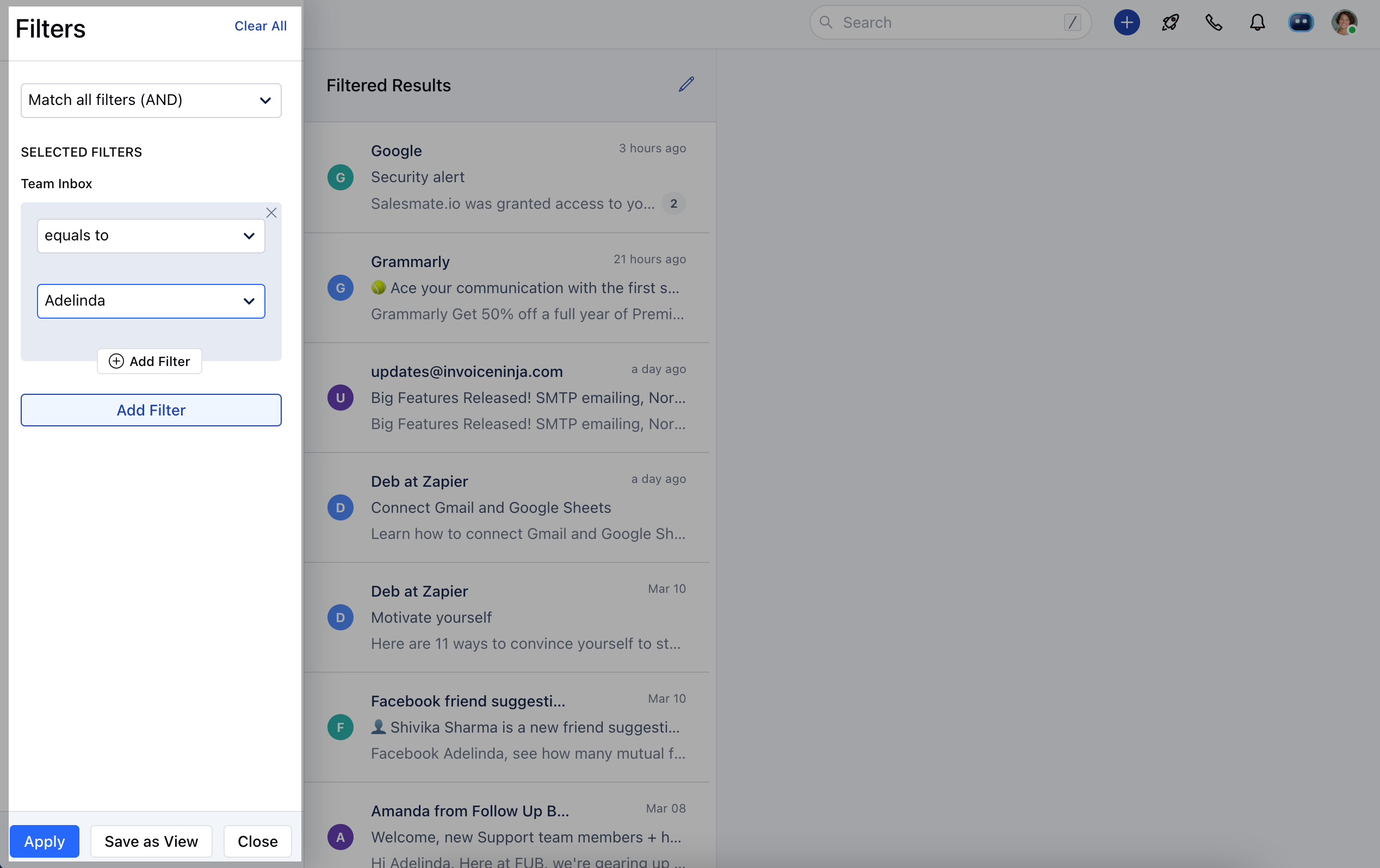
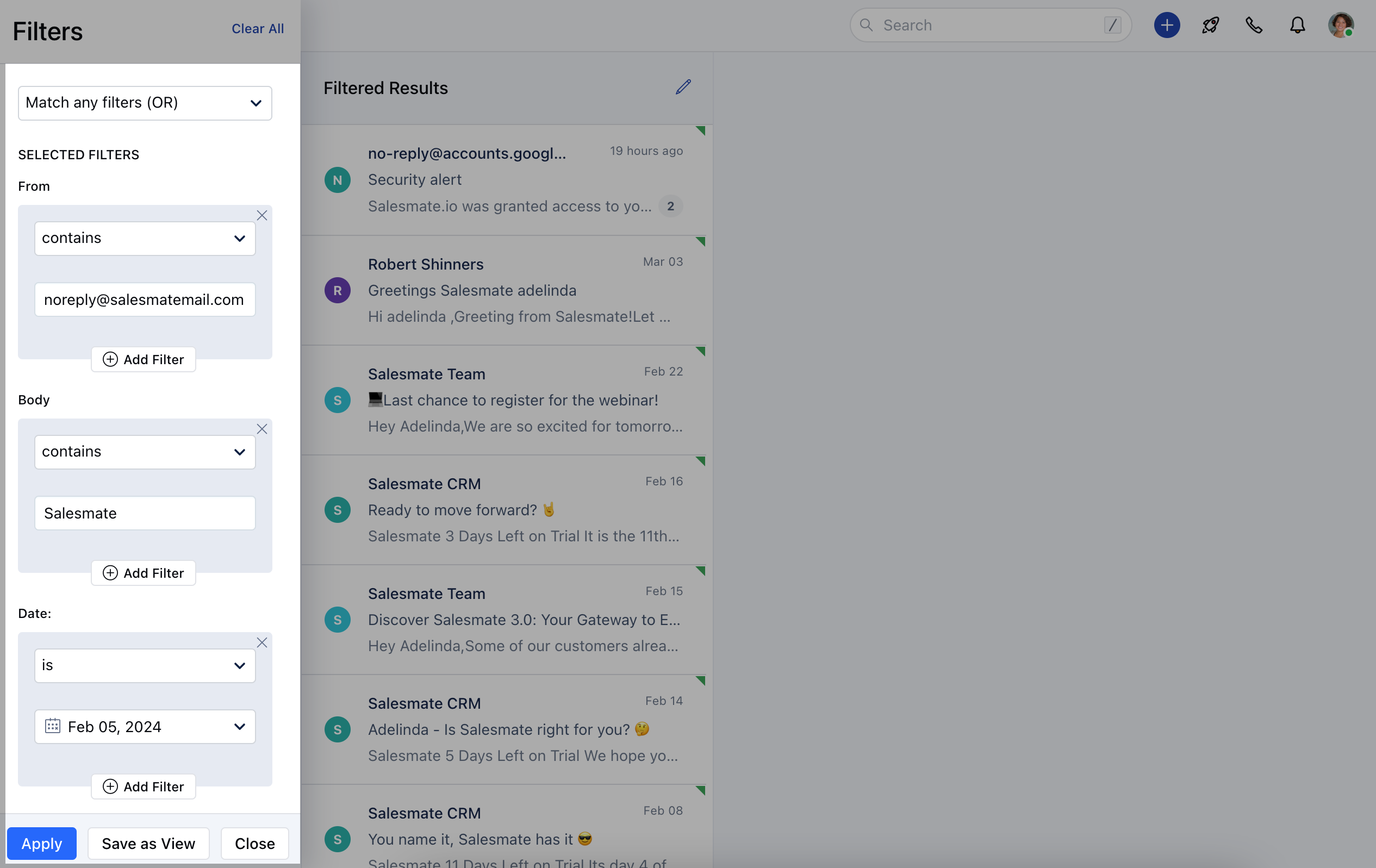
MESSAGES- Recipients: It will filter the conversation in which any of the emails gets matched in the fields From, To, CC, or Bcc.
- From: It will filter ‘the conversation in which any of the email’s “from” fields matches with the user-provided filter.
- To: It will filter the conversation in which any of the email’s “to“fields match with the user-provided filter.
- Cc: It will filter the conversation in which any of the email’s “cc” fields matches with the user-provided filter.
- **Bcc:**It will filter the conversation in which any of the email’s “bcc” fields matches with the user-provided filter.
- Subject: It will filter the conversation in which any of the email’s “subject” fields matches with the user-provided filter. The conditions available for the above filter are as below: containsequals tostarts withends withis emptyis not empty Body: It will filter the conversation in which any of the email’s “body” fields matches with the user-provided filter. The conditions available for the Body filter are as below: contains Date: It will filter the conversations in which email is sent or received on the date filtered by the user. The conditions available for the Date filter are as below: isis beforeis aftertodaytomorrowyesterdaycurrent monthlast monthcurrent weeklast weekmore thanexactlyless than
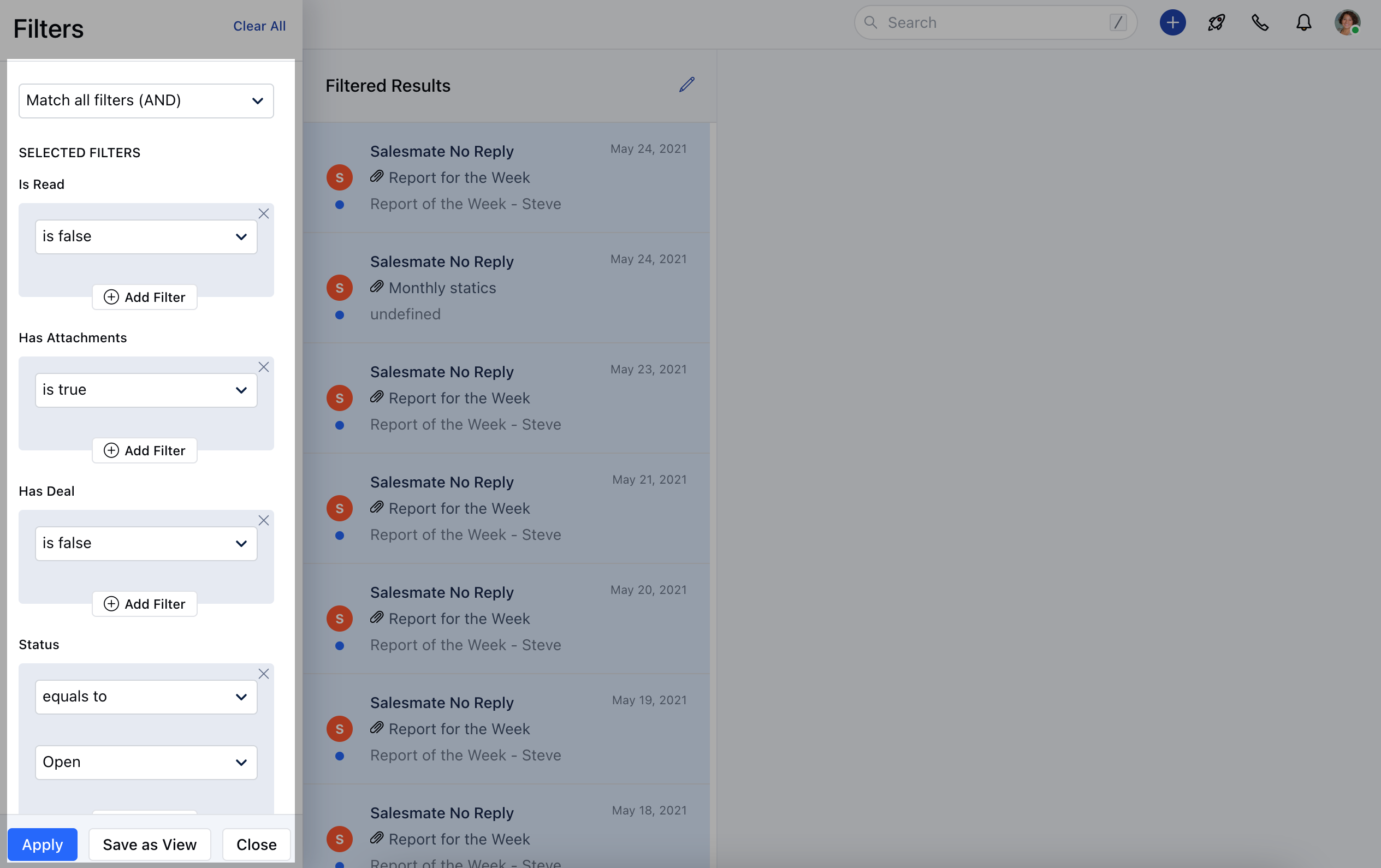
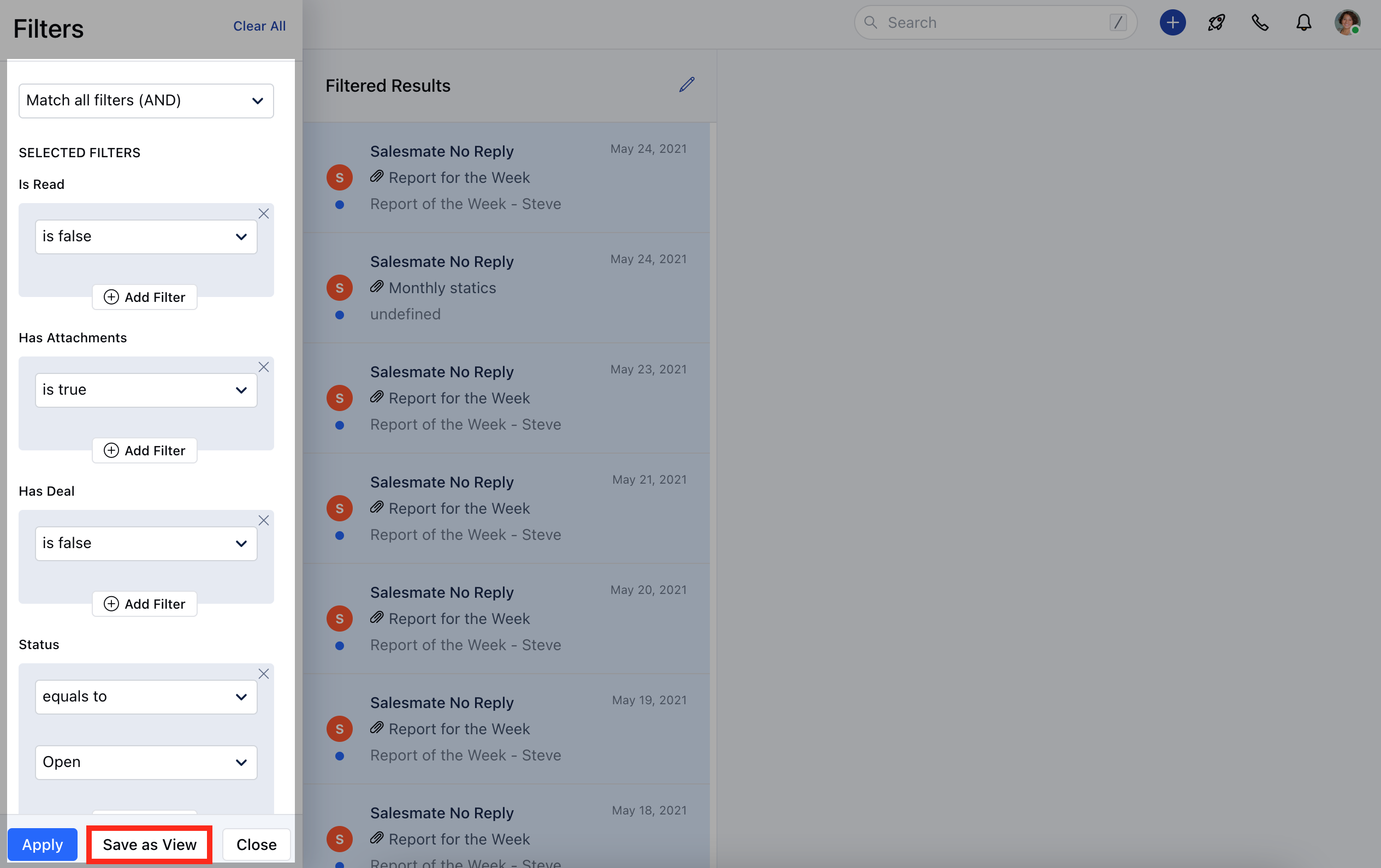
** PROPERTIES Is Read: It will fetch the conversations that are read/unread for the user.
- Has Attachments: It will fetch the conversation in which any single email is having Attachment or none of the emails has an attachment based on the filter applied.
- Has Deal: It will fetch the conversation which has the deal attached or not based on the filter applied by the user. The conditions available for the above filters are as below: is trueis false **Status:**You can filter the emails based on their status Open or Closed. The conditions available for this filter are as below: equals tonot equals to ** Tag **: It will filter the conversation with a tag matching the user-provided filter. The conditions available for this filter are as below: equals tonot equals tois unknownhas any value
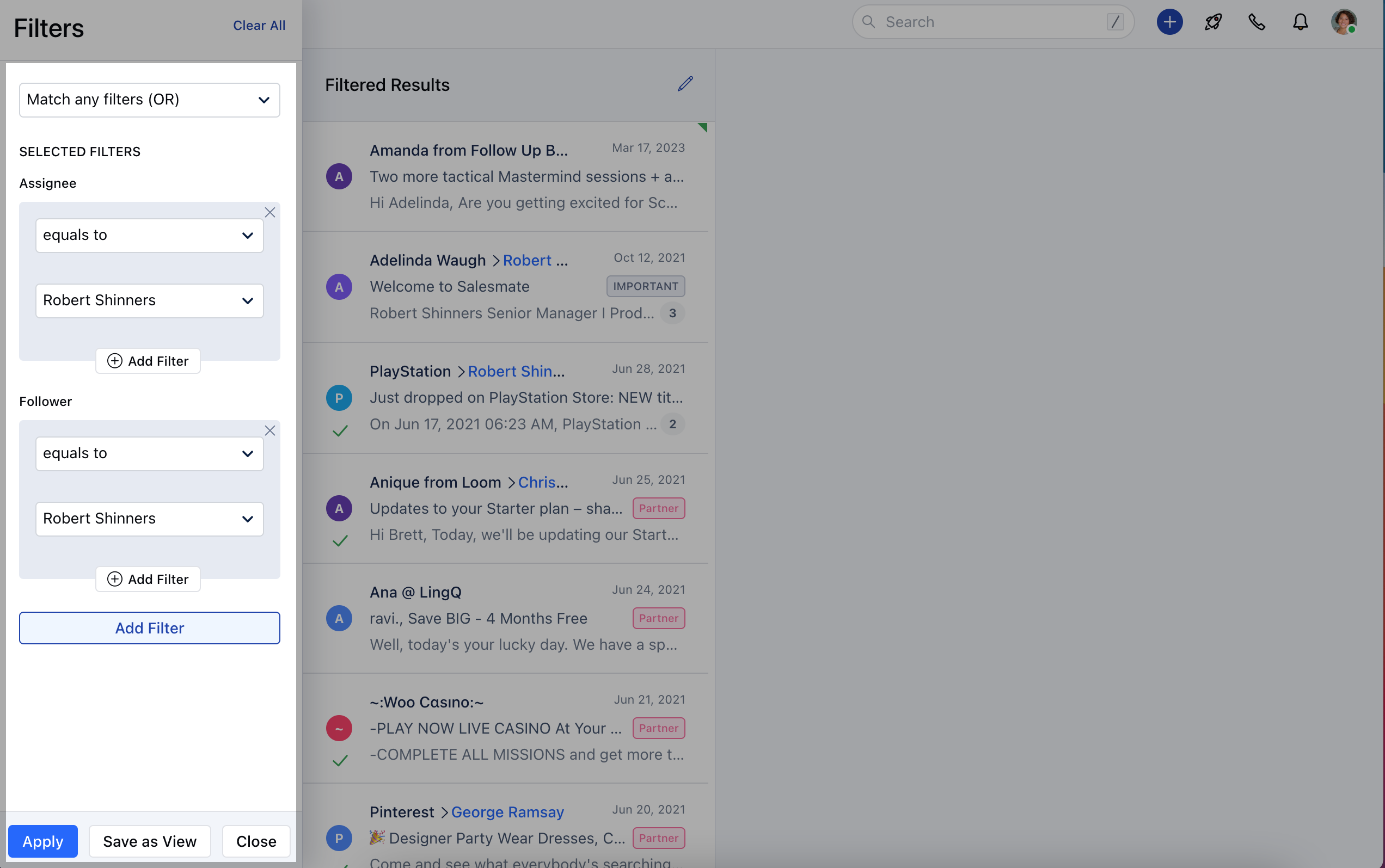
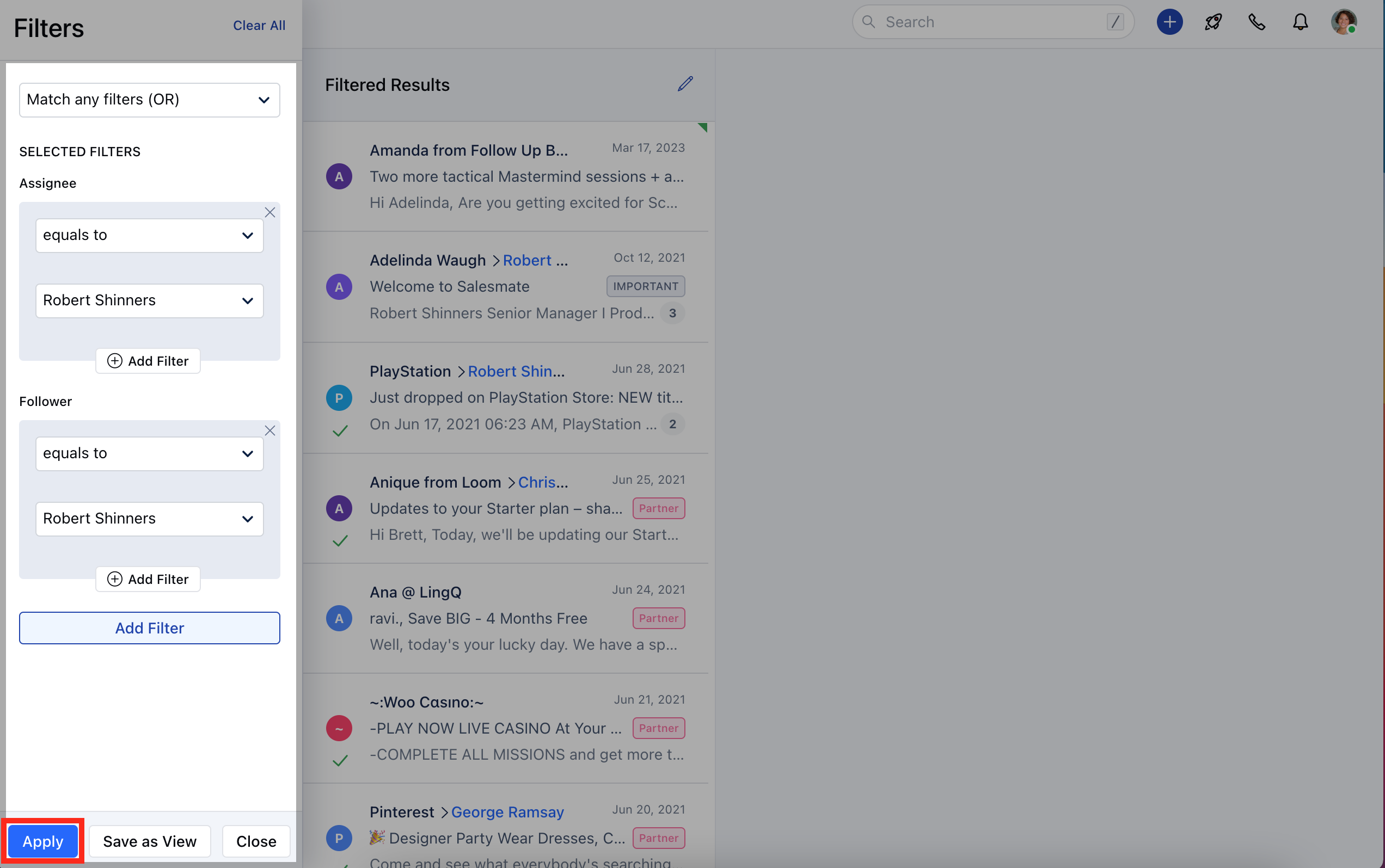
** TEAMMATES Assignee: It will filter the conversation which is assigned to the user-provided filter.
- ** Follower **: It will filter the conversation which is followed by a user-provided filter. The conditions available for this filter are as below: equals tonot equals tois unknownhas any value
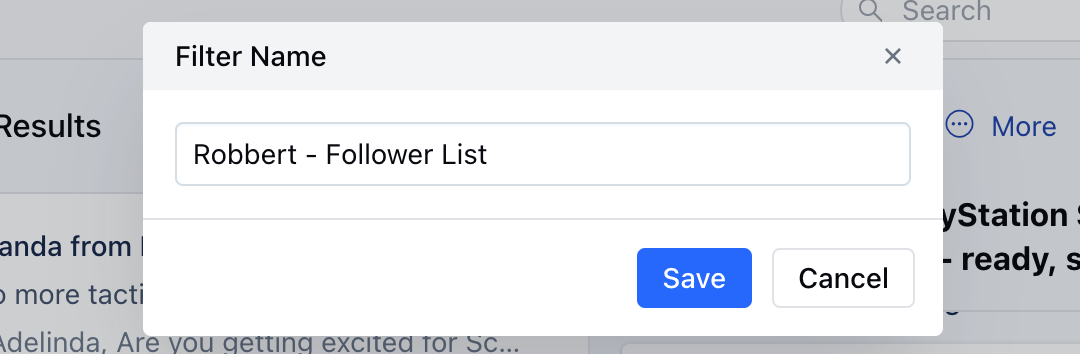
Create Views If you need to use this applied filter regularly, Salesmate recommends and gives you the option to Save the filters as View for future referenceClick on
- Save as View
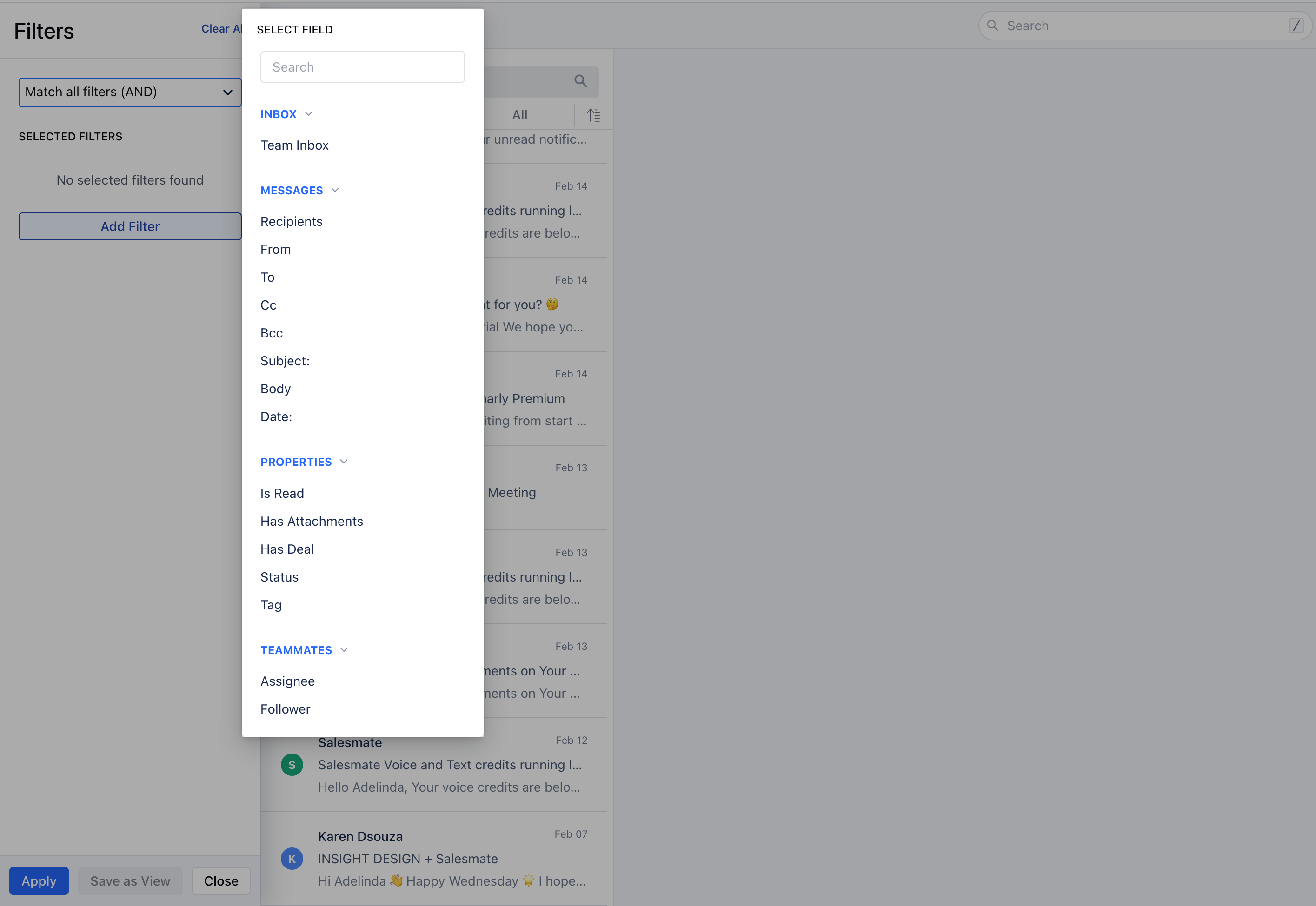
Manage Views You can Edit,**Rename,**or Delete the saved filtered view.Hover over the Three Dots icon to Edit,**Rename,**or Delete Click on the below options to perform operations as required:Edit: Update the Filter Properties Rename: Update the Filter Name Delete: Remove the saved filter permanently