

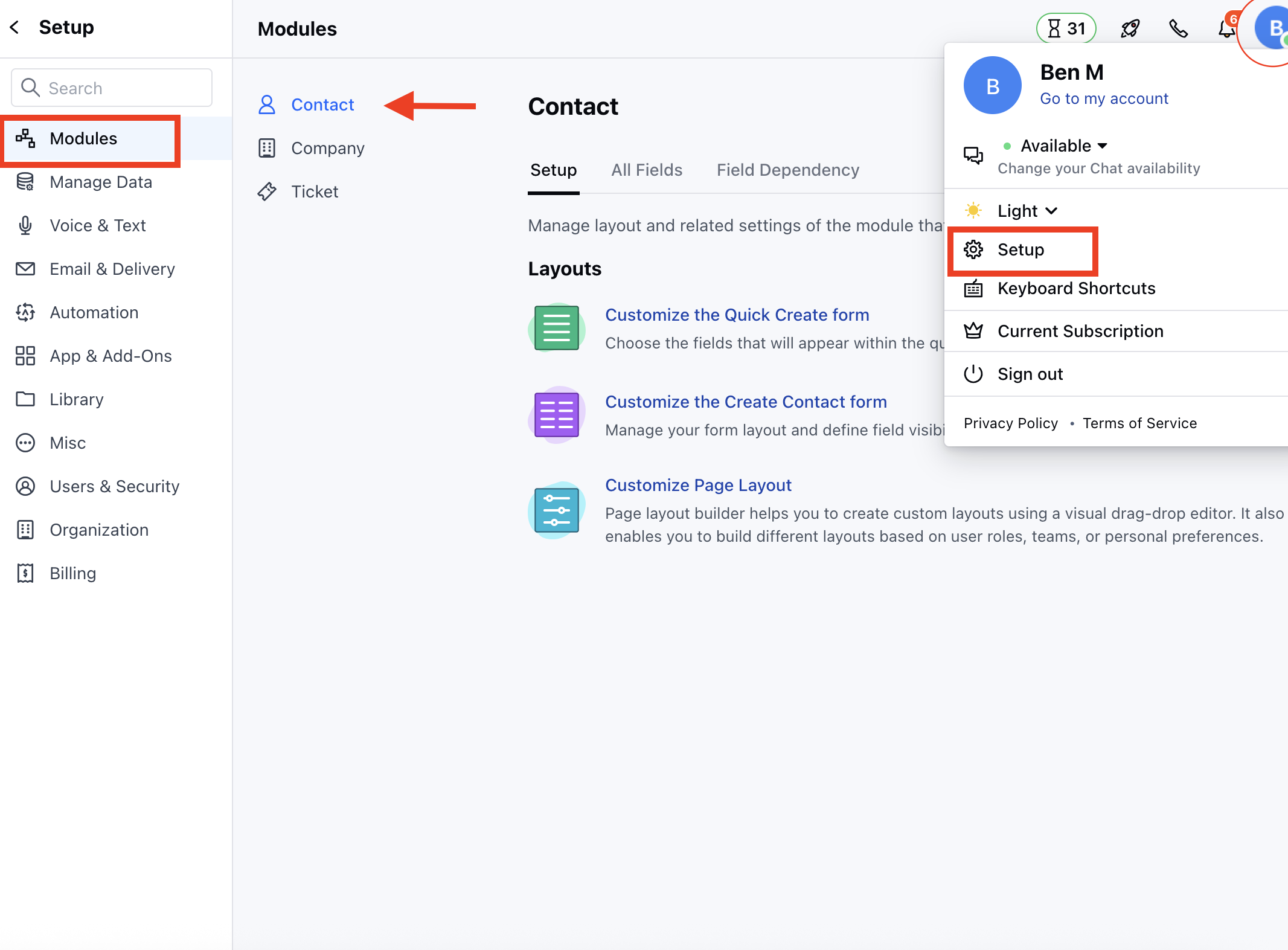
- Navigate to the Profile Icon on the top right corner
- Click on the Setup
- Head Over to the Modules Category
- Select the Module (Contact or Company )
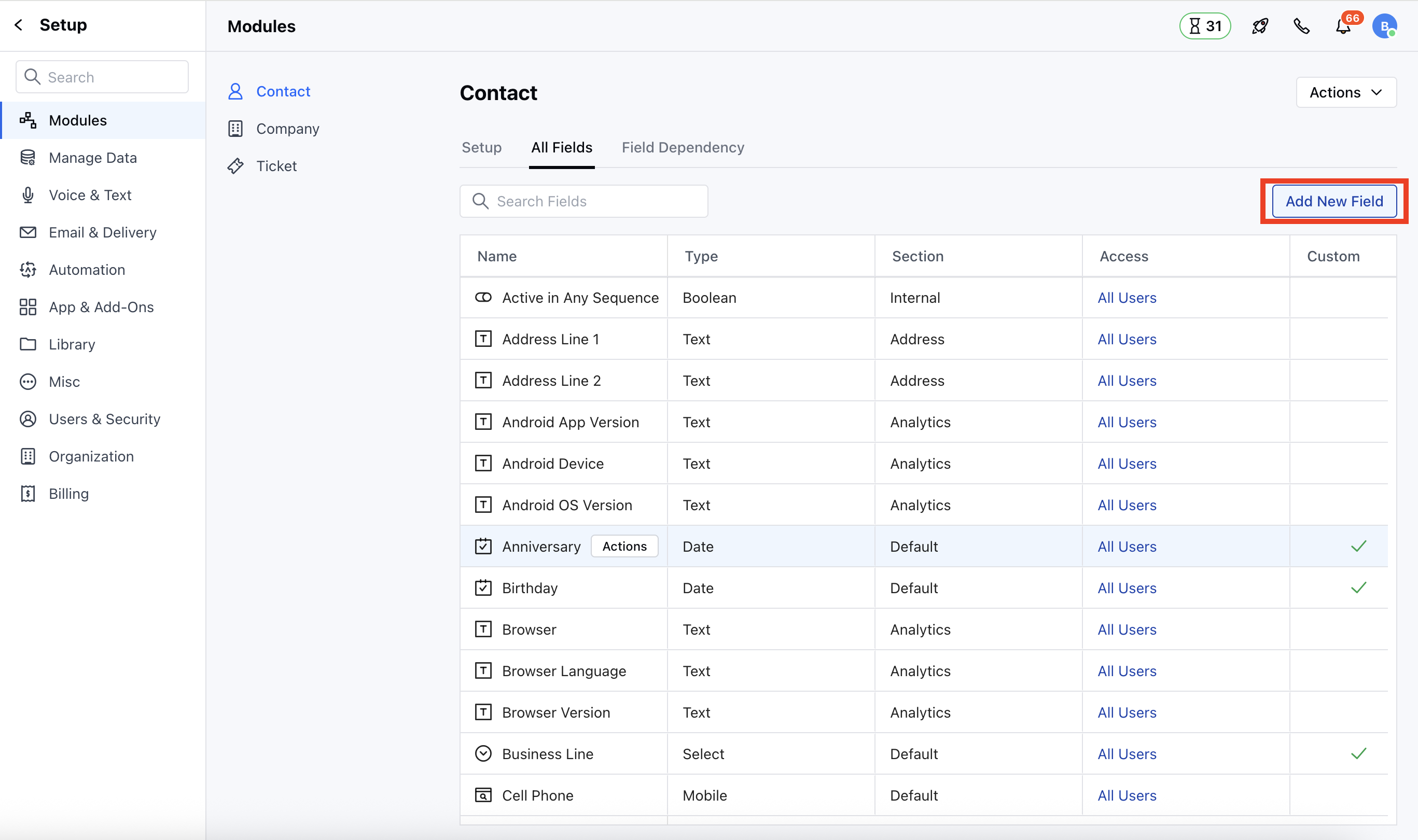
- Go to the All Detail Form Fields section
- Click on Add New Field to create a new custom field
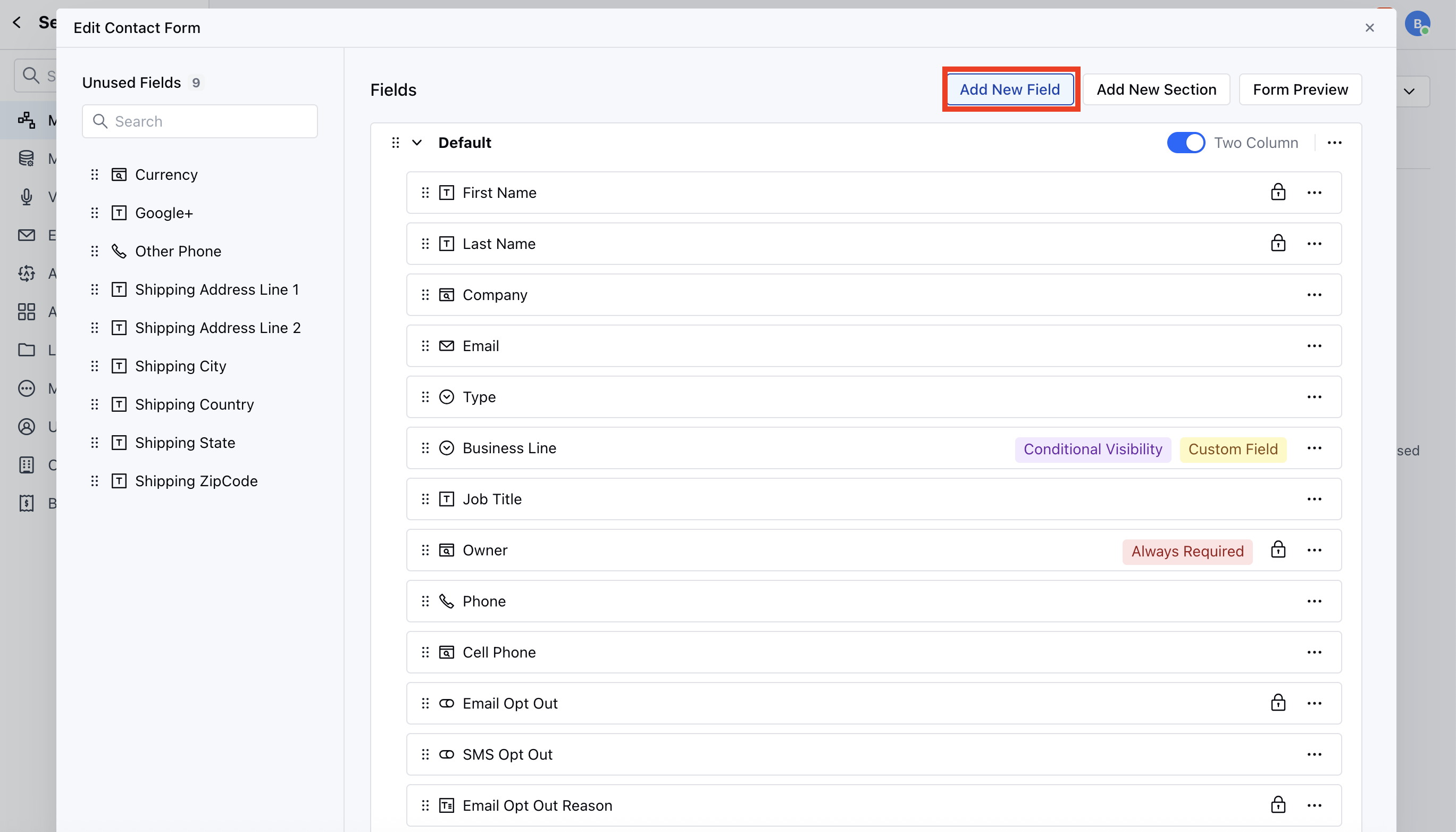
- Go to Customize the Module Create Form
- Click on the Add New Field
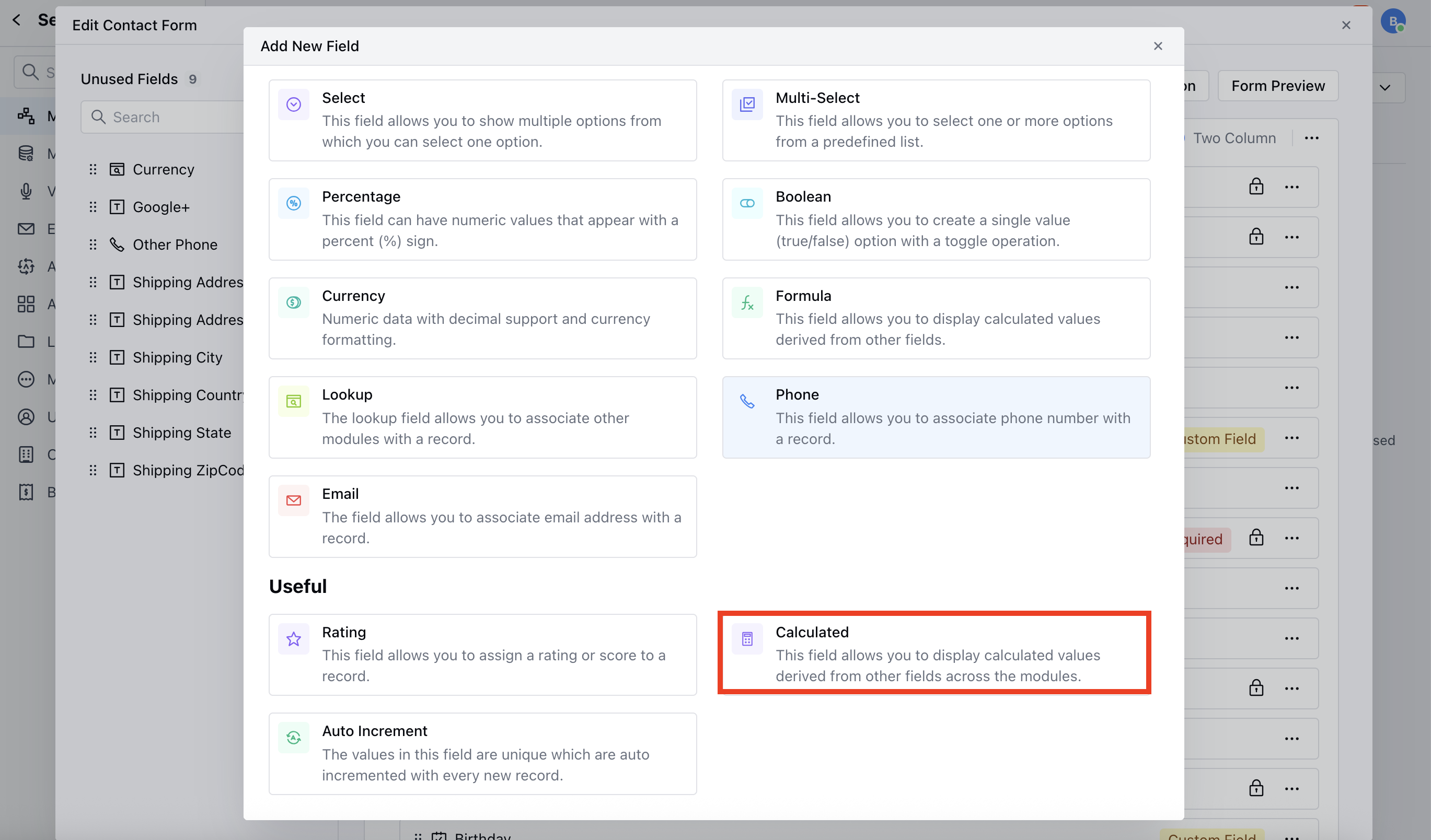
- Select the Calculated Field or search the Calculated Field with the Quick Search option
- Field Label: Define the label to identify the field
- Internal Name: Define the internal name for API integrations
- Section: Select the Section under which you wish the Field to fall.
- Help Text: Define Help Text to provide additional information to help your teammates understand the purpose of the field
- Calculated Field Type: Select the field type for this field. It supports the following for the first phase:
- Number
- Date
- Define Relationship: Define the relationship between the parent and child module for this field
- Select Child Module: You can choose the module associated with the module where you create this field. Please note that only the multi-lookup fields can be selected.
- Configure Aggregation: Choose a field to run calculations and configure the operation that will be performed.
- Select Field to Aggregate: This is the field on which calculations will be based, and you can choose it from the available fields in the child module, filtered by the selected Calculated Field Type.
- Select Operation: Select the operation to be performed on the values of the chosen field.
- For Number Type, the available operations are:
- COUNT: Counts all values.
- SUM: Sums all values.
- AVERAGE: Calculates the average of all values.
- MIN: Finds the minimum value.
- MAX: Finds the maximum value.
- For Date Type,
- MIN: Finds the minimum value.
- MAX: Finds the maximum value.
- Calculation Mode: Choose between real-time or Scheduled calculations.
- Realtime: The field will be updated in real-time as the base values change.
- Scheduled: Calculations will run at a fixed time, once every 24 hours.
- Set field as null when no child records are found: If checked, the calculated field will return null instead of 0 when no matching child records are found.
- Advanced Options: This section is optional but allows you to filter records for efficiency.
- Add Filter on Child Module: If you apply a filter to the child module, calculations will only apply to records matching the condition.
- Add Filter on Parent Module: Similarly, you can filter the parent module, ensuring that only specific parent records are updated.
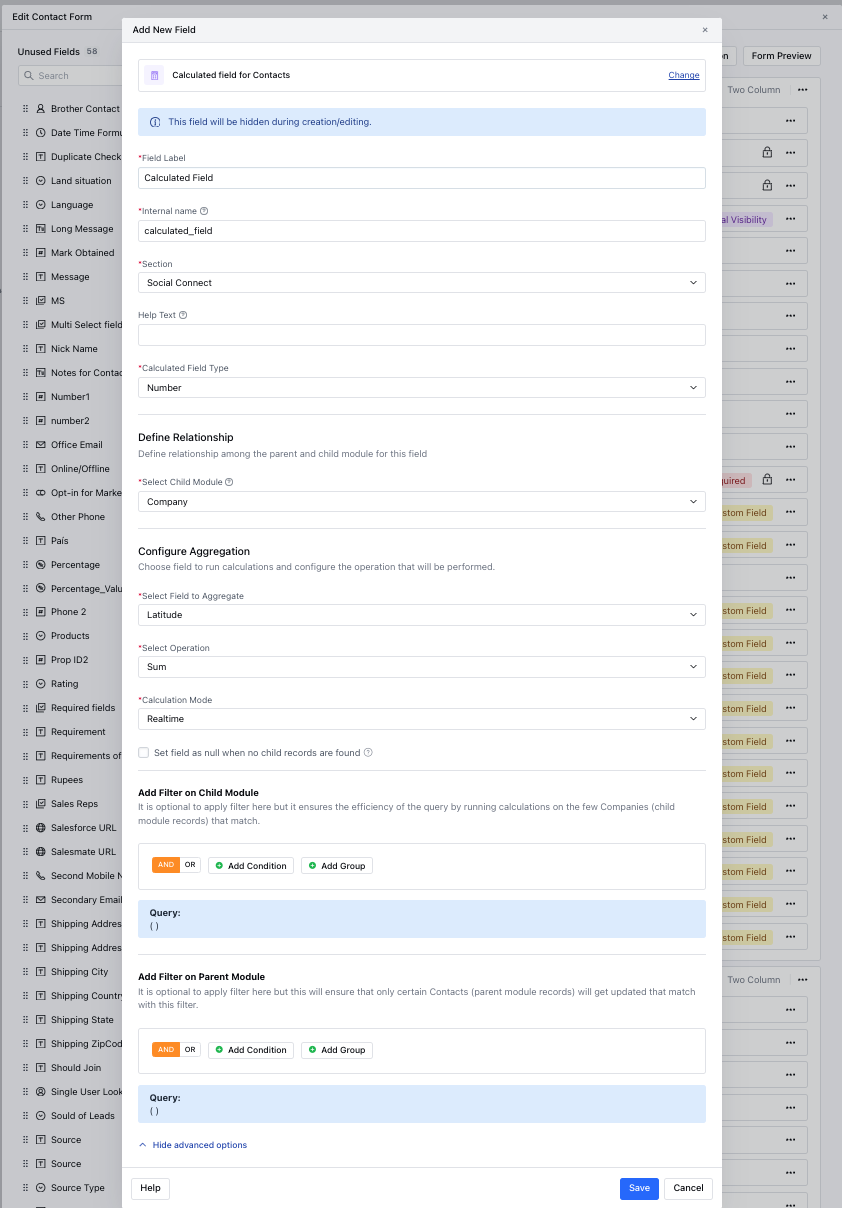
- Once done, click Save to add the calculated field.