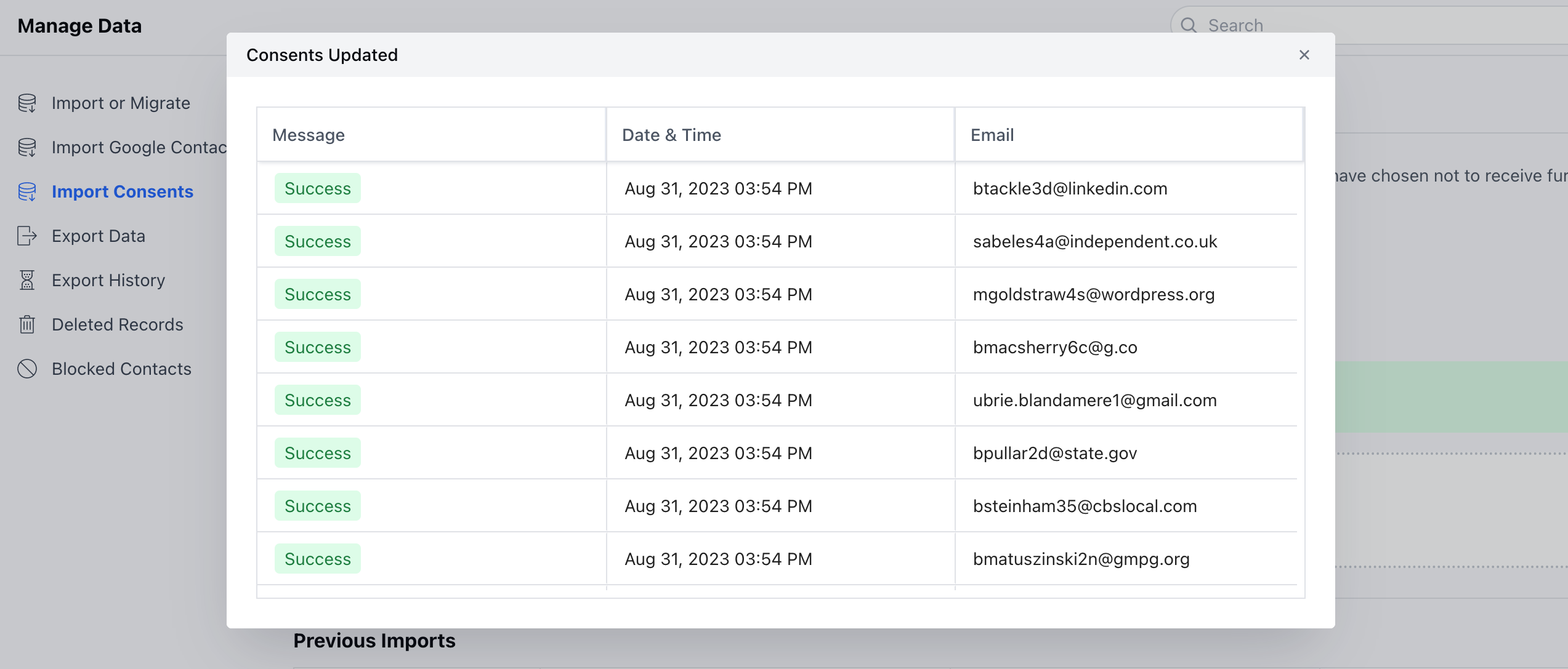
Note:
Please note that the User with the Admin rights can perform this action.The Automation Module should be enabled to use this Feature. To Import Consent, Navigate to the Profile Icon available on the top corner.Click on Setup Head over to the Manage Data categoryClick on Import Consents.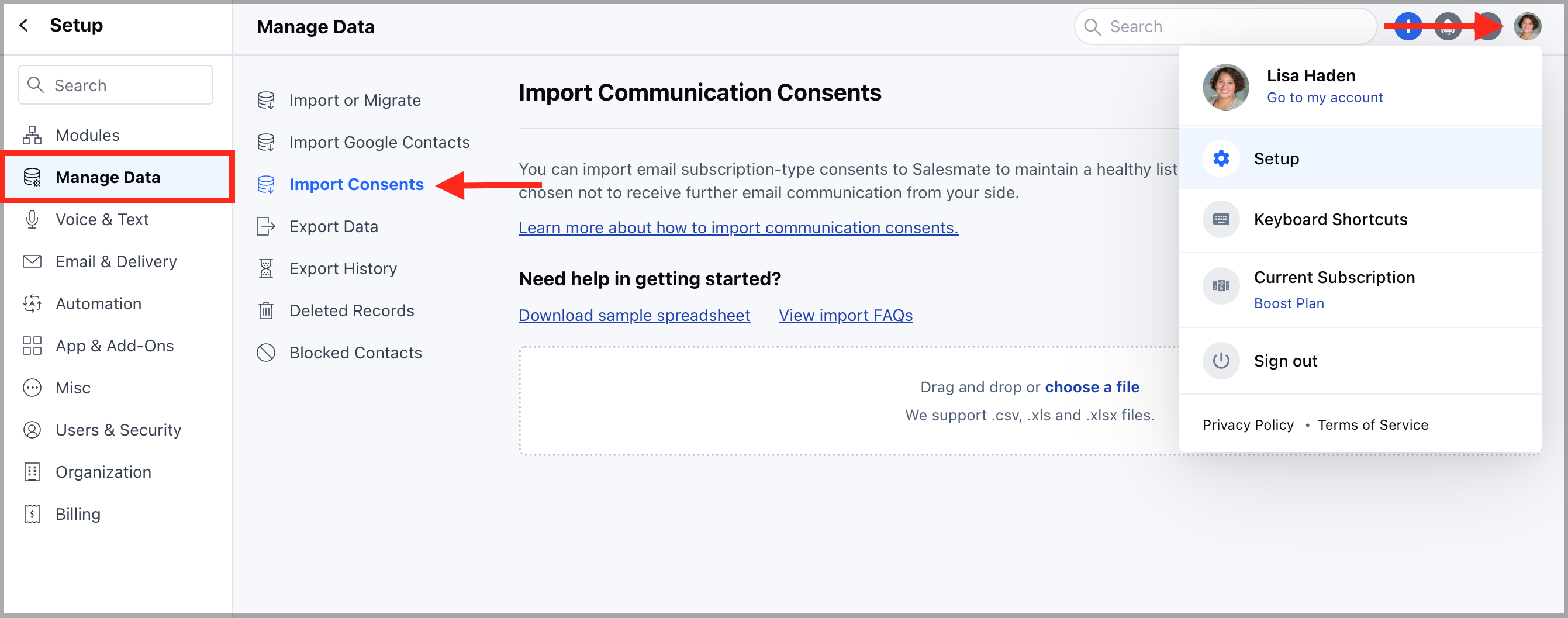
Note:
You can map one subscription type only once within a single import.At least one consent type selection is required to proceed further.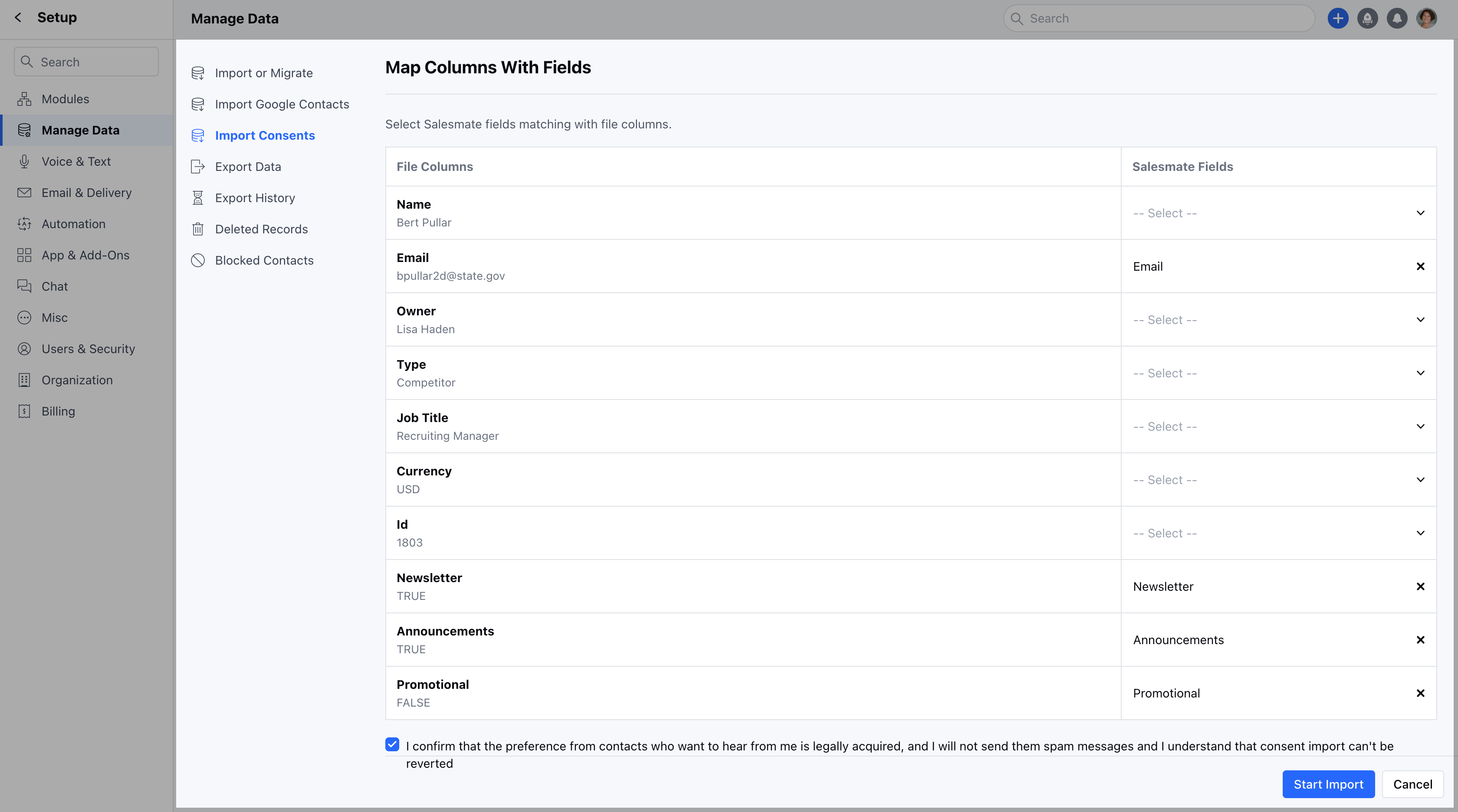
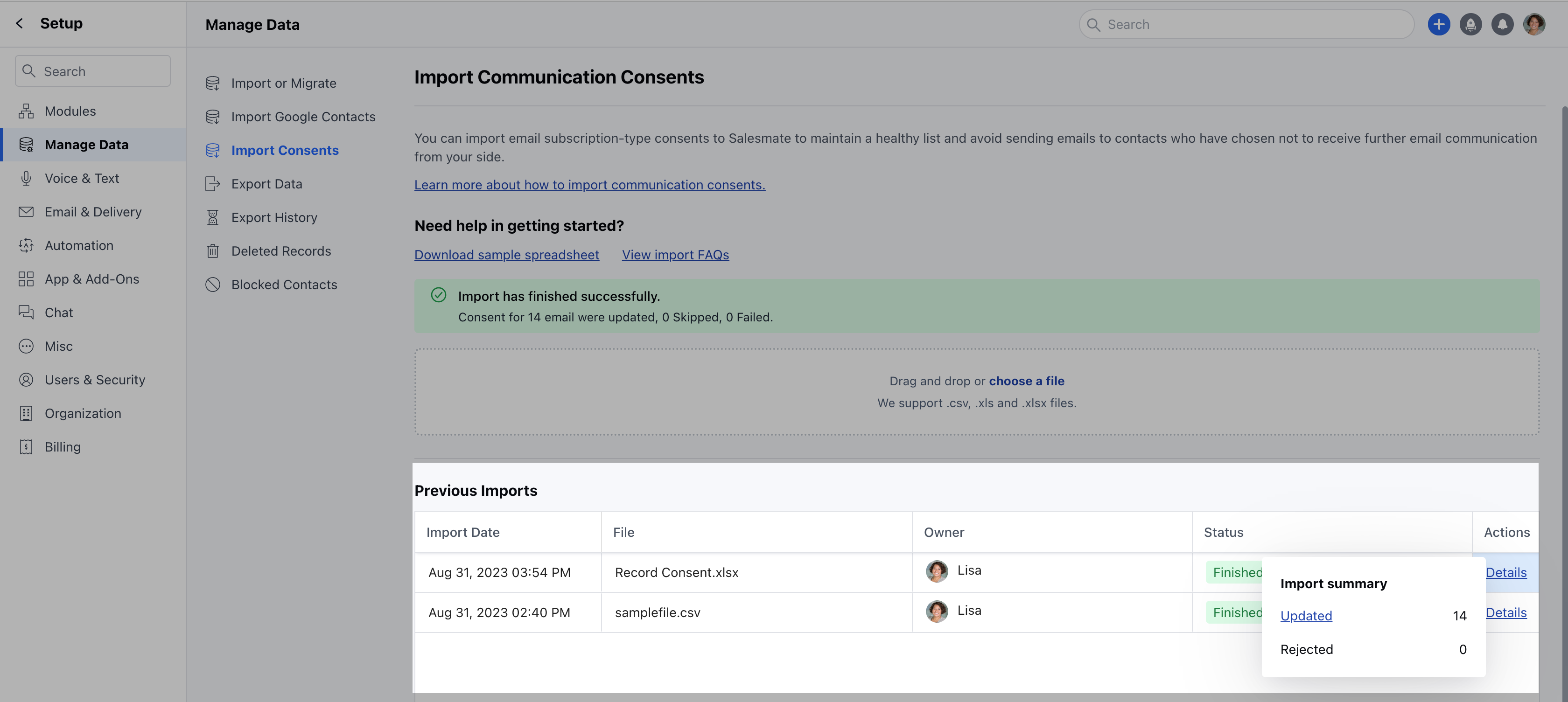
- File: The file that was imported
- Owner: The User who performed the Import.
- Status: The status with which the import was completed. If the Import was** Finished, In Progress, or Failed Actions: This will show the details of the consent imported.
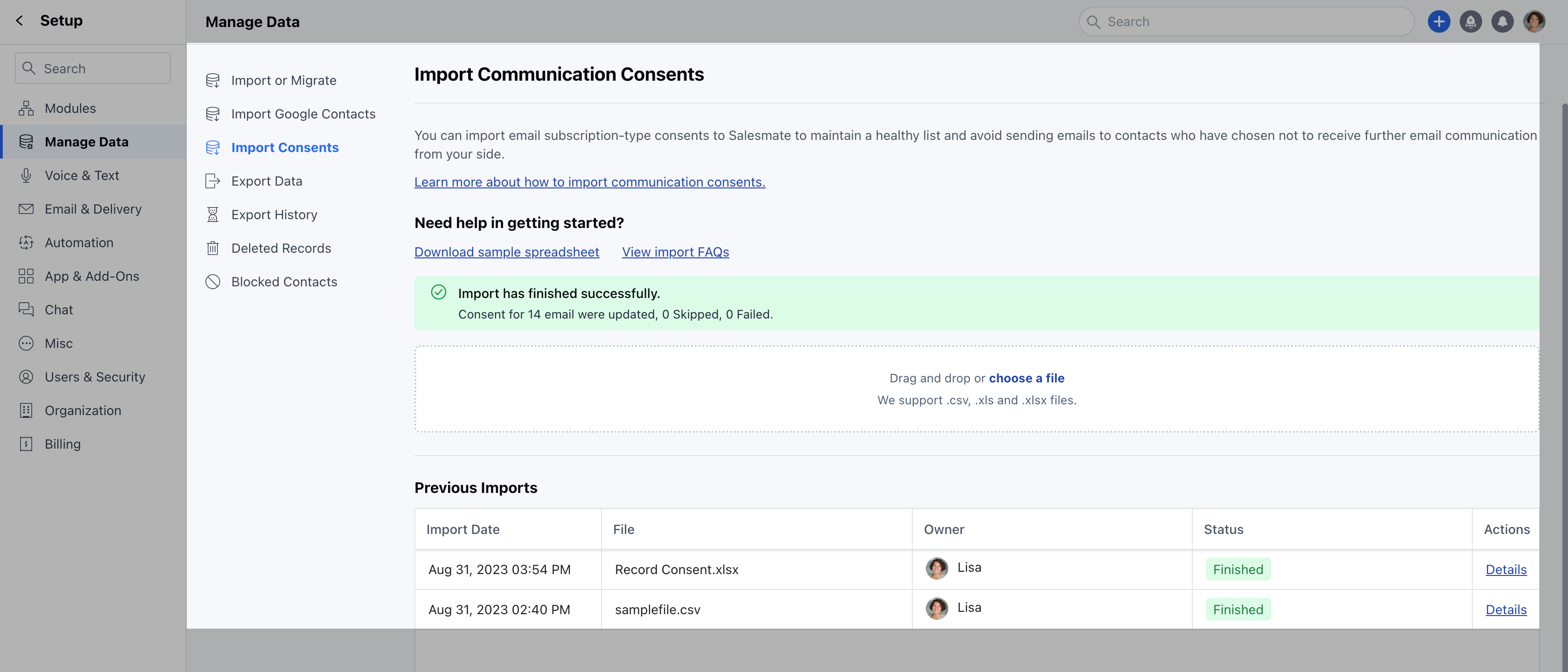
- Rejected: The number of records rejected( if the record was rejected, you will get an option to download the record and know the rejection reason)
- ** Message **Date & Time Email