- **](#how-do-the-subscription-types-work)[**How to Set Up a New Subscription Type?
- **](#how-to-set-up-a-new-subscription-type)[**How to Edit Subscription Type?
- **](#how-to-set-up-a-new-subscription-type)[**How to Archive Subscription Type?
- **](#how-to-set-up-a-new-subscription-type)[**How to Unarchive Subscription Type?
- **](#how-to-set-up-a-new-subscription-type)
How do the Subscription Types work?
By default, Salesmate provides different subscription types that can be used to send marketing emails. When a customer clicks on the Unsubscribe link from the email, they can either choose to unsubscribe from all the emails or only the nonrelevant types.- Announcements: Offers, features, or product announcements
- Newsletter: Get the latest news and updates regularly.
- Non-marketing emails: Get emails with a transactional nature.
- Best Practices: Tips, tricks, and recommendations.
- Promotional: Get marketing and promotional offers for you.
How to Set Up a New Subscription Type?
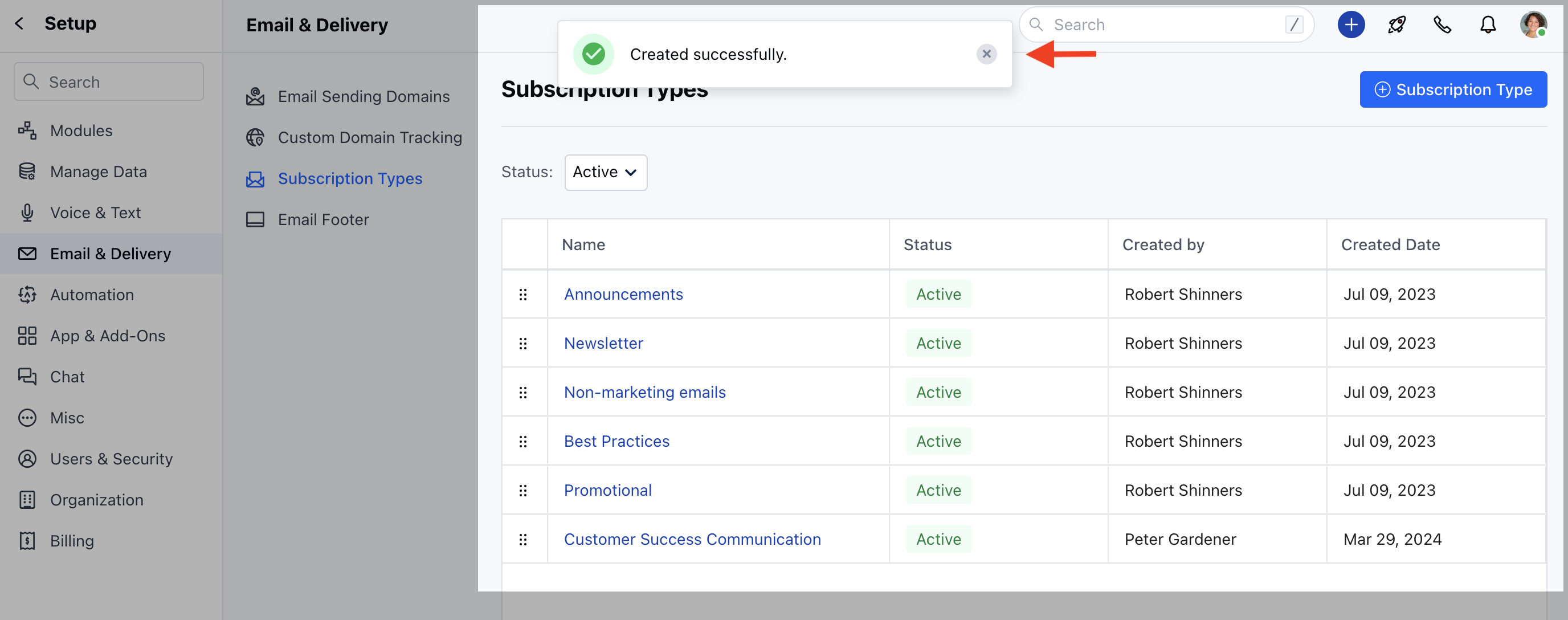
To Set up a New Subscription Type, Navigate to your Profile Icon on the top right cornerClick on Setup Head over to Email & Delivery Click on Subscription Types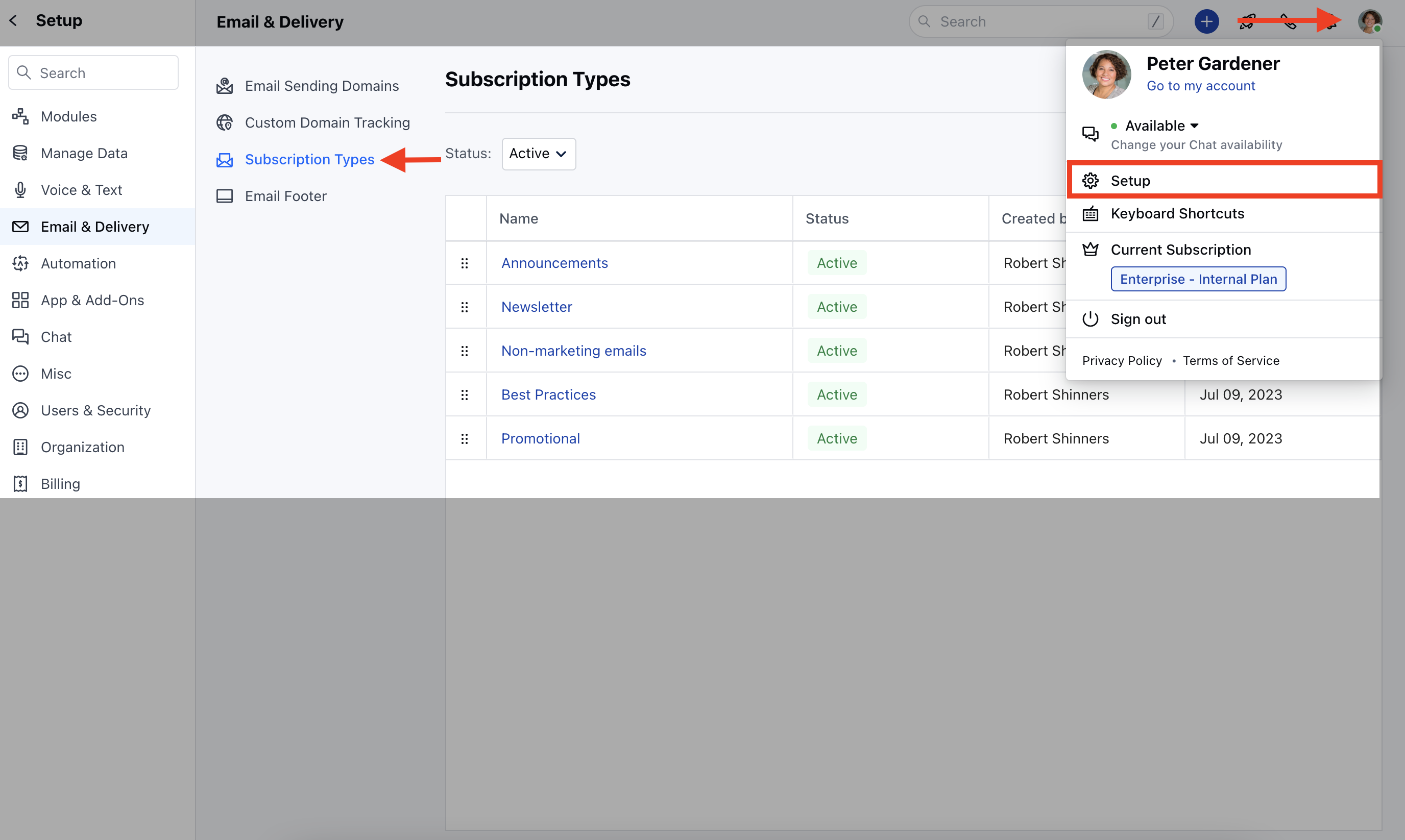
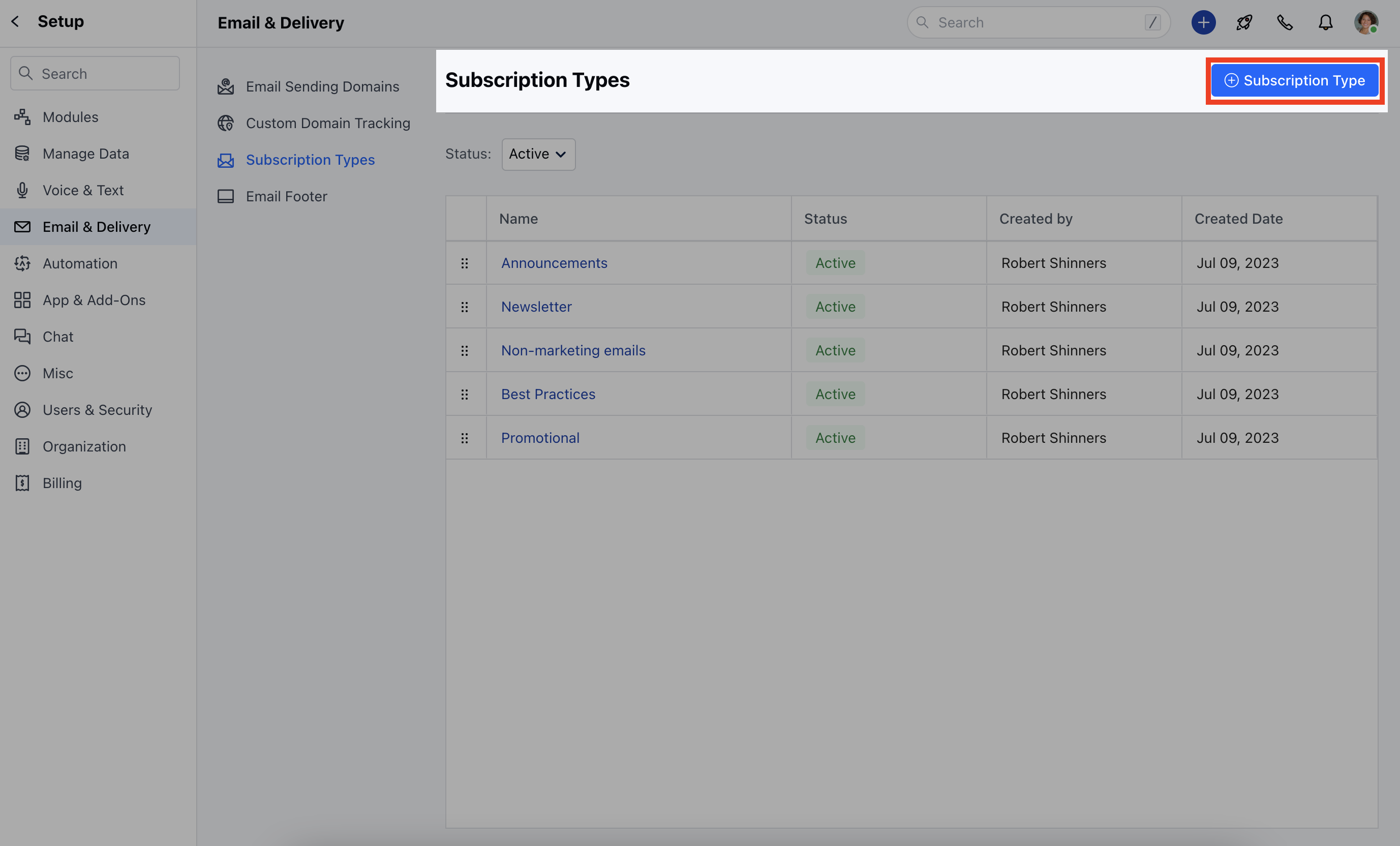
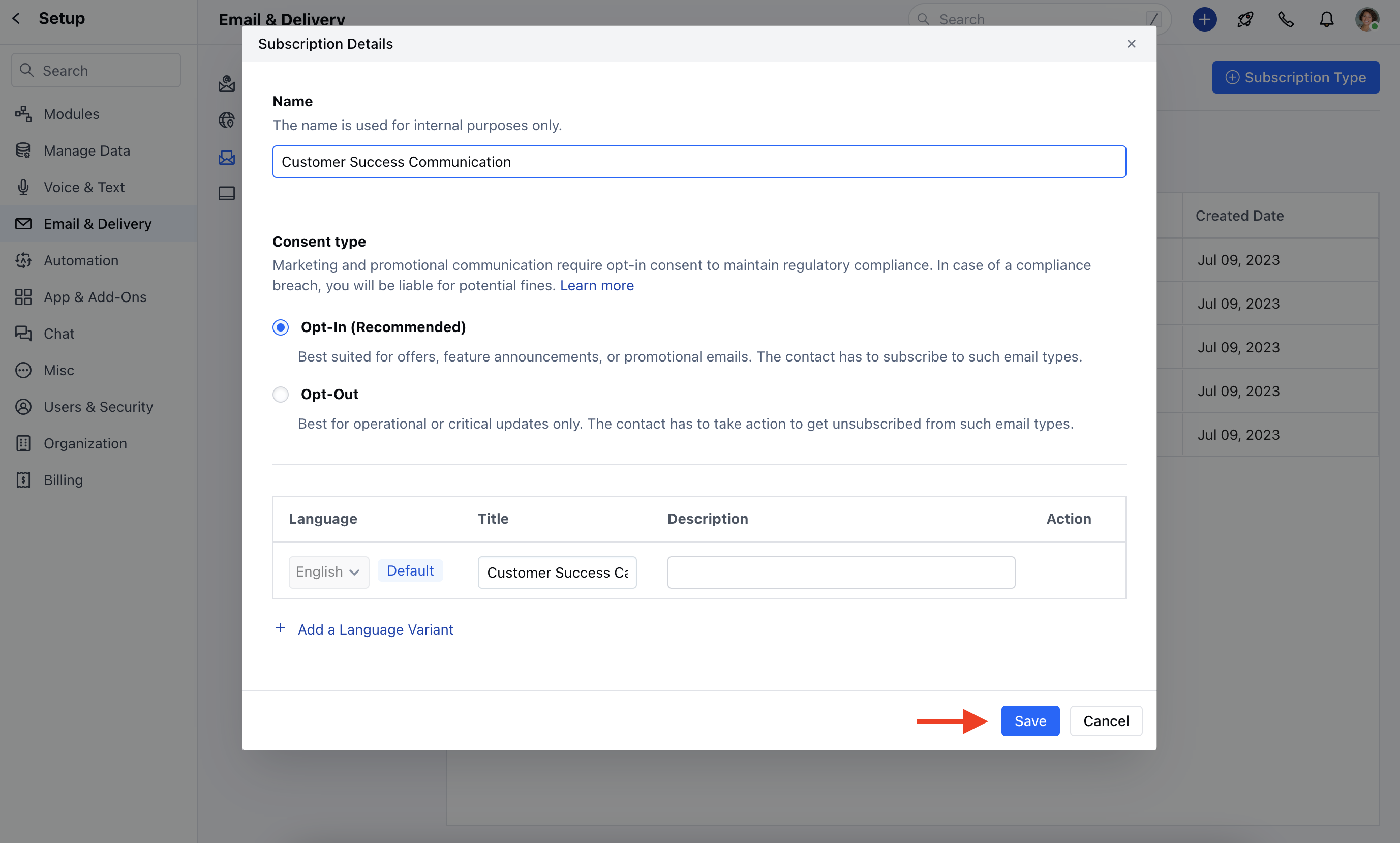
- Consent Type: Select Opt-In or Opt-Out
- Click here to learn more about the Consent type
- Language: The default language would be **English,If you wish to select a different language you can do it by ** Add a Language Variant Description: Add the relevant information about the subscription typeClick on Save **.
How to Edit Subscription Type?
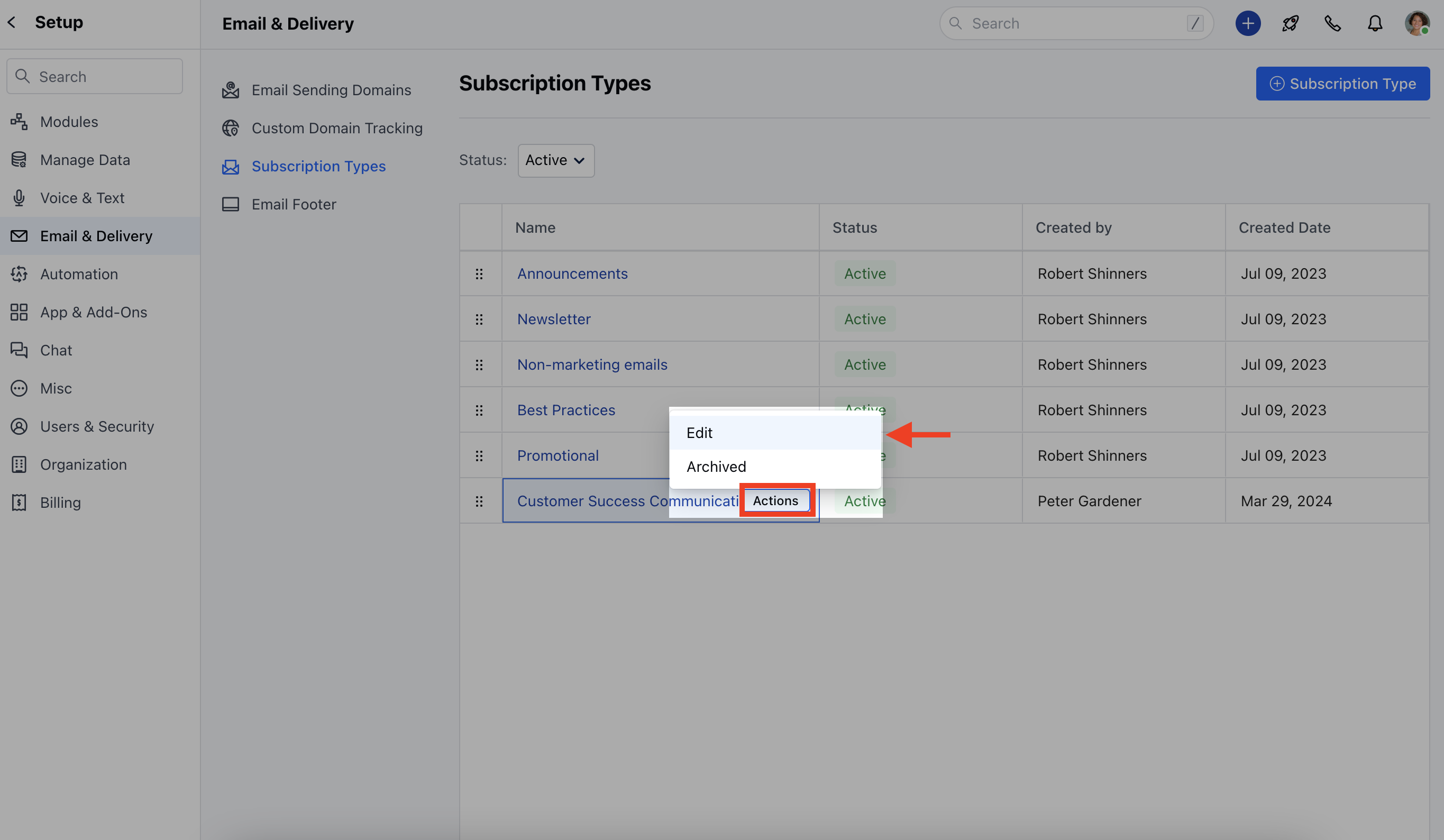
To Edit the Subscription Type, Navigate to your Profile Icon on the top right cornerClick on Setup Head over to Email & Delivery Click on Subscription Types- **Once you click on it, the Actions button will appear next to it.Click on Actions Select Edit
How to Archive Subscription Type?
To Archive the Subscription Type, Navigate to your Profile Icon on the top right cornerClick on Setup Head over to Email & Delivery Click on Subscription Types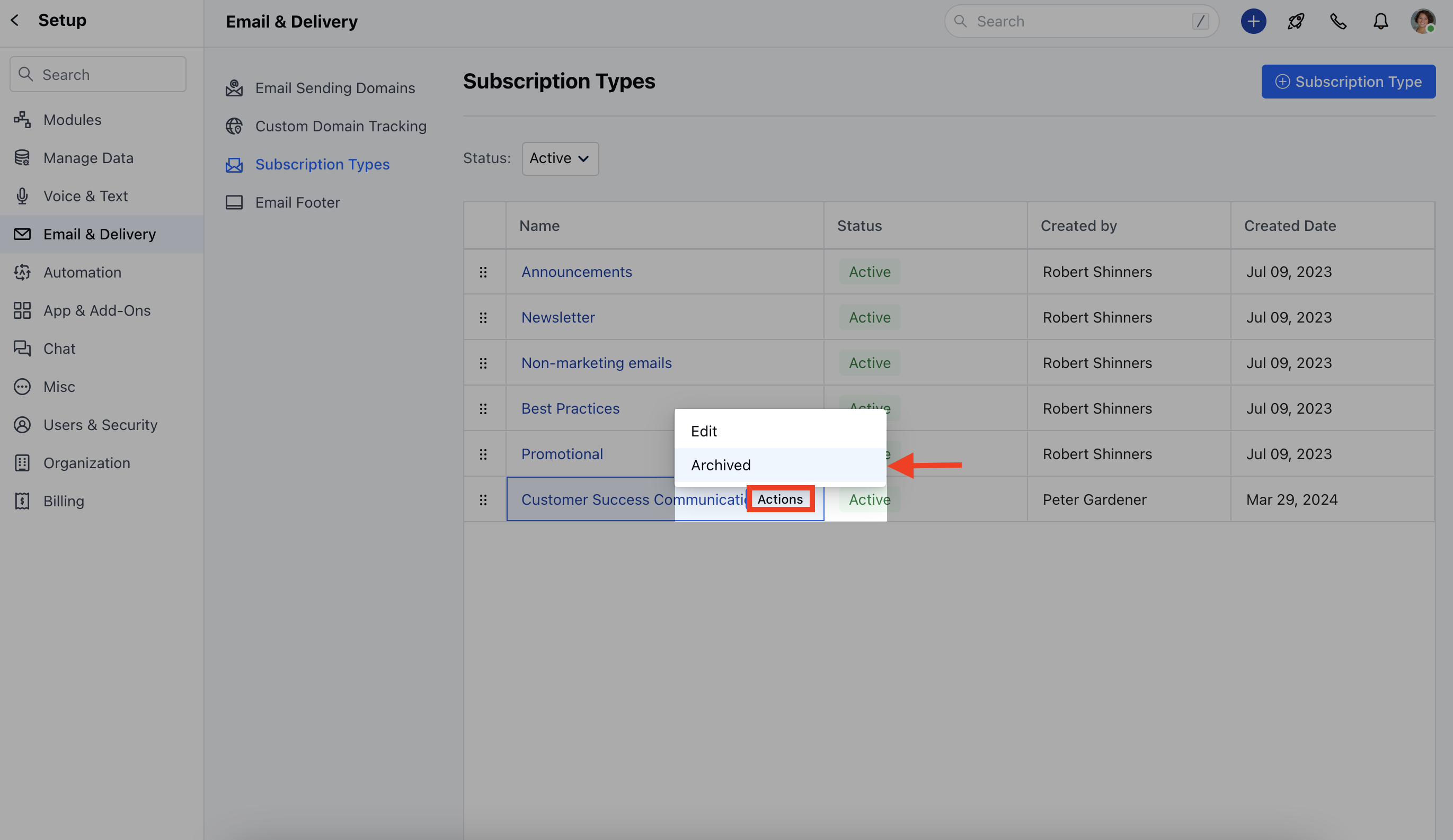
How to Unarchive Subscription Type?
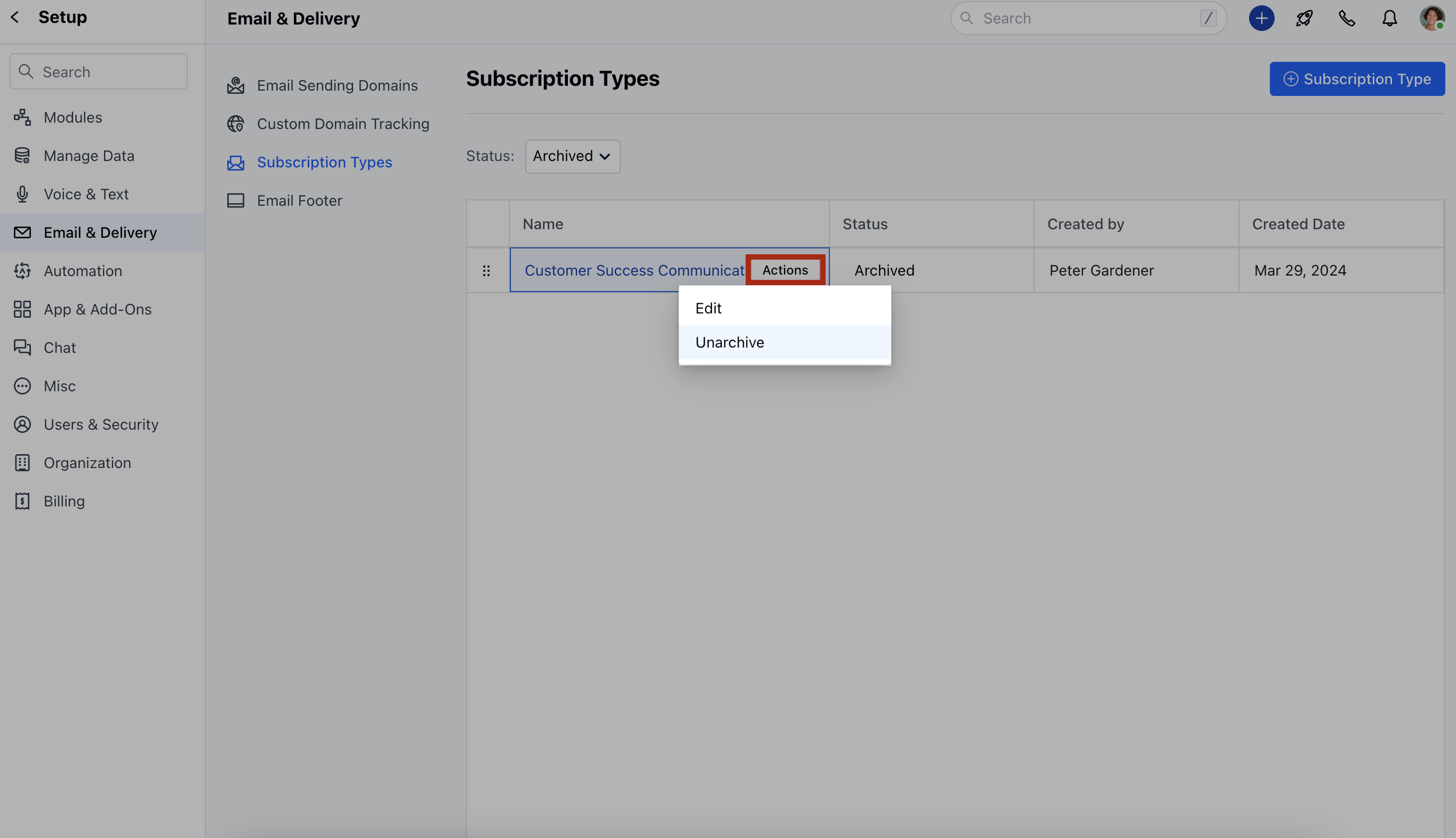
To Unarchive the Subscription Type, Navigate to your Profile Icon on the top right cornerClick on Setup Head over to Email & Delivery Click on Subscription Types