

Note: You will need Export permissions to export the data.
- Navigate to the Preferred Module
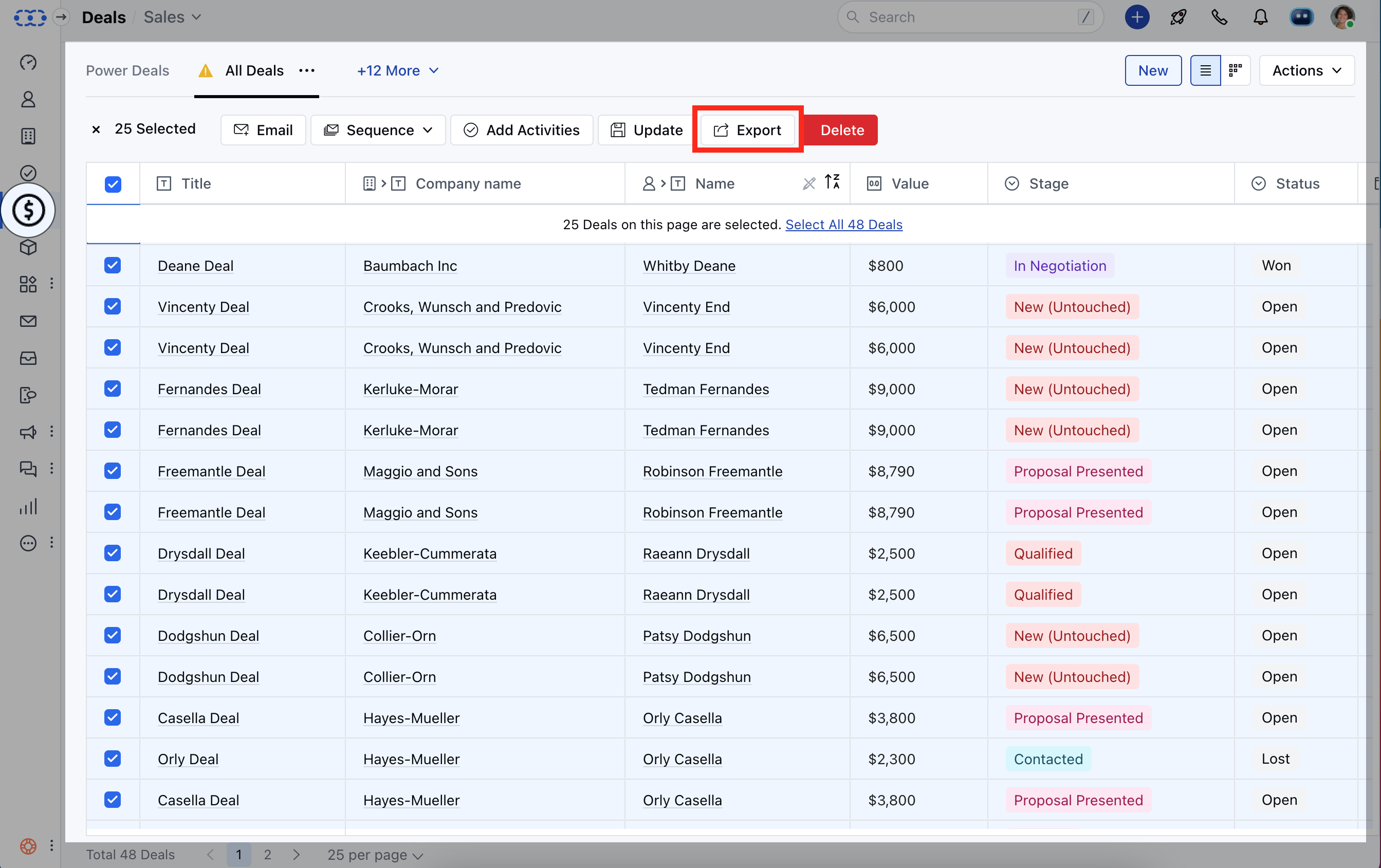
- Select the Records you want to export.
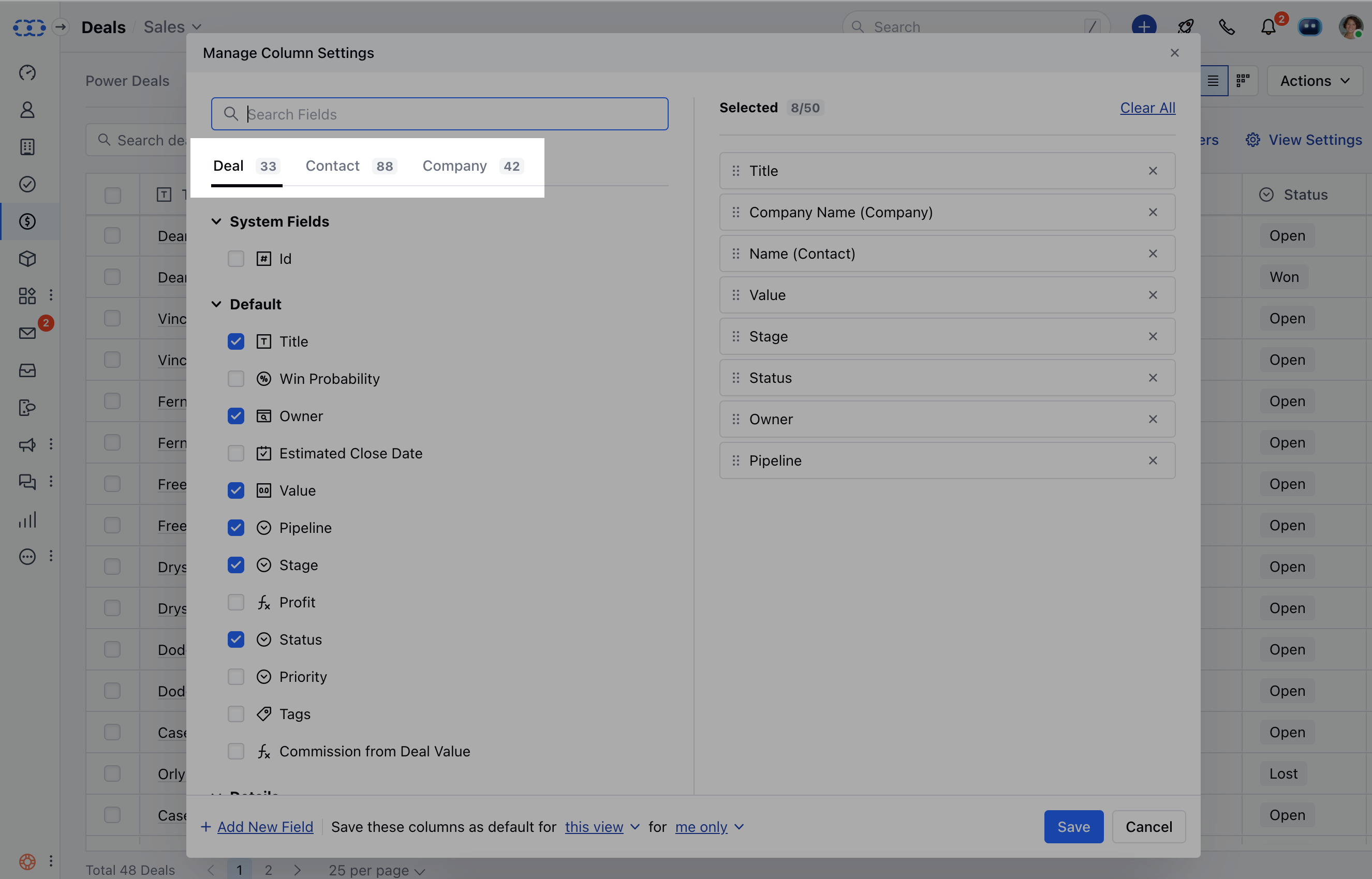
- You can also add columns of other modules for exporting it by clicking on the View Settings option>> Select the fields.
- Once the Records are selected click on the Export option
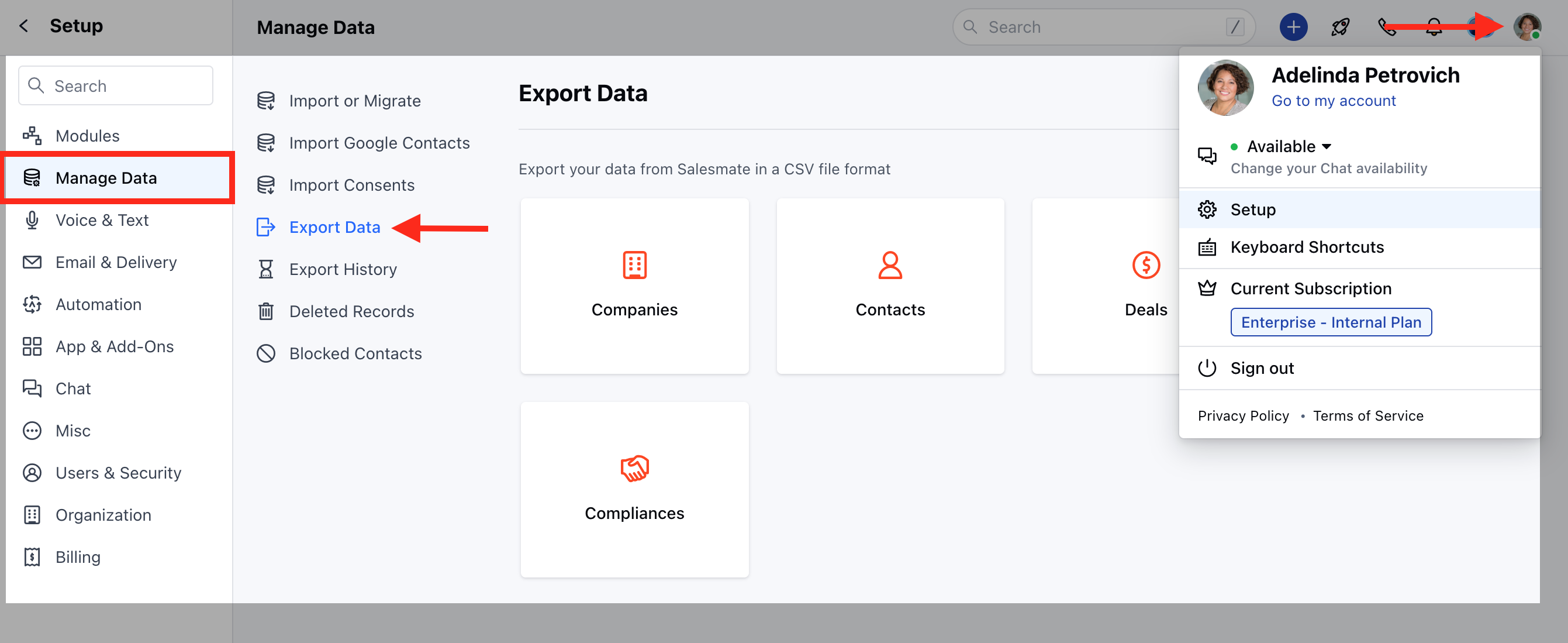
Export from Setup Follow the below steps, to Export data:
- Navigate to the Profile Icon on the top right corner
- Click on Set Up
- Head over to the Manage Data
- Click on Export Data
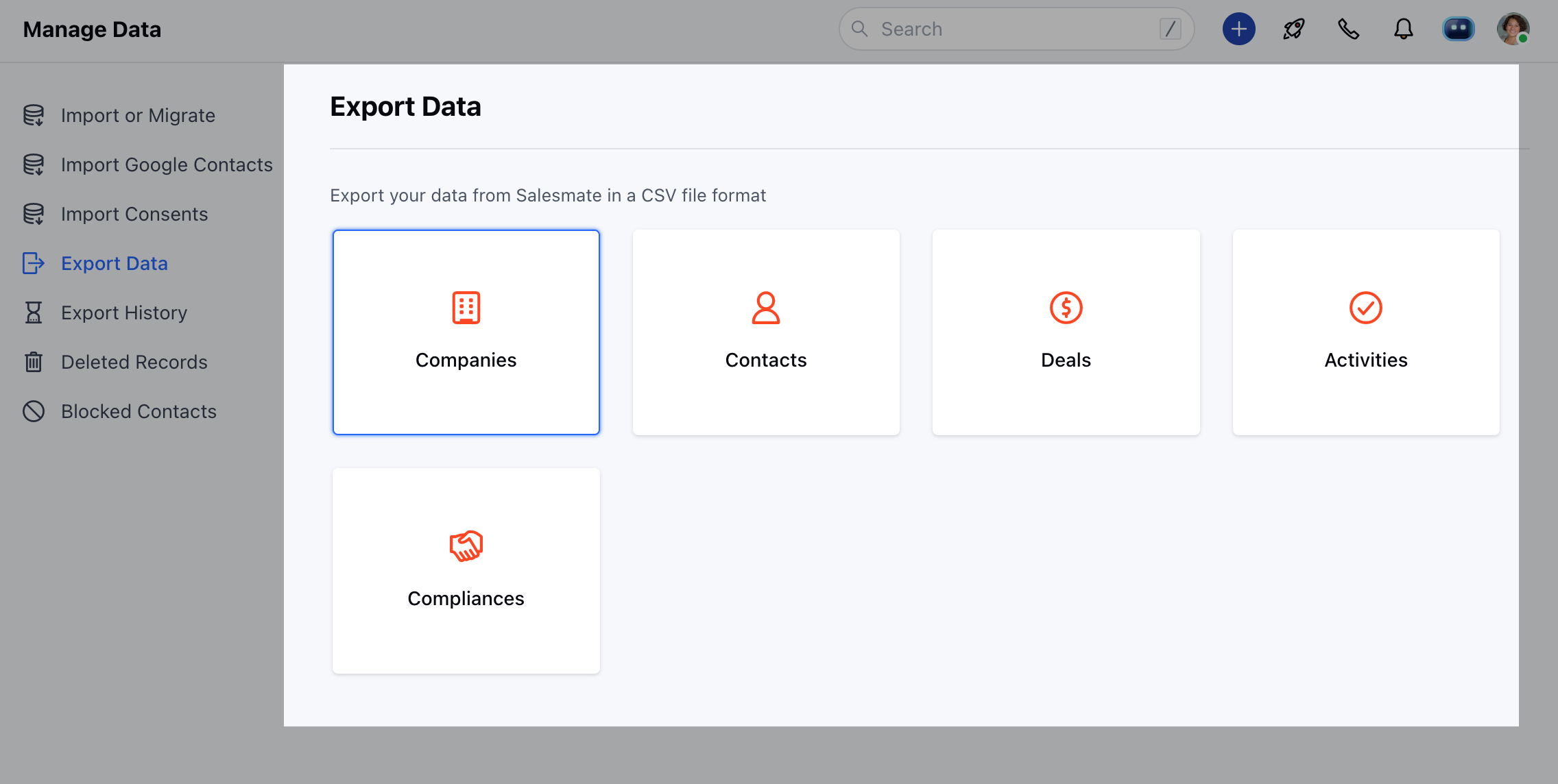
- Choose the Module for which you want to export the records.
- Select what you’d like to export Companies, Contacts, Ticket,and Custom Modules
- Select what you’d like to export, and choose the view and fields you want to export.
-
Click on the Export button.
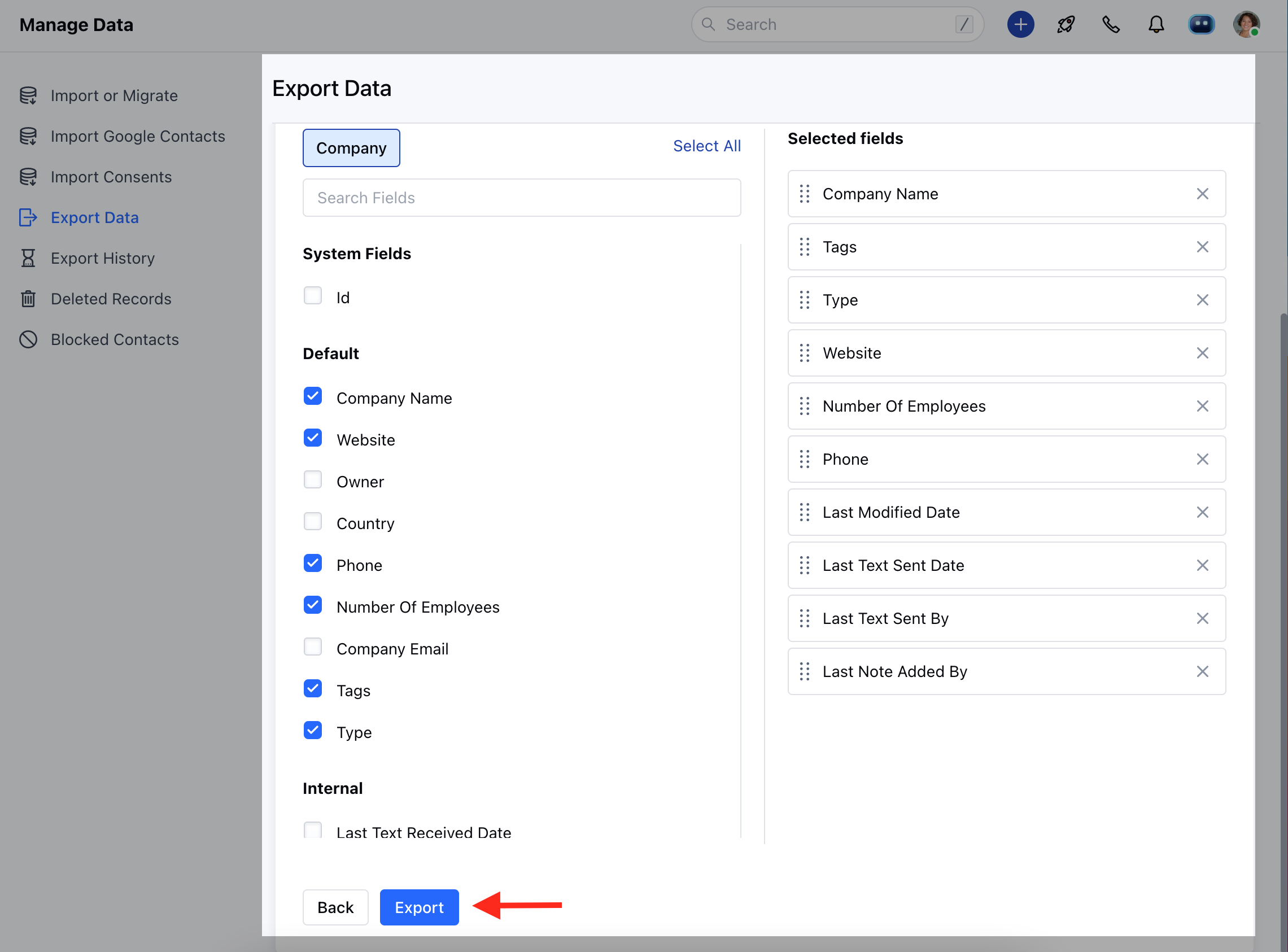
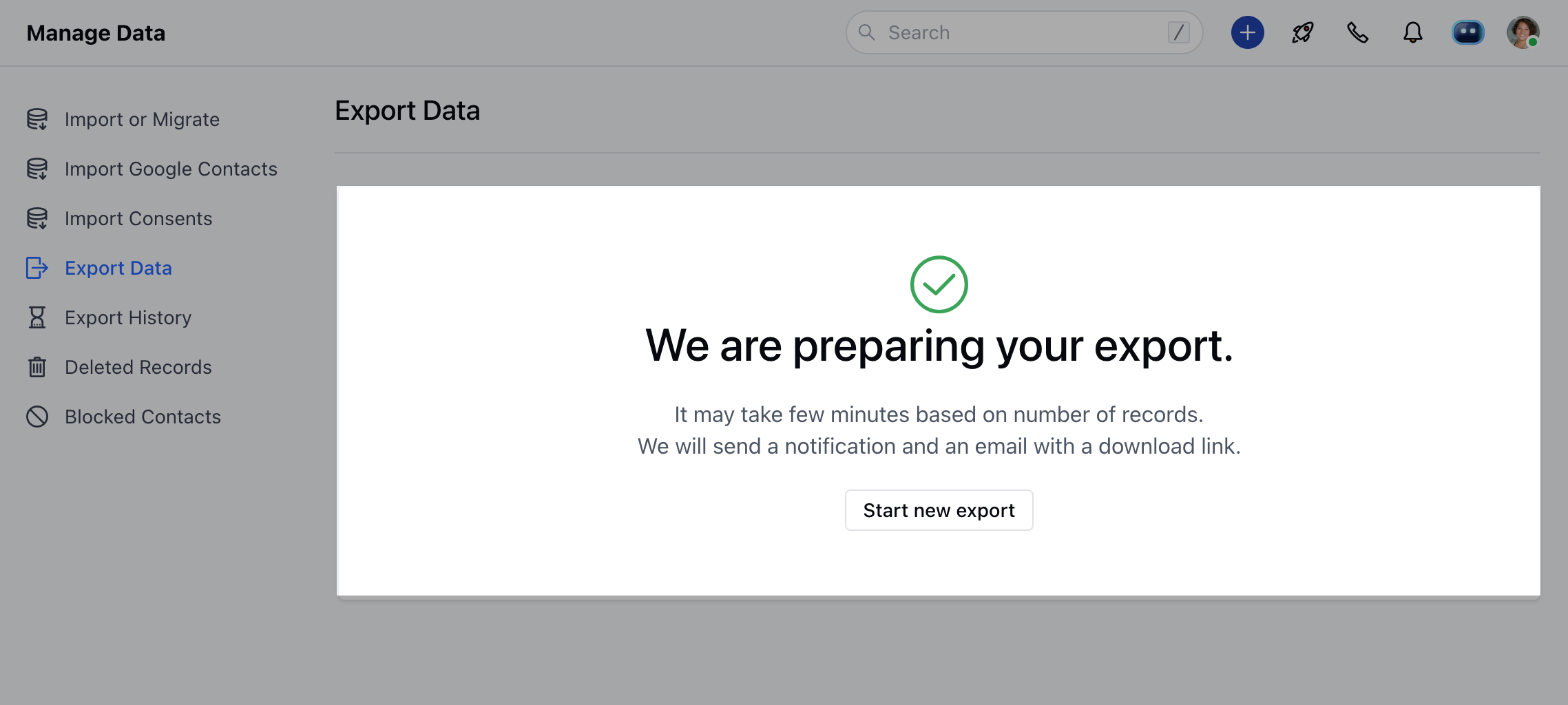
- You will be routed to the “Export Confirmation” screen
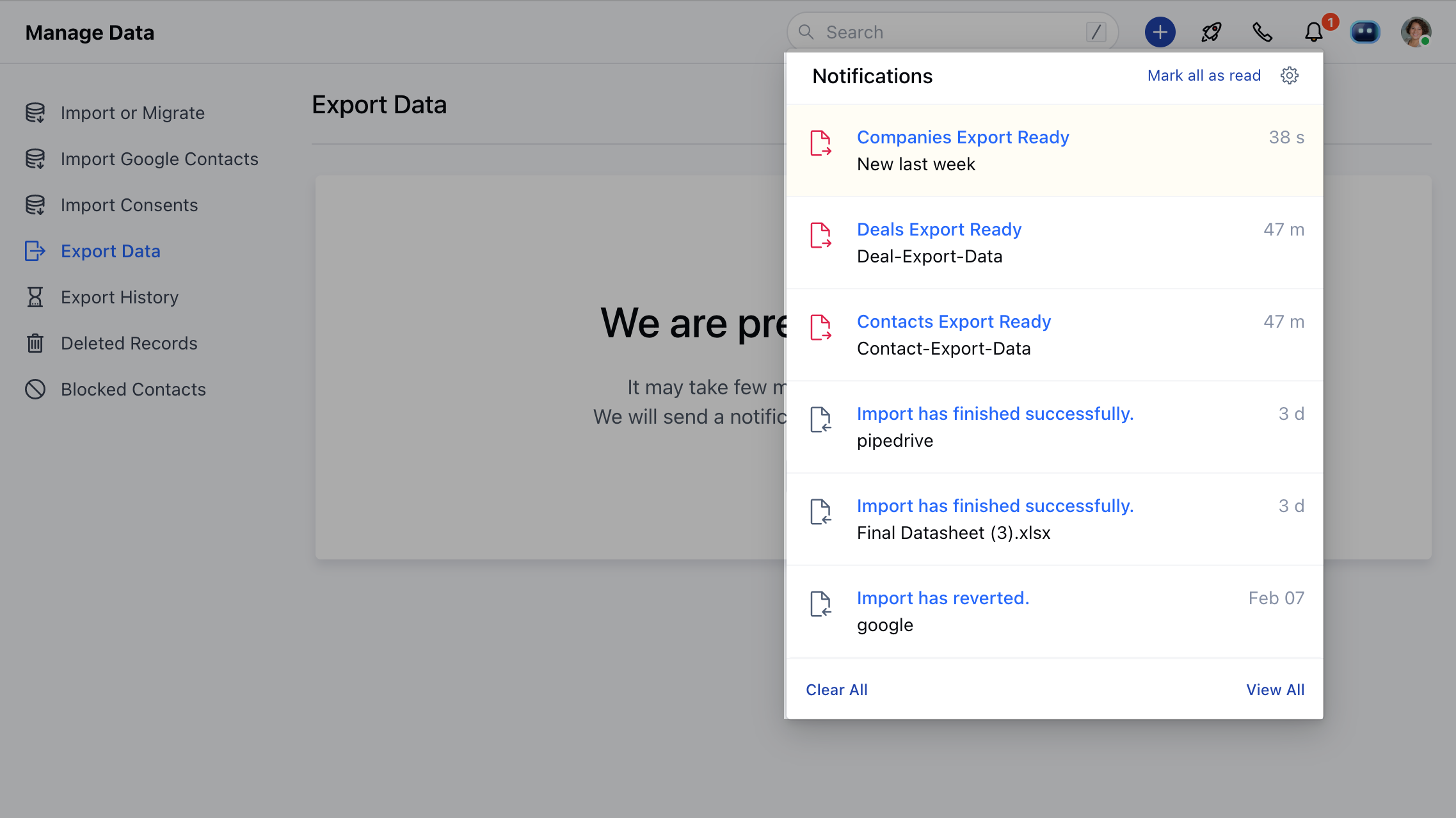
- Once the Export is completed, you will receive a desktop as well as an email notification as your Export is ready.
- You can Export Data is Available under
- Click on Export history
- Click on the Download button and hence your data is exported from Skara.

Note:
- he link to download the file will be available for 30 days max. After that exported file will be deleted from the Salesmate server, and the download link will get disabled.
- Anyone with export rights can see export history, but the file can be downloaded by the person who initiated the export or the person who is in the higher hierarchy of that person.
- Only records of those people under you in the hierarchy will be available to you for export. Thus an Admin can export records for everyone in the organization.
- We will send a notification and an email with a download link.