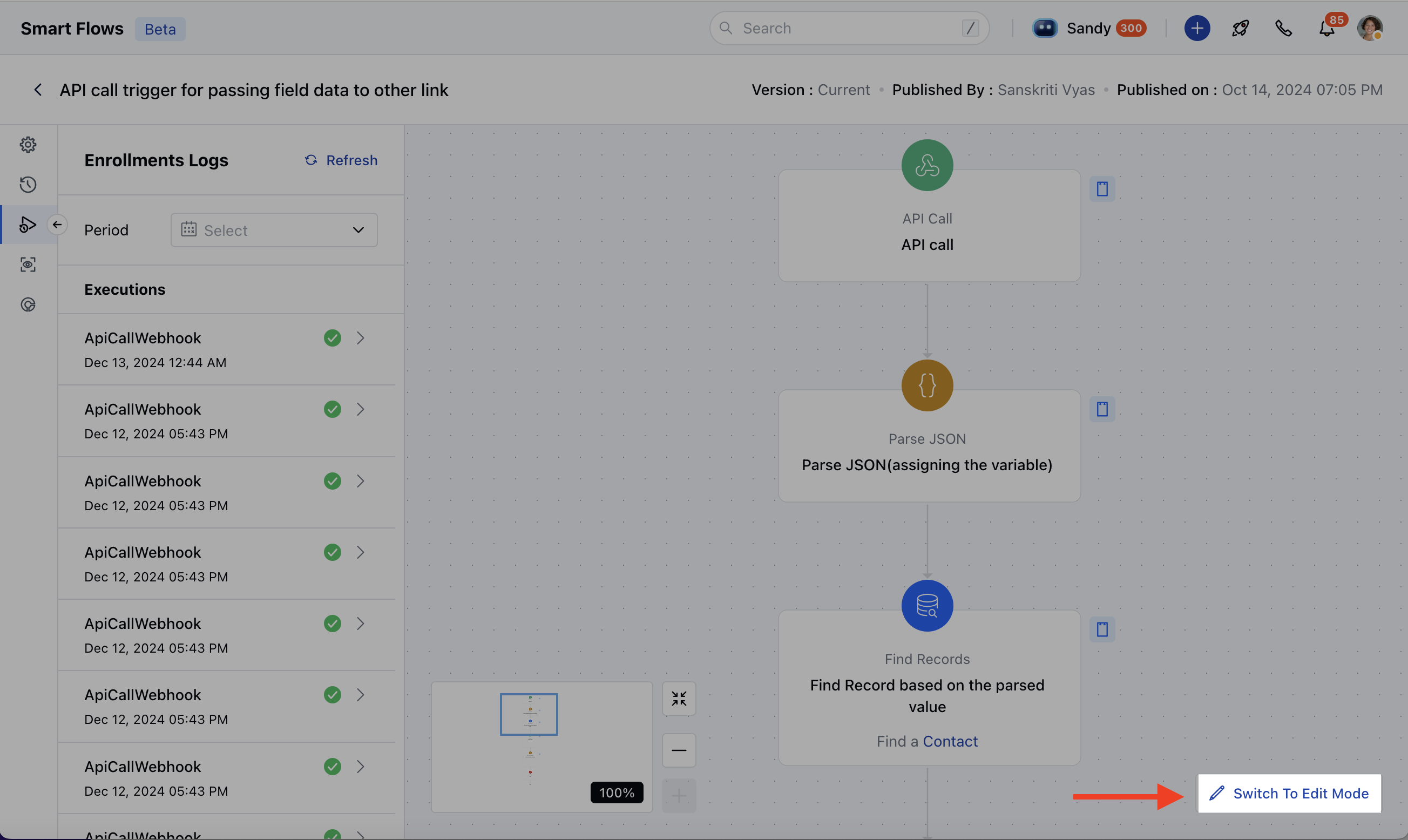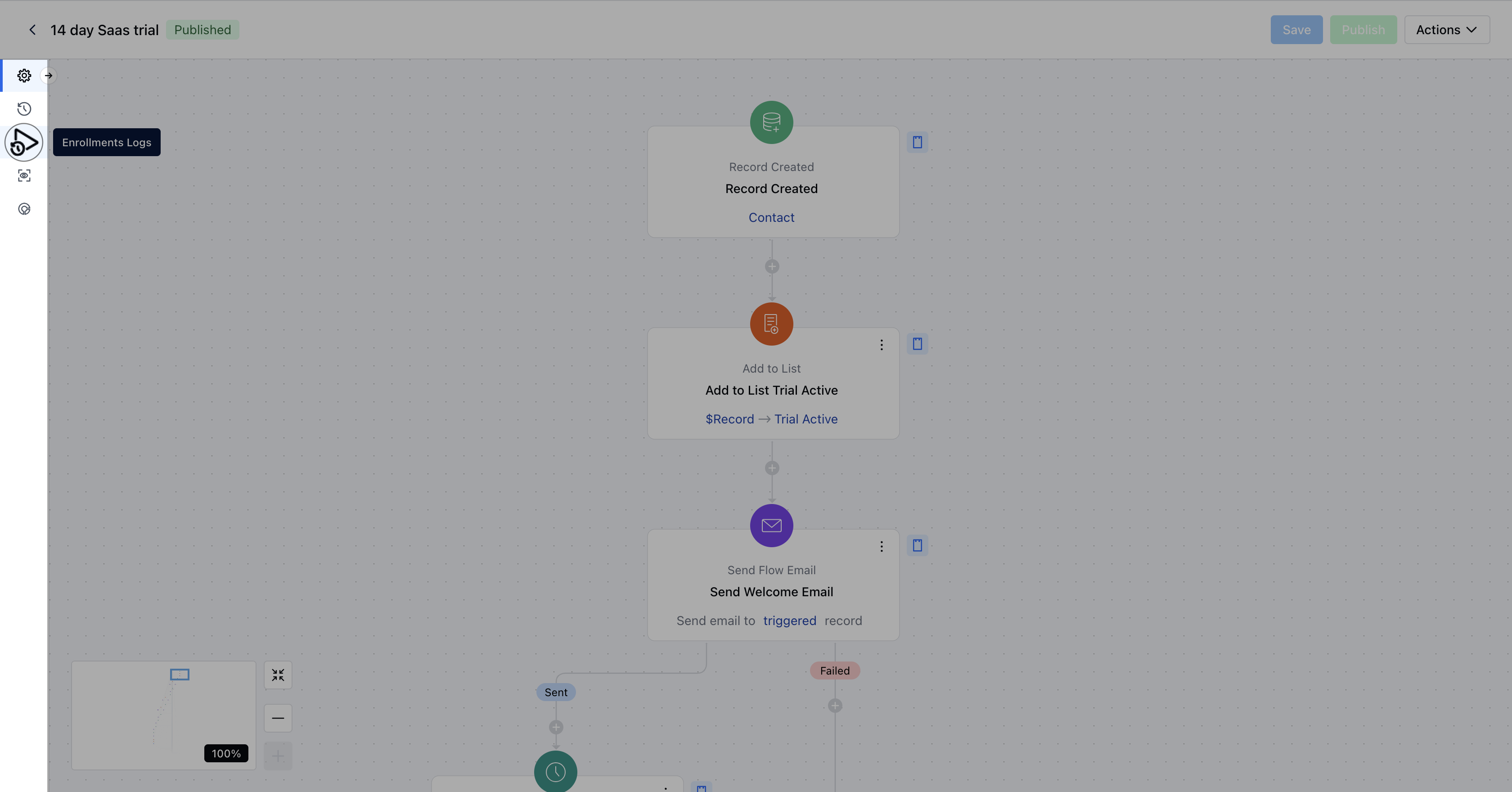
Enrollment History Panel
The Enrollment History panel shows key details about each enrolled record:Refreshing Logs: Refresh the history by clicking the Refresh button.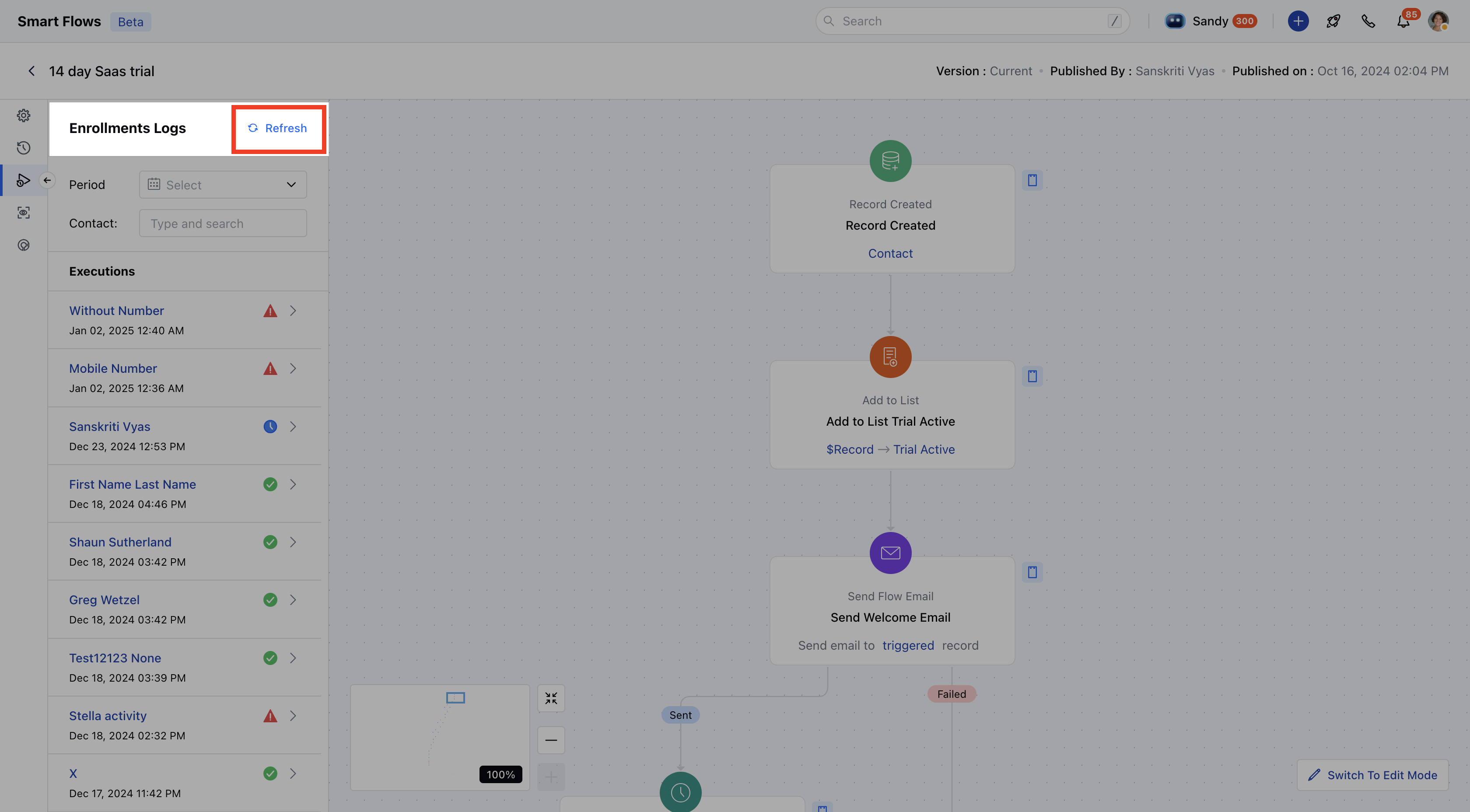
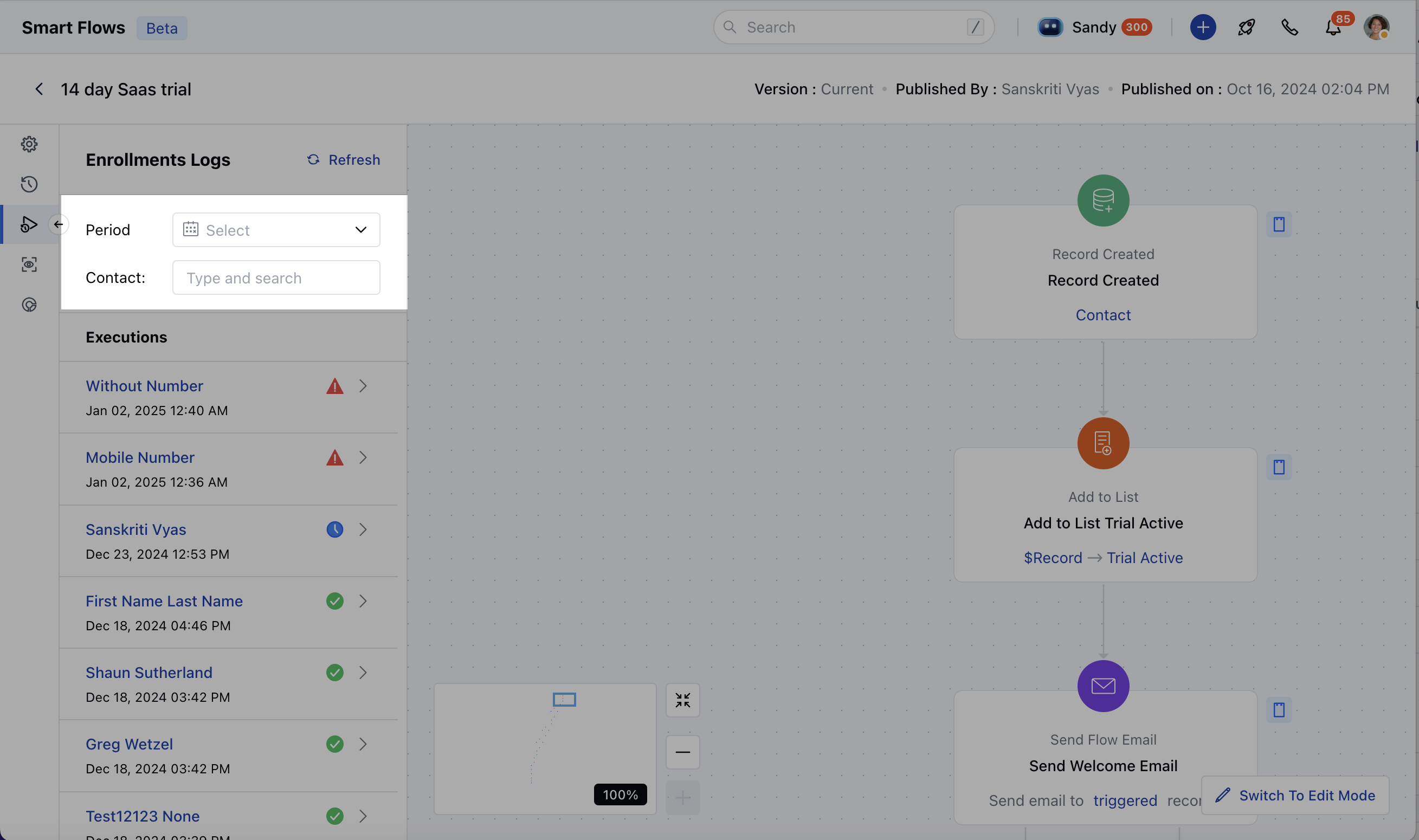
- Period*: Narrow down the history by date.
- Search for a Specific Record: Use the search function to find specific records (except for API calls).
- Record Name*: A clickable link to open the record, unless it’s triggered by an API call.
- Date: The enrollment timestamp, displayed in your local timezone.
- View Details: Clicking this reveals more information about the record’s interaction with the flow Step Name: The flow step name.
- Date: When the flow reached this step.
- Version: The workflow version executed.
- Status: Whether the step was successful or not.
- Execution Time: Time taken for the step to execute (in days, hours, minutes, and seconds).
- Retry: Option to retry a failed step for the record.
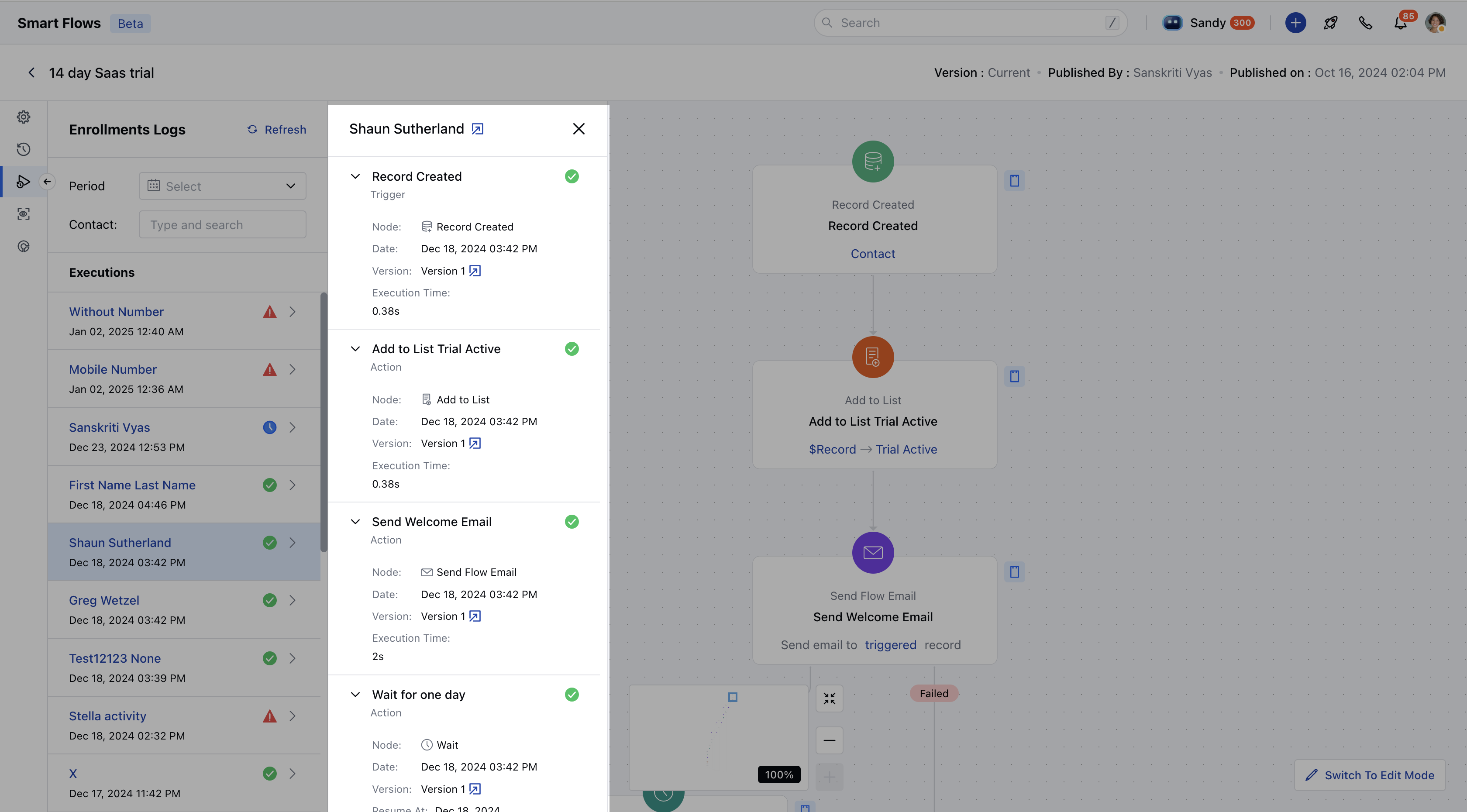
- Flow Status*: Shows if the flow is running, completed, paused, or failed.
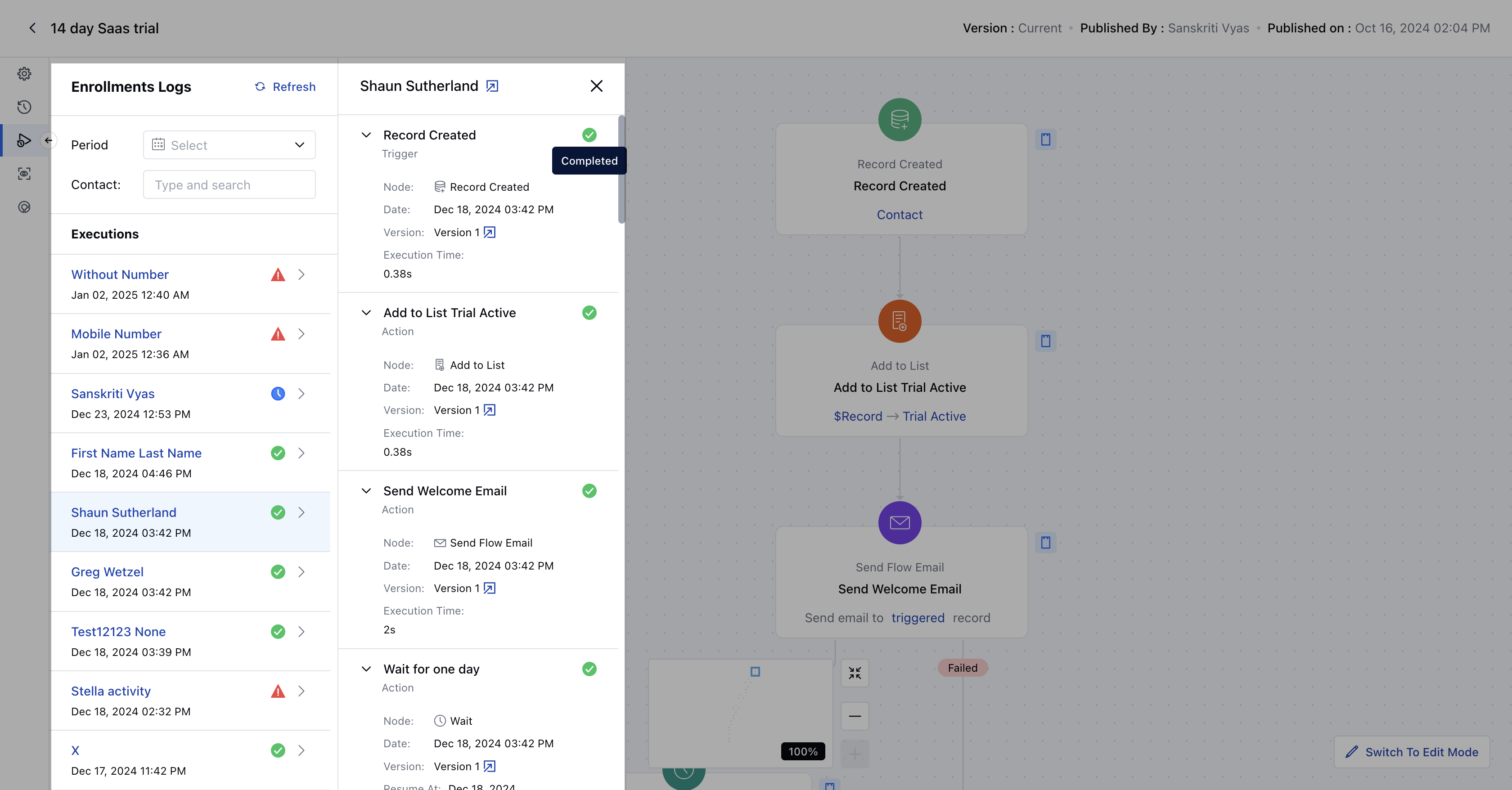
- Unenroll*: If the flow isn’t finished, you can manually unenroll a record.
- Enrollment History Sorting: Records are sorted by date, from most recent to oldest.
- Data Retention: Enrollment history is saved indefinitely; step details are kept for 180 days.
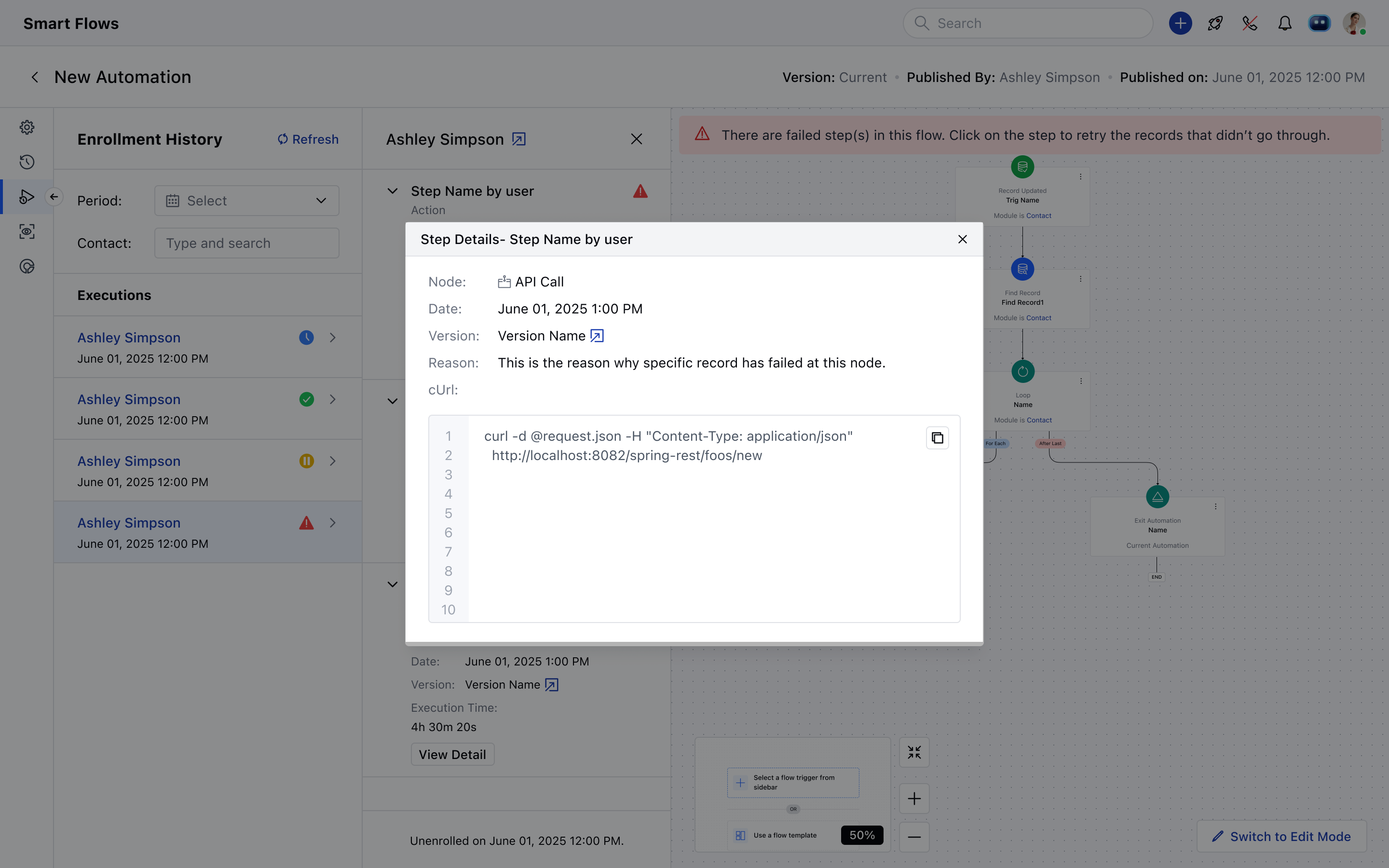
- API Call Details: For API triggers or actions, view the JSON response or cURL request.
- Switch to Edit Mode*: To edit the flow, click the “Switch to Edit Mode” button.