If you are curious regarding what kind of changes or modifications were made under your Smart Flows, you can track them by utilizing the Version history.

How to check the Version History

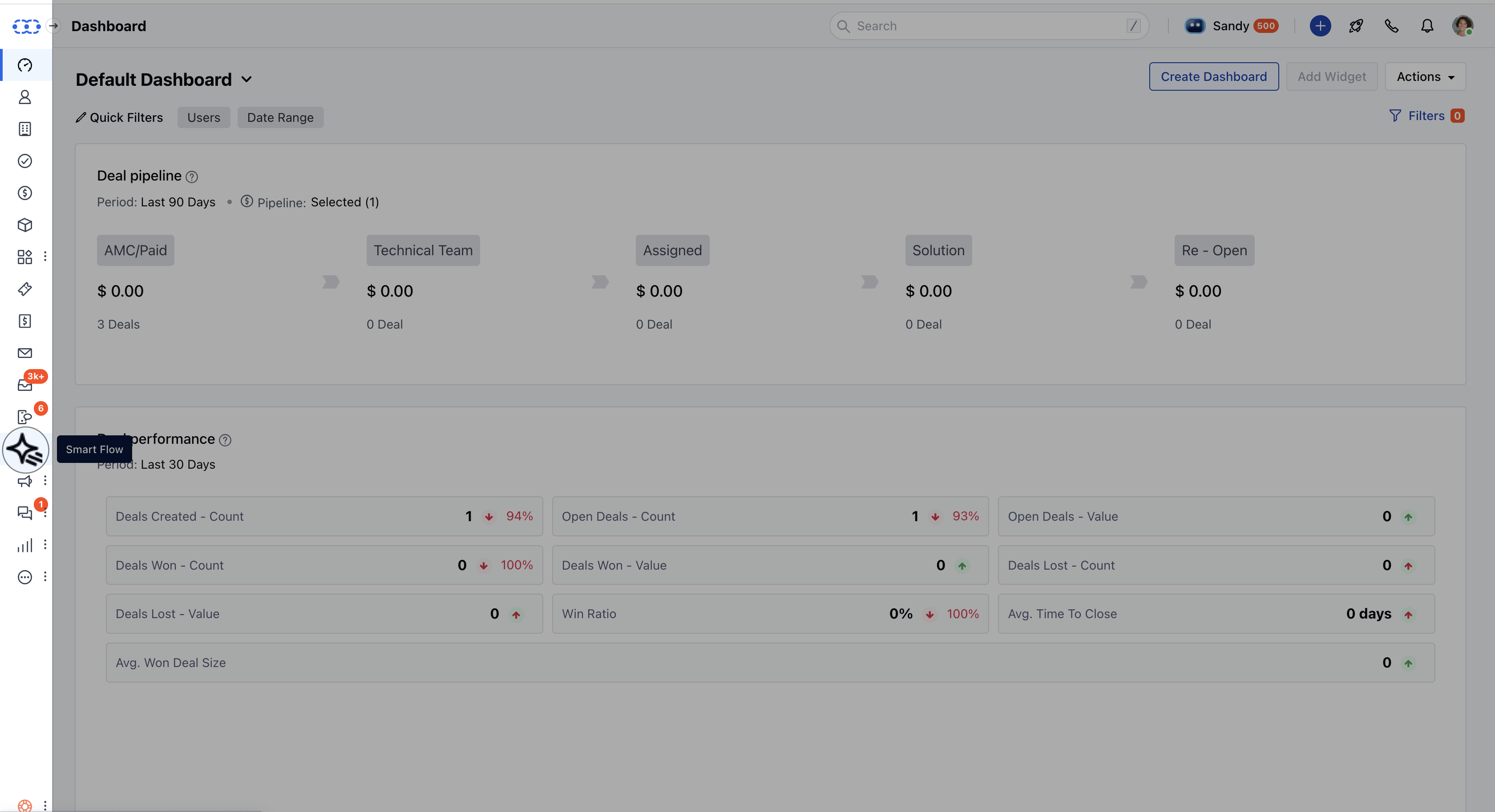
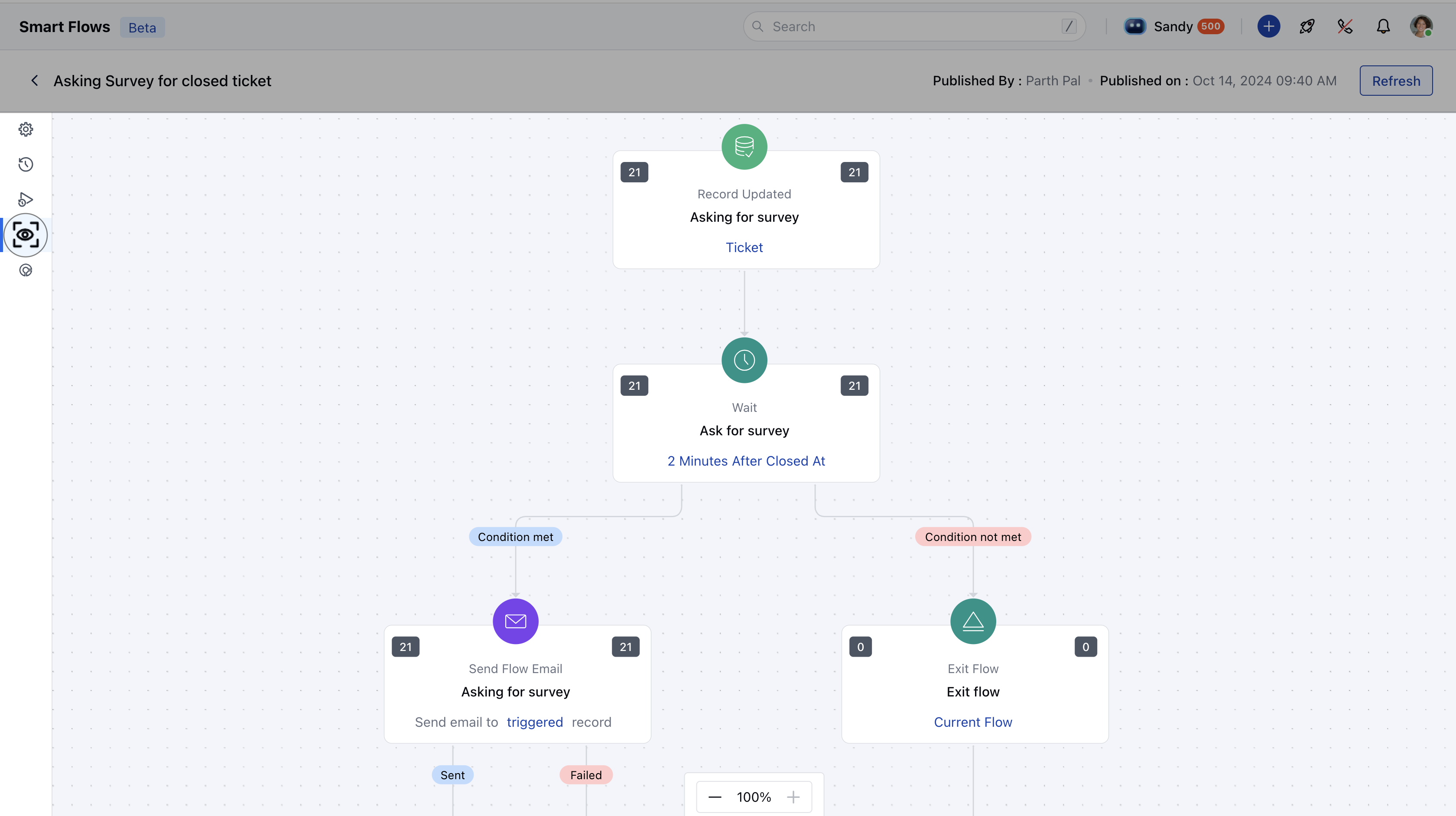
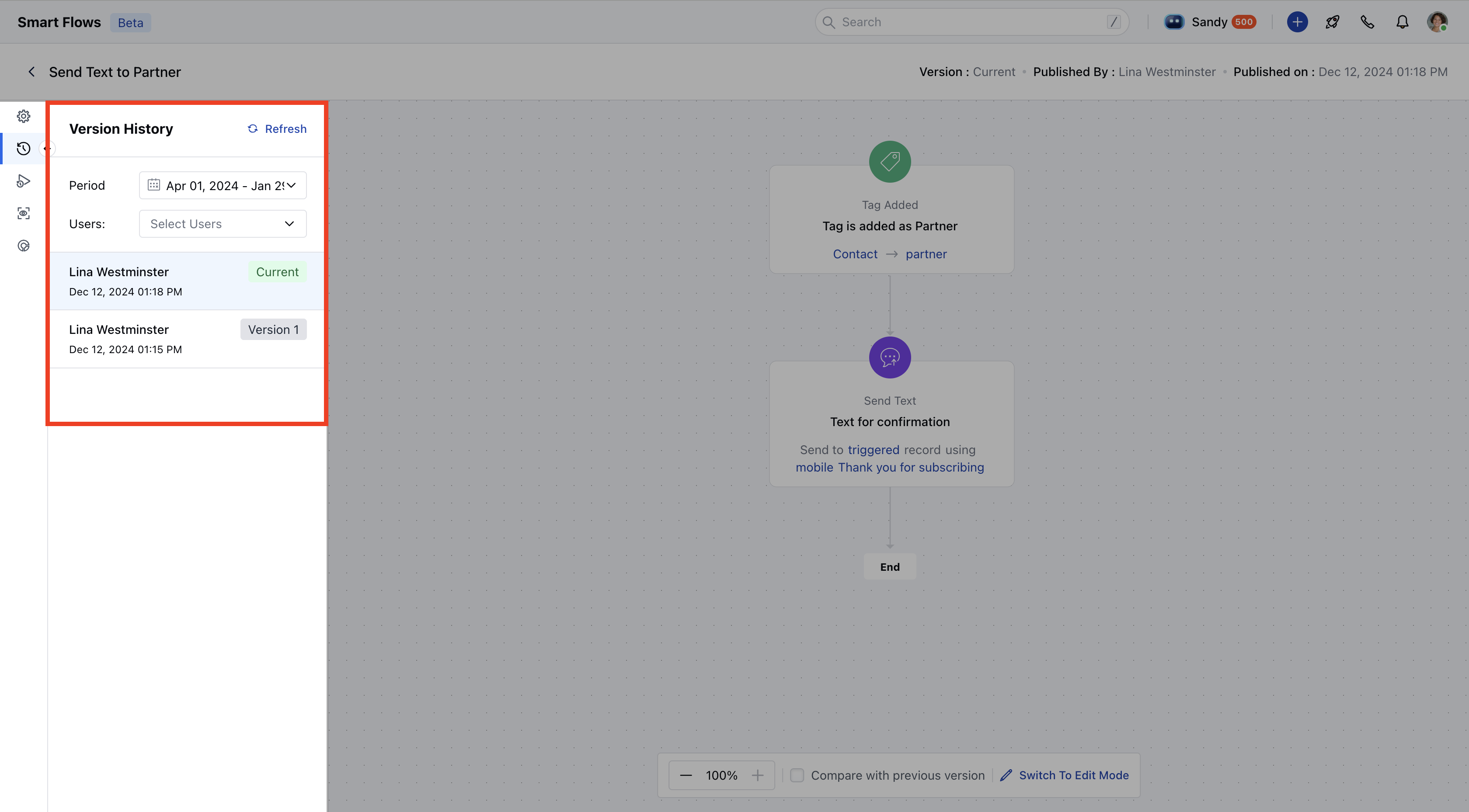
Navigate to the Outreach Icon from the left menu barClick on the Smart Flow Screen Shot 2024-12-12 at 3.13.39 PM.png Select the flow for which you wish to check the history from the list.Once you are under the canvas, click on the Version History second option from the left-hand side list Screen Shot 2024-12-12 at 3.18.47 PM 1.png Once you click on Version History, a collapsible panel will appear in the left-hand side.There would be two filters visible namely
  • Period- To view the versions published under the filtered duration.
  • User- To find the versions published or modified by selected users.
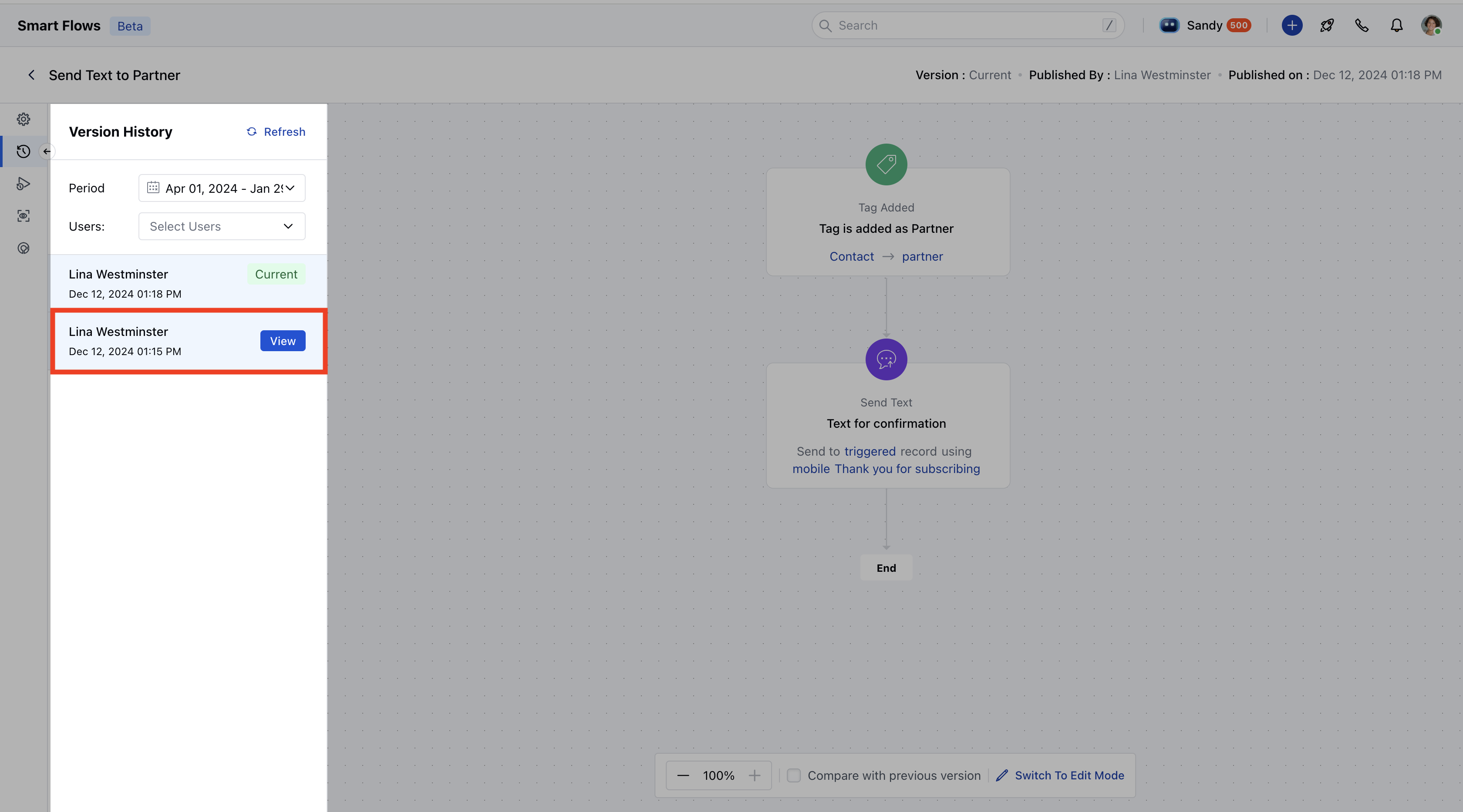
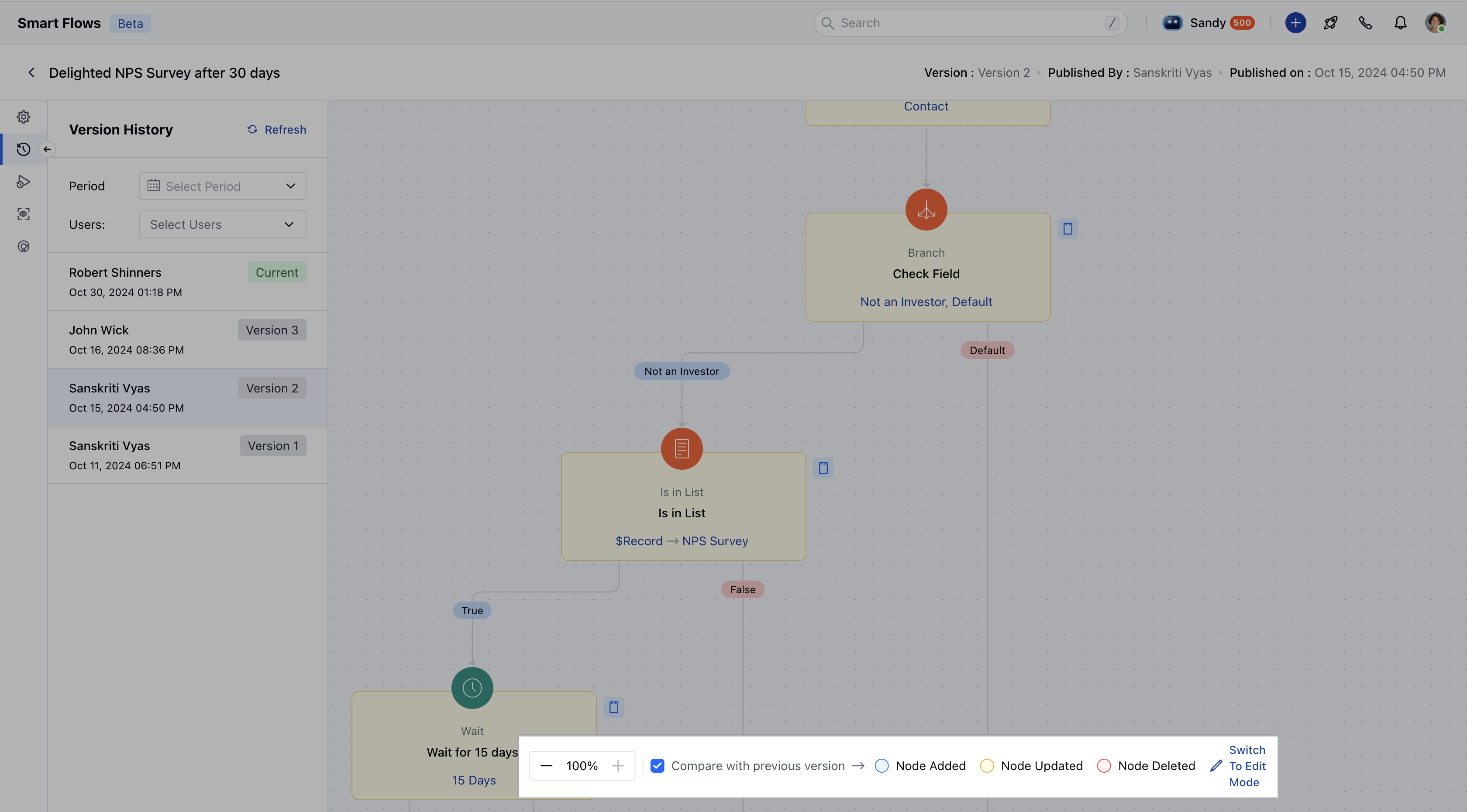
Screen Shot 2024-12-12 at 3.22.35 PM.png Further, you can click on “View” against the user for which you wish to see the version and the same would be reflected on the canvas with the details regarding which user has published the smart flow and the date and time.Once you select a version, you will be able to see an option that says “Compare with previous version”. This will allow you to compare the changes in relation to the previous version as the name suggests. Screen Shot 2024-12-12 at 3.29.22 PM.png

What are the different options indicated under highlight changes

There are three options that you can check, namely Node Added- If any triggers, conditions, or actions are added then they would be displayed using a blue background.
  • Node Updated- If you have modified or updated the conditions, triggers, or actions, they will be indicated by a yellowish background Node Deleted- If any triggers, conditions, or triggers were removed, they would be highlighted by a red background.
Screen Shot 2024-12-12 at 3.33.31 PM.png