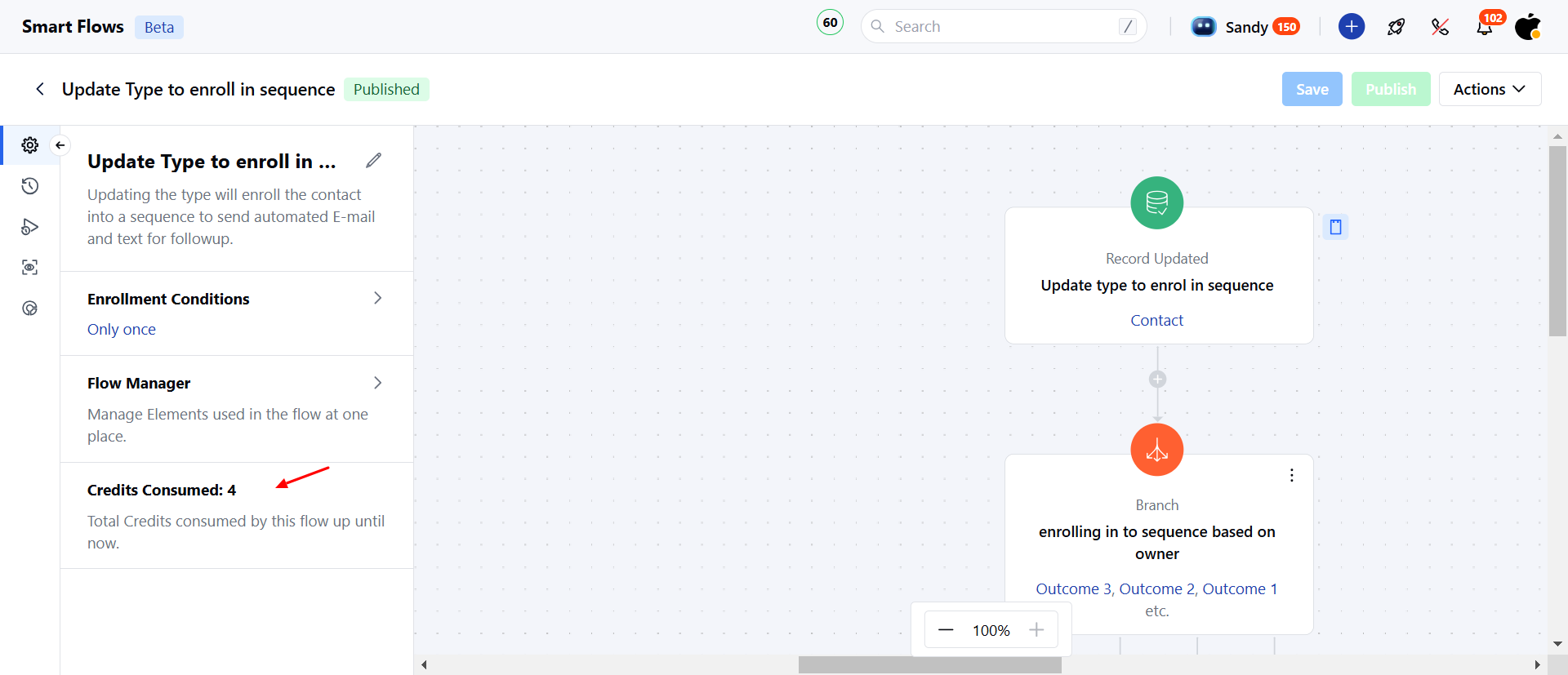
How to access Smart Flow settings
To access your Smart Flow Settings, Click on a Smart Flow TitleHover the cursor towards the arrow visible besides the settings icon on left side menu bar under the flow title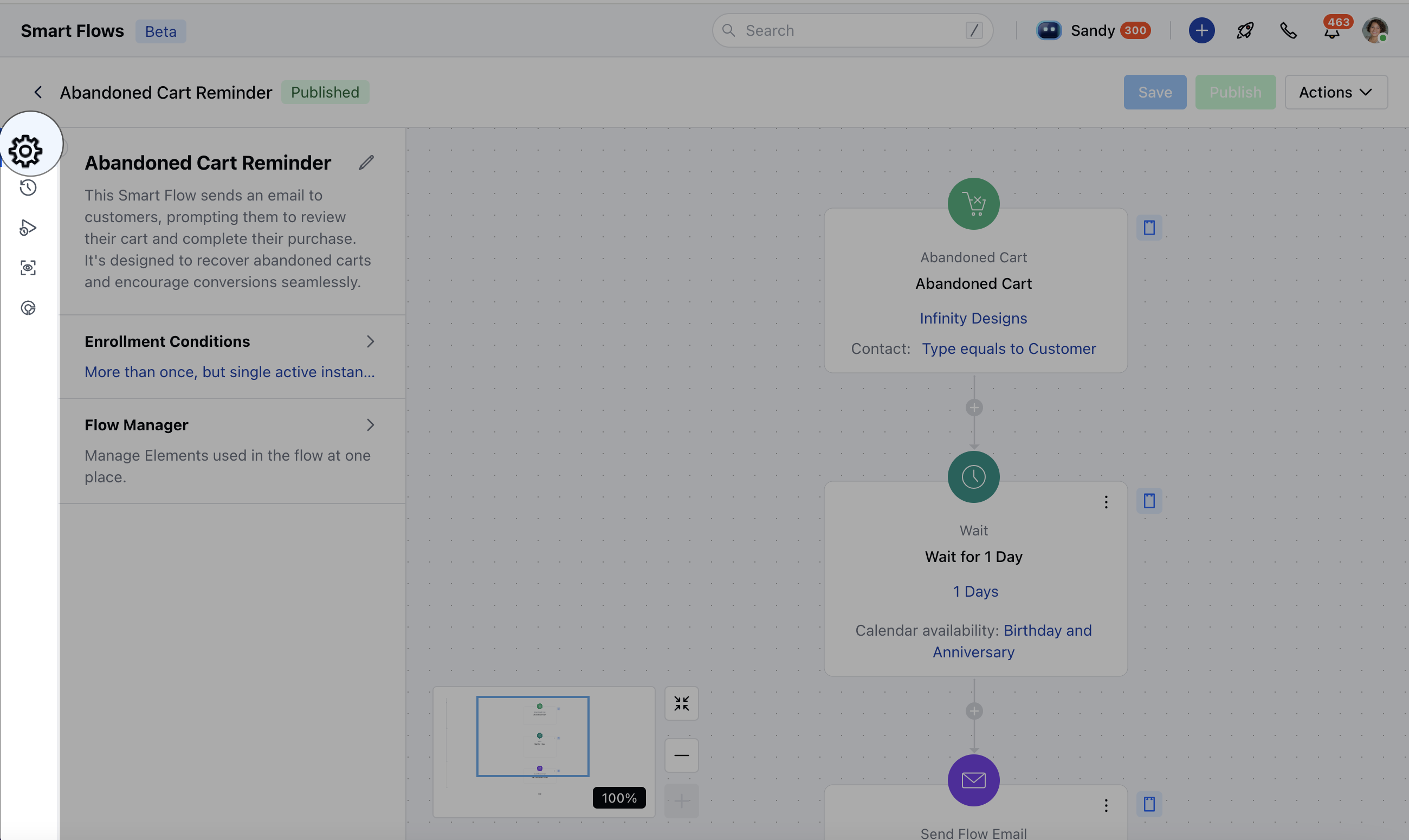
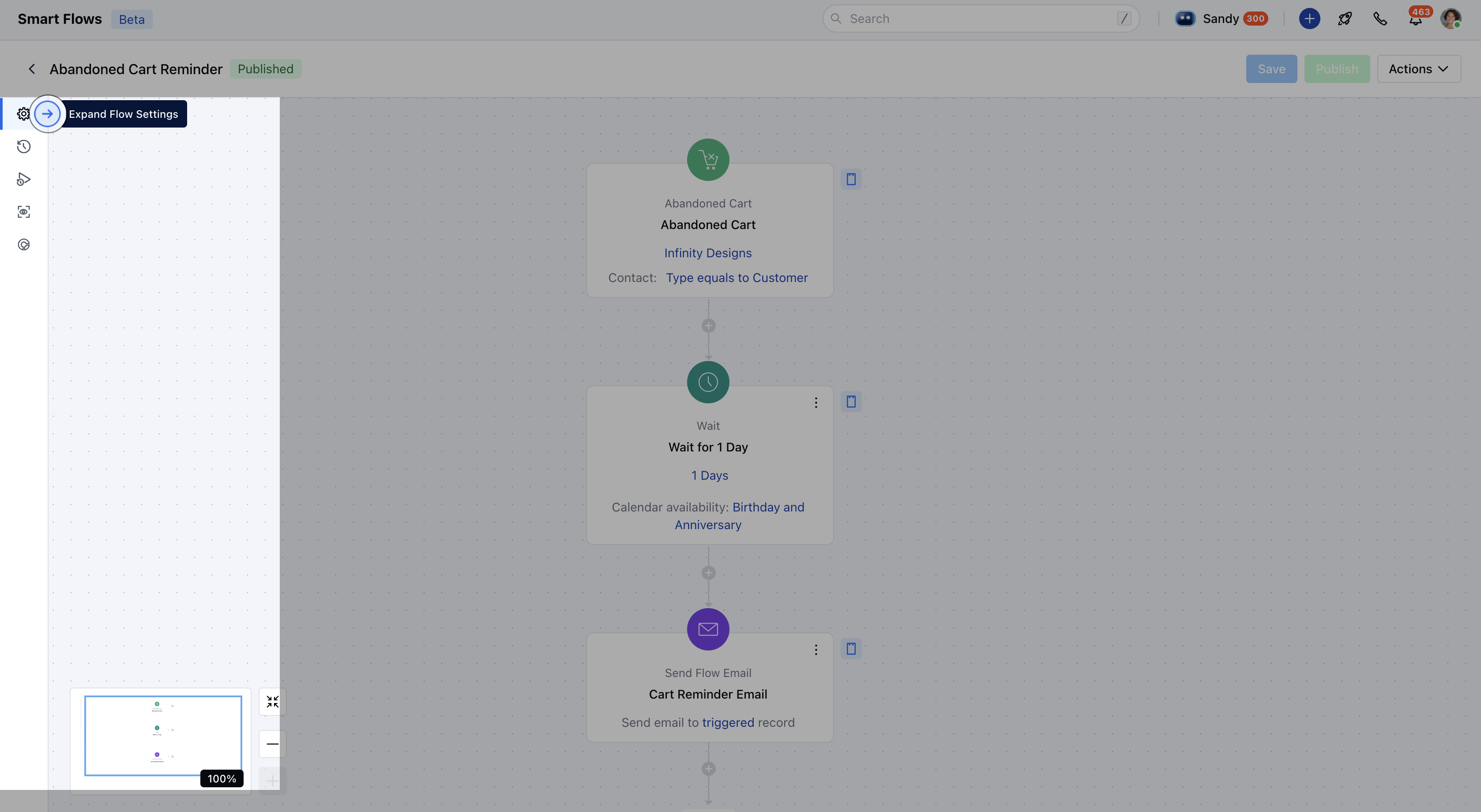
Understanding Different Options Available Under Smart Flow Settings
- Editing your Flow’s Title, Description and Changing the Folder
- Enrollment Conditions
- Flow Manager
- Credits Consumed
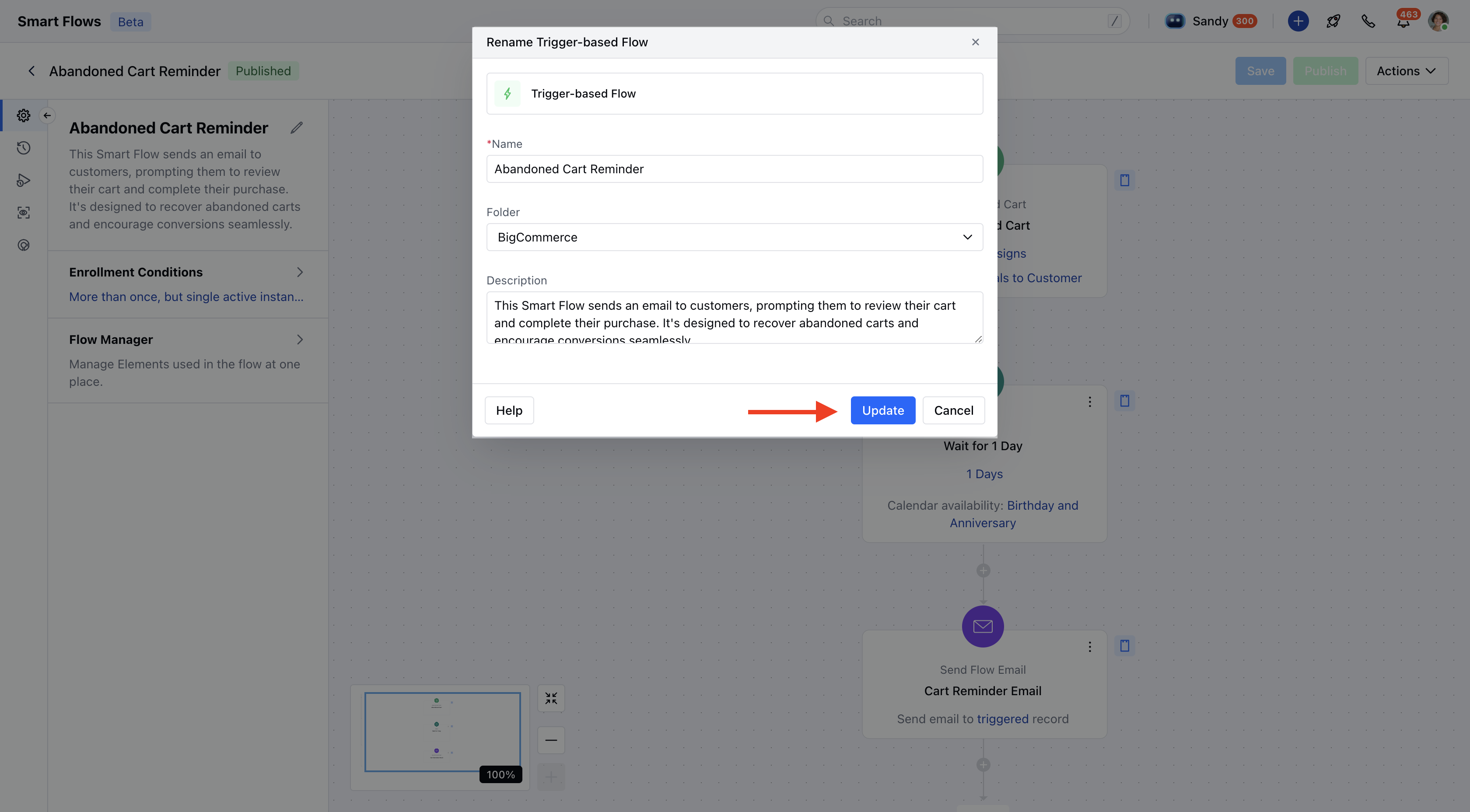
Editing your Flow’s Title, Description and Changing the folder:
Click on the pencil besides the flow’s title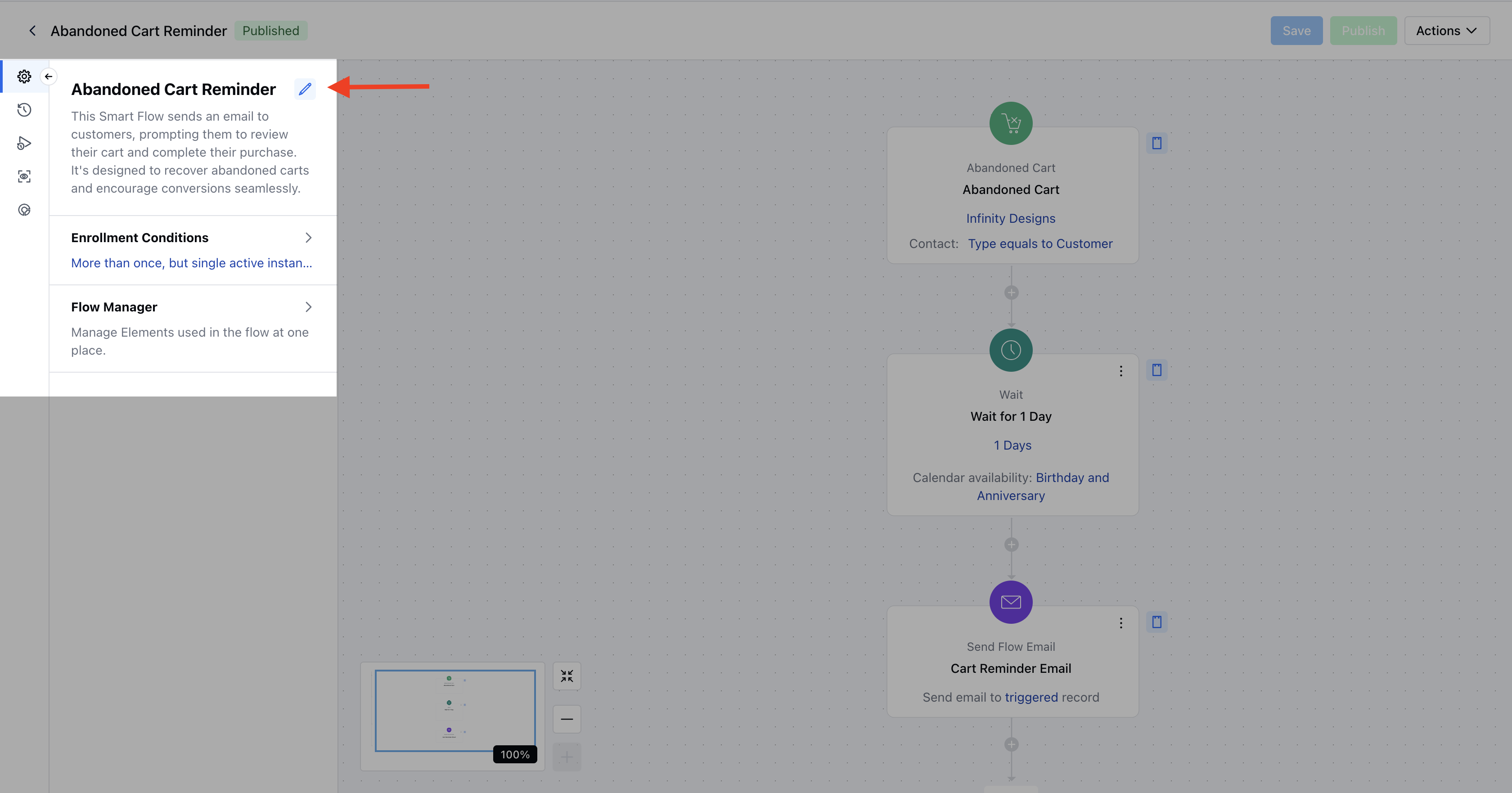
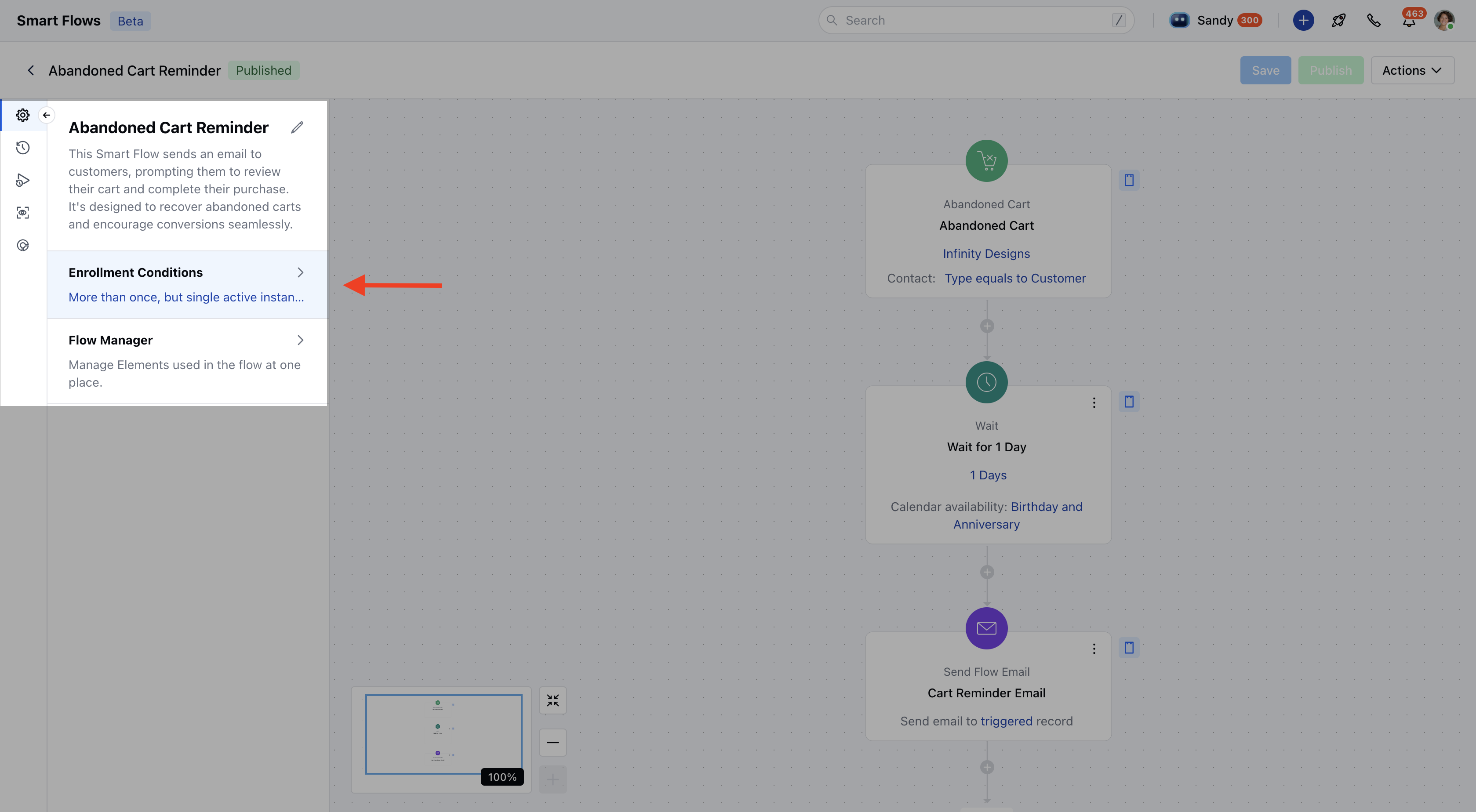
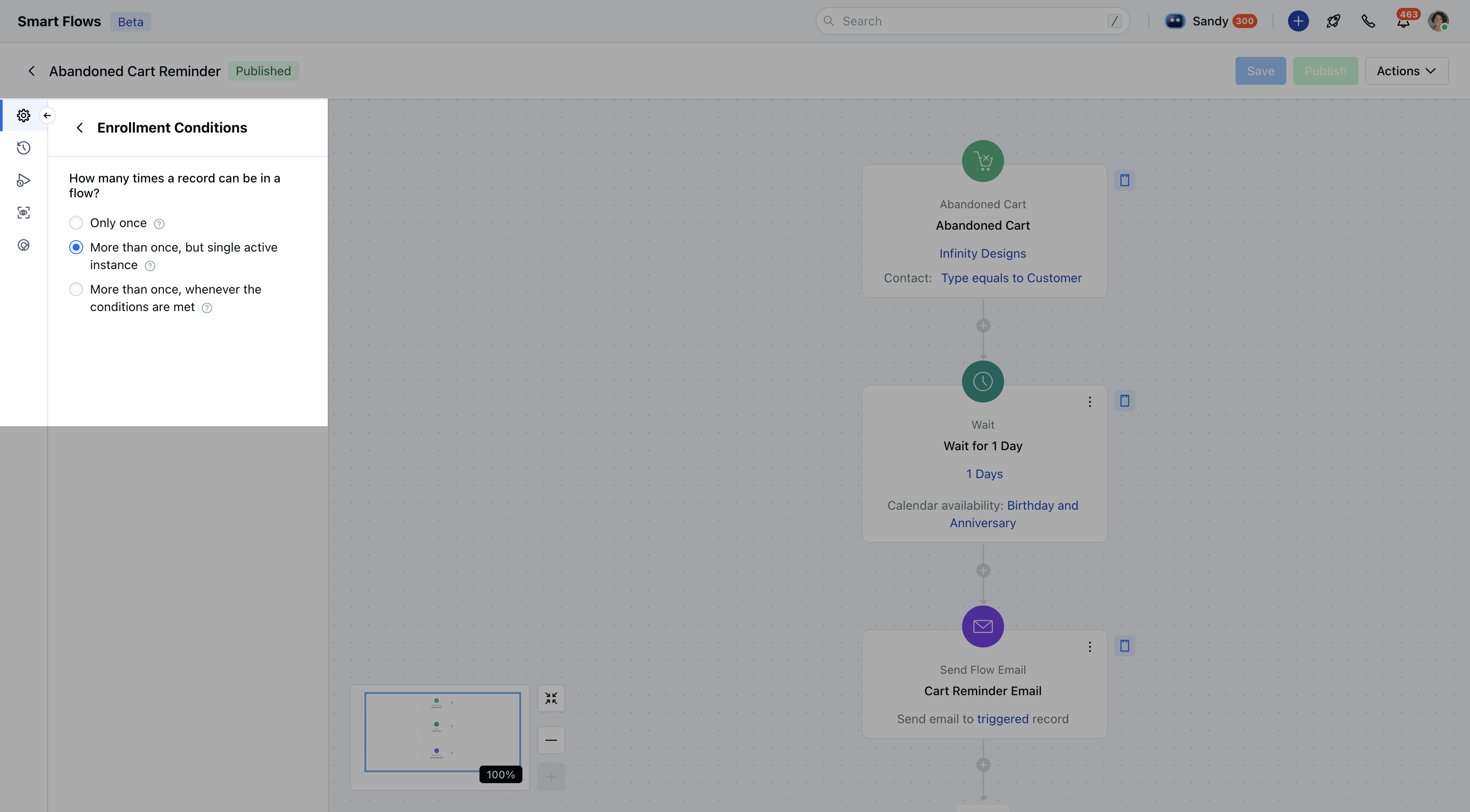
Enrollment Conditions:
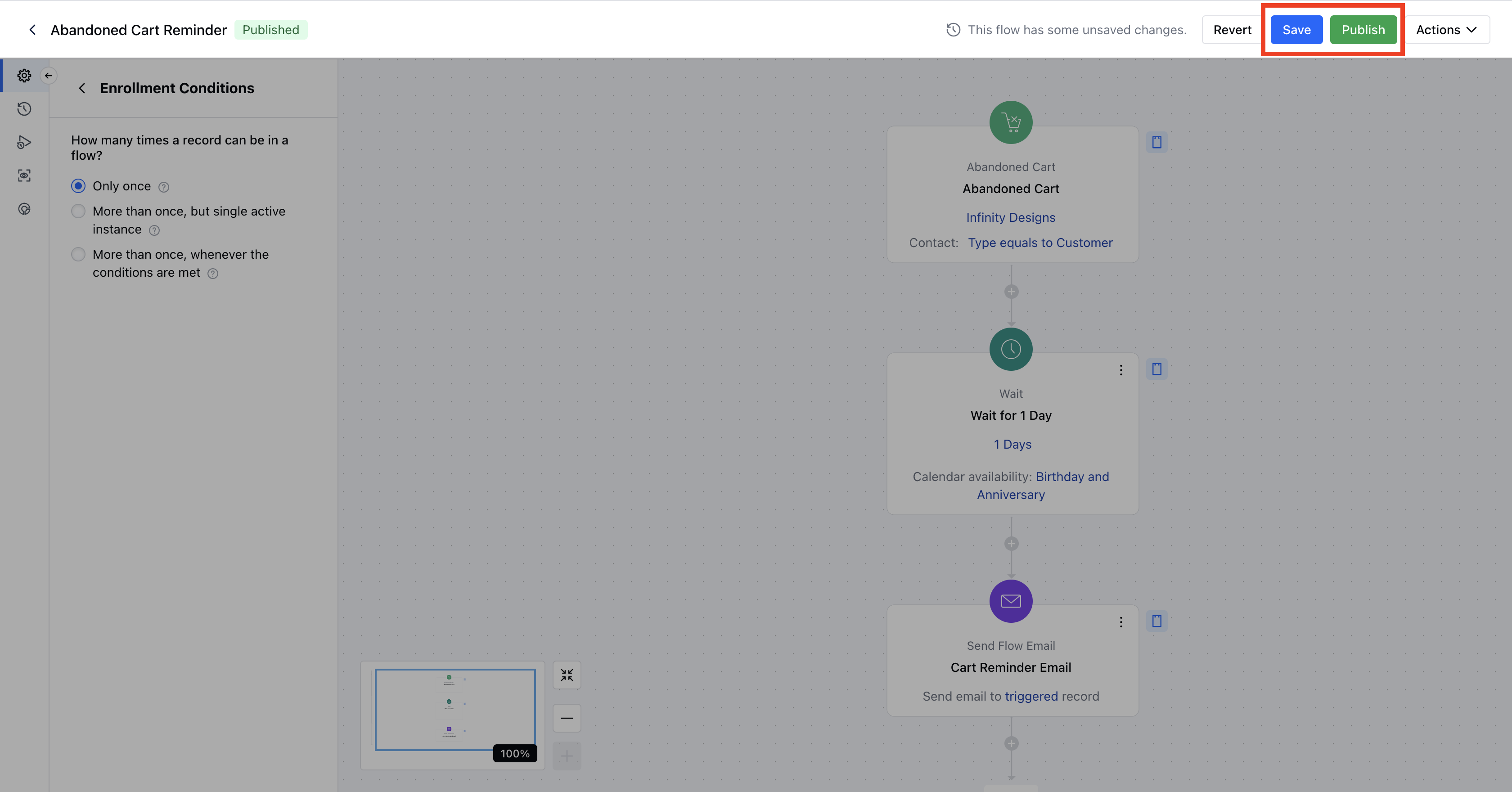
Using this setting, you can configure your record’s enrollment condition. The available options are:Only Once: This can be used if you do not want a record to be enrolled more than once in a flow- More than Once But Single Active Instance: This should be used when you want a record to be enrolled if it is not active i.e. not at any stage of the specific flow.
- More Than Once Whenever the Conditions are met: This should be used if you want a record to be enrolled multiple times in a flow disregarding if it is already active i.e. Sending a meeting booking confirmation every time a customer books a meeting
Flow Manager
Flow Manager should be used to understand and manage the elements used in a given flow. Elements are: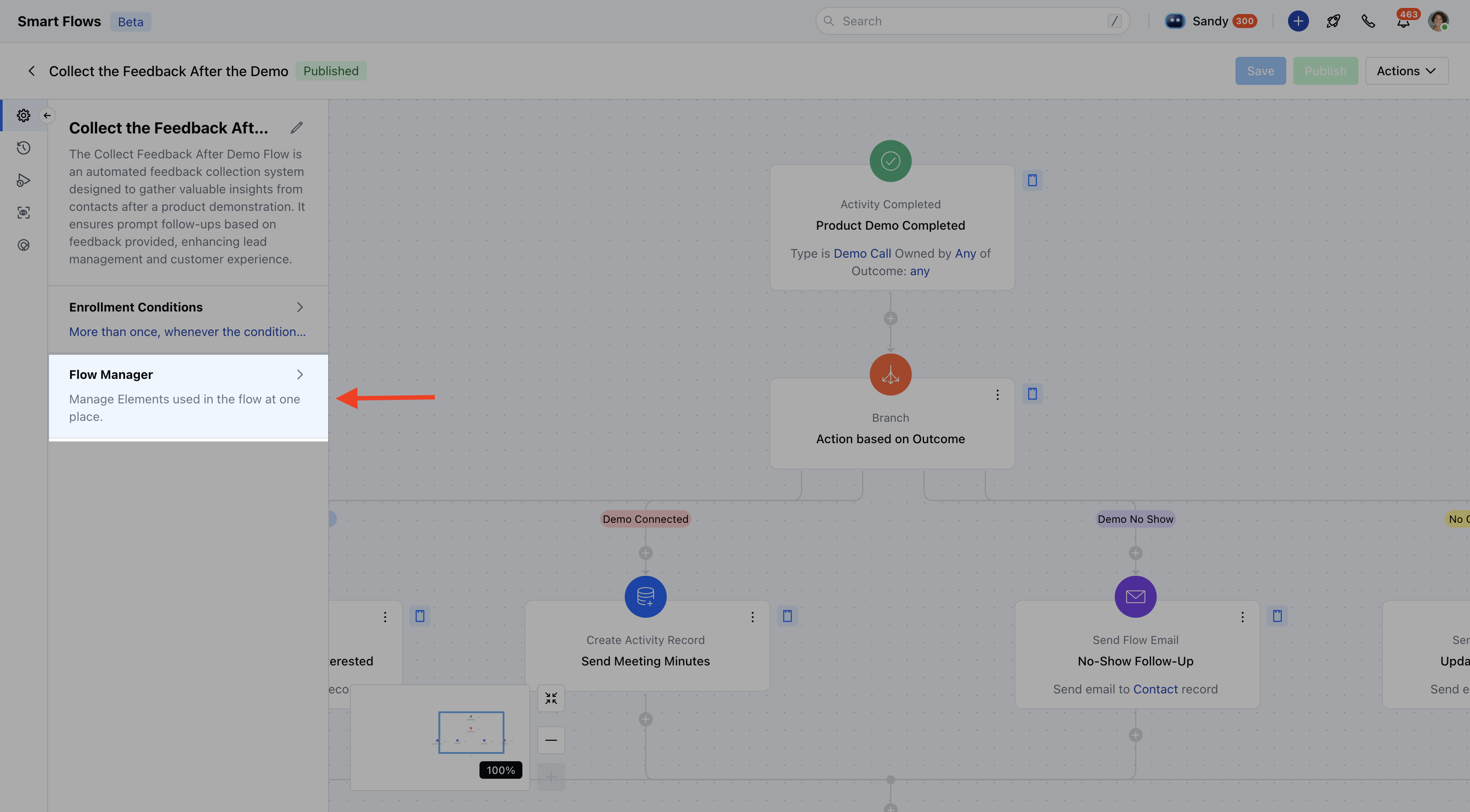
- Variables*: This allows you to view/create new variable for a given flow
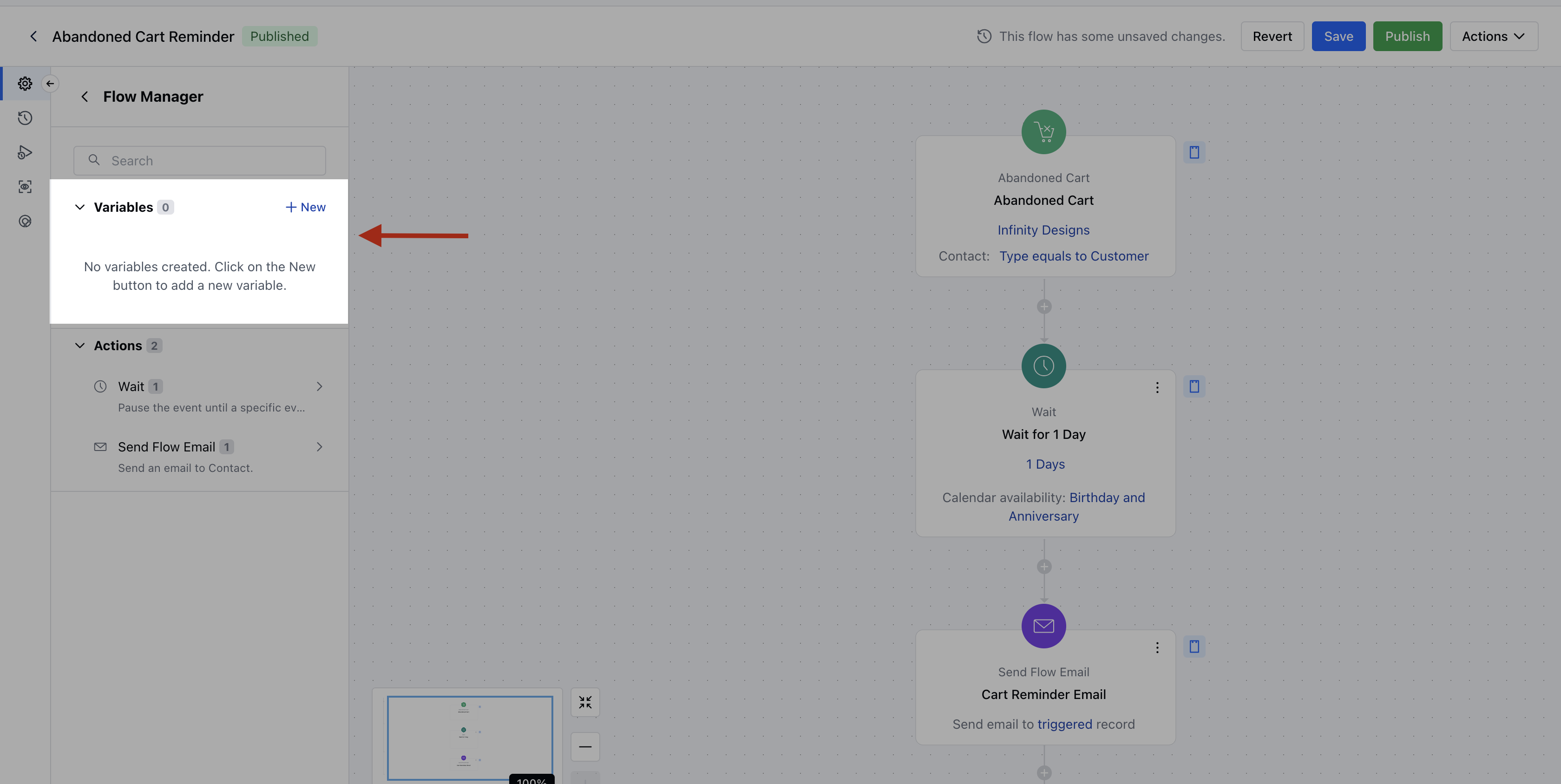
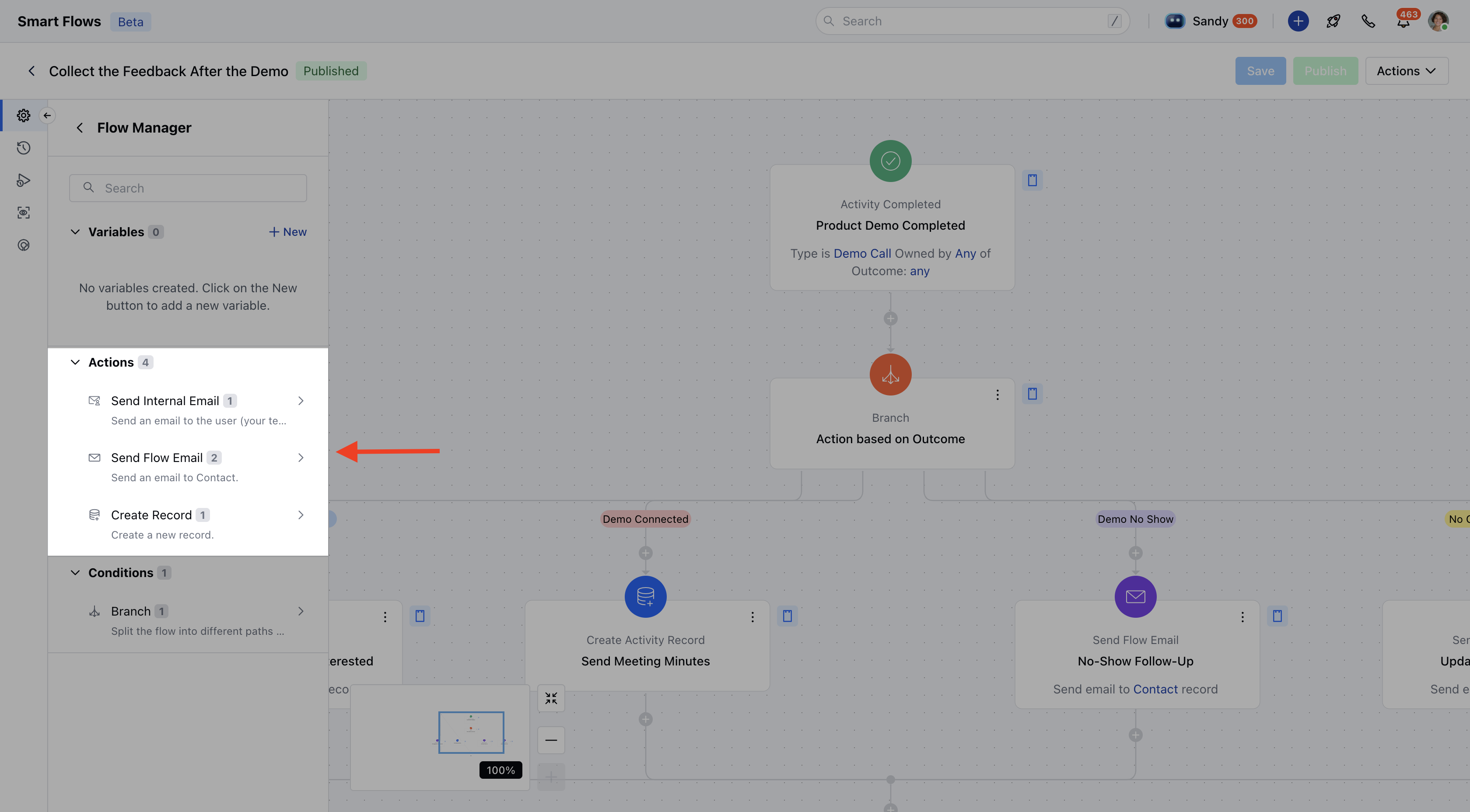
- Actions: This lets you view number of actions and what the are the actions used in a flow
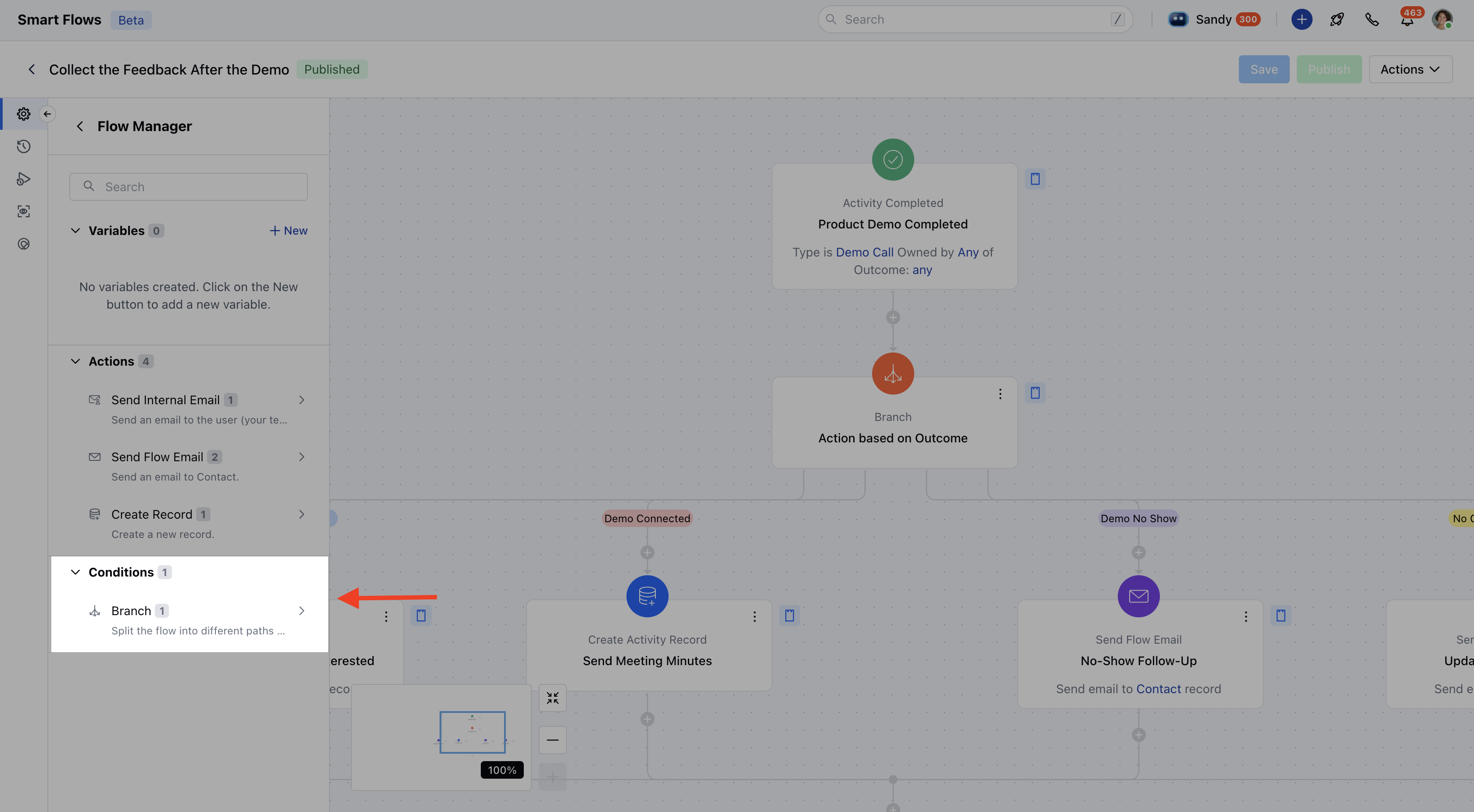
- Conditions: This lets you view the number of condition nodes and what the are the conditions used in the flow.
Credits Consumed
This section will show you the Lifetime value of the credits consumed by a given flow.