

Topics covered:
Steps to Configure
- Navigate to the More Icon from the left menu bar
- Click on the AI Pilots
- Select the AI Pilot from the drop-down.
- Go to Execution Flows.
- Click Create New Flow.
- Choose Trigger - New Conversation.
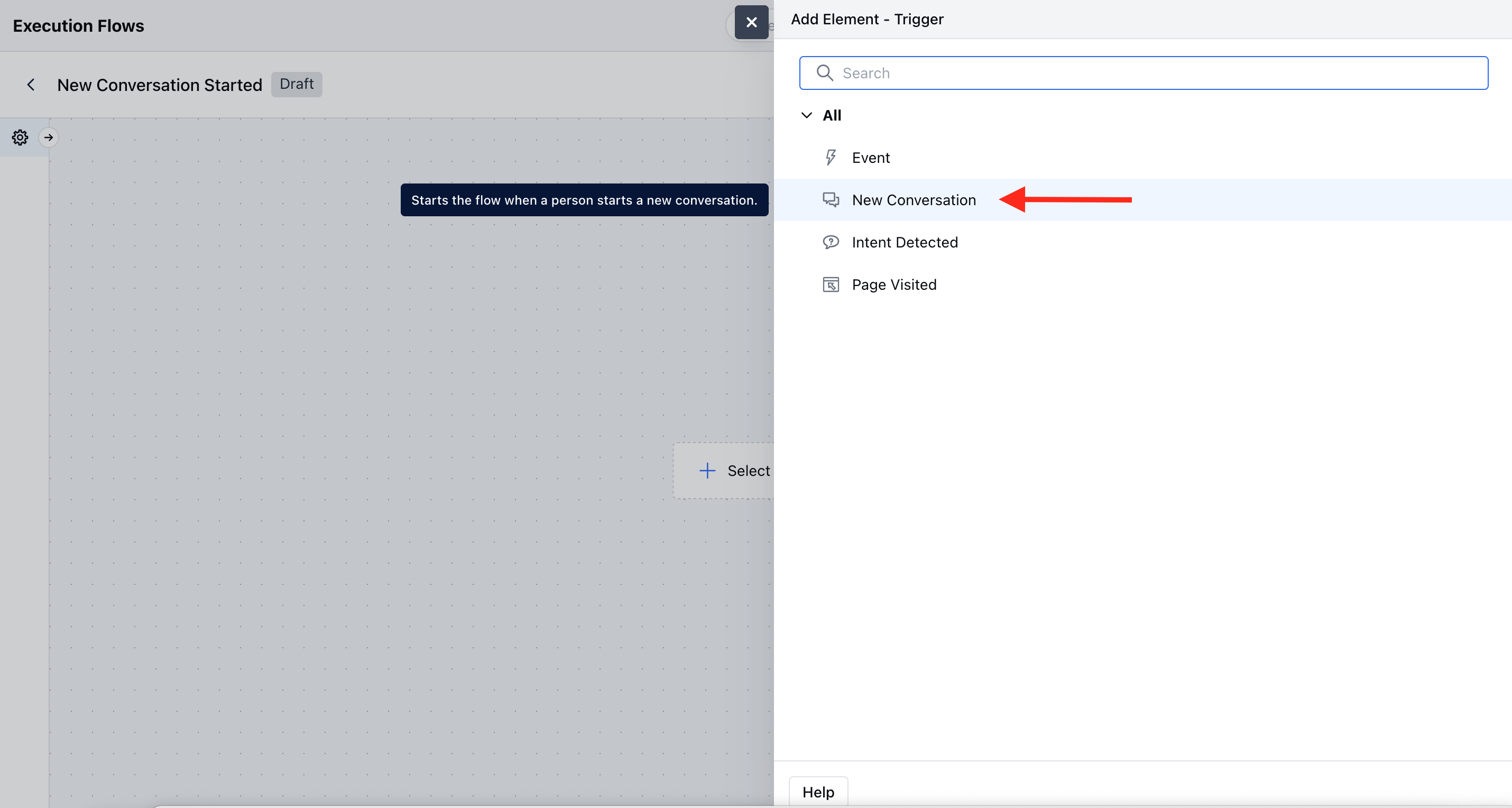
- Name: Add a name for the trigger.
- Description: Add details to explain what the trigger does.
- Channels: Select at least one channel.
- Web: Triggers when a new chat starts from the Salesmate widget.
- Facebook: Triggers when a new chat starts from Facebook.
- WhatsApp: Triggers when a new chat starts from WhatsApp.
Practical Example
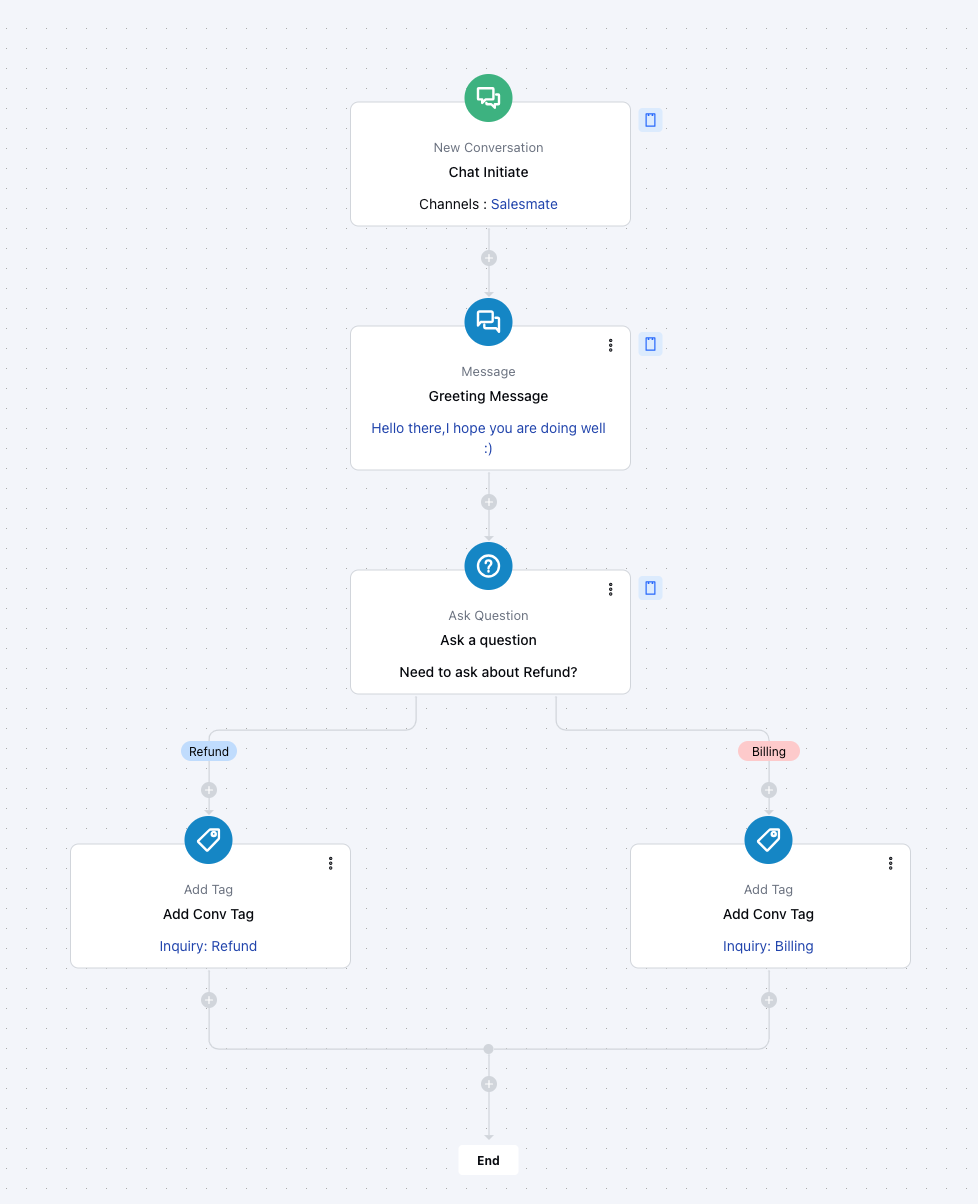
When a customer initiates a new chat via the Skara Web Widget, the New Conversation trigger activates an AI Pilot flow that:- Greets the customer automatically.
- Collects basic information (like name, email, or issue type).
- Routes the conversation to the right team, such as Sales for pricing inquiries or Support for technical issues, based on user responses.
Note:
- If a selected channel is not installed, you will see this message:
“You need to install the app first to configure its triggers, conditions, or actions.” - If Unified Inbox is not active, this warning will appear: “You need to activate the Unified Conversation Inbox and connect this channel to configure the trigger.”
- If no voice number is assigned to the AI Pilot, you’ll see: “You need to add at least one number to the Voice Channel associated with this AI Pilot to receive and handle the incoming calls.”