Install Skara Chat SDK to communicate with your Customer on your Android app. Salesmate Chat for Android supports API 21 and above. Click here to learn about navigation to Android - Installation in Salesmate.
Note: We recommend using the latest available compileSdkVersion.
Topics covered:
Install Skara Chat SDK
If you’re new to Salesmate Chat, you’ll need to Configure the Skara Chat in your Skara account. Then you have three options:
- Option 1: Install Skara Chat SDK with Firebase Cloud Messaging (FCM)
Add the following dependency to your app’s build.gradle file:
dependencies {
// Salesmate Chat SDK (Firebase-enabled version – Coming soon)
implementation 'com.salesmate:salesmate-chat-android-sdk:COMING_SOON'
// Firebase Cloud Messaging (required for push notifications)
implementation 'com.google.firebase:firebase-messaging:20.2.+'
}
- Option 2: Install Skara Chat SDK without Push Messaging
dependencies {
implementation 'com.github.salesmate:salesmate-chat-android-sdk:1.0.5'
}
Important: If you choose this method you won’t be able to send push messages.
Jitpack Salesmate Chat SDK is hosted on jitpack. You will need to add jitpack.io to your root build.gradle file.
allprojects {
repositories {
google()
mavenCentral()
maven { url 'https://jitpack.io' }
jcenter() // optional, only if needed for older dependencies
}
}
Permissions- We include the INTERNET permission by default as we need it to make network requests:
<uses-permission android:name="android.permission.INTERNET"/>
<uses-permission android:name="android.permission.READ_EXTERNAL_STORAGE"/>
Initialize Salesmate Chat
- First, you’ll need to get your Skara Chat App key, Workspace Id, and Tenant Id. To find these, just select the ‘Android Tab’ option in your Skara CRM Messenger Settings Installation section.
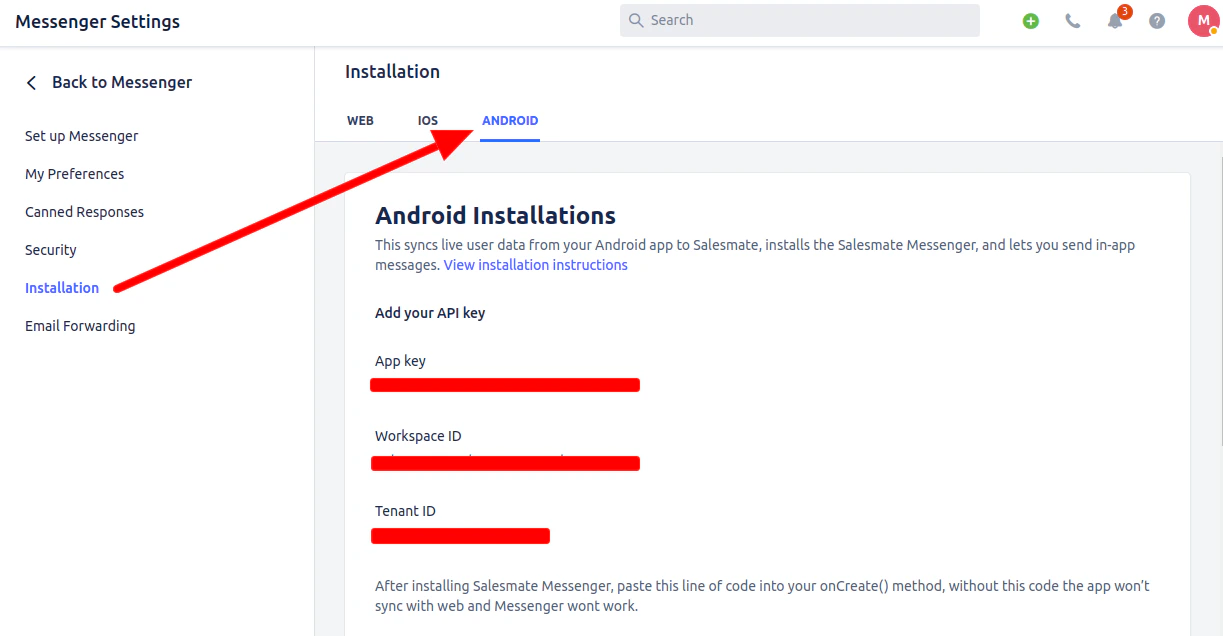
- Then, initialize Skara Chat SDK by calling the following in the
onCreate() method of your application class:
val workspaceId = "your Workspace ID"
val appKey = "your app key"
val tenantId = "your Tenant ID"// Configuration
val salesmateChatSettings = SalesmateChatSettings(workspaceId,appKey,tenantId,BuildType.DEVELOPMENT) // Initialization Salesmate Chat SalesmateChatSDK.initialize(this, salesmateChatSettings)
Note: If you don’t currently implement a custom application, you’ll need to create one. A custom application looks like this:
import android.app.Application
import com.salesmate.chat.sdk.SalesmateChatSDK
import com.salesmate.chat.sdk.model.SalesmateChatSettings
import com.salesmate.chat.sdk.model.BuildType
class CustomApplication : Application() {
override fun onCreate() {
super.onCreate()
val workspaceId = "your Workspace ID"
val appKey = "your app key"
val tenantId = "your Tenant ID"
// Configuration
val salesmateChatSettings = SalesmateChatSettings(
workspaceId,
appKey,
tenantId,
BuildType.DEVELOPMENT // or PRODUCTION
)
// Initialize Salesmate Chat
SalesmateChatSDK.initialize(this, salesmateChatSettings)
}
}
- You’ll need to update your manifest to use your application:
<application android:name=".CustomApplication"> </application>
Login a User
- You’ll now need to log in to users before you can communicate with them and track their activity in your app.
- Login your users (to talk to them and see their activity)
- Depending on your app type, you can log in to users. Here are the instructions :
- Here we will create a user with basic user detail in Skara CRM Messenger.
- If you have an app with logged-in (identified) users only (like Facebook, Instagram or Slack), follow these instructions:
- You’ll also need to log in to your user anywhere they sign in. Just call:
// Prepare a user's detail object
val userDetail = UserDetails.create()
val email = "user's email address"
val firstName = "user's first name"
val lastName = "user's last name"
val userId = "user's user id" // Unique id recommended
userDetail.withEmail(email)
.withFirstName(firstName)
.withLastName(lastName)
SalesmateChatSDK.getInstance().login(userId, userDetail, object : LoginListener {
override fun onLogin() {
// Login successful
}
override fun onError(salesmateException: SalesmateException) {
// Login error
}
})
How to Logout a User
- When users want to log out of your app, simply call logout like so:
// This clears the SalesmateChat SDK's cache of your user's data
SalesmateChatSDK.getInstance().logout()