

Topics covered:
- Create a Private Key
- Enable in Skara Chat SDK
- Register Device Tokens
- Handling Skara Chat Push Notifications
Create a Private Key
Using these instructions, create and download a private key with APNs enabled. Note the Key ID for the next step. Alternatively, use an existing private key with APNs enabled.Enable in Skara Chat SDK
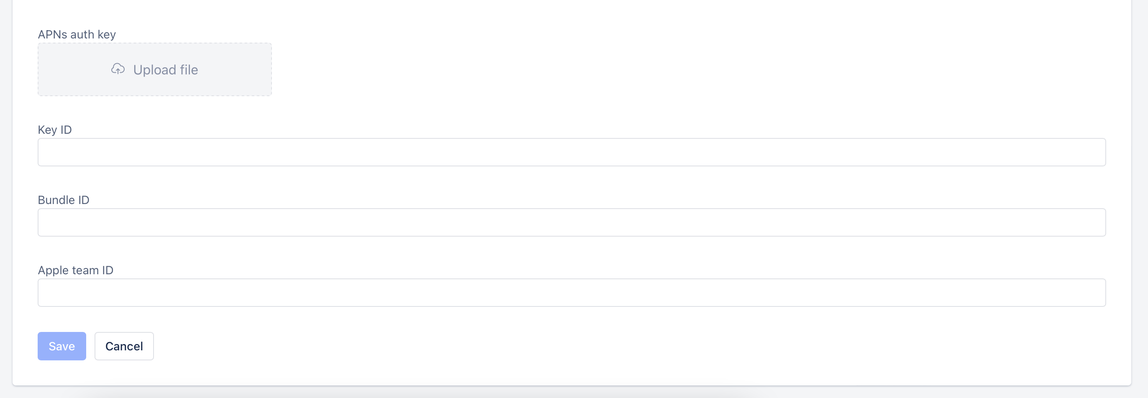
Go to your Chat Settings and select Installation > iOS. In the “Enable Push Notifications” section:- Upload the .p8 file you just created
- Enter the Key ID from Step 1
- Enter the Bundle ID for the app you want to send notifications to
- Enter the Apple team ID
- Click Save Enable Push Notifications To send push notifications through Skara Chat SDK, add the .p8 file, Key ID, Bundle ID, and Apple team ID:
Register Device Tokens
To enable your users to receive push notifications from Salesmate Chat via Skara Chat SDK for iOS, you must request permission to send push notifications and register the device token of your user in yourAppDelegate.
Objective-C
Handling Salesmate Chat Push Notifications
Handle Salesmate Chat SDK push notifications manually indidReceiveNotificationResponse in your UNUserNotificationCenterDelegate:
Objective-C
willPresentNotification in your UNUserNotificationCenterDelegate:
Objective-C