

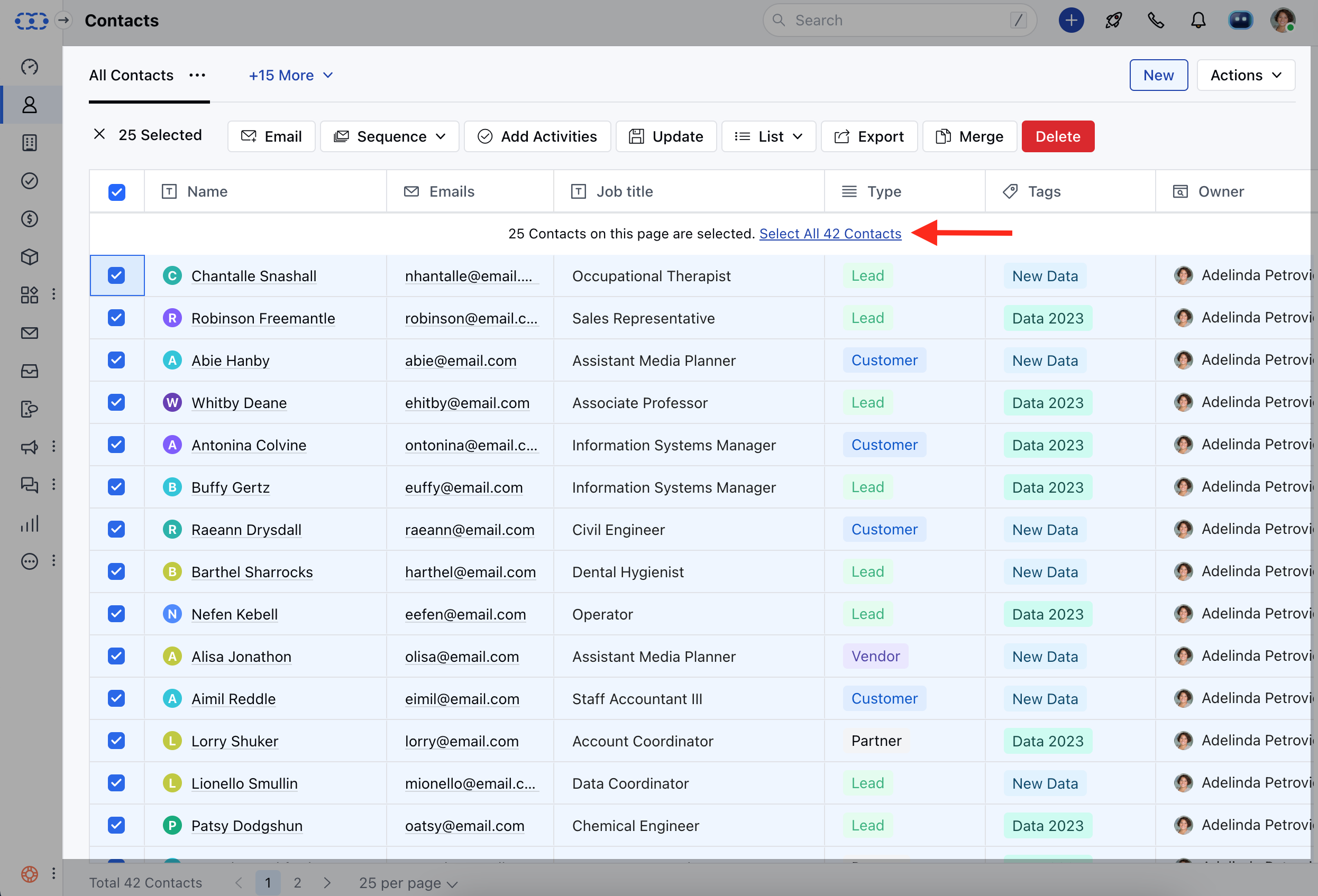
- Bulk emailing includes emails sent using the following features: Bulk EmailScheduling Bulk Emails To send a Bulk email, follow the below steps: Navigate to the Contacts Module from the left sidebarFilter Data through Custom ViewSelect contact or select all by clicking on the checkbox at the top
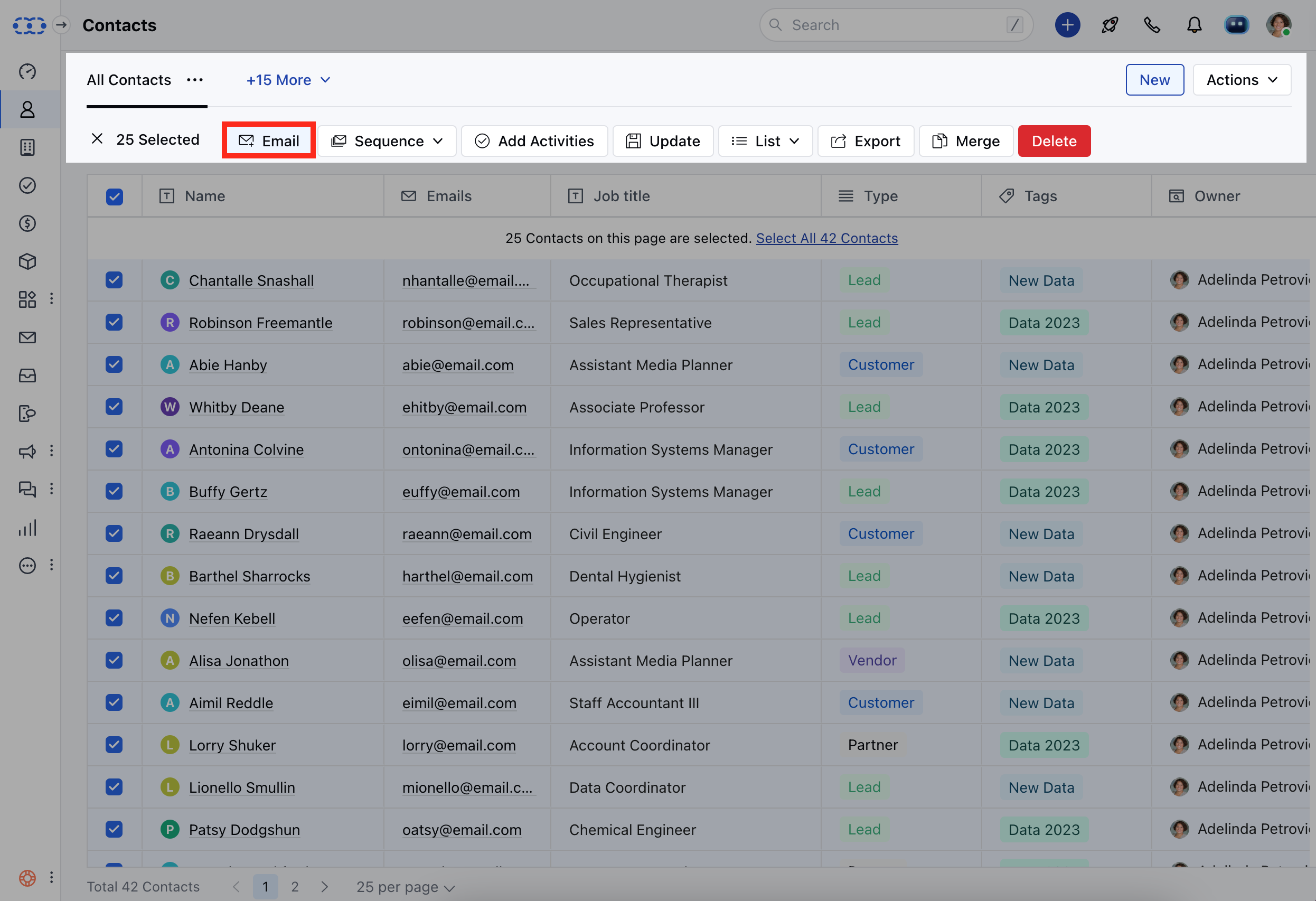

- *To Schedule Bulk emails, follow the below steps:**Navigate to the Contacts Module from the left sidebarFilter Data through Custom ViewSelect contact or select all by clicking on the checkbox at the top
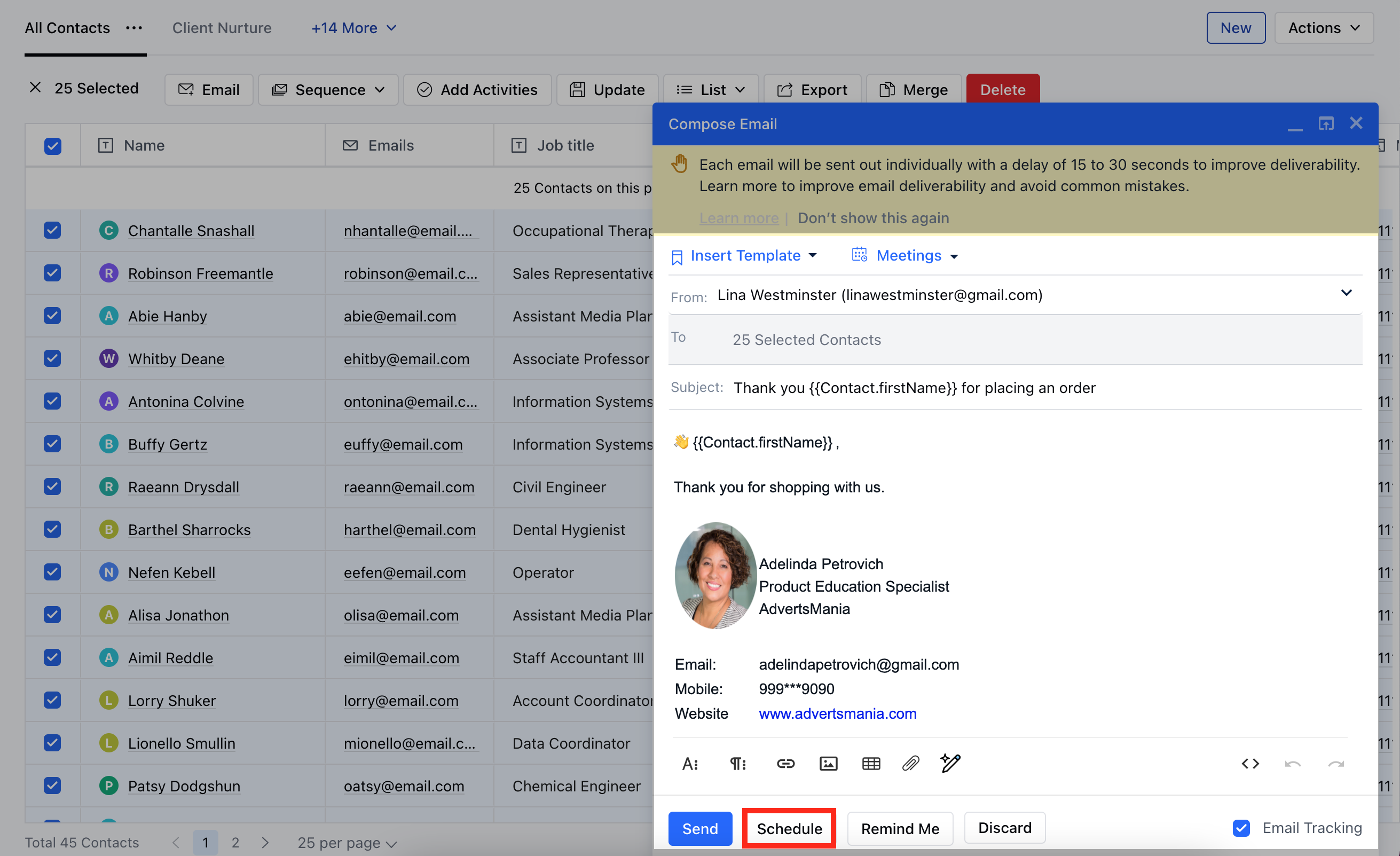
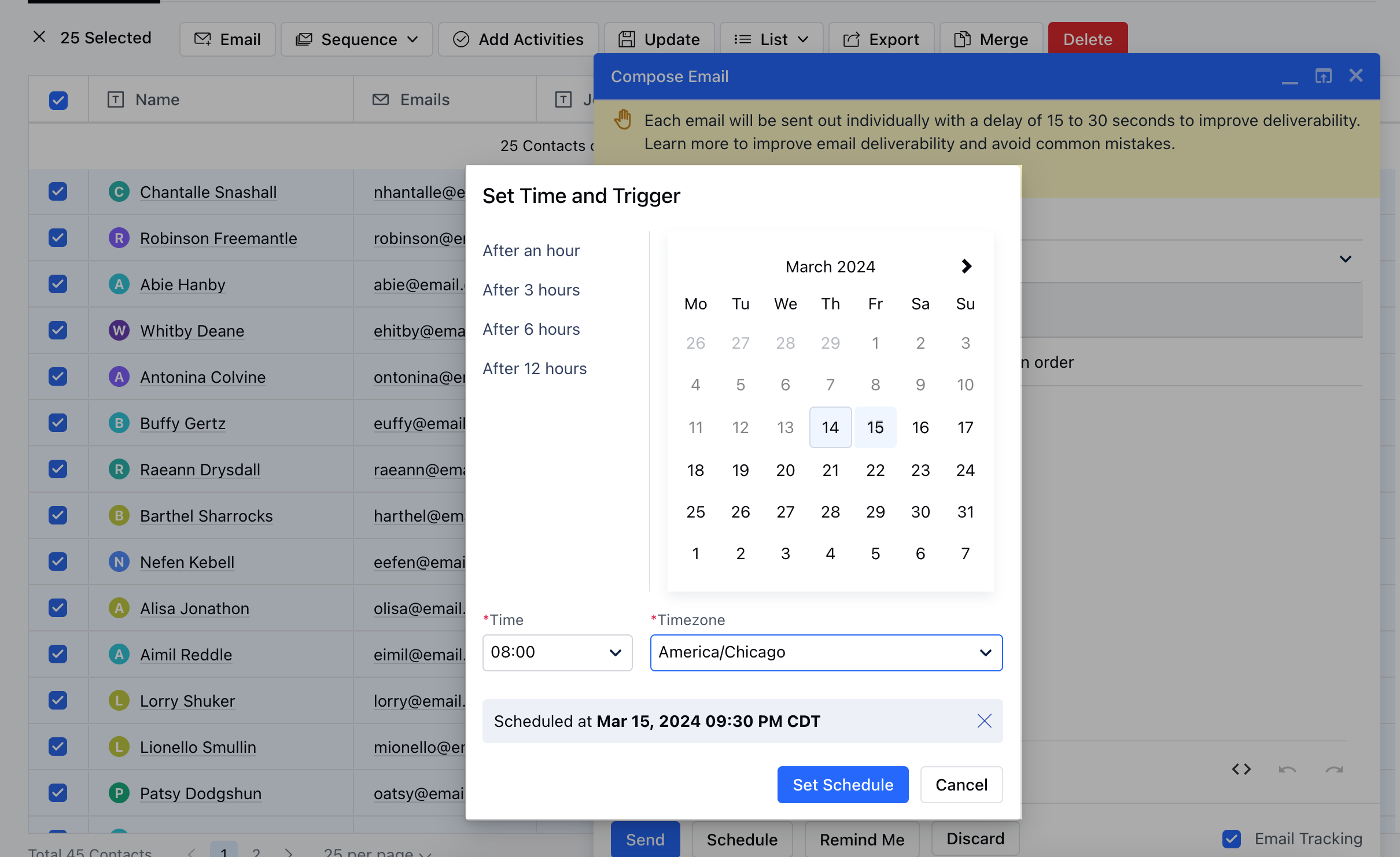
- **Verify the Schedule in the Compose Window and hit **Send.
- **In Salesmate you can send 250 emails in one batch. However, you can send bulk email more than 250 in batches of 250 in go by filtering data in listing page or scrolling to another page.In Salesmate maximum 250 records are shown on one page hence a batch of 250 emails can be created at a time.It is recommended to shoot maximum 250 emails per day to your leads to avoid spamming and slowing of the process.However Salesmate does not restrict the number of emails per day, but your email provider might have restrictions on your per day email, considering the service and packs you have been offered.Reference Links :
- https://support.google.com/a/answer/166852?hl=en
- https://support.google.com/a/answer/2956491#sendinglimitsforrelay
- https://support.google.com/mail/answer/22839?hl=en ** https://support.google.com/mail/answer/81126 Note: The emails are sent from the email account that you connected to in Salesmate.Each email is delivered separately. It appears as it is a direct email.You can format the text as you want to and use email templates too.Email sending is limited to the SMTP sending limits You can also schedule to send your bulk emails later.