How to re-authorize your Email Account
- In case of the Full Email Sync as Gmail or Microsoft Account
- In the case of the Full Email Sync as Custom SMTP
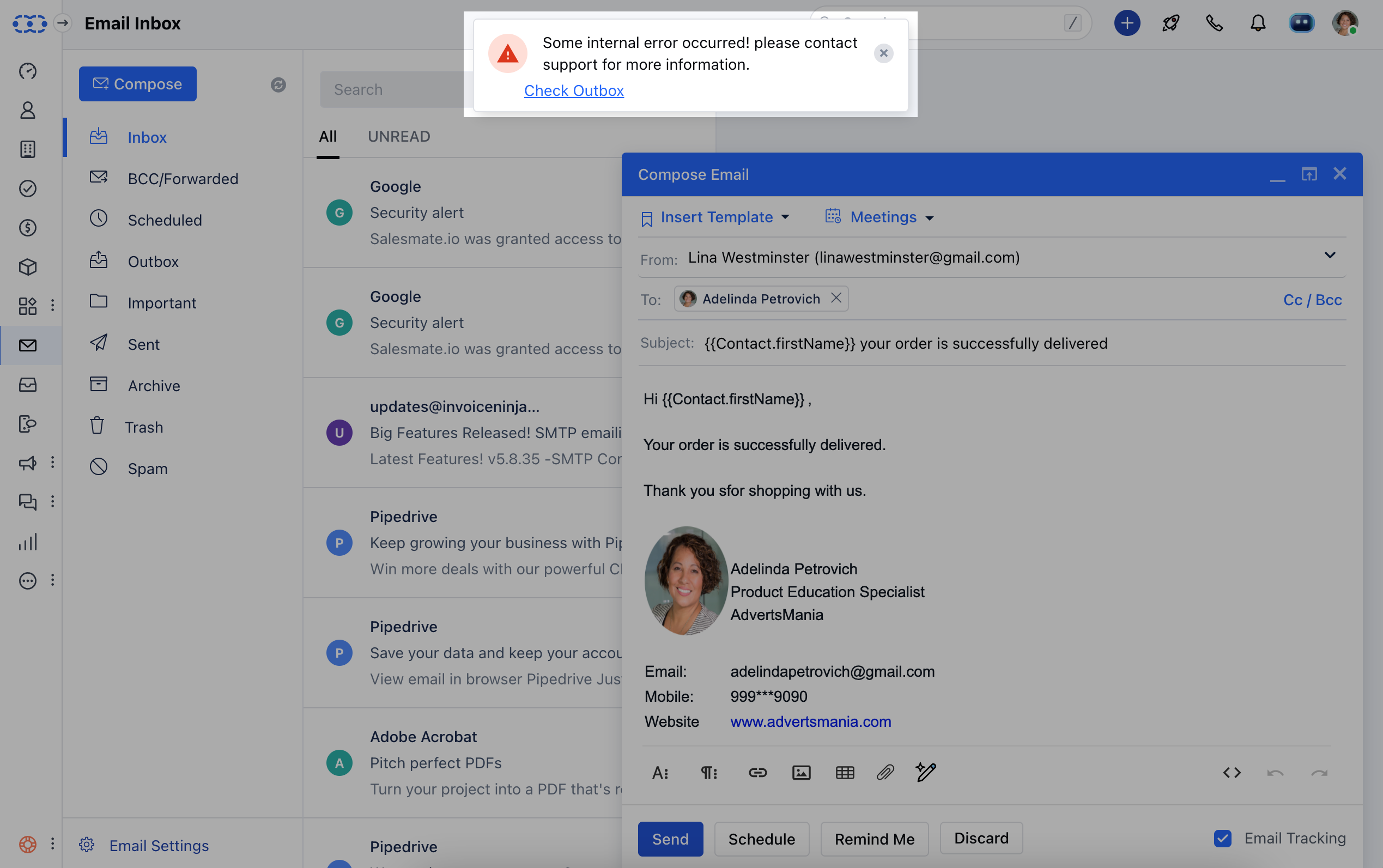
To reauthorize your Email Account when it shows the error,
In case of the Full Email Sync as Gmail or Microsoft Account
Navigate to your **Email Outbox.- **Click on Re-authorize Account on the right of the un-send email **.
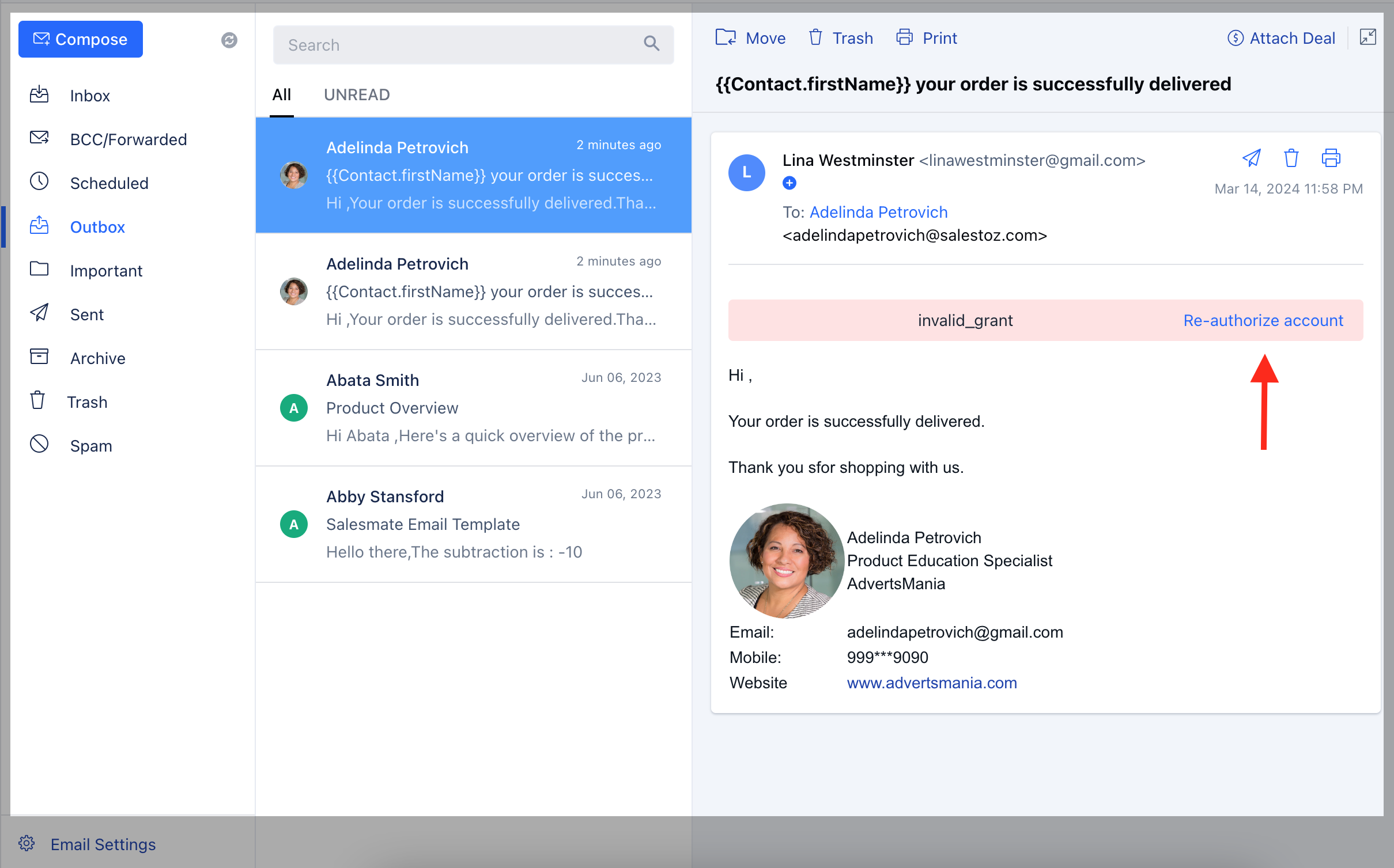
 ** You’ll be redirected to the Gmail or Microsoft login page where you can update your details.
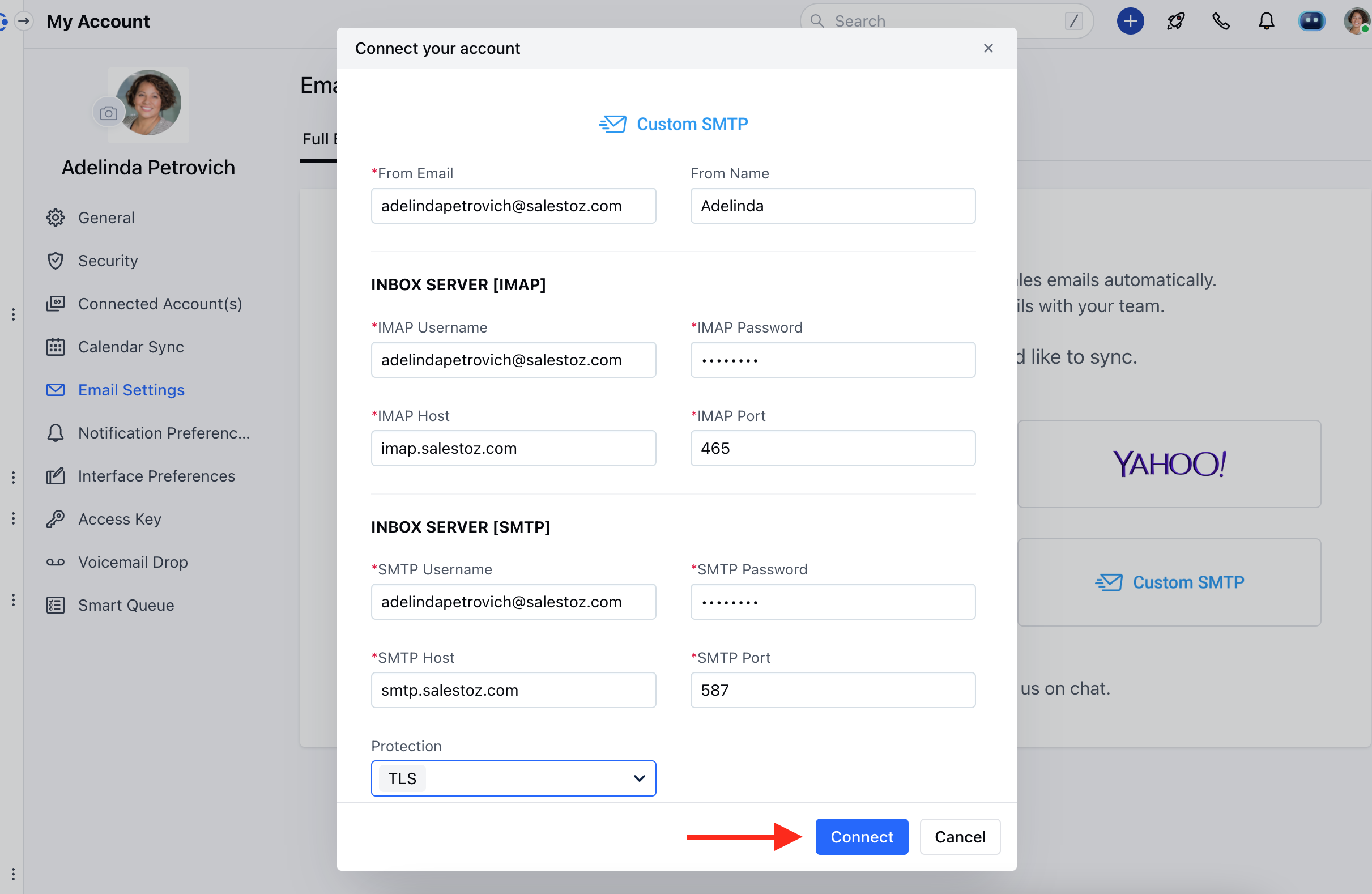
In the case of the Full Email Sync as Custom SMTP
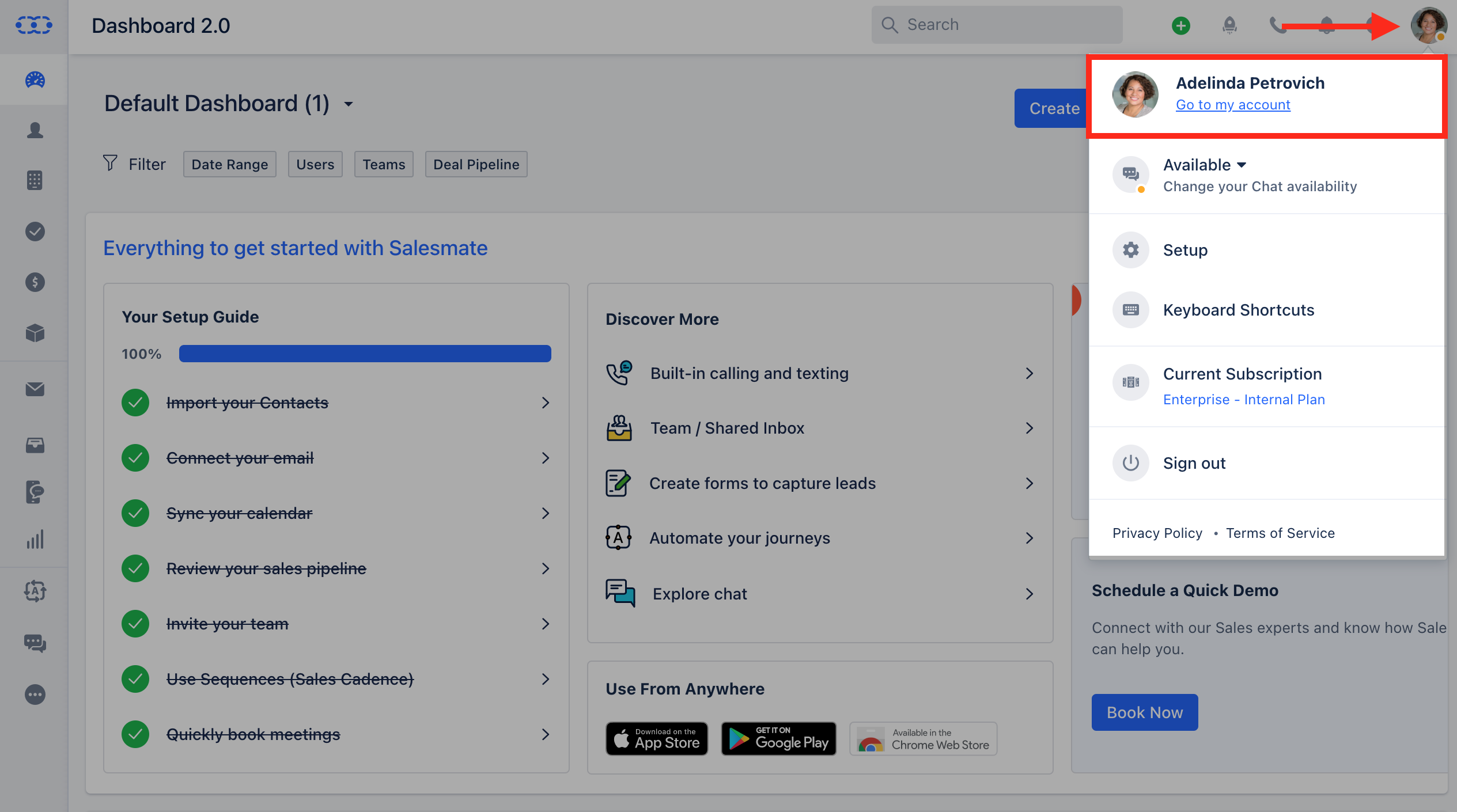
Navigate to your Profile Icon on the top right cornerClick on Go to My Account Head over to** Email Settings ***
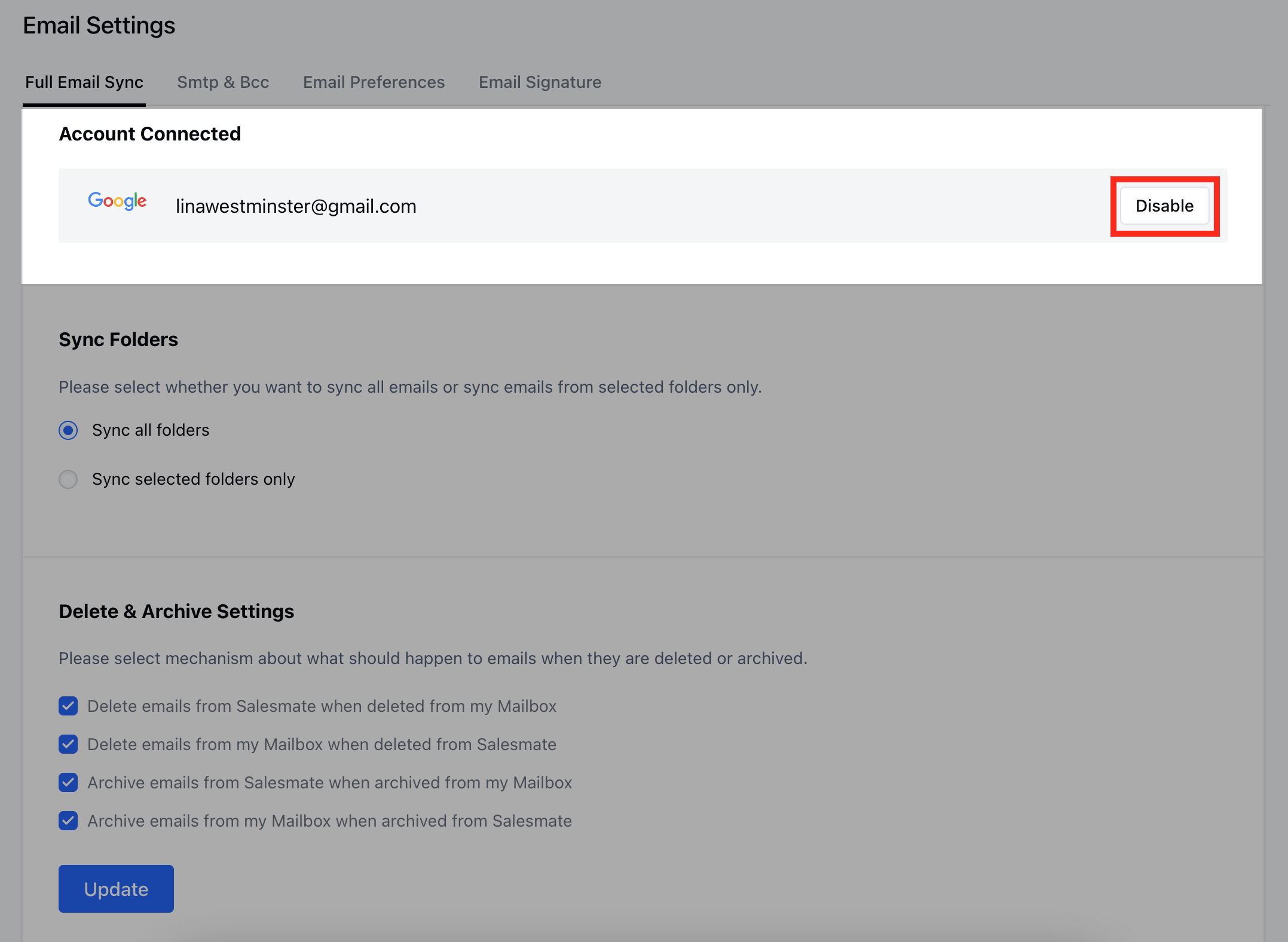
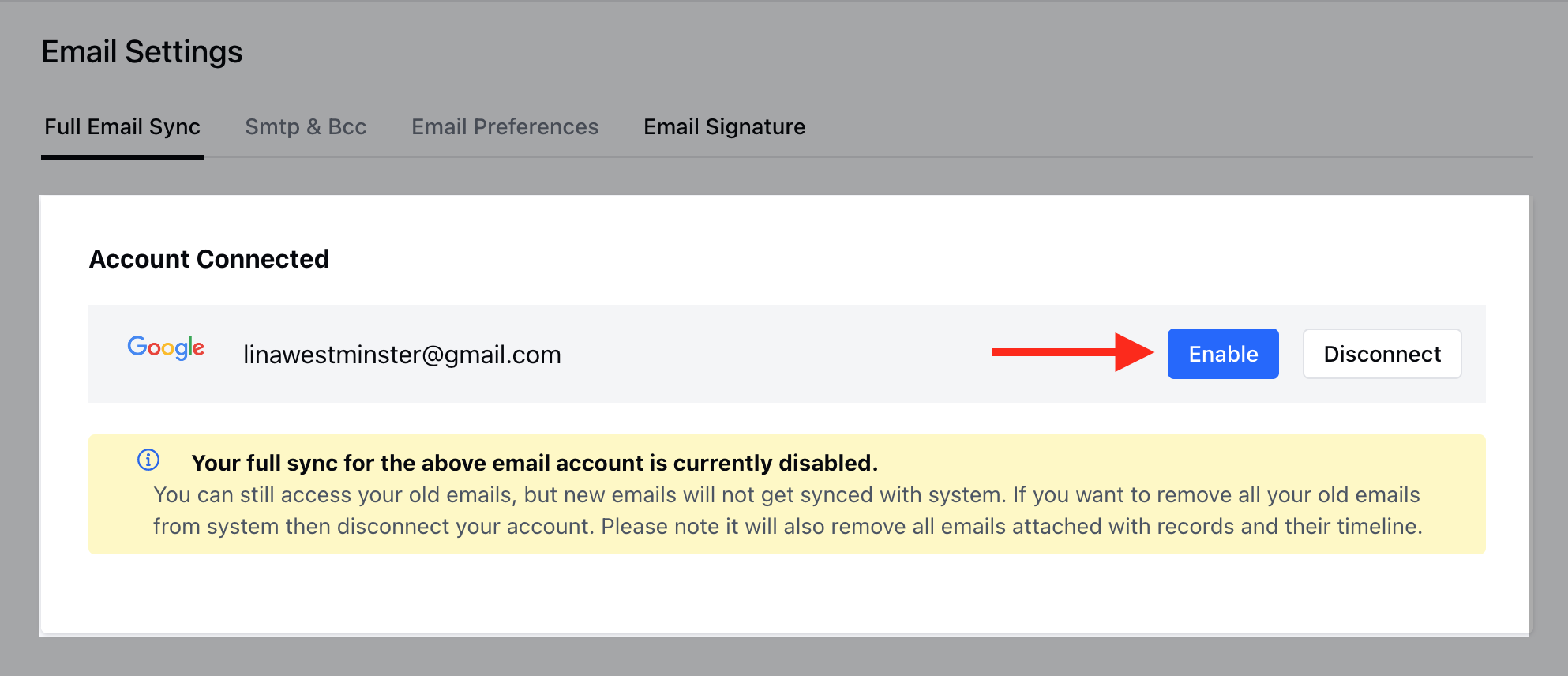
- Go to* Full Email Sync Click on the Disable option on the right of the Email Account.