

Topics covered:
Add a New User and Assign a Seat
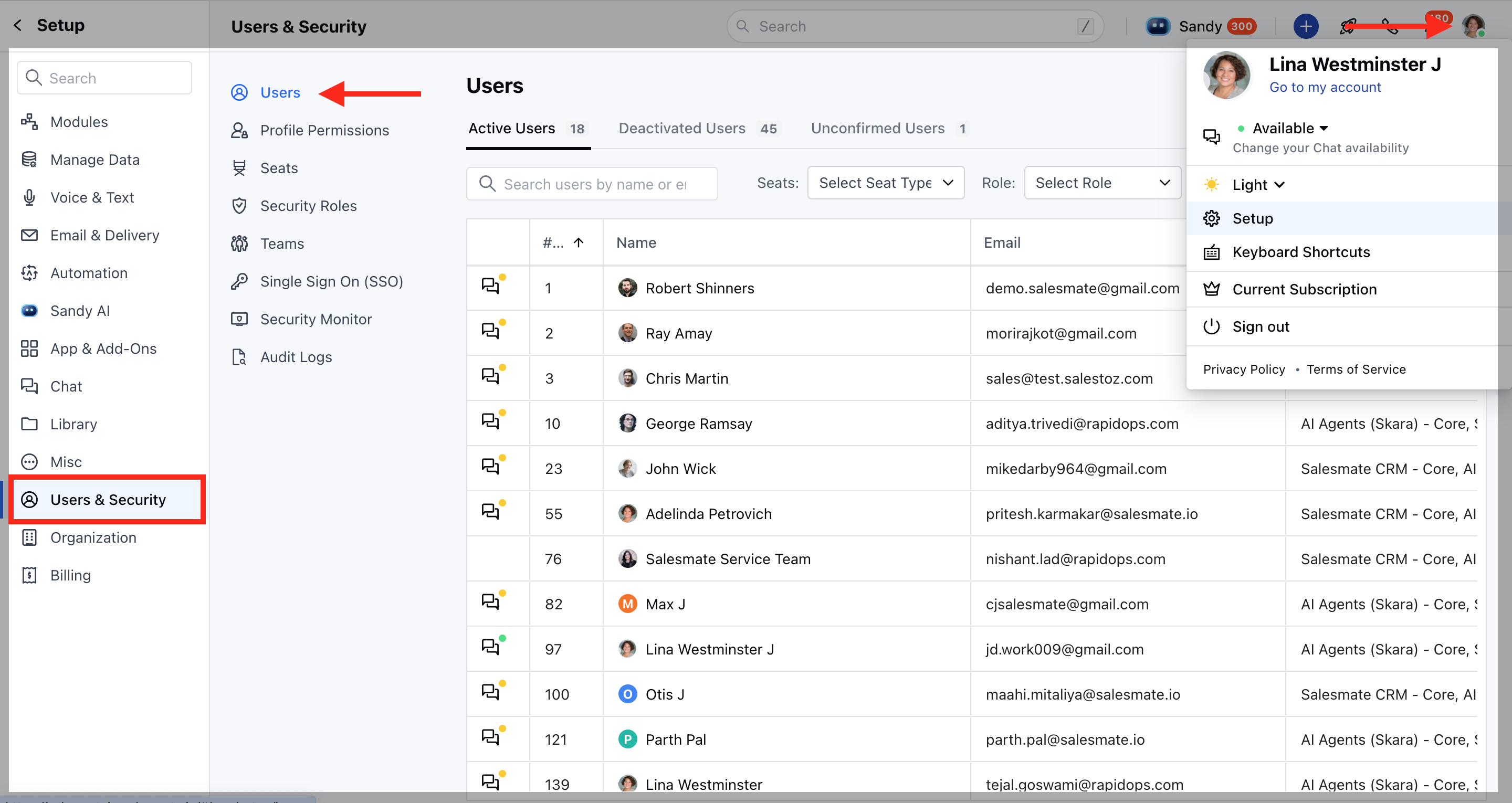
- Navigate to your Profile Icon on the top right corner.
- Click on Setup.
- Head over to the Users & Security category.
- SelectUsers.
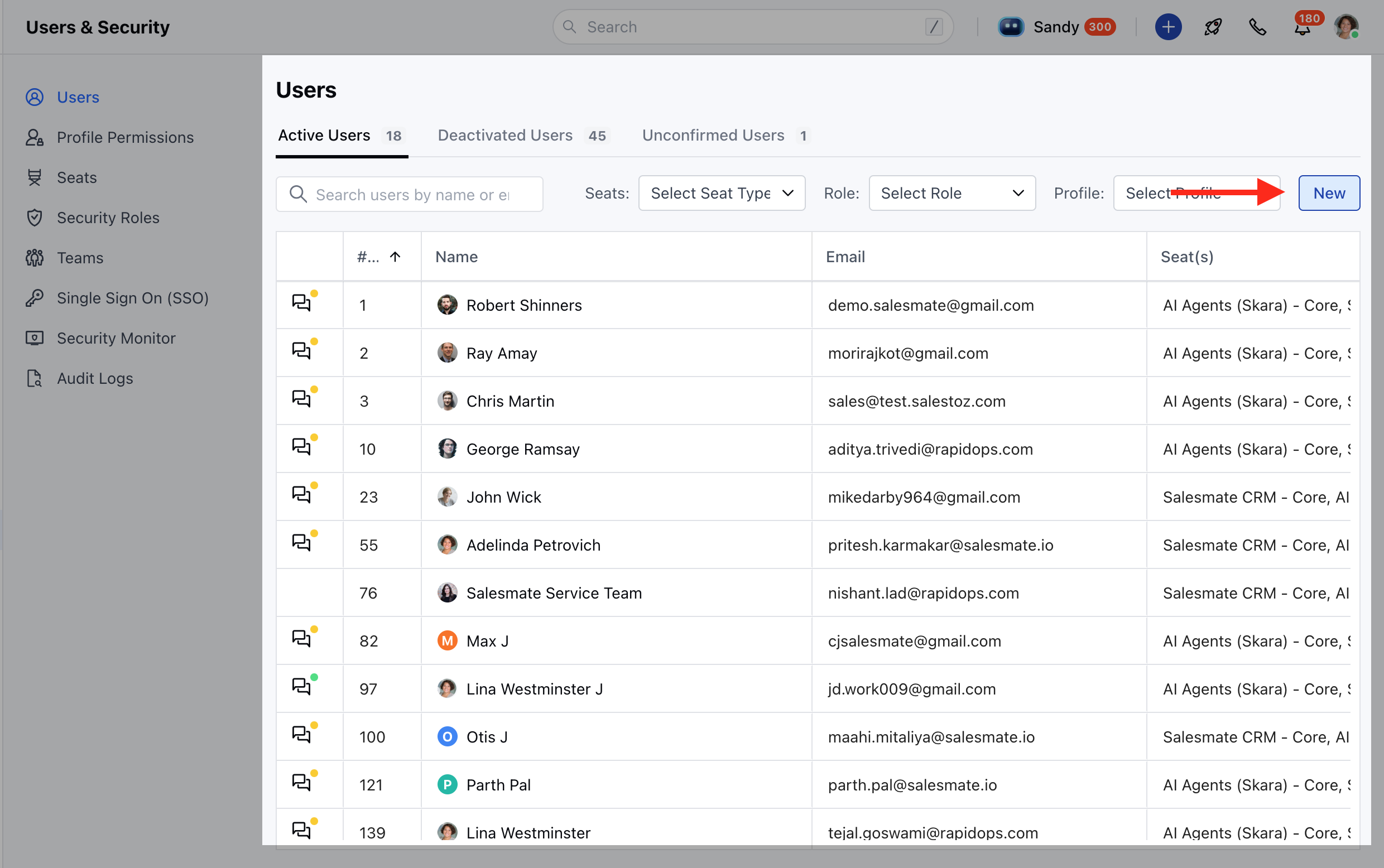
- Click on the New button.
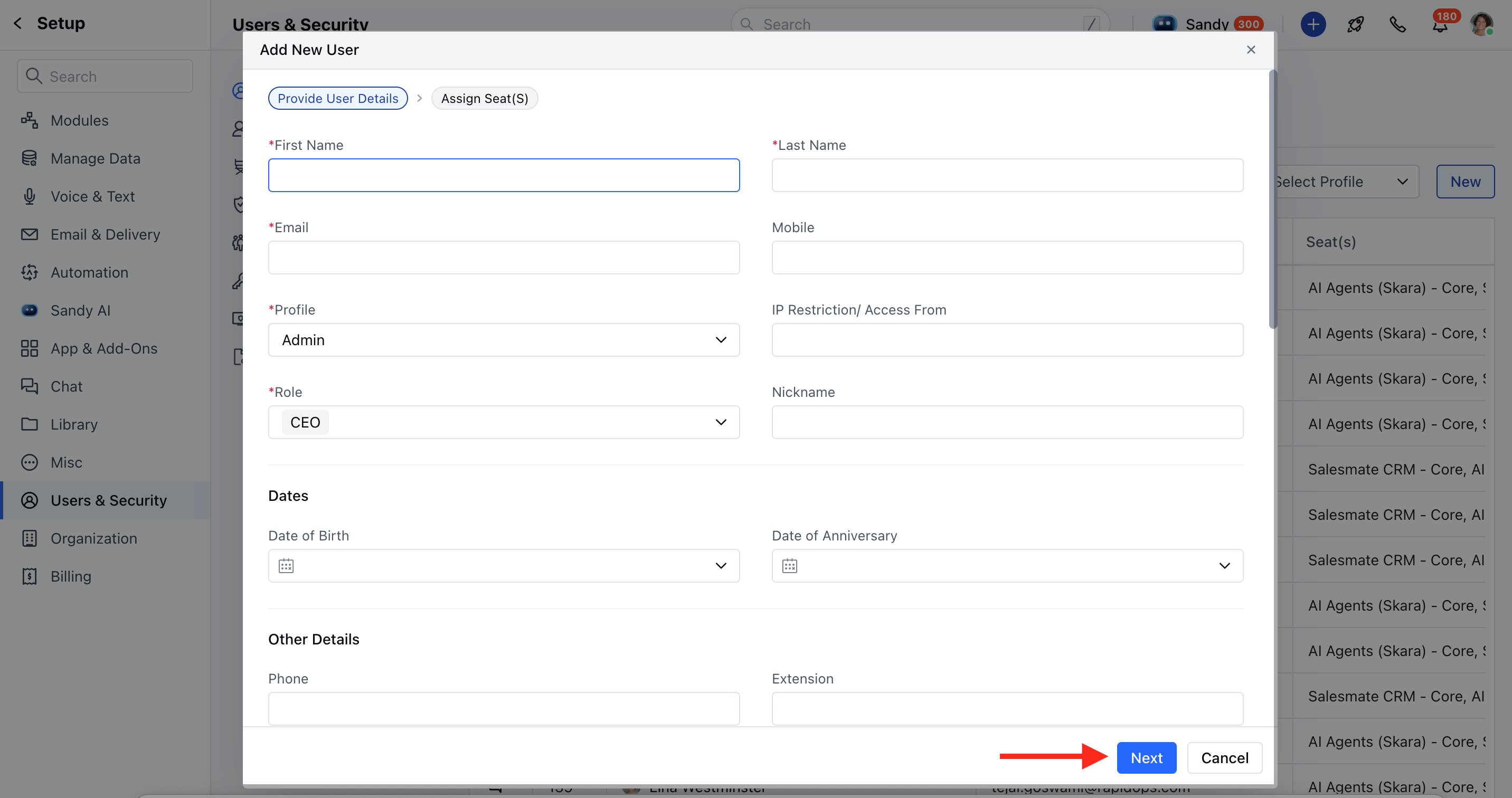
- Enter the required information for the user and click on Next.
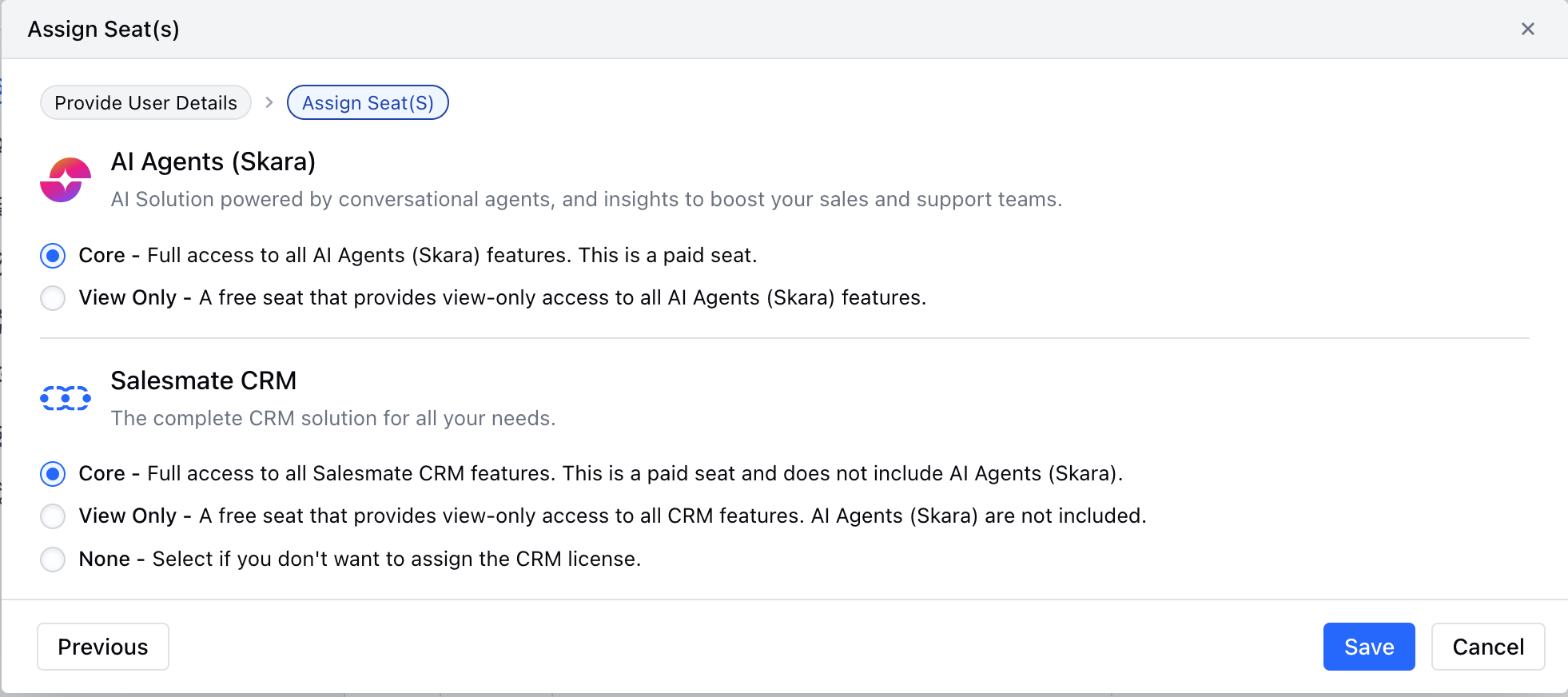
- Choose the type of seat you want to assign:
- AI Agents (Skara): AI solution powered by conversational agents and insights to boost your sales and support teams.
- Core: Full access to all AI Agents (Skara) features. This is a paid seat.
- View Only: A free seat that provides view-only access to all AI Agents (Skara) features.
- Skara: The complete CRM solution for all your business needs.
- Core: Full access to all Skara features. This is a paid seat and does not include AI Agents (Skara).
- View Only: A free seat that provides view-only access to all CRM features and does not include AI Agents (Skara).
- None: Choose this option if you do not want to assign the CRM license.
- AI Agents (Skara): AI solution powered by conversational agents and insights to boost your sales and support teams.
-
Click Save to create the user.
Change Seat for an Existing User
- Navigate to your Profile Icon on the top right corner.
- Click on Setup.
- Head over to the Users & Security category.
- Select Users or Seats.
- From the actions menu, click on Change Seat.
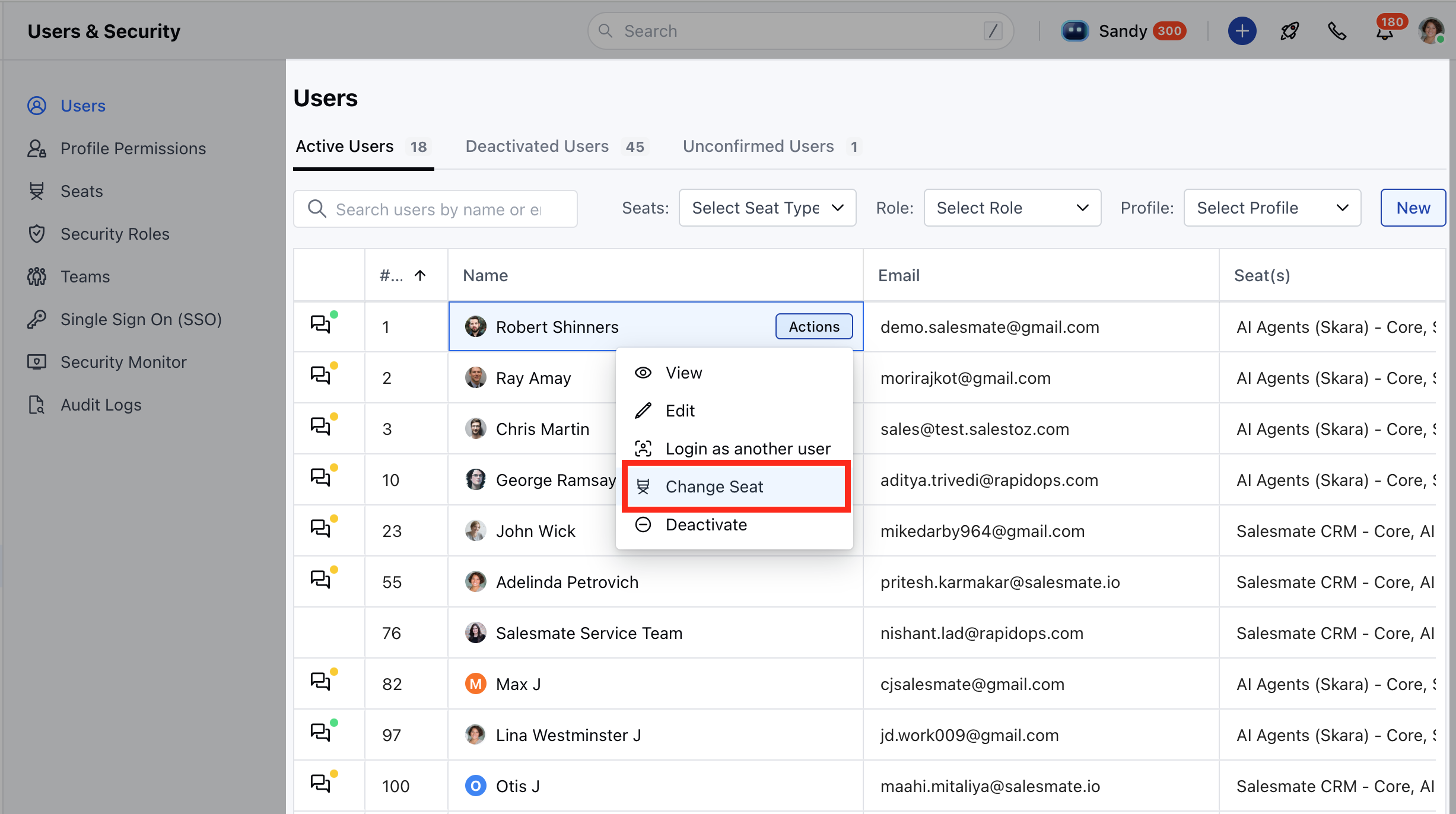
- Select the seat you want to assign or update.
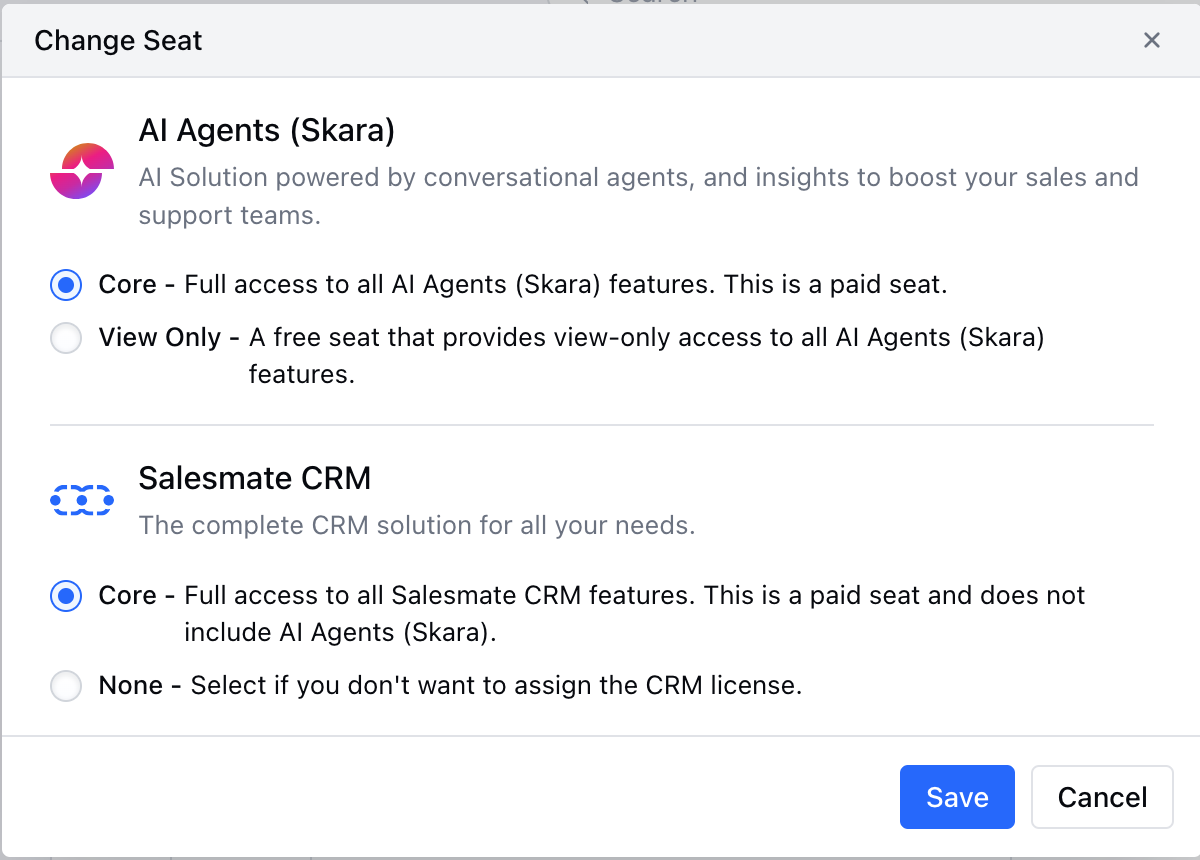
- Click Update to save the changes.