

Topics covered:
View Available Seats
- Navigate to your Profile Icon on the top right corner.
- Click on Setup.
- Head over to the Users & Security category.
- Select Seats.
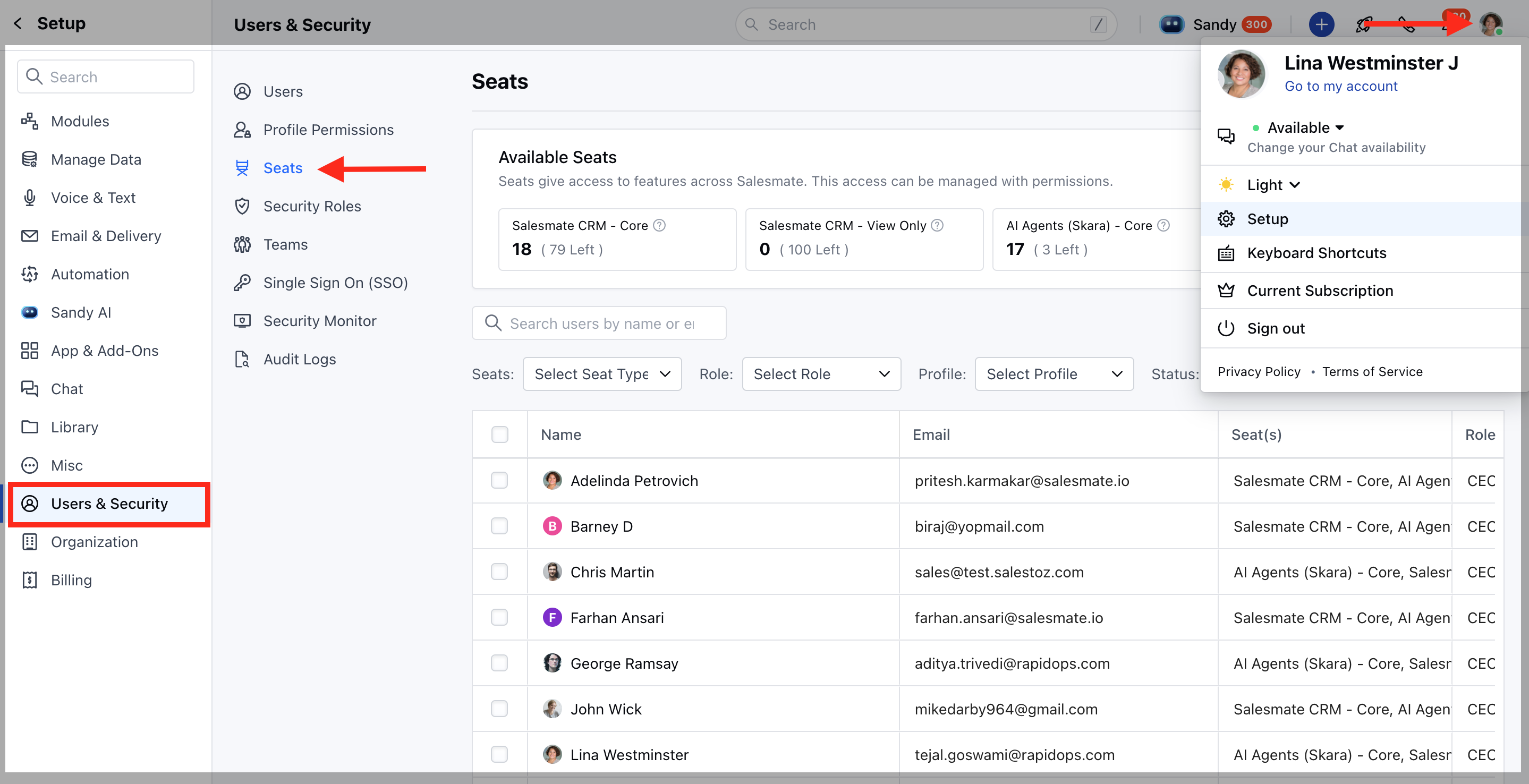
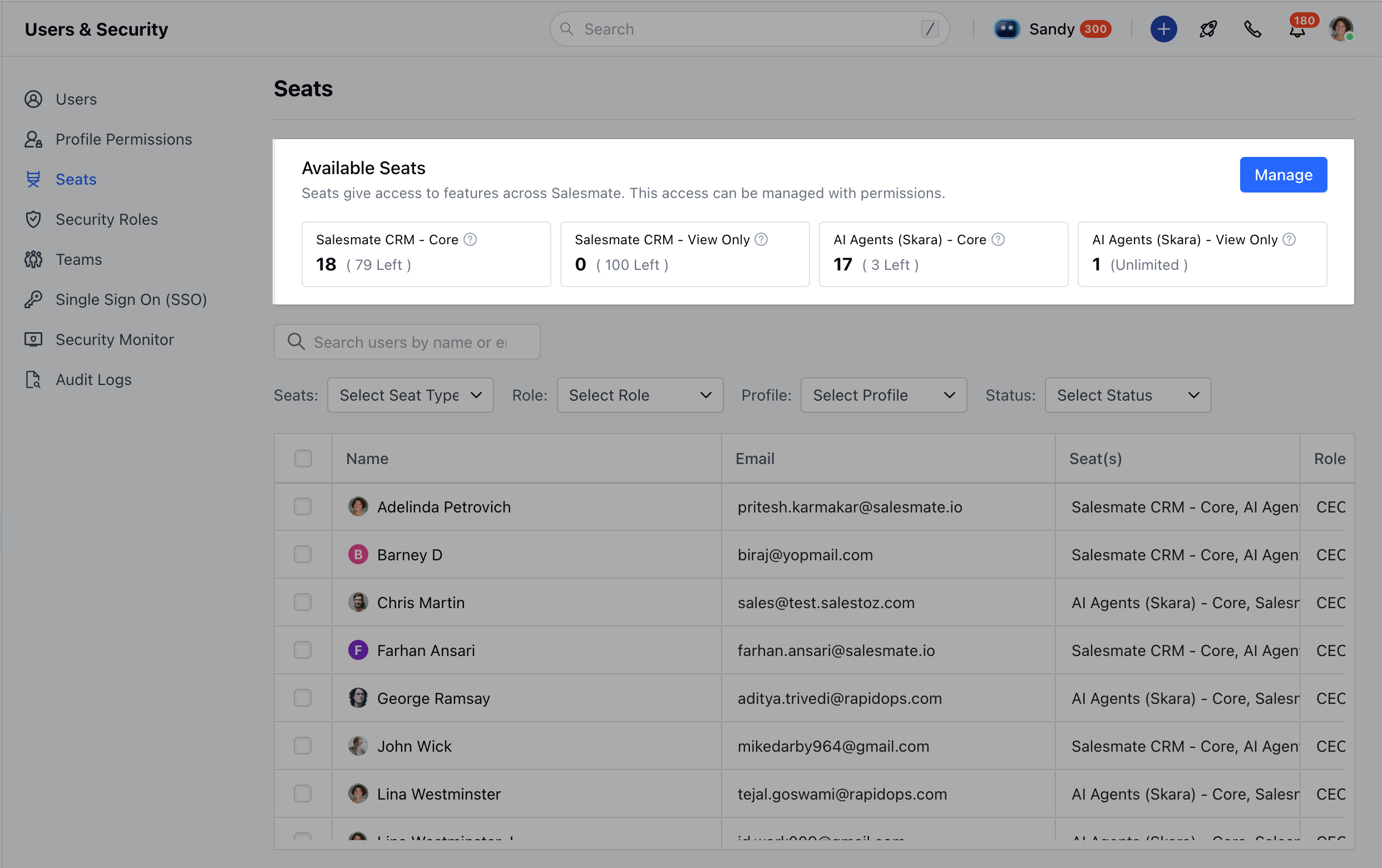
- At the top, under Available Seats, you can see the count of all seats in your account.
- Skara – Core: Total purchased seats and how many are left.
- Skara – View Only: consumed seats and how many are left.
- AI Agents (Skara) – Core: Paid seats and availability.
- AI Agents (Skara) – View Only: consumed seats and how many are left.
- Navigate to your Profile Icon on the top right corner.
- Click on Setup.
- Head over to the Users & Security category.
- Select Seats.
- In the same Seats section, scroll down to see the list of users.
- Each row displays:
- User Name & Email
- Seat(s) (e.g., Skara – Core, AI Agents – View Only)
- Role (Manager, CEO, etc.)
- Profile (Admin, Standard, etc.)
- **Status **(Active, Deactivated, Unconfirmed)
- Last Login
- You can search users by **name **or email to check the seat
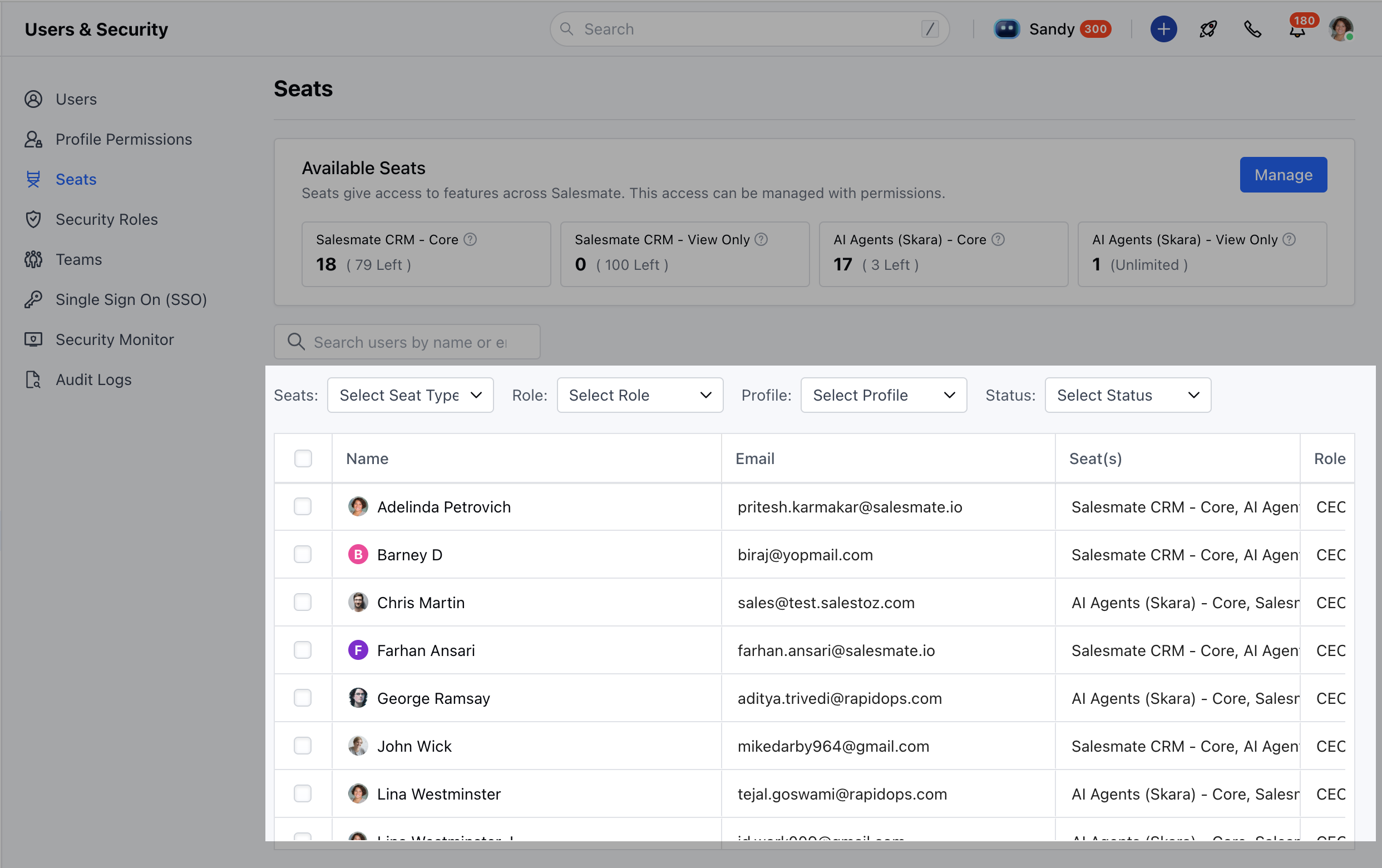
- You can also filter users by Seat Type, Role, Profile, or **Status **using the dropdown filters above the list.