How to Add a User?
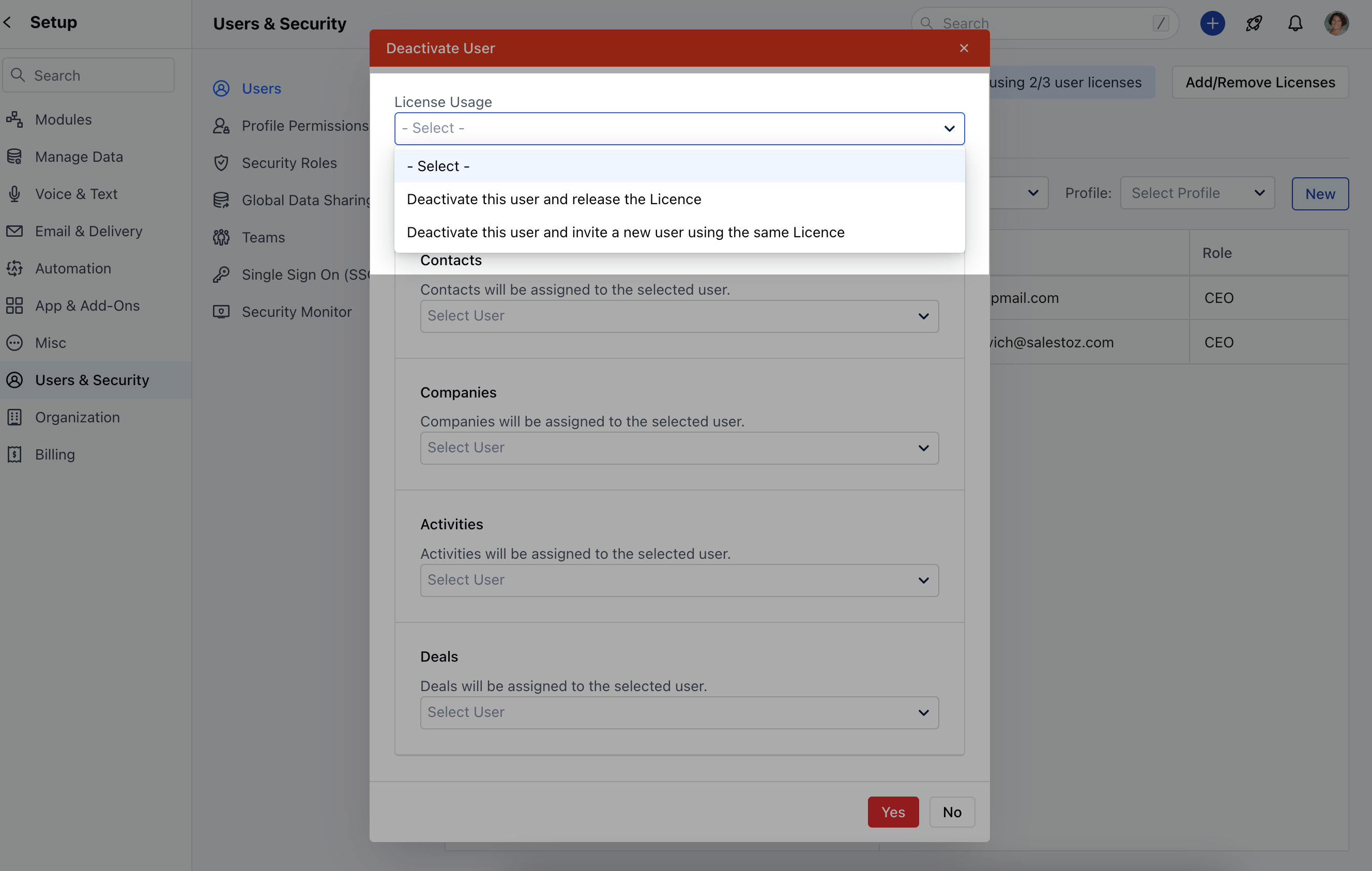
To create a User,- Navigate to your Profile Icon on the top right corner
- Click on Set-Up
- Head over to the Users & Security category
- Select Users
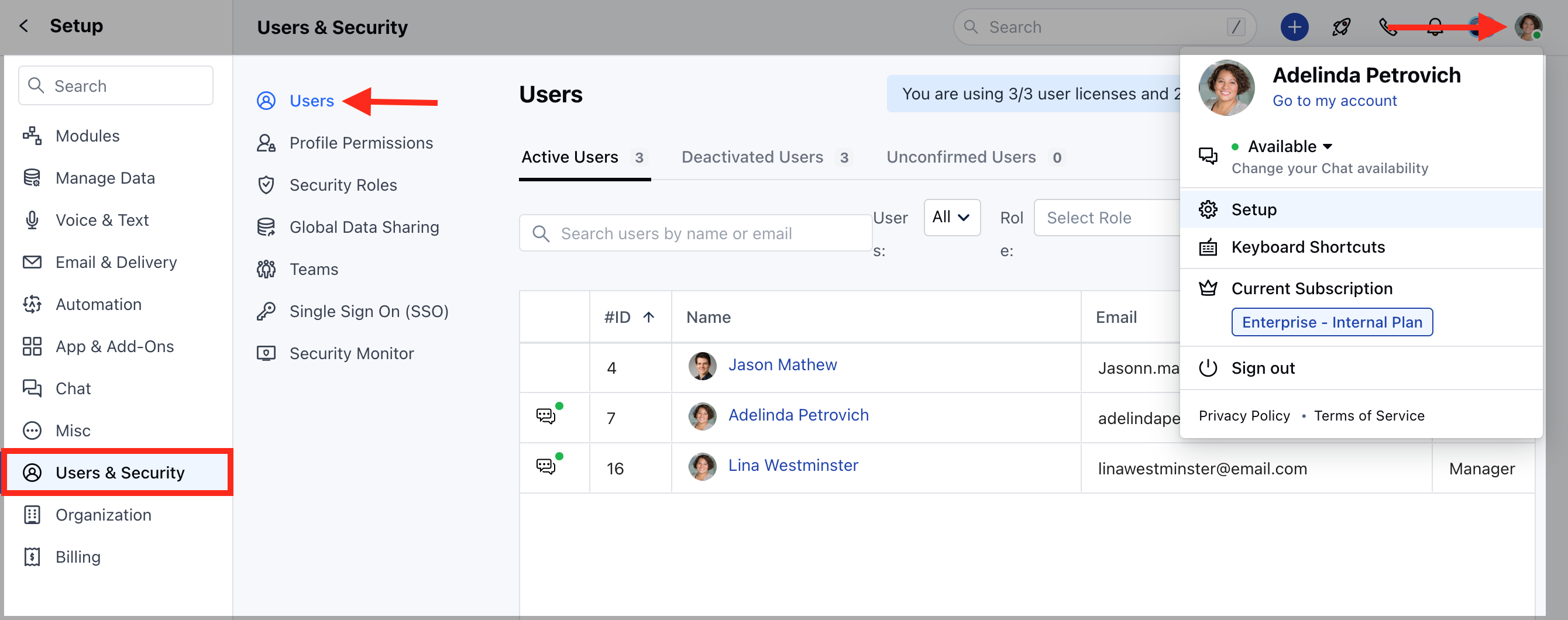
- Click on New
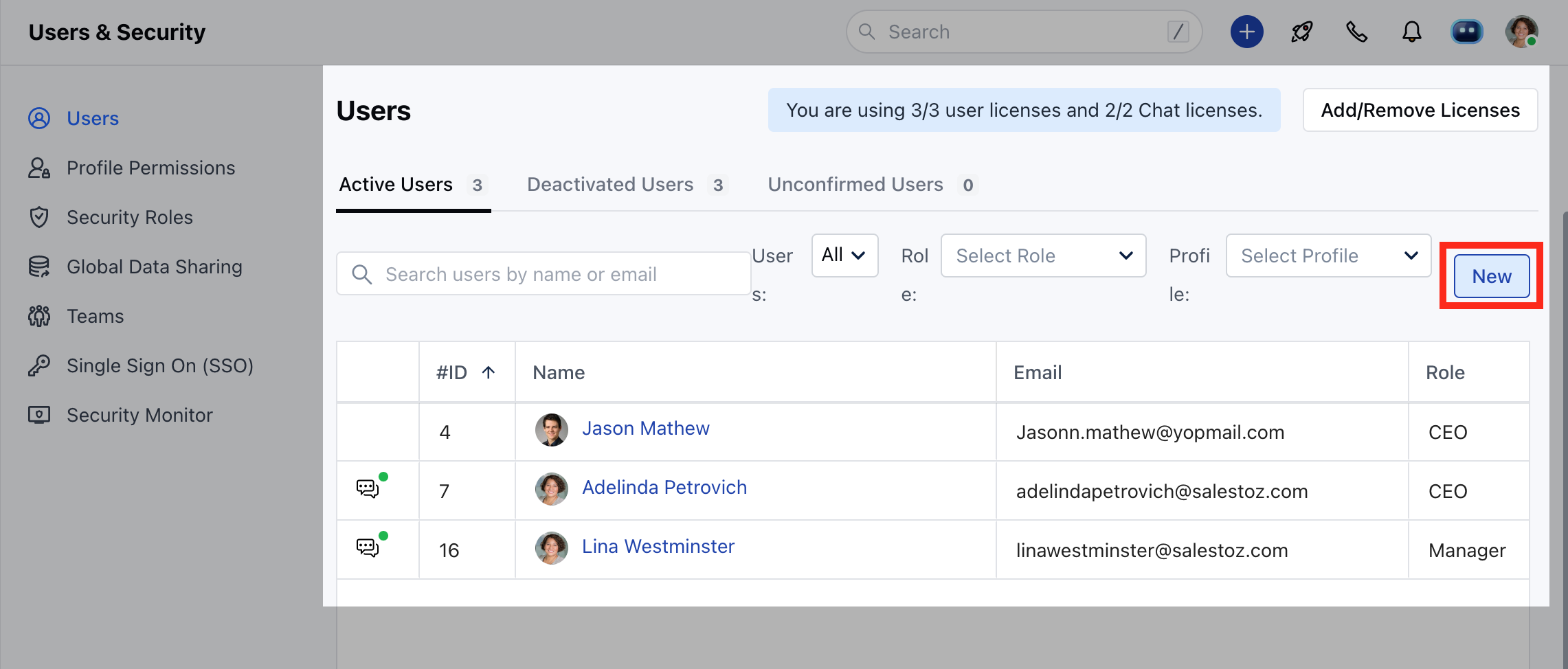
- Add the User details and click on Save
User Fields:
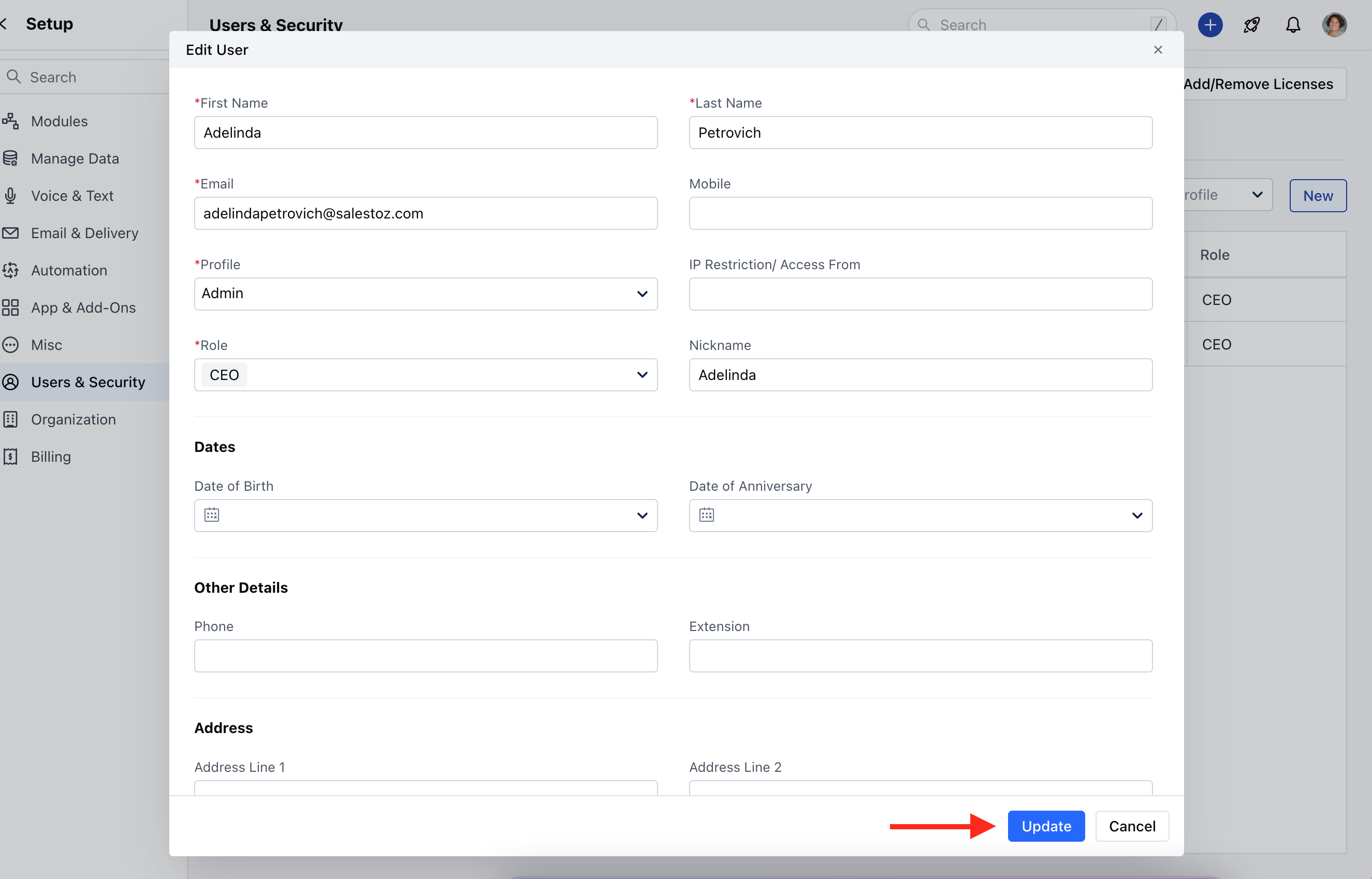
- First Name (Required): The user’s first name
- Last Name (Required): The user’s last name
- Email (Required): The user’s work email address used for login and notifications
- Mobile: The user’s mobile phone number
- Profile (Required): Determines the permission level or access control set for the user (e.g., “Admin”).
- Role (Required): The functional role or designation in the organization (e.g., “CEO”).
- IP Restriction / Access From: This field for restricting access to specific IP addresses.
- If kept blank or * is specified then the users will be able to access it from anywhere.
- If a specific IP or a set of IPS separated by commas are mentioned then users will be able to access the system from those specific IP addresses only.
- Date fields:
- Date of Birth: The user’s birthday
- Date of Anniversary: The user’s anniversary (if applicable)
- Other fields:
- Phone: Additional phone field
- Extension: Phone extension number (if applicable)
- Address fields: The users address, could be residence or an alternate address that you would like to capture in the system.
- Address Line 1, Address Line 2, Area, City, State, Country, Zip Code.
- Deal Capacity: The number of deals that can be assigned to this user.
- Email Signature: User’s email signature. Useful to the admin while creating the user to maintain branding across all email communications.
Note: You can add the user depending on the number of user licenses as per the purchased plans.
How to Edit the User Details?
To Edit the details,- Navigate to your Profile Icon on the top right corner
- Click on Set-Up
- Head over to the Users & Security category
- SelectUsers
- Hover over to the User Name, Actions button will appear next to the name.
- Click on the Actions Button and select Edit
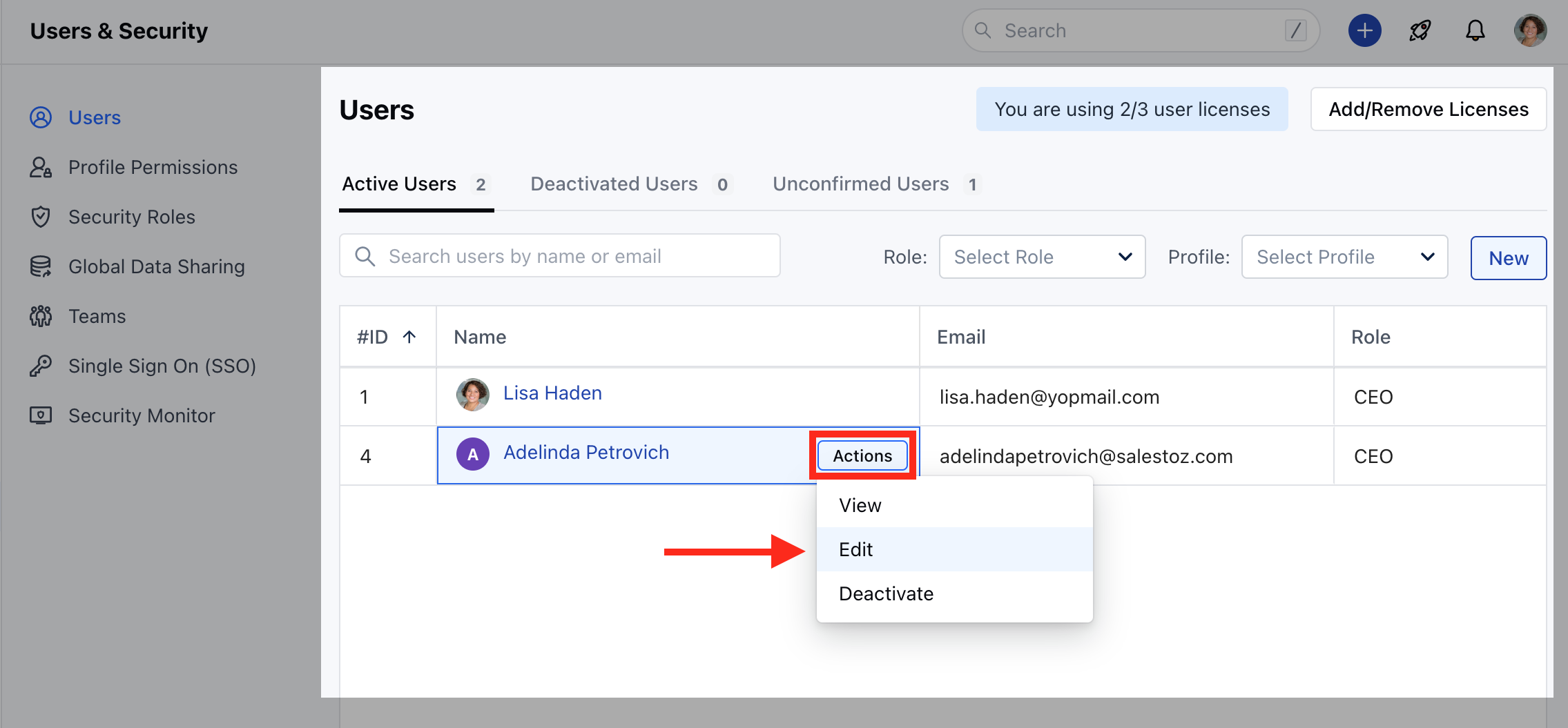
- Here you can Edit any details and click on Update.
How to Deactivate the User?
To Deactivate the User,- Navigate to your Profile Icon on the top right corner
- Click on Set-Up
- Head over to the Users & Security category
- SelectUsers
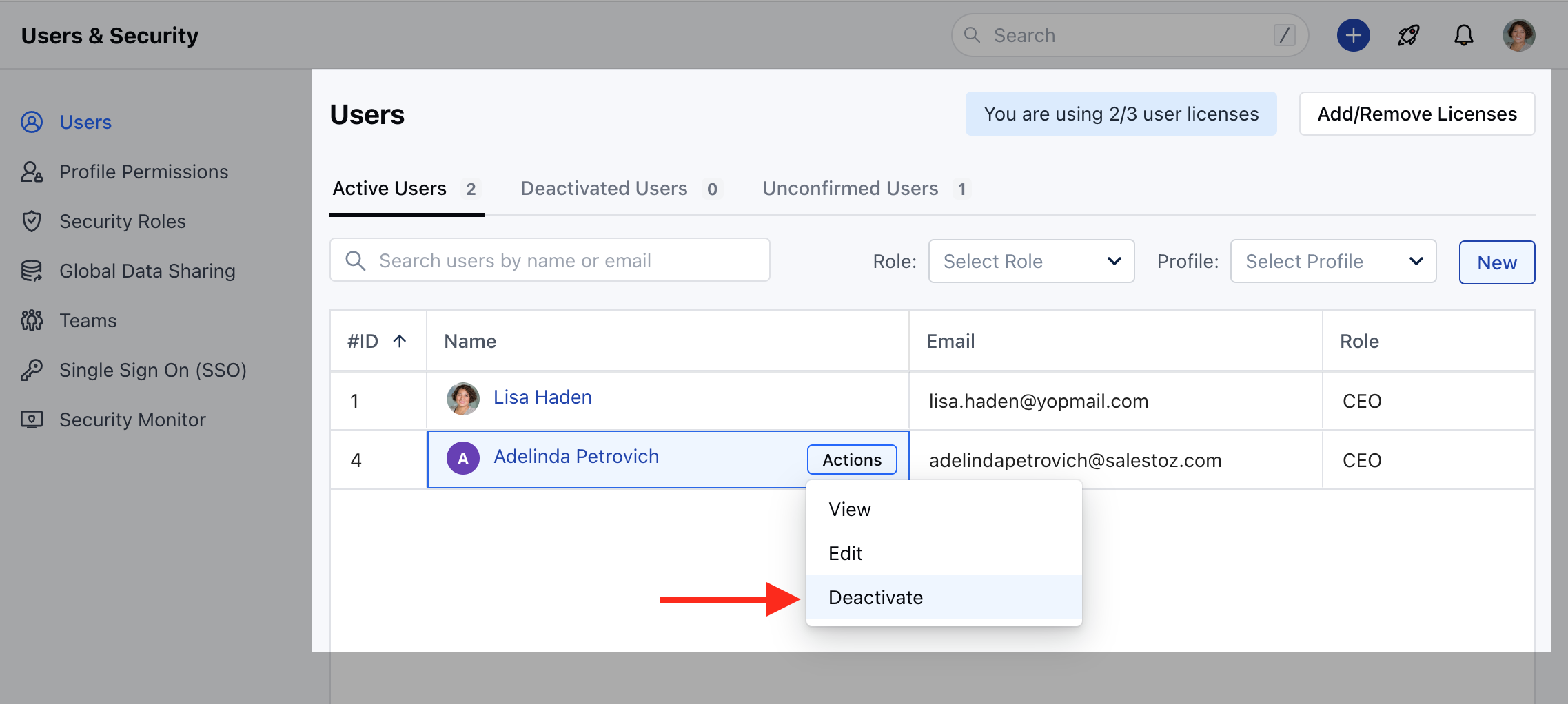
- Click on the Actions button next to the User Name.
- Select Deactivate
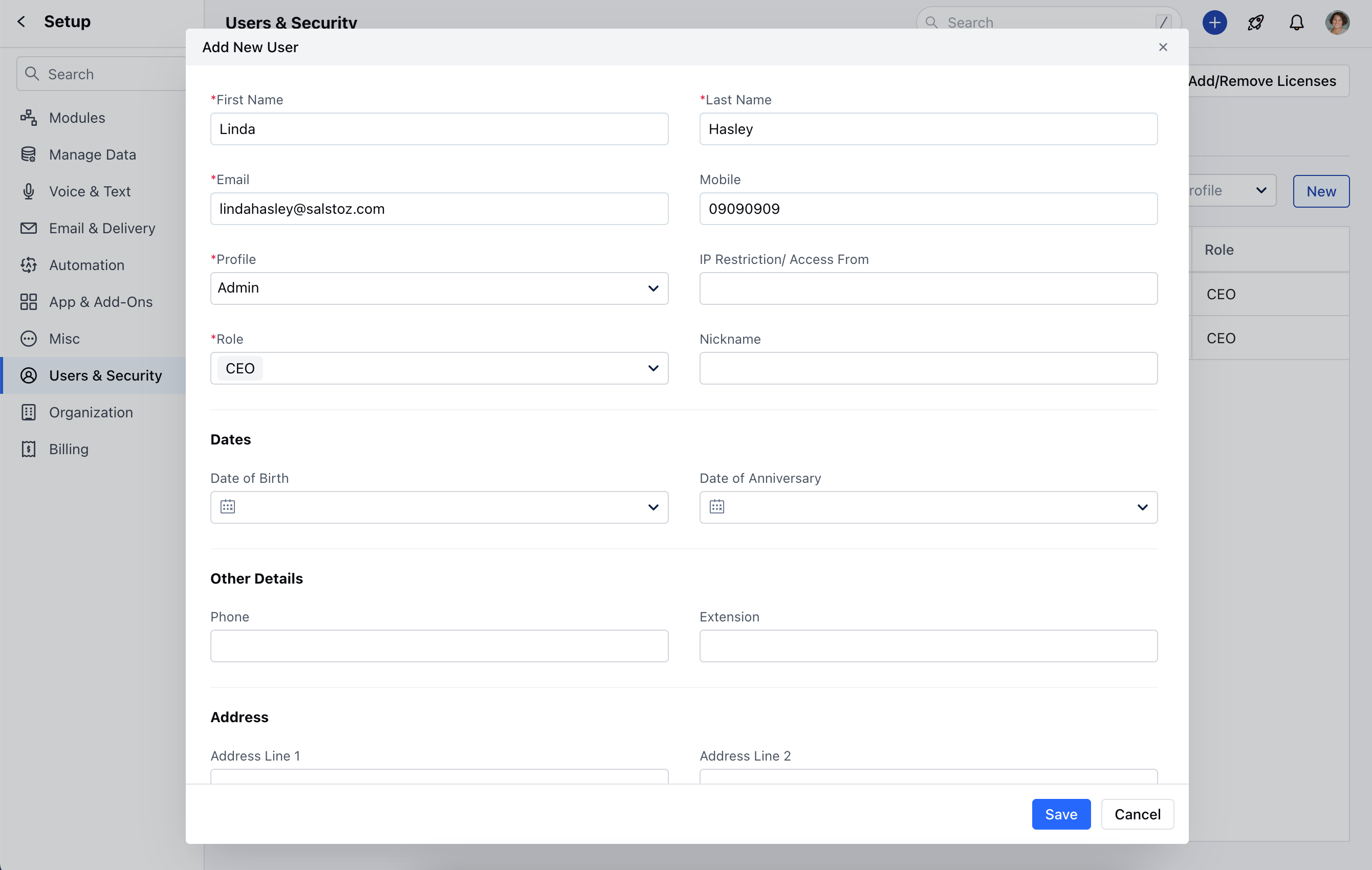
- The User deactivation can be done with two options,
- Deactivate this User and release the license
- Deactivate this User and invite a new user using the same license
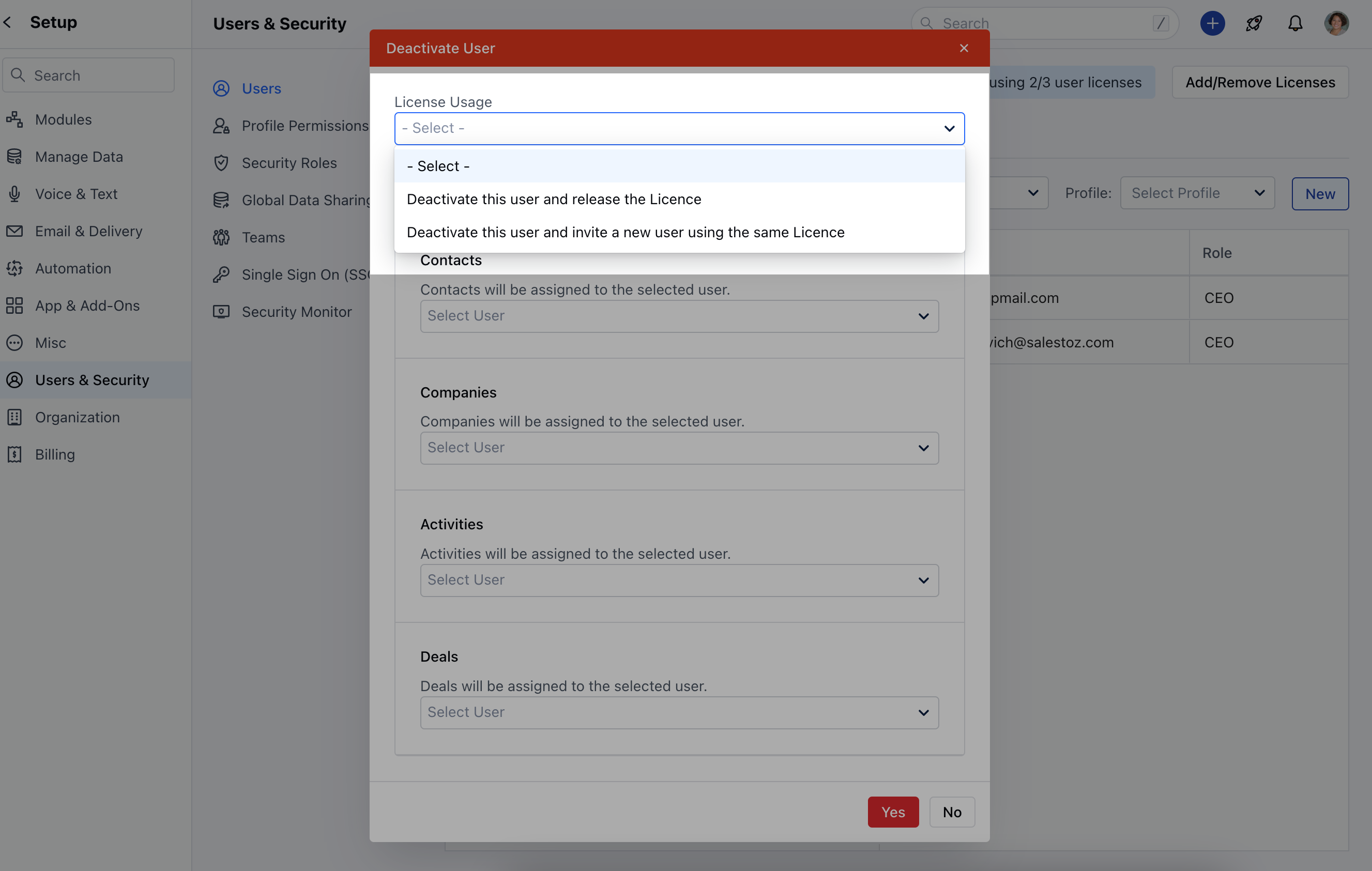
- You can also assign Contact, Company, Activities, or Deal records to any other Users.
- Click on Yes to confirm the User Deactivation.